

How to Confirm Successful Integration
1
Complete the Integration Process
After connecting your Zoho account with EazyBe, you will be automatically redirected back to WhatsApp.
2
Check for the Zoho Icon
Look for the Zoho icon in the right sidebar of the EazyBe extension panel.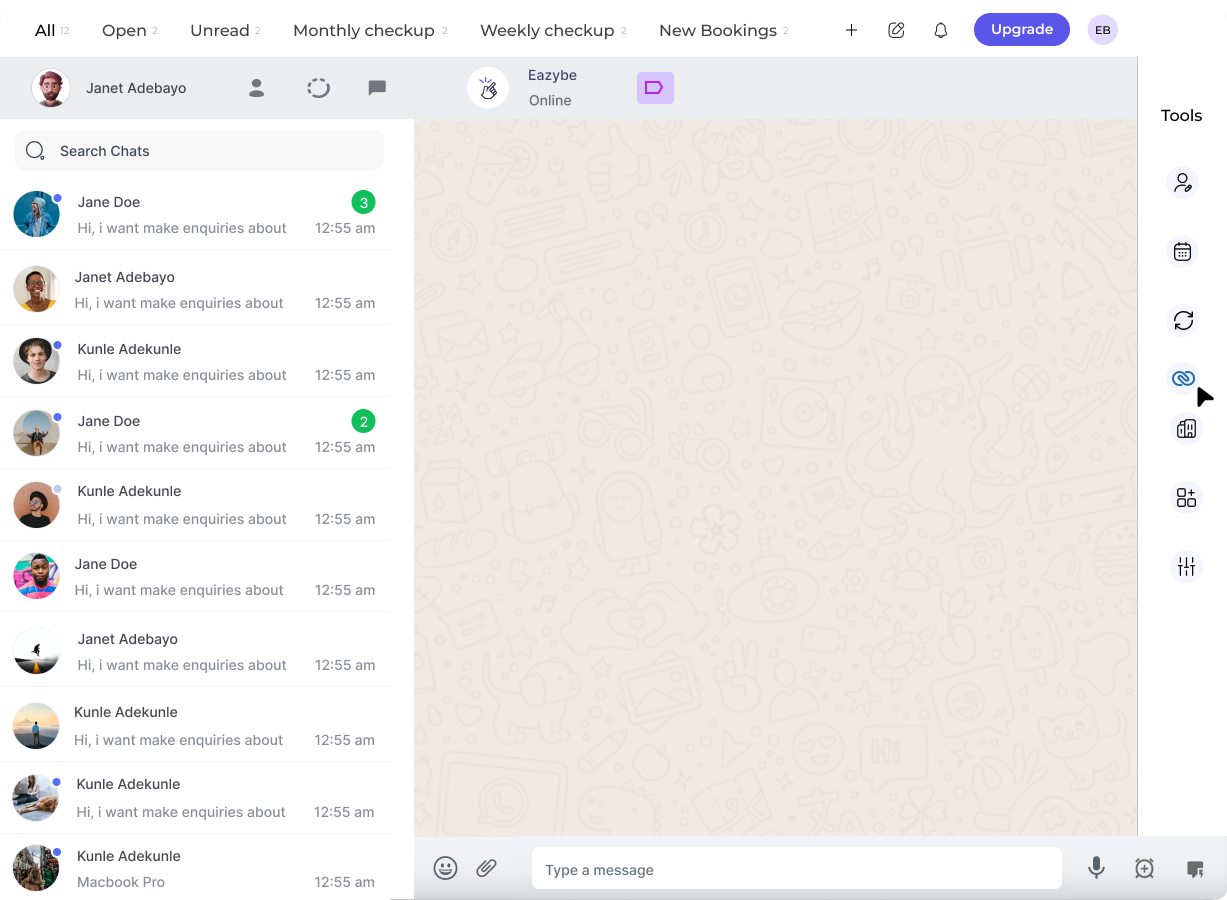
3
Verify the Integration
If you can see the Zoho icon in the sidebar, it indicates that the integration has been successfully completed.
The Zoho icon appearing in the sidebar confirms that your CRM is now connected and you can start syncing contacts and messages between WhatsApp and Zoho.