

Overview
Adding team members to your Eazybe organization enables collaborative WhatsApp management. This guide walks you through the process of inviting employees to join your workspace.Steps to Invite Your Team
1
Access Organization Settings
Navigate to the Organization settings by visiting workspace.eazybe.com/organization.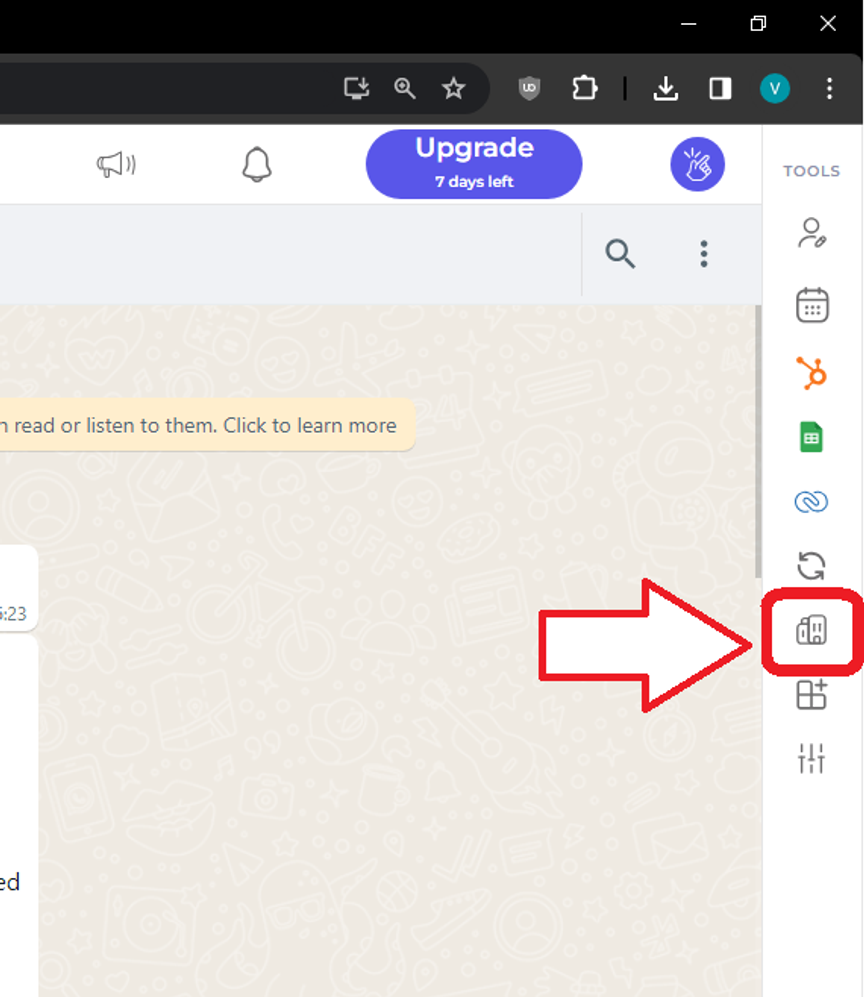
2
Navigate to Employees Section
Select Employees from the menu, then click Add Employees.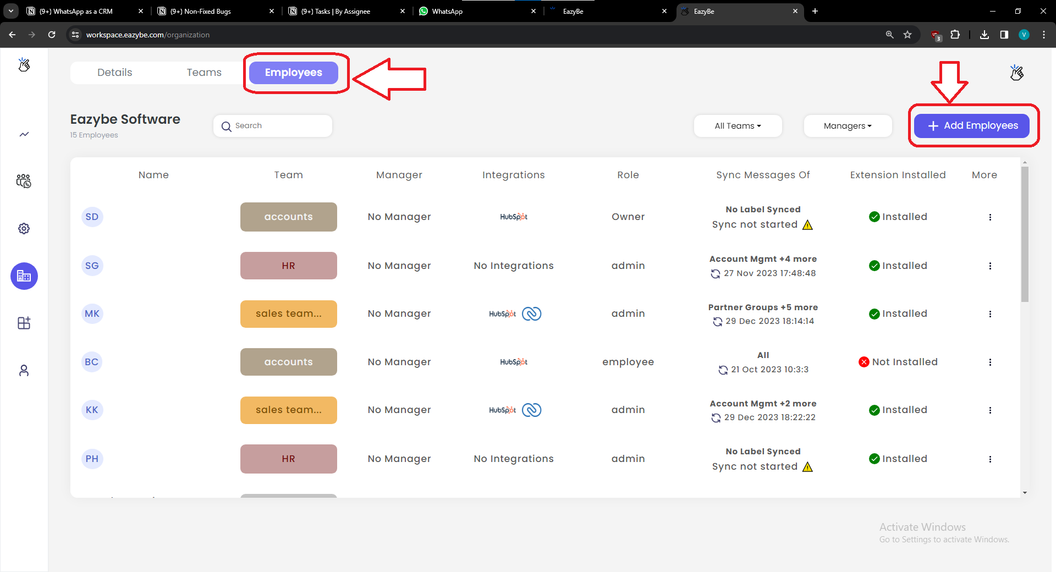
3
Enter Employee Information
Fill in the required employee details and send invitations: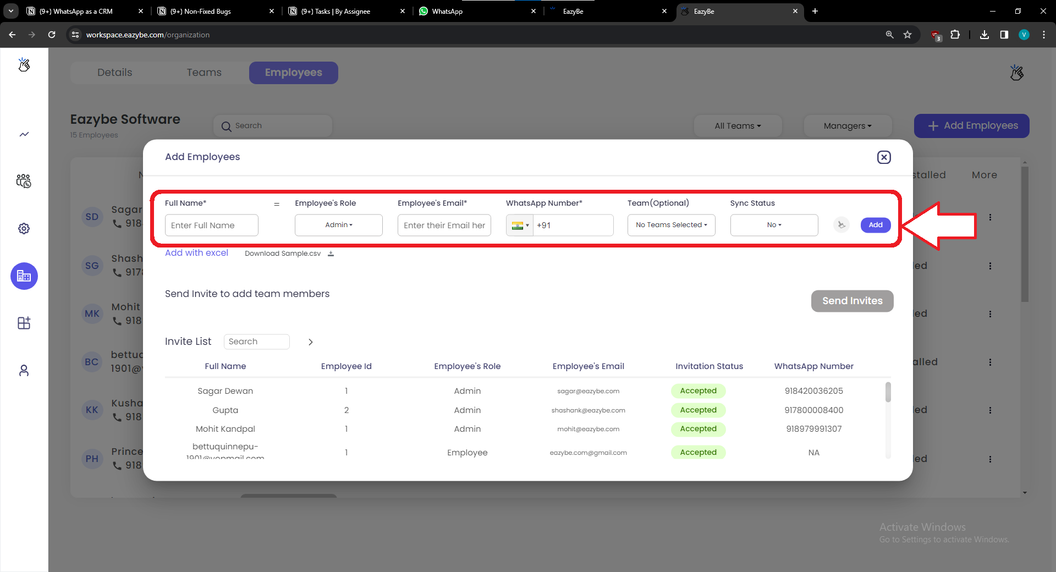
- Name (required)
- Email (required)
- WhatsApp Number (required)
Name, Email, and WhatsApp Number are mandatory fields when adding new team members.
Frequently Asked Questions
Why should I invite my team members?
Why should I invite my team members?
Inviting team members allows you to:
- Assign tasks and conversations to specific employees
- Provide access to shared resources and Quick Replies
- Monitor team analytics and performance metrics
- Enable collaboration through Team Inbox features
Are my chat backups secure?
Are my chat backups secure?
Yes, all chat data is securely backed up and only accessible to authorized team members within your organization.
How can I increase the number of seats in my organization?
How can I increase the number of seats in my organization?
Contact your account administrator or visit the billing section in your workspace settings to upgrade your plan and add more seats.
Can employees access Quick Replies and Labels?
Can employees access Quick Replies and Labels?
Yes, team members can access shared Quick Replies and Labels based on their assigned permissions and roles.
What is Team Inbox?
What is Team Inbox?
Team Inbox is a collaborative feature that allows multiple team members to view, manage, and respond to WhatsApp conversations together, ensuring no customer inquiry goes unanswered.
How do I know if my invite was successfully sent?
How do I know if my invite was successfully sent?
After clicking Send Invites, you will receive a confirmation message. The invited employee will receive an email notification with instructions to join your organization.