

Overview
This guide provides step-by-step instructions on how to link your WABA API numbers to specific HubSpot users. Successfully mapping users ensures accurate data synchronization and efficient workflow management between your platforms.Before proceeding, ensure you have Admin permissions in both Eazybe and HubSpot to manage user mappings.
Step-by-Step Guide
1
Navigate to the Integrations Page
Go to the Eazybe dashboard and navigate to the Integrations section.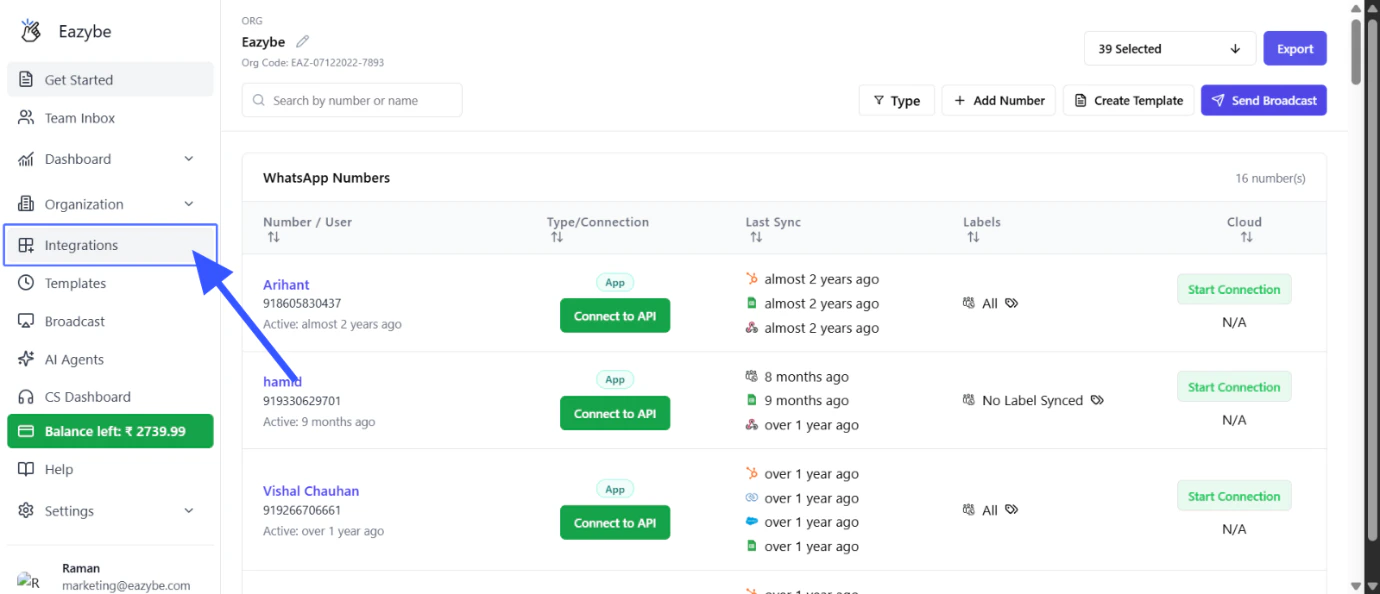
2
Access HubSpot Integration Settings
Find the HubSpot integration card and click on it to access the integration settings.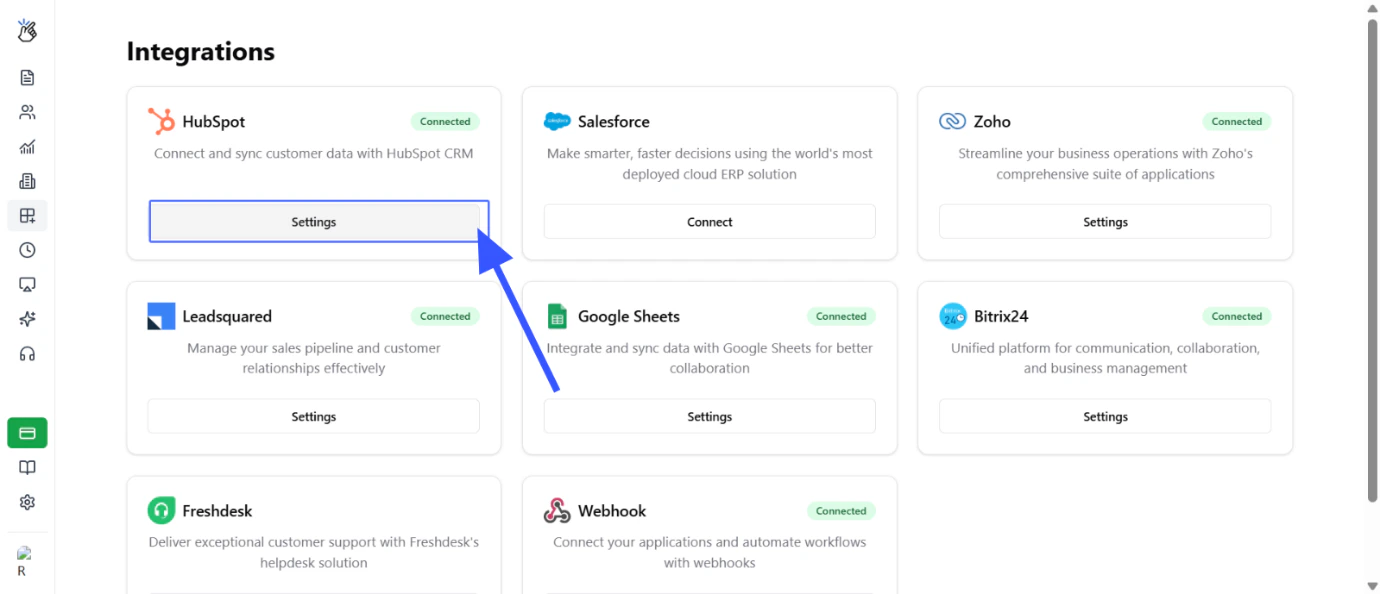
3
Select the User Mapping Tab
In the HubSpot integration settings, locate and click on the User Mapping tab.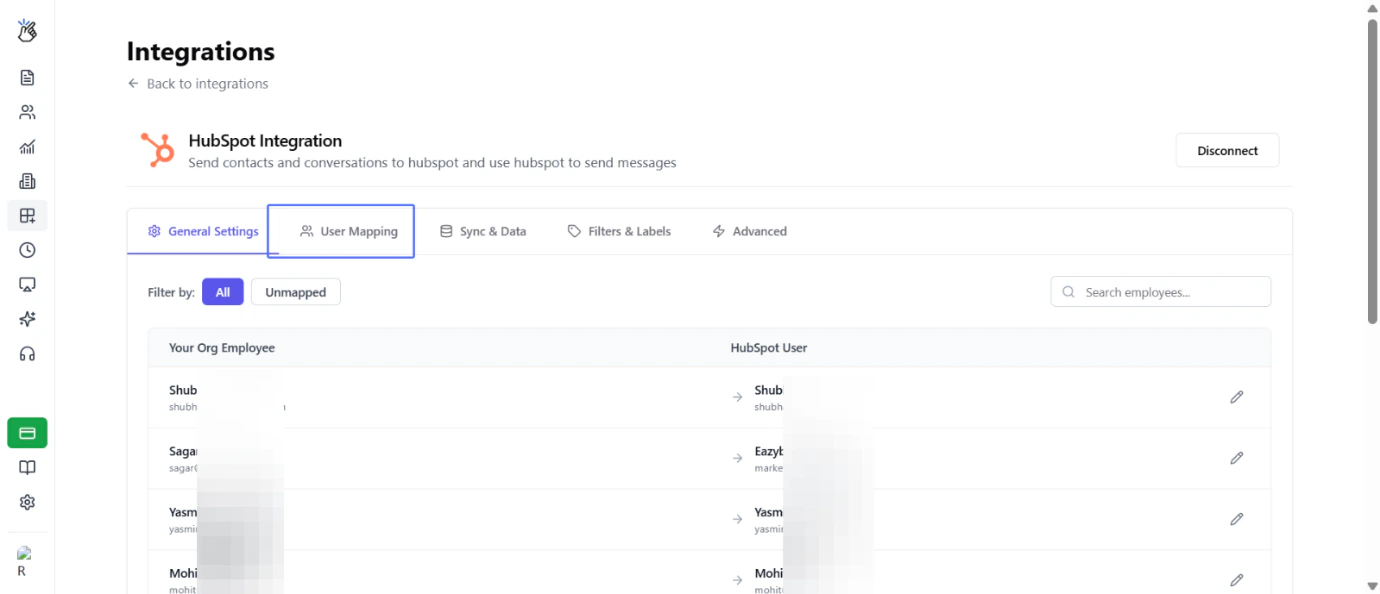
This tab allows you to assign specific HubSpot users to manage your WABA API numbers.
4
Choose a HubSpot User to Map
Select the HubSpot user you want to map to a specific WABA API number from the available user list.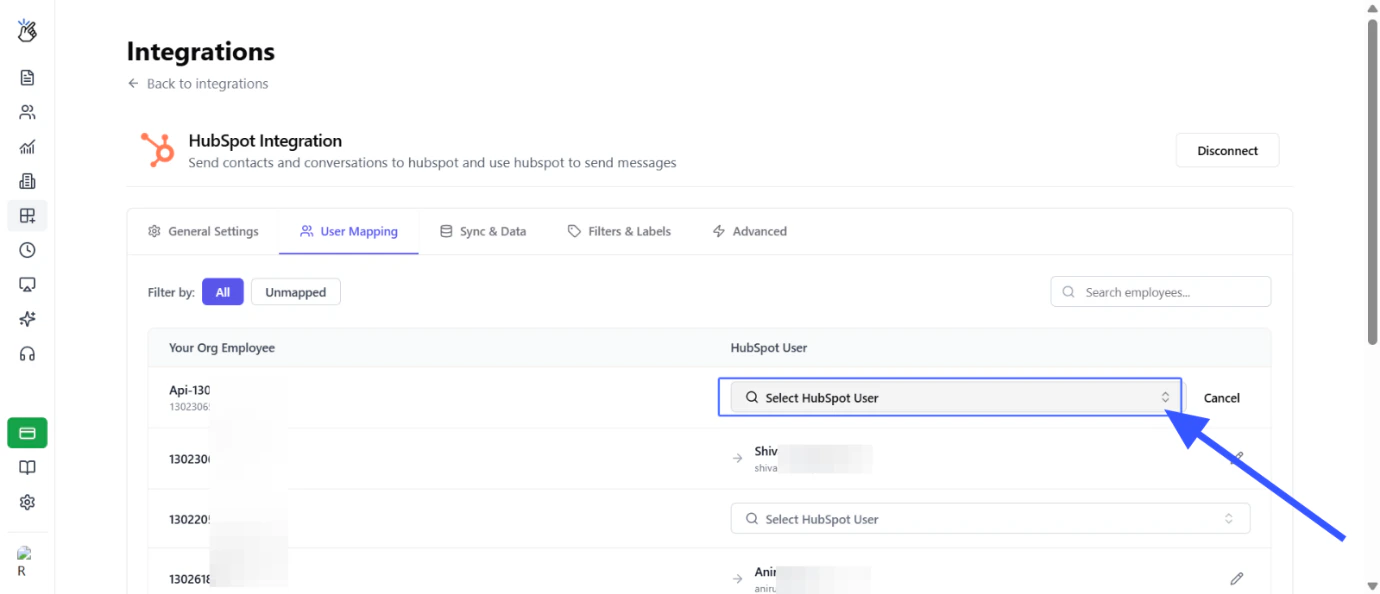
5
Select the Specific HubSpot User
Choose the specific HubSpot user from the dropdown menu that you wish to associate with your WABA API number.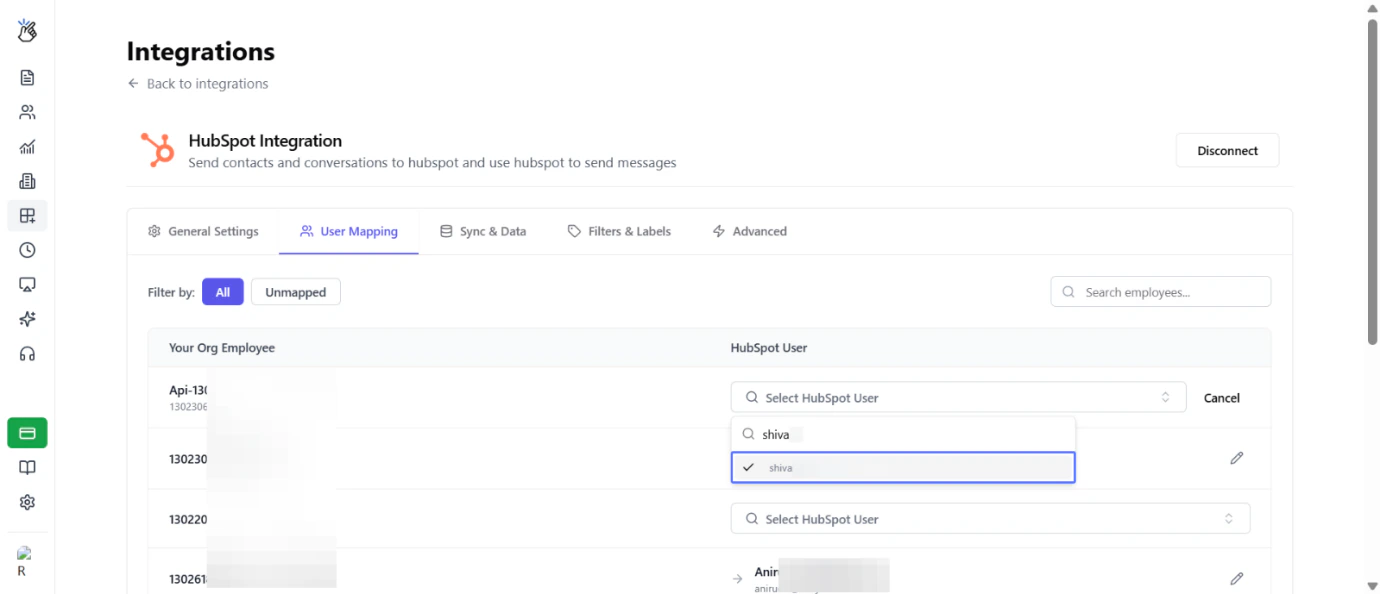
6
Verify Successful User Mapping
Confirm the mapping and verify that the user has been successfully linked to the WABA API number.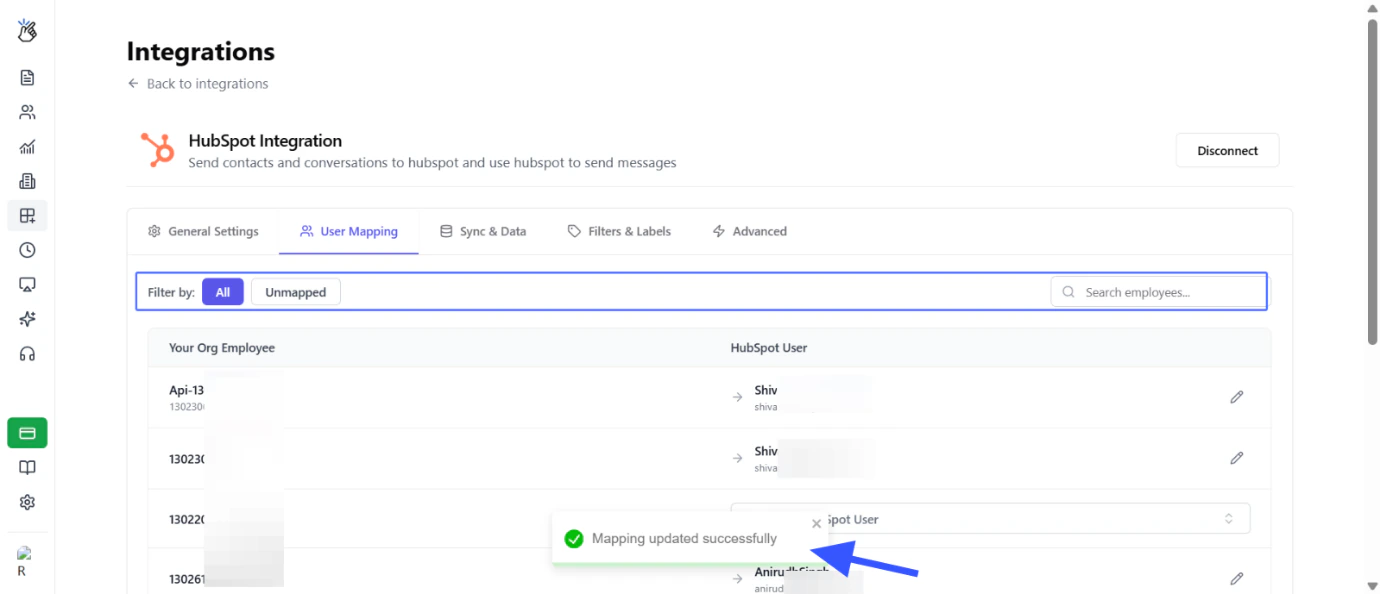
Important Notes
Data Synchronization
Proper user mapping ensures that WhatsApp messages from WABA API numbers are correctly attributed to the right HubSpot user.
Workflow Management
Assigned users can manage conversations, create tasks, and update records within their HubSpot access scope.
Troubleshooting
Related Guides
Account Connection
Learn how to connect your HubSpot account with Eazybe.
Invite Team
Invite team members to collaborate on your HubSpot integration.
Need Help?
Contact Support
If you have any questions or need further assistance, reach out to us at hey@eazybe.com. We’re happy to help!