

Method A: Via Eazybe WhatsApp Extension
1
Open Integrations
Click the Integrations icon in the Eazybe extension sidebar.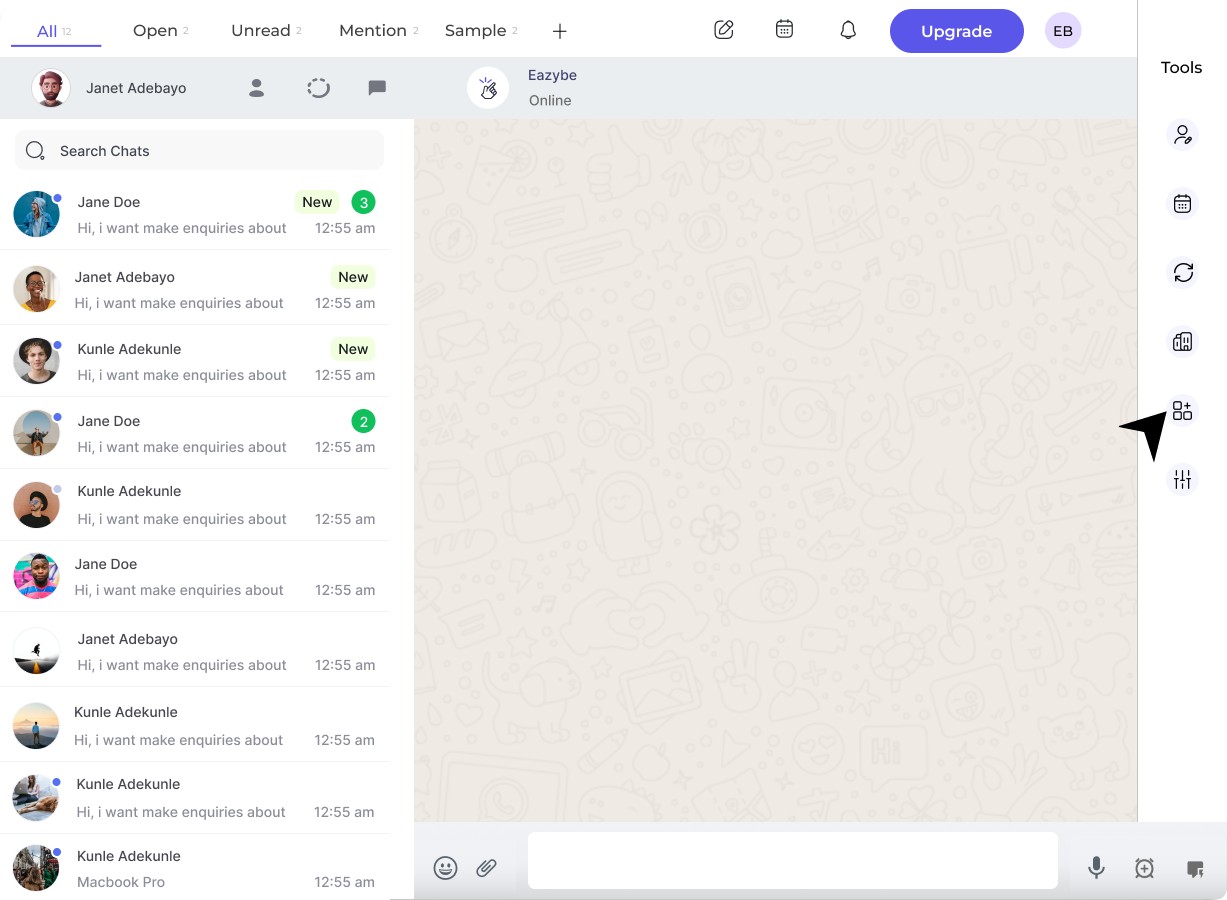
2
Locate Bitrix Section
Find the Bitrix section and click the Disconnect button.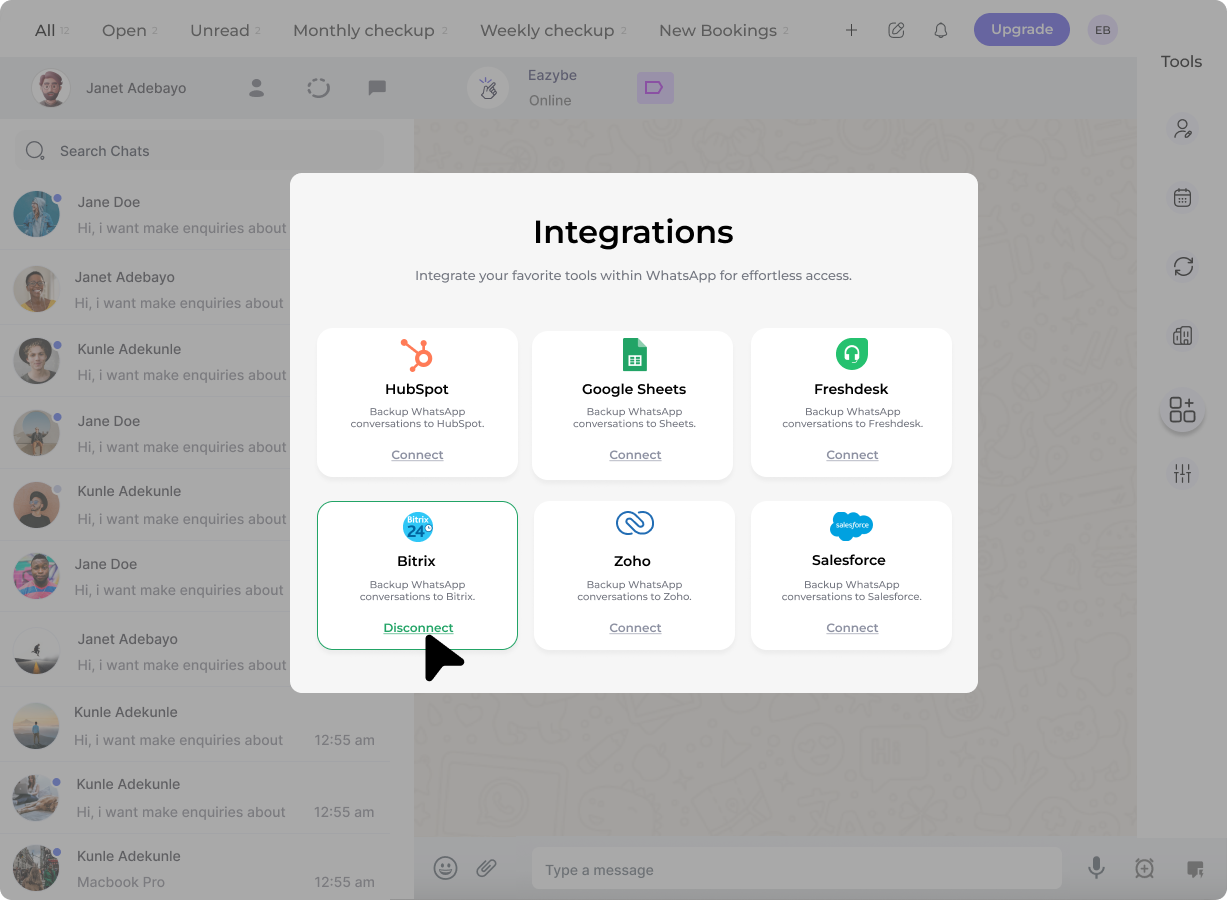
3
Confirm Disconnection
A confirmation dialog will appear. Click Disconnect to verify and complete the process.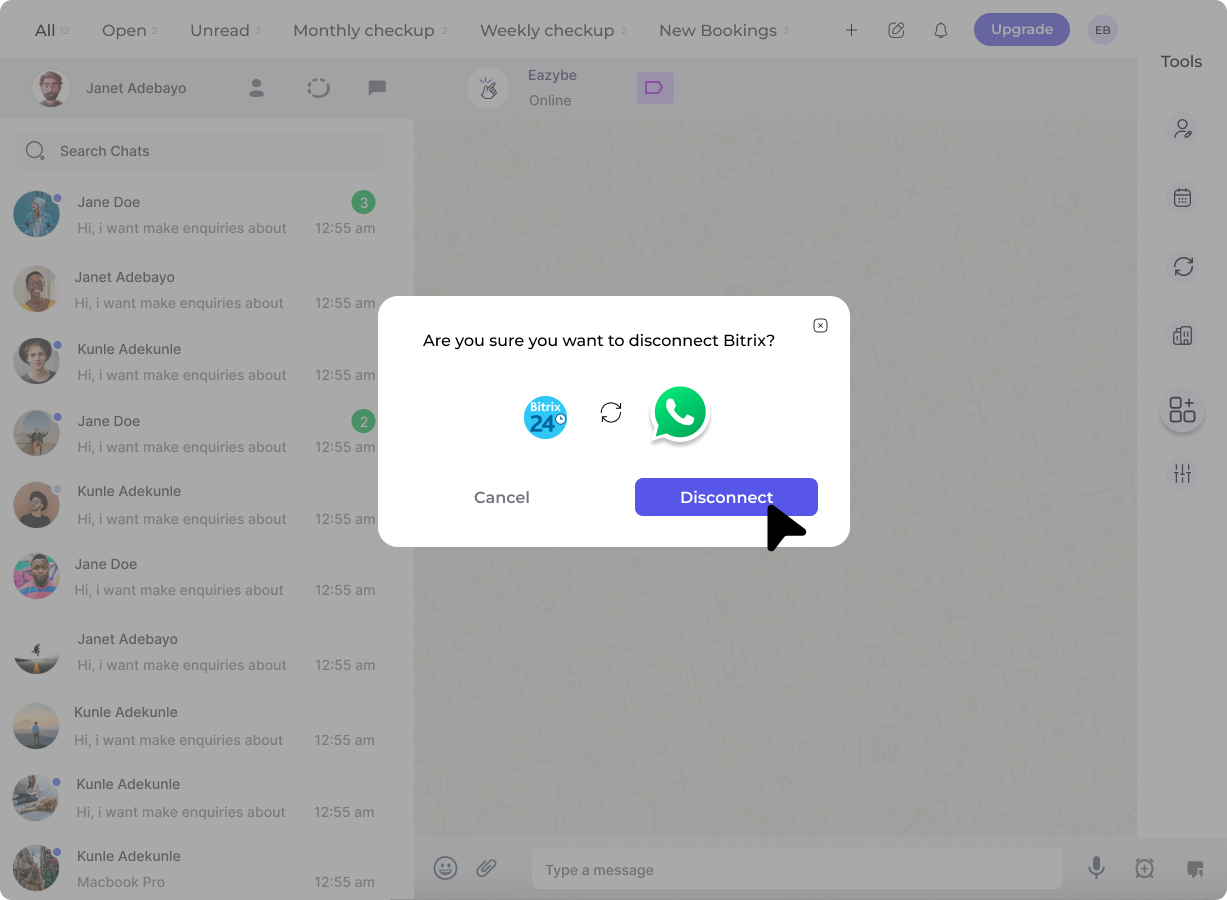
Method B: Via Eazybe Workspace
1
Access Organisation Settings
Click the Organisation button in the right sidebar to open the Organisation page in Eazybe Workspace.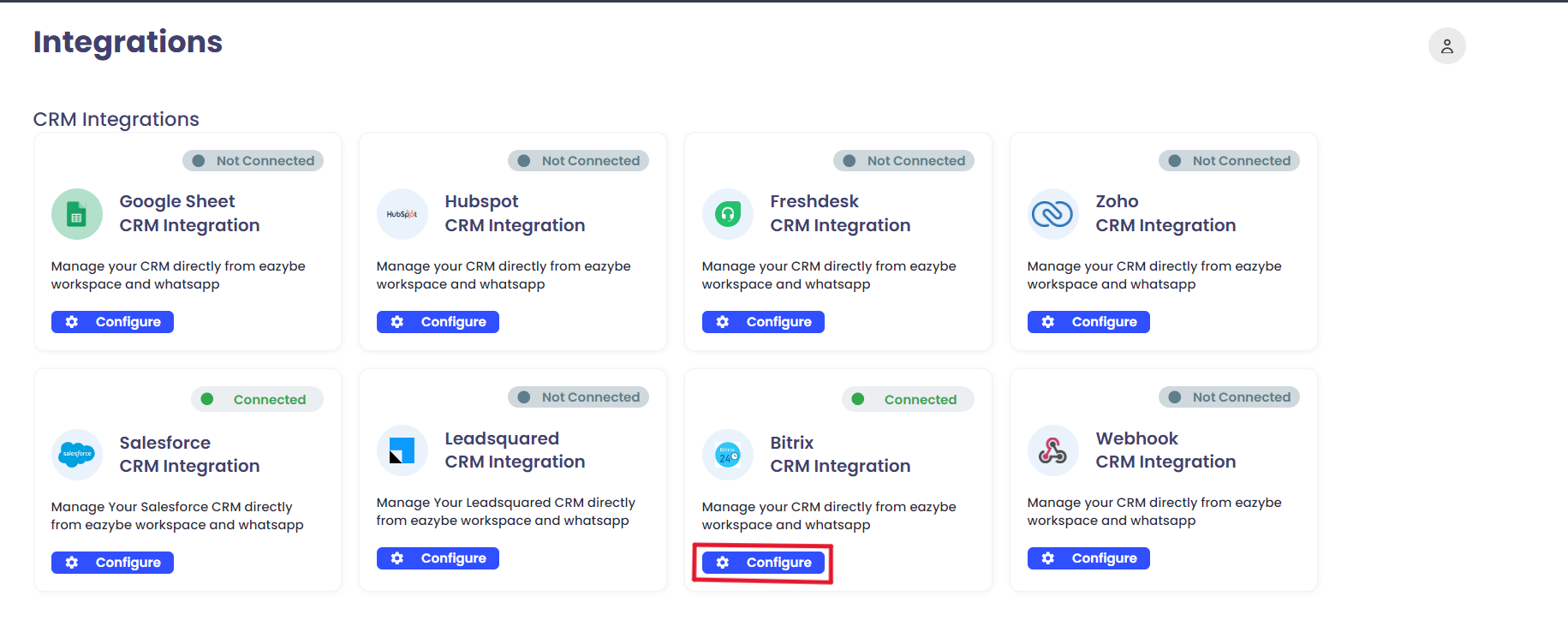
2
Navigate to Integrations
Click Integrations in the left sidebar. Under the Bitrix CRM integration section, click the Configure button.
3
Unlink the Integration
Click the red Unlink button. A confirmation popup will appear—click Unlink to confirm.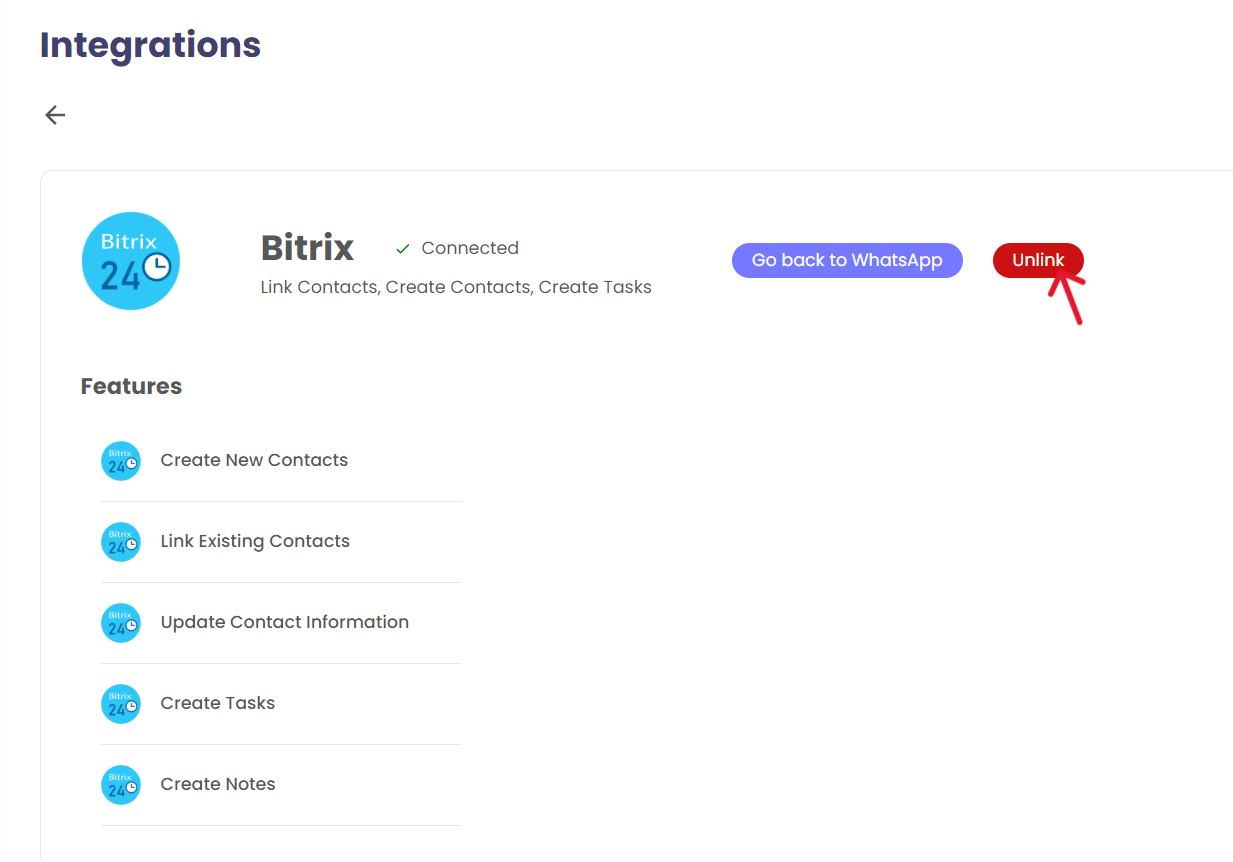
After successfully disconnecting, the Bitrix icon will no longer appear in the right sidebar of the extension.
If you have any questions or need further assistance, feel free to reach out to us at hey@eazybe.com.