

Overview
If you no longer need the Pipedrive integration or want to connect a different account, you can easily disconnect the integration from the Eazybe panel.Disconnecting the integration will stop syncing data between WhatsApp and
Pipedrive. Existing data in Pipedrive will remain unchanged.
Disconnecting Pipedrive
1
Open WhatsApp Web with Eazybe Extension
Open WhatsApp Web and ensure the Eazybe extension is active.
2
Navigate to Integrations
Click on the CRM/Integrations button in the Eazybe panel.
3
Select Pipedrive
Navigate to Pipedrive from the connected integrations.
4
Click Disconnect
Click on the Disconnect button to remove the integration.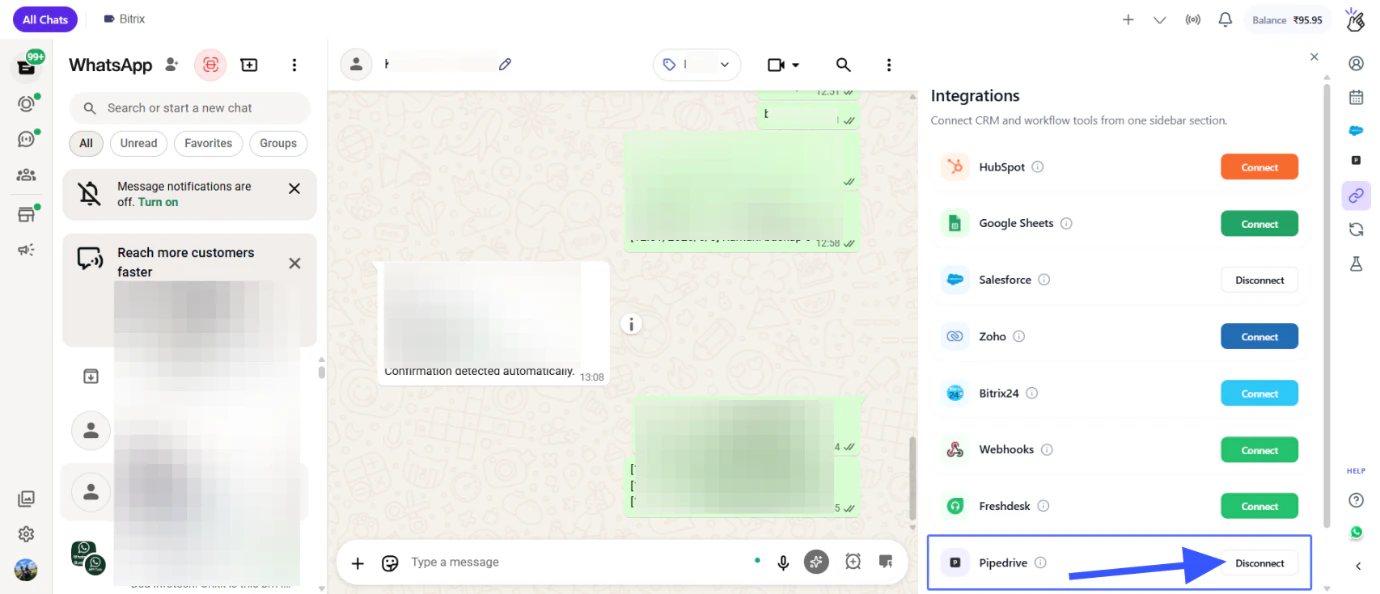
5
Confirm Disconnection
Confirm the disconnection when prompted.
Your Pipedrive account has been successfully disconnected.
What Happens After Disconnecting
Data Remains
All contacts, notes, tasks, and deals created in Pipedrive during the
integration will remain in your Pipedrive account.
Sync Stops
New WhatsApp conversations will no longer sync to Pipedrive after
disconnection.
Reconnecting
If you want to reconnect Pipedrive after disconnecting:1
Follow Connection Steps
Follow the Account
Connection guide to
reconnect your Pipedrive account.
Quick Reference
Need Help?
Contact Support
If you have any questions or need further assistance, reach out to us at
hey@eazybe.com. We’re happy to help!