

Setting Up Google Sheets Integration
1
Install the EazyBe Chrome Extension
Ensure you have installed the EazyBe Chrome Extension in your browser.
2
Access the Integrations Menu
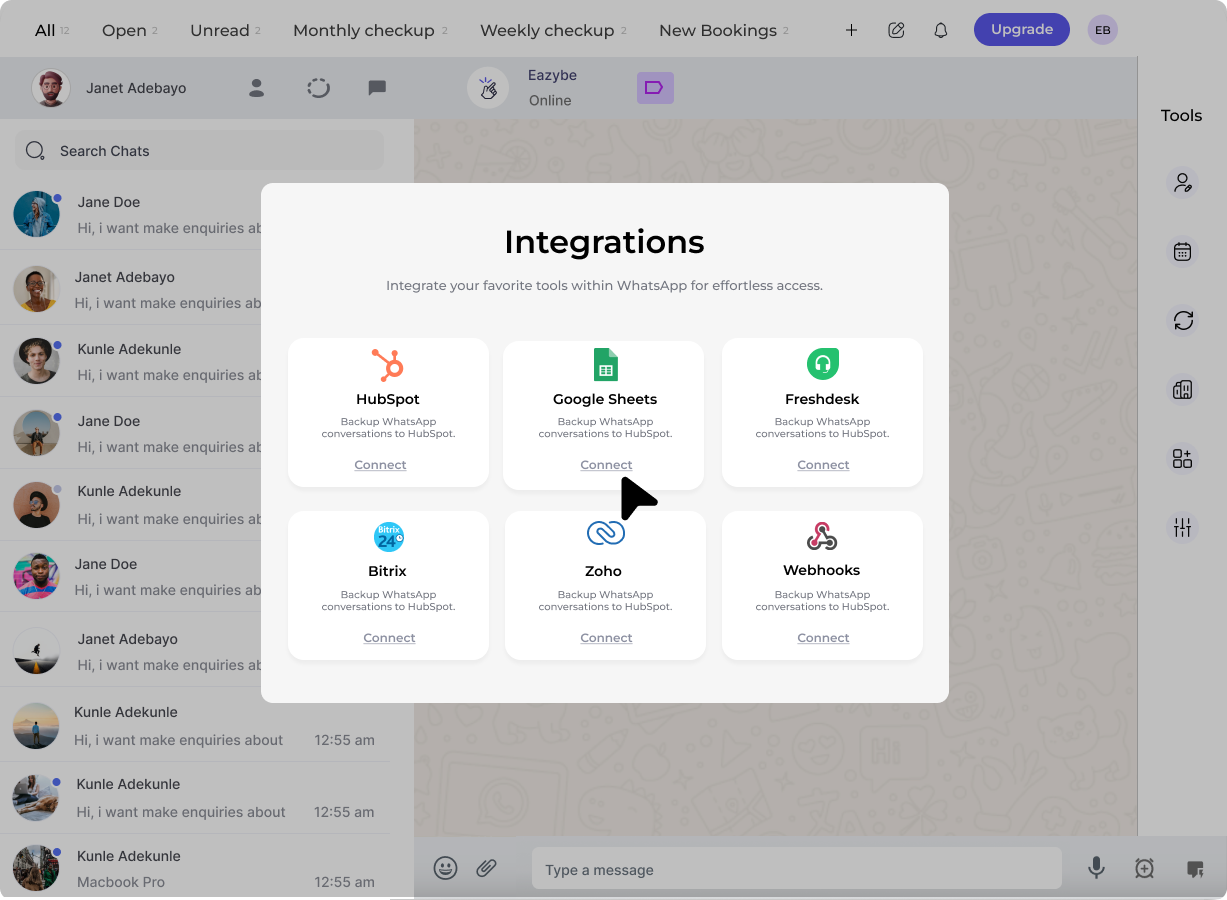
Open WhatsApp Web and access the EazyBe Sidebar. Click on Integrations.
3
Connect Google Sheets
Find Google Sheets Integration and click Connect.
4
Authenticate with Google
Log in to your Google account and grant the necessary permissions.
5
Configure Your Sheet
After logging in, you will see the option to Upload an existing sheet or Create a new one.
You can view Google Sheets contact information in mini-CRM view and change labels of contacts directly from the sheet itself.
Features & Benefits
WhatsApp Auto Chat Backup
Automatically back up your WhatsApp conversations to Google Sheets in real time. Never lose important customer interactions.
Business Labels Sync
Any changes you make in your Google Sheet will automatically reflect in WhatsApp. Keep your customer data updated without manual effort.
Use as Your CRM
Manage contacts efficiently by storing them in a Google Sheet. Categorize leads and customers using WhatsApp Business Labels.
Broadcast Messages
Upload contact lists in bulk using Google Sheets. Send targeted WhatsApp messages to specific customer segments.