

What You Can Do
- Message customers from HubSpot: With a connected Coexistence (CoEx) or WhatsApp Business API number, you can send and receive WhatsApp messages directly inside the CRM.
- Chat contact by contact: Open a contact’s conversation from their contact record, or from a deal or ticket associated with that contact.
- Work across conversations: Open the overall Team Inbox from HubSpot’s left navigation to find and manage the conversations you have access to.
- Keep user-specific access: Each user has the same Team Inbox access as at app.eazybe.com. Your permissions determine which conversations you can see and manage in HubSpot.
Your Team Inbox access is the same as at app.eazybe.com. Opening it in HubSpot does not expand which team conversations you can see or manage.
Before You Open a Contact’s Inbox
Open a Conversation from a Record
Complete Set Up Team Inbox in HubSpot first if the record does not have an inbox card.1
Open the Record's Team Inbox Card
Open the HubSpot record and find the card in its right sidebar: Eazybe Team Inbox for a contact, Eazybe Deal Team Inbox for a deal, or Eazybe Ticket Team Inbox for a ticket.On a contact, click Open Contact Conversation. The conversation opens in an Eazybe Team Inbox window within HubSpot. For a deal or ticket, use the conversation action in its card to open the associated contact’s conversation.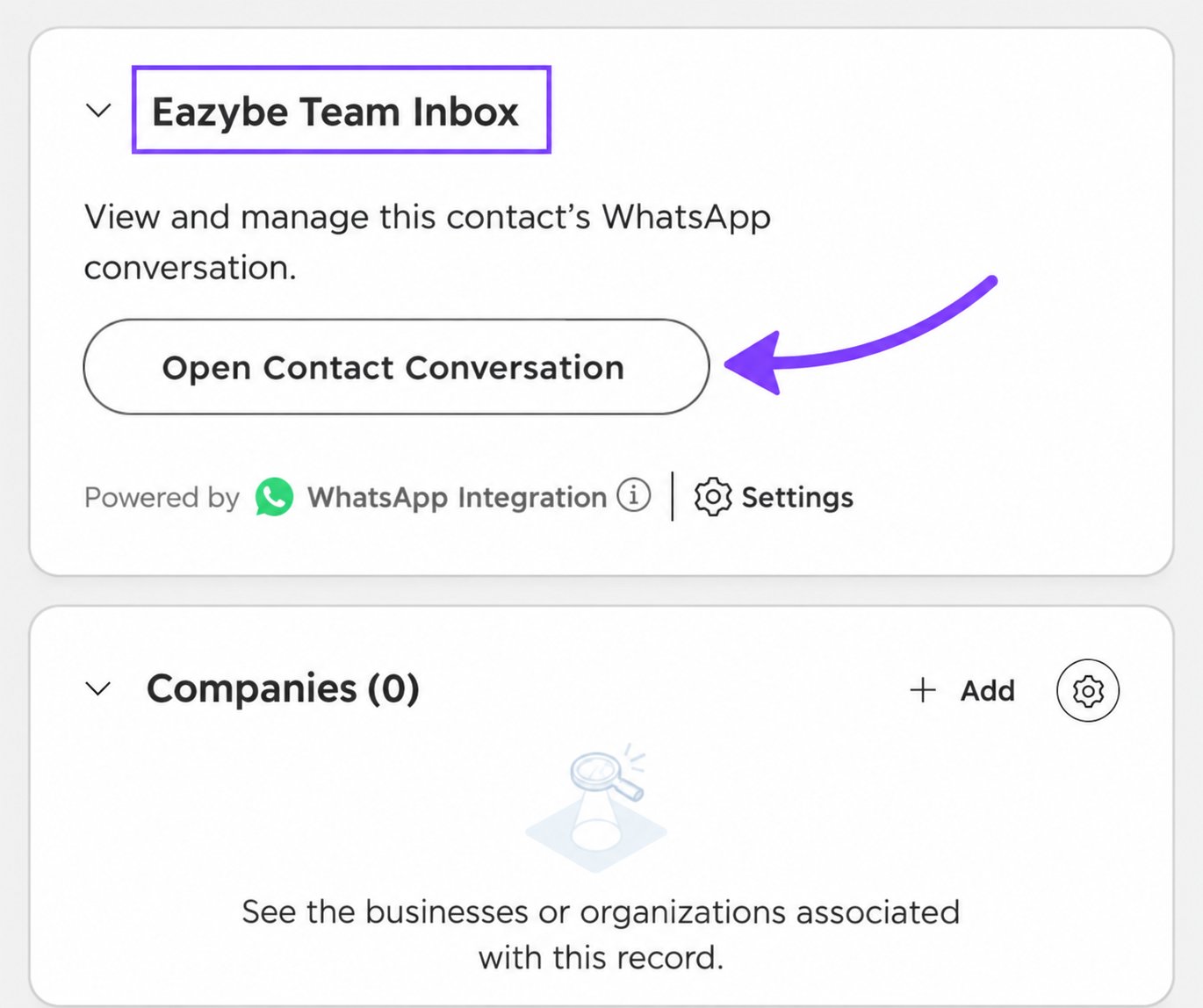
A deal or ticket needs the relevant contact association. If you cannot find the expected conversation, check the associated contact and your Team Inbox access.
2
Review the Conversation
Read the message history in the conversation window. The View: selector shows the current conversation view; use it to choose from the views available to you. The Assign: control shows the conversation’s assignee.Close the window with the X in the top-right corner to return to the record.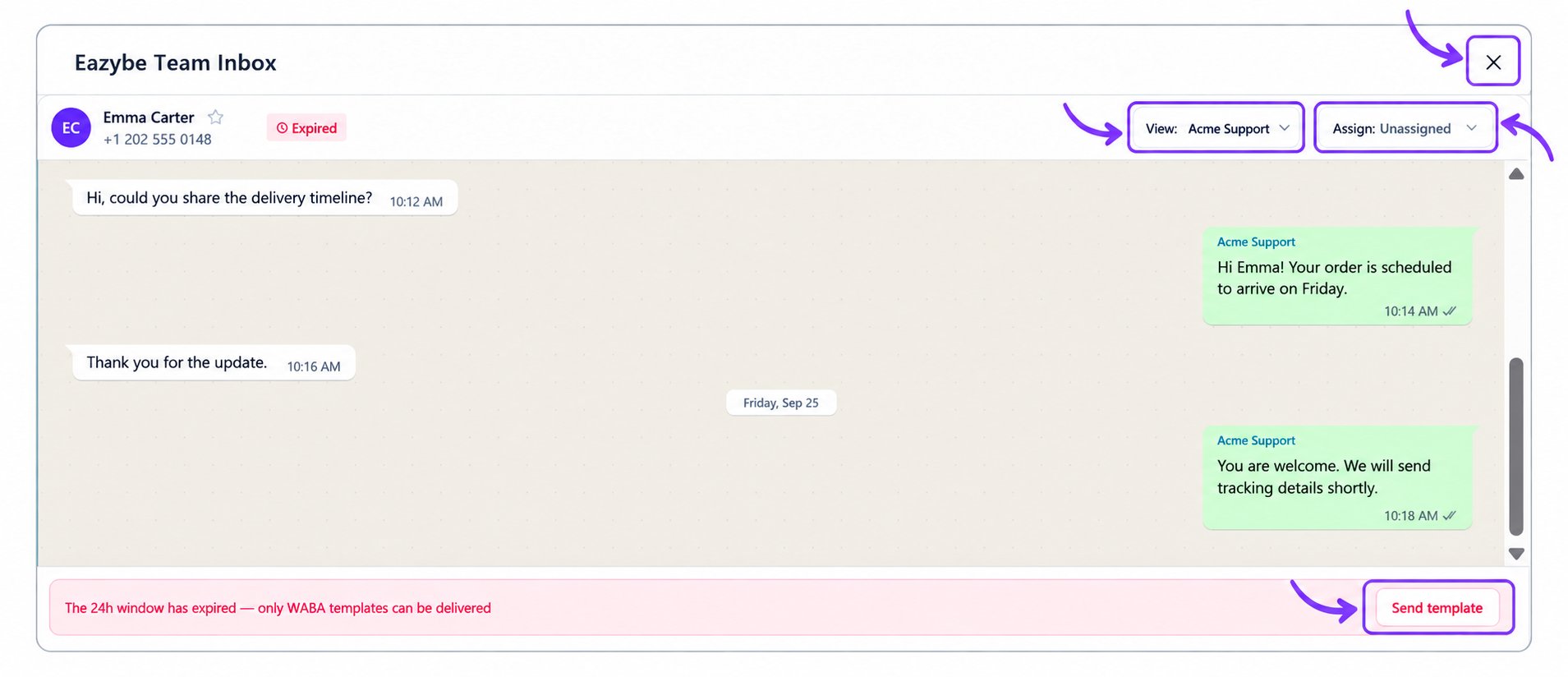
This screenshot uses a fictional customer, business, phone number, and messages to illustrate the interface.
Open the Overall Team Inbox
1
Open Eazybe Team Inbox from HubSpot Navigation
Click Eazybe Team Inbox in HubSpot’s left navigation. The Team Inbox page opens inside HubSpot, with inbox lists on the left, conversations in the middle, and a conversation area on the right.This inbox is not limited to the record you were viewing. It still follows your existing Eazybe access.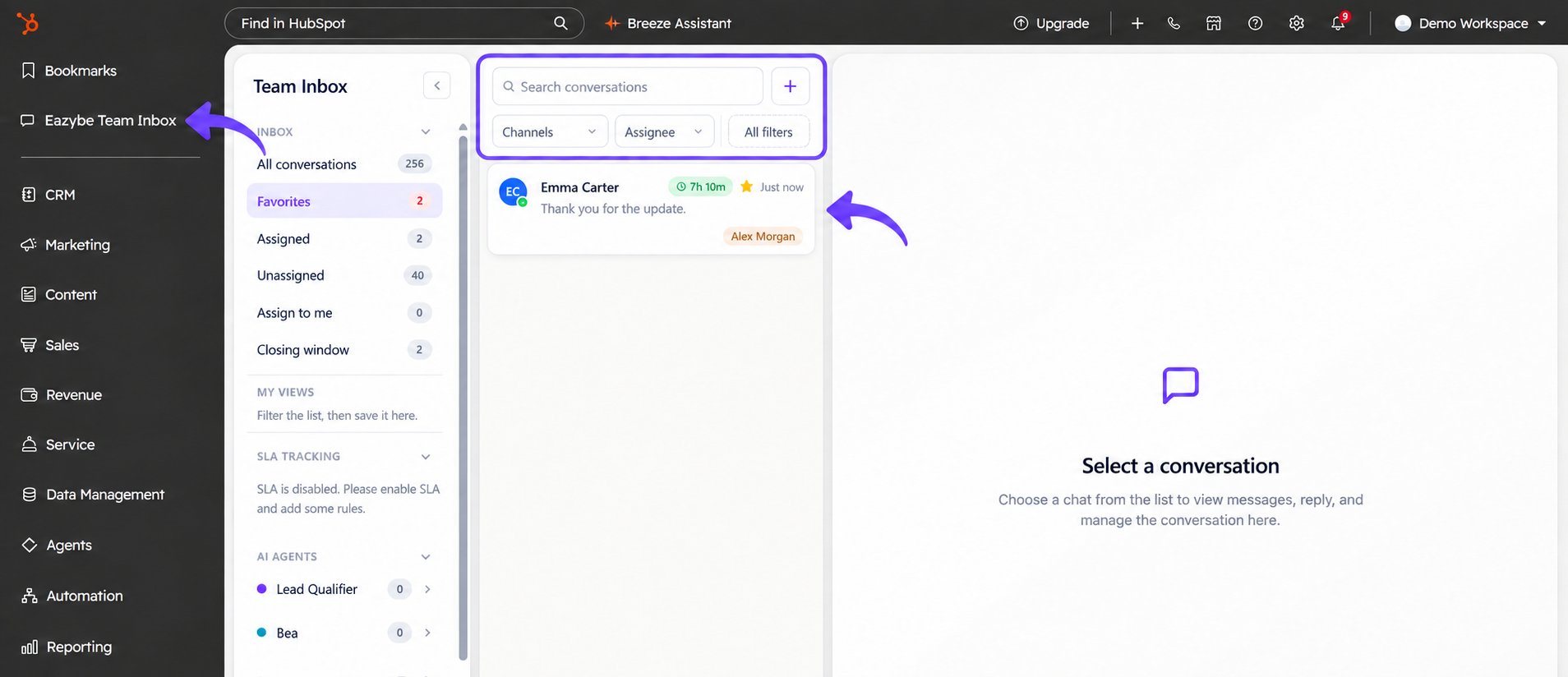
The inbox screenshot uses fictional customer and assignee details with an example message preview.
2
Find and Select a Conversation
Choose All conversations, or narrow the list with Favorites, Assigned, Unassigned, or Assign to me. Use Search conversations, Channels, Assignee, and All filters above the conversation list to find the chat you need.Click a conversation in the list to open it on the right. Until you select one, the panel says Select a conversation. The screenshot shows the Favorites list selected.