Method A: Disconnect via EazyBe WhatsApp Extension
1
Open the Integrations Panel
Click the Integrations icon in your EazyBe WhatsApp extension.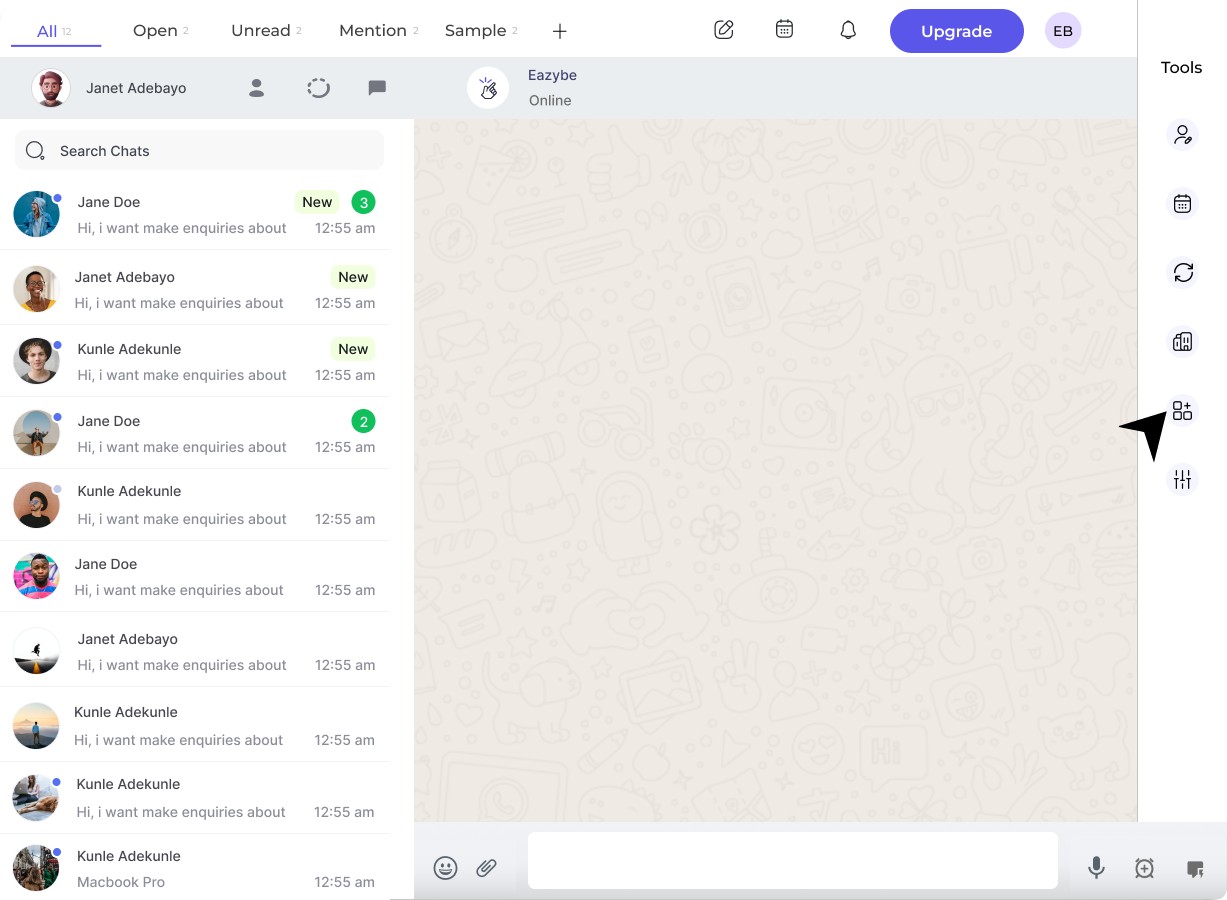
2
Click Disconnect
Under the Salesforce section, click the Disconnect button.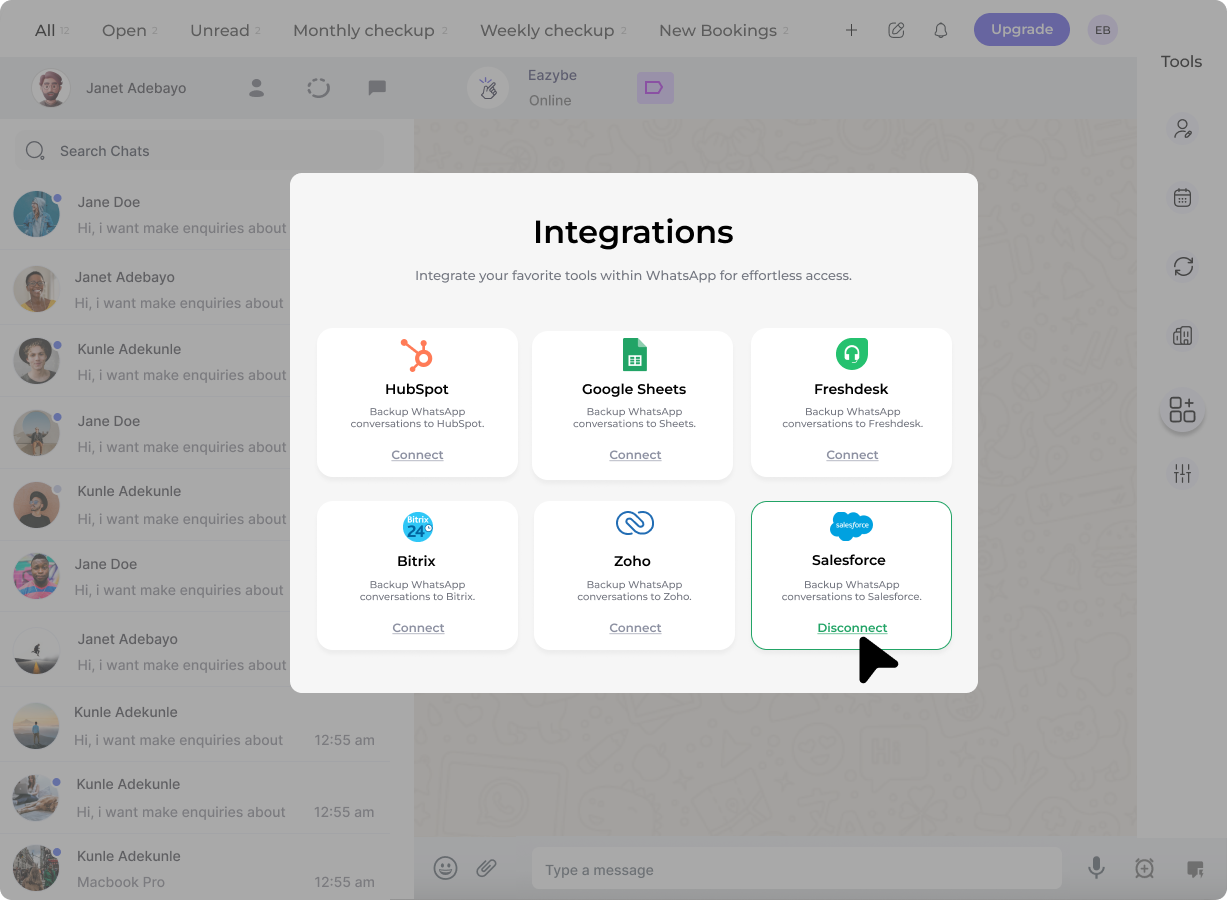
3
Confirm Disconnection
A confirmation pop-up will appear. Click Confirm to complete the disconnection.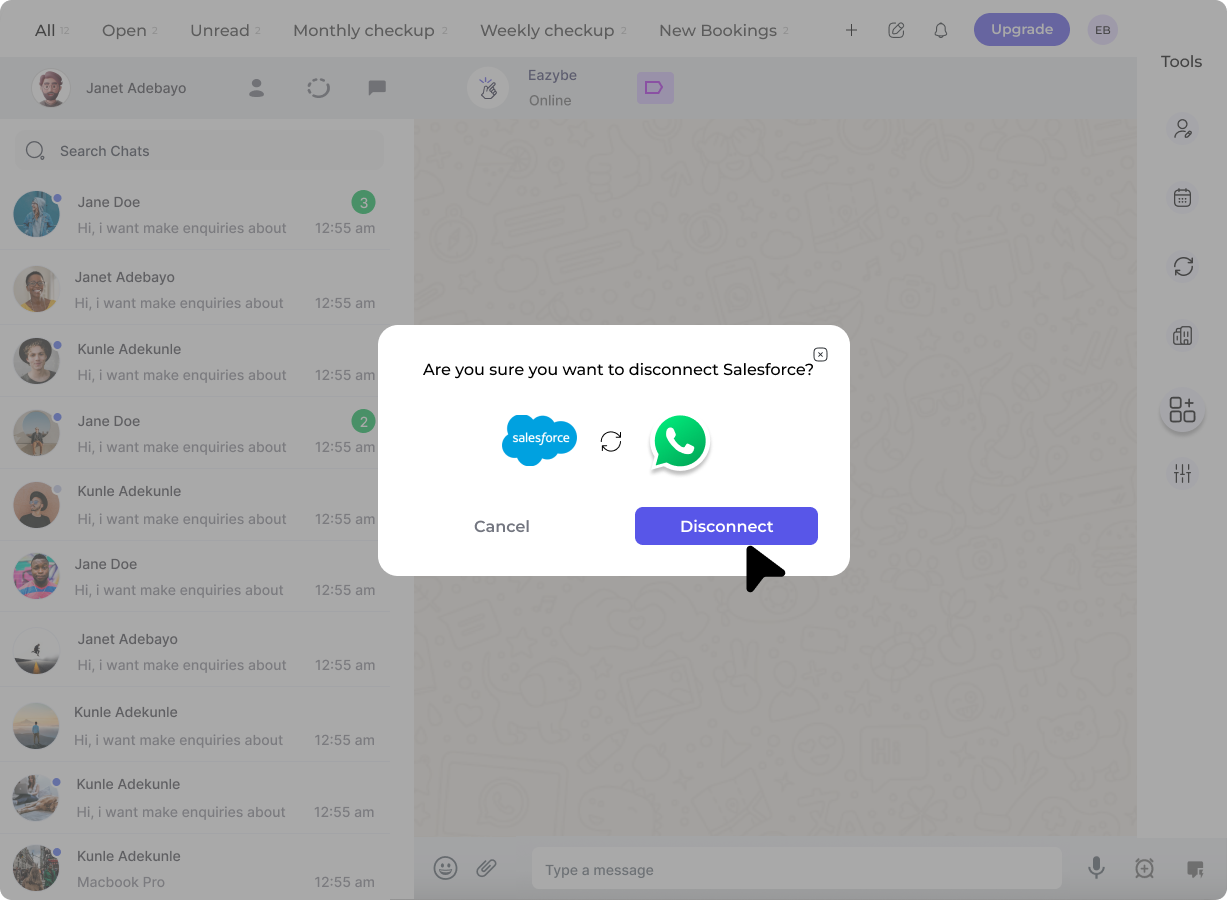
After disconnecting, the Salesforce icon will no longer display in the extension’s sidebar.
Method B: Disconnect via EazyBe Workspace
1
Open Organisation Settings
Click the Organisation button in the right sidebar of your EazyBe workspace.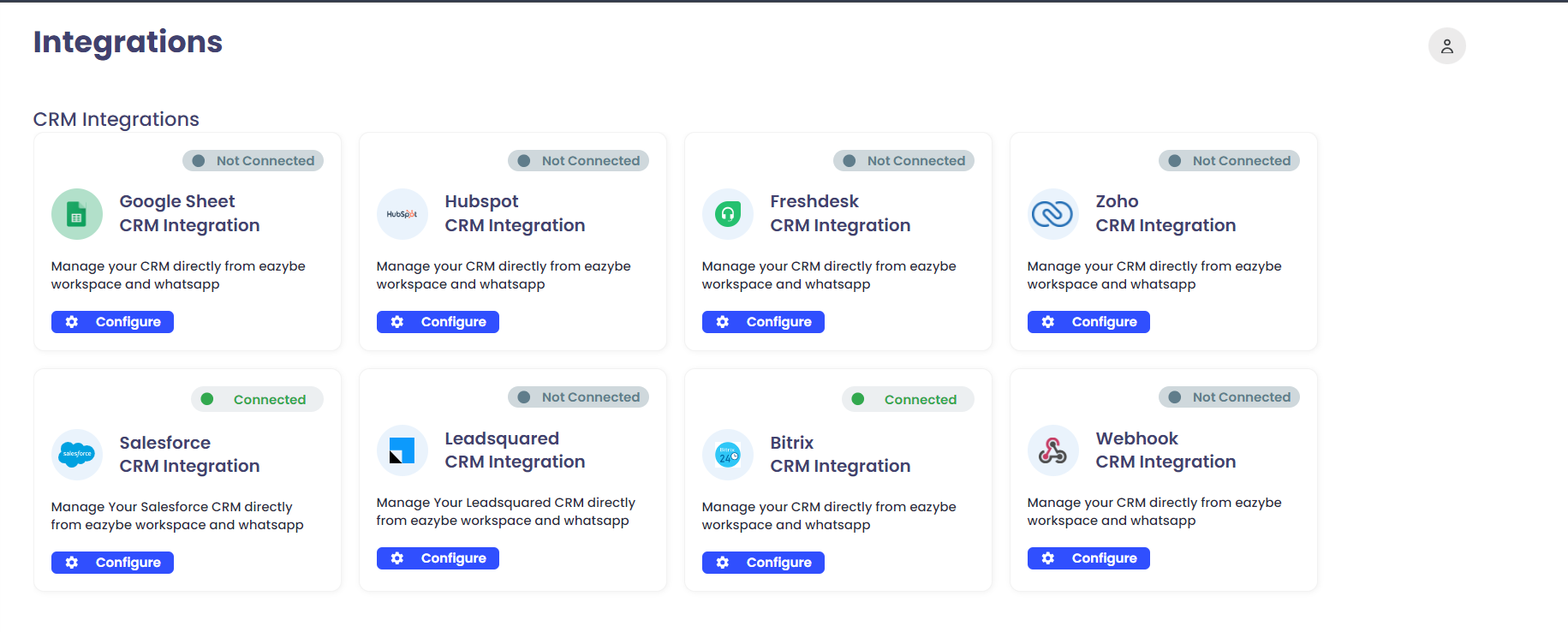
2
Navigate to Integrations
In the left sidebar, navigate to Integrations and click Configure under the “Salesforce CRM integration” section.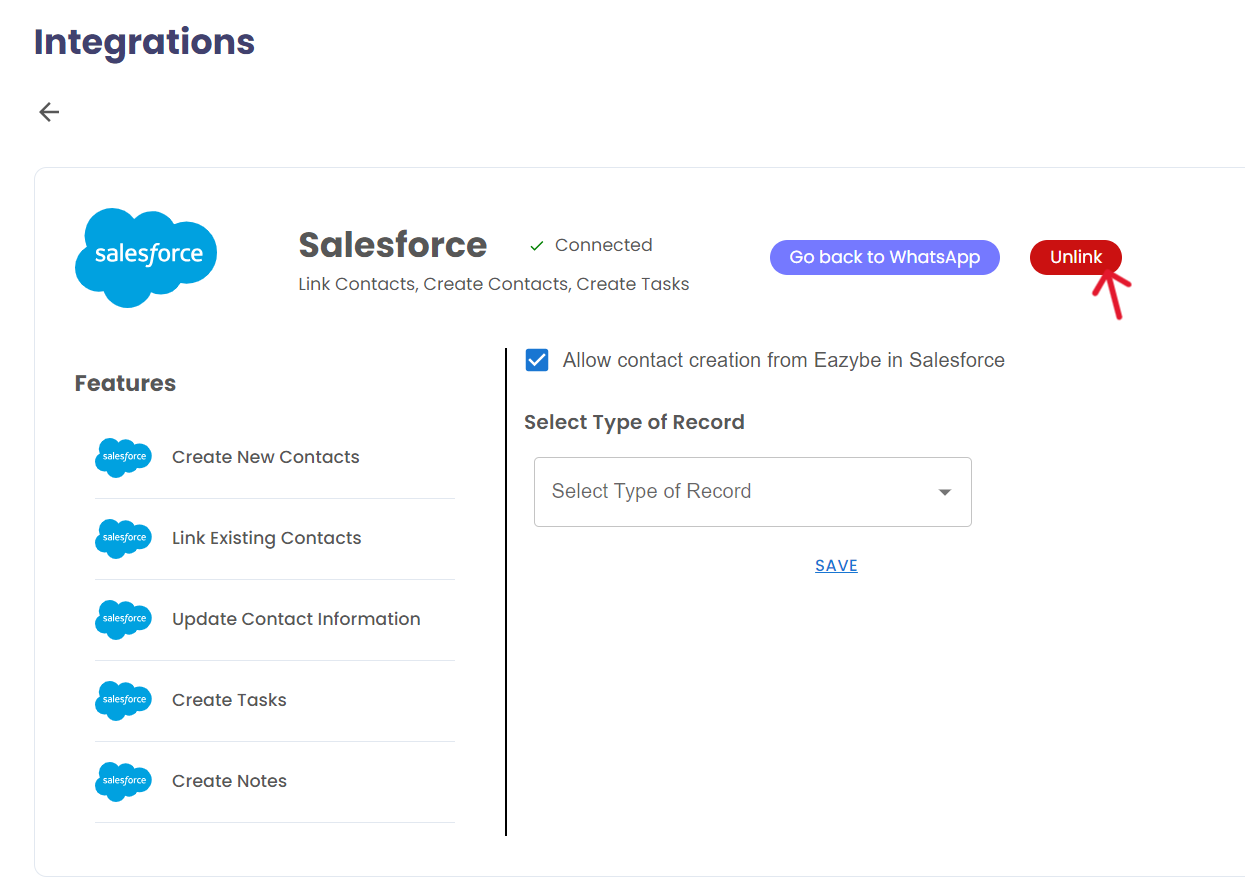
3
Unlink the Integration
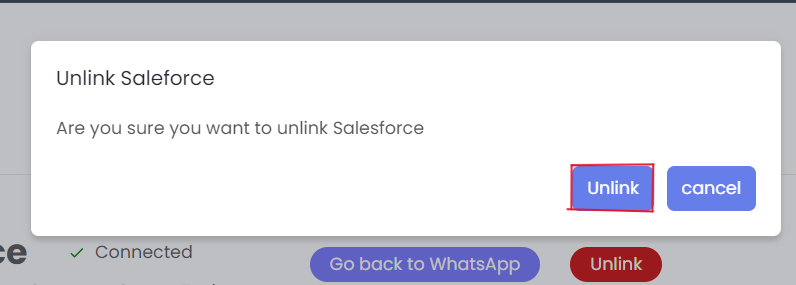
Click the red Unlink button and confirm the disconnection in the final pop-up.