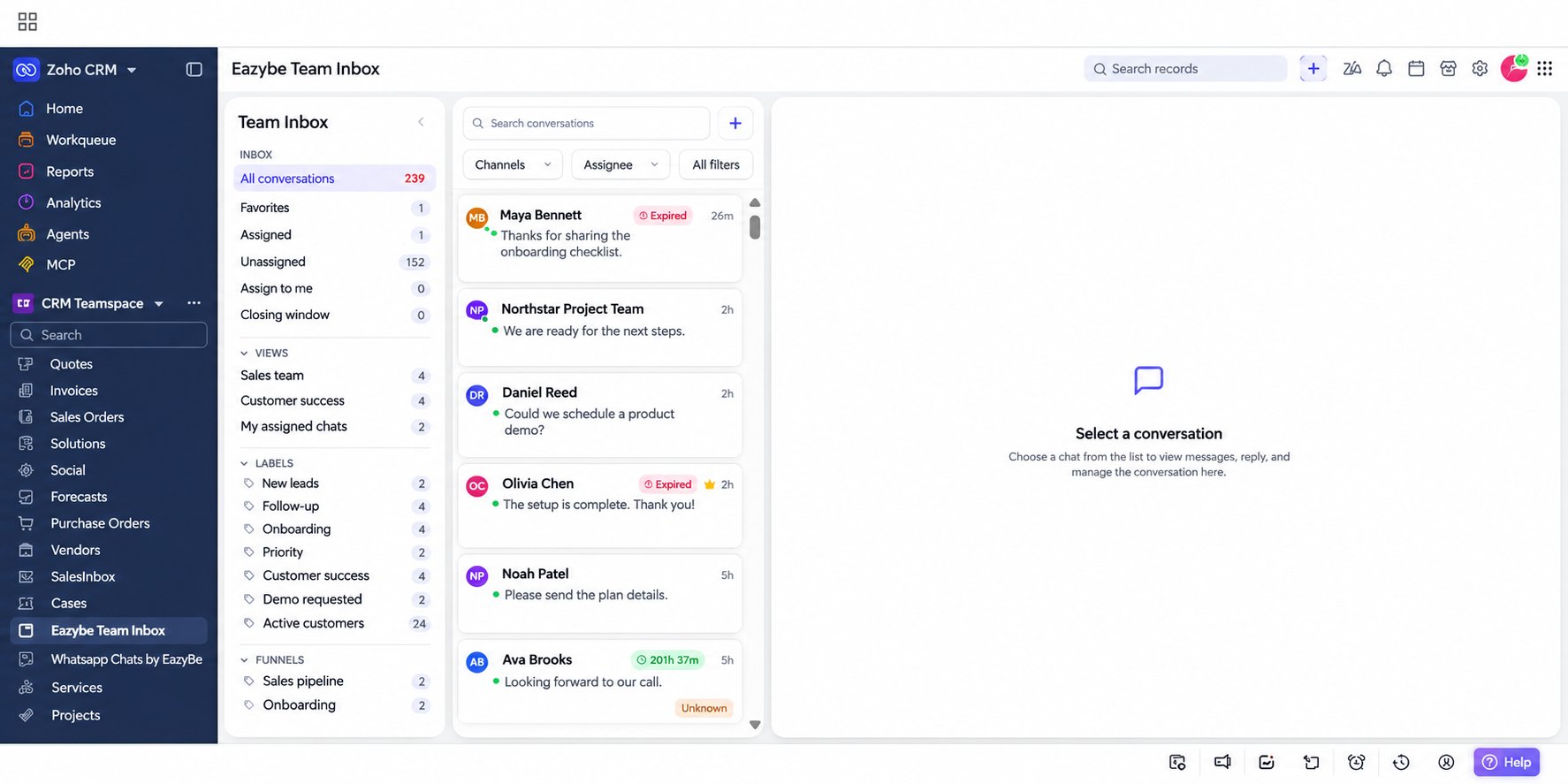
The same Zoho trigger package includes both the WhatsApp workflow action and Team Inbox. After installation, it adds the Eazybe Team Inbox related list to Contact and Lead records and an Eazybe Team Inbox entry in Zoho’s module navigation. You do not need separate packages for these features.
Install the Package
Use a Zoho CRM account with permission to install extensions. If this package is already installed, confirm that Zoho trigger is Active under Setup → Marketplace → All → Installed, then open an inbox below.1
Open the package and review access
Open Install Zoho trigger and Team Inbox in your Zoho CRM account.The installation page shows Zoho trigger as the extension name. Review the Terms of Service and data-access authorization. If you agree, select both checkboxes and click Continue.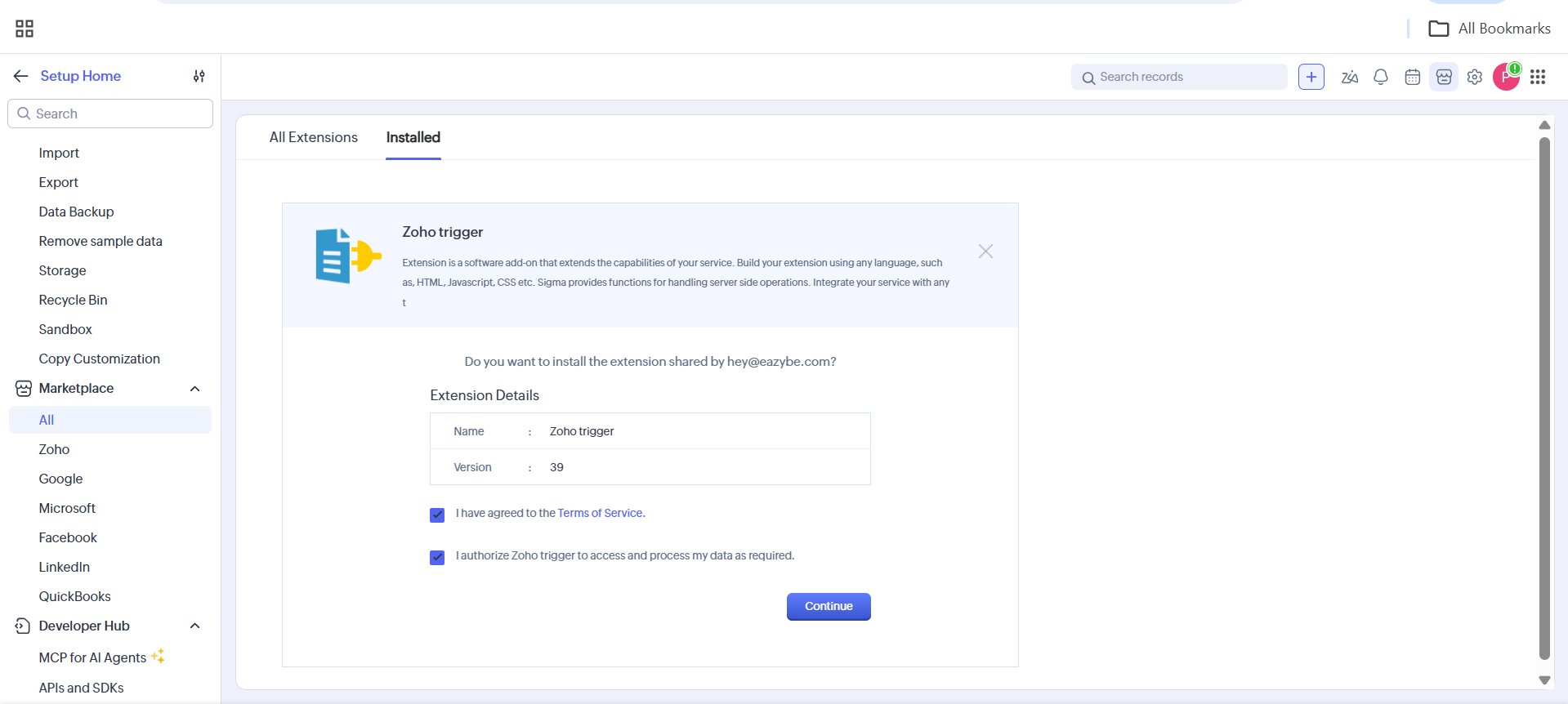
2
Choose who can use the extension
Under Choose Users/Profiles, select Install for all users to make the extension available to your team, then click Confirm. If access should be limited, use Install for admins only or Choose profiles instead.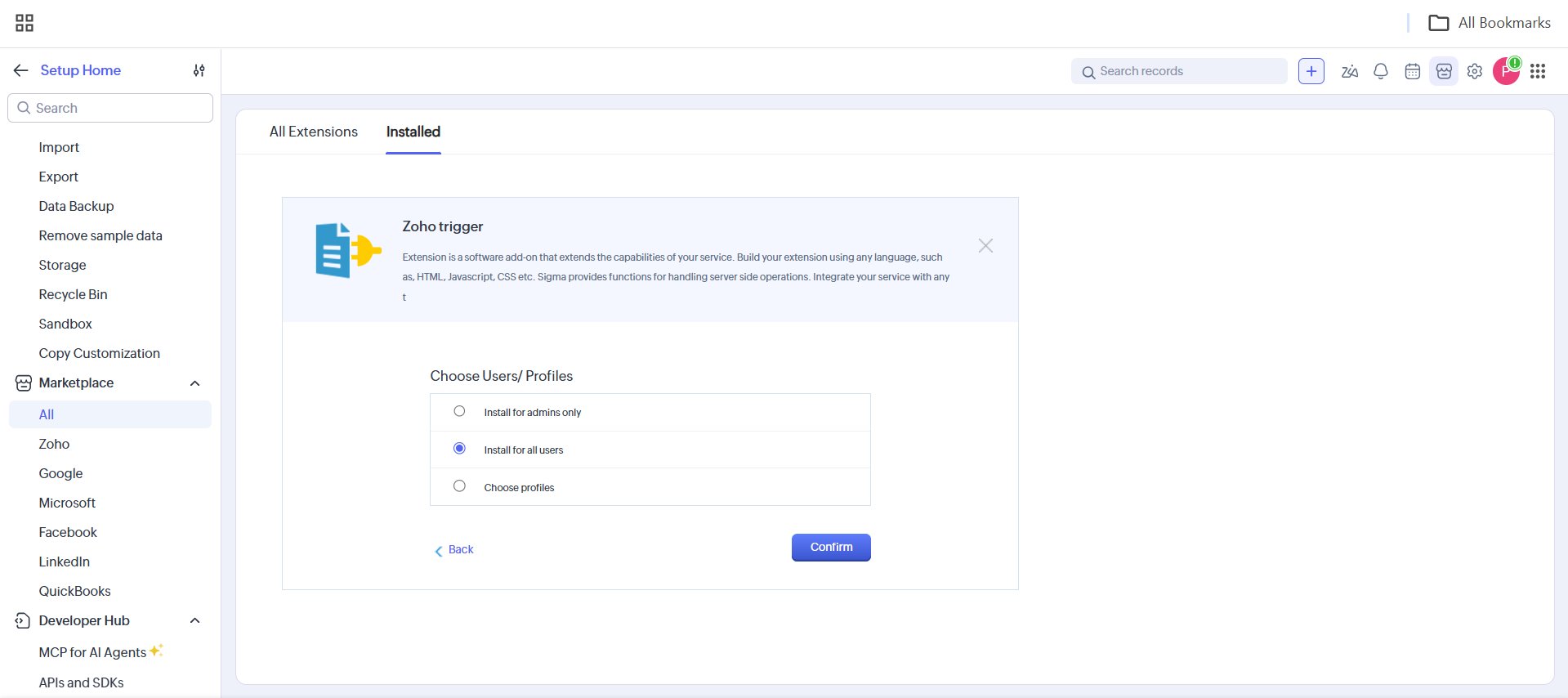
3
Wait for installation to finish
Zoho displays Extension Installation Status. Click Okay to close the progress window and wait for the completion notification. Confirm that the installed extension’s Status is Active before continuing.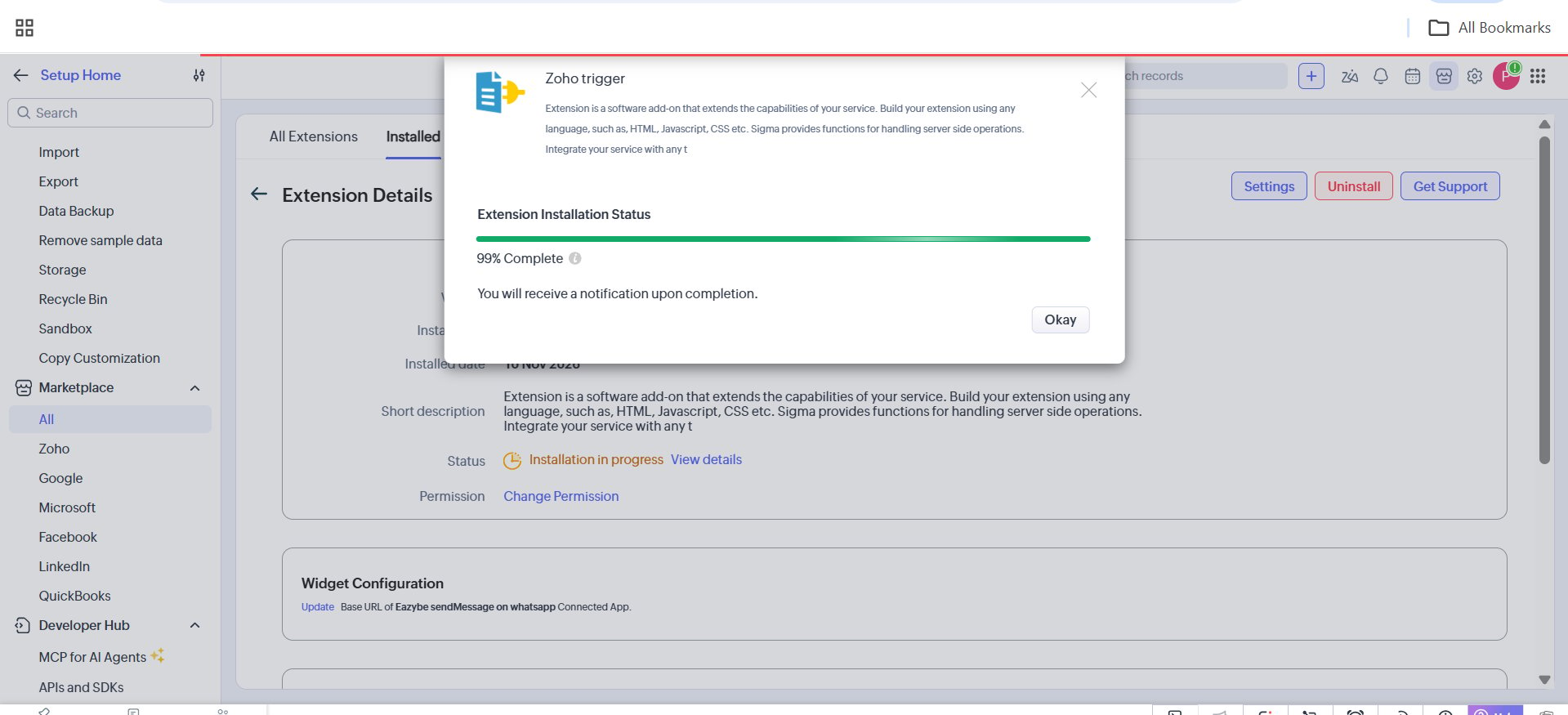
The screenshot shows 99% Complete, which is still in progress. Wait for installation to finish; this screen alone does not confirm a successful installation.
4
Verify your Eazybe account
Open the installed extension’s Settings and follow the Eazybe setup. Enter your account details when prompted. At Enter OTP, enter the six-digit code sent to your email and click Verify and continue. Use Resend OTP if you need a new code, or Edit details to correct your email.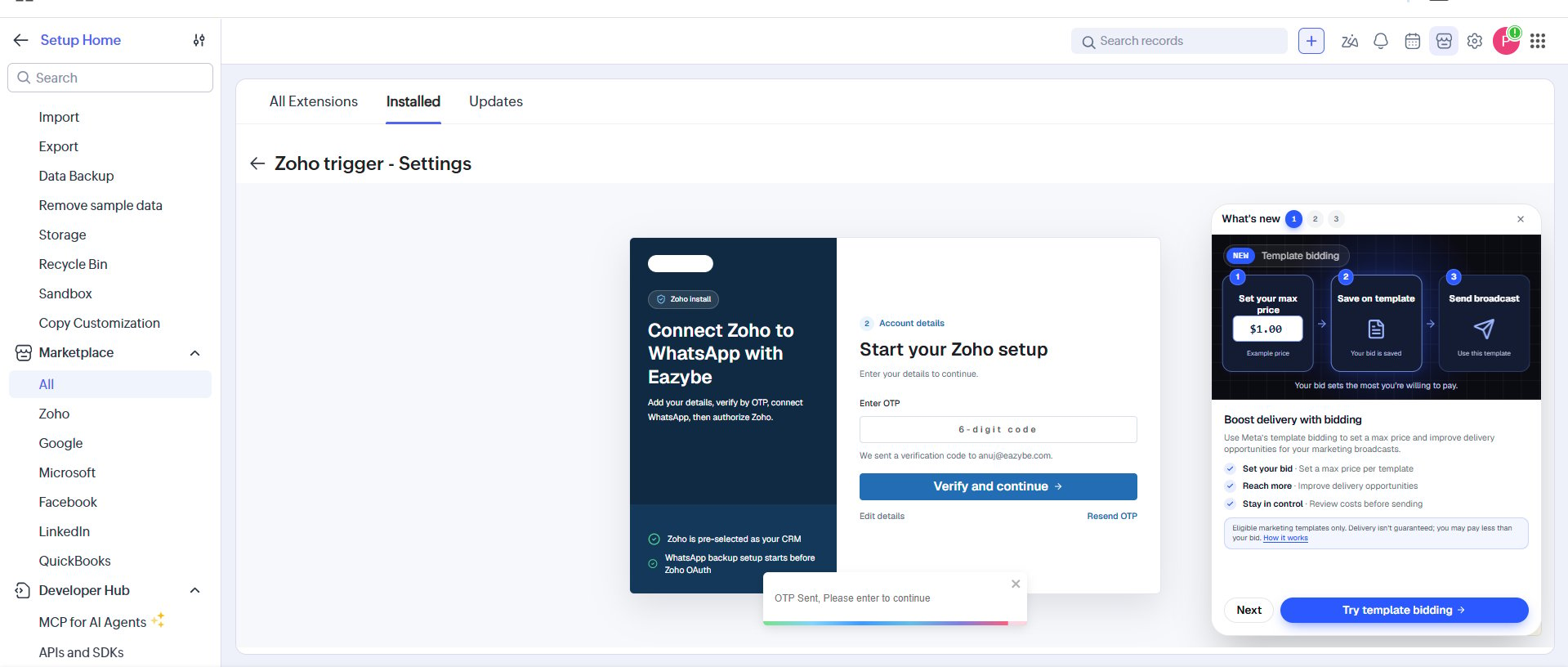
5
Review the WhatsApp backup setup
The onboarding flow may show Install Eazybe for Chrome for WhatsApp backup setup. If you are setting up this backup feature, click Install extension or I installed it, as appropriate.Follow the setup prompts to connect your account and authorize Zoho. Team Inbox is included in the Zoho package; the overall inbox does not require the Chrome extension or an open WhatsApp Web tab.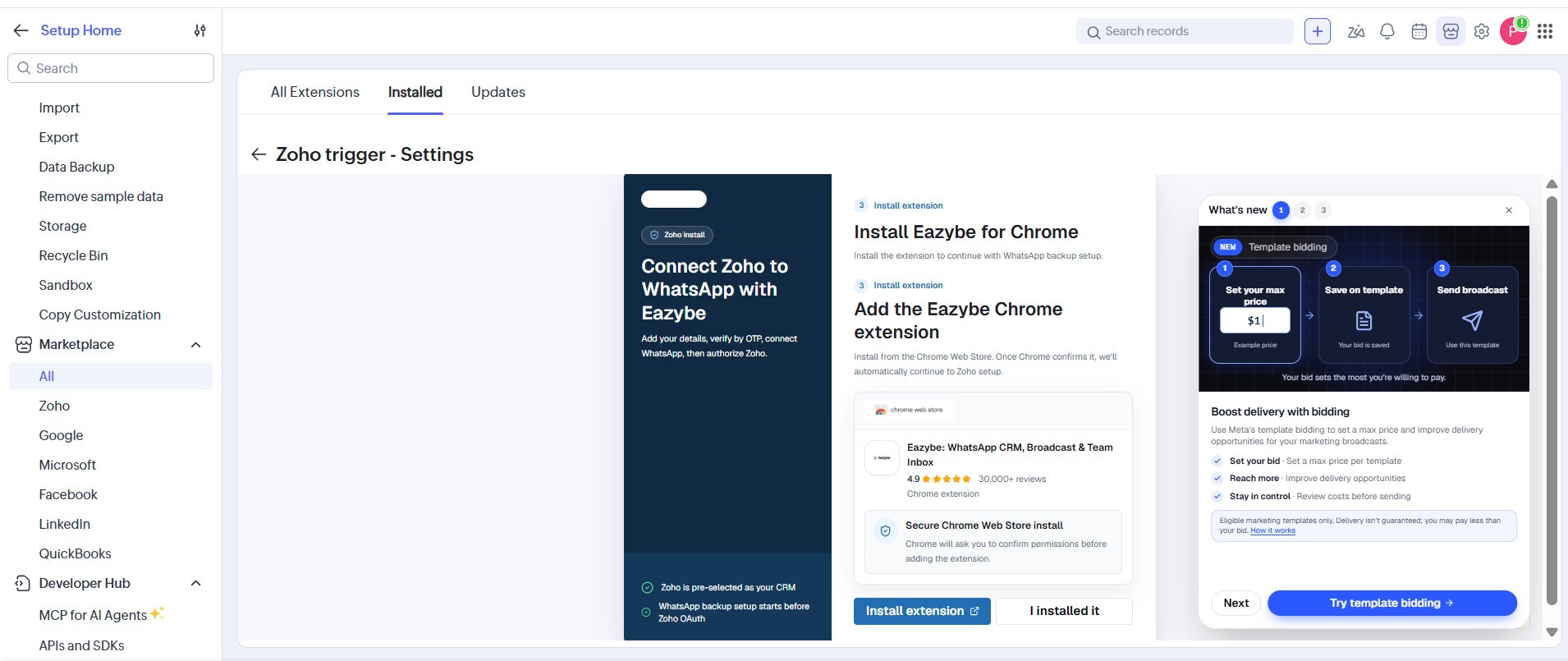
Open Team Inbox on a Contact or Lead
- Open Contacts or Leads in Zoho CRM and select the record.
- In the record’s Related List on the left, scroll down and click Eazybe Team Inbox. You can also scroll down the record page to the section with the same name.
- Review the record’s conversation in the embedded inbox. Use View: to choose an available conversation view and Assign: to manage assignment according to your access.
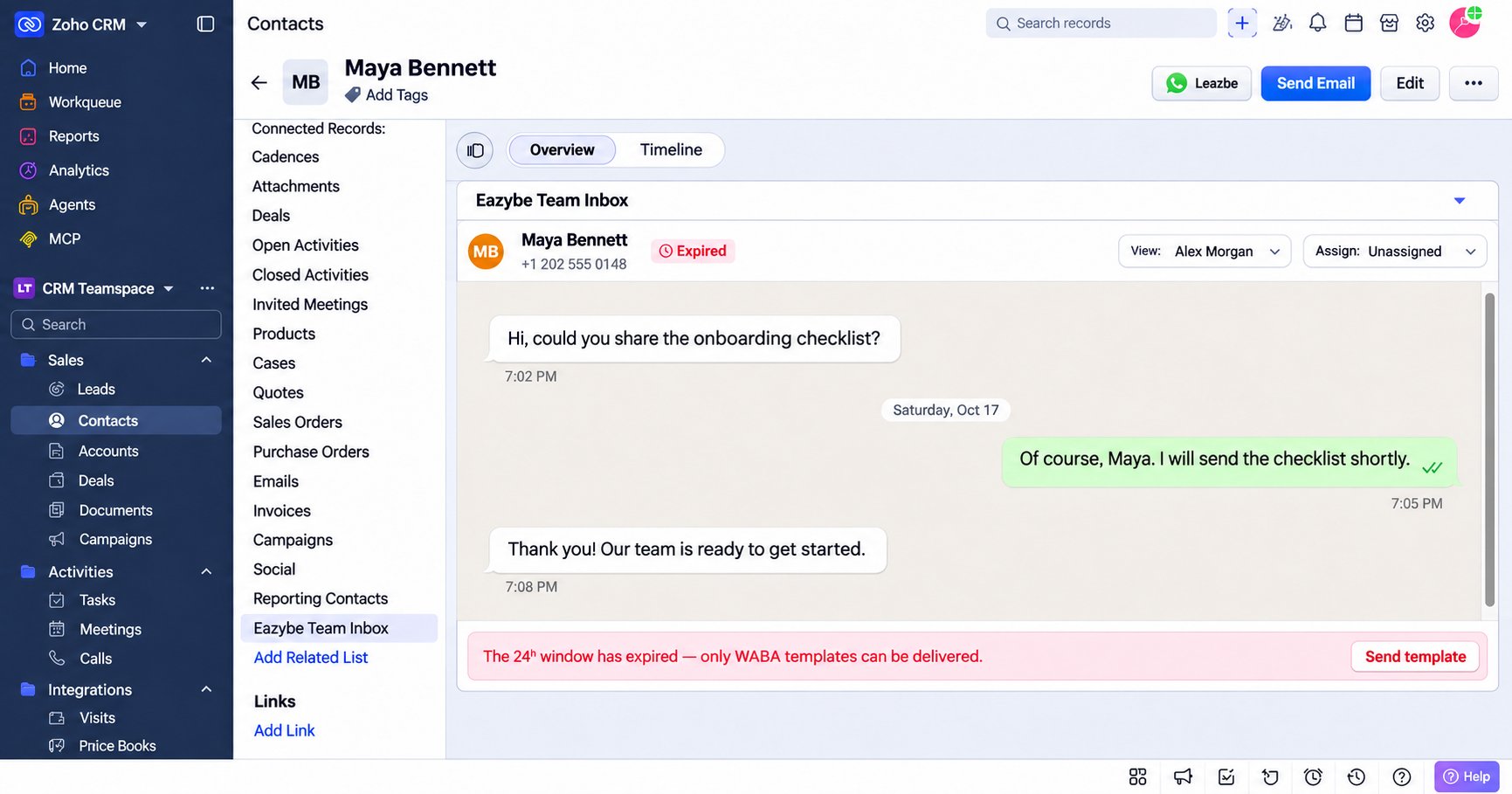
If the conversation shows Expired and The 24h window has expired — only WABA templates can be delivered, use Send template to continue through the template flow. The screenshot illustrates this expired-window state.
Open the Overall Team Inbox
- In Zoho’s module navigation, find Eazybe Team Inbox alongside modules such as Vendors, Services, and Projects. Scroll through the module list if needed. In the layout shown below, this navigation is on the left.
- Click Eazybe Team Inbox. The overall inbox opens inside Zoho CRM and shows the conversations available to you across your workspace.
- Choose an inbox list such as All conversations, Favorites, Assigned, Unassigned, or Assign to me. Use Search conversations, Channels, Assignee, and All filters to narrow the list.
- Select a conversation to view its messages on the right. Until you select one, the panel shows Select a conversation.