

Overview
WhatsApp and Zoho CRM contacts connect automatically through unique phone numbers. When you create or link a contact, all WhatsApp conversations with that number are automatically backed up to your Zoho CRM.How Contact Linking Works
1
Automatic Phone Number Matching
Contacts are linked automatically based on the phone number entered in Zoho CRM’s Phone or Mobile fields. Ensure the number format matches the WhatsApp number format.
2
Create New Contact via Eazybe
You can create a new Zoho contact directly from WhatsApp using the Eazybe extension. The contact will automatically link to the WhatsApp conversation.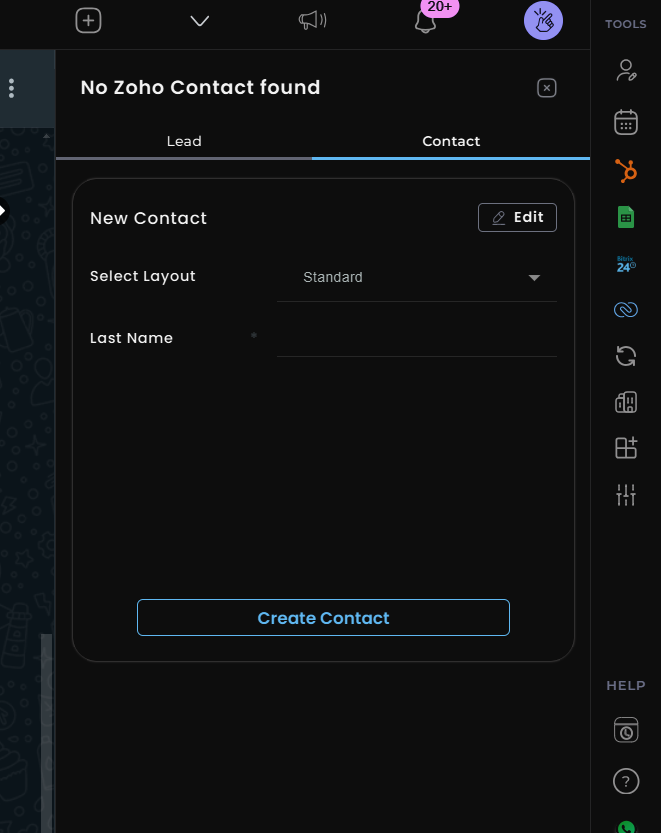
3
Automatic Chat Backup
Once a contact is linked, WhatsApp chats with that contact are backed up to Zoho CRM every 3 minutes, ensuring your data stays synchronized.
Linking Methods
Create New Contact
Use the Eazybe WhatsApp extension to create a new Zoho contact. The contact automatically links to the current WhatsApp conversation.
Link Existing Contact
If a contact already exists in Zoho CRM, ensure the phone number matches the WhatsApp number for automatic linking.
Verifying Sync Status
The Eazybe workspace displays the last sync time for each contact, allowing you to verify that chat backups are working correctly.
Frequently Asked Questions
How often are chats backed up?
How often are chats backed up?
WhatsApp chats are backed up to Zoho CRM every 3 minutes automatically once a contact is linked.
What phone number format should I use?
What phone number format should I use?
Use the same format as the WhatsApp number, including the country code. For example: +1234567890
Can I link multiple WhatsApp numbers to one contact?
Can I link multiple WhatsApp numbers to one contact?
Each Zoho contact can be linked to one WhatsApp number. If a contact has multiple numbers, create the link using the primary WhatsApp number.
What if the contact is not linking automatically?
What if the contact is not linking automatically?
Verify that the phone number in Zoho CRM matches the WhatsApp number exactly, including the country code. Check the Phone or Mobile field in the contact record.
Need help? Contact support at hey@eazybe.com