

Open Number mapping
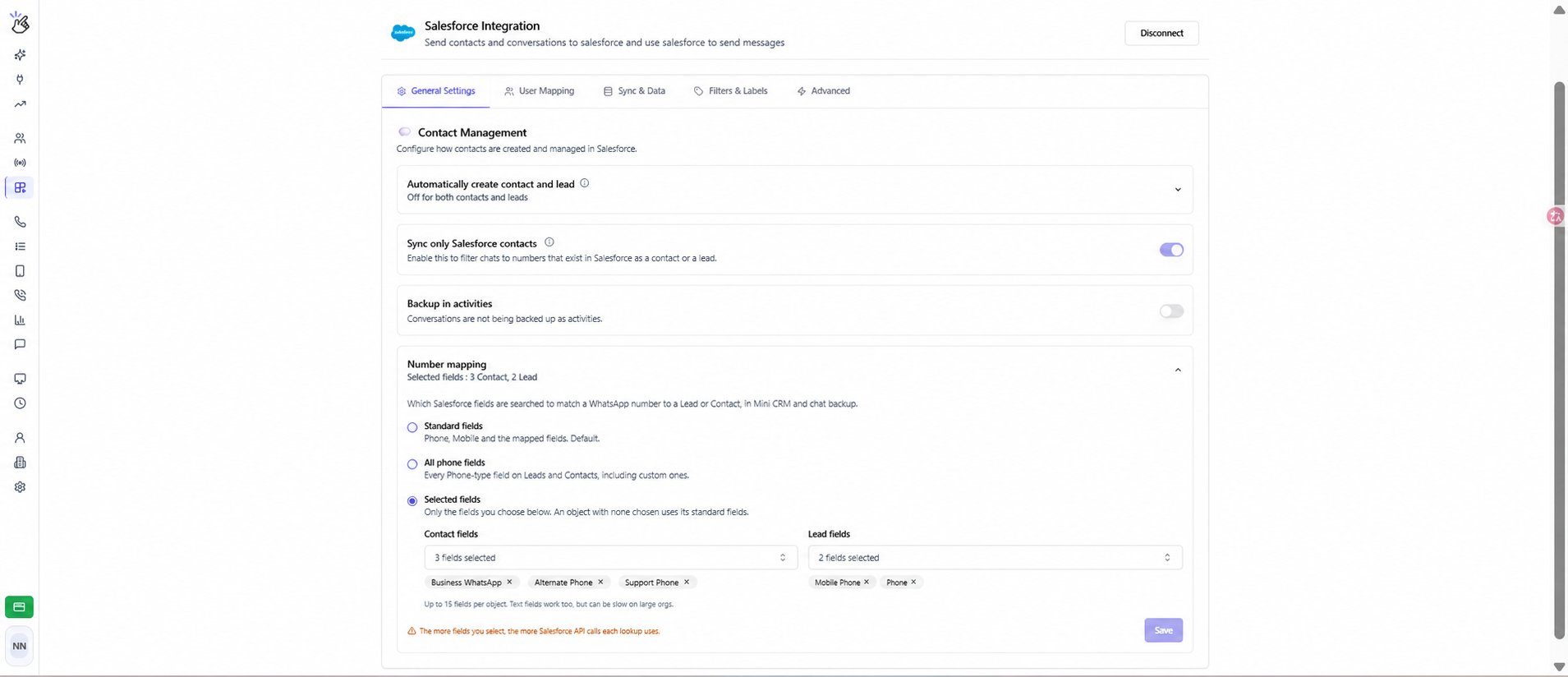
Sign in to the Eazybe workspace as an admin, open Integrations → Salesforce → General Settings, and expand Number mapping under Contact Management. Salesforce must be connected.Choose which fields to search
In Selected fields, Phone and Mobile are not automatically included for an object with selected fields. Select them explicitly if you want them searched too. If you leave one object’s selection empty, that object uses its standard fields. Choose at least one field across Contacts and Leads to save this mode.
Set up custom fields
- Select Selected fields.
- Open Contact fields and search by field label or API name. Select the fields that contain your customers’ WhatsApp numbers.
- Open Lead fields and choose the fields used for Leads. You can select up to 15 fields per object.
- To remove a field, click the × on its selected chip.
- Click Save. Wait for the Number mapping updated confirmation. Changes apply only after saving.
Check the result
Open a WhatsApp chat whose number is stored in one of the configured fields. Check that the expected Lead or Contact appears in the Mini CRM, then check the message sync status. If the record is not found:- Confirm that the WhatsApp number is stored correctly in a field included in the saved mode.
- Check the Contact and Lead selections separately.
- For numbers stored in Text fields, use Selected fields and select the field explicitly.
- If a field is missing from the picker, check that the connected Salesforce user can access it. Only eligible Phone and Text fields are listed.
- If fields fail to load, check the Salesforce connection and try again.