

Prerequisites
Before starting, ensure you have:
- The latest EazyBe WhatsApp extension installed
- An active LeadSquared account with admin access
Integration Steps
1
Open WhatsApp Web Integrations
Click on the Integrations button in your WhatsApp Web interface through the EazyBe extension.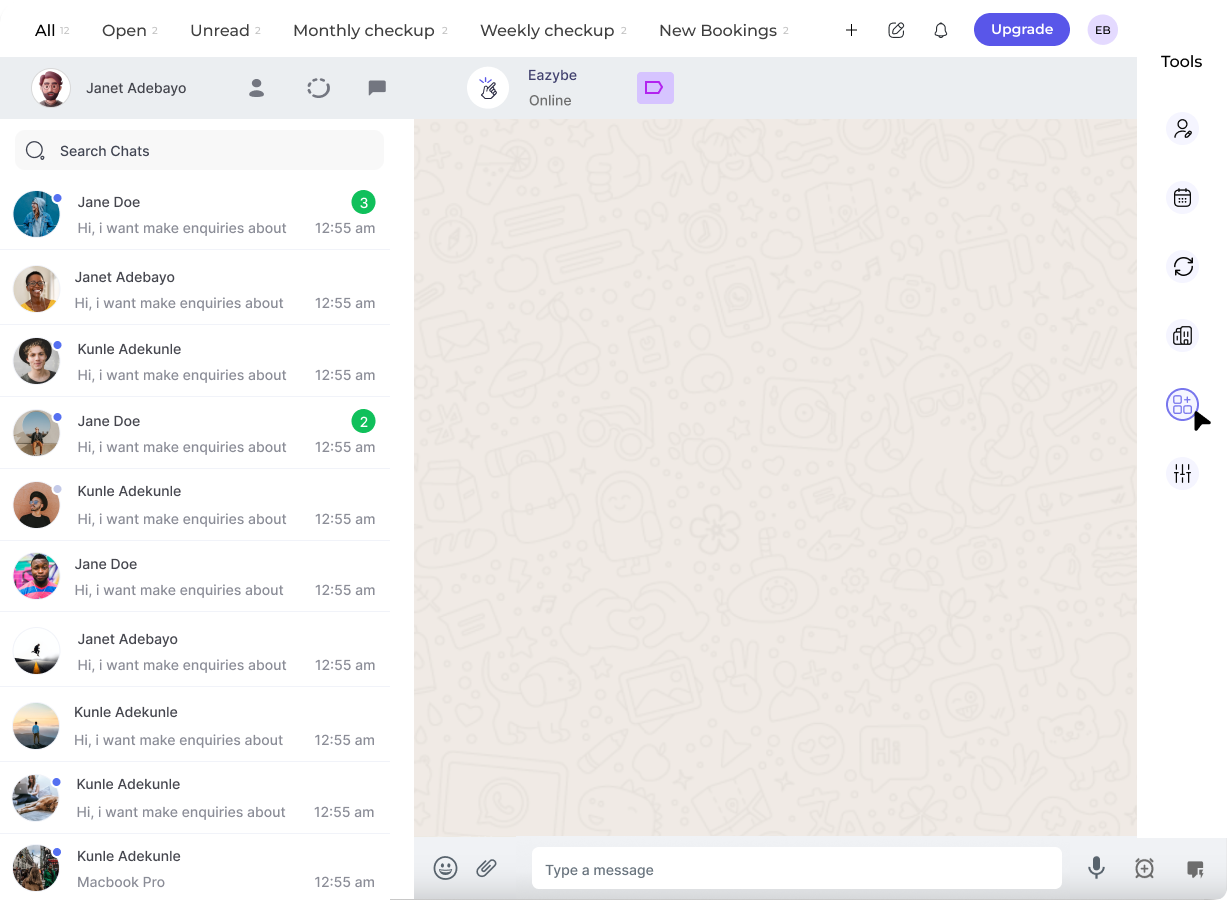
2
Select LeadSquared
Locate and click on the LeadSquared connection option from the available integrations list.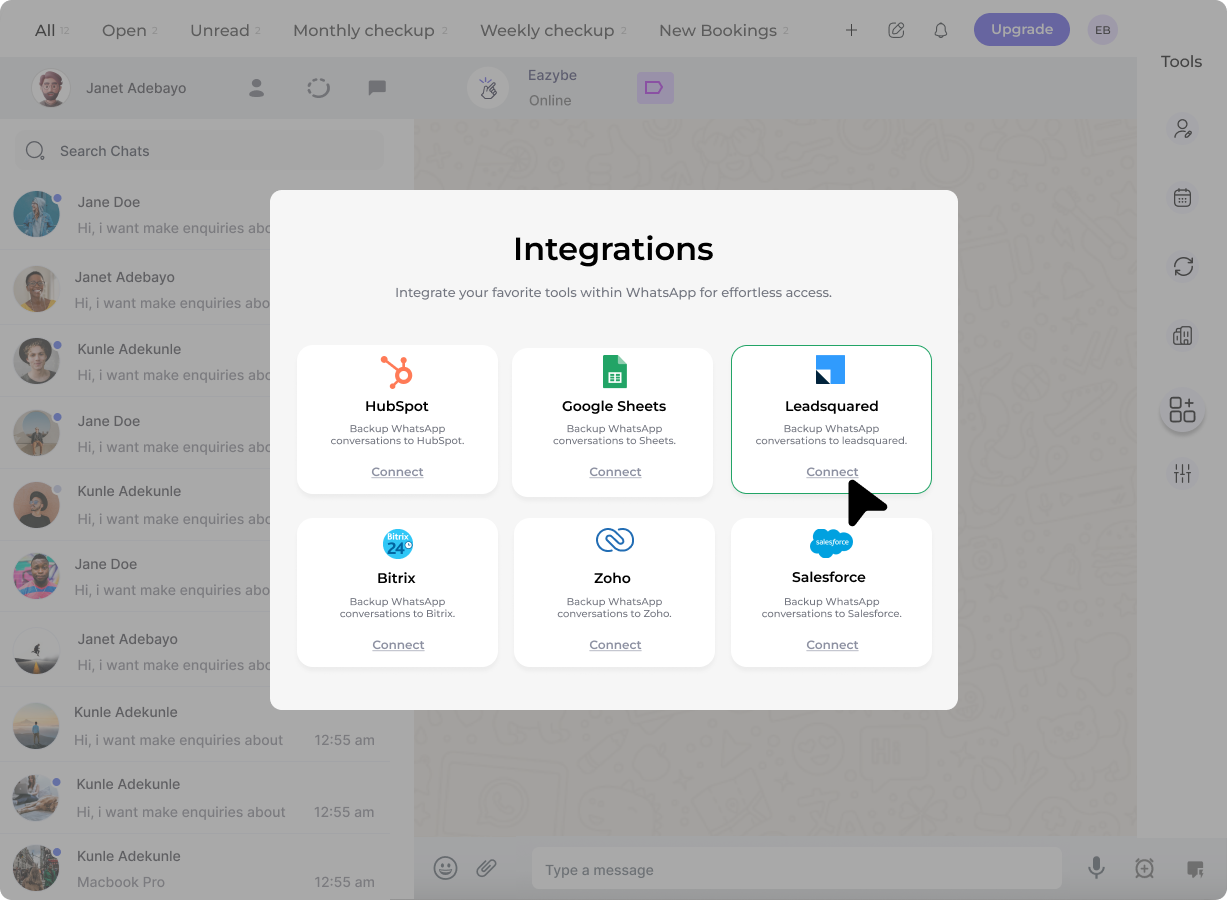
3
Access LeadSquared API Settings
In your LeadSquared account, navigate to Settings → API and Webhooks section to retrieve your credentials.
4
Copy Your Host Name
From the API Host field, copy your Host Name value.
5
Get Access Key and Secret Key
Navigate to the Secret Key section to find your Access ID and Secret Key.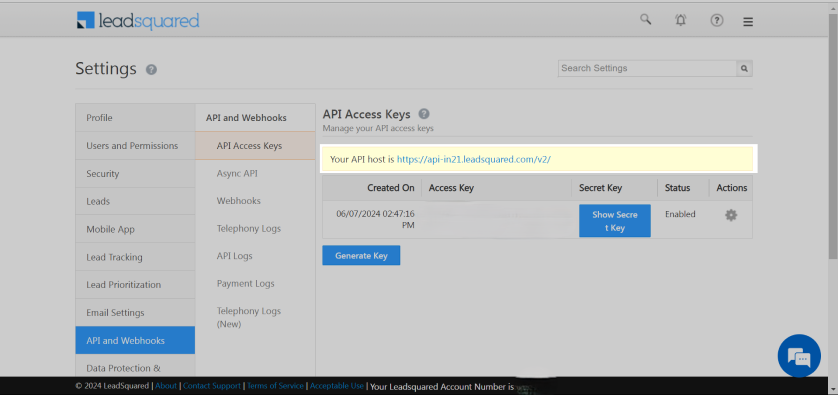
6
Enter Credentials in EazyBe
Return to the EazyBe integration form and enter your credentials:
- Host Name
- Access Key
- Secret Key