Use the EazyBe Team Inbox directly inside Salesforce on Contact, Lead, and Person Account records, plus a global Team Inbox for your whole team
EazyBe Team Inbox is embedded directly inside Salesforce, so your team can manage WhatsApp conversations without leaving the CRM. Once enabled, you get:
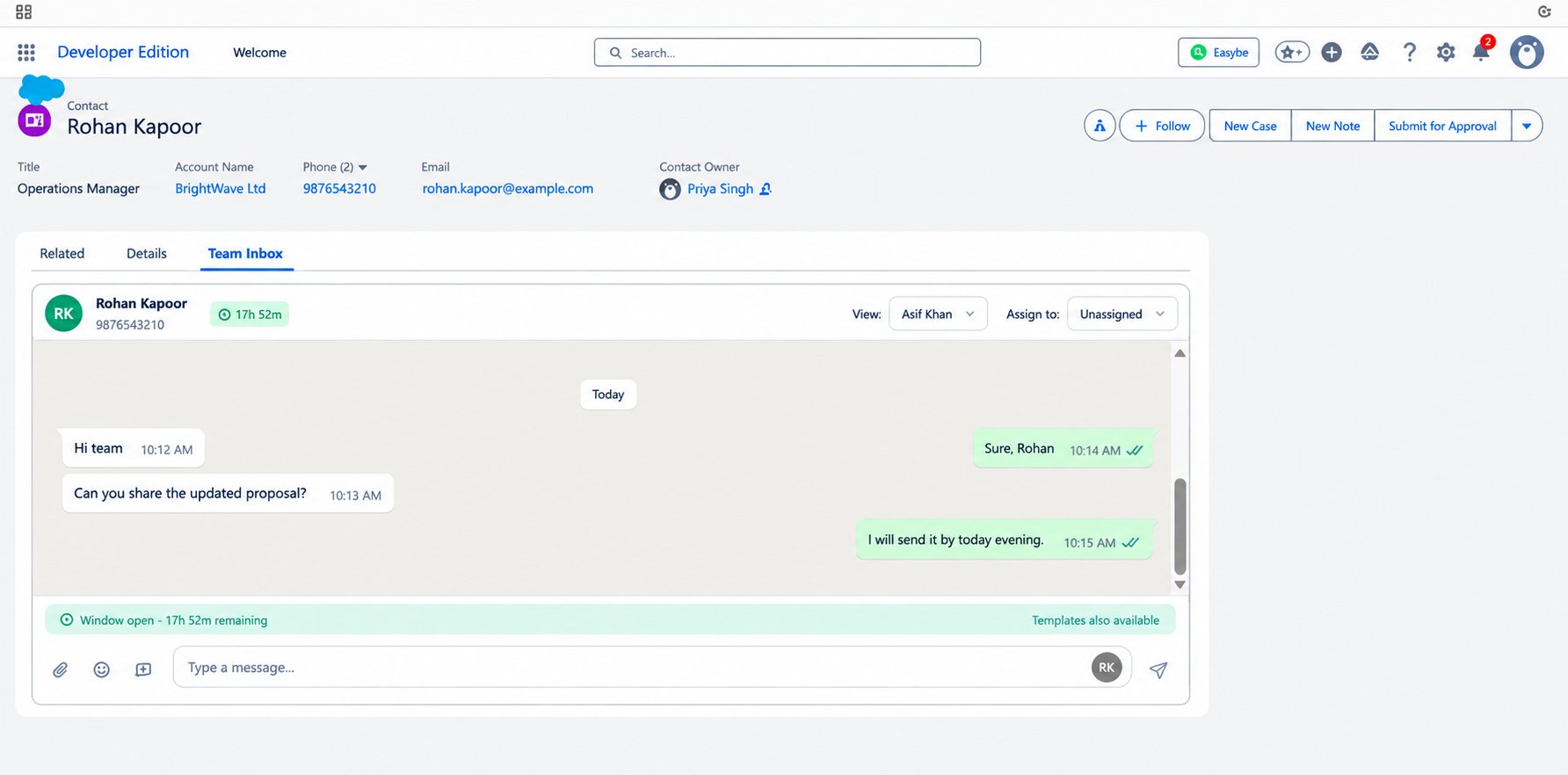
Team Inbox on records — WhatsApp conversations for a specific Contact, Lead, or Person Account, shown right on the record page
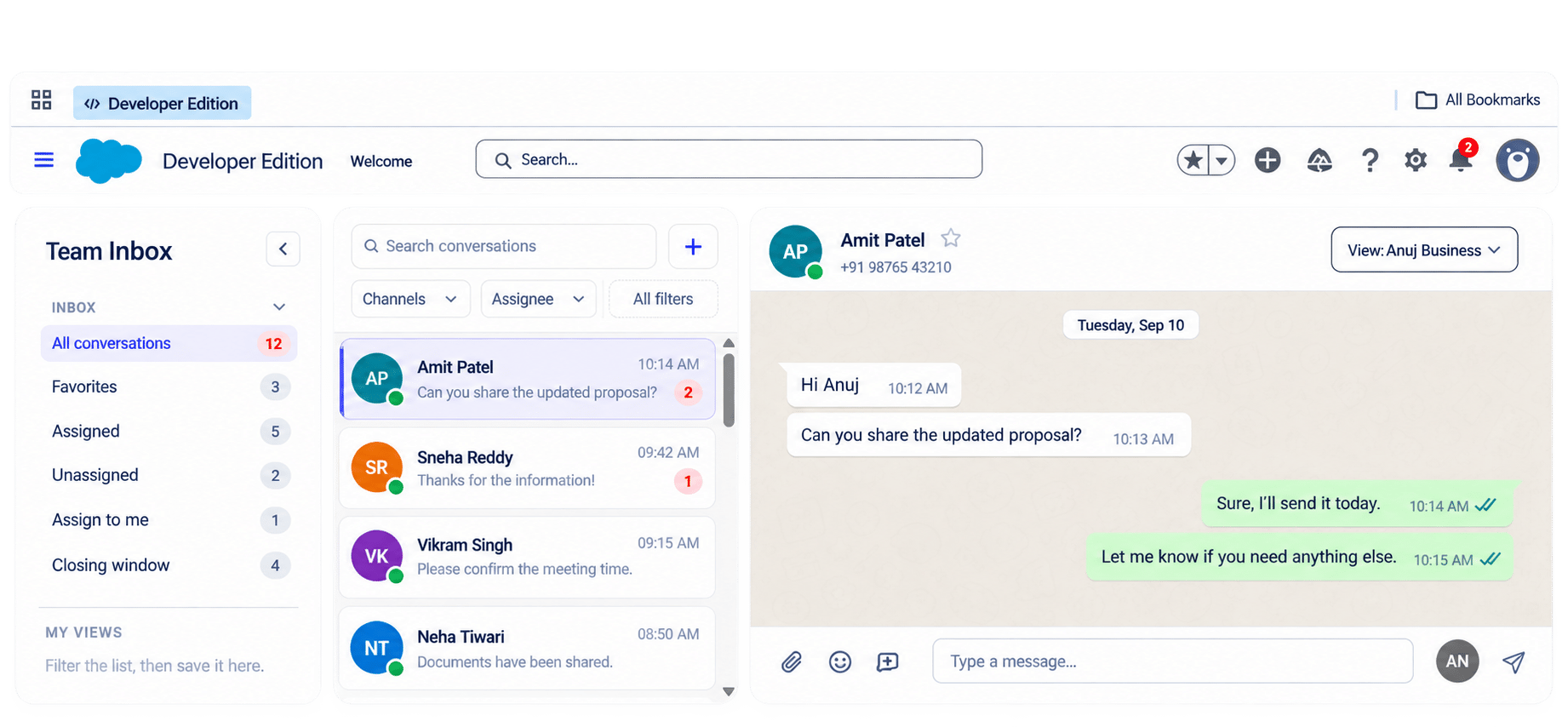
Global Team Inbox — all conversations across your team in one place
This setup applies to new installations of the EazyBe Team Inbox package. Existing orgs that don’t install the new package are not affected — their current setup keeps working exactly as before.
A Salesforce administrator needs to complete the following steps once per org. Steps 1–3 are the one-time prerequisite setup; steps 4–6 install and enable the Team Inbox.
1
Create Record Types
At least one active Record Type is required for Account, Contact, and Lead. Create them as follows (repeat for each object):
Go to Setup and open Object Manager.
Select the object — Account, Contact, or Lead.
Click Record Types, then New.
Select Master as the existing Record Type.
Enter a Record Type Label (e.g., Default Account, Default Contact, or Default Lead).
Mark the Record Type as Active.
Assign the Record Type to all required Profiles.
Select the appropriate Page Layout.
Click Save.
If an object already has an active Record Type, you can skip it for that object.
2
Configure Sharing Settings
Go to Setup and search for Sharing Settings.
Under Organization-Wide Defaults, configure the following:
Object
Recommended Setting
Account
Private or Public Read Only
Contact
Controlled by Parent or Private
Lead
Private or Public Read Only
Click Save.
3
Enable Field History Tracking
Field History Tracking must be enabled separately for each object (Account, Contact, and Lead):
Go to Setup and open Object Manager.
Select the object — Account, Contact, or Lead.
Select Fields & Relationships.
Click Set History Tracking.
Enable Track Field History and select the required fields to track.
Click Save.
4
Install the EazyBe Team Inbox package
Install the EazyBe Team Inbox managed package in your Salesforce org:Install the EazyBe Team Inbox packageWhen prompted, choose Install for All Users.
5
Authorize users in External Client App Manager
After the package is installed, authorize the profiles that should have access:
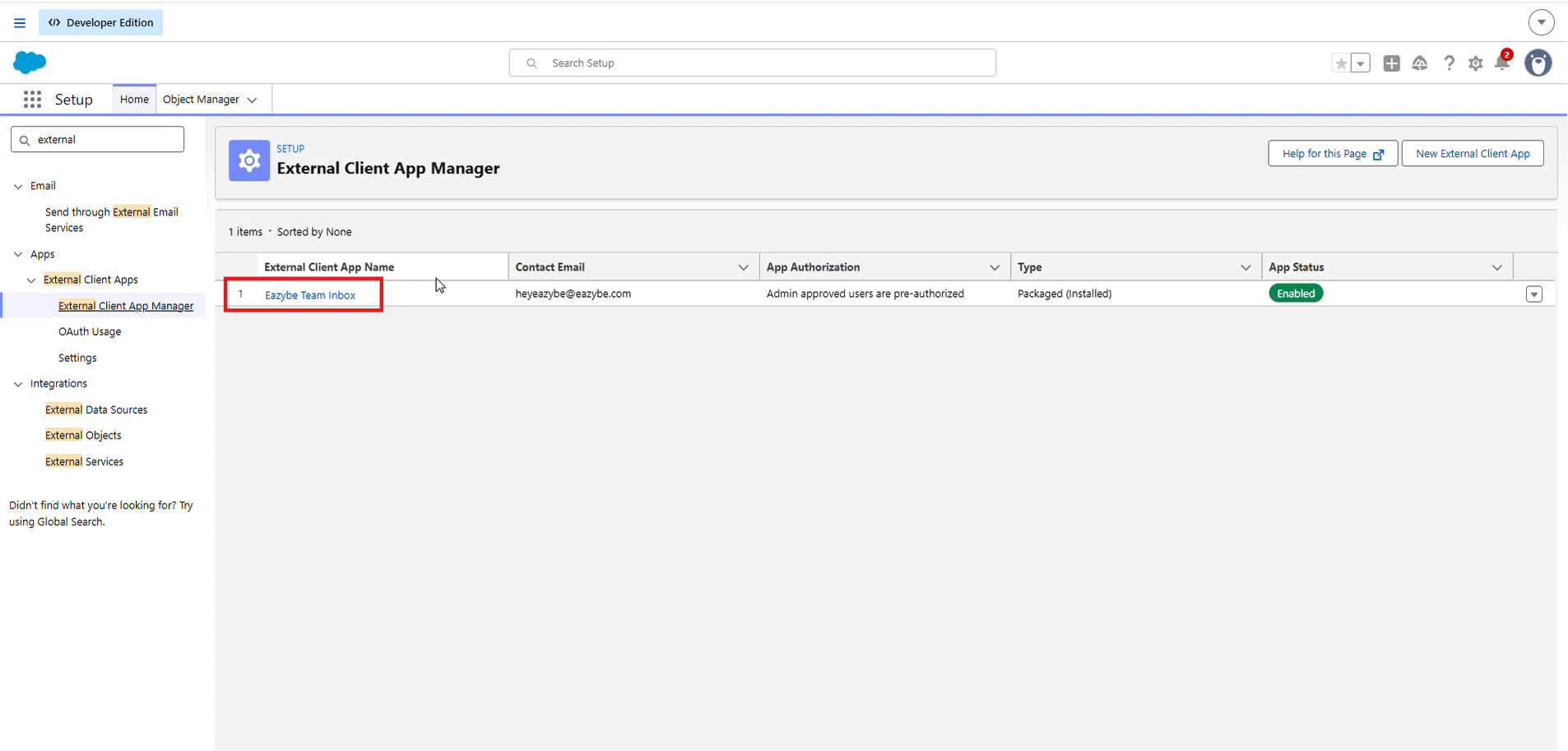
In Salesforce, go to Setup and search for External Client App Manager.
Open Eazybe Team Inbox — Packaged (the EazyBe app listed as installed).
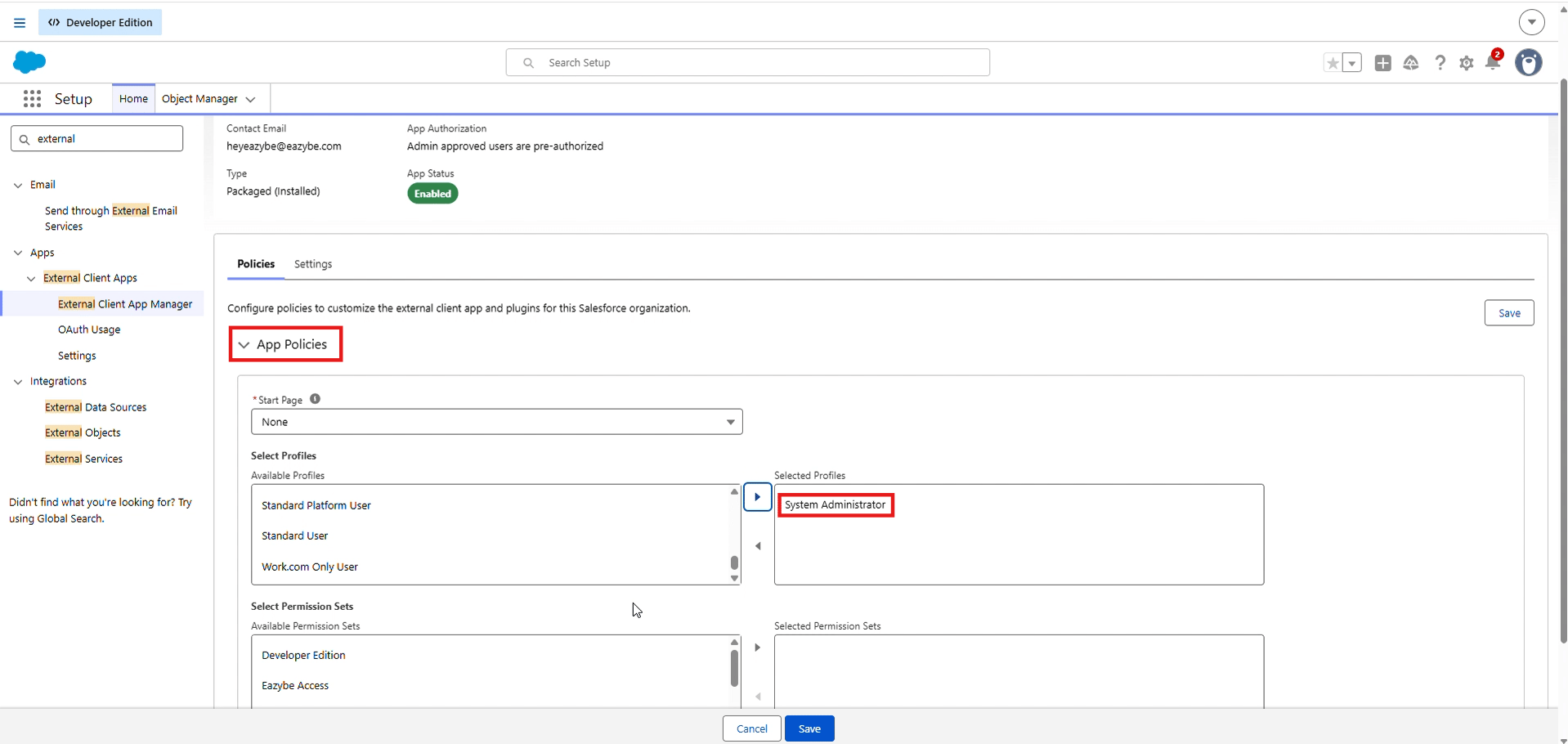
Under Policies, set Permitted Users to Admin approved users are pre-authorized.
Under Authorized Profiles, select System Administrator and click Save.
Opening Eazybe Team Inbox in External Client App Manager
Authorizing System Administrator under App Policies
6
Activate the record pages
Next, activate the EazyBe record pages so the Team Inbox appears on your records. Repeat this step for each object:
Object
Page to select
Contact
Eazybe Contact Record Page
Lead
Eazybe Lead Record Page
Person Account
Eazybe Person Account Record Page
Click the gear icon (⚙️) in the top-right corner and select Edit Page.
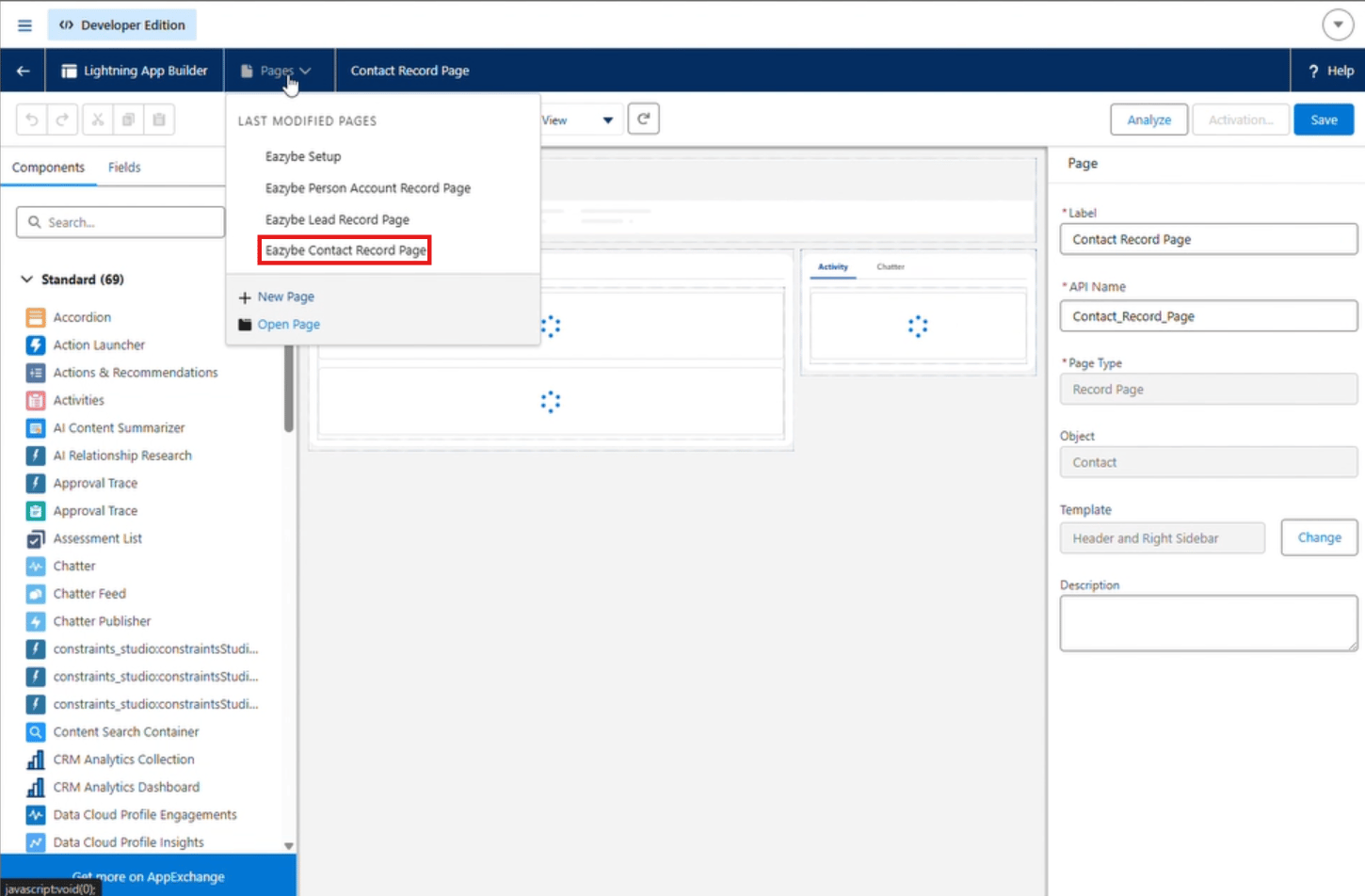
In the page selector at the top of the Lightning App Builder, select the page for the object (see the table above).
Click Activation in the top-right corner.
In the modal, choose Org Default to assign the page to your whole org.
Select both Desktop and Phone.
Click Save.
Selecting the Eazybe Contact Record Page in the Lightning App Builder
The authorization and activation steps above are temporary. An upcoming package update will handle them automatically during installation, so users won’t need to perform them manually.
Once the pages are activated, open any Contact, Lead, or Person Account record in Salesforce. The record page shows the EazyBe Team Inbox with all WhatsApp conversations for that record.
To see all conversations across your team, open the Eazybe Team Inbox app from the App Launcher (the grid icon in the top-left corner).The global inbox is not limited to a single record — it shows every conversation across your workspace.
EazyBe Team Inbox package installed in your Salesforce org (by an admin)
Active EazyBe integration with Salesforce
Your profile authorized in External Client App Manager (see step 5 above)
If you have any questions, reach out to us at hey@eazybe.com.
Was this page helpful?
{"docsConfig":{"theme":"mint","$schema":"https://mintlify.com/docs.json","name":"Eazybe","colors":{"primary":"#25D366","light":"#25D366","dark":"#128C7E"},"logo":{"light":"https://mintcdn.com/eazybe/TtjqbPeh2FMWJGex/logo/light.svg?fit=max\u0026auto=format\u0026n=TtjqbPeh2FMWJGex\u0026q=85\u0026s=a91766fca92028f00082929d6e241356","dark":"https://mintcdn.com/eazybe/TtjqbPeh2FMWJGex/logo/dark.svg?fit=max\u0026auto=format\u0026n=TtjqbPeh2FMWJGex\u0026q=85\u0026s=da7117b4a04f56dc6eb7f00e1d608b3f"},"favicon":"https://mintcdn.com/eazybe/TyMNKRVg-iXkJM5t/favicon3.png?fit=max\u0026auto=format\u0026n=TyMNKRVg-iXkJM5t\u0026q=85\u0026s=9b239a885e1067e5a90ddb398e9b242a","api":{"playground":{"display":"simple"},"examples":{"languages":["curl"]}},"search":{"prompt":"Search documentation..."},"seo":{},"styling":{"latex":true},"navigation":{"languages":[{"language":"en","href":"introduction"},{"language":"es","href":"es/introduction"},{"language":"pt","href":"pt/introduction"},{"language":"tr","href":"tr/introduction"}]}},"deployment":{"deploymentMetadataValue":{"subdomain":"eazybe","hasAudioNarration":false,"actualSubdomain":"eazybe","customDomains":["help.eazybe.com"],"gitSource":{"type":"github","owner":"eazybecode","repo":"docs","deployBranch":"main","contentDirectory":"","isPrivate":false,"mountPath":"","label":""},"chroma":{"liveDeploymentHistoryId":"6ae62b8f426c3612a899614f","collectionId":"a1476f1e-c66d-4a93-9e39-17cf4e12f02a","schemaVersion":"v3","latestBuiltDeploymentHistoryId":"6ae62b8f426c3612a899614f"},"feedback":{"thumbs":true,"edits":false},"entitlements":{},"buildId":"6ae63512302fef4badce785d","clientVersion":"0.0.4044","searchFilterCounts":[{"language":"pt","tag":"Integrações CRM","count":221},{"language":"tr","tag":"CRM Entegrasyonları","count":219},{"language":"es","tag":"Integraciones CRM","count":218},{"language":"en","tag":"CRM Integrations","count":215},{"language":"en","tag":"Guides","count":117},{"language":"pt","tag":"Guias","count":104},{"language":"tr","tag":"Kılavuzlar","count":98},{"language":"es","tag":"Guías","count":93},{"language":"en","tag":"FAQ","count":59},{"language":"es","tag":"HubSpot","count":53},{"language":"pt","tag":"HubSpot","count":53},{"language":"tr","tag":"HubSpot","count":53},{"language":"en","tag":"HubSpot","count":51},{"language":"es","tag":"API Reference","count":46},{"language":"pt","tag":"API Reference","count":46},{"language":"tr","tag":"API Reference","count":46},{"language":"es","tag":"FAQ","count":45},{"language":"pt","tag":"FAQ","count":45},{"language":"tr","tag":"FAQ","count":45},{"language":"en","tag":"Zoho CRM","count":44},{"language":"es","tag":"Zoho CRM","count":44},{"language":"pt","tag":"Zoho CRM","count":44},{"language":"tr","tag":"Zoho CRM","count":44},{"language":"es","tag":"Documentación de la API de WABA","count":43},{"language":"pt","tag":"Documentação da API WABA","count":43},{"language":"tr","tag":"WABA API Dokümantasyonu","count":43},{"language":"es","tag":"Vista Mini-CRM","count":40},{"language":"pt","tag":"Vista Mini-CRM","count":40},{"language":"tr","tag":"Mini-CRM Görünümü","count":40},{"language":"en","tag":"Salesforce","count":37},{"language":"en","tag":"Mini-CRM View","count":35},{"language":"es","tag":"LeadSquared","count":33},{"language":"pt","tag":"LeadSquared","count":33},{"language":"tr","tag":"LeadSquared","count":33},{"language":"es","tag":"Salesforce","count":32},{"language":"pt","tag":"Salesforce","count":32},{"language":"tr","tag":"Salesforce","count":32},{"language":"en","tag":"LeadSquared","count":28},{"language":"en","tag":"API Reference","count":25},{"language":"en","tag":"Bitrix24","count":25}]},"assistantConfig":{"enableAskAiButton":false,"enableStarterQuestions":false,"enableAskAiSearchBar":true},"basePath":"","hasChatPermissions":false,"hasWebMcpPermissions":false,"toggles":[{"name":"kill-isr","enabled":true,"variant":{"name":"disabled","enabled":false,"feature_enabled":true},"impressionData":false},{"name":"agent-mintlify-slack","enabled":true,"variant":{"name":"disabled","enabled":false,"feature_enabled":true},"impressionData":false},{"name":"agent-integrations-settings","enabled":true,"variant":{"name":"disabled","enabled":false,"feature_enabled":true},"impressionData":false},{"name":"automations-pr-grouping","enabled":true,"variant":{"name":"disabled","enabled":false,"feature_enabled":true},"impressionData":false},{"name":"custom-prefix","enabled":true,"variant":{"name":"disabled","enabled":false,"feature_enabled":true},"impressionData":false},{"name":"analytics-v7","enabled":true,"variant":{"name":"disabled","enabled":false,"feature_enabled":true},"impressionData":false},{"name":"user-flows-analytics","enabled":true,"variant":{"name":"disabled","enabled":false,"feature_enabled":true},"impressionData":false},{"name":"no-publish-flow","enabled":true,"variant":{"name":"disabled","enabled":false,"feature_enabled":true},"impressionData":false},{"name":"workos-onboarding","enabled":true,"variant":{"name":"disabled","enabled":false,"feature_enabled":true},"impressionData":false},{"name":"llms-txt-v2","enabled":true,"variant":{"name":"disabled","enabled":false,"feature_enabled":true},"impressionData":false},{"name":"snapshot-serving-live","enabled":true,"variant":{"name":"disabled","enabled":false,"feature_enabled":true},"impressionData":false},{"name":"stripTemperatureMiddleware","enabled":true,"variant":{"name":"disabled","enabled":false,"feature_enabled":true},"impressionData":false},{"name":"support-platform-pylon-zendesk","enabled":true,"variant":{"name":"disabled","enabled":false,"feature_enabled":true},"impressionData":false},{"name":"snapshot-serving","enabled":true,"variant":{"name":"disabled","enabled":false,"feature_enabled":true},"impressionData":false},{"name":"instant-rollback","enabled":true,"variant":{"name":"disabled","enabled":false,"feature_enabled":true},"impressionData":false},{"name":"granular-notifications-server","enabled":true,"variant":{"name":"disabled","enabled":false,"feature_enabled":true},"impressionData":false},{"name":"granular-notifications","enabled":true,"variant":{"name":"disabled","enabled":false,"feature_enabled":true},"impressionData":false},{"name":"automations-fable","enabled":true,"variant":{"name":"disabled","enabled":false,"feature_enabled":true},"impressionData":false},{"name":"fixed-ai-action-pricing","enabled":true,"variant":{"name":"disabled","enabled":false,"feature_enabled":true},"impressionData":false},{"name":"automation-resolve-merge-conflict","enabled":true,"variant":{"name":"disabled","enabled":false,"feature_enabled":true},"impressionData":false},{"name":"scoped-publishing","enabled":true,"variant":{"name":"disabled","enabled":false,"feature_enabled":true},"impressionData":false},{"name":"mintql","enabled":true,"variant":{"name":"disabled","enabled":false,"feature_enabled":true},"impressionData":false},{"name":"page-level-analytics","enabled":true,"variant":{"name":"disabled","enabled":false,"feature_enabled":true},"impressionData":false},{"name":"editor-version-history-v2","enabled":true,"variant":{"name":"disabled","enabled":false,"feature_enabled":true},"impressionData":false},{"name":"billing-page-v2","enabled":true,"variant":{"name":"disabled","enabled":false,"feature_enabled":true},"impressionData":false},{"name":"full-page-search","enabled":true,"variant":{"name":"disabled","enabled":false,"feature_enabled":true},"impressionData":false},{"name":"workspace-projects","enabled":true,"variant":{"name":"disabled","enabled":false,"feature_enabled":true},"impressionData":false},{"name":"assistant-v5","enabled":true,"variant":{"name":"disabled","enabled":false,"feature_enabled":true},"impressionData":false},{"name":"byok-sep-25","enabled":true,"variant":{"name":"disabled","enabled":false,"feature_enabled":true},"impressionData":false},{"name":"fork-pr-previews","enabled":true,"variant":{"name":"disabled","enabled":false,"feature_enabled":true},"impressionData":false},{"name":"revalidation-jwt","enabled":true,"variant":{"name":"disabled","enabled":false,"feature_enabled":true},"impressionData":false},{"name":"vite-origin","enabled":true,"variant":{"name":"disabled","enabled":false,"feature_enabled":true},"impressionData":false},{"name":"billing-updated-9-15","enabled":true,"variant":{"name":"disabled","enabled":false,"feature_enabled":true},"impressionData":false},{"name":"workos-sso-scim","enabled":true,"variant":{"name":"disabled","enabled":false,"feature_enabled":true},"impressionData":false},{"name":"hobby-abuse-scan","enabled":true,"variant":{"name":"disabled","enabled":false,"feature_enabled":true},"impressionData":false},{"name":"dashboard-inbox","enabled":true,"variant":{"name":"disabled","enabled":false,"feature_enabled":true},"impressionData":false},{"name":"workos-signup","enabled":true,"variant":{"name":"disabled","enabled":false,"feature_enabled":true},"impressionData":false},{"name":"turbopuffer-dual-write","enabled":true,"variant":{"name":"disabled","enabled":false,"feature_enabled":true},"impressionData":false},{"name":"workos-enabled","enabled":true,"variant":{"name":"disabled","enabled":false,"feature_enabled":true},"impressionData":false},{"name":"approve-review-flow","enabled":true,"variant":{"name":"disabled","enabled":false,"feature_enabled":true},"impressionData":false},{"name":"sso-setup-deadline-banner","enabled":true,"variant":{"name":"disabled","enabled":false,"feature_enabled":true},"impressionData":false}],"googleFontsInlined":false},"customCss":[{"filePath":"style.css","content":"html[data-current-path*=\"/api-reference/meta/operations/\"] .api-section-heading-title+.flex.items-center{display:none}html[data-current-path*=\"/api-reference/meta/operations/\"] .api-section>.object-param-field>div>div:has(>div pre)>div:not(:has(pre)){display:none}"}],"page":{"pagePath":"en/integrations/salesforce/team-inbox","slug":"/en/integrations/salesforce/team-inbox","pageMetadata":{"title":"Team Inbox","description":"Use the EazyBe Team Inbox directly inside Salesforce on Contact, Lead, and Person Account records, plus a global Team Inbox for your whole team","href":"/en/integrations/salesforce/team-inbox"},"description":{"compiledSource":"\"use strict\";\nconst {jsx: _jsx} = arguments[0];\nconst {useMDXComponents: _provideComponents} = arguments[0];\nfunction _createMdxContent(props) {\n const _components = {\n p: \"p\",\n ..._provideComponents(),\n ...props.components\n };\n return _jsx(_components.p, {\n children: \"Use the EazyBe Team Inbox directly inside Salesforce on Contact, Lead, and Person Account records, plus a global Team Inbox for your whole team\"\n });\n}\nfunction MDXContent(props = {}) {\n const {wrapper: MDXLayout} = {\n ..._provideComponents(),\n ...props.components\n };\n return MDXLayout ? _jsx(MDXLayout, {\n ...props,\n children: _jsx(_createMdxContent, {\n ...props\n })\n }) : _createMdxContent(props);\n}\nreturn {\n default: MDXContent\n};\n","frontmatter":{},"scope":{}},"pageType":"default","mdx":{"mdxSource":{"compiledSource":"\"use strict\";const{Fragment:_Fragment,jsx:_jsx,jsxs:_jsxs}=arguments[0];const{useMDXComponents:_provideComponents}=arguments[0];function _createMdxContent(props){const _components={a:`a`,hr:`hr`,li:`li`,ol:`ol`,p:`p`,strong:`strong`,tbody:`tbody`,td:`td`,th:`th`,thead:`thead`,tr:`tr`,ul:`ul`,..._provideComponents(),...props.components},{Frame,Heading,Note,OptimizedImage,Step,Steps,Table,Tip}=_components;if(!Frame)_missingMdxReference(`Frame`,true);if(!Heading)_missingMdxReference(`Heading`,true);if(!Note)_missingMdxReference(`Note`,true);if(!OptimizedImage)_missingMdxReference(`OptimizedImage`,true);if(!Step)_missingMdxReference(`Step`,true);if(!Steps)_missingMdxReference(`Steps`,true);if(!Table)_missingMdxReference(`Table`,true);if(!Tip)_missingMdxReference(`Tip`,true);return _jsxs(_Fragment,{children:[_jsx(_components.p,{children:`EazyBe Team Inbox is embedded directly inside Salesforce, so your team can manage WhatsApp conversations without leaving the CRM. Once enabled, you get:`}),`\n`,_jsxs(_components.ul,{children:[`\n`,_jsxs(_components.li,{children:[_jsx(_components.strong,{children:`Team Inbox on records`}),` — WhatsApp conversations for a specific Contact, Lead, or Person Account, shown right on the record page`]}),`\n`,_jsxs(_components.li,{children:[_jsx(_components.strong,{children:`Global Team Inbox`}),` — all conversations across your team in one place`]}),`\n`]}),`\n`,_jsx(Note,{children:_jsxs(_components.p,{children:[`This setup applies to `,_jsx(_components.strong,{children:`new installations`}),` of the EazyBe Team Inbox package. Existing orgs that don’t install the new package are not affected — their current setup keeps working exactly as before.`]})}),`\n`,_jsx(Heading,{level:`2`,id:`enable-the-team-inbox`,children:`Enable the Team Inbox`}),`\n`,_jsxs(_components.p,{children:[`A Salesforce `,_jsx(_components.strong,{children:`administrator`}),` needs to complete the following steps once per org. Steps 1–3 are the one-time prerequisite setup; steps 4–6 install and enable the Team Inbox.`]}),`\n`,_jsxs(Steps,{children:[_jsxs(Step,{title:`Create Record Types`,children:[_jsx(_components.p,{children:`At least one active Record Type is required for Account, Contact, and Lead. Create them as follows (repeat for each object):`}),_jsxs(_components.ol,{children:[`\n`,_jsxs(_components.li,{children:[`Go to `,_jsx(_components.strong,{children:`Setup`}),` and open `,_jsx(_components.strong,{children:`Object Manager`}),`.`]}),`\n`,_jsxs(_components.li,{children:[`Select the object — `,_jsx(_components.strong,{children:`Account`}),`, `,_jsx(_components.strong,{children:`Contact`}),`, or `,_jsx(_components.strong,{children:`Lead`}),`.`]}),`\n`,_jsxs(_components.li,{children:[`Click `,_jsx(_components.strong,{children:`Record Types`}),`, then `,_jsx(_components.strong,{children:`New`}),`.`]}),`\n`,_jsxs(_components.li,{children:[`Select `,_jsx(_components.strong,{children:`Master`}),` as the existing Record Type.`]}),`\n`,_jsxs(_components.li,{children:[`Enter a Record Type Label (e.g., `,_jsx(_components.strong,{children:`Default Account`}),`, `,_jsx(_components.strong,{children:`Default Contact`}),`, or `,_jsx(_components.strong,{children:`Default Lead`}),`).`]}),`\n`,_jsxs(_components.li,{children:[`Mark the Record Type as `,_jsx(_components.strong,{children:`Active`}),`.`]}),`\n`,_jsx(_components.li,{children:`Assign the Record Type to all required Profiles.`}),`\n`,_jsx(_components.li,{children:`Select the appropriate Page Layout.`}),`\n`,_jsxs(_components.li,{children:[`Click `,_jsx(_components.strong,{children:`Save`}),`.`]}),`\n`]}),_jsx(_components.p,{children:`If an object already has an active Record Type, you can skip it for that object.`})]}),_jsxs(Step,{title:`Configure Sharing Settings`,children:[_jsxs(_components.ol,{children:[`\n`,_jsxs(_components.li,{children:[`Go to `,_jsx(_components.strong,{children:`Setup`}),` and search for `,_jsx(_components.strong,{children:`Sharing Settings`}),`.`]}),`\n`,_jsxs(_components.li,{children:[`Under `,_jsx(_components.strong,{children:`Organization-Wide Defaults`}),`, configure the following:`]}),`\n`]}),_jsxs(Table,{children:[_jsx(_components.thead,{children:_jsxs(_components.tr,{children:[_jsx(_components.th,{children:`Object`}),_jsx(_components.th,{children:`Recommended Setting`})]})}),_jsxs(_components.tbody,{children:[_jsxs(_components.tr,{children:[_jsx(_components.td,{children:`Account`}),_jsx(_components.td,{children:`Private or Public Read Only`})]}),_jsxs(_components.tr,{children:[_jsx(_components.td,{children:`Contact`}),_jsx(_components.td,{children:`Controlled by Parent or Private`})]}),_jsxs(_components.tr,{children:[_jsx(_components.td,{children:`Lead`}),_jsx(_components.td,{children:`Private or Public Read Only`})]})]})]}),_jsxs(_components.ol,{start:`3`,children:[`\n`,_jsxs(_components.li,{children:[`Click `,_jsx(_components.strong,{children:`Save`}),`.`]}),`\n`]})]}),_jsxs(Step,{title:`Enable Field History Tracking`,children:[_jsx(_components.p,{children:`Field History Tracking must be enabled separately for each object (Account, Contact, and Lead):`}),_jsxs(_components.ol,{children:[`\n`,_jsxs(_components.li,{children:[`Go to `,_jsx(_components.strong,{children:`Setup`}),` and open `,_jsx(_components.strong,{children:`Object Manager`}),`.`]}),`\n`,_jsxs(_components.li,{children:[`Select the object — `,_jsx(_components.strong,{children:`Account`}),`, `,_jsx(_components.strong,{children:`Contact`}),`, or `,_jsx(_components.strong,{children:`Lead`}),`.`]}),`\n`,_jsxs(_components.li,{children:[`Select `,_jsx(_components.strong,{children:`Fields \u0026 Relationships`}),`.`]}),`\n`,_jsxs(_components.li,{children:[`Click `,_jsx(_components.strong,{children:`Set History Tracking`}),`.`]}),`\n`,_jsxs(_components.li,{children:[`Enable `,_jsx(_components.strong,{children:`Track Field History`}),` and select the required fields to track.`]}),`\n`,_jsxs(_components.li,{children:[`Click `,_jsx(_components.strong,{children:`Save`}),`.`]}),`\n`]})]}),_jsxs(Step,{title:`Install the EazyBe Team Inbox package`,children:[_jsxs(_components.p,{children:[`Install the `,_jsx(_components.strong,{children:`EazyBe Team Inbox`}),` managed package in your Salesforce org:`]}),_jsx(_components.p,{children:_jsx(_components.a,{href:`https://login.salesforce.com/packaging/installPackage.apexp?p0=04tdM000000cdzd\u0026isdtp=p1`,children:`Install the EazyBe Team Inbox package`})}),_jsxs(_components.p,{children:[`When prompted, choose `,_jsx(_components.strong,{children:`Install for All Users`}),`.`]})]}),_jsxs(Step,{title:`Authorize users in External Client App Manager`,children:[_jsx(_components.p,{children:`After the package is installed, authorize the profiles that should have access:`}),_jsxs(_components.ol,{children:[`\n`,_jsxs(_components.li,{children:[`In Salesforce, go to `,_jsx(_components.strong,{children:`Setup`}),` and search for `,_jsx(_components.strong,{children:`External Client App Manager`}),`.`]}),`\n`,_jsxs(_components.li,{children:[`Open `,_jsx(_components.strong,{children:`Eazybe Team Inbox — Packaged`}),` (the EazyBe app listed as installed).`]}),`\n`,_jsxs(_components.li,{children:[`Under `,_jsx(_components.strong,{children:`Policies`}),`, set `,_jsx(_components.strong,{children:`Permitted Users`}),` to `,_jsx(_components.strong,{children:`Admin approved users are pre-authorized`}),`.`]}),`\n`,_jsxs(_components.li,{children:[`Under `,_jsx(_components.strong,{children:`Authorized Profiles`}),`, select `,_jsx(_components.strong,{children:`System Administrator`}),` and click `,_jsx(_components.strong,{children:`Save`}),`.`]}),`\n`]}),_jsx(Frame,{caption:`Opening Eazybe Team Inbox in External Client App Manager`,children:_jsx(OptimizedImage,{src:`https://mintcdn.com/eazybe/GoNbmNSmOZQJZFoU/images/salesforce-team-inbox-app-manager.png?fit=max\u0026auto=format\u0026n=GoNbmNSmOZQJZFoU\u0026q=85\u0026s=7755688b39cb29e21650a5744a522935`,alt:`Eazybe Team Inbox app listed in External Client App Manager`,\"data-og-width\":`1906`,width:`1906`,\"data-og-height\":`913`,height:`913`,\"data-path\":`images/salesforce-team-inbox-app-manager.png`,\"data-optimize\":`true`,\"data-opv\":`3`,srcset:`https://mintcdn.com/eazybe/GoNbmNSmOZQJZFoU/images/salesforce-team-inbox-app-manager.png?w=280\u0026fit=max\u0026auto=format\u0026n=GoNbmNSmOZQJZFoU\u0026q=85\u0026s=1829da41d47bade753f4c54fbcc5cd6d 280w, https://mintcdn.com/eazybe/GoNbmNSmOZQJZFoU/images/salesforce-team-inbox-app-manager.png?w=560\u0026fit=max\u0026auto=format\u0026n=GoNbmNSmOZQJZFoU\u0026q=85\u0026s=3b147e48efff6f31d9e2a00ff4ac7994 560w, https://mintcdn.com/eazybe/GoNbmNSmOZQJZFoU/images/salesforce-team-inbox-app-manager.png?w=840\u0026fit=max\u0026auto=format\u0026n=GoNbmNSmOZQJZFoU\u0026q=85\u0026s=bc0420094dad8b7e0c9ce7ac3d925a8c 840w, https://mintcdn.com/eazybe/GoNbmNSmOZQJZFoU/images/salesforce-team-inbox-app-manager.png?w=1100\u0026fit=max\u0026auto=format\u0026n=GoNbmNSmOZQJZFoU\u0026q=85\u0026s=e358394d7b36132e84ac521f07011a7d 1100w, https://mintcdn.com/eazybe/GoNbmNSmOZQJZFoU/images/salesforce-team-inbox-app-manager.png?w=1650\u0026fit=max\u0026auto=format\u0026n=GoNbmNSmOZQJZFoU\u0026q=85\u0026s=eb2fcd58ac678145fa4ddf9b3db9c875 1650w, https://mintcdn.com/eazybe/GoNbmNSmOZQJZFoU/images/salesforce-team-inbox-app-manager.png?w=2500\u0026fit=max\u0026auto=format\u0026n=GoNbmNSmOZQJZFoU\u0026q=85\u0026s=d52c00f3f35303368a4c1ddb4d201a46 2500w`})}),_jsx(Frame,{caption:`Authorizing System Administrator under App Policies`,children:_jsx(OptimizedImage,{src:`https://mintcdn.com/eazybe/GoNbmNSmOZQJZFoU/images/salesforce-team-inbox-app-policies.png?fit=max\u0026auto=format\u0026n=GoNbmNSmOZQJZFoU\u0026q=85\u0026s=1c0dccfd0d255bd4a6b41d8f904dd2c2`,alt:`App Policies with System Administrator selected for the Eazybe Team Inbox app`,\"data-og-width\":`1918`,width:`1918`,\"data-og-height\":`910`,height:`910`,\"data-path\":`images/salesforce-team-inbox-app-policies.png`,\"data-optimize\":`true`,\"data-opv\":`3`,srcset:`https://mintcdn.com/eazybe/GoNbmNSmOZQJZFoU/images/salesforce-team-inbox-app-policies.png?w=280\u0026fit=max\u0026auto=format\u0026n=GoNbmNSmOZQJZFoU\u0026q=85\u0026s=23b5a77d359588f9d25d043b75e73e2a 280w, https://mintcdn.com/eazybe/GoNbmNSmOZQJZFoU/images/salesforce-team-inbox-app-policies.png?w=560\u0026fit=max\u0026auto=format\u0026n=GoNbmNSmOZQJZFoU\u0026q=85\u0026s=f7dd6080c94bdc3f5f2f0786c6c1586e 560w, https://mintcdn.com/eazybe/GoNbmNSmOZQJZFoU/images/salesforce-team-inbox-app-policies.png?w=840\u0026fit=max\u0026auto=format\u0026n=GoNbmNSmOZQJZFoU\u0026q=85\u0026s=b0bf87aee85ea2070f3f3667b9658e91 840w, https://mintcdn.com/eazybe/GoNbmNSmOZQJZFoU/images/salesforce-team-inbox-app-policies.png?w=1100\u0026fit=max\u0026auto=format\u0026n=GoNbmNSmOZQJZFoU\u0026q=85\u0026s=2fa756e65d8f938394a3f3cdbc72fc03 1100w, https://mintcdn.com/eazybe/GoNbmNSmOZQJZFoU/images/salesforce-team-inbox-app-policies.png?w=1650\u0026fit=max\u0026auto=format\u0026n=GoNbmNSmOZQJZFoU\u0026q=85\u0026s=3f4bc0963f7b8ad84d8afac8088b8b95 1650w, https://mintcdn.com/eazybe/GoNbmNSmOZQJZFoU/images/salesforce-team-inbox-app-policies.png?w=2500\u0026fit=max\u0026auto=format\u0026n=GoNbmNSmOZQJZFoU\u0026q=85\u0026s=daa104c69cbdf4b32c934ace2314066a 2500w`})})]}),_jsxs(Step,{title:`Activate the record pages`,children:[_jsx(_components.p,{children:`Next, activate the EazyBe record pages so the Team Inbox appears on your records. Repeat this step for each object:`}),_jsxs(Table,{children:[_jsx(_components.thead,{children:_jsxs(_components.tr,{children:[_jsx(_components.th,{children:`Object`}),_jsx(_components.th,{children:`Page to select`})]})}),_jsxs(_components.tbody,{children:[_jsxs(_components.tr,{children:[_jsx(_components.td,{children:`Contact`}),_jsx(_components.td,{children:`Eazybe Contact Record Page`})]}),_jsxs(_components.tr,{children:[_jsx(_components.td,{children:`Lead`}),_jsx(_components.td,{children:`Eazybe Lead Record Page`})]}),_jsxs(_components.tr,{children:[_jsx(_components.td,{children:`Person Account`}),_jsx(_components.td,{children:`Eazybe Person Account Record Page`})]})]})]}),_jsxs(_components.ol,{children:[`\n`,_jsxs(_components.li,{children:[`Click the `,_jsx(_components.strong,{children:`gear icon`}),` (⚙️) in the top-right corner and select `,_jsx(_components.strong,{children:`Edit Page`}),`.`]}),`\n`,_jsx(_components.li,{children:`In the page selector at the top of the Lightning App Builder, select the page for the object (see the table above).`}),`\n`,_jsxs(_components.li,{children:[`Click `,_jsx(_components.strong,{children:`Activation`}),` in the top-right corner.`]}),`\n`,_jsxs(_components.li,{children:[`In the modal, choose `,_jsx(_components.strong,{children:`Org Default`}),` to assign the page to your whole org.`]}),`\n`,_jsxs(_components.li,{children:[`Select both `,_jsx(_components.strong,{children:`Desktop`}),` and `,_jsx(_components.strong,{children:`Phone`}),`.`]}),`\n`,_jsxs(_components.li,{children:[`Click `,_jsx(_components.strong,{children:`Save`}),`.`]}),`\n`]}),_jsx(Frame,{caption:`Selecting the Eazybe Contact Record Page in the Lightning App Builder`,children:_jsx(OptimizedImage,{src:`https://mintcdn.com/eazybe/GoNbmNSmOZQJZFoU/images/salesforce-team-inbox-activation.png?fit=max\u0026auto=format\u0026n=GoNbmNSmOZQJZFoU\u0026q=85\u0026s=d3d62309aa51bd6ea309331a8af499a9`,alt:`Page selector in the Lightning App Builder with Eazybe Contact Record Page highlighted and the Activation button in the top-right`,\"data-og-width\":`1450`,width:`1450`,\"data-og-height\":`952`,height:`952`,\"data-path\":`images/salesforce-team-inbox-activation.png`,\"data-optimize\":`true`,\"data-opv\":`3`,srcset:`https://mintcdn.com/eazybe/GoNbmNSmOZQJZFoU/images/salesforce-team-inbox-activation.png?w=280\u0026fit=max\u0026auto=format\u0026n=GoNbmNSmOZQJZFoU\u0026q=85\u0026s=646475f64c4acfdd138535f6d2770d1e 280w, https://mintcdn.com/eazybe/GoNbmNSmOZQJZFoU/images/salesforce-team-inbox-activation.png?w=560\u0026fit=max\u0026auto=format\u0026n=GoNbmNSmOZQJZFoU\u0026q=85\u0026s=63e0c0bd04c14758da49ae6745b3220c 560w, https://mintcdn.com/eazybe/GoNbmNSmOZQJZFoU/images/salesforce-team-inbox-activation.png?w=840\u0026fit=max\u0026auto=format\u0026n=GoNbmNSmOZQJZFoU\u0026q=85\u0026s=4ba6fe5c777c8c64b1fb37a51b9d27eb 840w, https://mintcdn.com/eazybe/GoNbmNSmOZQJZFoU/images/salesforce-team-inbox-activation.png?w=1100\u0026fit=max\u0026auto=format\u0026n=GoNbmNSmOZQJZFoU\u0026q=85\u0026s=f9d2f4d31d69db6eea8bc632f08ef8f3 1100w, https://mintcdn.com/eazybe/GoNbmNSmOZQJZFoU/images/salesforce-team-inbox-activation.png?w=1650\u0026fit=max\u0026auto=format\u0026n=GoNbmNSmOZQJZFoU\u0026q=85\u0026s=58bfd5297f010ee0a86854665b532cb0 1650w, https://mintcdn.com/eazybe/GoNbmNSmOZQJZFoU/images/salesforce-team-inbox-activation.png?w=2500\u0026fit=max\u0026auto=format\u0026n=GoNbmNSmOZQJZFoU\u0026q=85\u0026s=ae75f2e449198e8d18e64a1c9adaa873 2500w`})})]})]}),`\n`,_jsx(Note,{children:_jsx(_components.p,{children:`The authorization and activation steps above are temporary. An upcoming package update will handle them automatically during installation, so users won’t need to perform them manually.`})}),`\n`,_jsx(Heading,{level:`2`,id:`team-inbox-on-contact-lead-and-person-account`,children:`Team Inbox on Contact, Lead, and Person Account`}),`\n`,_jsxs(_components.p,{children:[`Once the pages are activated, open any `,_jsx(_components.strong,{children:`Contact`}),`, `,_jsx(_components.strong,{children:`Lead`}),`, or `,_jsx(_components.strong,{children:`Person Account`}),` record in Salesforce. The record page shows the EazyBe Team Inbox with all WhatsApp conversations for that record.`]}),`\n`,_jsx(Frame,{caption:`Team Inbox on a Contact record`,children:_jsx(OptimizedImage,{src:`https://mintcdn.com/eazybe/GoNbmNSmOZQJZFoU/images/salesforce-team-inbox-contact.png?fit=max\u0026auto=format\u0026n=GoNbmNSmOZQJZFoU\u0026q=85\u0026s=190b46aefa91a6cbb4960374433602d0`,alt:`Team Inbox on a Contact record page`,\"data-og-width\":`1784`,width:`1784`,\"data-og-height\":`882`,height:`882`,\"data-path\":`images/salesforce-team-inbox-contact.png`,\"data-optimize\":`true`,\"data-opv\":`3`,srcset:`https://mintcdn.com/eazybe/GoNbmNSmOZQJZFoU/images/salesforce-team-inbox-contact.png?w=280\u0026fit=max\u0026auto=format\u0026n=GoNbmNSmOZQJZFoU\u0026q=85\u0026s=197053bf99265df84ed63607396ab299 280w, https://mintcdn.com/eazybe/GoNbmNSmOZQJZFoU/images/salesforce-team-inbox-contact.png?w=560\u0026fit=max\u0026auto=format\u0026n=GoNbmNSmOZQJZFoU\u0026q=85\u0026s=416167d4143745707b4c15d45ea2068d 560w, https://mintcdn.com/eazybe/GoNbmNSmOZQJZFoU/images/salesforce-team-inbox-contact.png?w=840\u0026fit=max\u0026auto=format\u0026n=GoNbmNSmOZQJZFoU\u0026q=85\u0026s=3922dbee1458d5f26339d11d48a9993f 840w, https://mintcdn.com/eazybe/GoNbmNSmOZQJZFoU/images/salesforce-team-inbox-contact.png?w=1100\u0026fit=max\u0026auto=format\u0026n=GoNbmNSmOZQJZFoU\u0026q=85\u0026s=e8ee7d8ecb197c26e219618bbb6d8efb 1100w, https://mintcdn.com/eazybe/GoNbmNSmOZQJZFoU/images/salesforce-team-inbox-contact.png?w=1650\u0026fit=max\u0026auto=format\u0026n=GoNbmNSmOZQJZFoU\u0026q=85\u0026s=3c93b2c783504d961b2dae55d46b9edd 1650w, https://mintcdn.com/eazybe/GoNbmNSmOZQJZFoU/images/salesforce-team-inbox-contact.png?w=2500\u0026fit=max\u0026auto=format\u0026n=GoNbmNSmOZQJZFoU\u0026q=85\u0026s=c03c967e224c3343109f631fa46cdcfc 2500w`})}),`\n`,_jsx(Heading,{level:`2`,id:`global-team-inbox`,children:`Global Team Inbox`}),`\n`,_jsxs(_components.p,{children:[`To see `,_jsx(_components.strong,{children:`all conversations across your team`}),`, open the `,_jsx(_components.strong,{children:`Eazybe Team Inbox`}),` app from the `,_jsx(_components.strong,{children:`App Launcher`}),` (the grid icon in the top-left corner).`]}),`\n`,_jsx(_components.p,{children:`The global inbox is not limited to a single record — it shows every conversation across your workspace.`}),`\n`,_jsx(Frame,{caption:`Global Team Inbox in Salesforce`,children:_jsx(OptimizedImage,{src:`https://mintcdn.com/eazybe/GoNbmNSmOZQJZFoU/images/salesforce-team-inbox-global.png?fit=max\u0026auto=format\u0026n=GoNbmNSmOZQJZFoU\u0026q=85\u0026s=4ea70c50a512b78822eb567c251f3b3e`,alt:`Global Team Inbox showing all team conversations`,\"data-og-width\":`1842`,width:`1842`,\"data-og-height\":`854`,height:`854`,\"data-path\":`images/salesforce-team-inbox-global.png`,\"data-optimize\":`true`,\"data-opv\":`3`,srcset:`https://mintcdn.com/eazybe/GoNbmNSmOZQJZFoU/images/salesforce-team-inbox-global.png?w=280\u0026fit=max\u0026auto=format\u0026n=GoNbmNSmOZQJZFoU\u0026q=85\u0026s=f3e3e3f3e3271950f1f2f8f95ce35fe1 280w, https://mintcdn.com/eazybe/GoNbmNSmOZQJZFoU/images/salesforce-team-inbox-global.png?w=560\u0026fit=max\u0026auto=format\u0026n=GoNbmNSmOZQJZFoU\u0026q=85\u0026s=2821e56e5116e19cb53f40a3e59c0443 560w, https://mintcdn.com/eazybe/GoNbmNSmOZQJZFoU/images/salesforce-team-inbox-global.png?w=840\u0026fit=max\u0026auto=format\u0026n=GoNbmNSmOZQJZFoU\u0026q=85\u0026s=1e50306df772f2d53183c0715c4dff7c 840w, https://mintcdn.com/eazybe/GoNbmNSmOZQJZFoU/images/salesforce-team-inbox-global.png?w=1100\u0026fit=max\u0026auto=format\u0026n=GoNbmNSmOZQJZFoU\u0026q=85\u0026s=6688aa824a17254e1265eb250859924c 1100w, https://mintcdn.com/eazybe/GoNbmNSmOZQJZFoU/images/salesforce-team-inbox-global.png?w=1650\u0026fit=max\u0026auto=format\u0026n=GoNbmNSmOZQJZFoU\u0026q=85\u0026s=001eea89eb4ae3f6402715a5317f88bd 1650w, https://mintcdn.com/eazybe/GoNbmNSmOZQJZFoU/images/salesforce-team-inbox-global.png?w=2500\u0026fit=max\u0026auto=format\u0026n=GoNbmNSmOZQJZFoU\u0026q=85\u0026s=1fc0dc64183abde8221377bb51e55fd6 2500w`})}),`\n`,_jsx(Heading,{level:`2`,id:`features`,children:`Features`}),`\n`,_jsx(Heading,{level:`3`,id:`view-conversations`,children:`View Conversations`}),`\n`,_jsxs(_components.ul,{children:[`\n`,_jsxs(_components.li,{children:[_jsx(_components.strong,{children:`Record inbox`}),`: See all WhatsApp conversations with a specific contact, lead, or person account`]}),`\n`,_jsxs(_components.li,{children:[_jsx(_components.strong,{children:`Global inbox`}),`: View all team conversations in one place`]}),`\n`]}),`\n`,_jsx(Heading,{level:`3`,id:`send-messages`,children:`Send Messages`}),`\n`,_jsx(Tip,{children:_jsx(_components.p,{children:`If you have a connected API or CoEx number, you can send and receive messages directly from the Team Inbox inside Salesforce.`})}),`\n`,_jsx(Heading,{level:`3`,id:`team-collaboration`,children:`Team Collaboration`}),`\n`,_jsxs(_components.ul,{children:[`\n`,_jsxs(_components.li,{children:[_jsx(_components.strong,{children:`Unified inbox`}),`: All team conversations in one place`]}),`\n`,_jsxs(_components.li,{children:[_jsx(_components.strong,{children:`Record context`}),`: Access the inbox while viewing the full record details`]}),`\n`,_jsxs(_components.li,{children:[_jsx(_components.strong,{children:`Seamless workflow`}),`: Stay within Salesforce while managing WhatsApp`]}),`\n`]}),`\n`,_jsx(Heading,{level:`2`,id:`requirements`,children:`Requirements`}),`\n`,_jsx(_components.p,{children:`To use the Team Inbox integration, you need:`}),`\n`,_jsxs(_components.ul,{children:[`\n`,_jsxs(_components.li,{children:[_jsx(_components.strong,{children:`EazyBe Team Inbox package`}),` installed in your Salesforce org (by an admin)`]}),`\n`,_jsxs(_components.li,{children:[_jsx(_components.strong,{children:`Active EazyBe integration`}),` with Salesforce`]}),`\n`,_jsxs(_components.li,{children:[`Your `,_jsx(_components.strong,{children:`profile authorized`}),` in External Client App Manager (see step 5 above)`]}),`\n`]}),`\n`,_jsx(_components.hr,{}),`\n`,_jsxs(_components.p,{children:[`If you have any questions, reach out to us at `,_jsx(_components.a,{href:`mailto:hey@eazybe.com`,children:`hey@eazybe.com`}),`.`]})]})}function MDXContent(props={}){const{wrapper:MDXLayout}={..._provideComponents(),...props.components};return MDXLayout?_jsx(MDXLayout,{...props,children:_jsx(_createMdxContent,{...props})}):_createMdxContent(props)}return{default:MDXContent};function _missingMdxReference(id,component){throw new Error(`Expected `+(component?`component`:`object`)+\" `\"+id+\"` to be defined: you likely forgot to import, pass, or provide it.\")}","frontmatter":{},"scope":{"config":{},"pageMetadata":{"title":"Team Inbox","description":"Use the EazyBe Team Inbox directly inside Salesforce on Contact, Lead, and Person Account records, plus a global Team Inbox for your whole team","href":"/en/integrations/salesforce/team-inbox"}}},"mdxSourceWithNoJs":null},"mdxExtracts":{"tableOfContents":[{"title":"Enable the Team Inbox","slug":"enable-the-team-inbox","depth":2,"children":[]},{"title":"Team Inbox on Contact, Lead, and Person Account","slug":"team-inbox-on-contact-lead-and-person-account","depth":2,"children":[]},{"title":"Global Team Inbox","slug":"global-team-inbox","depth":2,"children":[]},{"title":"Features","slug":"features","depth":2,"children":[{"title":"View Conversations","slug":"view-conversations","depth":3,"children":[]},{"title":"Send Messages","slug":"send-messages","depth":3,"children":[]},{"title":"Team Collaboration","slug":"team-collaboration","depth":3,"children":[]}]},{"title":"Requirements","slug":"requirements","depth":2,"children":[]}],"codeExamples":{}},"jsLinks":[],"subdomain":"eazybe","siteName":"Eazybe","title":"Team Inbox - Eazybe","navMaps":{"firstHrefInVersion":{},"firstHrefInLanguage":{"en":{"href":"/en/integrations/salesforce/team-inbox","matchLevel":0},"es":{"href":"/es/integrations/salesforce/team-inbox","matchLevel":1},"pt":{"href":"/pt/integrations/salesforce/team-inbox","matchLevel":1},"tr":{"href":"/tr/integrations/salesforce/team-inbox","matchLevel":1}}},"lastModified":"2026-09-23T11:56:52.587Z","originalFileLocation":"en/integrations/salesforce/team-inbox.mdx","locale":"en"},"headHtml":"\u003cscript data-mint-head>(function(){var d=document.documentElement,p=null;if(!p){try{p=localStorage.getItem(\"isDarkMode\")}catch(e){}if(p==='true')p='dark';else if(p==='false')p='light';if(p!=='light'\u0026\u0026p!=='dark'\u0026\u0026p!=='system')p=\"system\"}var r=p==='system'?(matchMedia(\"(prefers-color-scheme: dark)\").matches?'dark':'light'):p;d.classList.remove(r==='dark'?'light':'dark');d.classList.add(r);d.setAttribute(\"data-theme-preference\",p)})();\u003c/script>\u003cmeta data-mint-head name=\"description\" content=\"Use the EazyBe Team Inbox directly inside Salesforce on Contact, Lead, and Person Account records, plus a global Team Inbox for your whole team\">\u003cmeta data-mint-head name=\"application-name\" content=\"Eazybe\">\u003cmeta data-mint-head name=\"generator\" content=\"Mintlify\">\u003clink data-mint-head rel=\"icon\" type=\"image/png\" sizes=\"192x192\" href=\"/mintlify-assets/_mintlify/favicons/eazybe/8d_rplKX7vJFV0iB/_generated/favicon/android-chrome-192x192.png\" media=\"(prefers-color-scheme: light)\">\u003clink data-mint-head rel=\"apple-touch-icon\" type=\"image/png\" sizes=\"180x180\" href=\"/mintlify-assets/_mintlify/favicons/eazybe/8d_rplKX7vJFV0iB/_generated/favicon/apple-touch-icon.png\">\u003clink data-mint-head rel=\"icon\" type=\"image/png\" sizes=\"16x16\" href=\"/mintlify-assets/_mintlify/favicons/eazybe/8d_rplKX7vJFV0iB/_generated/favicon/favicon-16x16.png\" media=\"(prefers-color-scheme: light)\">\u003clink data-mint-head rel=\"icon\" type=\"image/png\" sizes=\"32x32\" href=\"/mintlify-assets/_mintlify/favicons/eazybe/8d_rplKX7vJFV0iB/_generated/favicon/favicon-32x32.png\" media=\"(prefers-color-scheme: light)\">\u003clink data-mint-head rel=\"shortcut icon\" type=\"image/x-icon\" href=\"/mintlify-assets/_mintlify/favicons/eazybe/8d_rplKX7vJFV0iB/_generated/favicon/favicon.ico\" media=\"(prefers-color-scheme: light)\">\u003clink data-mint-head rel=\"icon\" type=\"image/png\" sizes=\"192x192\" href=\"/mintlify-assets/_mintlify/favicons/eazybe/8d_rplKX7vJFV0iB/_generated/favicon-dark/android-chrome-192x192.png\" media=\"(prefers-color-scheme: dark)\">\u003clink data-mint-head rel=\"icon\" type=\"image/png\" sizes=\"16x16\" href=\"/mintlify-assets/_mintlify/favicons/eazybe/8d_rplKX7vJFV0iB/_generated/favicon-dark/favicon-16x16.png\" media=\"(prefers-color-scheme: dark)\">\u003clink data-mint-head rel=\"icon\" type=\"image/png\" sizes=\"32x32\" href=\"/mintlify-assets/_mintlify/favicons/eazybe/8d_rplKX7vJFV0iB/_generated/favicon-dark/favicon-32x32.png\" media=\"(prefers-color-scheme: dark)\">\u003clink data-mint-head rel=\"shortcut icon\" type=\"image/x-icon\" href=\"/mintlify-assets/_mintlify/favicons/eazybe/8d_rplKX7vJFV0iB/_generated/favicon-dark/favicon.ico\" media=\"(prefers-color-scheme: dark)\">\u003cmeta data-mint-head property=\"og:title\" content=\"Team Inbox - Eazybe\">\u003cmeta data-mint-head property=\"og:description\" content=\"Use the EazyBe Team Inbox directly inside Salesforce on Contact, Lead, and Person Account records, plus a global Team Inbox for your whole team\">\u003cmeta data-mint-head property=\"og:site_name\" content=\"Eazybe\">\u003cmeta data-mint-head property=\"og:url\" content=\"https://help.eazybe.com/en/integrations/salesforce/team-inbox\">\u003cmeta data-mint-head property=\"og:type\" content=\"website\">\u003cmeta data-mint-head property=\"og:image\" content=\"https://eazybe.mintlify.app/_mintlify/api/og/v2?division=Salesforce\u0026amp;title=Team+Inbox\u0026amp;description=Use+the+EazyBe+Team+Inbox+directly+inside+Salesforce+on+Contact%2C+Lead%2C+and+Person+Account+records%2C+plus+a+global+Team+Inbox+for+your+whole+team\u0026amp;theme=0ee5f57cdab1d570e90c2d1d\u0026amp;signature=7c1656c65d6ed344a05d06f7420219ad63ff091e736d8534b71fd17ed5b1dd5c\">\u003cmeta data-mint-head property=\"og:image:width\" content=\"1200\">\u003cmeta data-mint-head property=\"og:image:height\" content=\"630\">\u003cmeta data-mint-head name=\"twitter:card\" content=\"summary_large_image\">\u003cmeta data-mint-head name=\"twitter:title\" content=\"Team Inbox - Eazybe\">\u003cmeta data-mint-head name=\"twitter:description\" content=\"Use the EazyBe Team Inbox directly inside Salesforce on Contact, Lead, and Person Account records, plus a global Team Inbox for your whole team\">\u003cmeta data-mint-head name=\"twitter:image\" content=\"https://eazybe.mintlify.app/_mintlify/api/og/v2?division=Salesforce\u0026amp;title=Team+Inbox\u0026amp;description=Use+the+EazyBe+Team+Inbox+directly+inside+Salesforce+on+Contact%2C+Lead%2C+and+Person+Account+records%2C+plus+a+global+Team+Inbox+for+your+whole+team\u0026amp;theme=0ee5f57cdab1d570e90c2d1d\u0026amp;signature=7c1656c65d6ed344a05d06f7420219ad63ff091e736d8534b71fd17ed5b1dd5c\">\u003cmeta data-mint-head name=\"twitter:image:width\" content=\"1200\">\u003cmeta data-mint-head name=\"twitter:image:height\" content=\"630\">\u003cmeta data-mint-head name=\"msapplication-config\" content=\"/mintlify-assets/_mintlify/favicons/eazybe/8d_rplKX7vJFV0iB/_generated/favicon/browserconfig.xml\">\u003cmeta data-mint-head name=\"apple-mobile-web-app-title\" content=\"Eazybe\">\u003cmeta data-mint-head name=\"msapplication-TileColor\" content=\"#25D366\">\u003clink data-mint-head rel=\"canonical\" href=\"https://help.eazybe.com/en/integrations/salesforce/team-inbox\">\u003clink data-mint-head rel=\"alternate\" type=\"application/xml\" href=\"/sitemap.xml\">\u003clink data-mint-head rel=\"alternate\" type=\"text/markdown\" href=\"/en/integrations/salesforce/team-inbox.md\">\u003clink data-mint-head rel=\"alternate\" hreflang=\"en\" href=\"https://help.eazybe.com/en/integrations/salesforce/team-inbox\">\u003clink data-mint-head rel=\"alternate\" hreflang=\"es\" href=\"https://help.eazybe.com/es/integrations/salesforce/team-inbox\">\u003clink data-mint-head rel=\"alternate\" hreflang=\"pt\" href=\"https://help.eazybe.com/pt/integrations/salesforce/team-inbox\">\u003clink data-mint-head rel=\"alternate\" hreflang=\"tr\" href=\"https://help.eazybe.com/tr/integrations/salesforce/team-inbox\">\u003clink data-mint-head rel=\"alternate\" hreflang=\"x-default\" href=\"https://help.eazybe.com/en/integrations/salesforce/team-inbox\">\u003cscript data-mint-head type=\"application/ld+json\">{\"@context\":\"https://schema.org\",\"@graph\":[{\"@type\":\"Organization\",\"@id\":\"https://help.eazybe.com/#organization\",\"name\":\"Eazybe\",\"url\":\"https://help.eazybe.com\",\"logo\":{\"@type\":\"ImageObject\",\"url\":\"https://mintcdn.com/eazybe/TtjqbPeh2FMWJGex/logo/light.svg?fit=max\u0026auto=format\u0026n=TtjqbPeh2FMWJGex\u0026q=85\u0026s=a91766fca92028f00082929d6e241356\"}},{\"@type\":\"WebSite\",\"@id\":\"https://help.eazybe.com#website\",\"name\":\"Eazybe\",\"url\":\"https://help.eazybe.com\",\"publisher\":{\"@id\":\"https://help.eazybe.com/#organization\"}},{\"@type\":\"WebPage\",\"@id\":\"https://help.eazybe.com/en/integrations/salesforce/team-inbox#webpage\",\"url\":\"https://help.eazybe.com/en/integrations/salesforce/team-inbox\",\"name\":\"Team Inbox\",\"description\":\"Use the EazyBe Team Inbox directly inside Salesforce on Contact, Lead, and Person Account records, plus a global Team Inbox for your whole team\",\"dateModified\":\"2026-09-23T11:56:52.587Z\",\"isPartOf\":{\"@id\":\"https://help.eazybe.com#website\"},\"breadcrumb\":{\"@id\":\"https://help.eazybe.com/en/integrations/salesforce/team-inbox#breadcrumb\"}},{\"@type\":\"BreadcrumbList\",\"@id\":\"https://help.eazybe.com/en/integrations/salesforce/team-inbox#breadcrumb\",\"itemListElement\":[{\"@type\":\"ListItem\",\"position\":1,\"name\":\"Salesforce\",\"item\":\"https://help.eazybe.com/en/integrations/salesforce/prerequisites\"},{\"@type\":\"ListItem\",\"position\":2,\"name\":\"Team Inbox\",\"item\":\"https://help.eazybe.com/en/integrations/salesforce/team-inbox\"}]},{\"@type\":[\"Article\",\"TechArticle\"],\"@id\":\"https://help.eazybe.com/en/integrations/salesforce/team-inbox#article\",\"headline\":\"Team Inbox\",\"name\":\"Team Inbox\",\"description\":\"Use the EazyBe Team Inbox directly inside Salesforce on Contact, Lead, and Person Account records, plus a global Team Inbox for your whole team\",\"url\":\"https://help.eazybe.com/en/integrations/salesforce/team-inbox\",\"mainEntityOfPage\":{\"@id\":\"https://help.eazybe.com/en/integrations/salesforce/team-inbox#webpage\"},\"dateModified\":\"2026-09-23T11:56:52.587Z\",\"publisher\":{\"@id\":\"https://help.eazybe.com/#organization\"},\"isPartOf\":{\"@id\":\"https://help.eazybe.com#website\"}}]}\u003c/script>\u003cscript data-mint-head type=\"application/ld+json\">{\"@context\":\"https://schema.org\",\"@type\":\"WebSite\",\"name\":\"Eazybe\",\"creator\":{\"@type\":\"Organization\",\"name\":\"Mintlify\",\"url\":\"https://mintlify.com\"}}\u003c/script>","siteName":"Eazybe","nav":{"global":null,"languages":[{"language":"en","tabs":[{"tab":"Guides","pages":[{"title":"Guides","href":"/introduction"}]},{"tab":"CRM Integrations","groups":[{"group":"HubSpot","icon":"hubspot","pages":[{"title":"Prerequisites","href":"/en/integrations/hubspot/prerequisites"},{"title":"Account Connection","href":"/en/integrations/hubspot/account-connection"},{"title":"Team inbox","href":"/en/integrations/hubspot/team-inbox"},{"title":"Set Up Team Inbox in HubSpot","href":"/en/integrations/hubspot/team-inbox-setup"},{"title":"Disconnect","href":"/en/integrations/hubspot/disconnect"},{"title":"Invite Team","href":"/en/integrations/hubspot/invite-team"},{"title":"Link WhatsApp Contacts","href":"/en/integrations/hubspot/link-whatsapp-contacts"},{"title":"Map WABA API Number Users","href":"/en/integrations/hubspot/waba-api-number-integration"},{"title":"Create segment","href":"/en/integrations/hubspot/create-segment"},{"group":"Chat Backup","pages":[{"title":"Message Syncing","href":"/en/integrations/hubspot/message-syncing"},{"title":"Owner-based Chat Backup","href":"/en/integrations/hubspot/owner-based-backup"},{"title":"Exclude Contacts from Sync","href":"/en/integrations/hubspot/exclude-contacts-from-sync"},{"title":"Chat Backup Location","href":"/en/integrations/hubspot/chat-backup-location"},{"title":"Backup View","href":"/en/integrations/hubspot/backup-view"},{"title":"Attachment Backup","href":"/en/integrations/hubspot/attachment"},{"title":"Last Sync Time","href":"/en/integrations/hubspot/last-sync-time"}]},{"group":"Mini-CRM View","pages":[{"title":"What is Mini-CRM View","href":"/en/integrations/hubspot/mini-crm/about"},{"title":"Create and Customize Contacts","href":"/en/integrations/hubspot/mini-crm/create-and-customize-contacts"},{"title":"Create Tasks and Notes","href":"/en/integrations/hubspot/mini-crm/create-task-and-notes"},{"title":"Create and Customize Deals","href":"/en/integrations/hubspot/mini-crm/create-and-customize-deals"},{"title":"Create Call Logs","href":"/en/integrations/hubspot/mini-crm/create-call-logs"},{"title":"Create Tickets","href":"/en/integrations/hubspot/mini-crm/create-tickets"},{"title":"Overview","href":"/integrations/hubspot/mini-crm/overview"}]},{"title":"HubSpot Deal Analysis","href":"/en/integrations/hubspot/deal-analysis"},{"group":"Playbooks","pages":[{"title":"HubSpot Playbooks","href":"/integrations/hubspot/playbooks/overview"},{"title":"Lead Capture to HubSpot","href":"/integrations/hubspot/playbooks/lead-capture"},{"title":"Chat Backup to HubSpot","href":"/integrations/hubspot/playbooks/chat-backup"},{"title":"HubSpot Workflow Automation","href":"/integrations/hubspot/playbooks/workflow-automation"},{"title":"Deal Stage Alerts","href":"/integrations/hubspot/playbooks/deal-alerts"},{"title":"Team Performance Tracking","href":"/integrations/hubspot/playbooks/team-performance"},{"title":"Broadcast from HubSpot Lists","href":"/integrations/hubspot/playbooks/broadcast-lists"}]},{"title":"Admin Workspace Access","href":"/en/integrations/hubspot/admin-workspace-access"},{"title":"User Access","href":"/en/integrations/hubspot/user-access"},{"title":"Create Workflow","href":"/en/integrations/hubspot/create-workflow"},{"title":"One-Click Switch Between HubSpot \u0026 WhatsApp","href":"/en/integrations/hubspot/one-click-switch"},{"title":"Edit Properties","href":"/en/integrations/hubspot/edit-properties"},{"title":"Dynamic WhatsApp Labels","href":"/en/integrations/hubspot/dynamic-whatsapp-labels"},{"title":"Workflow Troubleshoot","href":"/en/integrations/hubspot/workflow-troubleshoot"},{"title":"Analytics Dashboard","href":"/en/integrations/hubspot/analytics-dashboard"},{"title":"Create Eazybe Broadcast Reports in HubSpot","href":"/en/integrations/hubspot/broadcast-reporting"},{"title":"Broadcast Analytics in Timeline Activity in HubSpot","href":"/en/integrations/hubspot/broadcast-timeline"},{"title":"Check Broadcast Opt-Out Status in HubSpot","href":"/en/integrations/hubspot/broadcast-opt-out-status"},{"group":"FAQ","pages":[{"title":"Confirm Integration","href":"/en/integrations/hubspot/faq/confirm-integration"},{"title":"Required Integration Permissions","href":"/en/integrations/hubspot/faq/required-integration-permissions"},{"title":"Disconnect","href":"/en/integrations/hubspot/faq/disconnect"},{"title":"WhatsApp Sync Issue","href":"/en/integrations/hubspot/faq/whatsapp-sync-issue"},{"title":"Stop Sync","href":"/en/integrations/hubspot/faq/stop-sync"},{"title":"Free Trial","href":"/en/integrations/hubspot/faq/free-trial"},{"title":"Who's Connected","href":"/en/integrations/hubspot/faq/whos-connected"},{"title":"Backup View","href":"/en/integrations/hubspot/backup-view"},{"title":"Attachment Backup","href":"/en/integrations/hubspot/attachment"},{"title":"Last Sync Time","href":"/en/integrations/hubspot/last-sync-time"},{"title":"Attachment Sync Issue","href":"/en/integrations/hubspot/faq/attachment-sync-issue"}]},{"title":"Compliance and Privacy","href":"/en/integrations/hubspot/compliance-and-privacy"}]},{"group":"Pipedrive","icon":"briefcase","pages":[{"title":"Pipedrive Integration Overview","href":"/en/integrations/pipedrive/overview"},{"title":"Prerequisites","href":"/en/integrations/pipedrive/prerequisites"},{"title":"Account Connection","href":"/en/integrations/pipedrive/account-connection"},{"title":"Mini CRM Features","href":"/en/integrations/pipedrive/mini-crm"},{"title":"Disconnect Integration","href":"/en/integrations/pipedrive/disconnect"}]},{"group":"Odoo","icon":"elephant","pages":[{"title":"Odoo Integration Overview","href":"/en/integrations/odoo/overview"},{"title":"Prerequisites for Odoo Integration","href":"/en/integrations/odoo/prerequisites"},{"title":"Connect Your Odoo Account","href":"/en/integrations/odoo/account-connection"},{"title":"Odoo Mini CRM","href":"/en/integrations/odoo/mini-crm"},{"title":"Disconnect Odoo Integration","href":"/en/integrations/odoo/disconnect"}]},{"group":"Zoho CRM","icon":"circle-nodes","pages":[{"title":"Prerequisites","href":"/en/integrations/zoho/prerequisites"},{"title":"Inviting Team","href":"/en/integrations/zoho/invite-team"},{"title":"Link WhatsApp Contacts","href":"/en/integrations/zoho/link-whatsapp-contacts"},{"title":"Custom Object Permissions","href":"/en/integrations/zoho/custom-object-permissions"},{"title":"Enable Zoho CRM API Access","href":"/en/integrations/zoho/api-access"},{"title":"Message Sync","href":"/en/integrations/zoho/message-sync"},{"title":"Component Backup","href":"/en/integrations/zoho/component-backup"},{"group":"Mini-CRM View","pages":[{"title":"Mini-CRM View","href":"/en/integrations/zoho/mini-crm-view"},{"title":"Create Lead","href":"/en/integrations/zoho/create-lead"},{"title":"Lead Profile","href":"/en/integrations/zoho/lead-profile"},{"title":"Edit Lead Profile","href":"/en/integrations/zoho/edit-lead-profile"},{"title":"Lead Notes","href":"/en/integrations/zoho/lead-notes"},{"title":"Create Contacts","href":"/en/integrations/zoho/create-contacts"},{"title":"Contact Profile","href":"/en/integrations/zoho/contact-profile"},{"title":"Edit Contact Profile","href":"/en/integrations/zoho/edit-contact-profile"},{"title":"Contact Notes","href":"/en/integrations/zoho/contact-notes"},{"title":"Contact Tasks","href":"/en/integrations/zoho/contact-tasks"},{"title":"Contact Deals","href":"/en/integrations/zoho/contact-deals"},{"title":"Manage Contact Deals","href":"/en/integrations/zoho/manage-contact-deals"},{"title":"Overview","href":"/integrations/zoho/mini-crm/overview"},{"title":"Contacts","href":"/integrations/zoho/mini-crm/contacts"},{"title":"Leads","href":"/integrations/zoho/mini-crm/leads"},{"title":"Deals","href":"/integrations/zoho/mini-crm/deals"}]},{"title":"Admin Workspace Access","href":"/en/integrations/zoho/admin-workspace-access"},{"title":"User Access","href":"/en/integrations/zoho/user-access"},{"title":"Zoho Workflow","href":"/en/integrations/zoho/workflow"},{"title":"One Click Switch","href":"/en/integrations/zoho/one-click-switch"},{"title":"Dynamic WhatsApp Labels","href":"/en/integrations/zoho/dynamic-whatsapp-labels"},{"title":"Troubleshoot Workflow","href":"/en/integrations/zoho/troubleshoot-workflow"},{"title":"Admin management","href":"/integrations/zoho/admin-management"},{"title":"Troubleshooting","href":"/integrations/zoho/troubleshooting"},{"group":"FAQ","pages":[{"title":"Integration Confirmation","href":"/en/integrations/zoho/faq/integration-confirmation"},{"title":"Permissions Required for Integration","href":"/en/integrations/zoho/faq/permissions-required"},{"title":"How to Disconnect","href":"/en/integrations/zoho/faq/how-to-disconnect"},{"title":"WhatsApp Sync Issue","href":"/en/integrations/zoho/faq/whatsapp-sync-issue"},{"title":"Free Trial for Integration","href":"/en/integrations/zoho/faq/free-trial"},{"title":"How to See Who's Connected","href":"/en/integrations/zoho/faq/whos-connected"},{"title":"Backup View","href":"/en/integrations/zoho/faq/backup-view"},{"title":"Attachment Backup","href":"/en/integrations/zoho/faq/attachment-backup"},{"title":"Last Sync Time","href":"/en/integrations/zoho/faq/last-sync-time"}]},{"group":"Playbooks","pages":[{"title":"Zoho CRM Playbooks","href":"/integrations/zoho/playbooks/overview"},{"title":"Lead Capture to Zoho","href":"/integrations/zoho/playbooks/lead-capture"},{"title":"Chat Backup to Zoho","href":"/integrations/zoho/playbooks/chat-backup"},{"title":"Zoho Workflow Automation","href":"/integrations/zoho/playbooks/workflow-automation"},{"title":"Deal Tracking Alerts","href":"/integrations/zoho/playbooks/deal-tracking"}]},{"title":"Compliance and Privacy","href":"/en/integrations/zoho/compliance-and-privacy"}]},{"group":"Salesforce","icon":"salesforce","pages":[{"title":"Prerequisites","href":"/en/integrations/salesforce/prerequisites"},{"title":"Setup","href":"/en/integrations/salesforce/setup"},{"title":"Disconnect","href":"/en/integrations/salesforce/disconnect"},{"title":"Invite Your Team","href":"/en/integrations/salesforce/invite-team"},{"title":"Linking Contacts","href":"/en/integrations/salesforce/linking-contacts"},{"title":"Message Sync","description":"How WhatsApp messages are automatically synced with Salesforce","href":"/en/integrations/salesforce/message-sync"},{"title":"Team Inbox","href":"/en/integrations/salesforce/team-inbox"},{"group":"Mini-CRM View","pages":[{"title":"Create Lead","description":"How to create a new Salesforce lead from WhatsApp using EazyBe","href":"/en/integrations/salesforce/mini-crm/create-lead"},{"title":"Lead Profile","href":"/en/integrations/salesforce/mini-crm/lead-profile"},{"title":"Edit Lead Profile","href":"/en/integrations/salesforce/mini-crm/edit-lead-profile"},{"title":"Lead Event","href":"/en/integrations/salesforce/mini-crm/lead-event"},{"title":"Lead Tasks","href":"/en/integrations/salesforce/mini-crm/lead-tasks"},{"title":"Lead Call Logs","href":"/en/integrations/salesforce/mini-crm/lead-call-logs"},{"title":"Create Contact","href":"/en/integrations/salesforce/mini-crm/create-contact"},{"title":"Contact Profile","href":"/en/integrations/salesforce/mini-crm/contact-profile"},{"title":"Edit Contact Profile","href":"/en/integrations/salesforce/mini-crm/edit-contact-profile"},{"title":"Contact Event","href":"/en/integrations/salesforce/mini-crm/contact-event"},{"title":"Contact Tasks","href":"/en/integrations/salesforce/mini-crm/contact-tasks"},{"title":"Contact Call Logs","href":"/en/integrations/salesforce/mini-crm/contact-call-logs"}]},{"title":"Admin Workspace Access","href":"/en/integrations/salesforce/admin-workspace-access"},{"title":"One-Click Switch","href":"/en/integrations/salesforce/one-click-switch"},{"group":"Playbooks","pages":[{"title":"Salesforce Playbooks","href":"/integrations/salesforce/playbooks/overview"},{"title":"Lead Capture to Salesforce","href":"/integrations/salesforce/playbooks/lead-capture"},{"title":"Chat Backup to Salesforce","href":"/integrations/salesforce/playbooks/chat-backup"},{"title":"Salesforce Permissions Required for WhatsApp Chat Sync","href":"/integrations/salesforce/playbooks/salesforce-permissions-guide"},{"title":"Salesforce Flow Automation","href":"/integrations/salesforce/playbooks/flow-automation"},{"title":"Opportunity Alerts","href":"/integrations/salesforce/playbooks/opportunity-alerts"}]},{"group":"FAQ","pages":[{"title":"Integration Confirmation","href":"/en/integrations/salesforce/faq/integration-confirmation"},{"title":"Required Permissions for Integration","href":"/en/integrations/salesforce/faq/required-permission-for-integration"},{"title":"Disconnect Integration","href":"/en/integrations/salesforce/faq/disconnect-integration"},{"title":"WhatsApp Sync Issue","href":"/en/integrations/salesforce/faq/whatsapp-sync-issue"},{"title":"Connected Accounts","href":"/en/integrations/salesforce/faq/connected-accounts"},{"title":"Free Trial","href":"/en/integrations/salesforce/faq/free-trial"},{"title":"Backup View","href":"/en/integrations/salesforce/faq/backup-view"},{"title":"Attachment Backup","href":"/en/integrations/salesforce/faq/attachment-backup"},{"title":"Last Sync Time","href":"/en/integrations/salesforce/faq/last-sync-time"},{"title":"Compliance and Privacy","href":"/en/integrations/salesforce/faq/compliance-and-privacy"}]}]},{"group":"LeadSquared","icon":"bullseye","pages":[{"title":"Prerequisites","href":"/en/integrations/leadsquared/prerequisites"},{"title":"Integration","href":"/en/integrations/leadsquared/integration"},{"title":"Disconnect","href":"/en/integrations/leadsquared/disconnect"},{"title":"Invite Team","href":"/en/integrations/leadsquared/invite-team"},{"title":"Help Desk","href":"/en/integrations/leadsquared/help-desk"},{"title":"Link Contact","href":"/en/integrations/leadsquared/link-contact"},{"title":"Message Sync","href":"/en/integrations/leadsquared/message-sync"},{"title":"Analytics","href":"/en/integrations/leadsquared/analytics"},{"title":"Administrator Dashboard","href":"/en/integrations/leadsquared/administrator-dashboard"},{"title":"Admin Access","href":"/en/integrations/leadsquared/admin-access"},{"title":"One Click Switch","href":"/en/integrations/leadsquared/one-click-switch"},{"group":"Mini-CRM","pages":[{"title":"Create and Customize Lead","href":"/en/integrations/leadsquared/create-and-customize-lead"},{"title":"Lead Profile","href":"/en/integrations/leadsquared/profile"},{"title":"Lead Notes","href":"/en/integrations/leadsquared/notes"},{"title":"Tasks","href":"/en/integrations/leadsquared/tasks"},{"title":"Create Opportunity","href":"/en/integrations/leadsquared/create-opportunity"},{"title":"Manage Opportunity","href":"/en/integrations/leadsquared/manage-opportunity"},{"title":"Opportunity Tasks","href":"/en/integrations/leadsquared/opportunity-tasks"}]},{"group":"Playbooks","pages":[]},{"group":"FAQ","pages":[{"title":"Integration Confirmation","href":"/en/integrations/leadsquared/faq/integration-confirmation"},{"title":"Permissions Required","href":"/en/integrations/leadsquared/faq/permissions-required"},{"title":"Disconnect Integration","href":"/en/integrations/leadsquared/faq/disconnect-integration"},{"title":"Sync Issue","href":"/en/integrations/leadsquared/faq/sync-issue"},{"title":"Free Trial","href":"/en/integrations/leadsquared/faq/free-trial"},{"title":"Who's Connected","href":"/en/integrations/leadsquared/faq/whos-connected"},{"title":"Chat Backup View","href":"/en/integrations/leadsquared/faq/chat-backup-view"},{"title":"Last Sync Time","href":"/en/integrations/leadsquared/faq/last-sync-time"},{"title":"API Rate Limit","href":"/en/integrations/leadsquared/faq/api-rate-limit"}]},{"title":"Compliance and Privacy","href":"/en/integrations/leadsquared/compliance-and-privacy"}]},{"group":"Bitrix24","icon":"cubes","pages":[{"title":"Prerequisites","href":"/en/integrations/bitrix/prerequisites"},{"title":"Install and Connect","href":"/en/integrations/bitrix/install-and-connect"},{"title":"Disconnect","href":"/en/integrations/bitrix/disconnect"},{"title":"Link Contacts","href":"/en/integrations/bitrix/link-contacts"},{"title":"Message Sync","href":"/en/integrations/bitrix/message-sync"},{"title":"Team Inbox","href":"/en/integrations/bitrix/team-inbox"},{"title":"One Click Switch","href":"/en/integrations/bitrix/one-click-switch"},{"group":"Mini CRM","pages":[{"title":"Create Contact","href":"/en/integrations/bitrix/mini-crm/create-contact"},{"title":"Contact Profile","href":"/en/integrations/bitrix/mini-crm/contact-profile"},{"title":"Contact Activity","href":"/en/integrations/bitrix/mini-crm/contact-activity"},{"title":"Contact Comment","href":"/en/integrations/bitrix/mini-crm/contact-comment"},{"title":"Contact Task","href":"/en/integrations/bitrix/mini-crm/contact-task"},{"title":"Create Lead","href":"/en/integrations/bitrix/mini-crm/create-lead"},{"title":"Lead Profile","href":"/en/integrations/bitrix/mini-crm/lead-profile"},{"title":"Lead Activity","href":"/en/integrations/bitrix/mini-crm/lead-activity"},{"title":"Lead Comment","href":"/en/integrations/bitrix/mini-crm/lead-comment"},{"title":"Lead Task","href":"/en/integrations/bitrix/mini-crm/lead-task"}]},{"group":"Playbooks","pages":[]},{"group":"FAQ","pages":[{"title":"Integration Check","href":"/en/integrations/bitrix/faq/integration-check"},{"title":"Disconnect Integration","href":"/en/integrations/bitrix/faq/disconnect-integration"},{"title":"WhatsApp Sync Issue","href":"/en/integrations/bitrix/faq/whatsapp-sync-issue"},{"title":"Required Permissions","href":"/en/integrations/bitrix/faq/required-permissions"},{"title":"Who's Connected","href":"/en/integrations/bitrix/faq/whos-connected"},{"title":"Last Sync Time","href":"/en/integrations/bitrix/faq/last-sync-time"},{"title":"Free Trial","href":"/en/integrations/bitrix/faq/free-trial"}]},{"title":"Compliance and Privacy","href":"/en/integrations/bitrix/compliance-and-privacy"}]},{"group":"Google Sheets","icon":"table","pages":[{"title":"Integration","href":"/en/integrations/google-sheets/integration"},{"title":"Create Contact","href":"/en/integrations/google-sheets/create-contact"},{"title":"User Profile","href":"/en/integrations/google-sheets/user-profile"},{"title":"Notes","href":"/en/integrations/google-sheets/notes"}]},{"group":"Freshdesk","icon":"headset","pages":[{"title":"Integration","href":"/en/integrations/freshdesk/integration"},{"title":"Create Contact","href":"/en/integrations/freshdesk/create-contact"},{"title":"Create Tickets","href":"/en/integrations/freshdesk/create-tickets"},{"title":"Resolved Tickets","href":"/en/integrations/freshdesk/resolved-tickets"}]},{"group":"WhatsApp as CRM","icon":"whatsapp","pages":[{"title":"AI Suggestions","href":"/en/integrations/whatsapp-crm/ai-suggestions"},{"title":"User Profile","href":"/en/integrations/whatsapp-crm/user-profile"},{"title":"Calendar","href":"/en/integrations/whatsapp-crm/calendar"},{"title":"Backup and Sync","href":"/en/integrations/whatsapp-crm/backup-and-sync"},{"group":"Labels and Funnels","pages":[{"title":"Add Label and Funnel","href":"/en/integrations/whatsapp-crm/labels-funnels/add-label-and-funnel"},{"title":"Edit Label and Funnel","href":"/en/integrations/whatsapp-crm/labels-funnels/edit-label-and-funnel"},{"title":"Mid Section Bar","href":"/en/integrations/whatsapp-crm/labels-funnels/mid-section-bar"},{"title":"Business Label","href":"/en/integrations/whatsapp-crm/labels-funnels/business-label"}]},{"group":"Workspace","pages":[{"title":"Workspace","href":"/en/integrations/whatsapp-crm/workspace/workspace"},{"title":"Organization","href":"/en/integrations/whatsapp-crm/workspace/organization"},{"title":"Dashboard","href":"/en/integrations/whatsapp-crm/workspace/dashboard"},{"title":"Team inbox","href":"/en/integrations/whatsapp-crm/workspace/team-inbox"},{"title":"Integrations","href":"/en/integrations/whatsapp-crm/workspace/integrations"},{"title":"Account","href":"/en/integrations/whatsapp-crm/workspace/account"},{"title":"Number of Employees","href":"/en/integrations/whatsapp-crm/workspace/number-of-employees"}]}]}]},{"tab":"AI Agents","pages":[{"title":"AI Agents","href":"/en/ai-agents/knowledge-base-agent/agent-info"}]},{"tab":"API Reference","pages":[{"title":"API Reference","href":"/api-reference/introduction"}]},{"tab":"Changelog","pages":[{"title":"Changelog","href":"/changelog/overview"}]}]},{"language":"es","pages":[{"title":"es","href":"/es/integrations/salesforce/team-inbox"}]},{"language":"pt","pages":[{"title":"pt","href":"/pt/integrations/salesforce/team-inbox"}]},{"language":"tr","pages":[{"title":"tr","href":"/tr/integrations/salesforce/team-inbox"}]}]},"basePath":"","title":"Team Inbox - Eazybe","buildId":"dpl_DeHjVRGfFnhYQwHnfC2pjeXXv8h9","deploymentId":"dpl_DeHjVRGfFnhYQwHnfC2pjeXXv8h9","dynamics":["07c022d89b","a74be98ba7"],"chunks":["Frame-DXXFP6nH.js","DynamicMarkdown-B54_zNBF.js","zoom-image-lightbox-BG6oD64b.js","lightbox-handle-r17bVUz3.js"]}