

Installation Steps
1
Open WhatsApp Web
Navigate to WhatsApp Web and ensure your WhatsApp account is connected.
2
Access Integrations
Click on the Integrations button in the Eazybe extension panel to view available CRM integrations.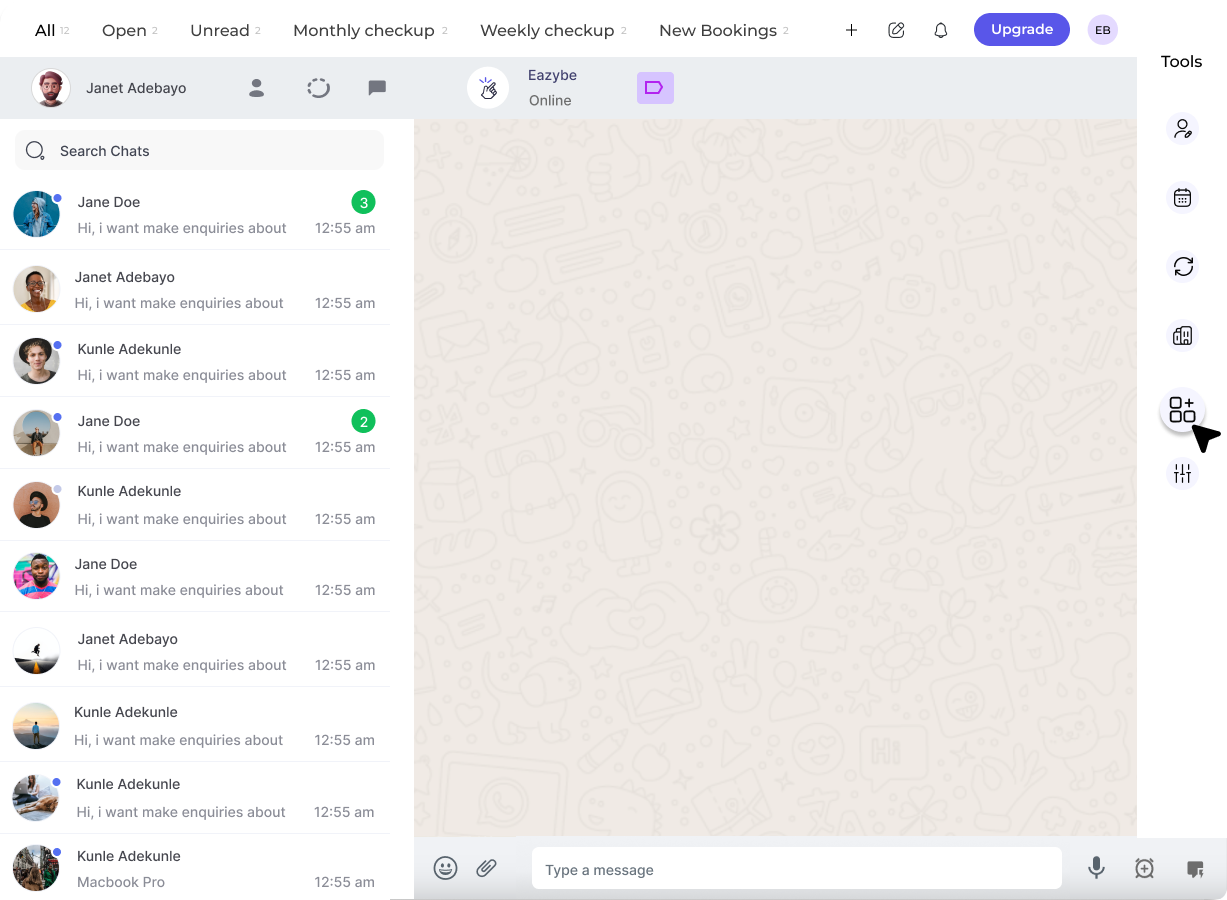
3
Select Bitrix24
Find Bitrix24 in the list of available integrations and click the Connect button.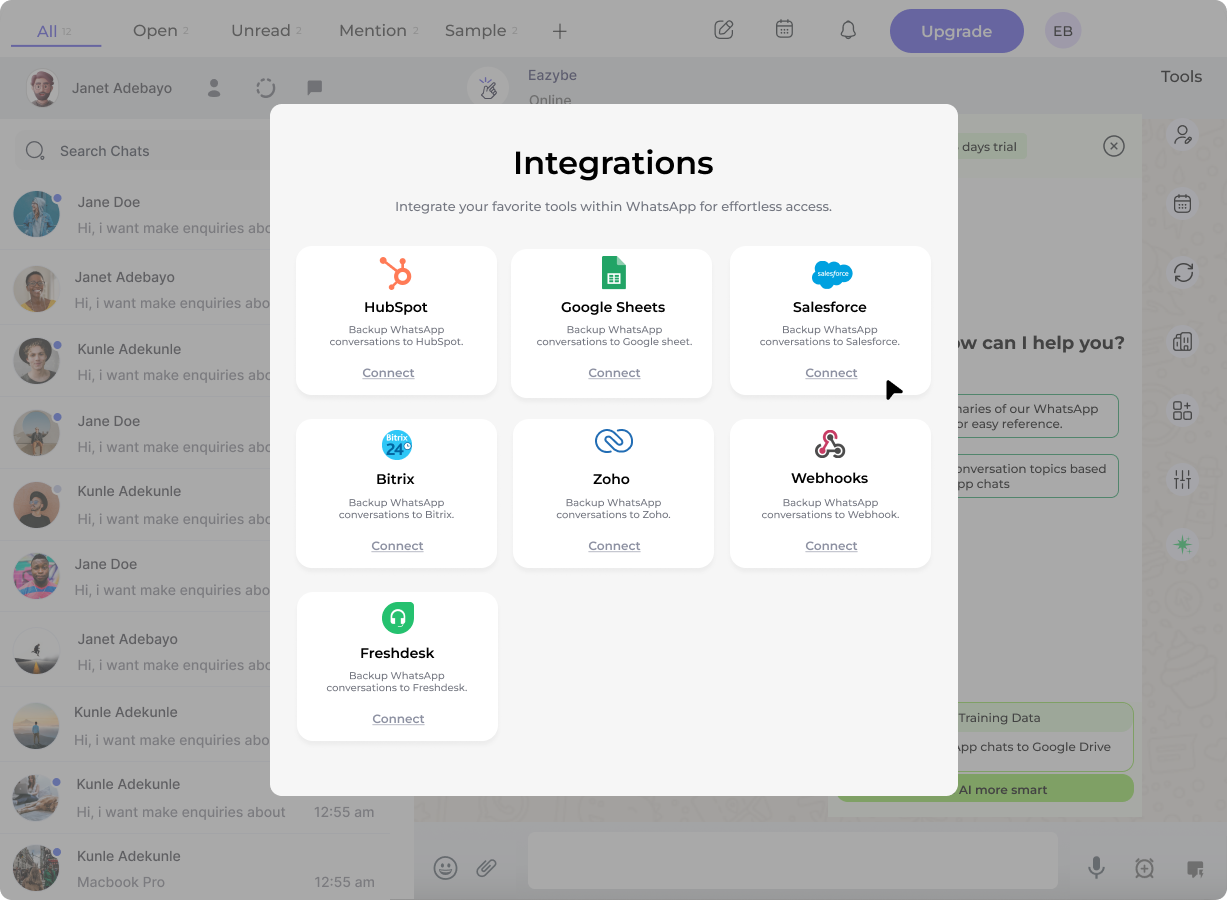
4
Bitrix Marketplace
You will be redirected to the Bitrix24 Marketplace. Click Install to add the Eazybe application to your Bitrix24 account.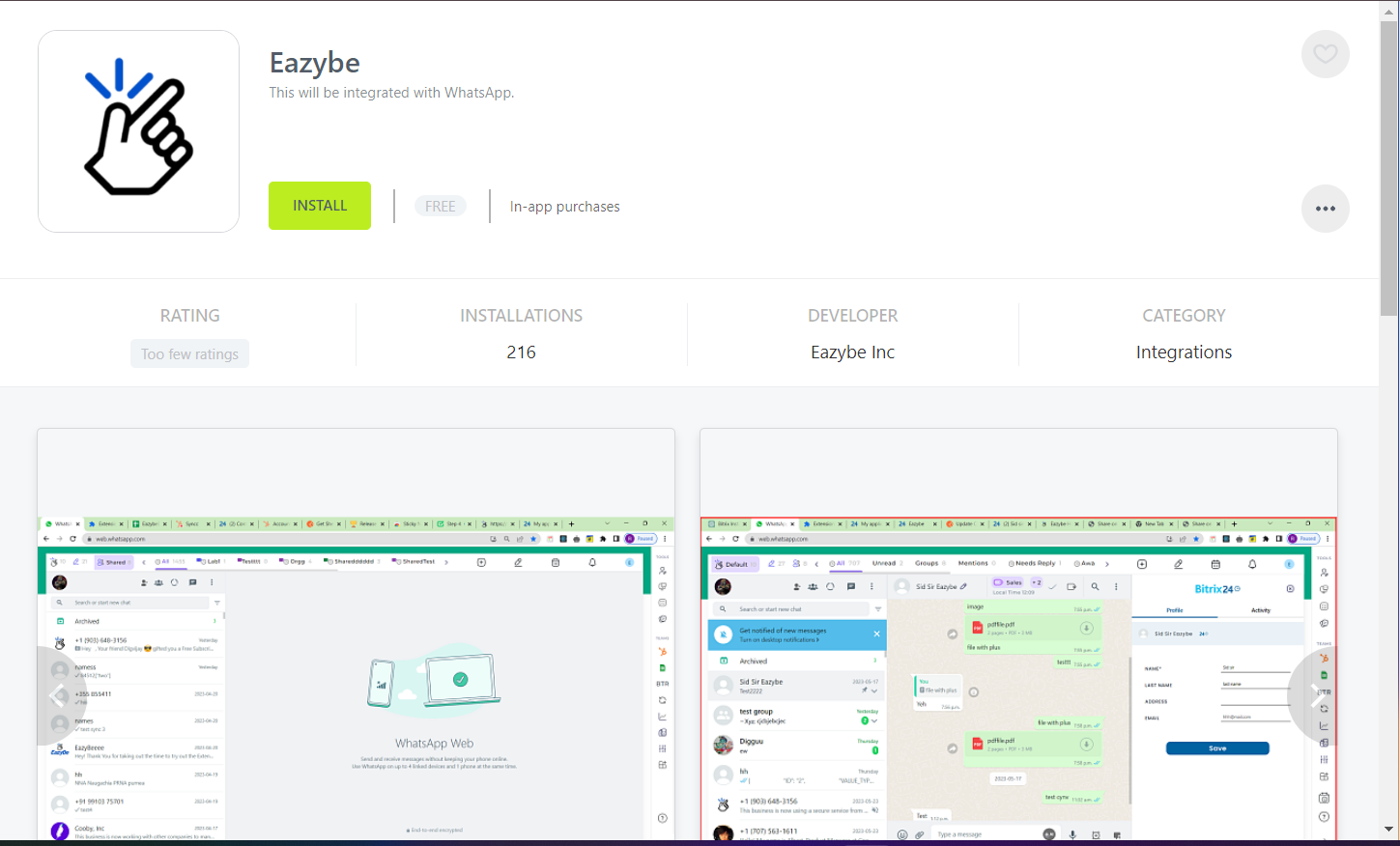
5
Accept Permissions
Review the required permissions and click Accept to authorize the integration. This allows Eazybe to sync data with your Bitrix24 CRM.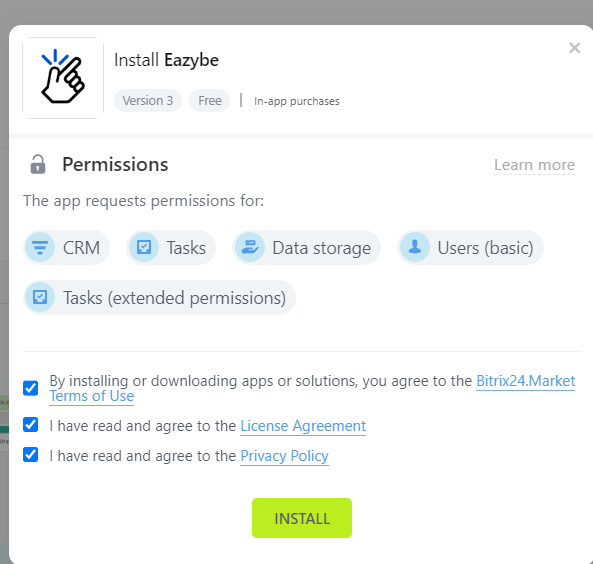
6
Verify Connection
Once permissions are accepted, return to WhatsApp Web. Your Bitrix24 integration should now be active and ready to use.
Next Steps
Contact Sync
Learn how to sync WhatsApp contacts with Bitrix24.
Mini CRM
Explore the Mini CRM feature for quick access to customer data.