

Adding a Call Log
1
Open the WhatsApp Chat
Access the WhatsApp conversation for your Salesforce Lead.
2
Click on the Salesforce Icon
Select the Salesforce icon in the right sidebar of the extension.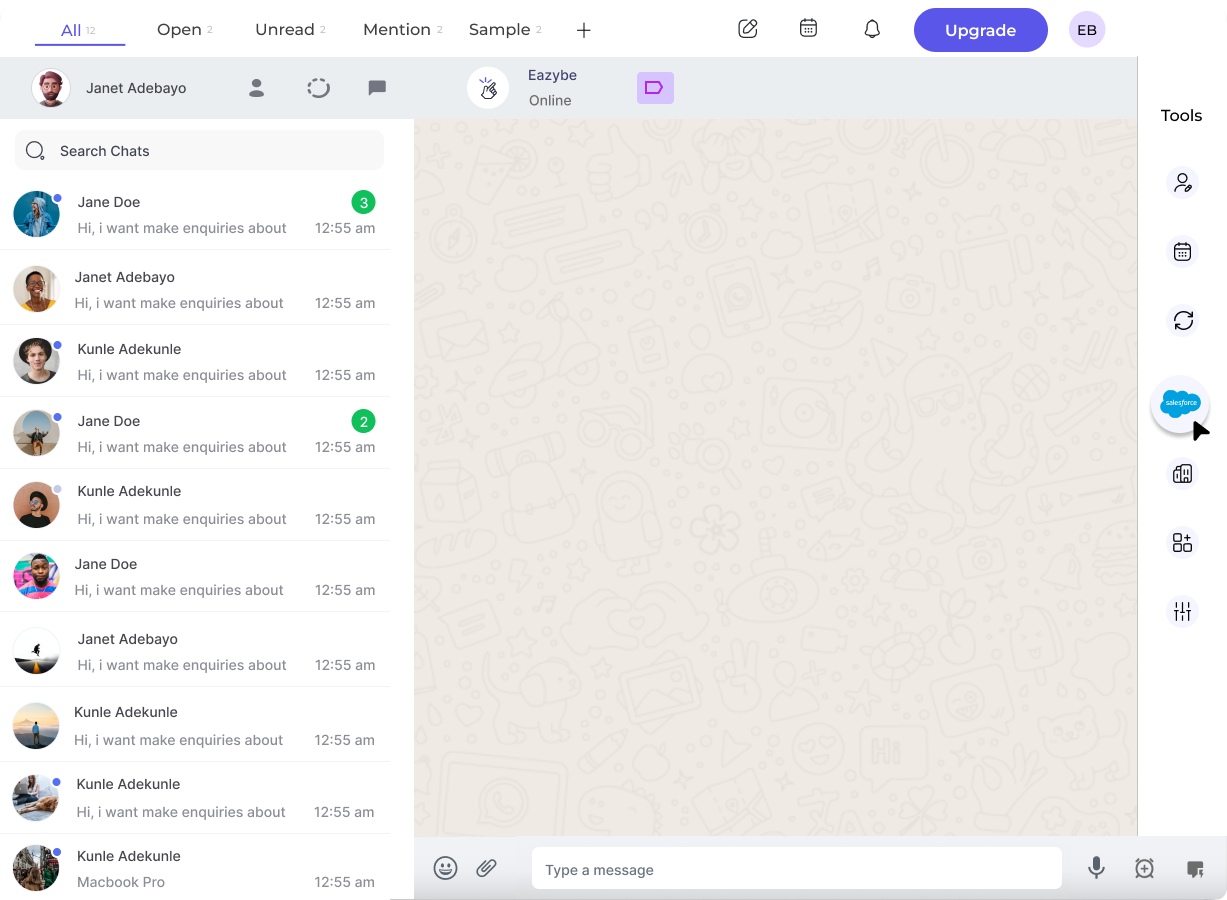
3
Access the Call Logs Section
Navigate to the Lead section and scroll to the bottom where you’ll find the last header labeled Call Logs.
4
Add a New Call Log
Click the Add Call Log button to open the call log form.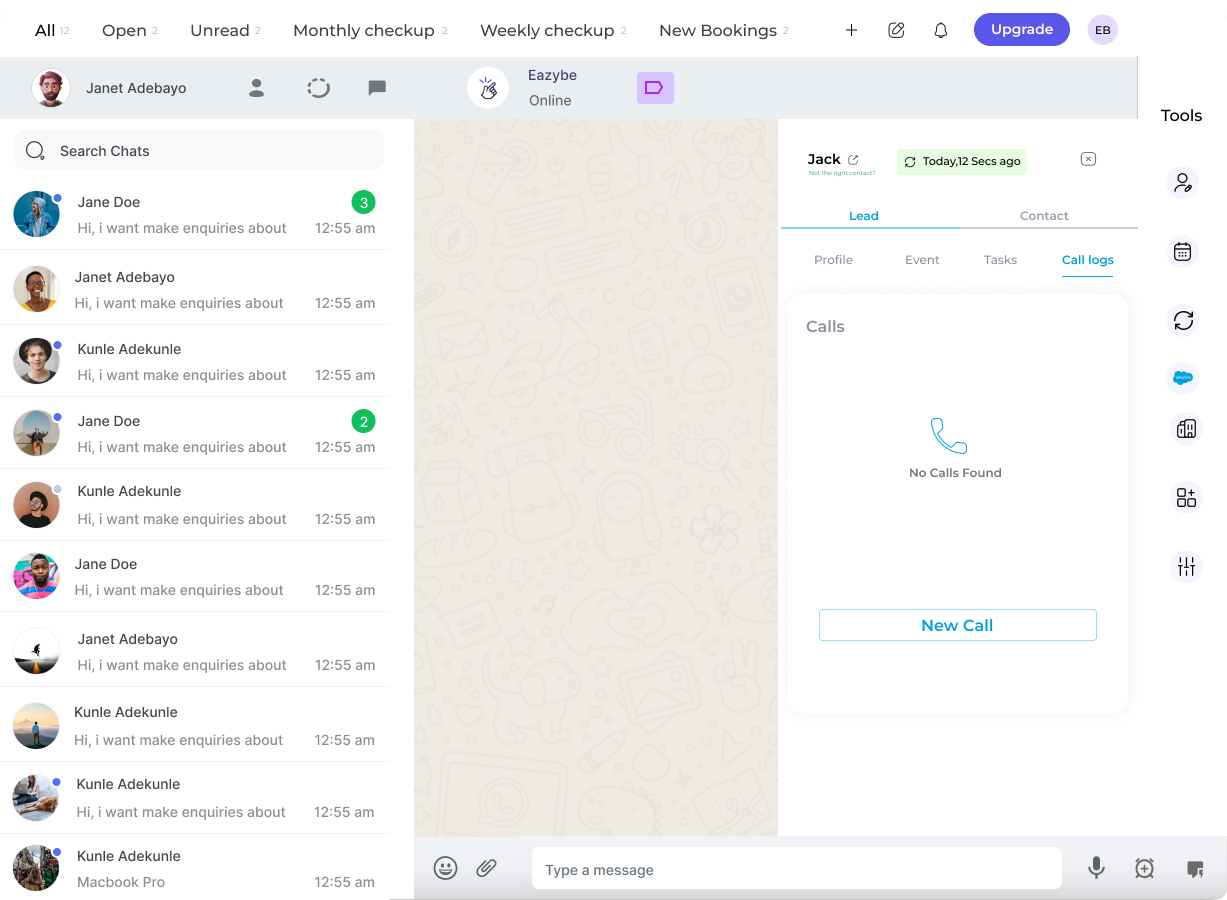
5
Save Call Log
Enter the necessary details and then click Save Call Log button.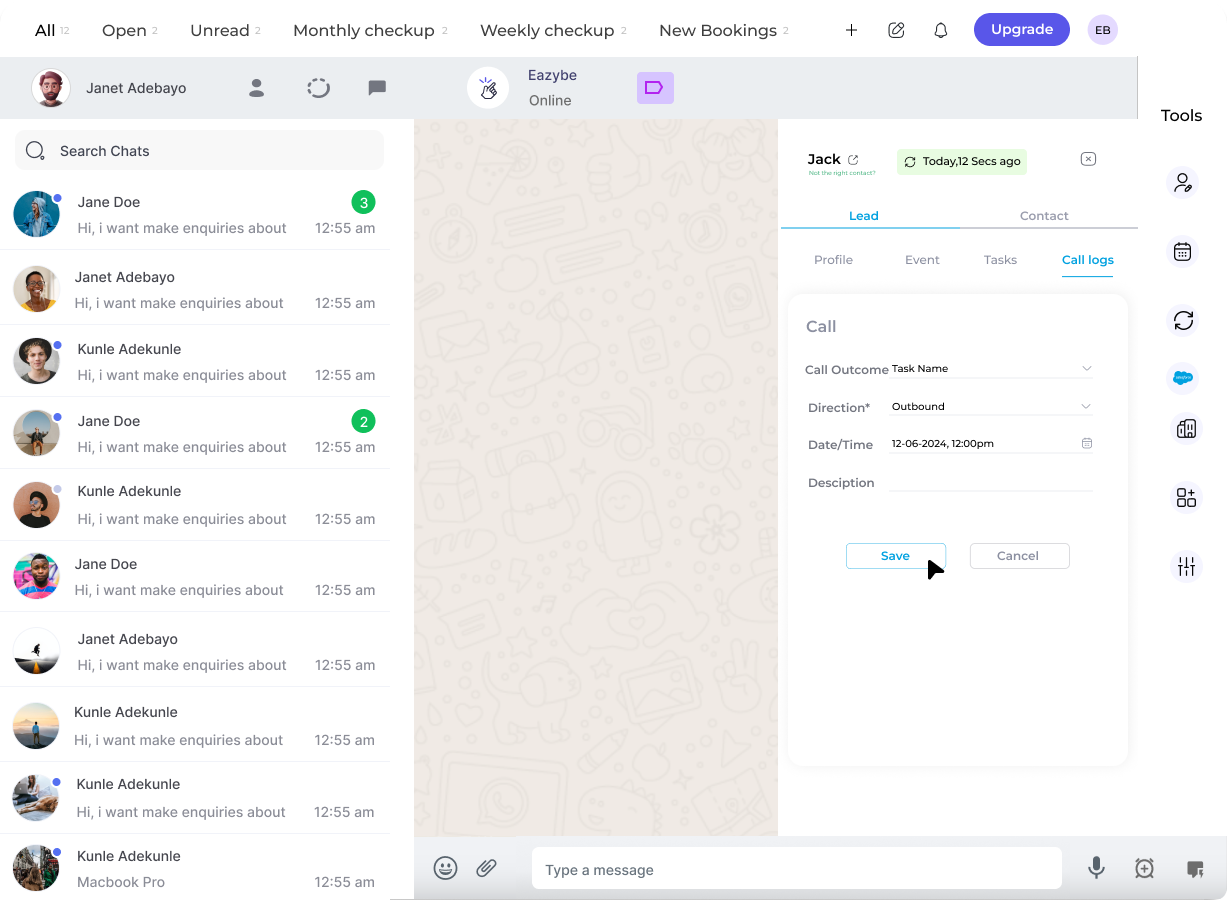
6
View Your Created Call Log
Review the saved call log once completed.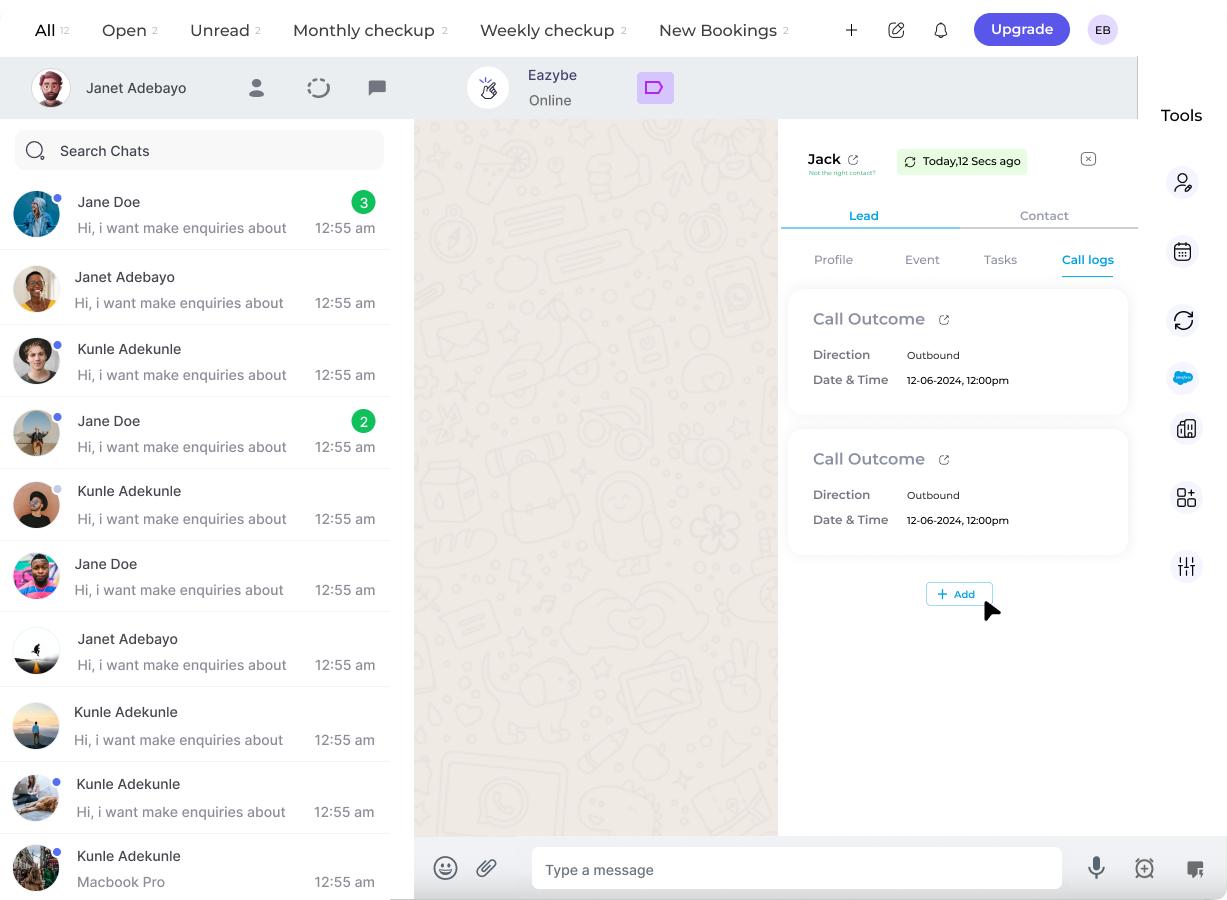
Managing Call Logs
Once a call log is created, you can manage it using the three-dot menu next to each entry:- Edit - Modify call log details
- Delete - Remove the call log
Call logs are synced directly to Salesforce when you save. The call log information will be reflected in your Salesforce Lead record.