

Viewing and Editing Contact Profile
1
Open the WhatsApp Chat
Launch the WhatsApp conversation with your intended Salesforce Contact.
2
Access the Salesforce Integration
Click on the Salesforce icon on the right sidebar of the extension and click on the Contact header to access the Contact Section.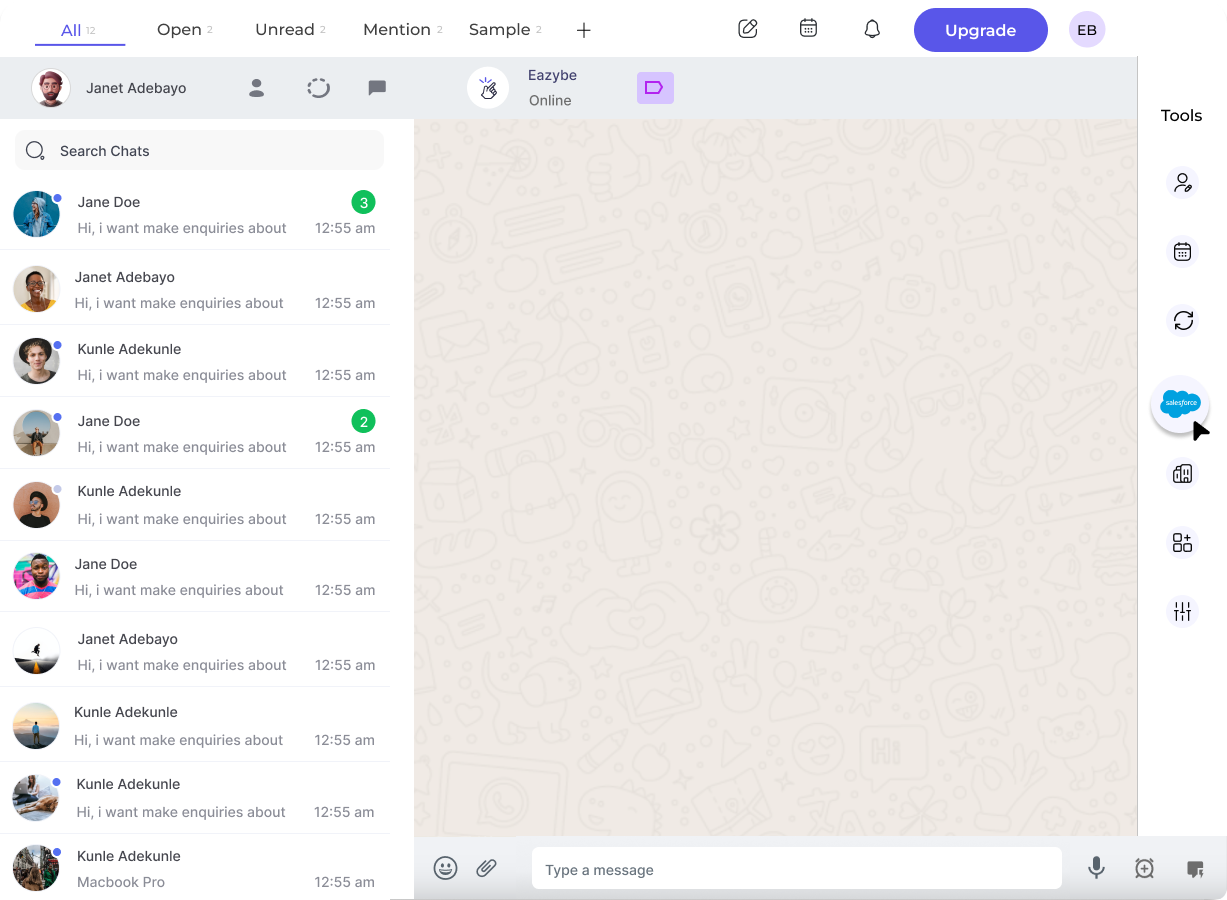
3
Access the Profile Section
The first header that appears under the Contact section will be the Profile Section.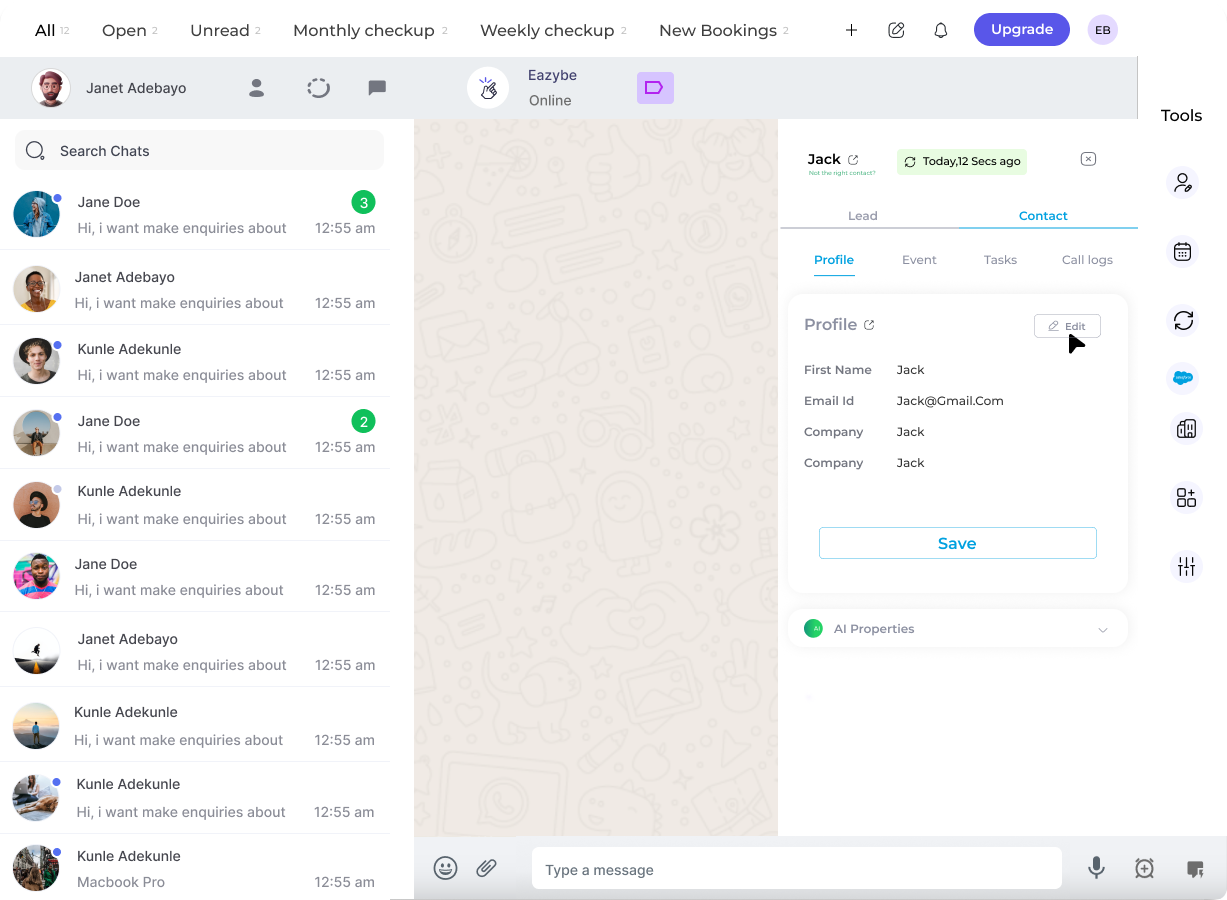
4
View and Edit User Properties
Click the Edit button to modify the contact’s properties. You can update any available fields as needed.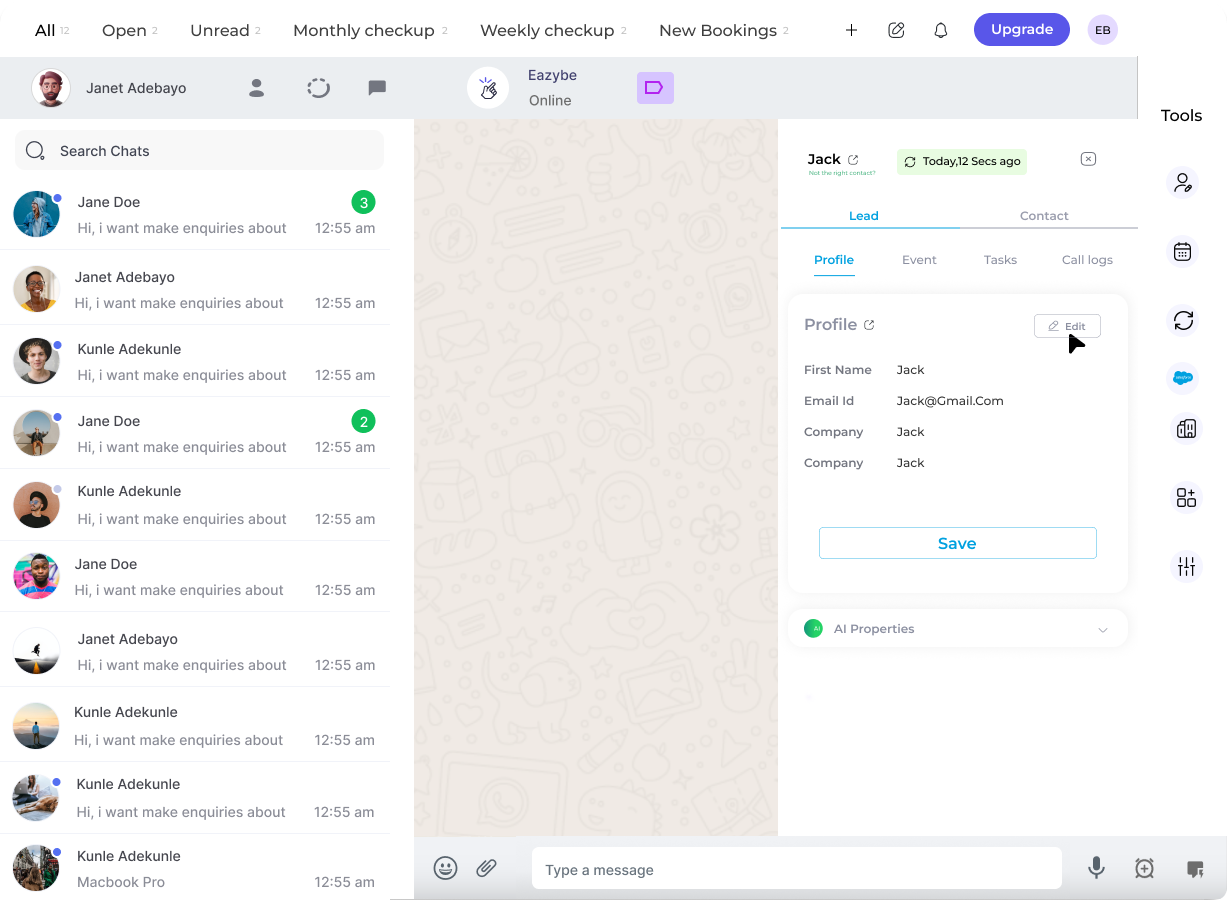
5
Save the Changes
Once you’ve edited the profile, click on the Save button at the bottom to ensure the changes are applied.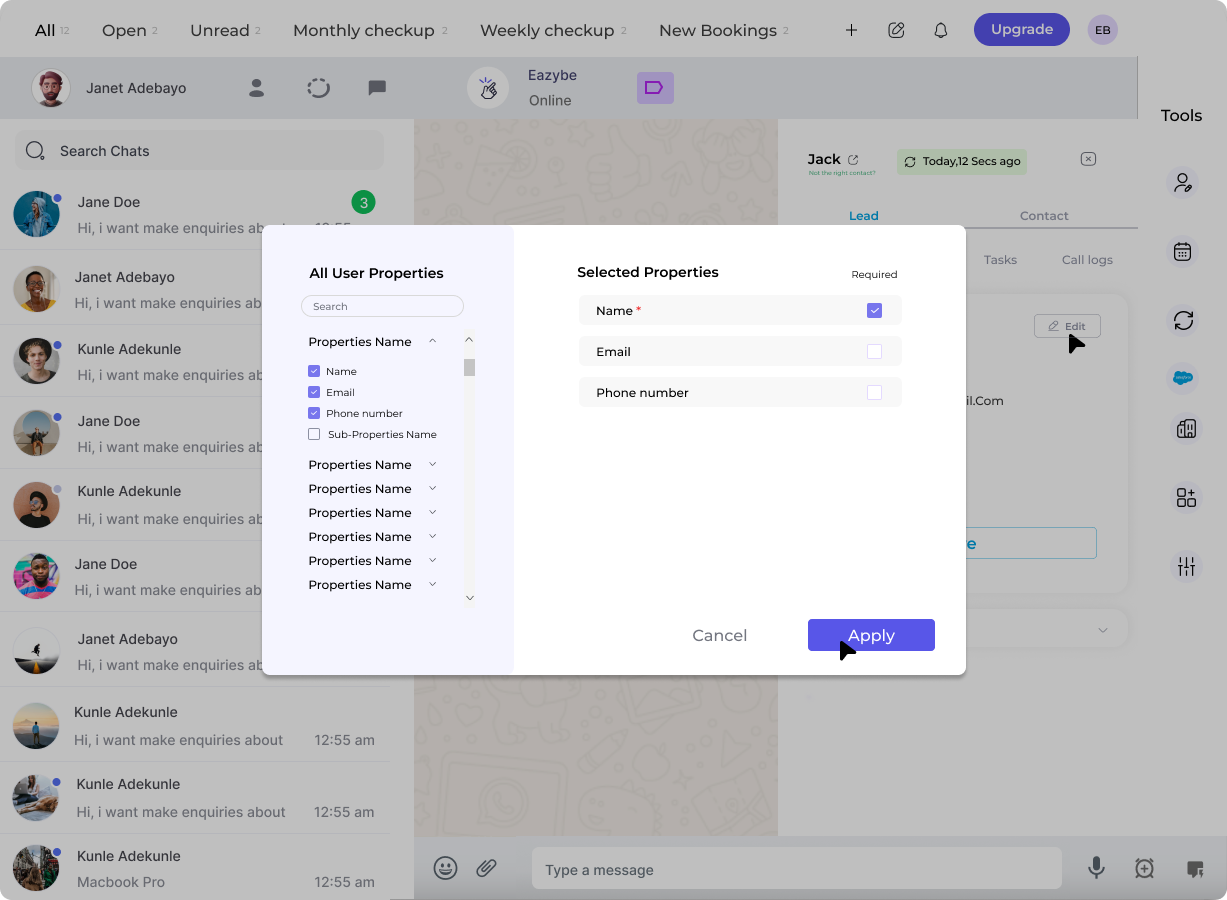
Changes are synced directly to Salesforce when you save. The updated information will be reflected in your Salesforce Contact record.