

Creating or Linking a Bitrix Contact
1
Open the WhatsApp Chat
Open the WhatsApp chat of the respective contact you want to create or link in Bitrix.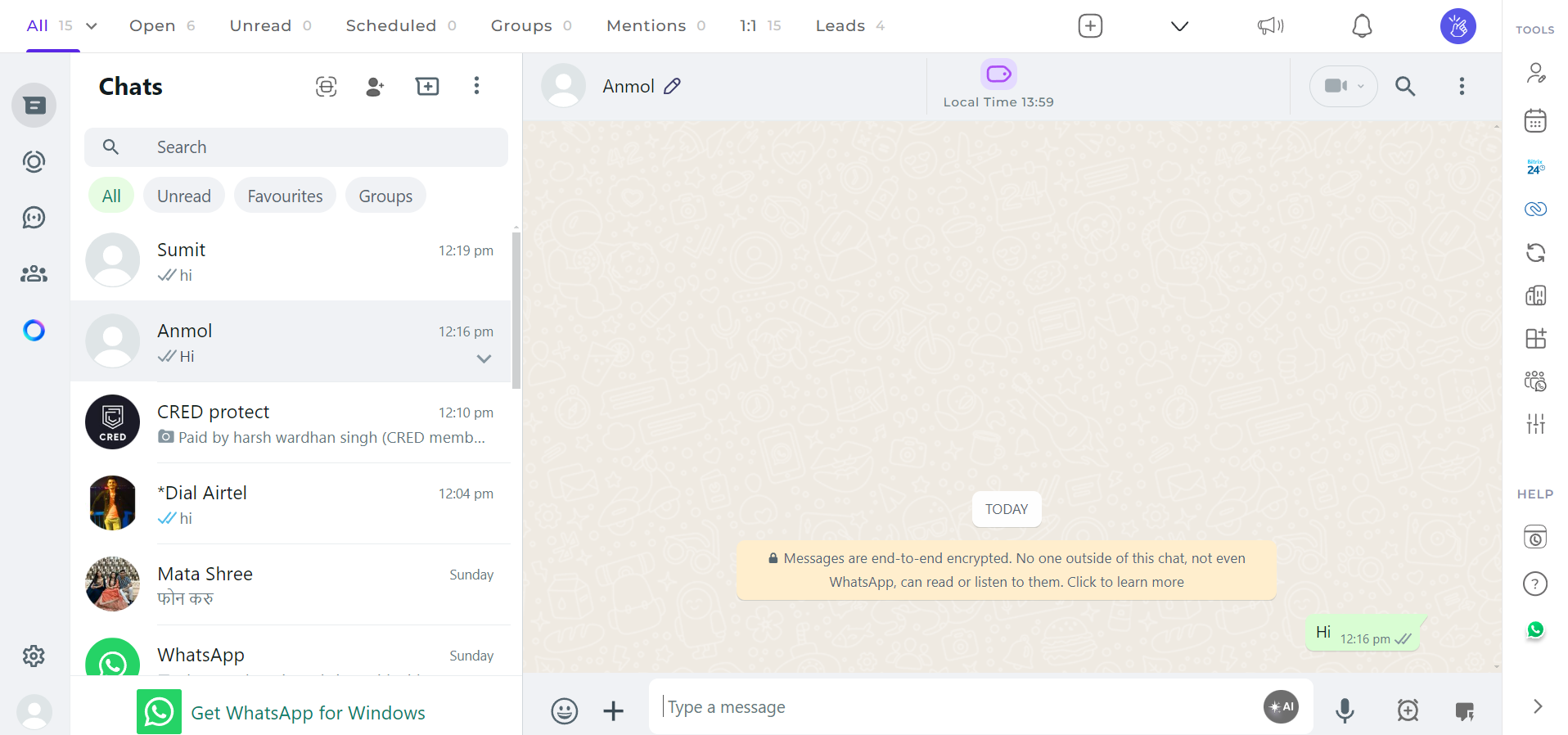
2
Click on the Bitrix Icon
Click on the Bitrix icon in the right sidebar of the extension.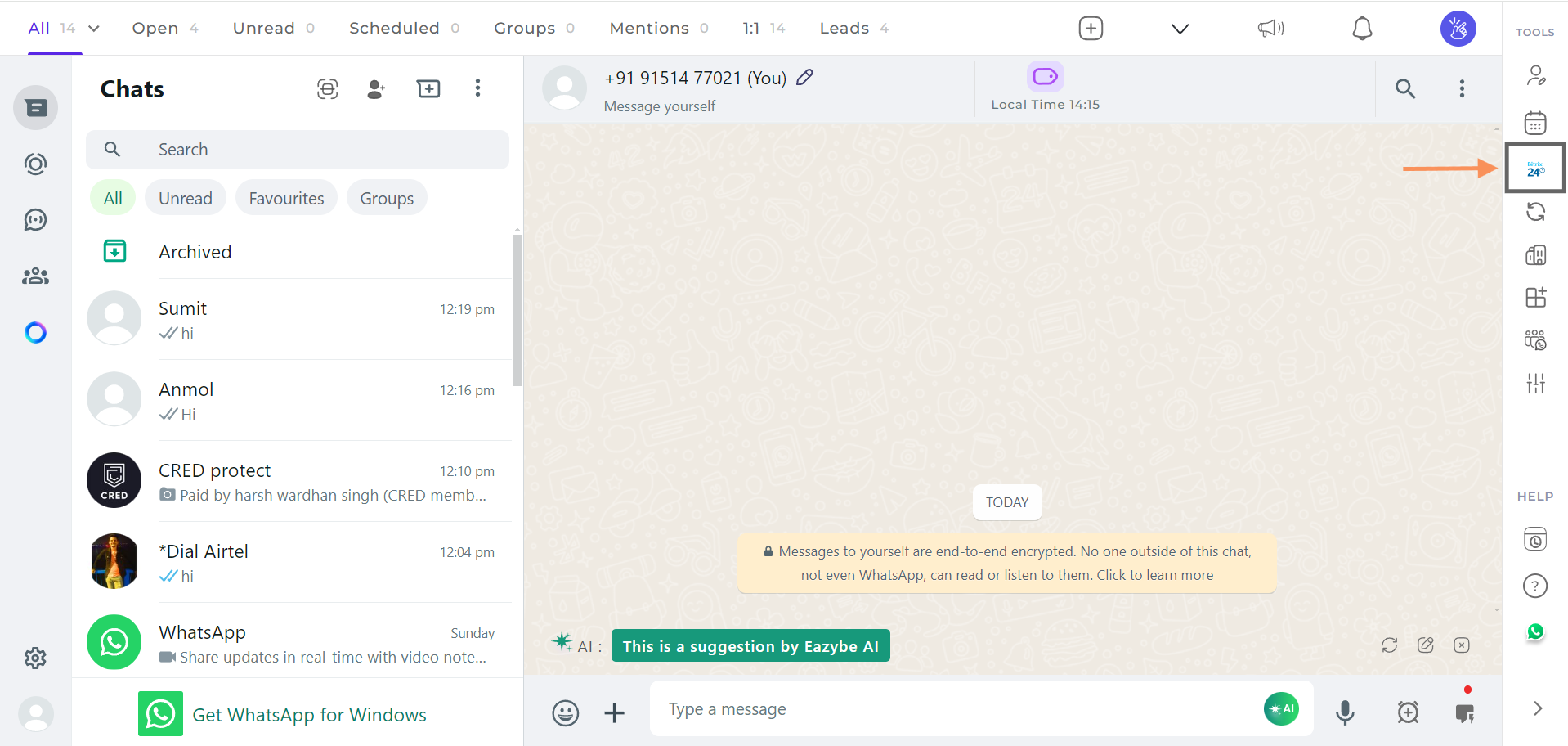
3
Link to an Existing Contact
If the contact already exists in Bitrix, click on the Link to Existing Contact option and select the contact from the dropdown.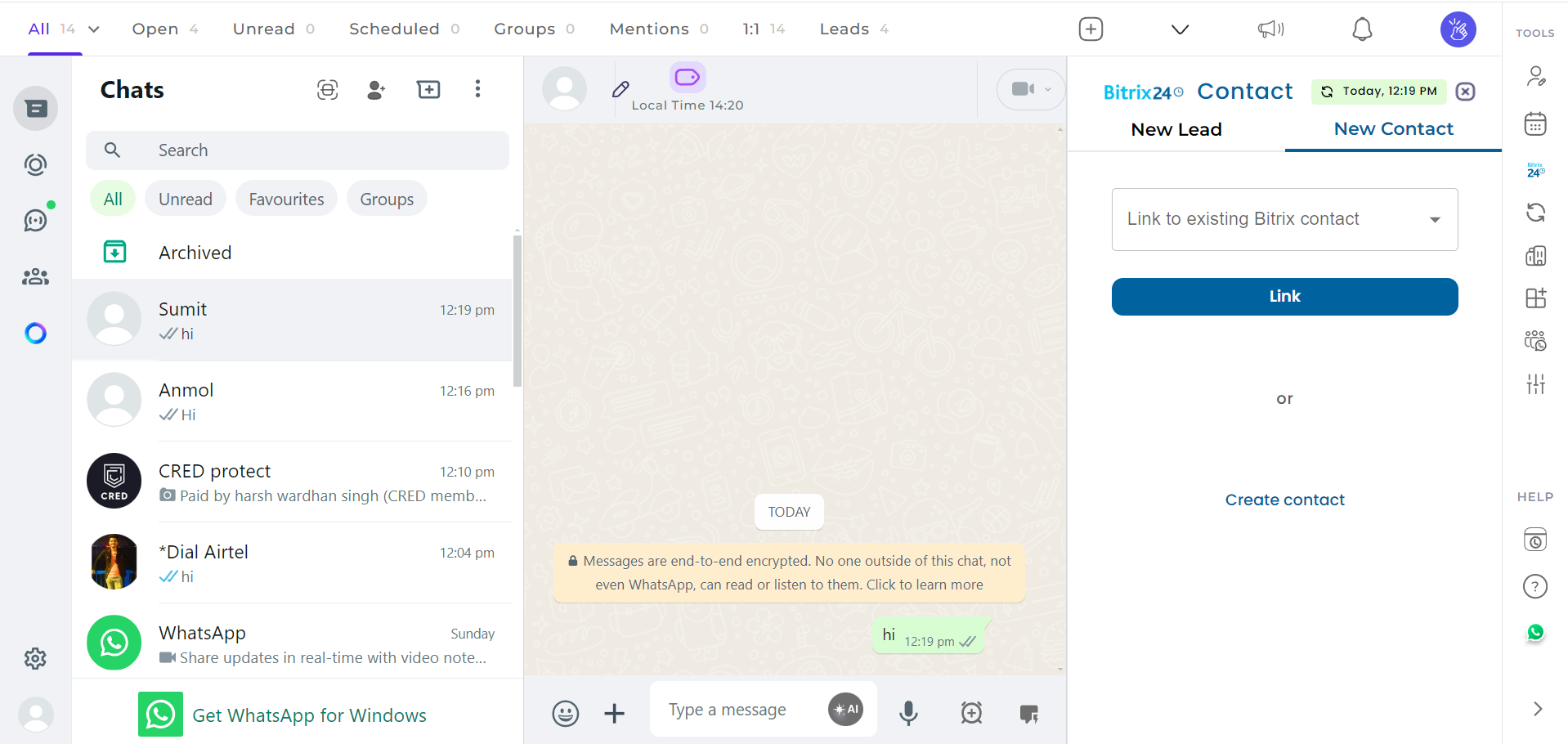
4
Create a New Contact
If the contact is new and hasn’t been created in Bitrix yet, click on the Create Contact button.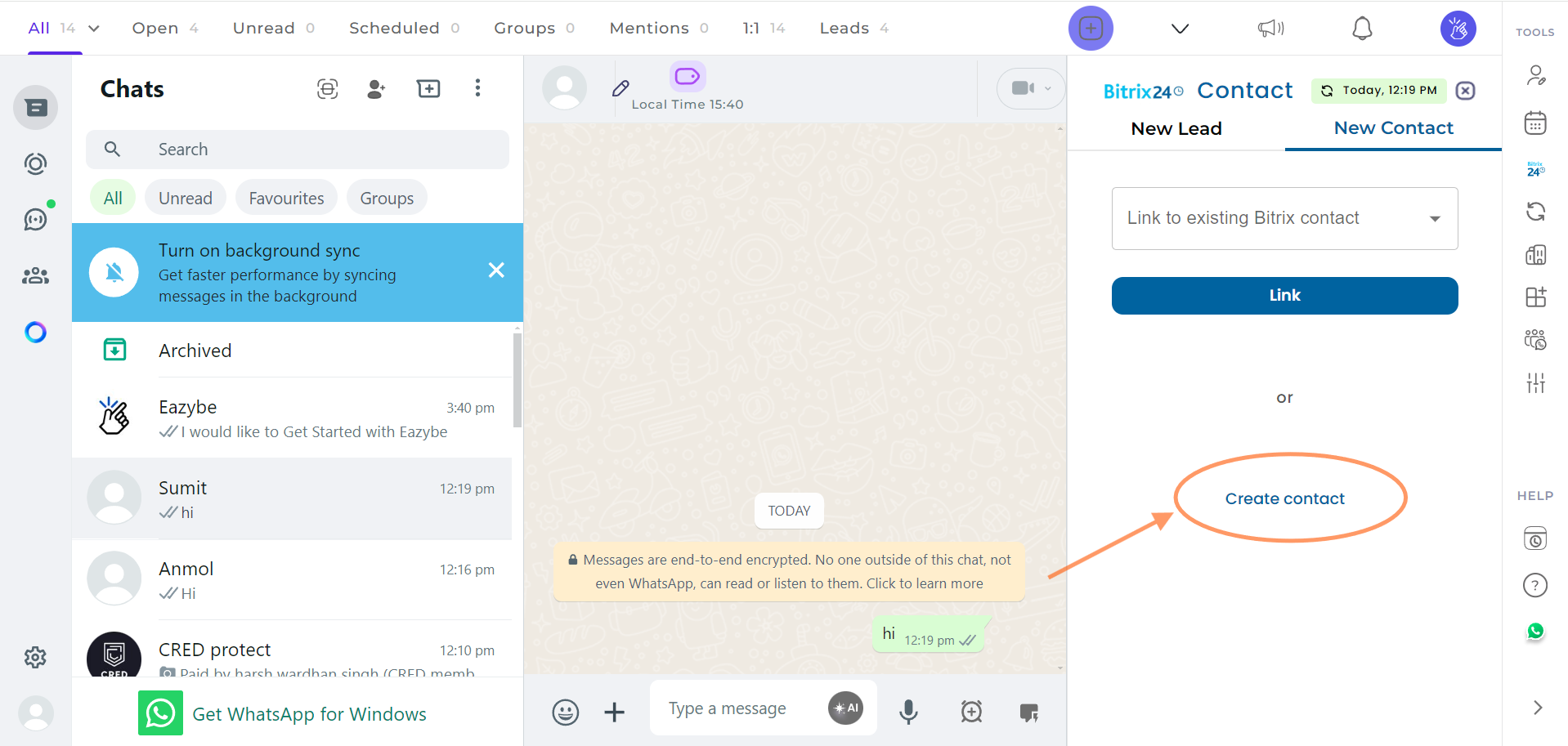
5
Fill in the Contact Details
Enter the required details in the fields provided.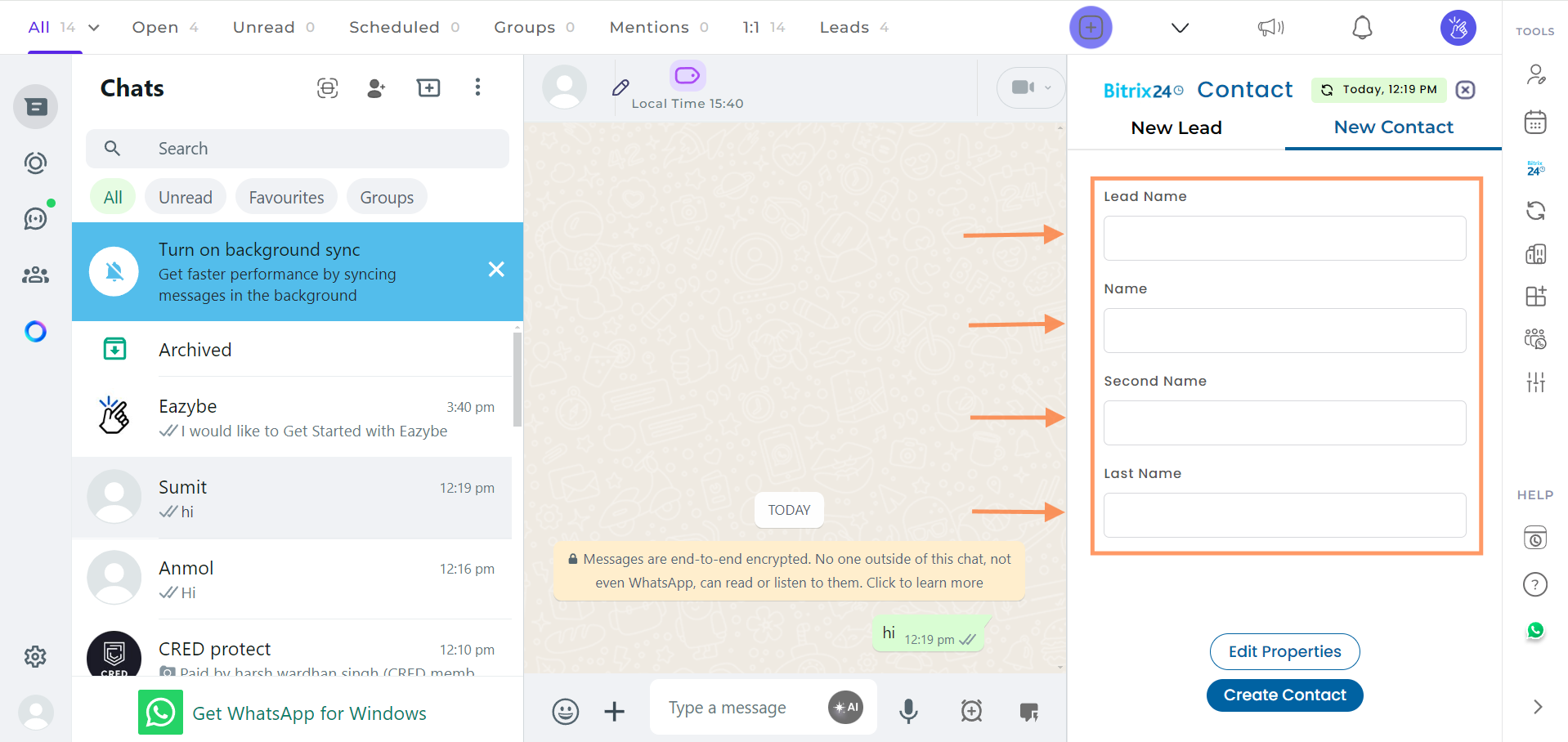
6
View Contact on Bitrix
Once the contact is created or linked, you can view it directly in Bitrix by clicking on the View on Bitrix button under the Profile section.
If you have any questions or need further assistance, feel free to reach out to us at hey@eazybe.com.