

1
Open the WhatsApp Chat
Launch the WhatsApp conversation with your Bitrix contact where you want to create a task.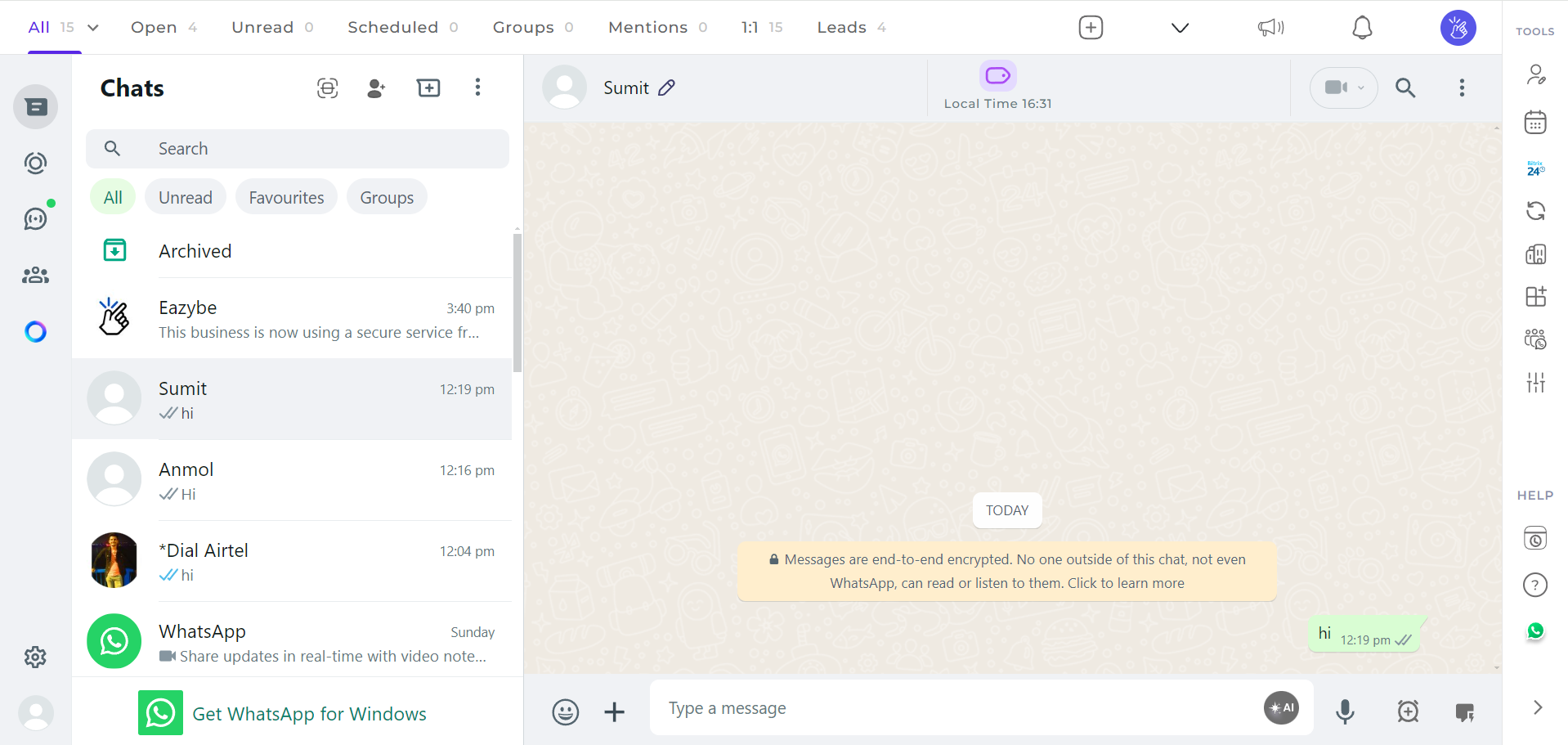
2
Click on the Bitrix Icon
Select the Bitrix icon located in the EazyBe extension’s right sidebar to access Bitrix features.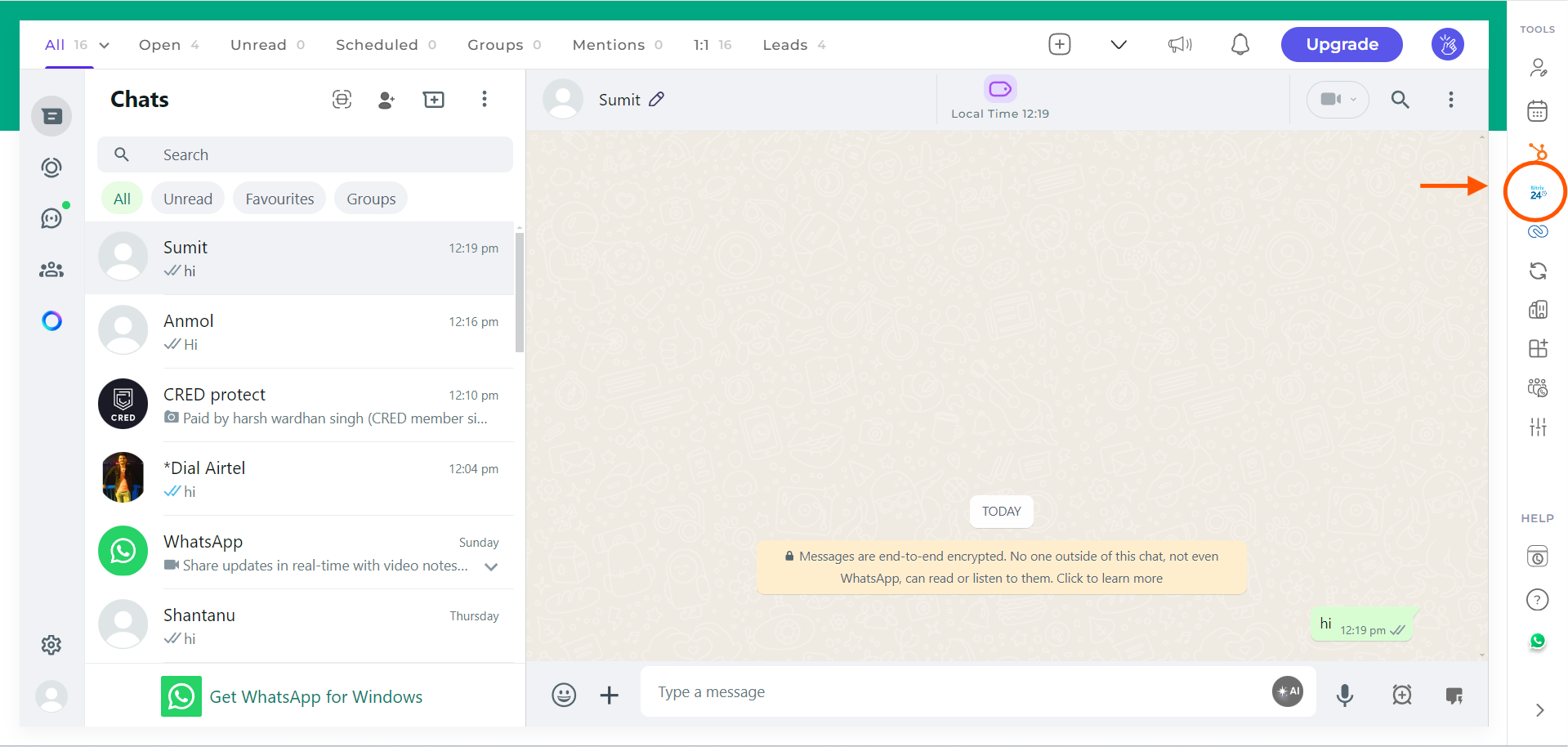
3
Access the Task Section
Navigate to the Tasks section. This is the last header under the Contact Section.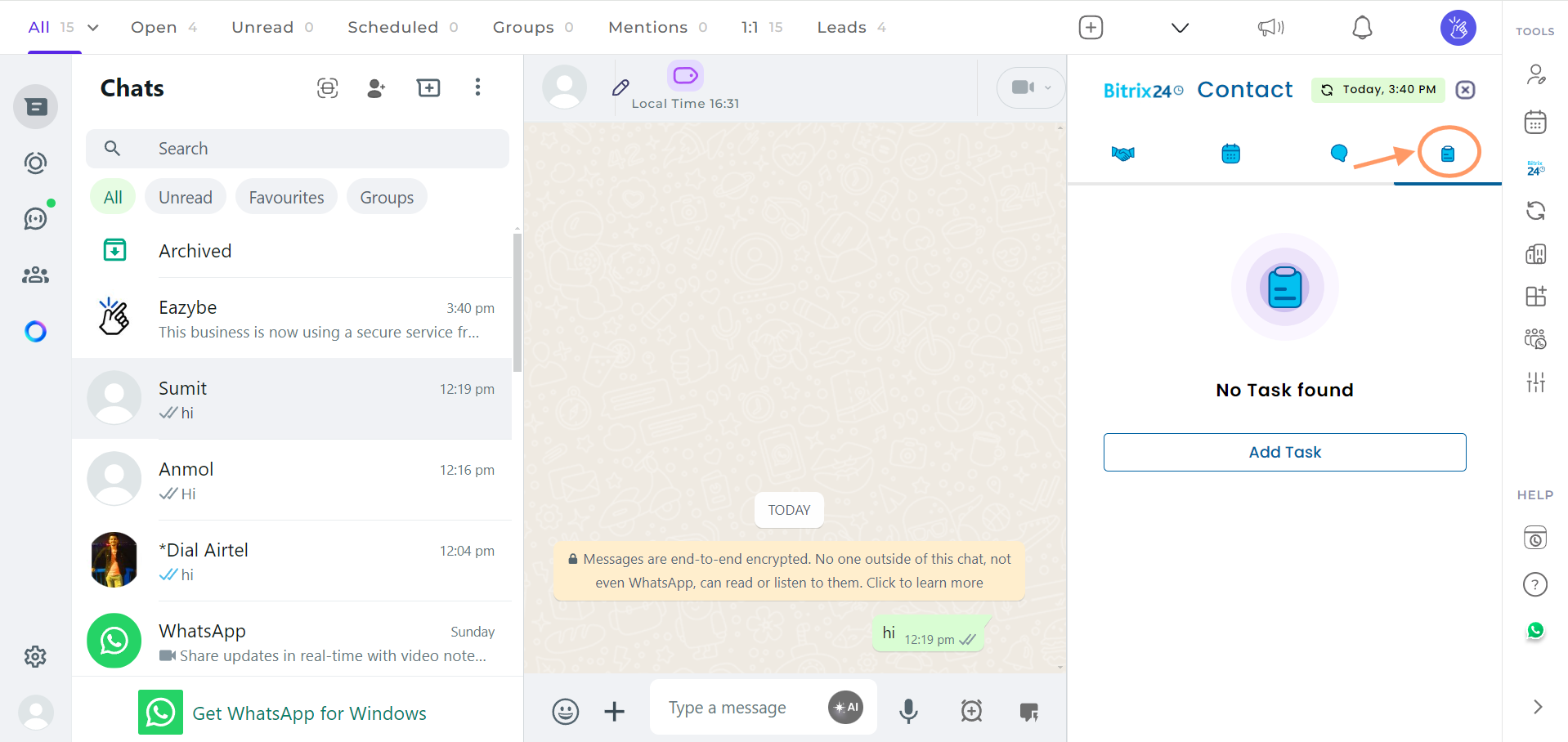
4
Add a Task
Click the Add Task button to create a new task.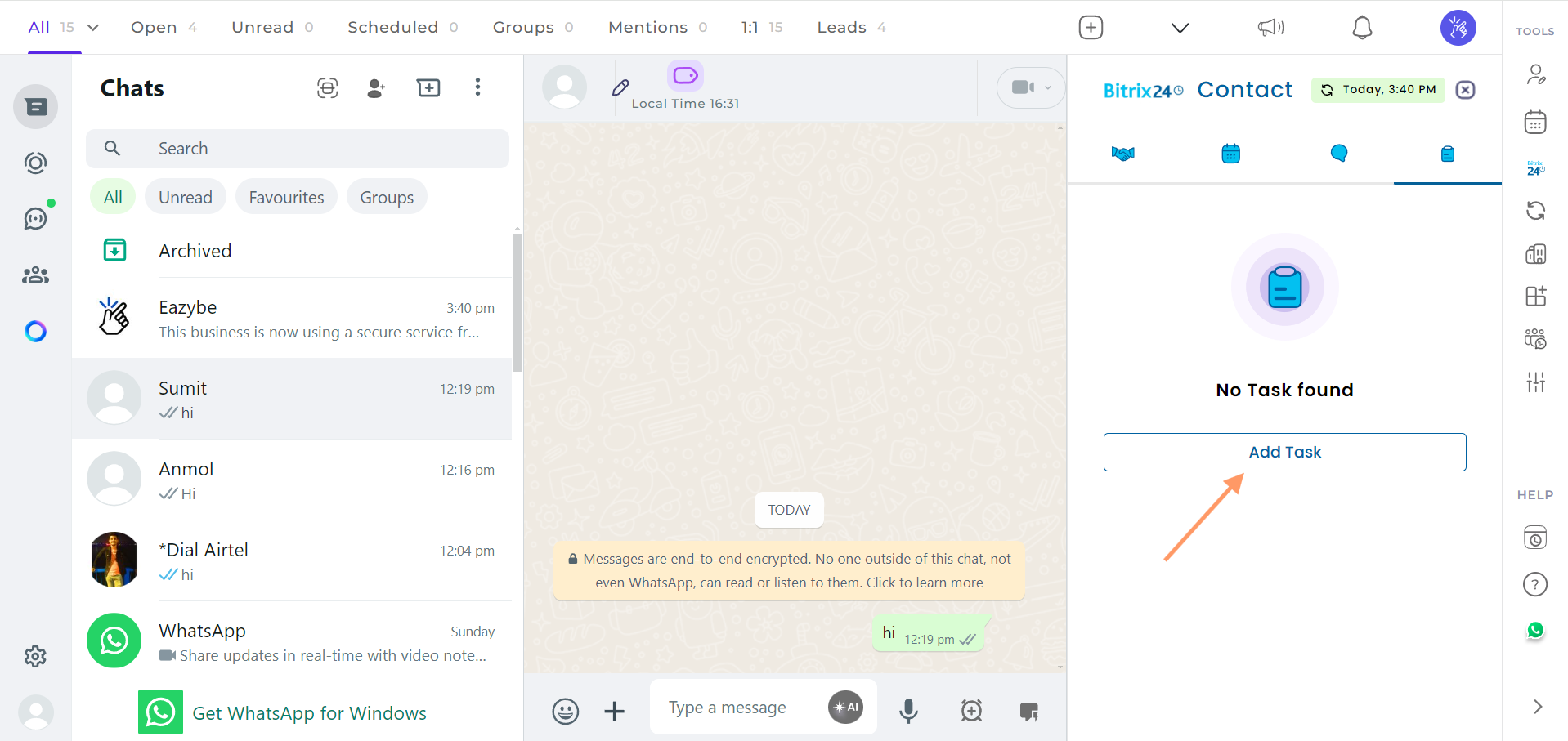
5
Enter the Task Details
Fill in all the required task information, then click Save to create the task.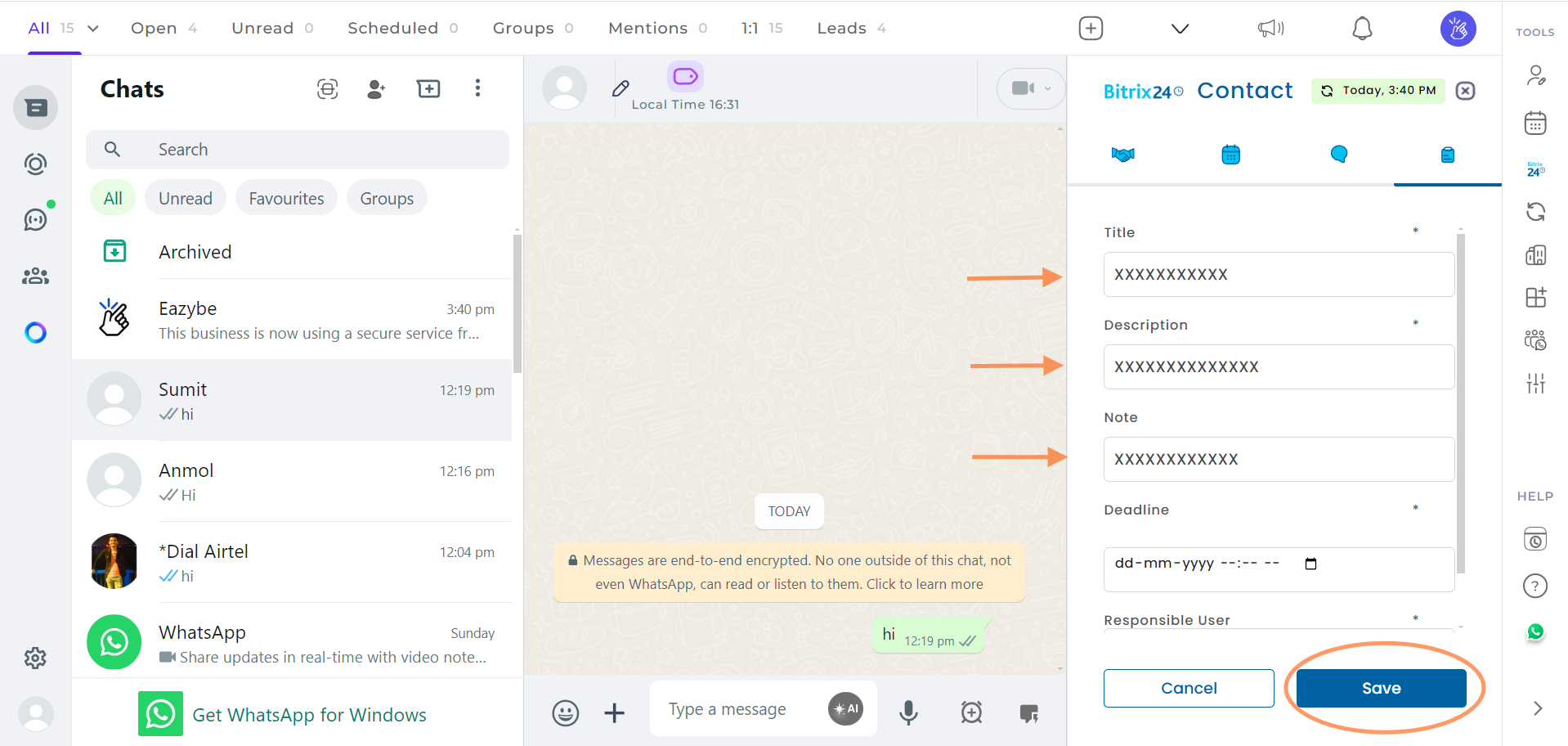
6
View Your Created Task
Once saved, your task will appear in the task list. You can confirm it was created successfully.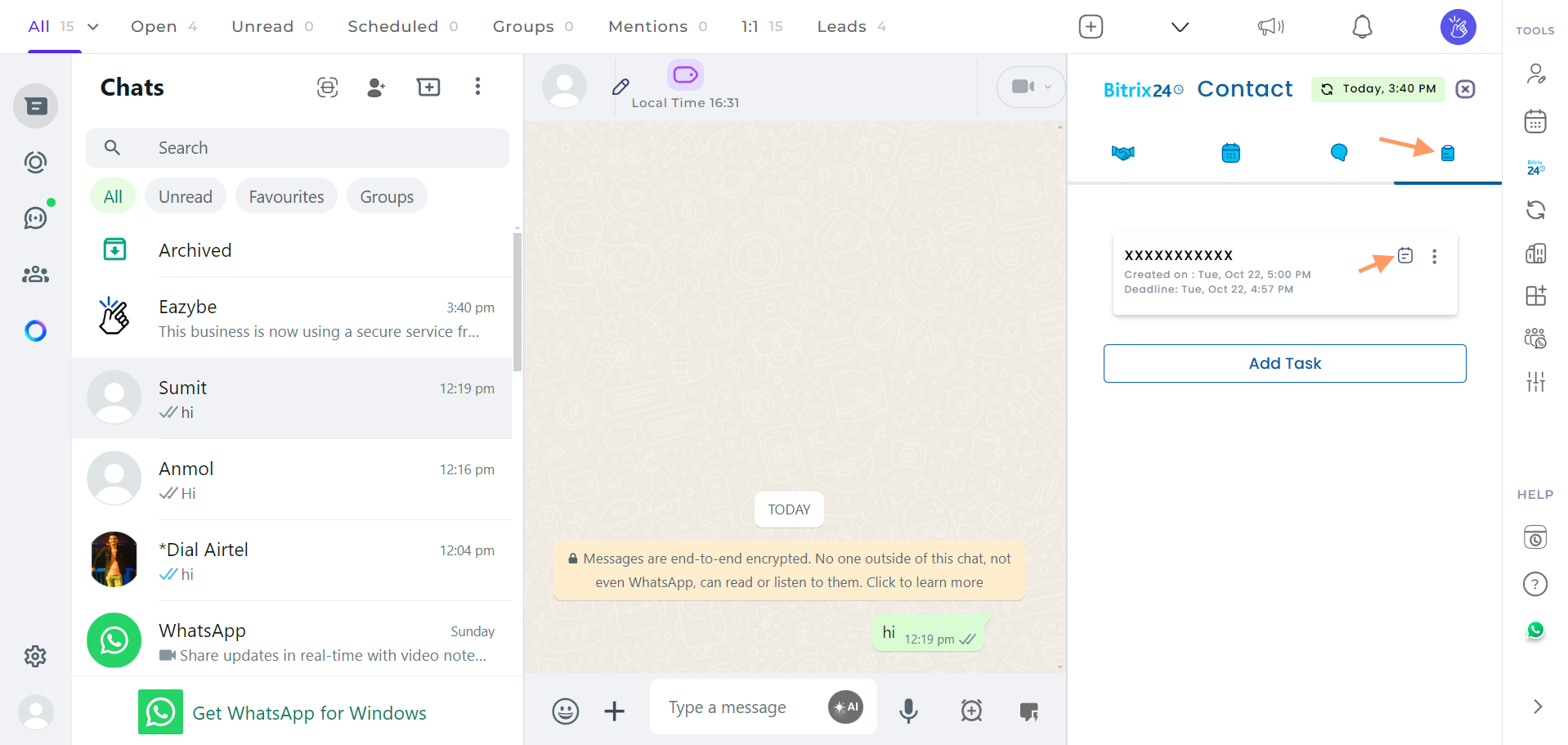
7
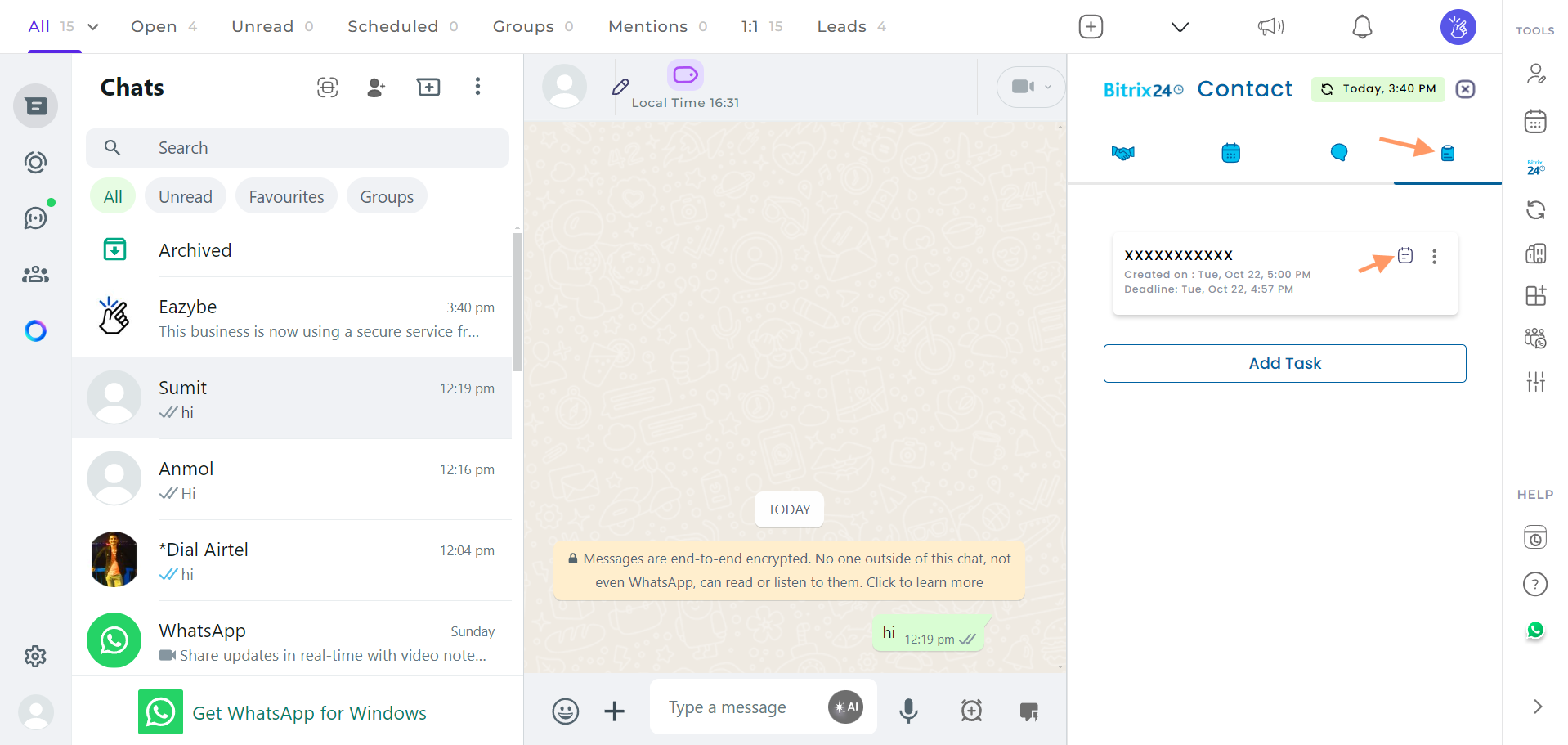
Manage Your Task
Use the available options to manage your tasks:
- Click to view or hide task notes
-
Use the three-dot menu to edit or delete tasks
If you have any questions, please reach out to us at hey@eazybe.com.