

Adding a Lead Comment
1
Open the WhatsApp Chat
Open the WhatsApp chat of your Bitrix lead.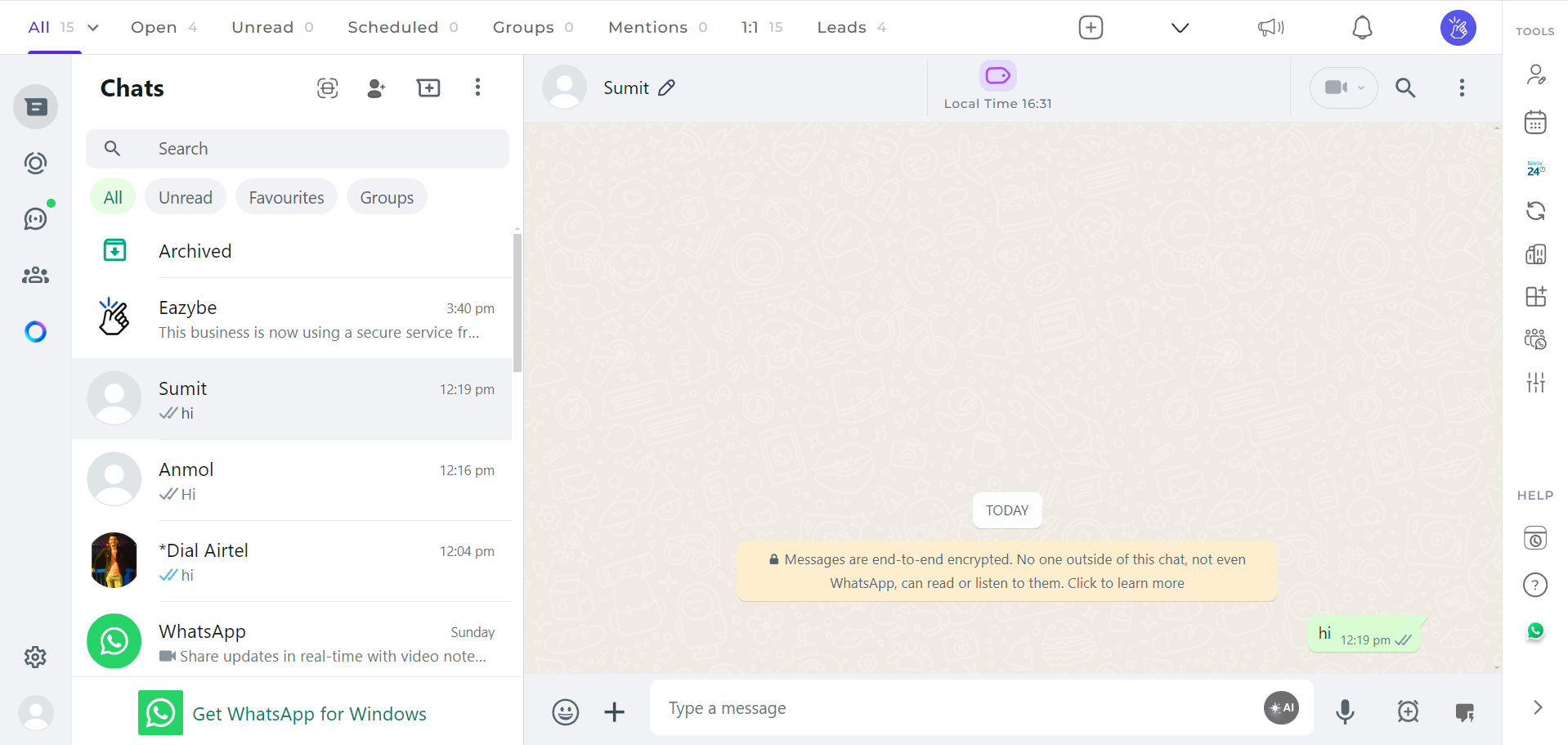
2
Click on the Bitrix Icon
Click on the Bitrix icon in the right sidebar of the Eazybe extension.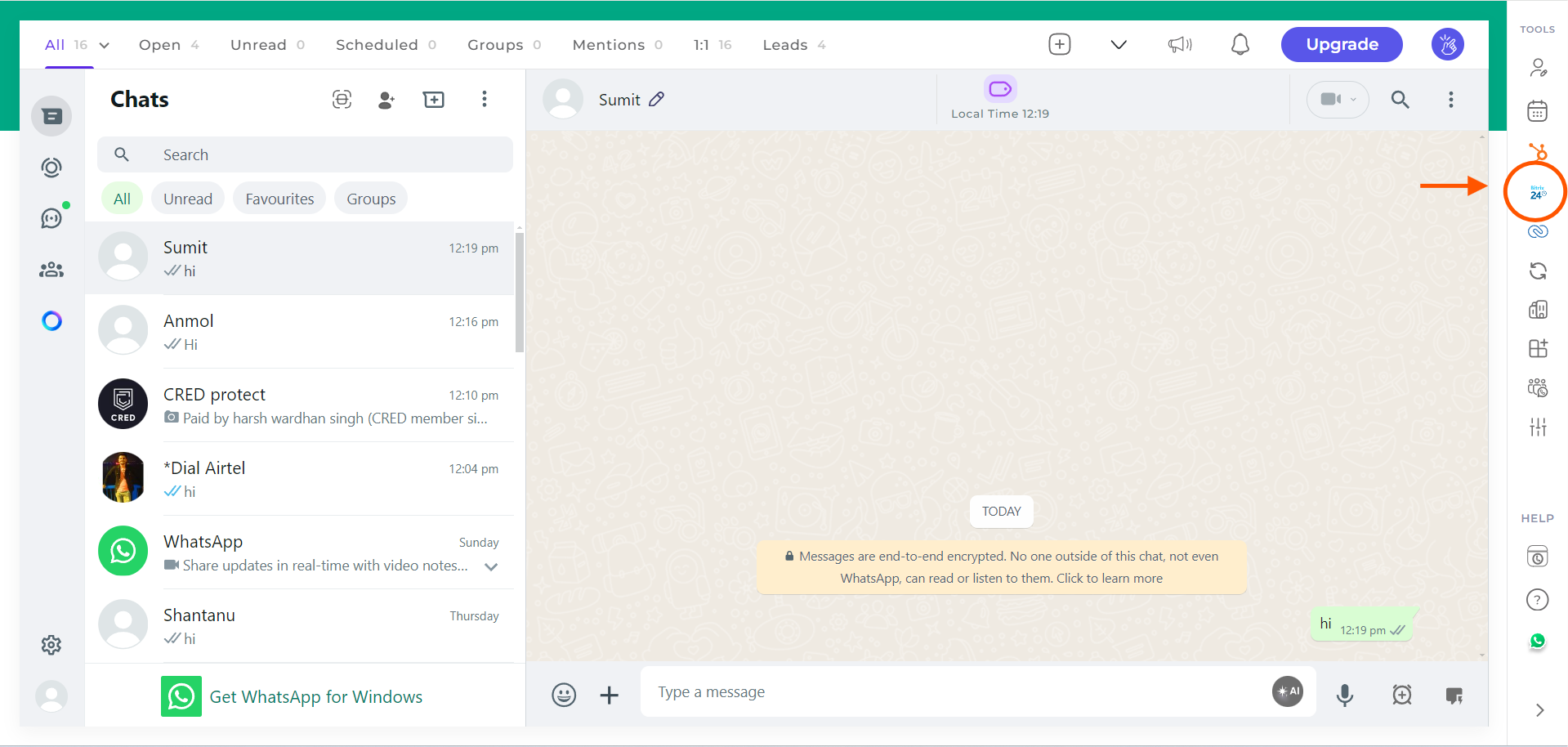
3
Access the Comment Section
The third header will be the Comment section. Click on it to access the section.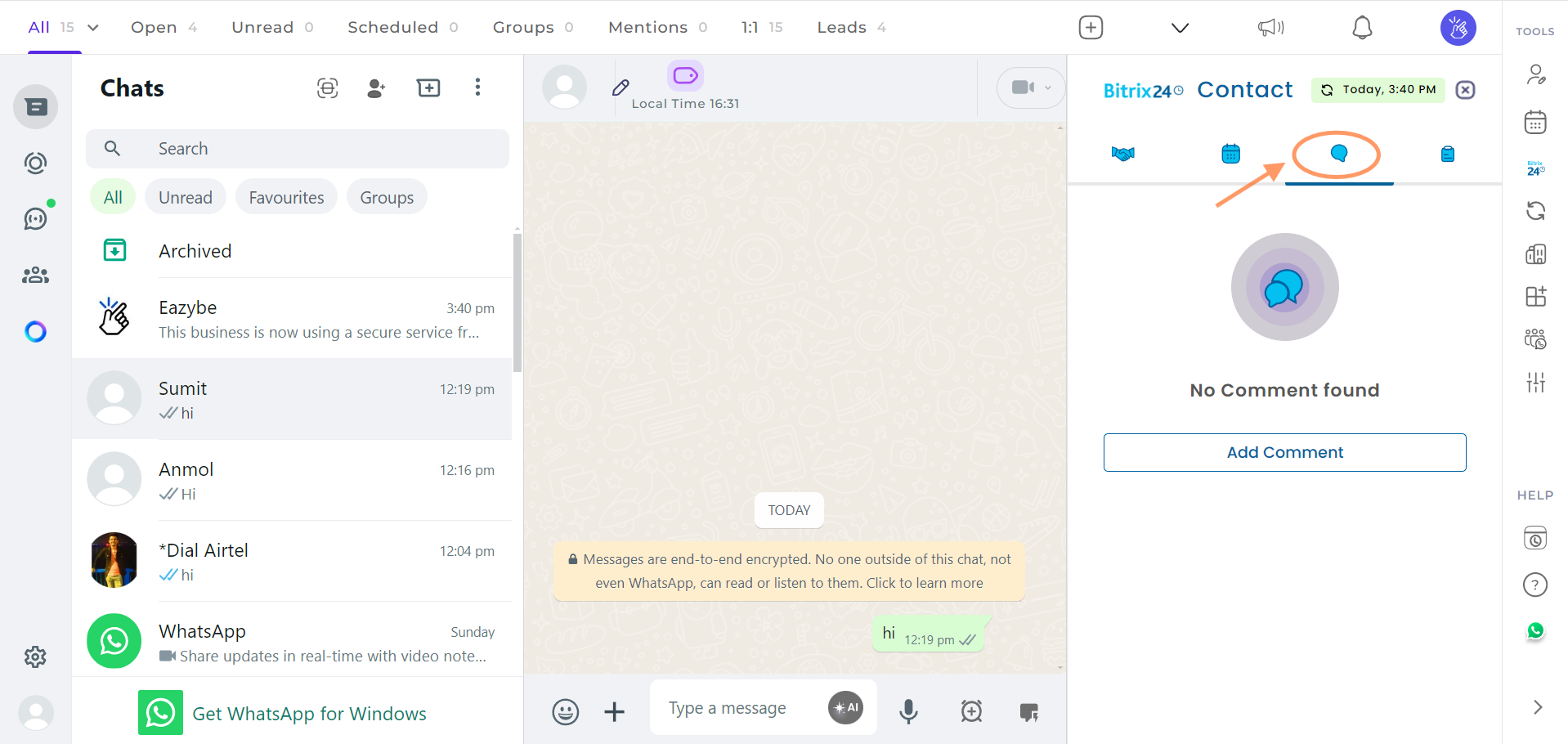
4
Add a Comment
Click on the Add Comment button.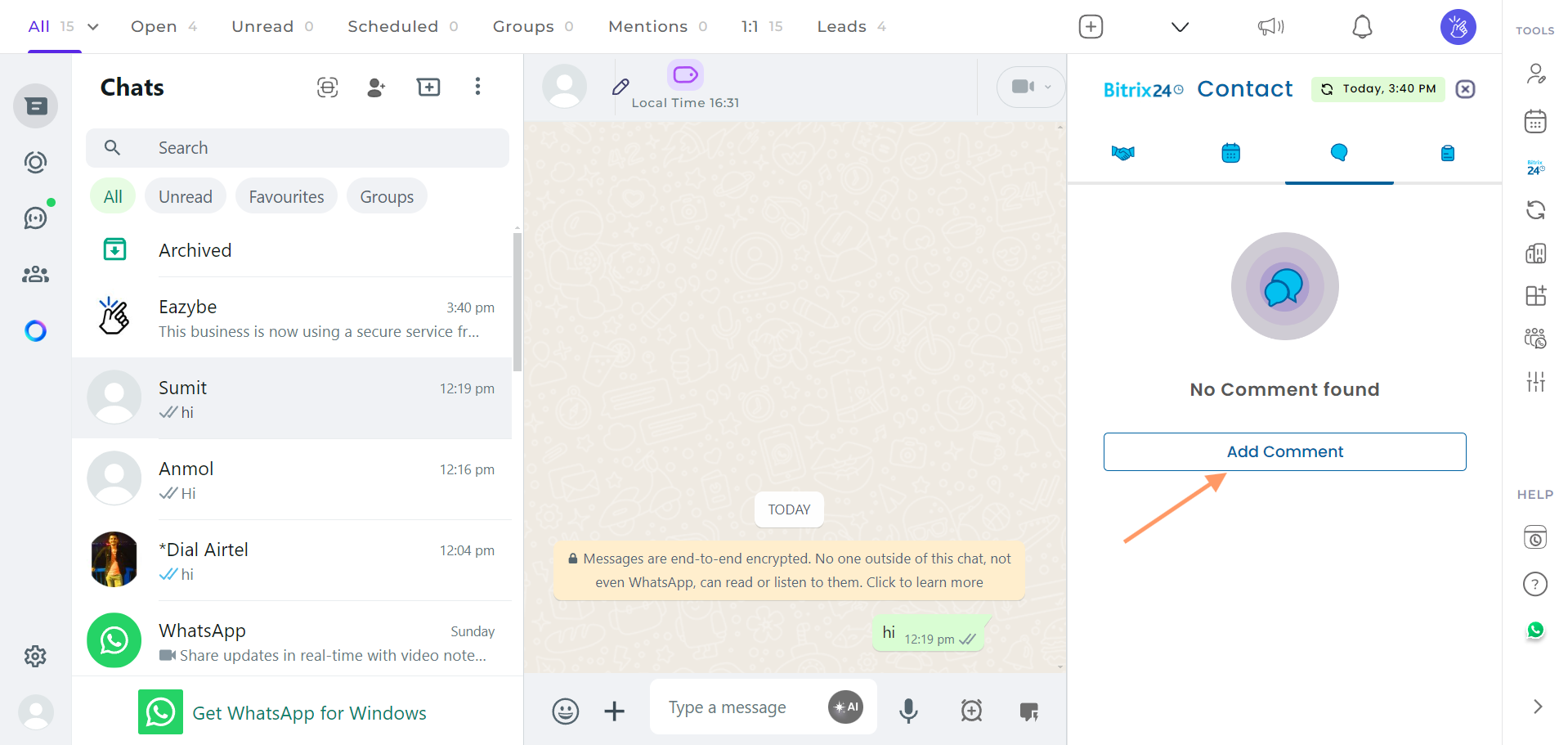
5
Fill in the Required Details
Enter the necessary details and click on the Save button.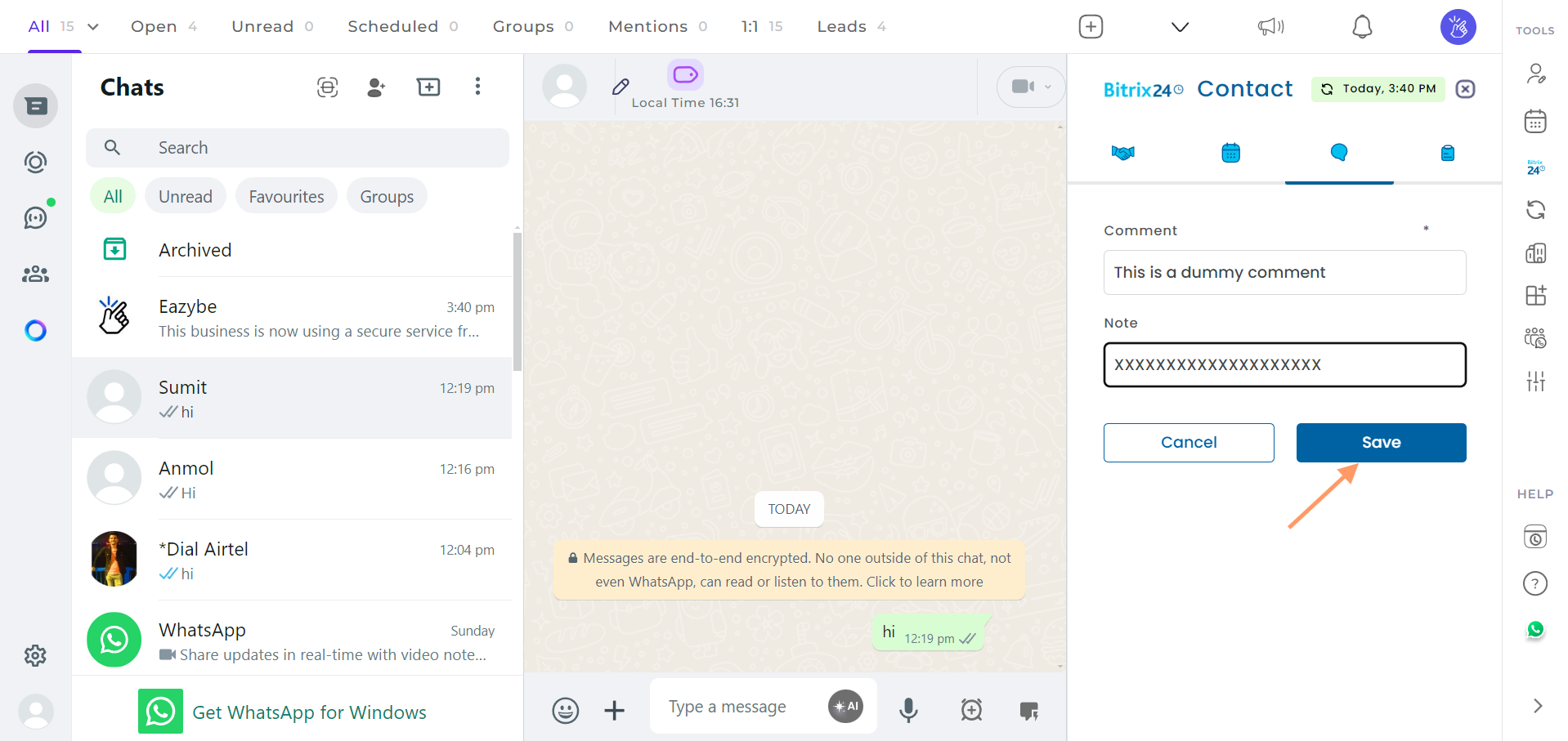
6
View Your Created Comment
Your comment will be created. You will see options to view the note, edit, or delete the created comment by clicking on the three dots menu.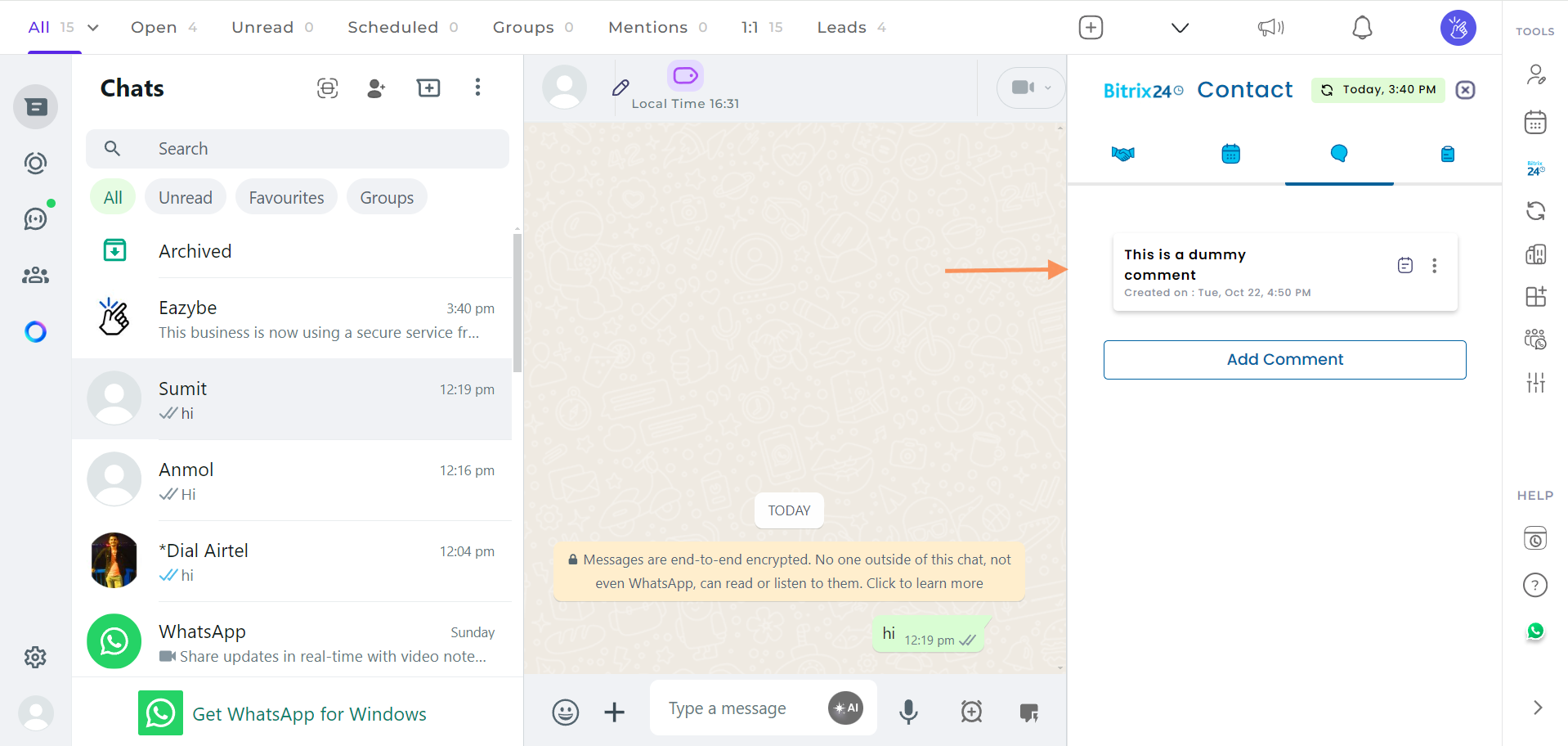
If you have any questions or need further assistance, feel free to reach out to us at hey@eazybe.com.