

Check Your Account
Before troubleshooting further, verify these essential requirements:1
Verify EazyBe Installation
Confirm that EazyBe is properly installed through Bitrix’s Apps Marketplace. The app should be listed in your installed applications.
2
Validate Active Subscriptions
Ensure that both your Bitrix and EazyBe subscriptions are active and not expired. Inactive subscriptions will prevent syncing.
Grant Access
When integrating EazyBe with Bitrix, you must authorize specific permissions. These permissions are essential for storing WhatsApp conversations via the EazyBe extension.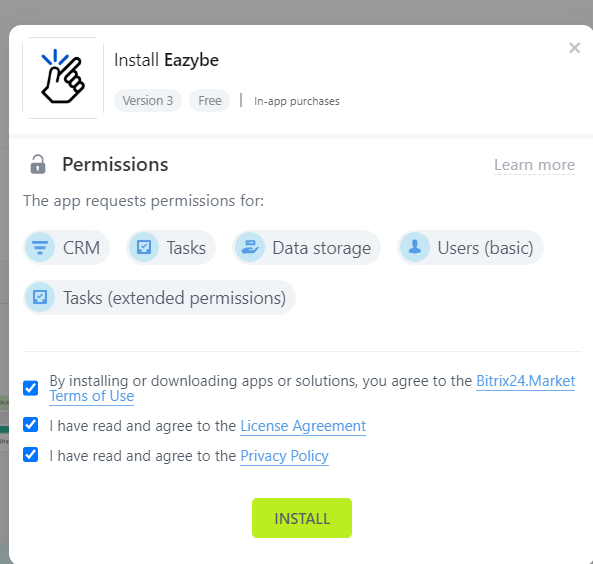
Without proper permissions granted, EazyBe cannot sync your WhatsApp chats to Bitrix. Make sure all requested permissions are approved during the integration setup.
Common Issues Checklist
If syncing still isn’t working after verifying the above:- Browser extension disabled - Ensure the EazyBe extension is enabled in your browser
- WhatsApp Web not active - Keep WhatsApp Web open for syncing to occur
- Contact not linked - Only conversations with linked Bitrix contacts will sync
- Network issues - Check your internet connection stability
If you have any questions or need further assistance, reach out to us at hey@eazybe.com.