

Verify WhatsApp Chats Activity is Enabled
The most common cause of sync issues is the WhatsApp Chats by EazyBe activity type not being enabled in LeadSquared.1
Access a Lead Page
Navigate to any LeadSquared Lead page. You can do this by:
- Clicking the View Lead on LeadSquared button in EazyBe
- Or navigating directly in LeadSquared
2
Locate Activity History
On the Lead page, find the Activity History section.
3
Check Activity Type Dropdown
Click on the Activity Type dropdown menu.
4
Enable WhatsApp Chats
Verify that the checkbox for WhatsApp Chats by EazyBe is selected. If it’s not checked, enable it.
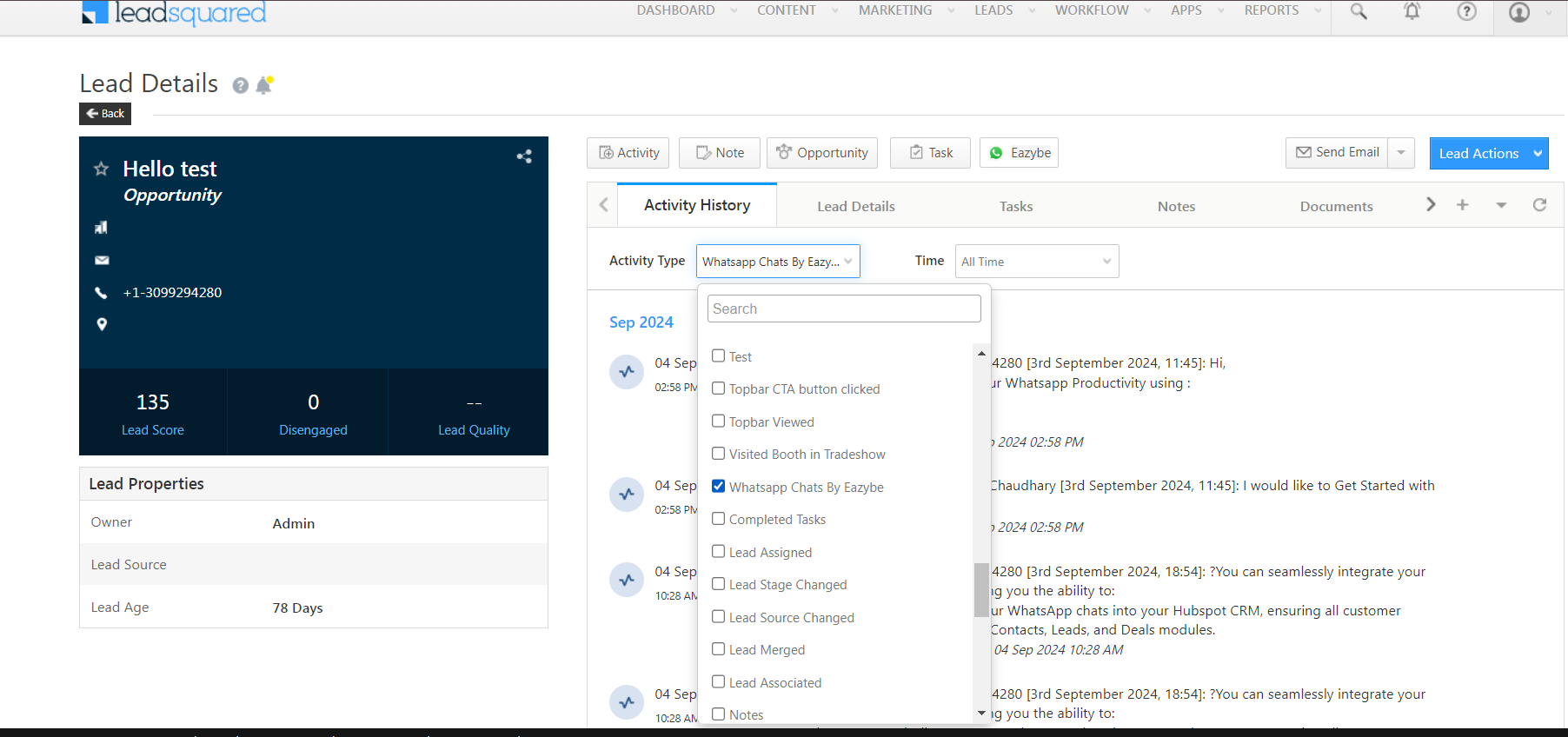
After enabling the activity type, your WhatsApp conversations should start syncing. Previously exchanged messages may take some time to appear in the activity history.