

Before you begin
Make sure you have:- A Zoho CRM account with permission to create workflow rules.
- The Zoho trigger extension installed and showing Status: Active.
- Your Zoho CRM account connected to Eazybe.
- The Eazybe extension or app installed for the user who owns the record.
- The recipient’s WhatsApp number saved in a Zoho phone field, including the country code.
1
Confirm the Zoho trigger extension is active
In Zoho CRM, open Setup, then go to Marketplace → All → Installed. Open Zoho trigger and confirm that its Status is Active.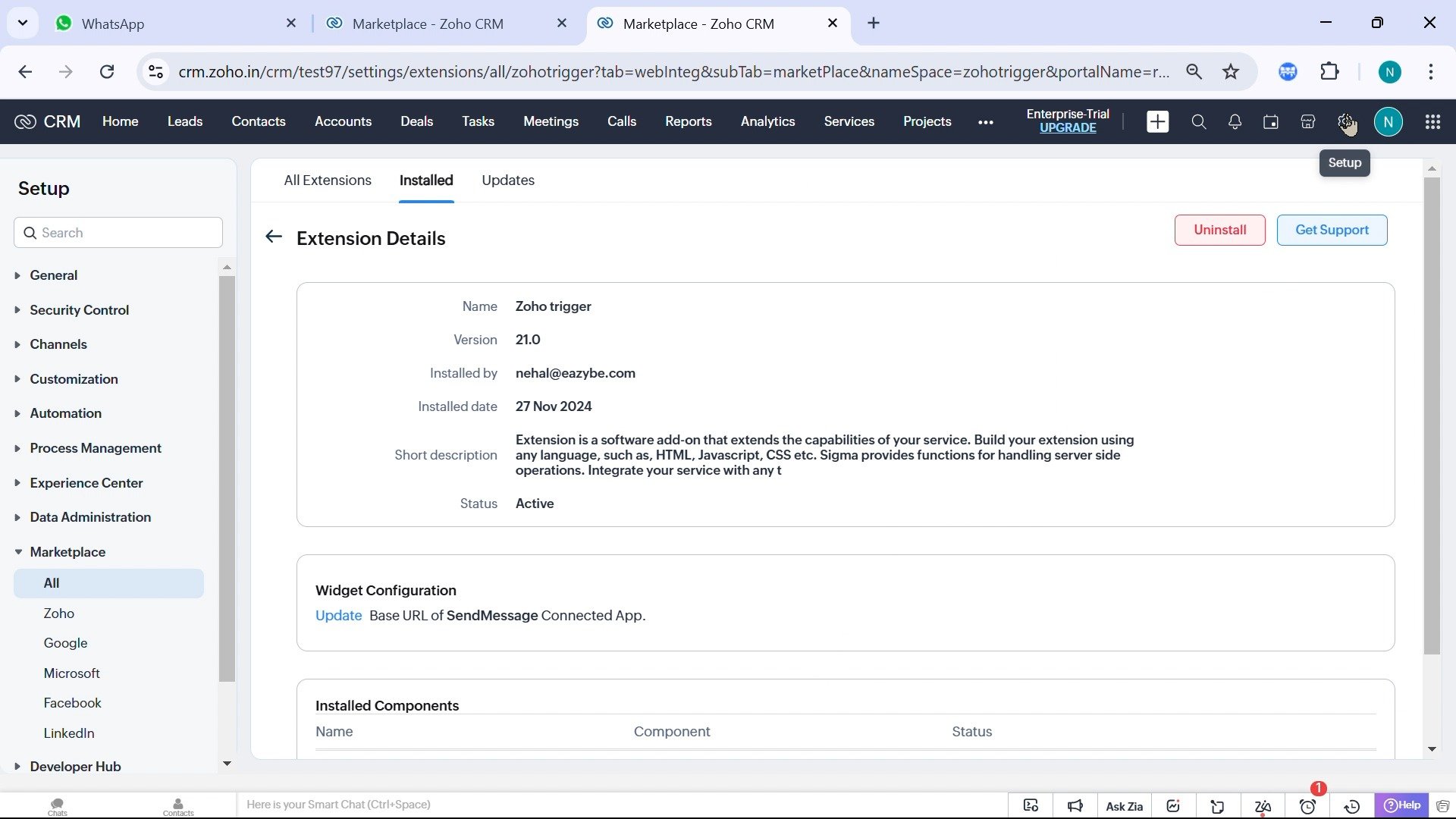
If the extension is not installed, install the Zoho workflow plugin before continuing:https://crm.zoho.com/market/installPrivatePlugin.do?portalName=rajatverma&nameSpace=zohotrigger&versionIndex=4520363000000413004
2
Open Workflow Rules
Select the Setup gear in Zoho CRM. In the Automation section, click Workflow Rules.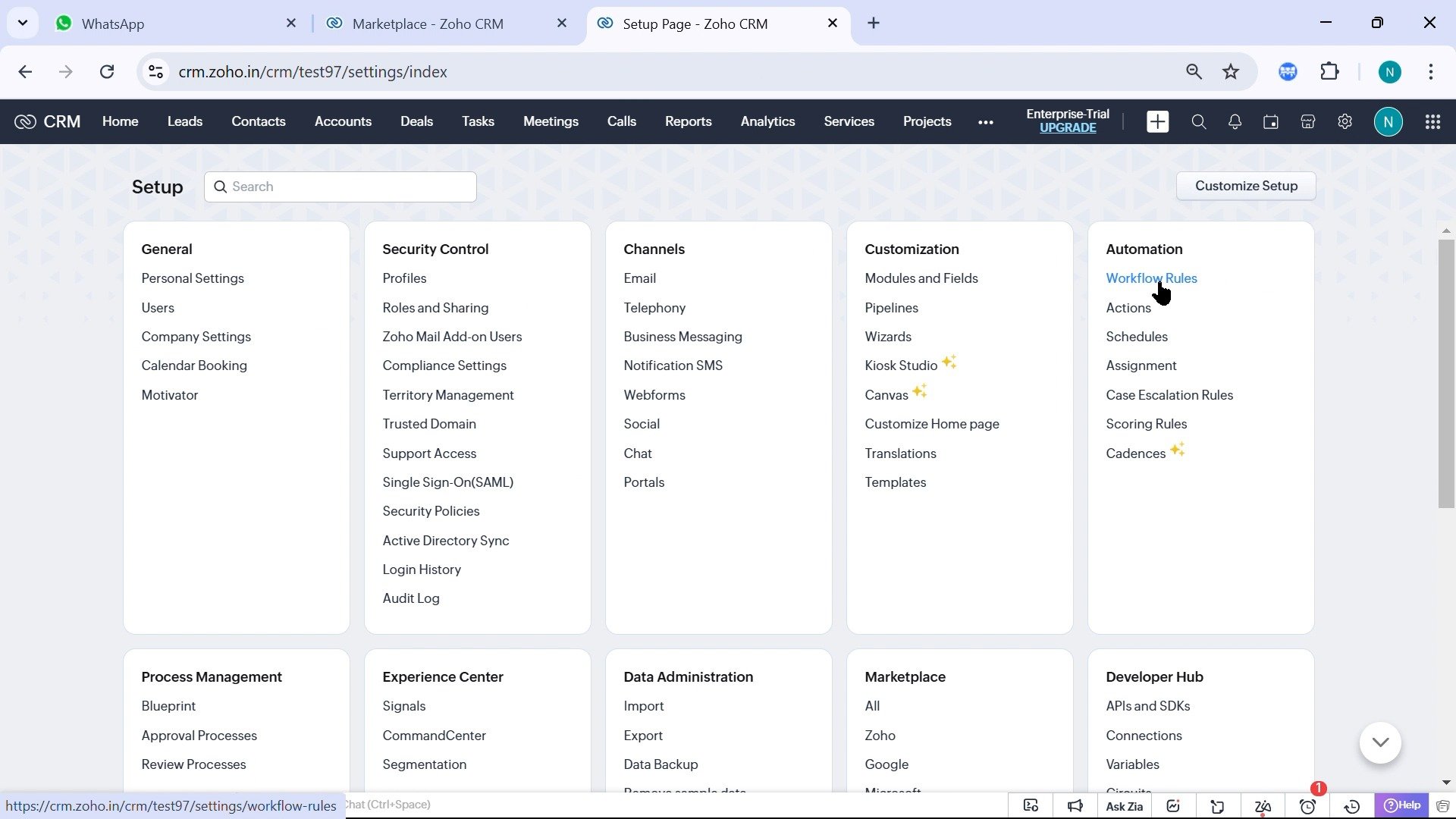
3
Create a workflow rule
On the Workflow Rules page, click Create Rule. The Create New Rule window opens.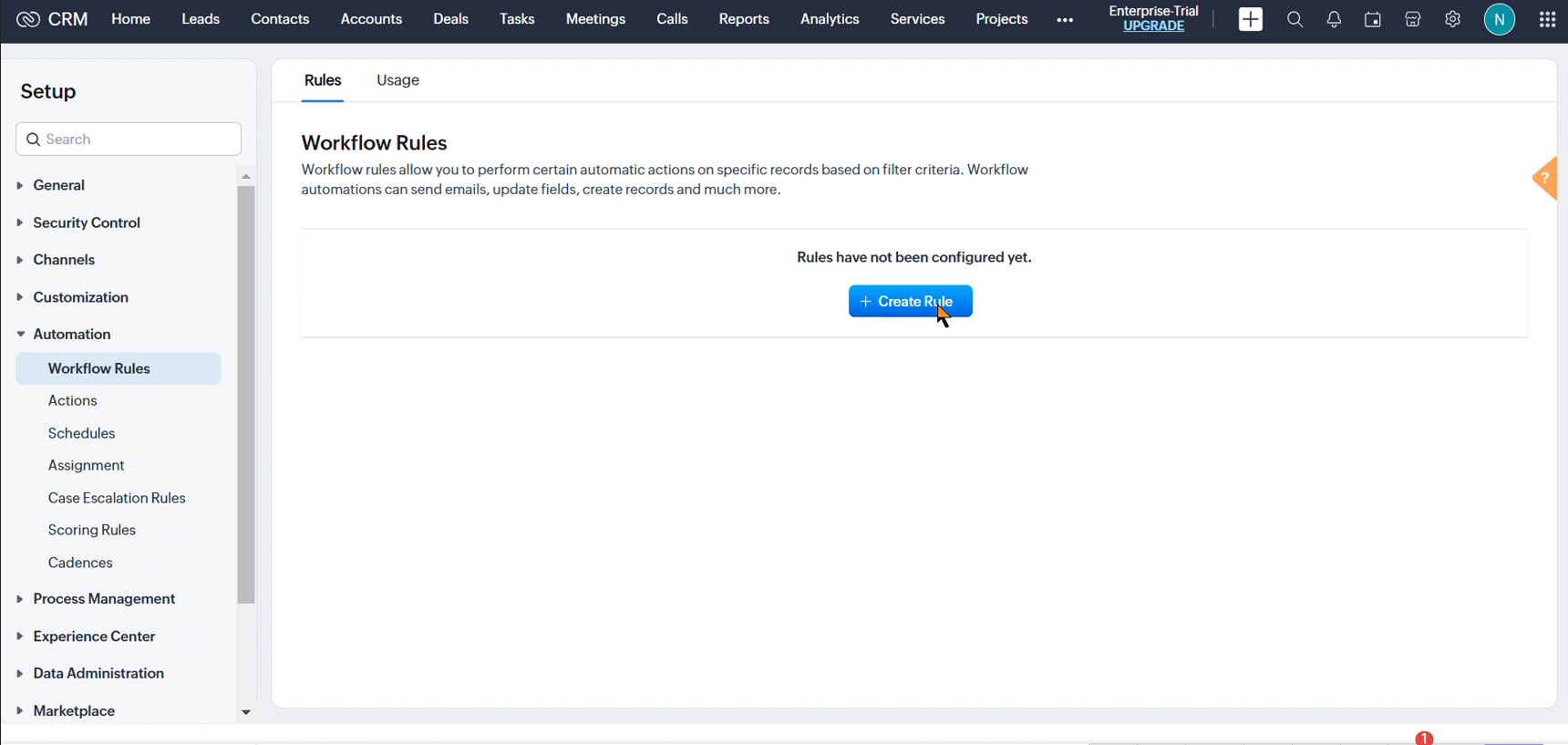
4
Choose the module and name the rule
In Create New Rule, select the Module that contains the recipients, such as Contacts or Leads. Enter a recognizable Rule Name, add a description if needed, and click Next.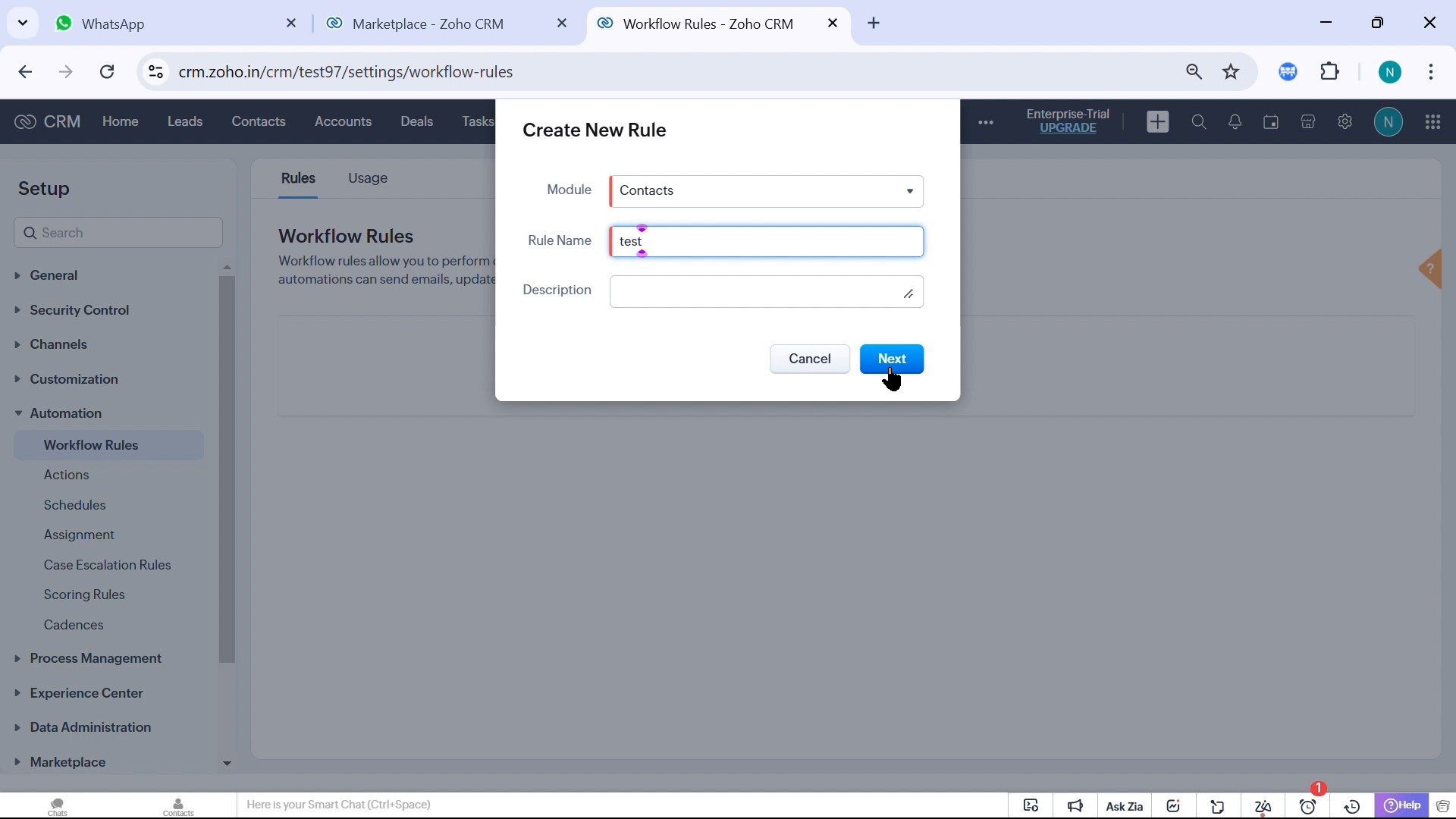
The phone field and owner used later in the workflow come from the module you select here.
5
Define when the workflow runs
Under Execute this workflow rule based on, choose the event that should start the workflow, such as Record action and Edit. Add the field and value conditions, then click Next.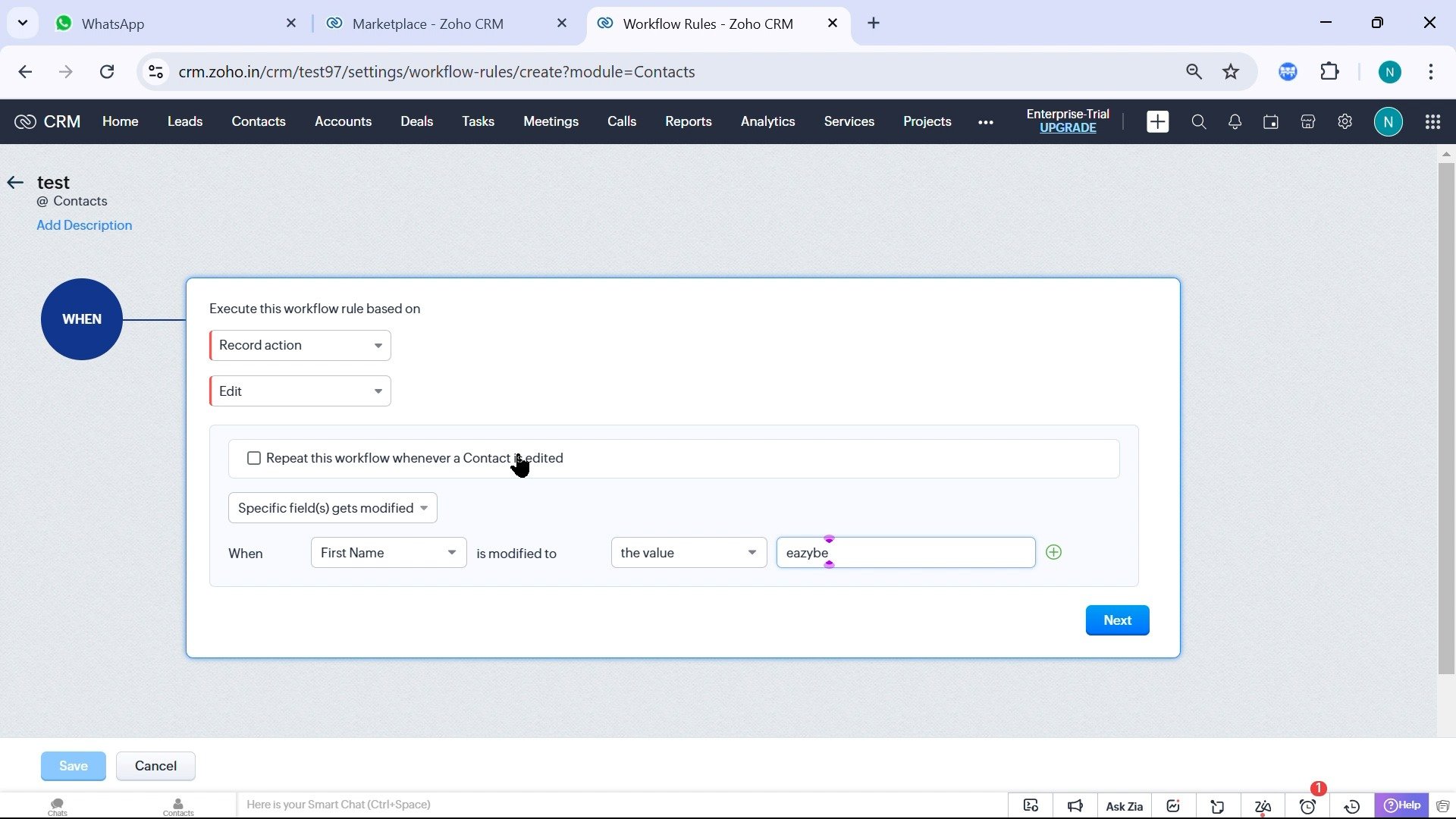
6
Add the Eazybe WhatsApp action
In the workflow builder, open Instant Actions → Custom Actions, then select the Eazybe MessageOnWhatsapp action.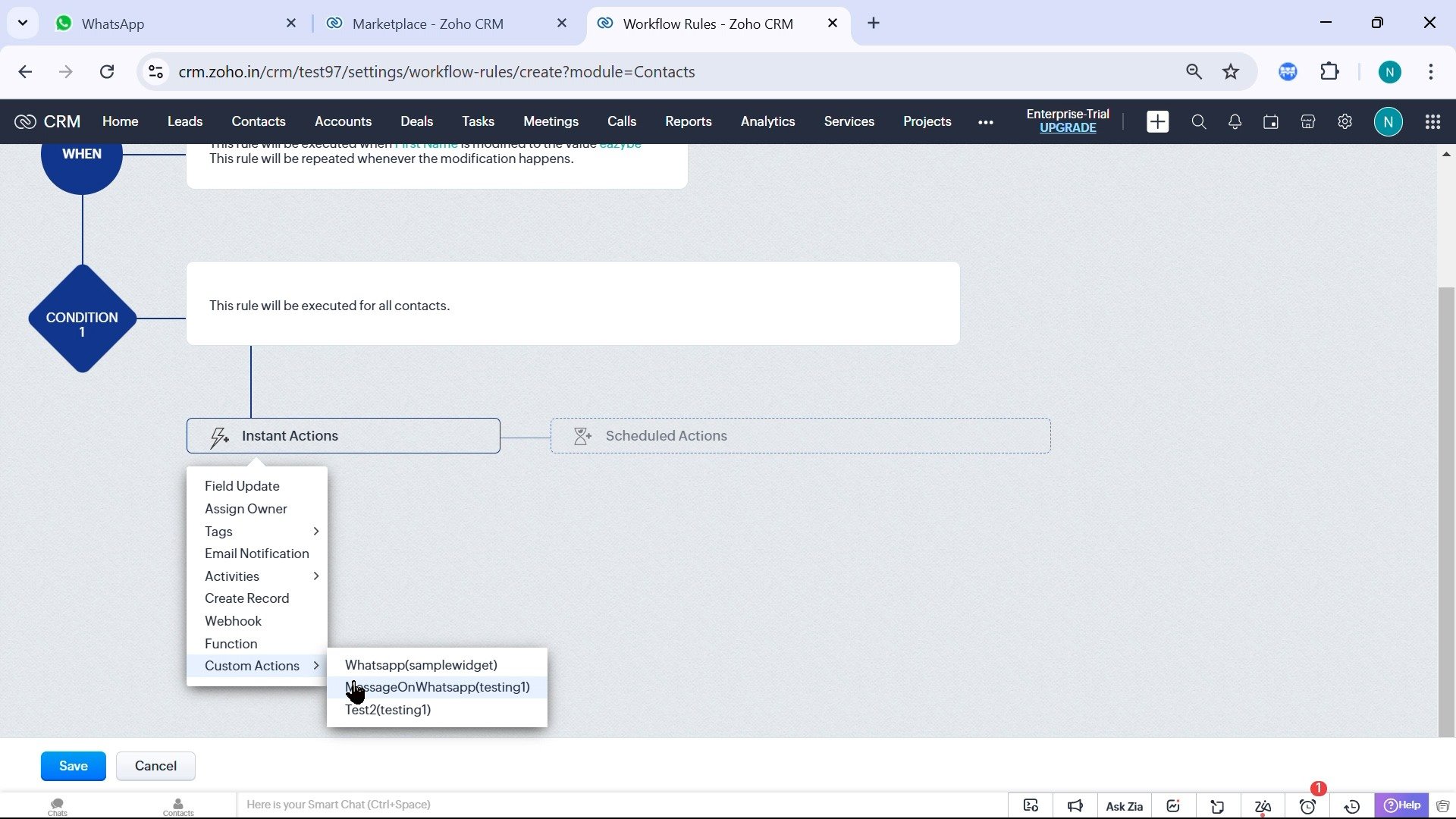
Zoho may show the extension namespace in parentheses after MessageOnWhatsapp. Select the action that belongs to the Eazybe integration.
7
Choose the recipient and enter the message
In Send message to WhatsApp, open Select number field and choose the Zoho field that contains the recipient’s WhatsApp number, such as Phone or Mobile. Enter the message in the text field, then click Save.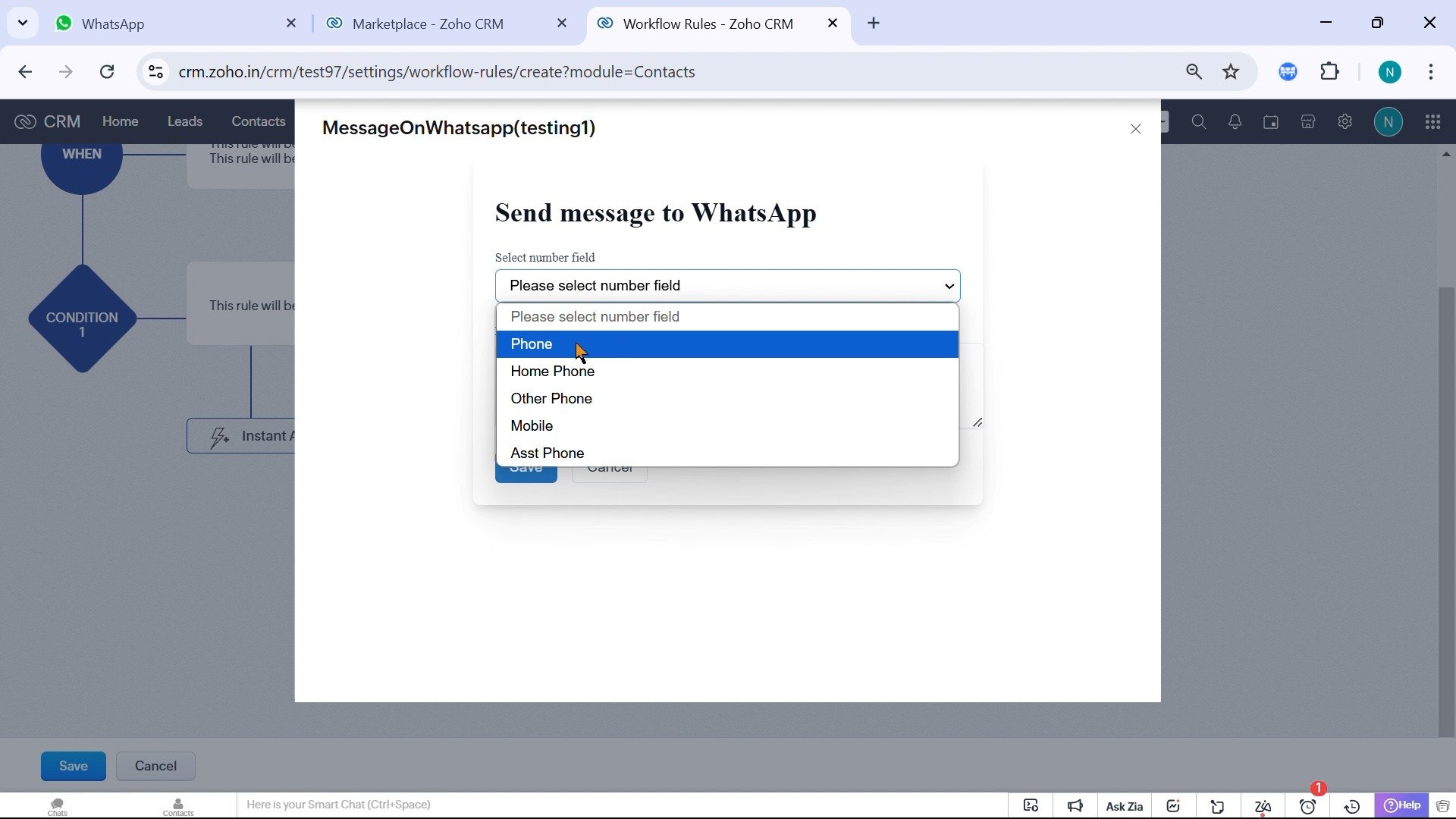
Activate and verify the workflow
Review the trigger, conditions, and MessageOnWhatsapp instant action. Click Save to activate the workflow, then update a test record so it meets the trigger conditions. Verify that:- The intended WhatsApp number receives the message.
- The message is sent from the record owner’s connected WhatsApp number.
- The workflow runs only when the configured conditions are met.
Media attached to a workflow message must be no larger than 15 MB. Compress or resize larger files before testing the workflow.
Troubleshooting
- If the action is missing, confirm that Zoho trigger is active and the Zoho account is connected to Eazybe.
- If the message is not delivered, confirm that the record owner has the Eazybe extension or app installed and has an active WhatsApp connection.
- If the wrong recipient receives the message, correct the selected number field and store the number with the appropriate country code.
- If the workflow sends duplicates, review the repeat execution option and the rule conditions.