

How to Create Lead Notes
1
Open the WhatsApp Chat
Launch the WhatsApp conversation with your Zoho Lead that you want to add notes to.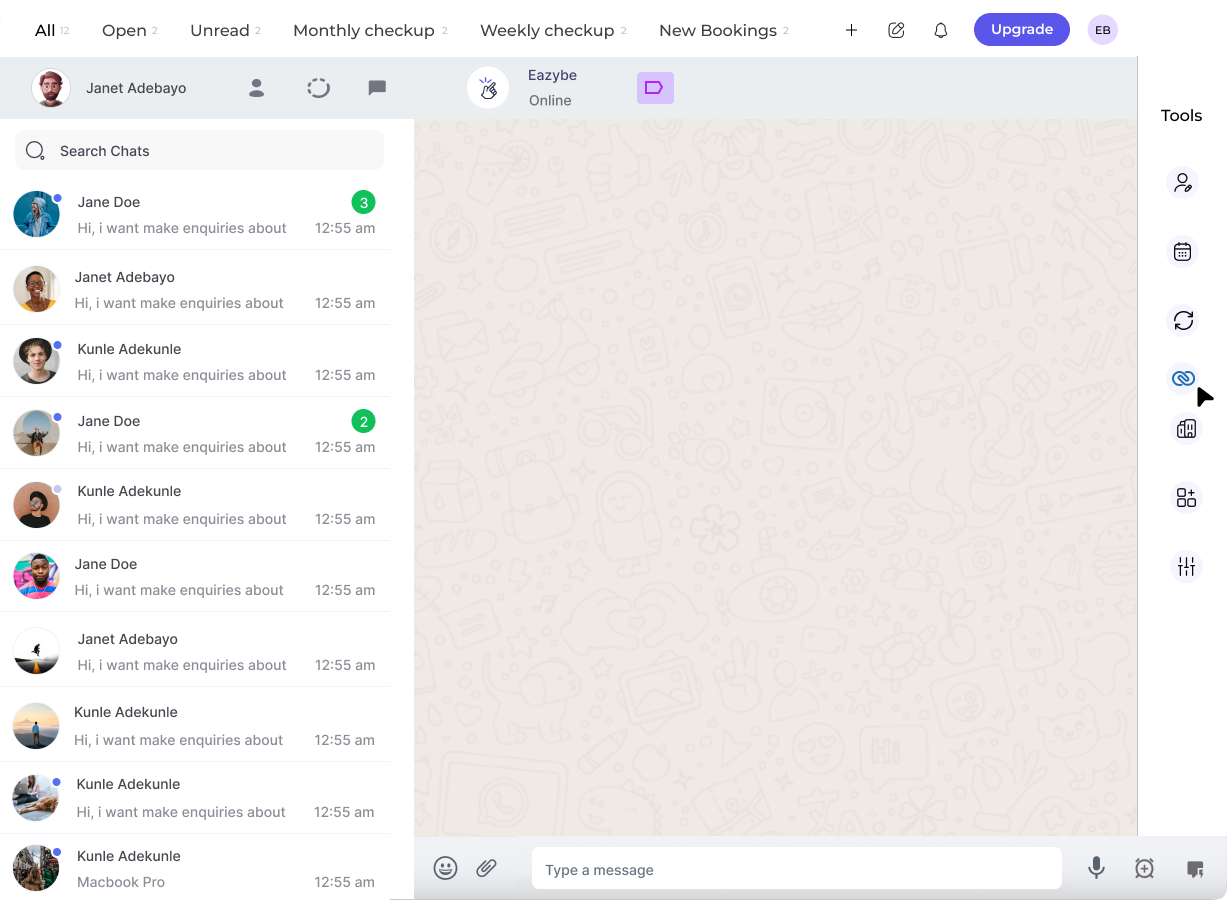
2
Click on the Zoho Icon
In the right-side panel of the EazyBe extension, locate and click on the Zoho icon to access your CRM features.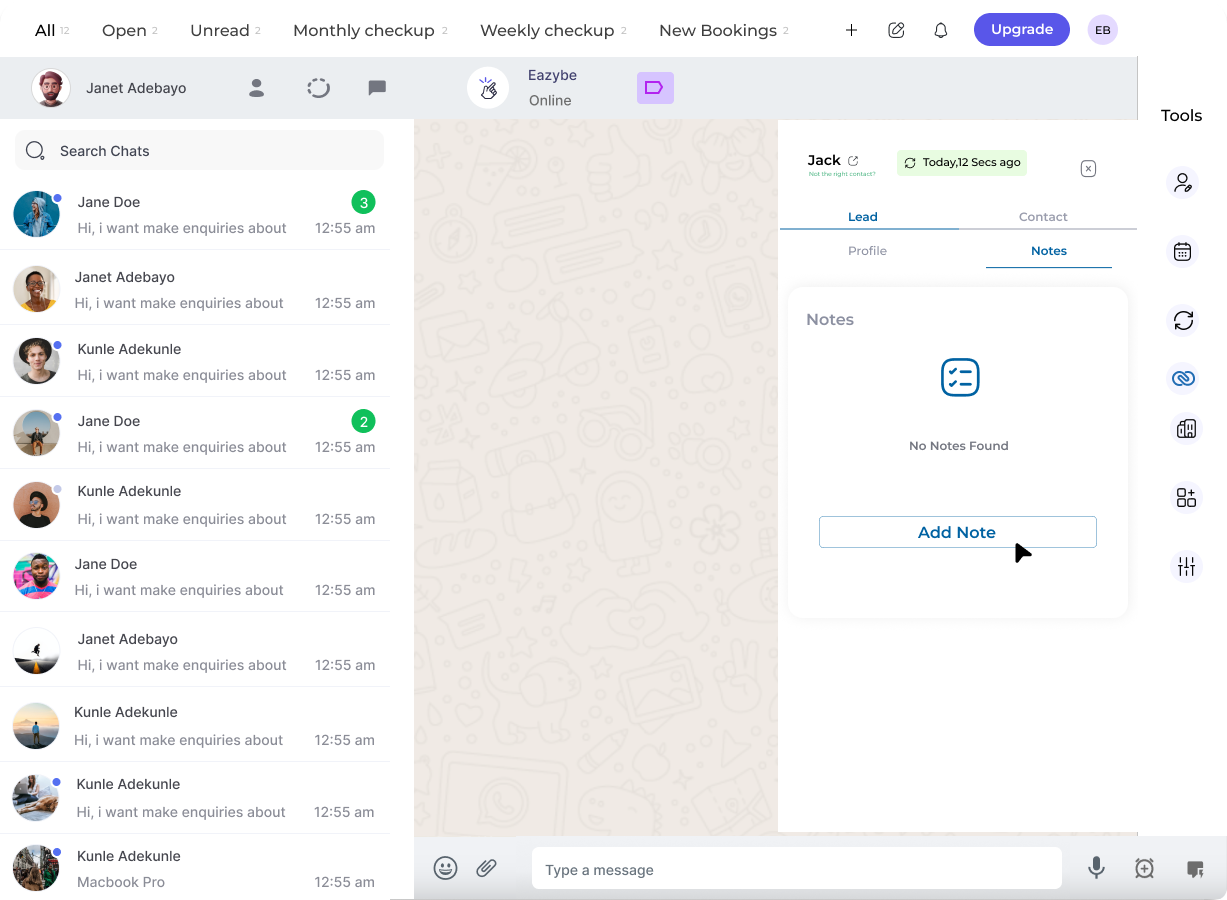
3
Access the Notes Section
The Notes section is located as the second header under the Lead section. Click on it to view existing notes or create new ones.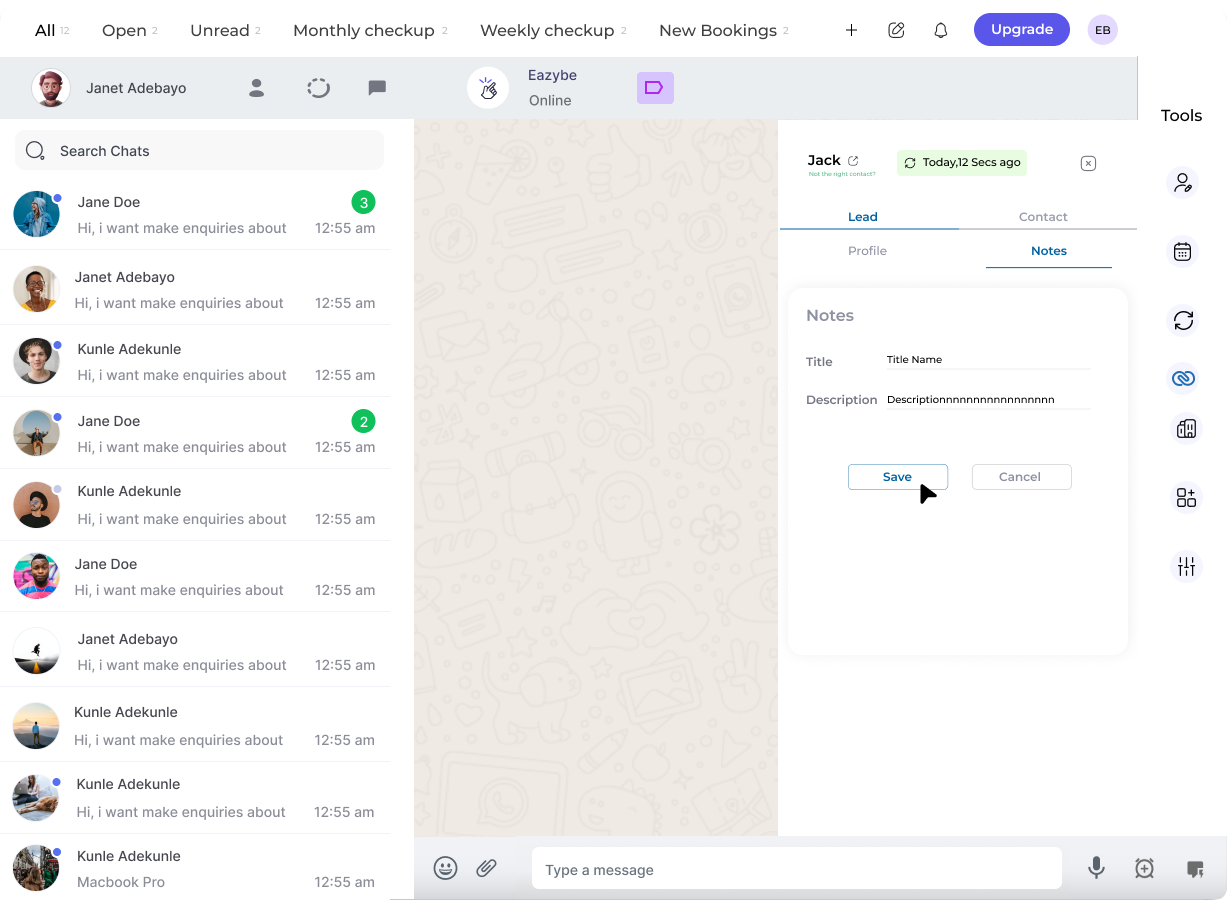
4
Create a New Note
Click on the New Note button to open the note creation form.
5
Fill in the Details and Save
Enter your note details in the form and click the Save Note button to save your entry.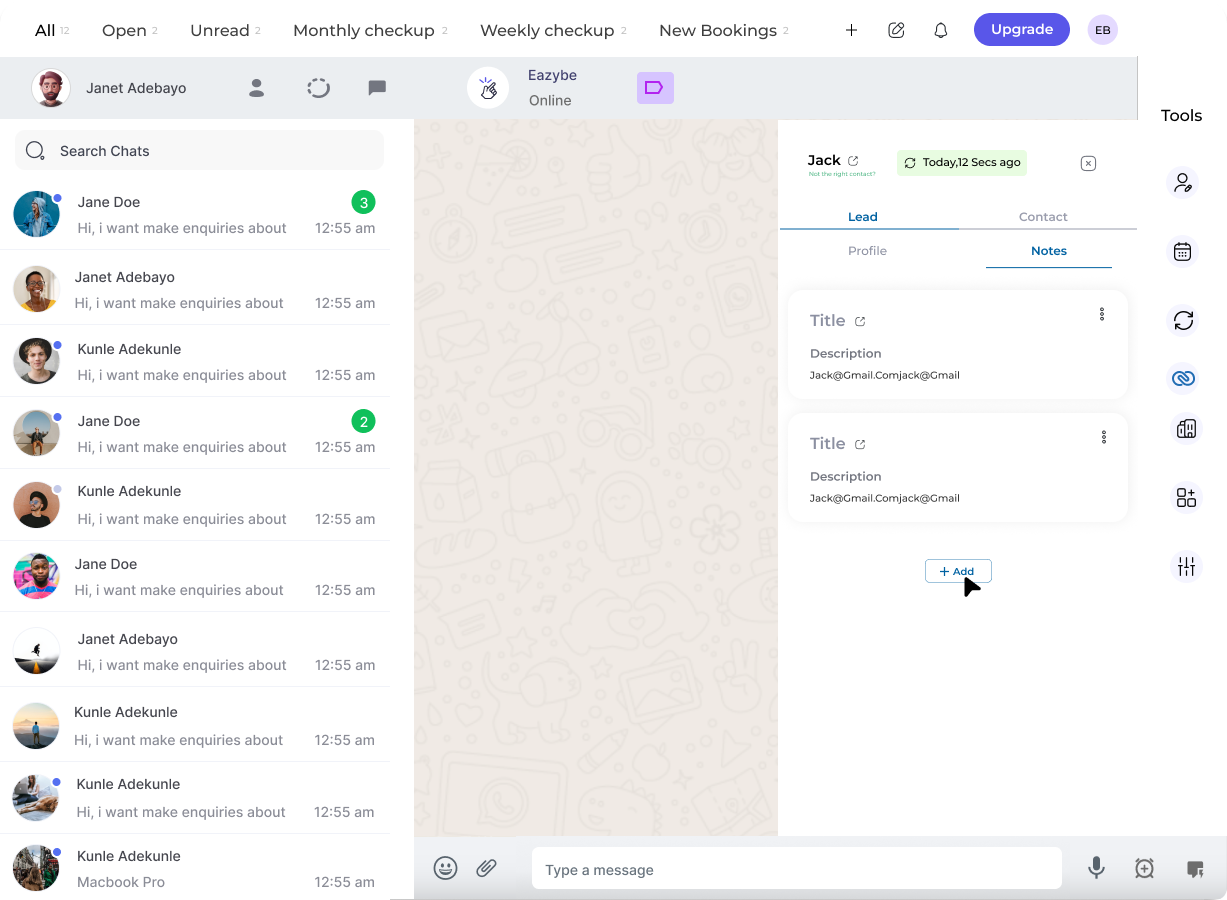
Managing Your Notes
Once created, you can perform the following actions on your notes:View
Review all your saved notes for the lead
Edit
Modify existing notes to update information
Delete
Remove notes that are no longer needed