

Use Cases
Incoming Messages
Trigger a webhook when a team member receives a WhatsApp message
Outgoing Messages
Trigger a webhook when a team member sends a WhatsApp message
Setup Guide
1
Install the Latest Version
Ensure you have the latest version of the EazyBe WhatsApp extension installed.
2
Login to WhatsApp Web
Open your WhatsApp Web account in your browser.
3
Access the Integrations Section
Navigate to the Integrations section located on the right-side bar.
4
Open the Webhook Settings
Click the Integrations button, then click Connect under the Webhooks option.
5
Turn on Webhooks
Enable webhooks by clicking the toggle button in the top-right corner.
6
Enter the Webhook URL
Input your destination webhook URL and save the settings.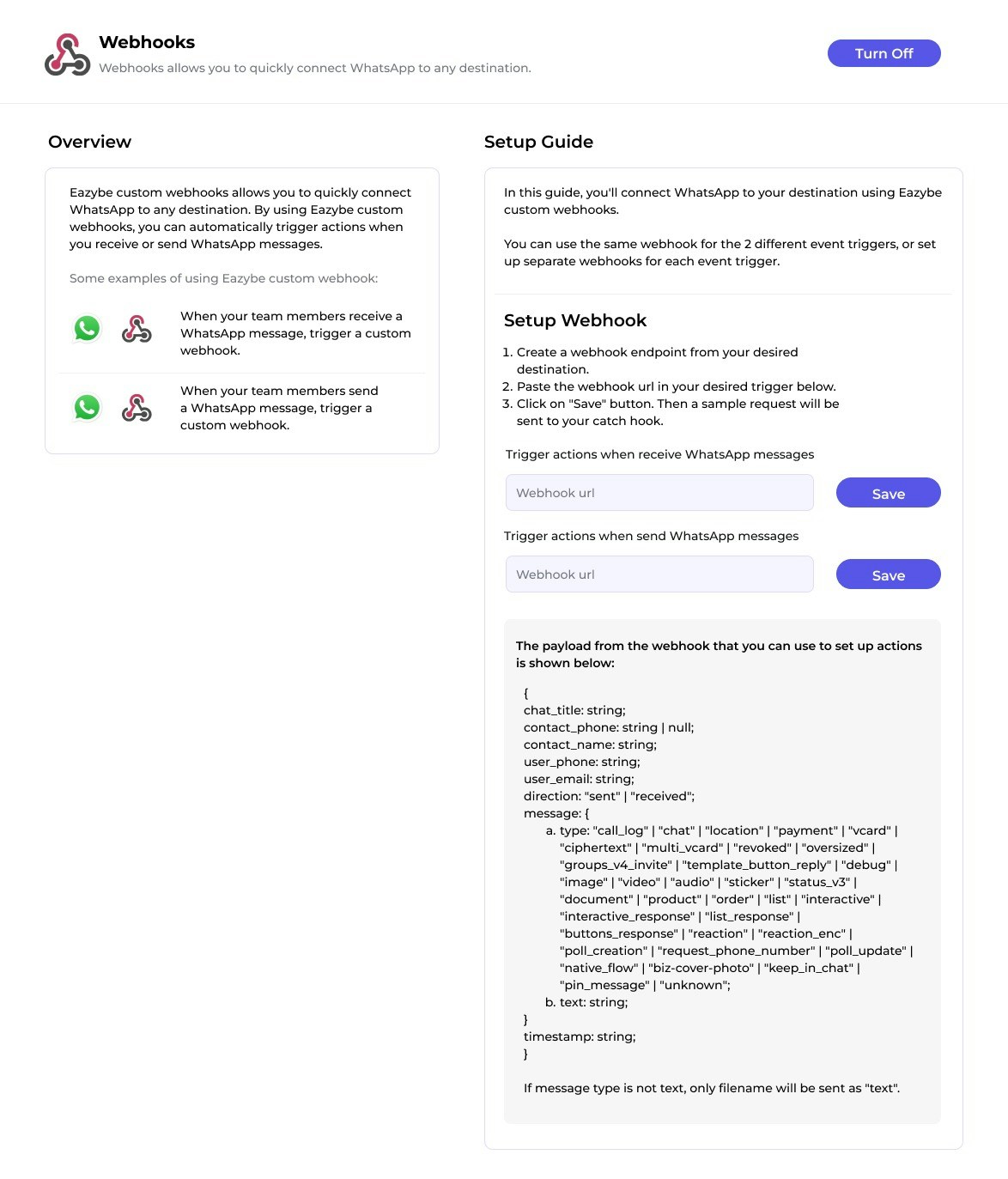
7
Optional: Add Auth Token
For added security, you can add an authentication token to your webhook requests.
8
Integration Complete
Your webhook integration is now active and ready to receive WhatsApp events.
Testing Your Webhook
If you have any questions or need further assistance, feel free to reach out to us at hey@eazybe.com. We’re happy to help!