

Overview
Are your WhatsApp conversations not syncing with HubSpot? You’re moving your conversations forward, but the backup isn’t getting stored on HubSpot. This guide will help you resolve common syncing issues.1. Grant Access
Eazybe requires specific permissions to integrate with HubSpot properly.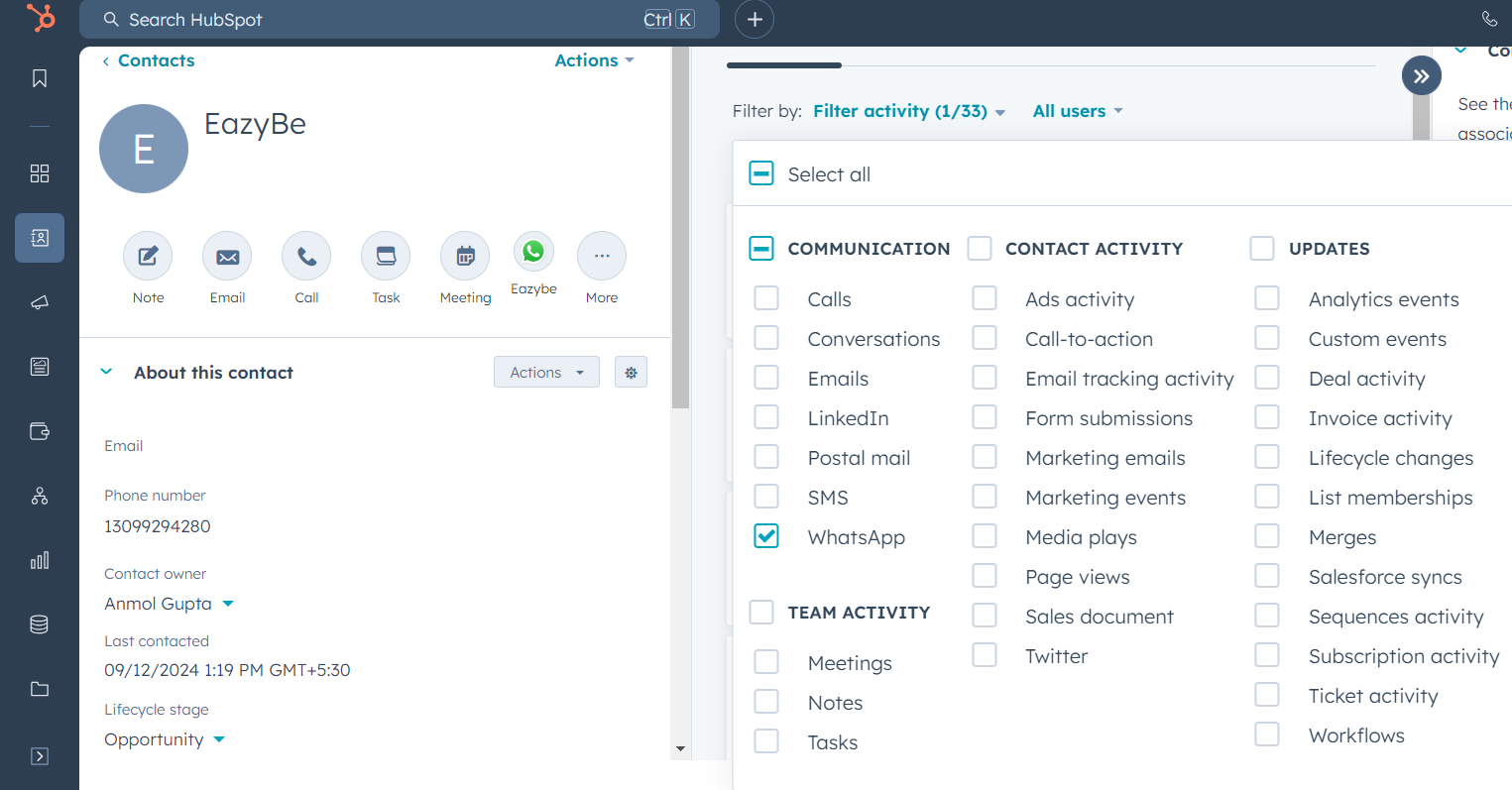
2. WhatsApp Activity Enabled in HubSpot
Make sure WhatsApp Activity is enabled in your HubSpot contact timeline.1
Open a Contact
Navigate to any HubSpot contact page.
2
Expand Filter Activity
Click on Filter activity to expand the filtering options.
3
Enable WhatsApp Activity
Under the Communication section, check the WhatsApp Activity checkbox.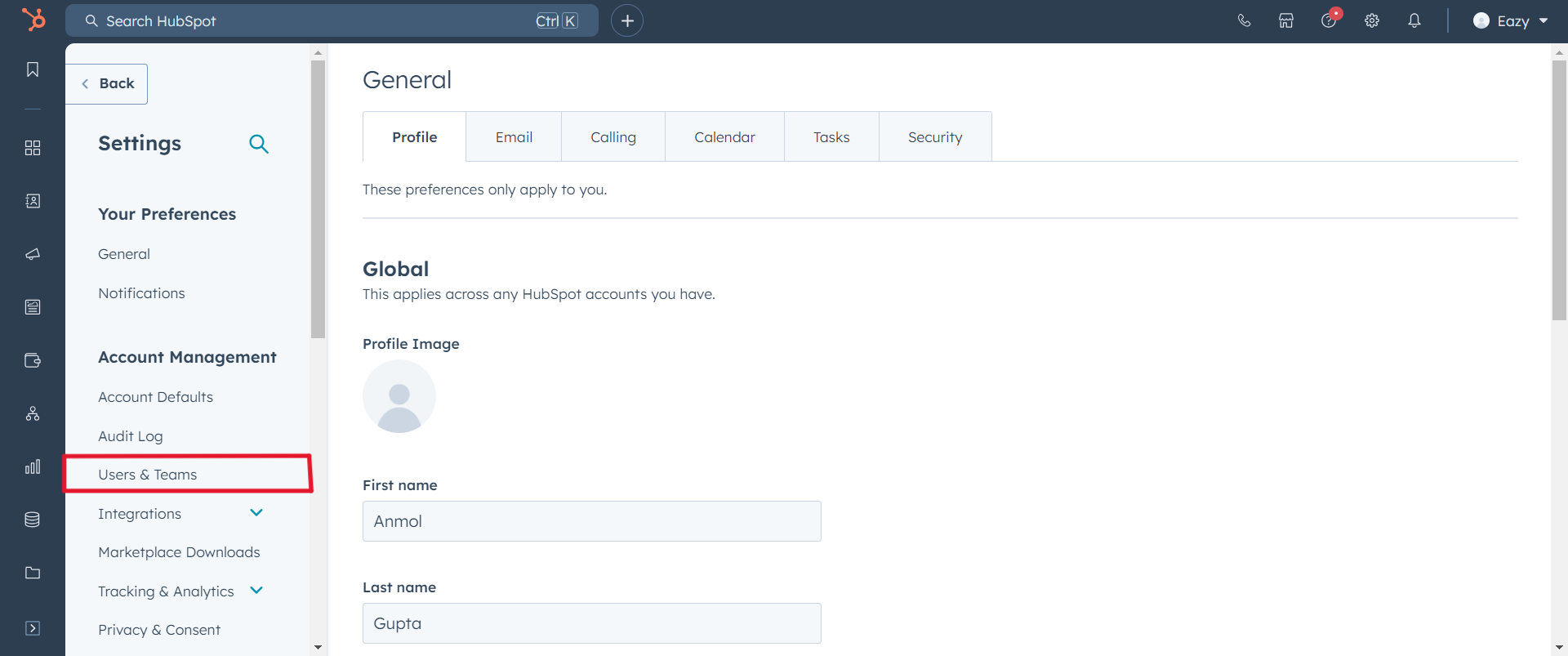
3. HubSpot Permissions
Verify that you have the necessary permissions in HubSpot.1
Access Settings
Go to your HubSpot Settings.
2
Navigate to Users & Teams
Click on Users & Teams in the left sidebar.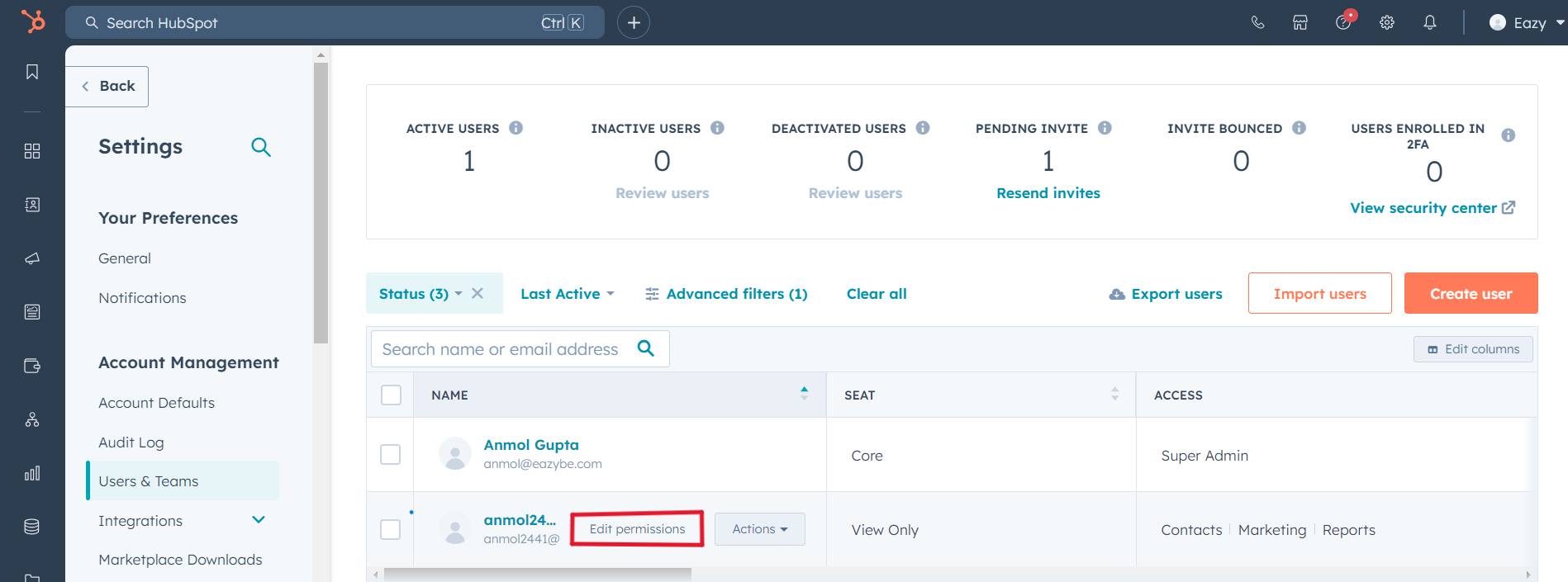
3
Edit Permissions
Click Edit permissions for your user account.
4
Request Required Permissions
Ensure you have App marketplace and Files permissions. If not, request these from your super-admin.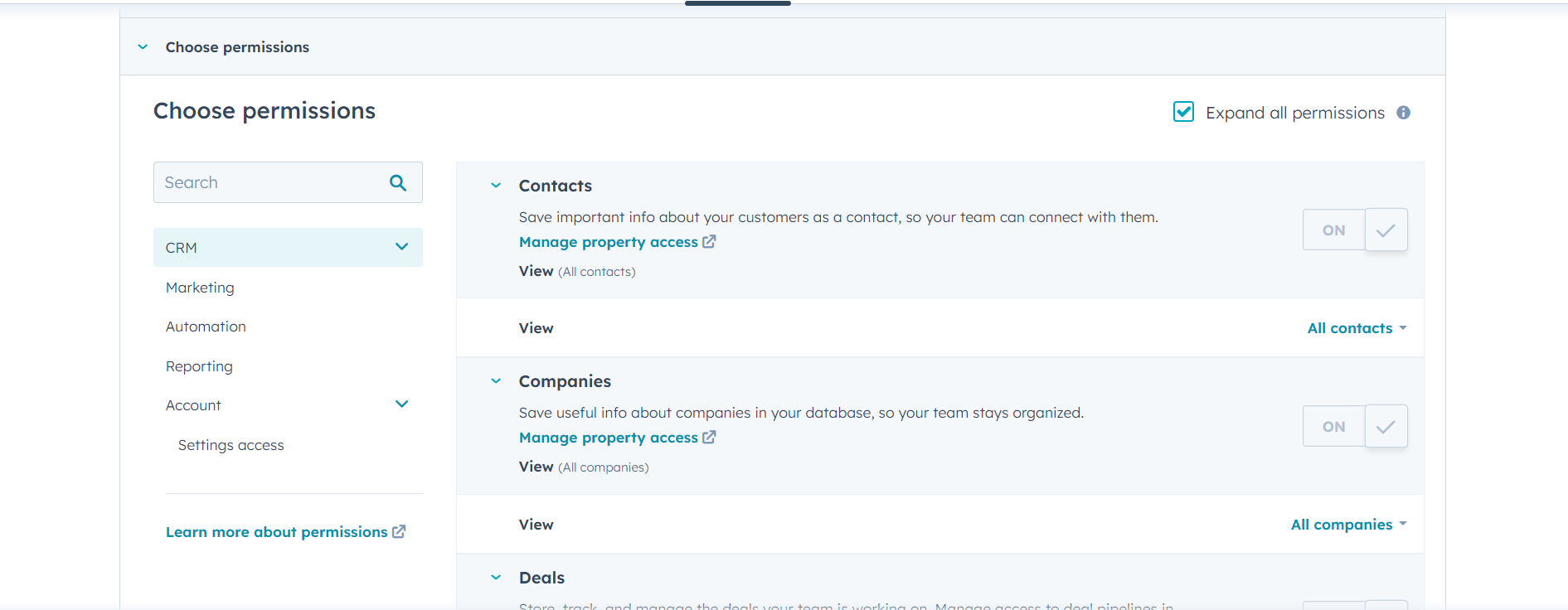
A super-admin has access to all permissions and can grant these to other users.
4. Label Sync Permissions
If your conversations aren’t backing up even though labels are being created, check your label sync settings.1
Check Label Settings
Navigate to your label settings in the Eazybe extension.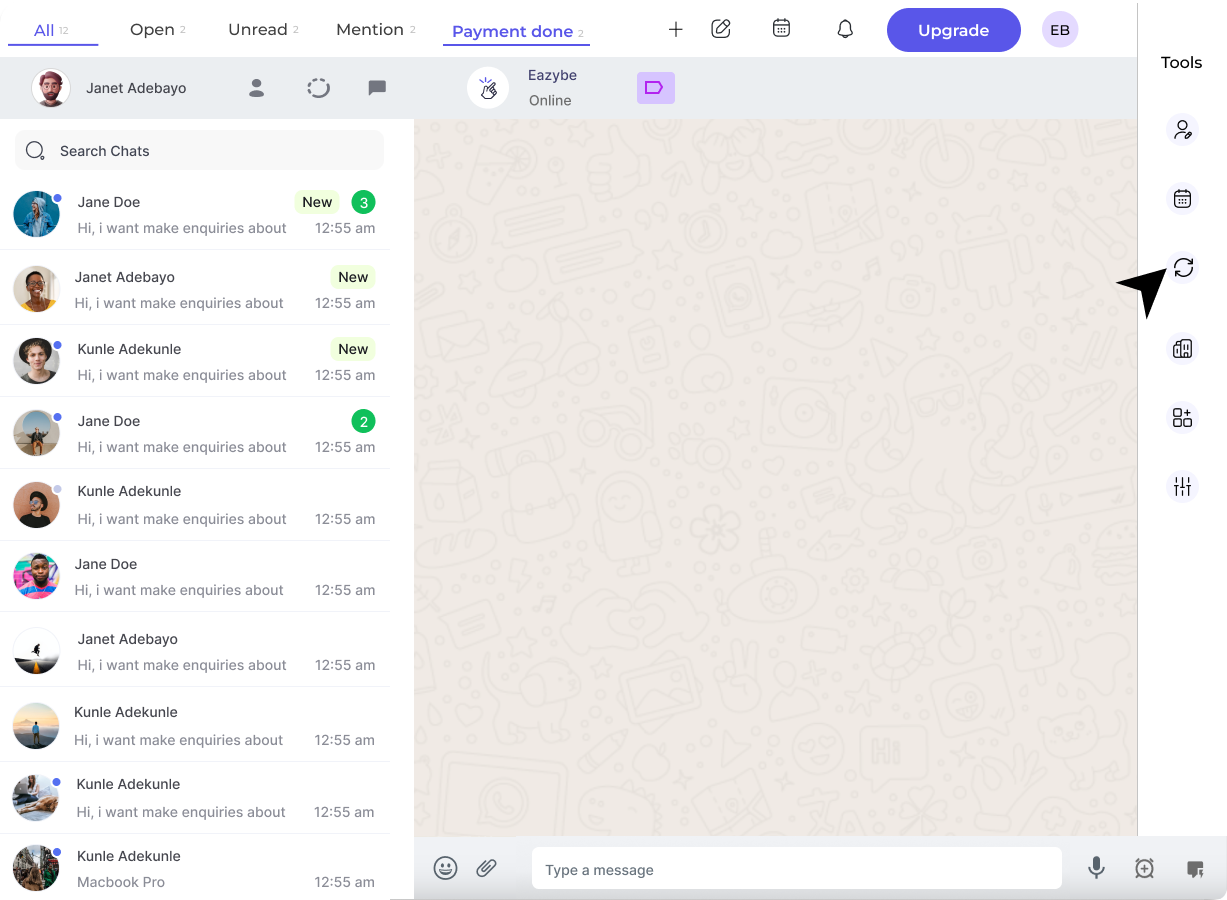
2
Verify Sync Status
Ensure the label is set to Sync and not Don’t Sync.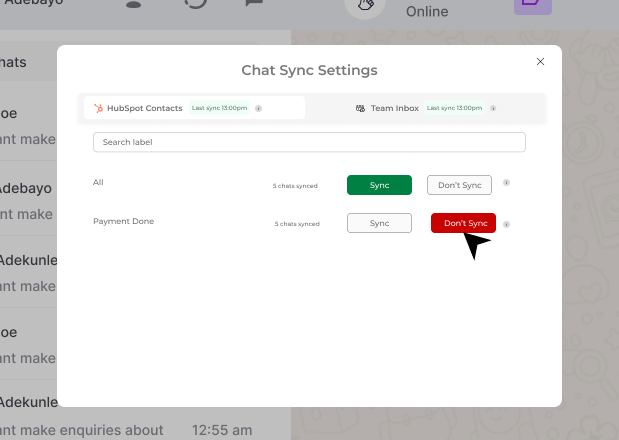
Need Help?
Contact Support
If you’re still experiencing syncing issues after following these steps, reach out to us at hey@eazybe.com. We’re happy to help!