

Creating and Managing Tasks
1
Open the Lead's WhatsApp Chat
Open the WhatsApp conversation for the specific LeadSquared lead you want to create a task for.
2
Access the Tasks Section
Click on the LeadSquared icon in the right sidebar. Navigate to the Tasks section, which is the third header under the Lead section.
3
Add a New Task
Click the Add Task button to begin creating a new task.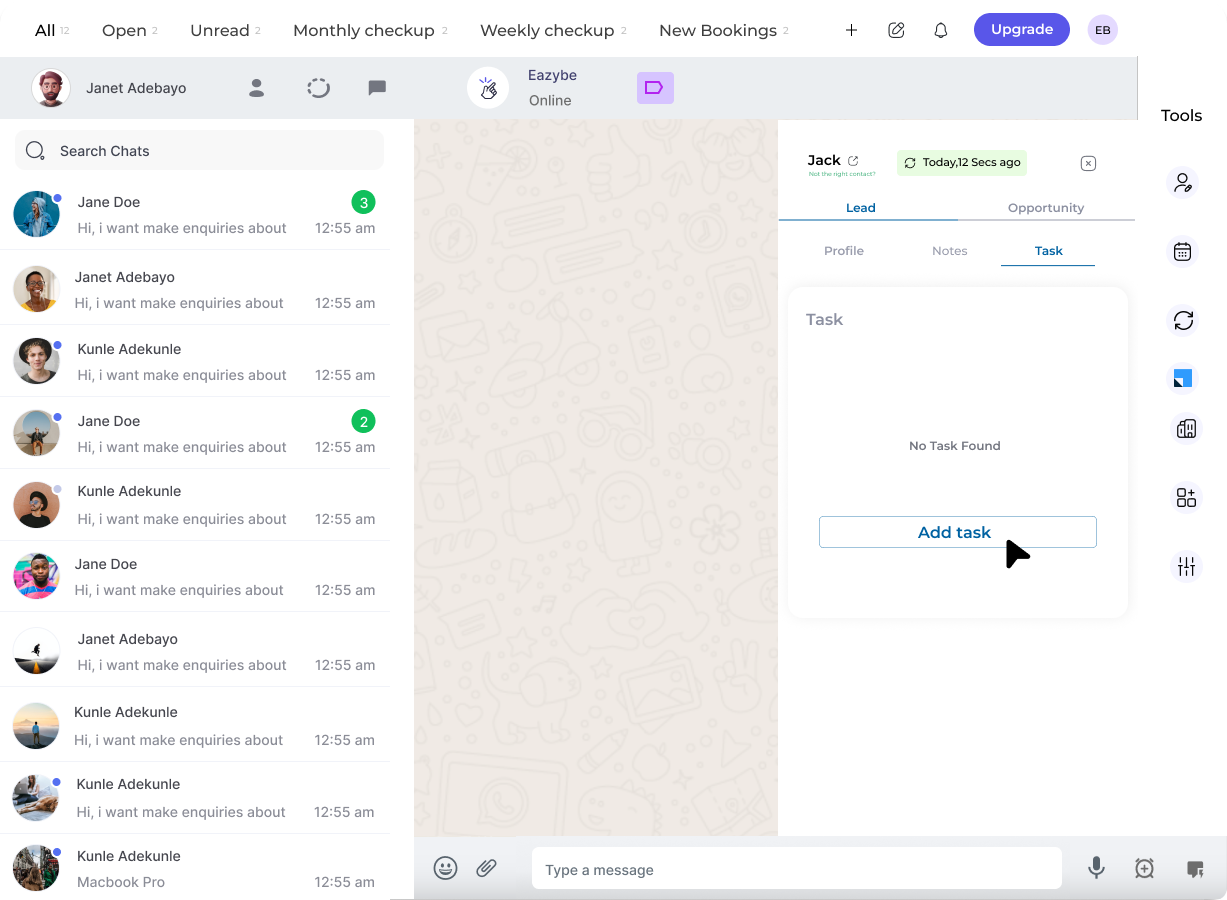
4
Save the Created Task
Enter the task details in the form. Make sure the end date does not precede the deadline date. Click Save to create the task.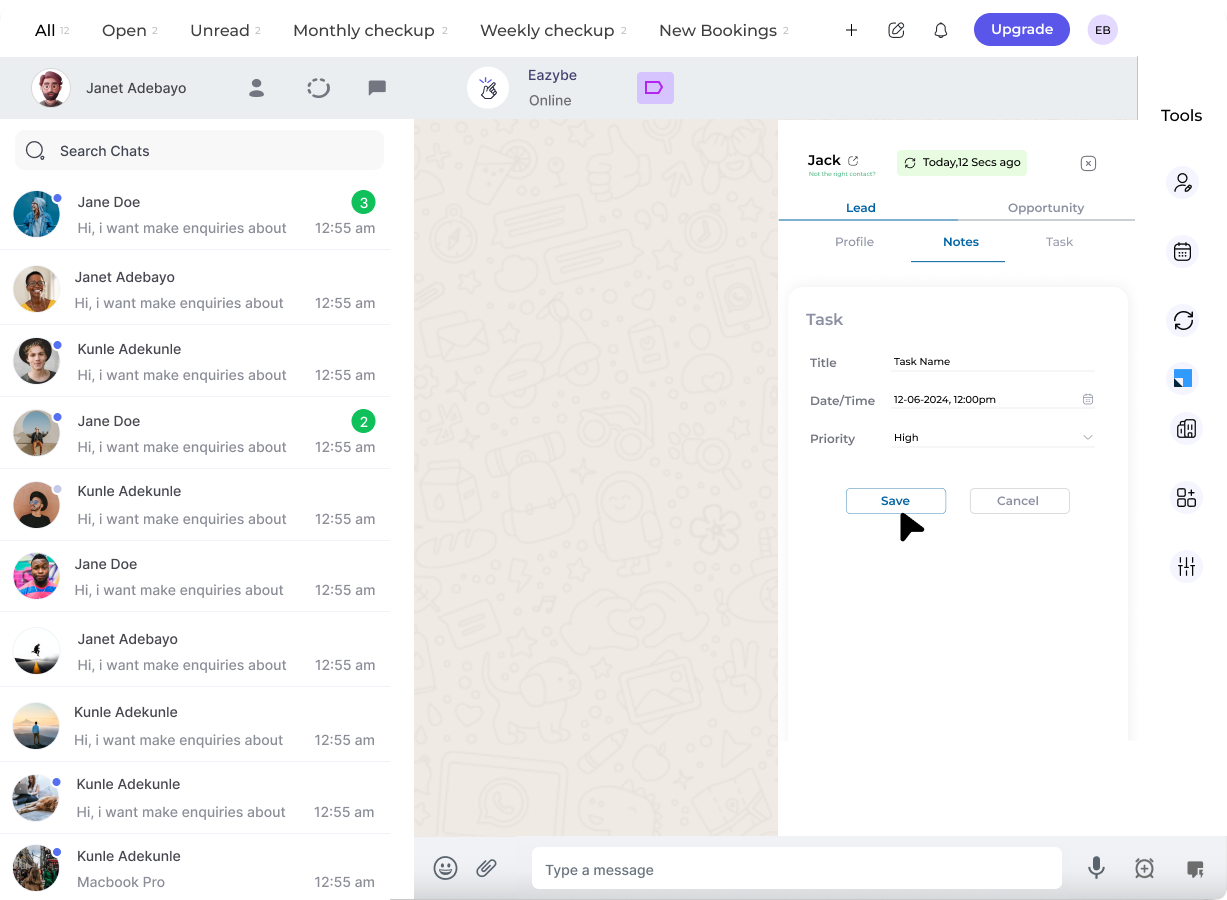
5
Edit or Delete a Task
To modify or remove an existing task, click the three-dot menu next to the task and select either Edit or Delete.
6
Create Additional Tasks
Repeat the process to create multiple tasks for the same lead as needed.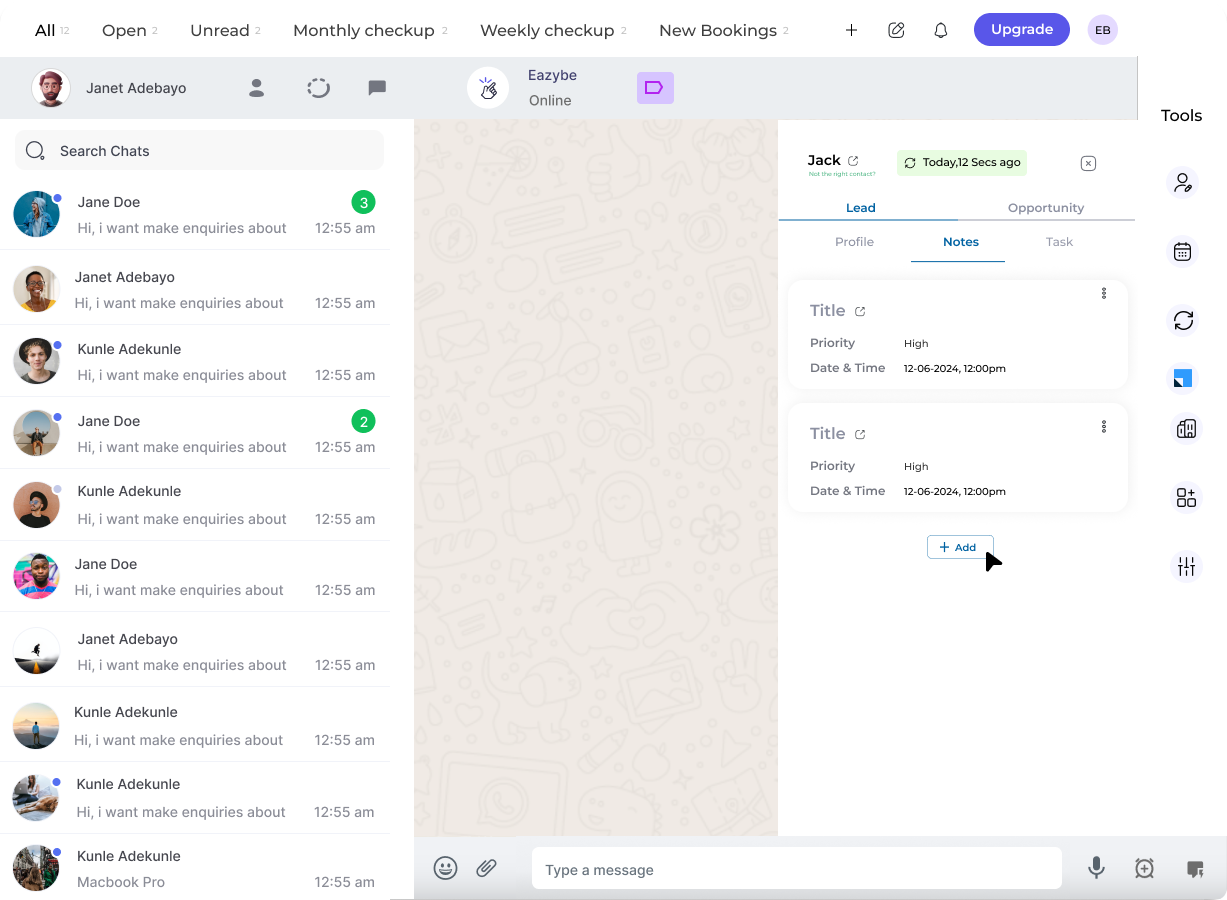
Tasks created in the EazyBe WhatsApp extension automatically appear in the Tasks section of LeadSquared, linked to the specific lead.