

Creating Opportunity Tasks
1
Open the Lead's WhatsApp Chat
Begin by opening the WhatsApp chat for the LeadSquared lead requiring task management.
2
Access the Opportunity Section
Within the LeadSquared Mini-CRM view, select the Opportunity section tied to that lead.
3
Access the Tasks Section
Choose the opportunity that needs a task, then click the Tasks section.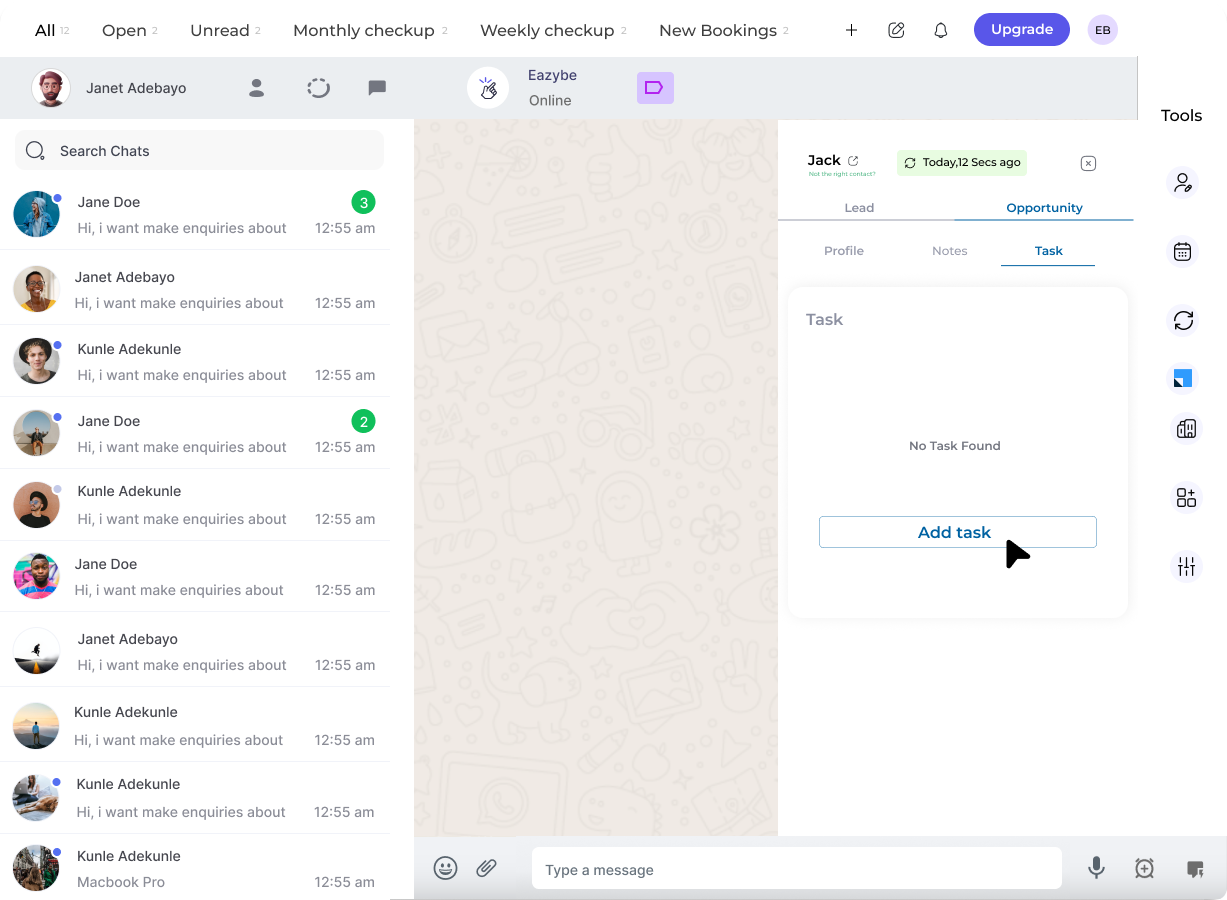
4
Add a New Opportunity Task
Select the Add Task button for the respective opportunity.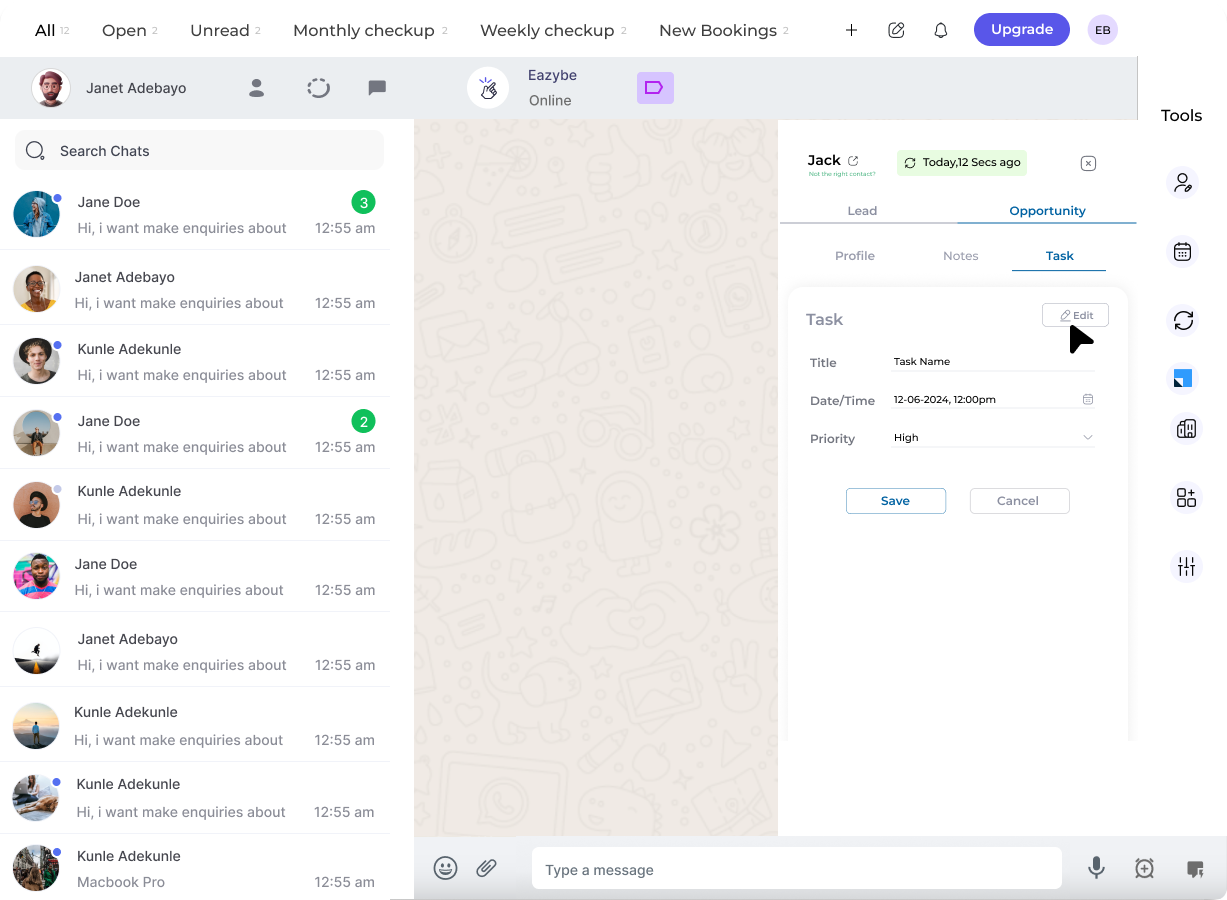
5
Fill in the Required Details
Complete the task details in the provided fields. Additional fields can be edited via the Edit button.
6
Save the Task
Click Save to store the task.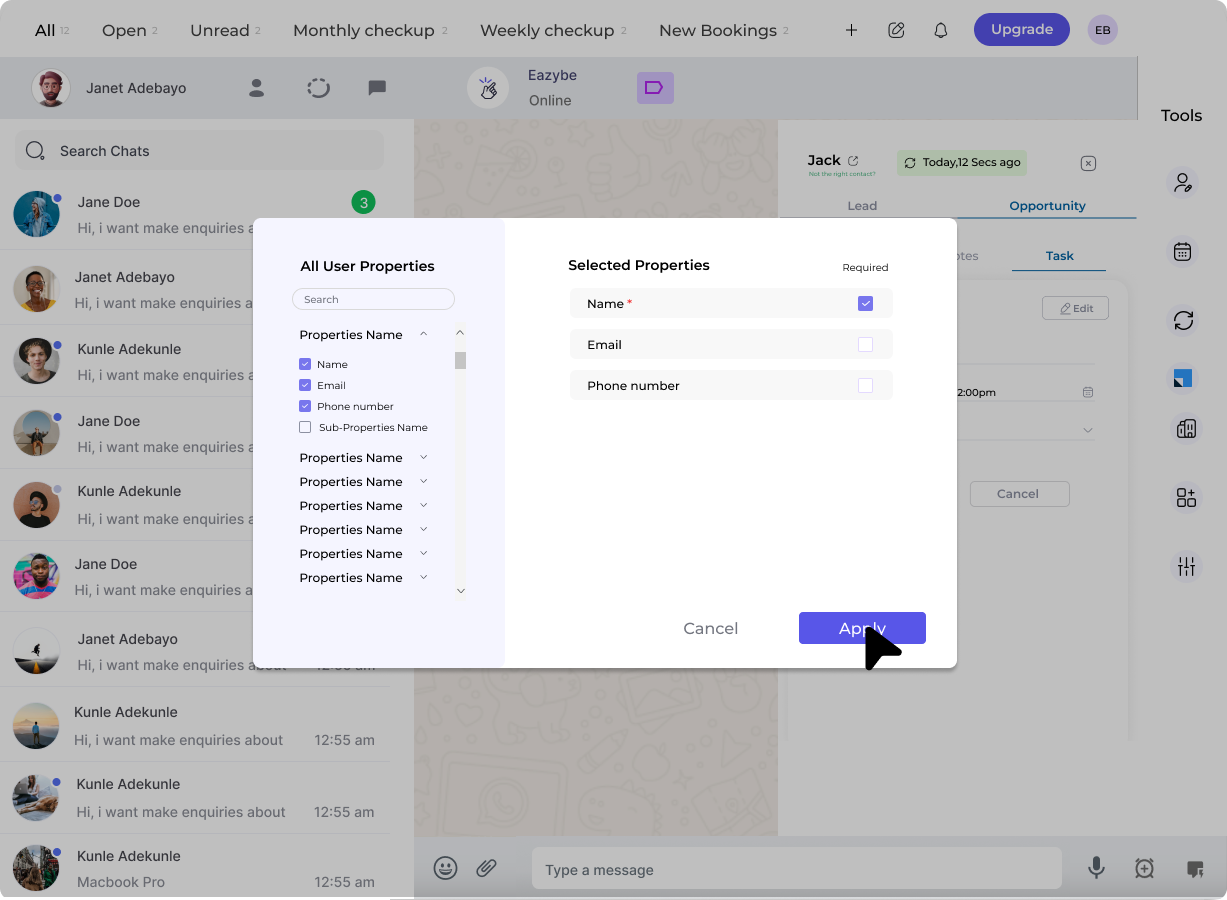
7
Mark Task as Complete
Use the Complete button to mark finished tasks as done.
8
Add More Tasks
Repeat the process by clicking Add Task for additional tasks as needed.
Tasks created for opportunities in EazyBe are automatically synchronized with LeadSquared.