

Creating and Managing Notes
1
Select the Contact
Open the WhatsApp conversation with the contact that exists on LeadSquared.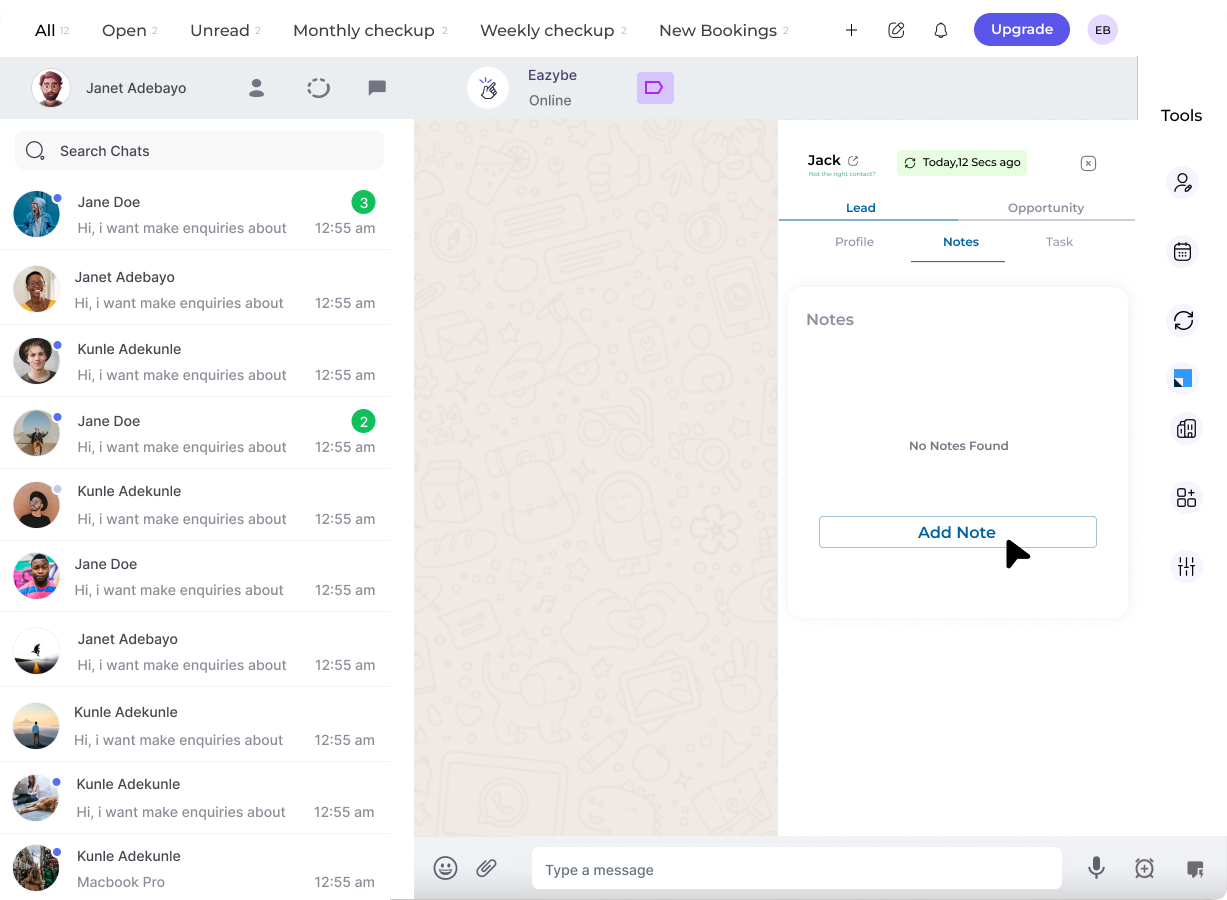
2
Access the Notes Section
Click the LeadSquared icon in the right sidebar and navigate to the second section in the top bar to access the Notes area.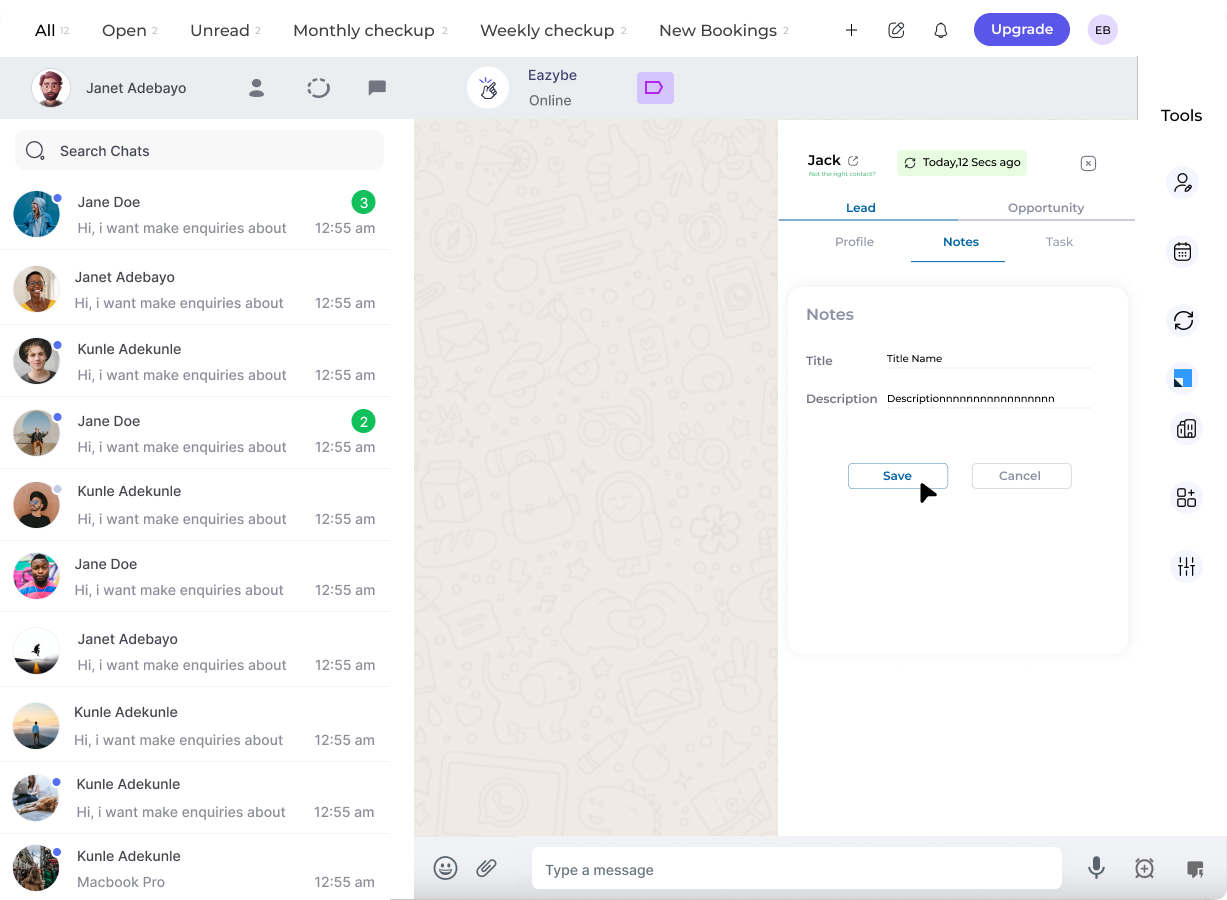
3
Add a New Note
Click the “Add Note” button for the respective lead to create a new note.
4
Enter Note Details
Input your note content and click “Save”. The timestamp is automatically recorded for your reference.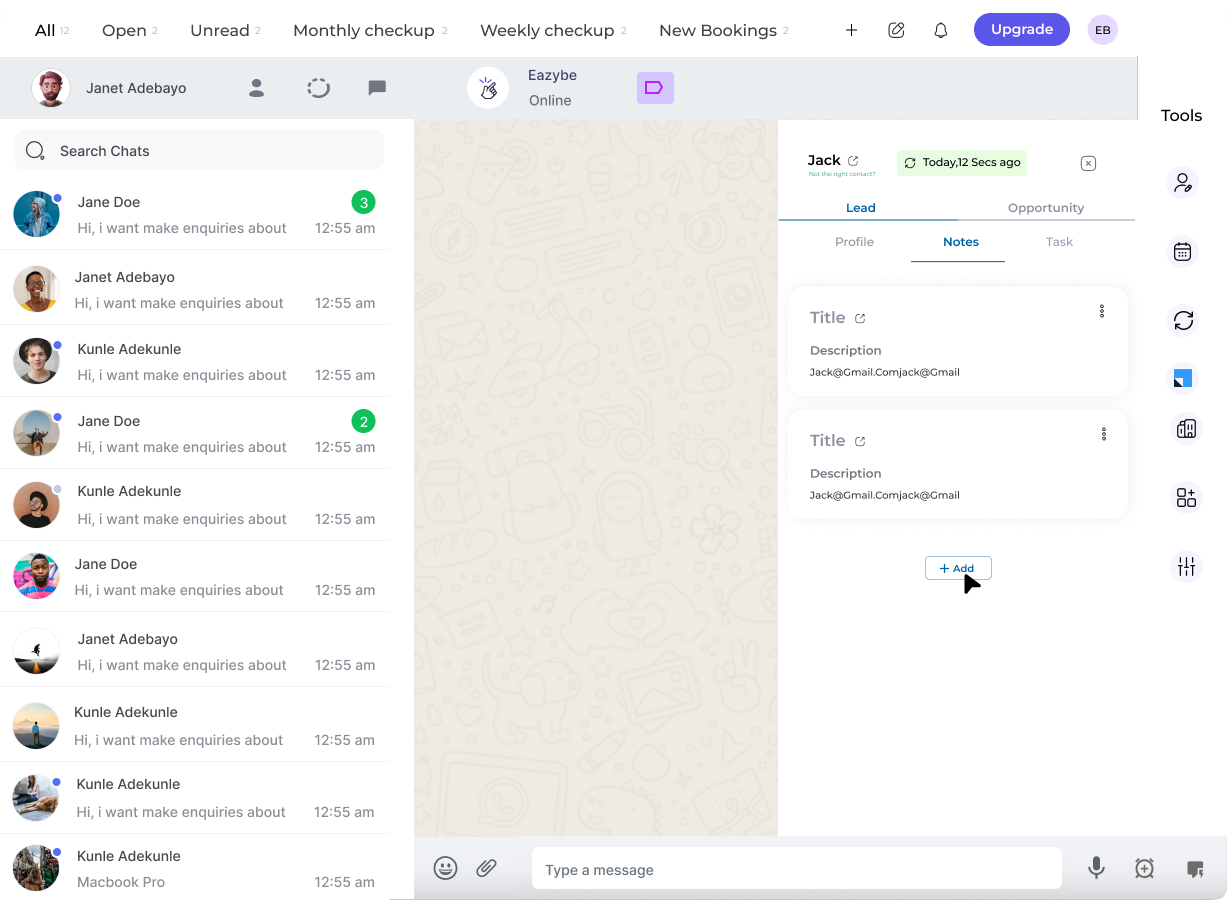
5
Edit or Delete Notes
Use the three-dot menu next to any note to modify or remove it as needed.
6
Add Multiple Notes
Add additional notes by repeating the “Add Note” action. All notes are preserved with their timestamps.
You can also create notes for LeadSquared Opportunities using the same process, helping you track important details across all your CRM records.