

Overview
The Eazybe WhatsApp Extension enables you to create HubSpot tasks and notes without leaving your WhatsApp conversations. This seamless integration helps you manage follow-ups, track activities, and maintain comprehensive contact records in real-time.Ensure the WhatsApp contact is already linked to a HubSpot contact before creating tasks or notes.
Video Tutorial
Watch how to create HubSpot tasks and notes from WhatsApp:Creating HubSpot Tasks
Follow these steps to create tasks for your HubSpot contacts directly from WhatsApp:1
Open the Contact Chat
Navigate to the WhatsApp chat of the contact for whom you want to create a task. Ensure the contact is linked to a HubSpot contact.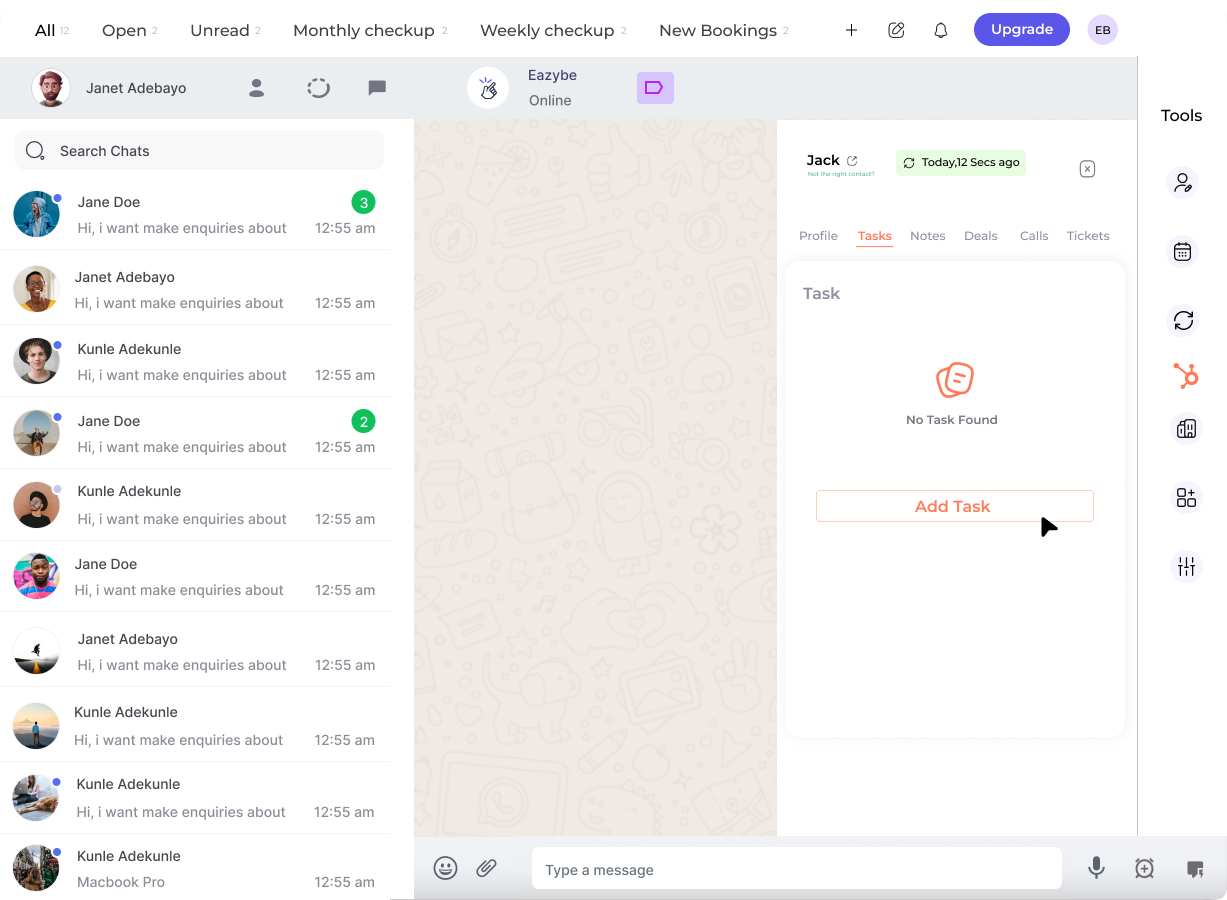
2
Access the Tasks Section
Click the HubSpot icon in the sidebar, then navigate to the Tasks section (the second button in the Mini-CRM panel).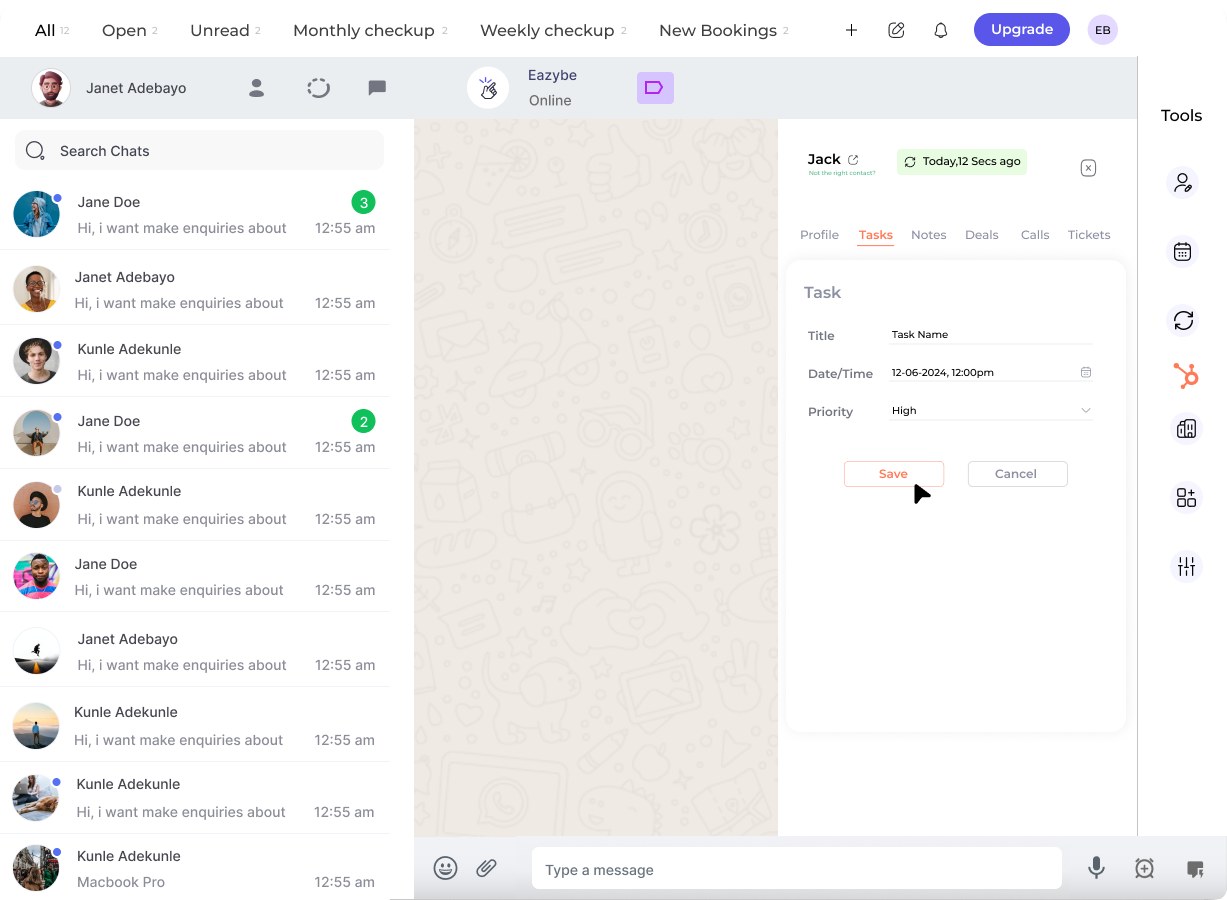
3
Add a New Task
Select the Add Task option to start creating a new task assignment.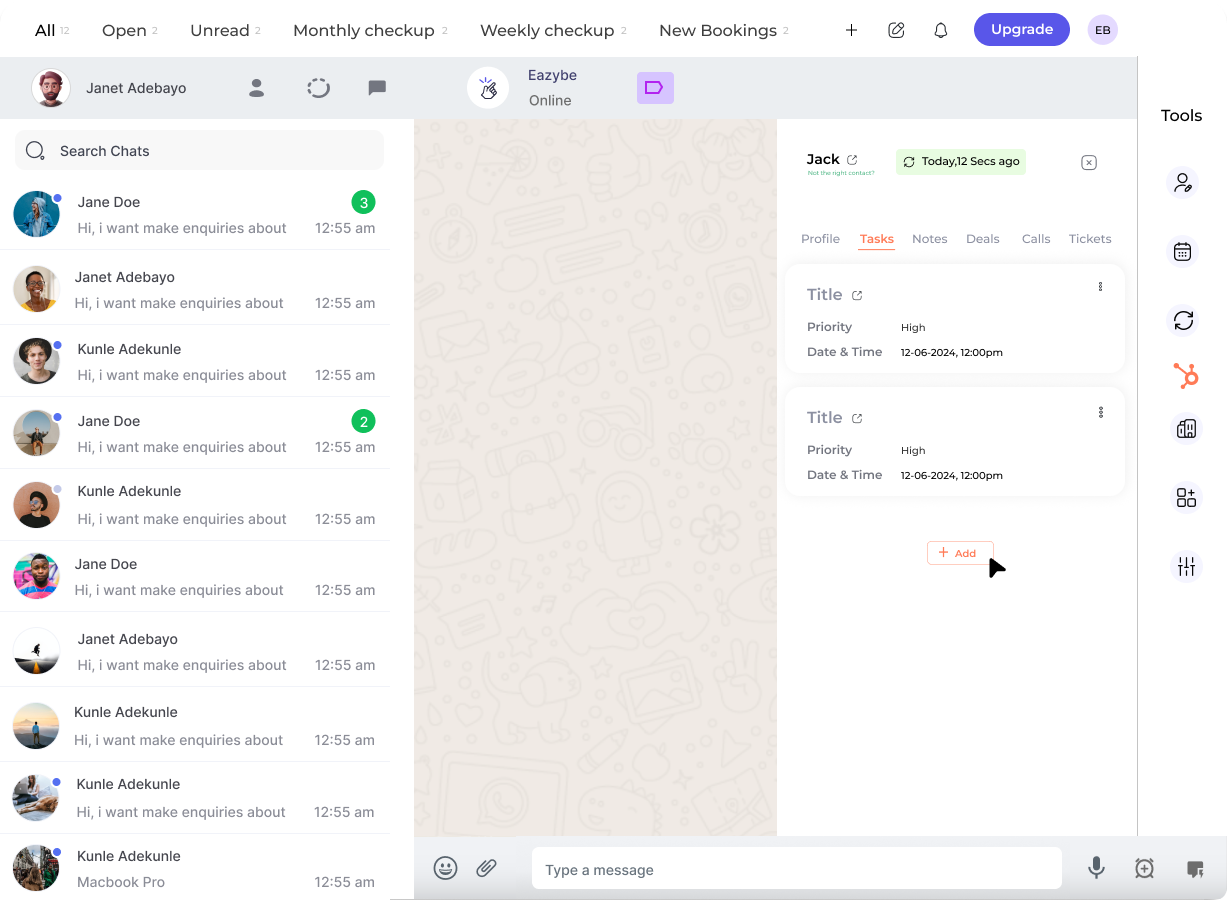
4
Set Task Priority
Designate task priority levels to organize your workflow effectively: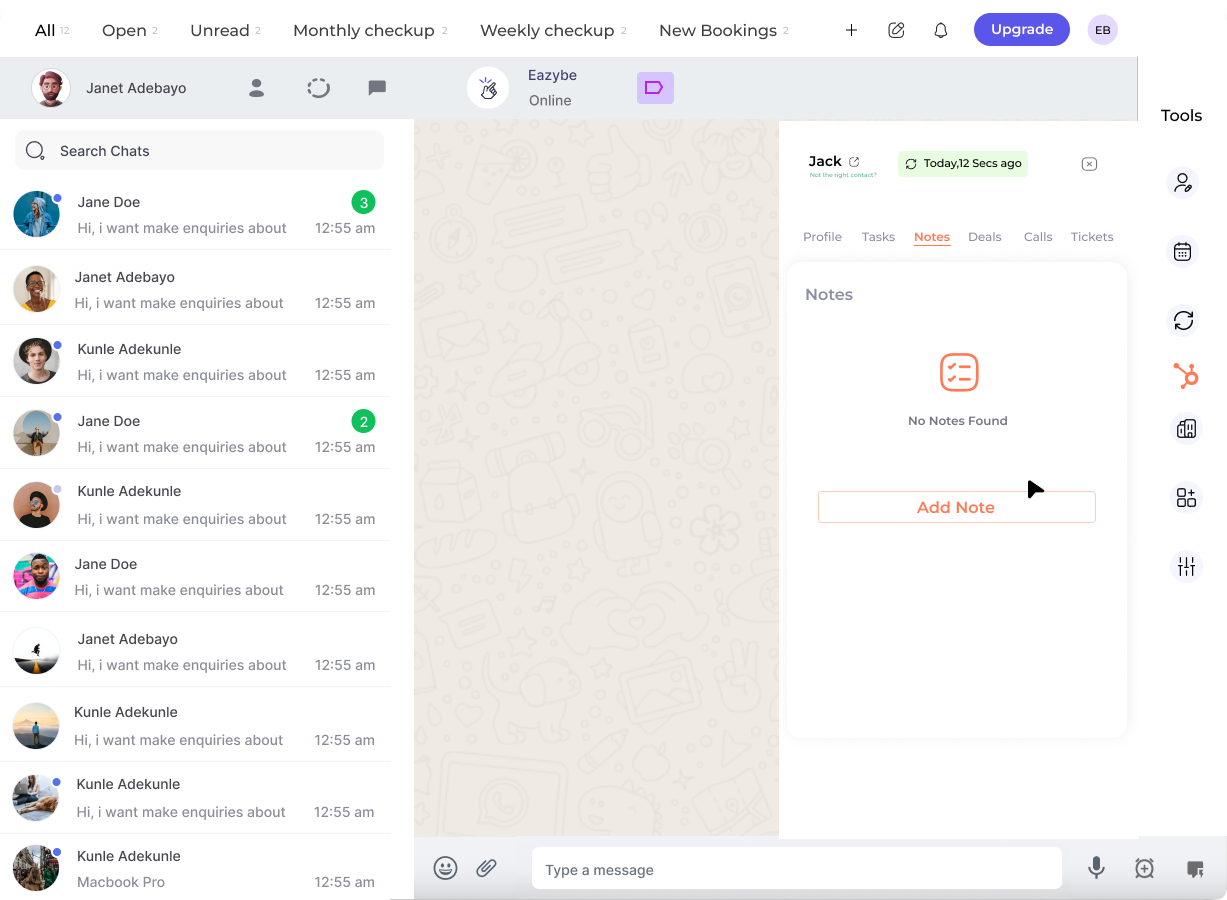
- High — Urgent tasks requiring immediate attention
- Medium — Important but not urgent tasks
- Low — Tasks that can be addressed later
5
Create Multiple Tasks
Use the plus icon to generate multiple tasks for batch creation when you need to assign several follow-ups at once.
6
Mark Tasks Complete
Once a task is finished, mark it as completed to move it to the finished section and keep your task list organized.
All tasks created are automatically synced to your HubSpot account and appear in the contact’s activity timeline.
Creating HubSpot Notes
Follow these steps to add notes to your HubSpot contacts from WhatsApp:1
Open the Contact Chat
Navigate to the WhatsApp chat of the contact for whom you want to create notes.
2
Access the Notes Section
Click the Notes button (the third button in the top navigation of the Mini-CRM panel).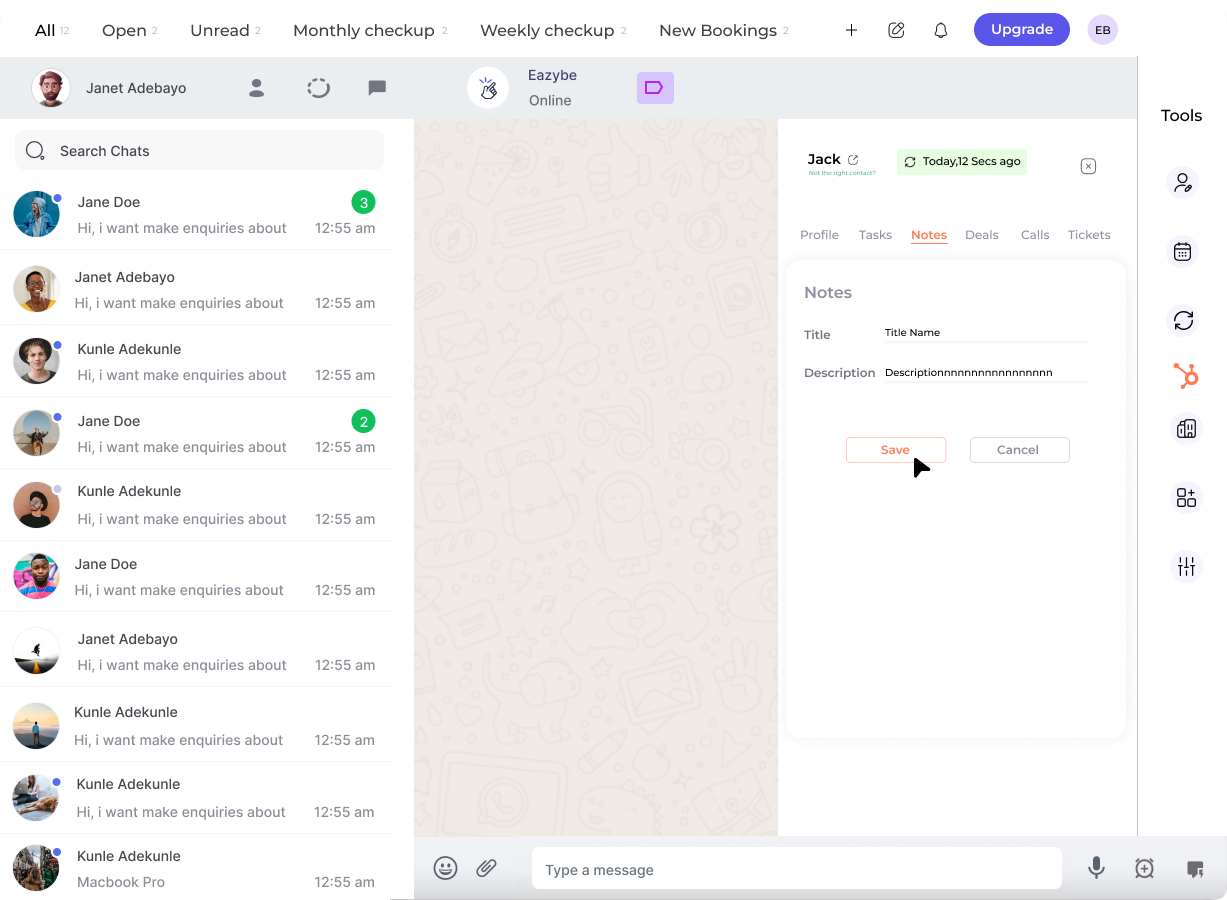
3
Write Your Notes
Enter your follow-up notes or important information in the provided text box. Include any relevant details about the conversation or next steps.
4
Attach WhatsApp Messages (Optional)
Optionally attach specific WhatsApp messages to your notes by selecting the beginning and ending messages you want to include.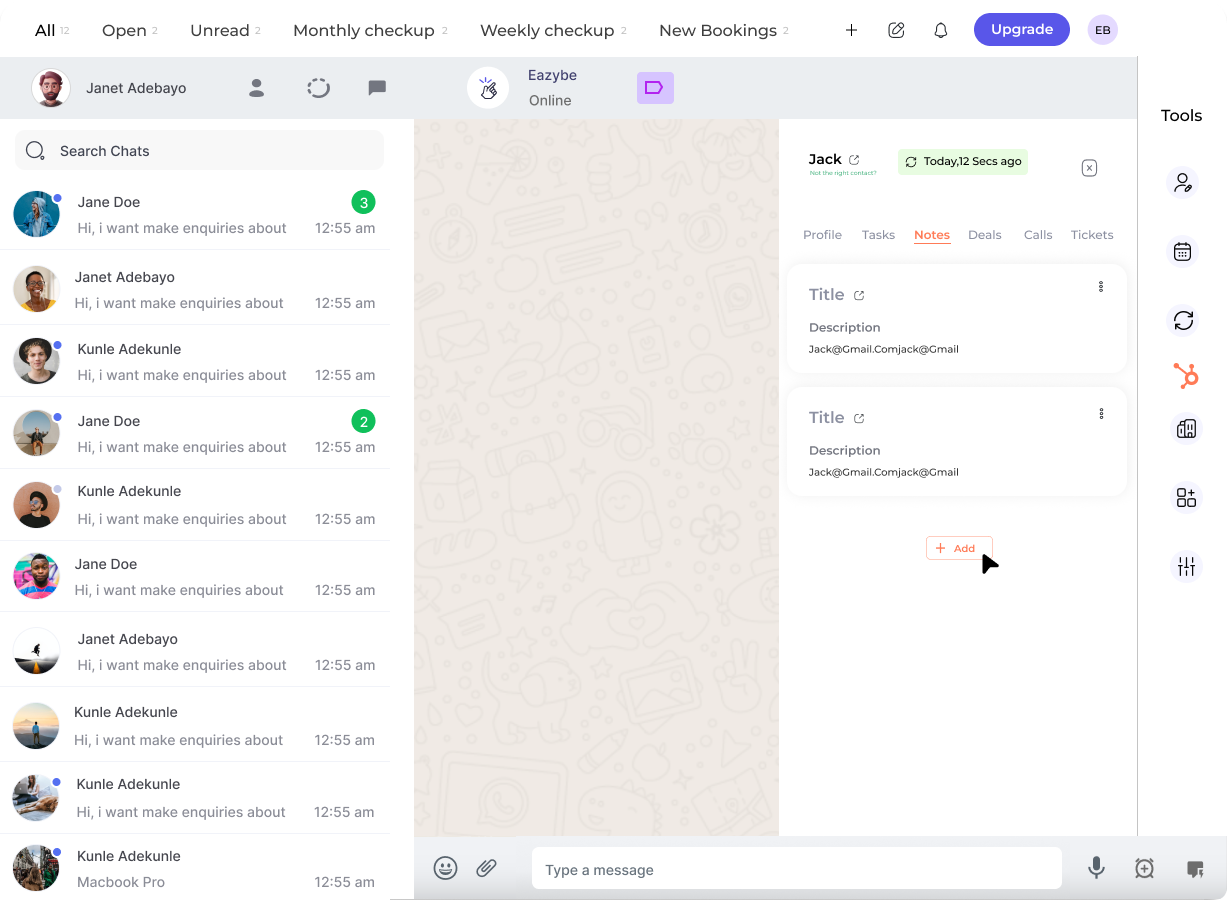
Attaching messages provides context and creates a direct link between your notes and the actual conversation.
5
Save the Note
Click Save to store the note in HubSpot. The note will appear in the contact’s activity timeline.
Task vs Notes Comparison
Tasks
- Action items with due dates
- Can be assigned to team members
- Have priority levels
- Track completion status
- Appear in task queues
Notes
- General observations and context
- Store important information
- Can include attached messages
- Provide conversation history
- Reference material for team
Best Practices
Use Clear Task Descriptions
Use Clear Task Descriptions
Write specific, actionable task descriptions that clearly state what needs to be done and by when.
Set Appropriate Priorities
Set Appropriate Priorities
Use priority levels consistently to help your team focus on the most important tasks first.
Add Context to Notes
Add Context to Notes
Include relevant details and attach WhatsApp messages to provide complete context for future reference.
Review Tasks Regularly
Review Tasks Regularly
Check your task list regularly to ensure nothing falls through the cracks and update statuses promptly.
Need Help?
Contact Support
If you have any questions or need further assistance, reach out to us at hey@eazybe.com. We’re happy to help!