

Overview
The Eazybe WhatsApp Extension allows you to create and manage HubSpot deals without leaving your WhatsApp conversations. This seamless integration helps you track sales opportunities, manage pipelines, and close deals faster by keeping everything in one place.Ensure the WhatsApp contact is already created in HubSpot before creating a deal for them.
Video Tutorial
Watch how to create and customize HubSpot deals from WhatsApp:Creating HubSpot Deals
Follow these steps to create a new deal for your HubSpot contacts directly from WhatsApp:1
Choose Your Contact
Open the WhatsApp chat of the contact for whom you want to create a deal. Make sure the contact is already created in HubSpot.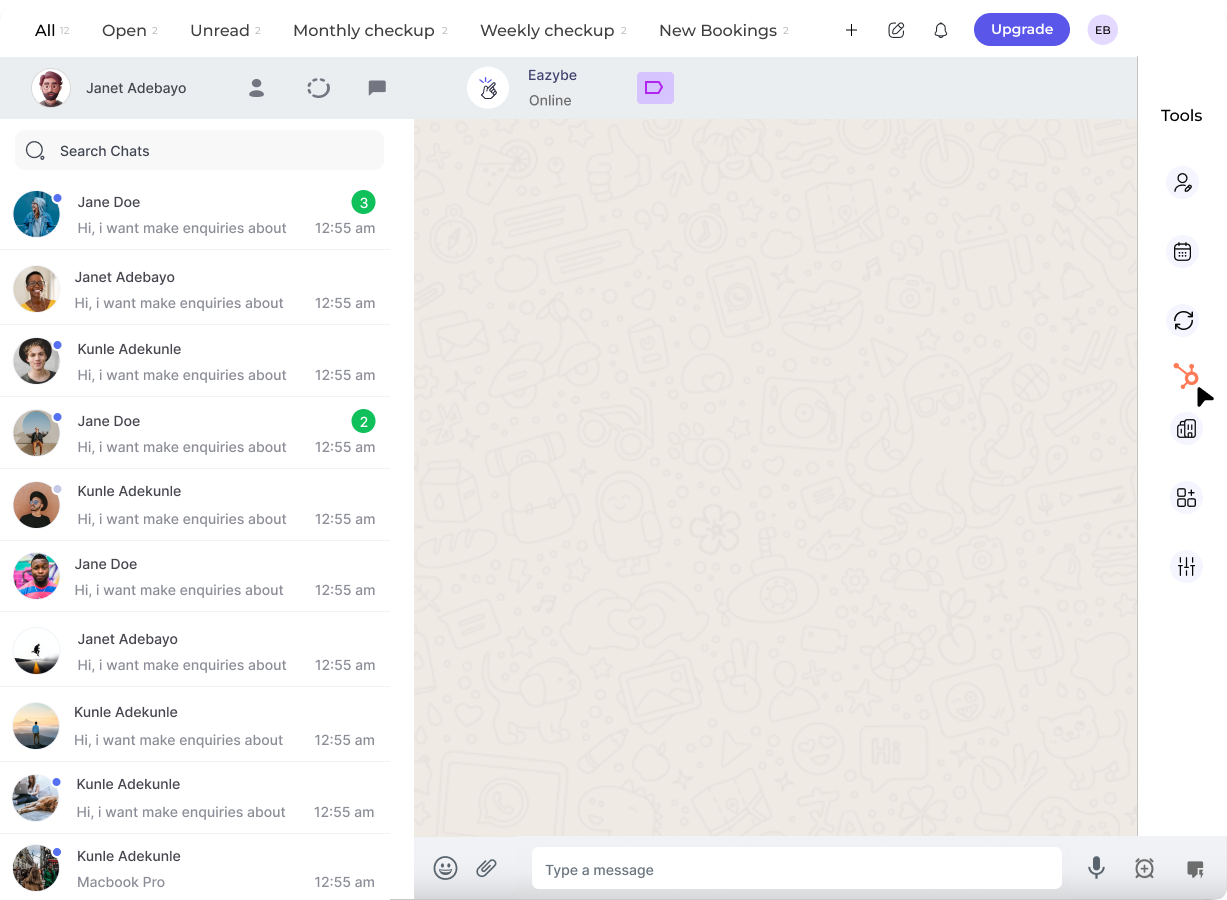
2
Navigate to Deals Section
Click on the HubSpot icon in the right sidebar. The fourth button in the top bar will take you to the Deals section.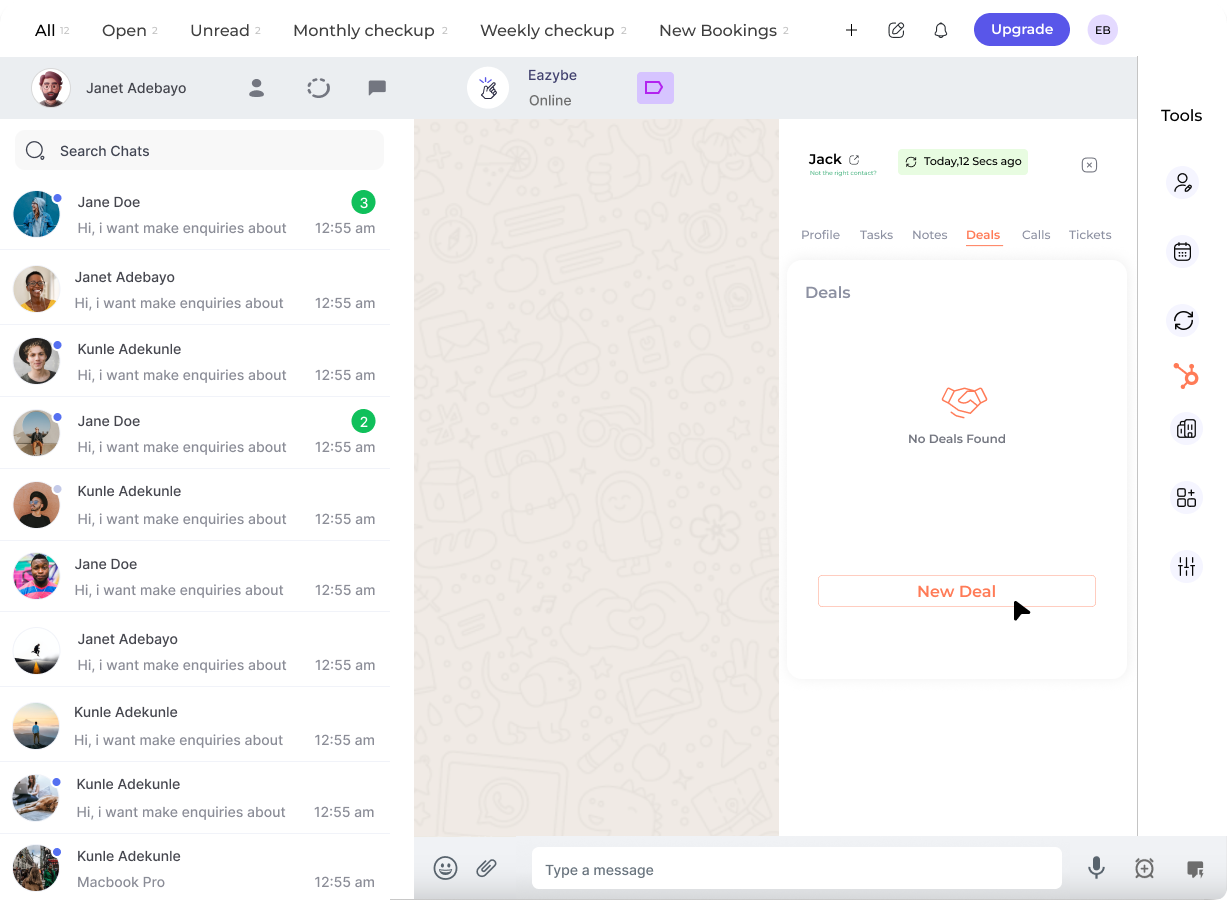
3
Initiate New Deal
Click on the New Deal button to start creating a deal for this contact.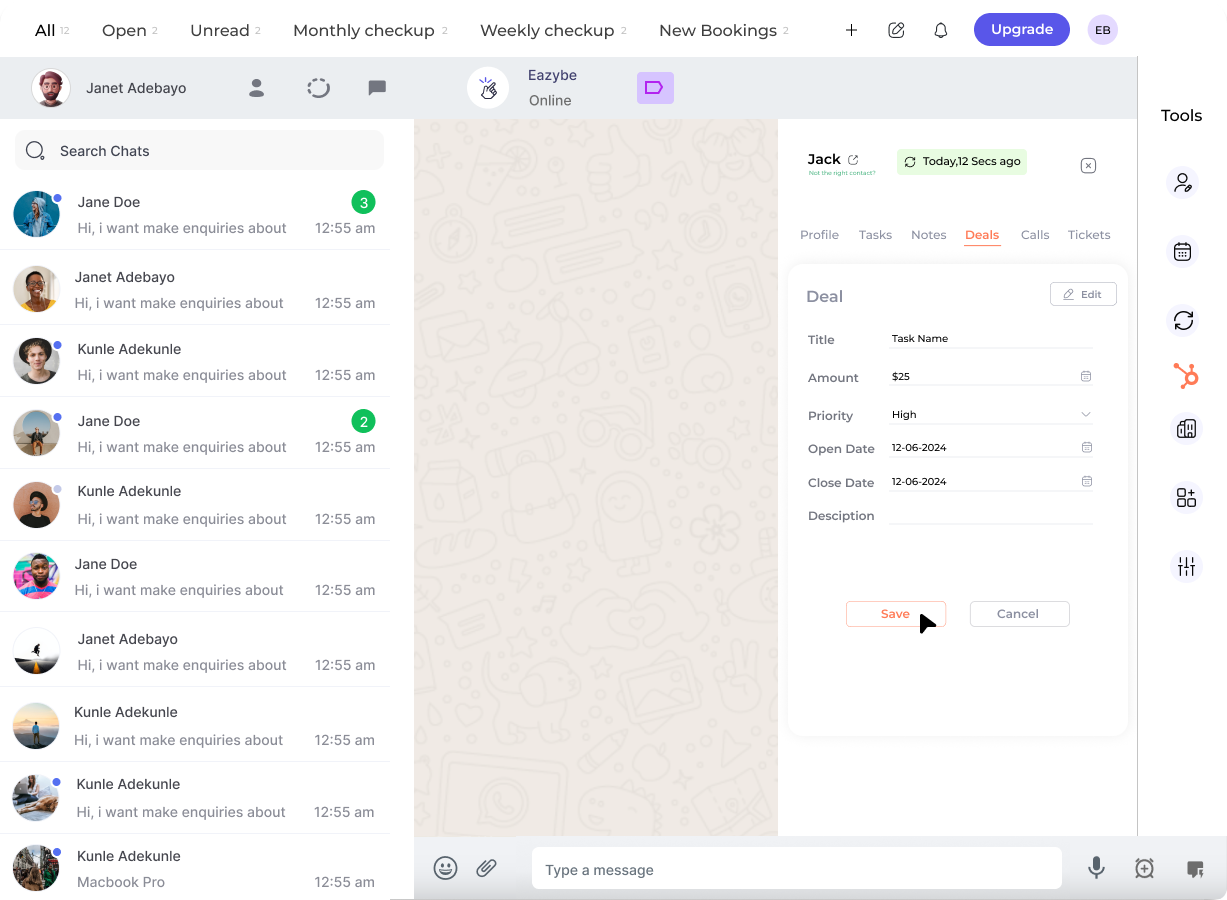
4
Customize Deal Properties
Select and customize additional properties for your deal: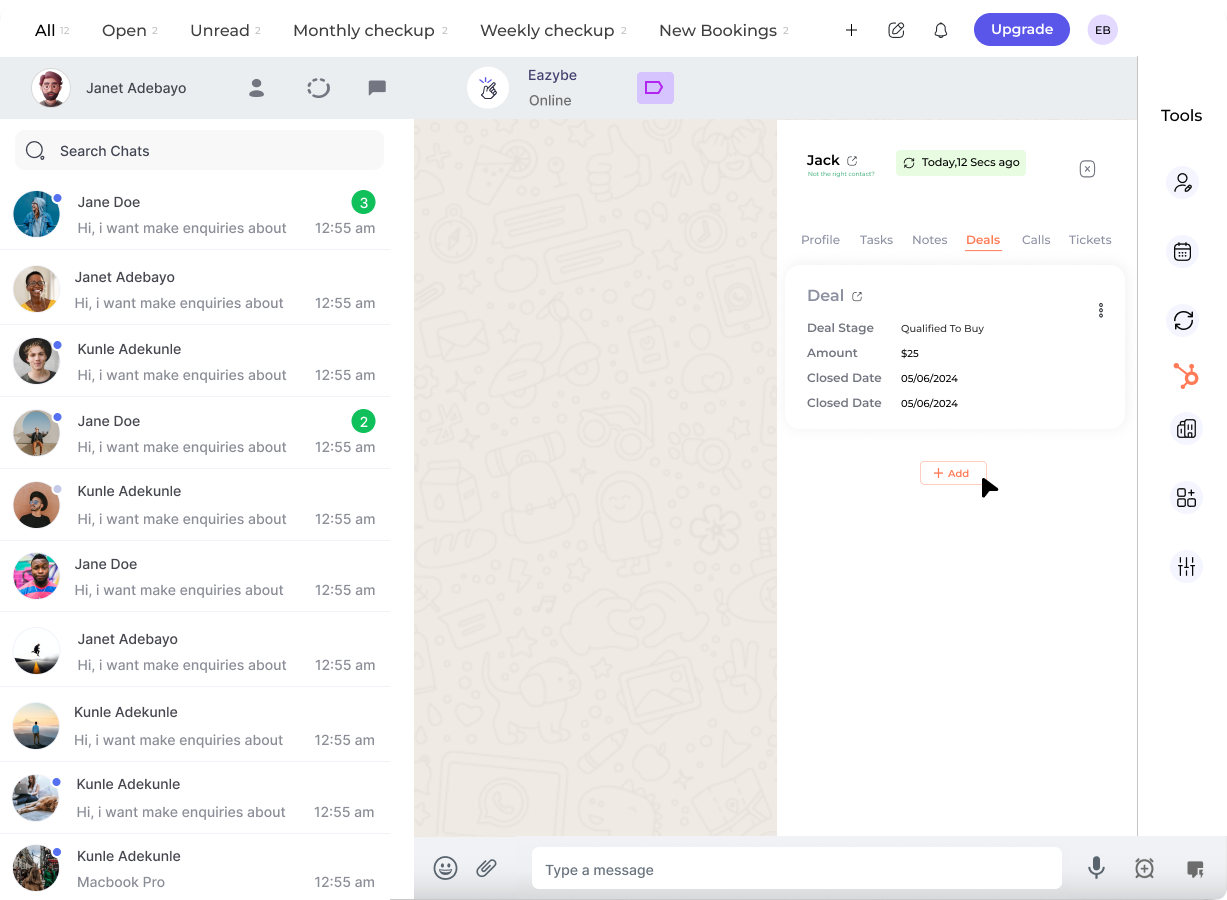
- Deal name
- Pipeline selection
- Deal stage
- Deal amount
- Close date
- Custom properties
5
Complete Deal Details
Fill in all necessary fields with the relevant information, then click Save Deal to create the deal in HubSpot.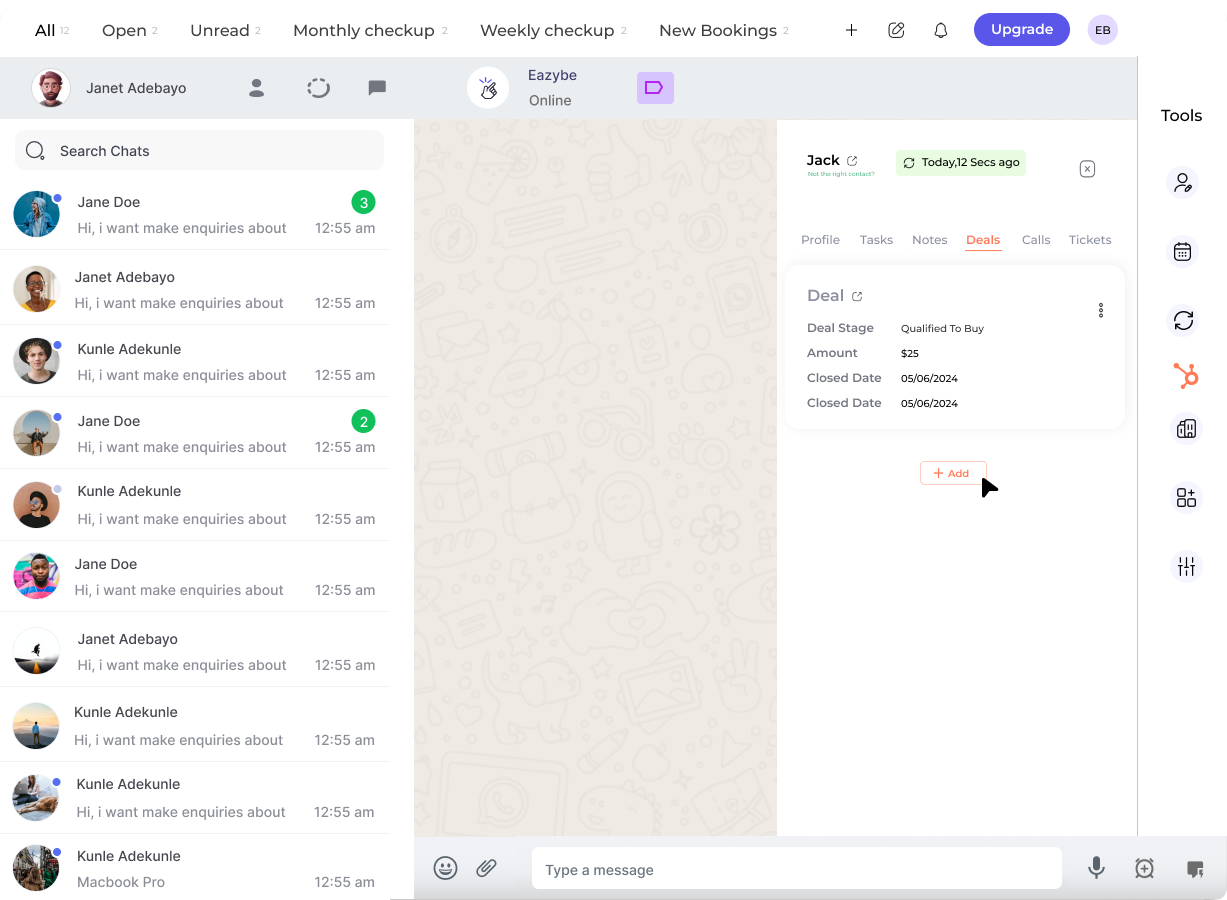
The deal is now created and automatically linked to the contact in your HubSpot CRM.
Managing Existing Deals
Once deals are created, you can easily view and edit them from the Mini-CRM panel:Viewing Deals
View in HubSpot
Click the redirect button next to the deal name to open it directly in HubSpot for detailed viewing.
Quick Overview
See deal stage, amount, and close date at a glance in the Mini-CRM panel.
Editing Deals
1
Access Edit Mode
Click the Edit icon next to the deal you want to modify.
2
Update Properties
Modify deal properties as needed:
- Change the pipeline
- Update the deal stage
- Adjust the deal amount
- Modify the close date
- Update custom properties
3
Save Changes
Click Save to update the deal in HubSpot.
Deal Properties You Can Customize
Pipeline
Select which sales pipeline this deal belongs to.
Deal Stage
Track progress from initial contact to closed deal.
Deal Amount
Set the expected value of the deal.
Close Date
Set the expected closing date for forecasting.
Best Practices
Create Deals Early
Create Deals Early
Create deals as soon as you identify a sales opportunity to ensure accurate tracking from the start.
Keep Deal Stages Updated
Keep Deal Stages Updated
Regularly update deal stages to reflect the current status and maintain accurate pipeline visibility.
Use Accurate Amounts
Use Accurate Amounts
Enter realistic deal amounts to improve forecasting accuracy and revenue predictions.
Set Realistic Close Dates
Set Realistic Close Dates
Use realistic close dates and update them as negotiations progress for better pipeline management.
Need Help?
Contact Support
If you have any questions or need further assistance, reach out to us at hey@eazybe.com. We’re happy to help!