

Overview
Eazybe automatically syncs your WhatsApp conversations with HubSpot contacts, ensuring all your customer communications are backed up and accessible within your CRM. This guide explains how message syncing works and how to manage your sync settings.Message syncing only occurs for chats with contacts that exist in your HubSpot CRM. Ensure your contacts are properly linked for automatic backup.
Automatic Sync
WhatsApp conversations sync automatically with HubSpot contacts every 3 minutes. The extension displays the last synced date and time once syncing begins.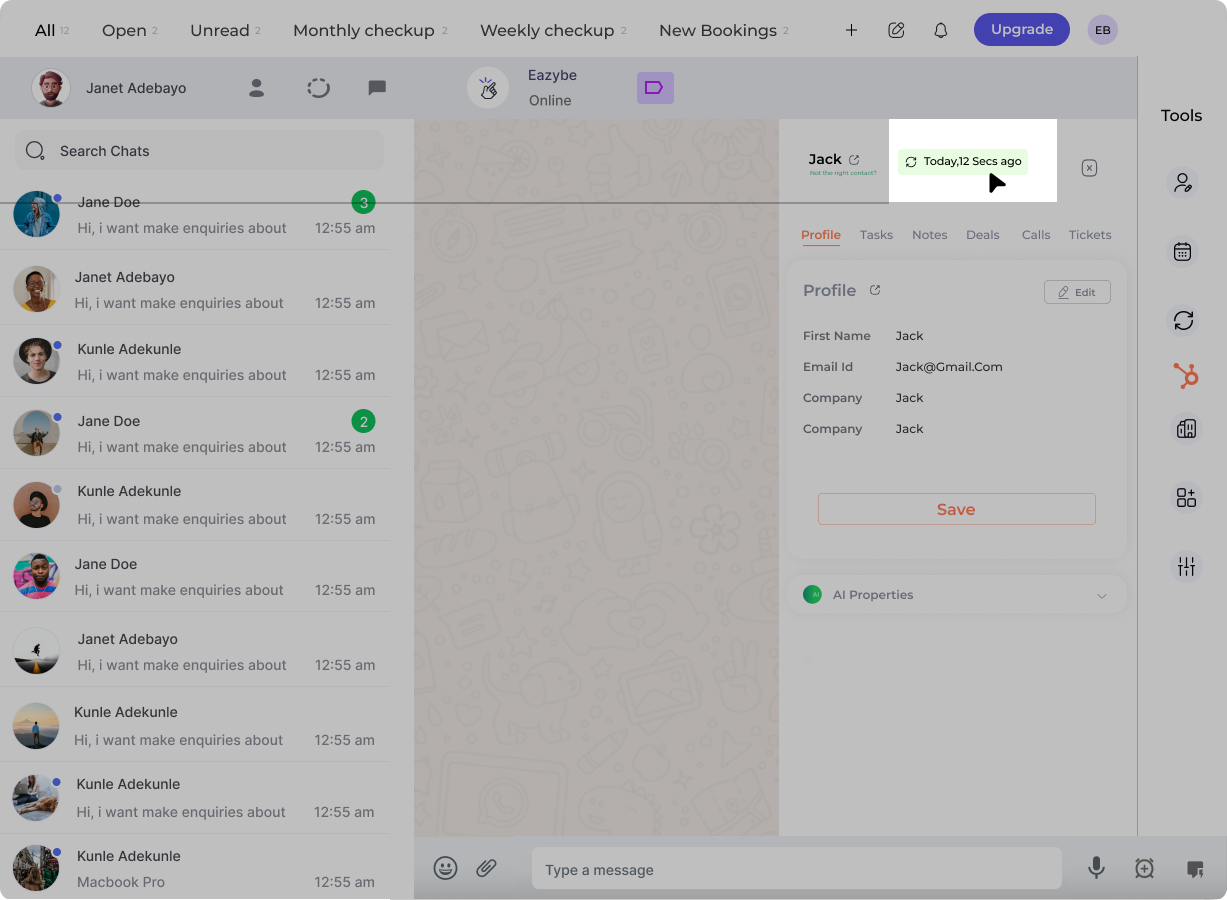
Key Features
3-Minute Intervals
Conversations sync automatically every 3 minutes without manual intervention.
Selective Sync
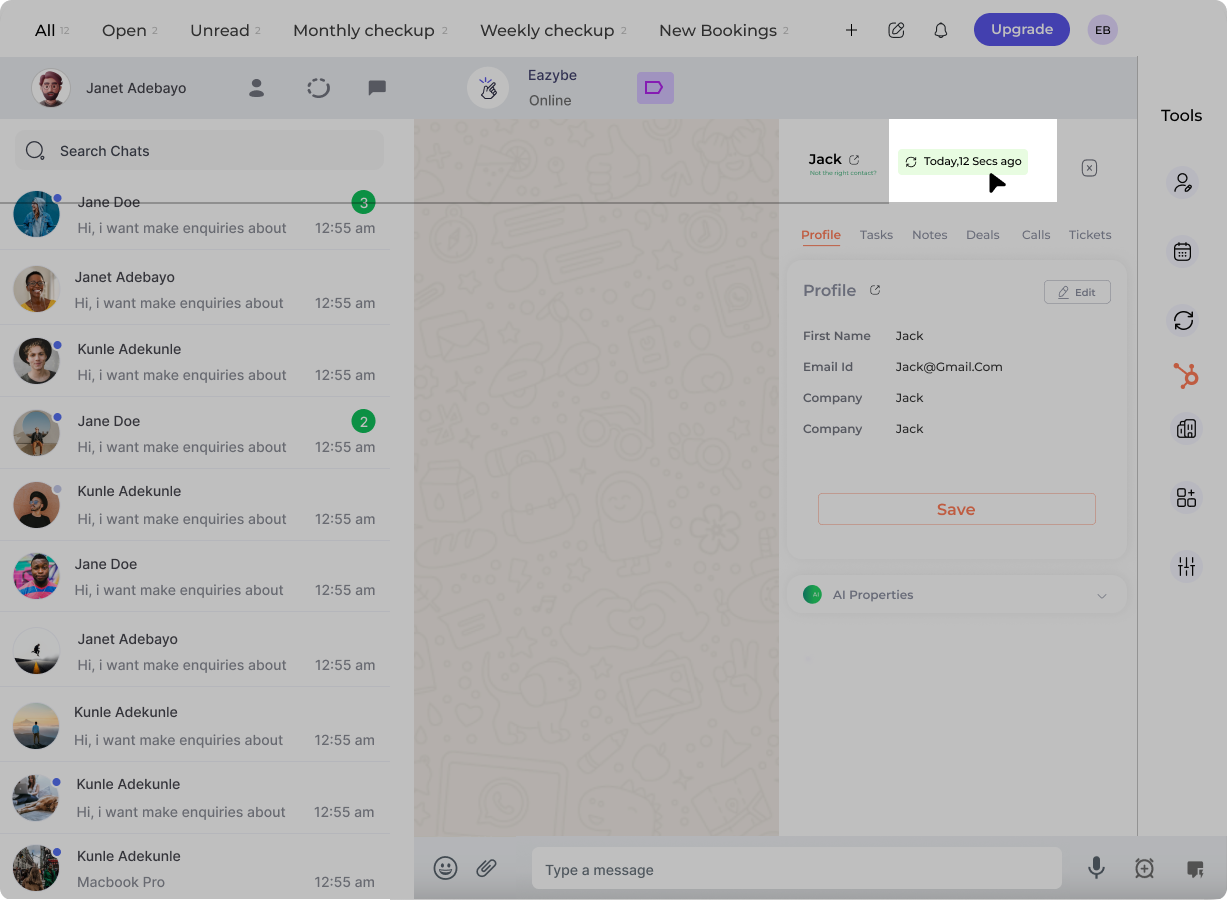
Manage which chats sync through the Sync settings in HubSpot Mini-CRM view.
Initial Integration
Upon first integrating HubSpot with Eazybe, the system automatically provides a chat backup spanning the past 3 days. This ensures you have recent conversation history immediately available in HubSpot.The 3-day historical backup only occurs once during initial setup. After that, only new messages sync at 3-minute intervals.
Activity Logging
WhatsApp chats are preserved in the WhatsApp Activity object within HubSpot’s activity section.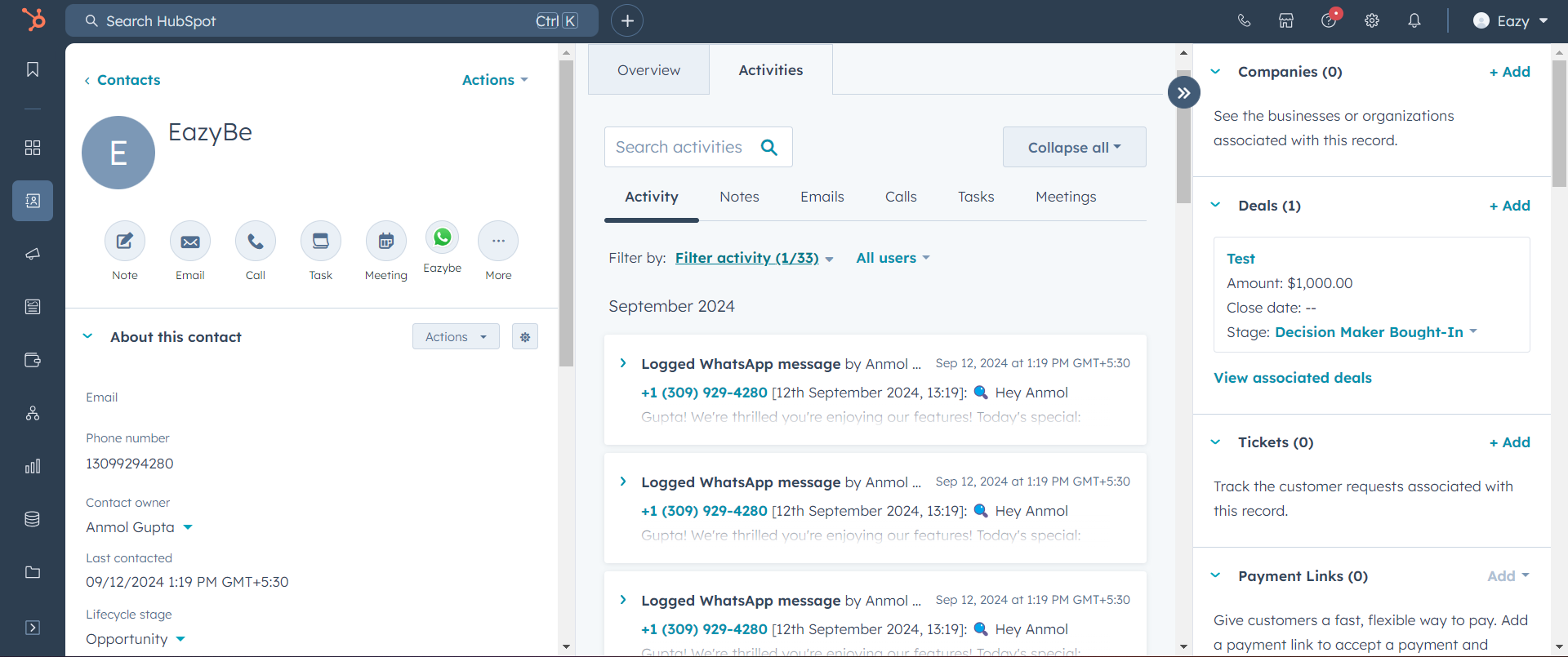
Where Chats Appear
1
Contact Overview
Recent WhatsApp activities appear in the Overview section of each contact’s profile.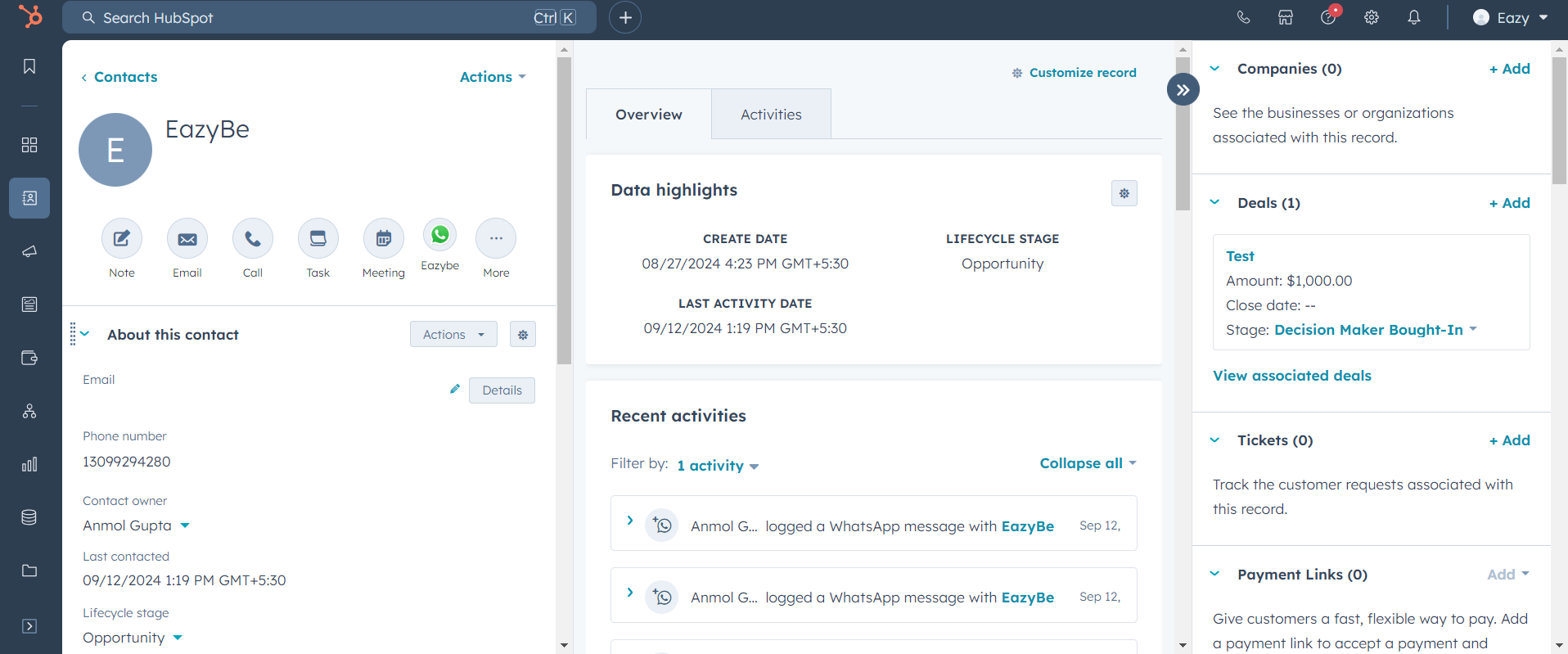
2
Deals Pages
Chats are backed up to HubSpot Deals pages, ensuring conversations are captured within relevant deal records.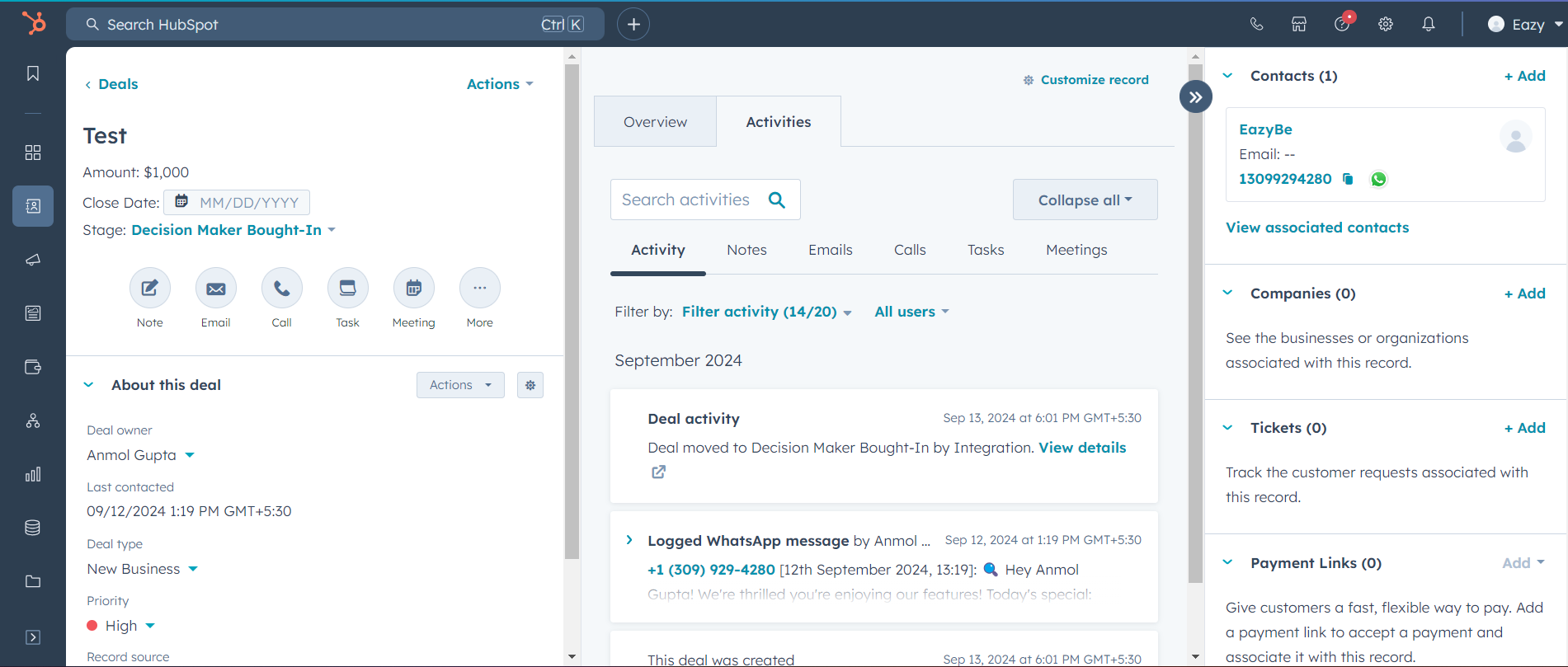
3
Companies Pages
Conversations also sync to Companies pages, maintaining a complete communication history at the company level.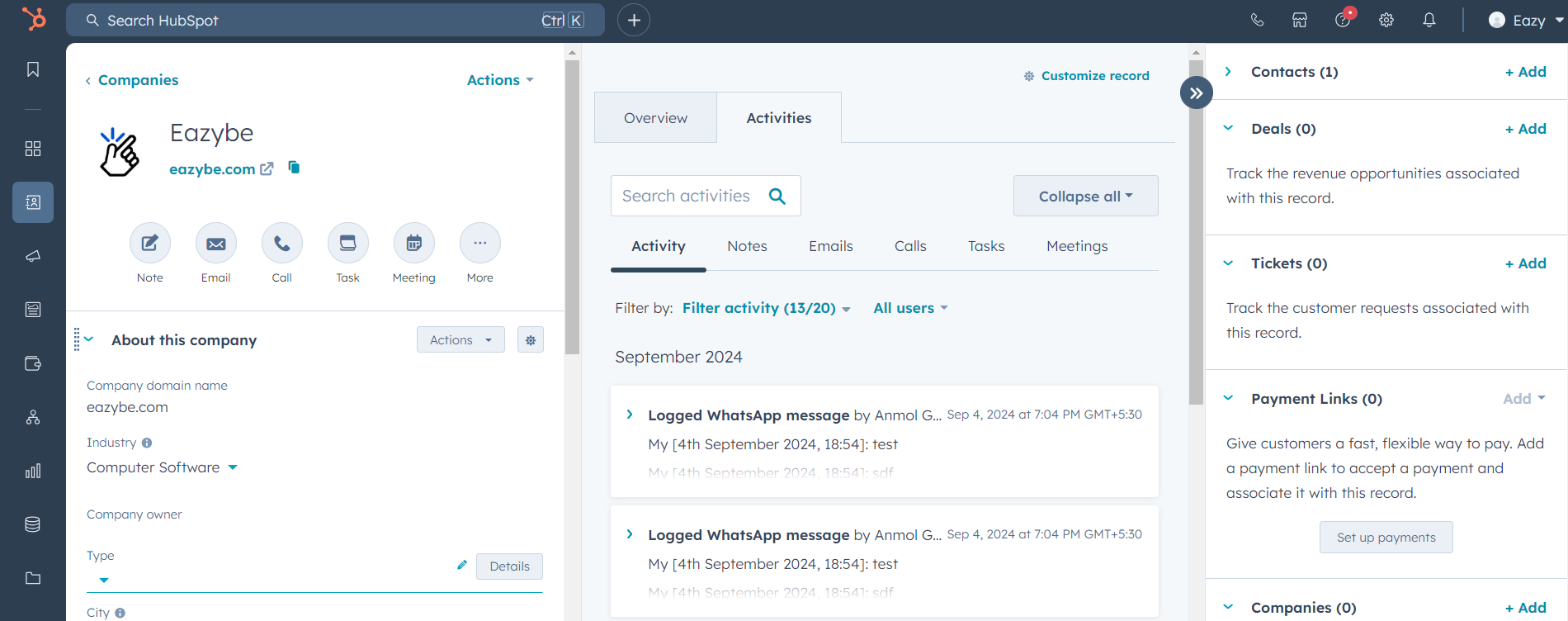
Attachments Backup
Attachments sync alongside messages within HubSpot’s WhatsApp activity. The system combines text and attachment links in a unified format.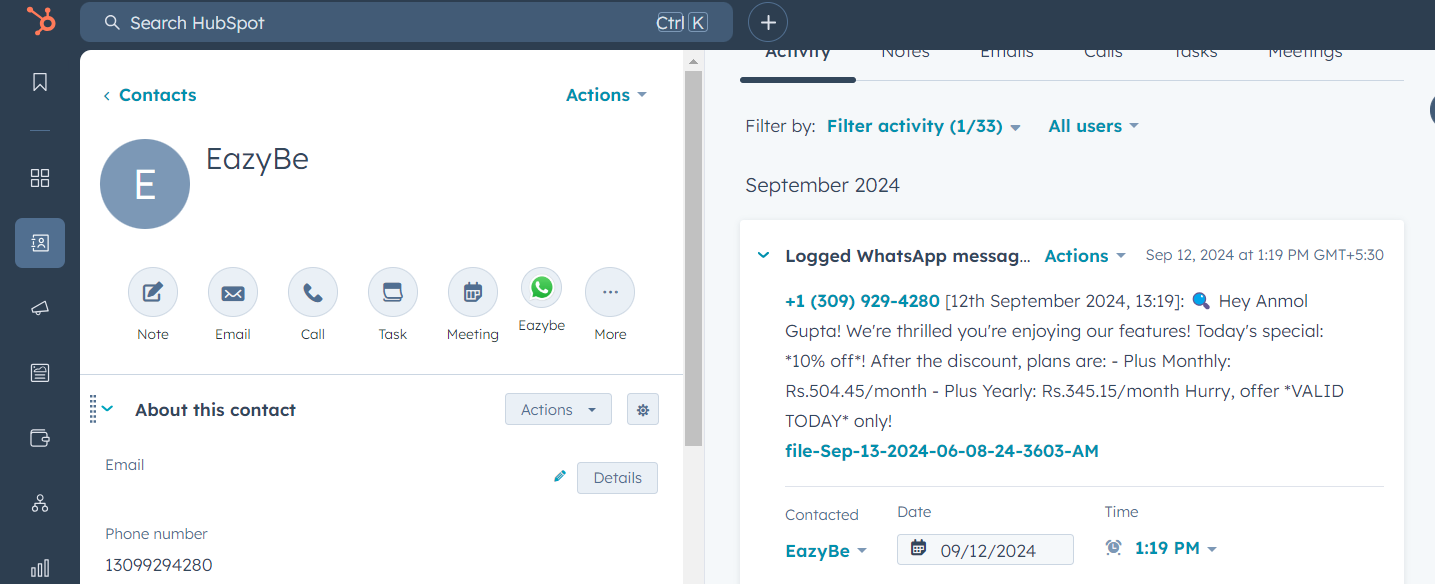
How Attachments Work
- Combined Format — Text messages and attachments appear together in the activity log
- Clickable Links — Click attachment links to view images, documents, and other files
- Complete History — All media shared in conversations is preserved and accessible
Sync Management
Selective Sync Settings
You can manage which conversations sync to HubSpot through the Mini-CRM view:- Open the HubSpot Mini-CRM panel in the Eazybe extension
- Navigate to Sync settings
- Enable or disable sync for specific contacts
Quick Reference
Need Help?
Contact Support
If you have any questions or need further assistance, reach out to us at hey@eazybe.com. We’re happy to help!