Prepare the File
Eazybe accepts.csv, .xls, and .xlsx files. In the upload panel, select Sample CSV or Sample Excel to download the matching structure.
- CSV
- Excel
Keep Country Code and Phone in separate columns.
{{1}}, add one column with the exact variable name for each variable:
Every selected contact must have a value for every required variable.
Upload and Select Contacts
1
Upload the contact file
In Choose recipients, open Upload a list and select Choose file. Choose the prepared CSV or Excel file from your device.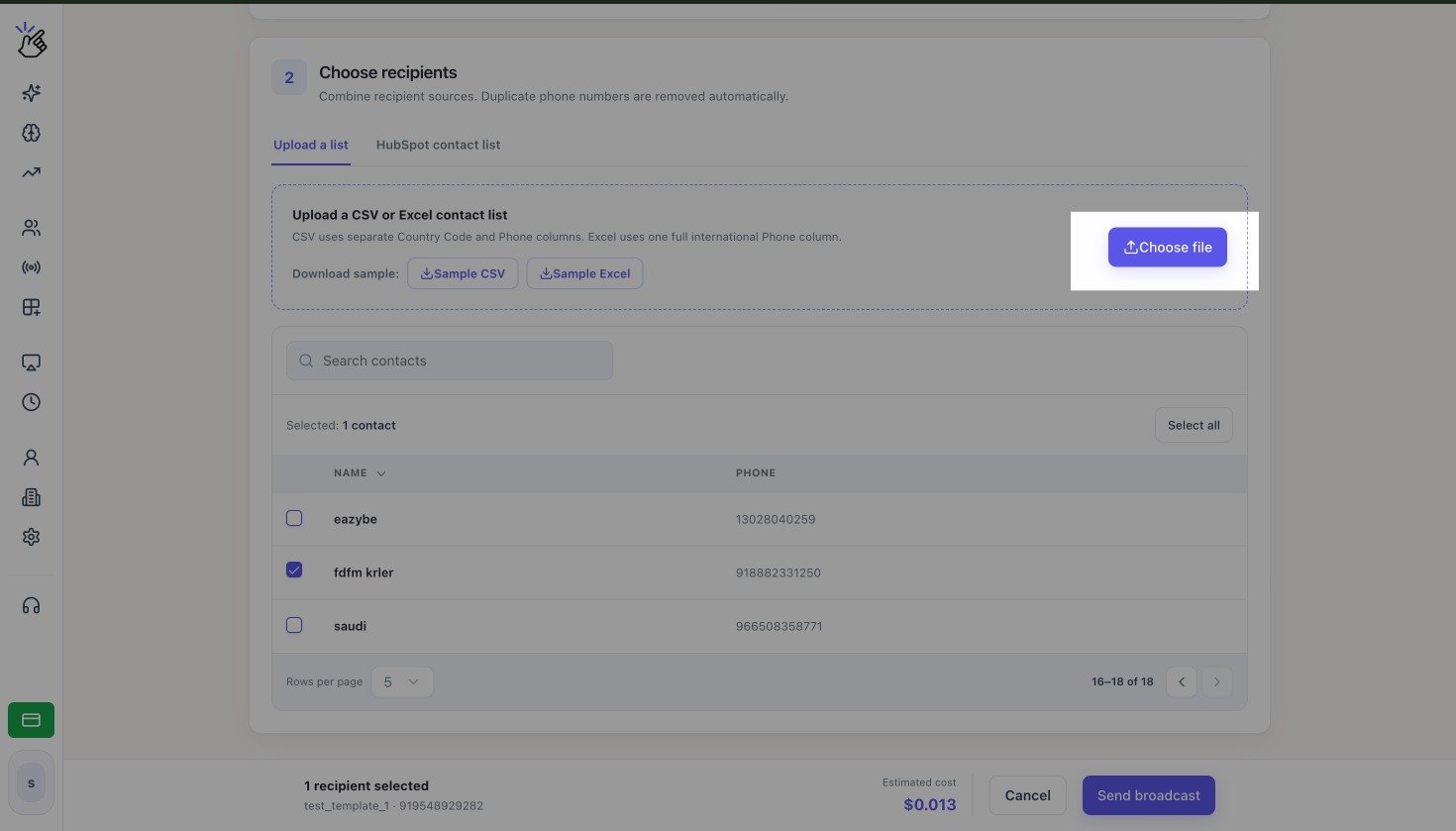
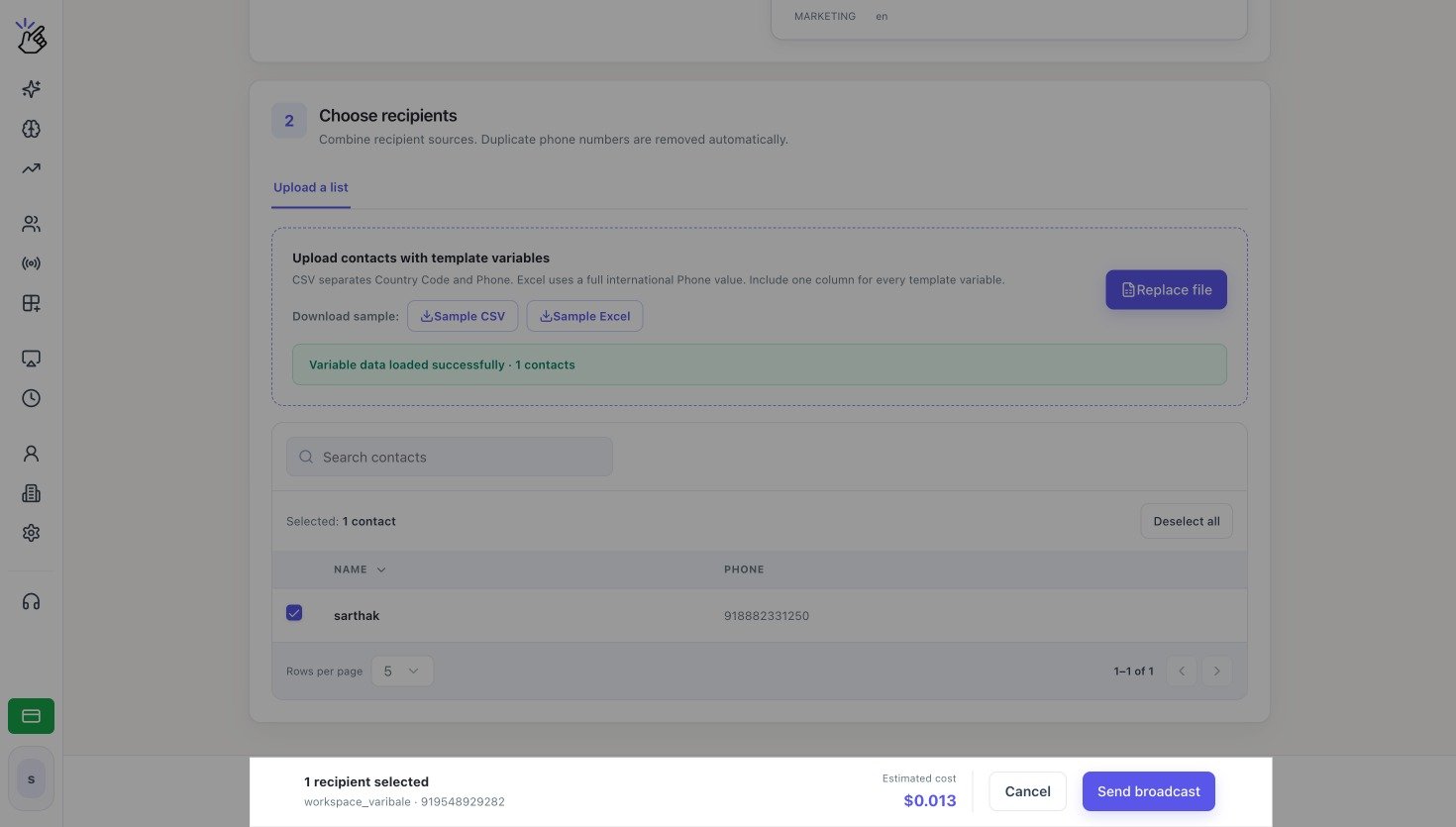
After a successful variable-template upload, the panel shows Variable data loaded successfully. Select Replace file if you need to upload a corrected list.
2
Select the recipients
Review the imported rows. Select individual contacts or select Select all. Use Search contacts when you need to find a specific row.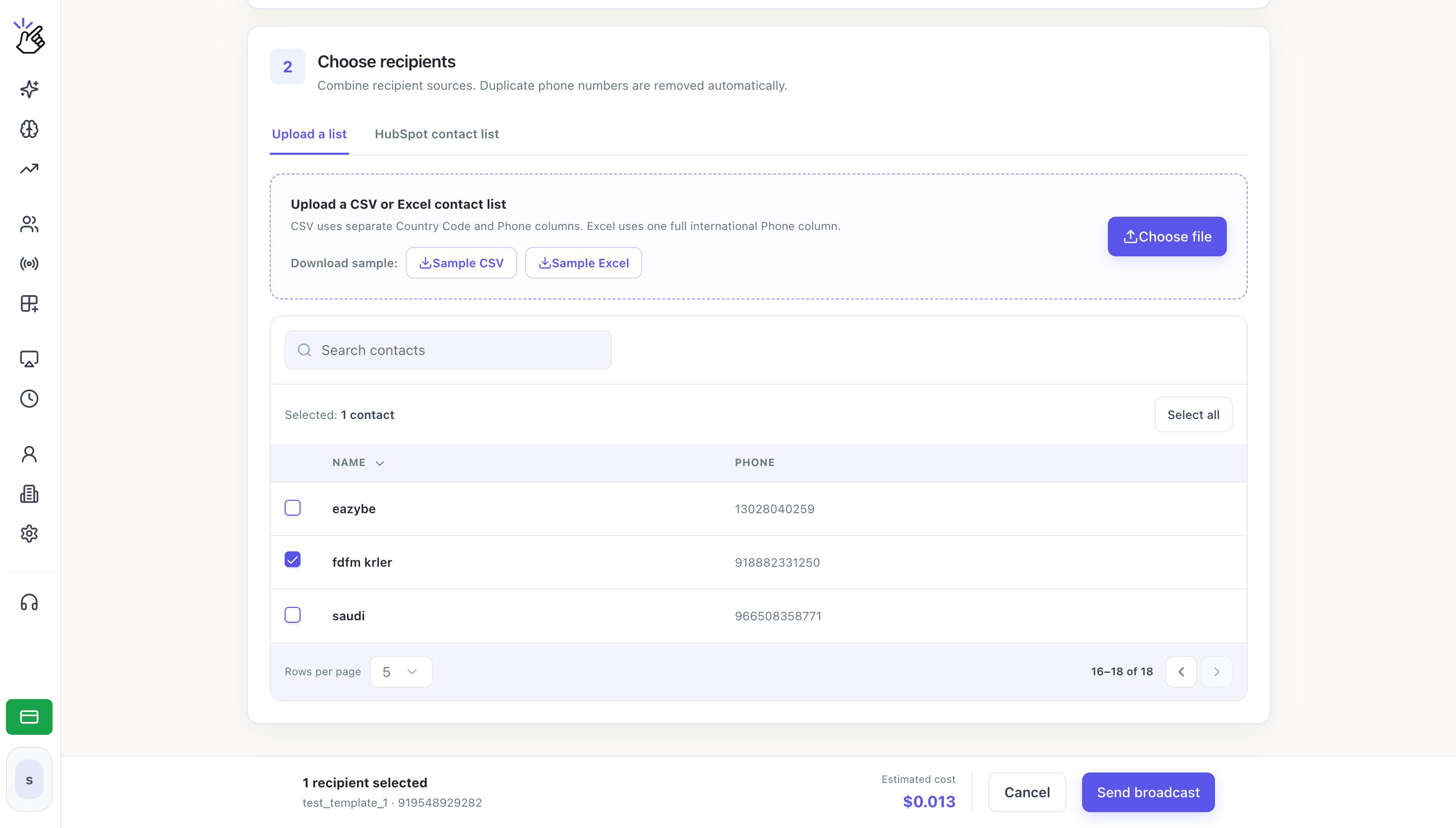
Eazybe normalizes phone numbers and removes duplicate numbers automatically. Empty or invalid phone values are not valid recipients.
3
Review the estimate
Check the selected recipient count and Estimated cost in the footer. Select Send broadcast only after the contact count matches the group you intend to message.