Set the most you are willing to pay for each delivered WhatsApp marketing message. You save this Bid cap on your message template, then use that template for your broadcast.

How the Maximum Price Works

The bid cap is a limit per delivered message, not a total campaign budget or a fixed charge. The actual delivery cost can be lower, and setting a cap does not guarantee delivery. You can use one cap for all countries or adjust it for individual countries with a multiplier. Countries without an adjustment keep the base cap.
Maximum pricing is available for Marketing templates on eligible WhatsApp accounts with MM Lite enabled. Only INR (Indian rupees) and USD (US dollars) are supported. Utility and Authentication templates do not have this setting.

Set the Template’s Bid Cap

The ₹1.00 bid cap and Brazil multiplier shown below are examples, not recommended prices. Choose amounts for your campaign and check the currency shown in your account.
1

Open pricing for your marketing template

Open Templates in the Eazybe sidebar. On Message templates, choose your WhatsApp number and use Search templates to find the template you want to use.Click Set max price below its name. If the template already has a cap, click the Max … / delivery button instead to review or change it.Message templates with an approved Marketing template and its Set max price button
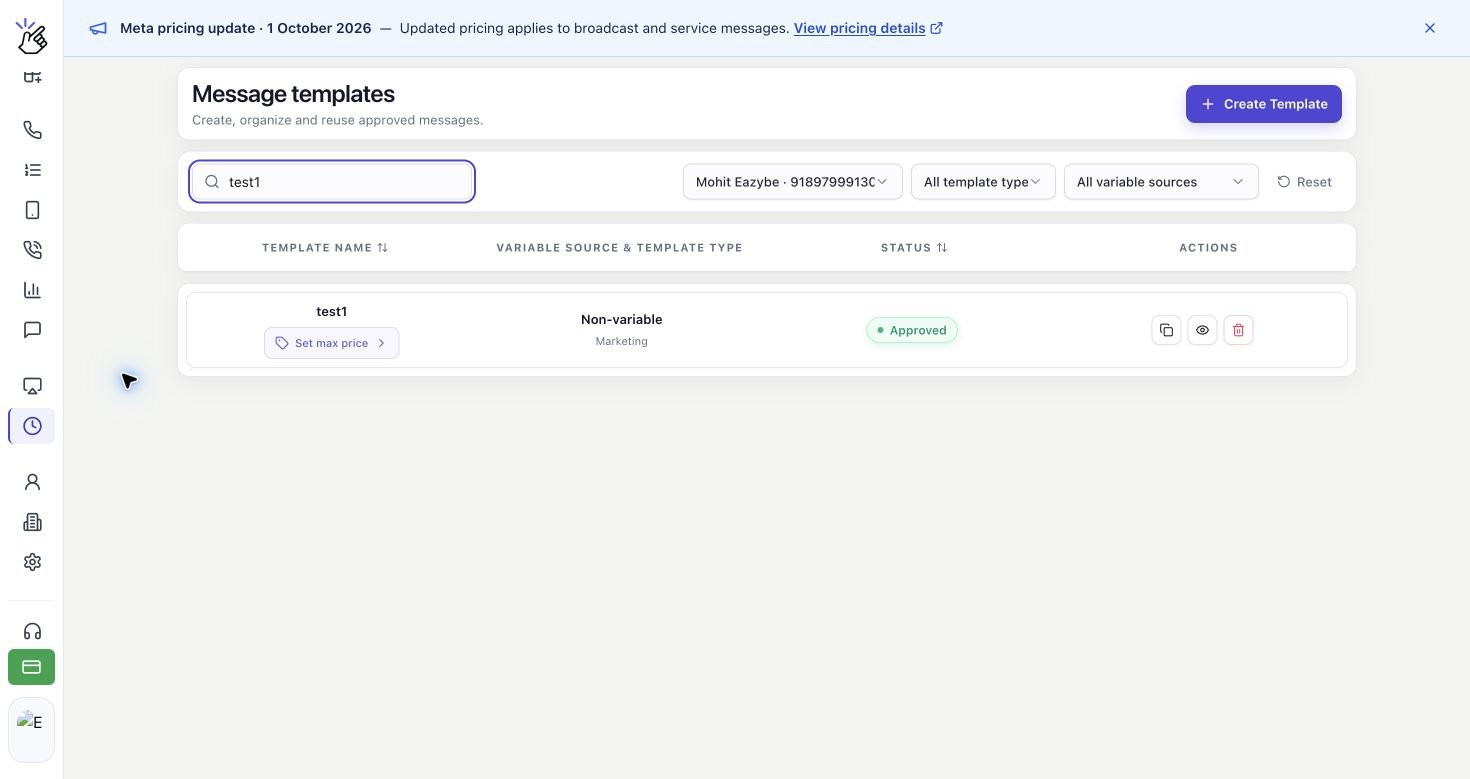
Your template must be Approved before you can use it for a broadcast.
2

Enter your bid cap

In Maximum price per message, enter a positive amount in Bid cap. Enter the price for one delivered message, using the currency shown beside the field.Enter the bid cap in your WhatsApp account’s currency:
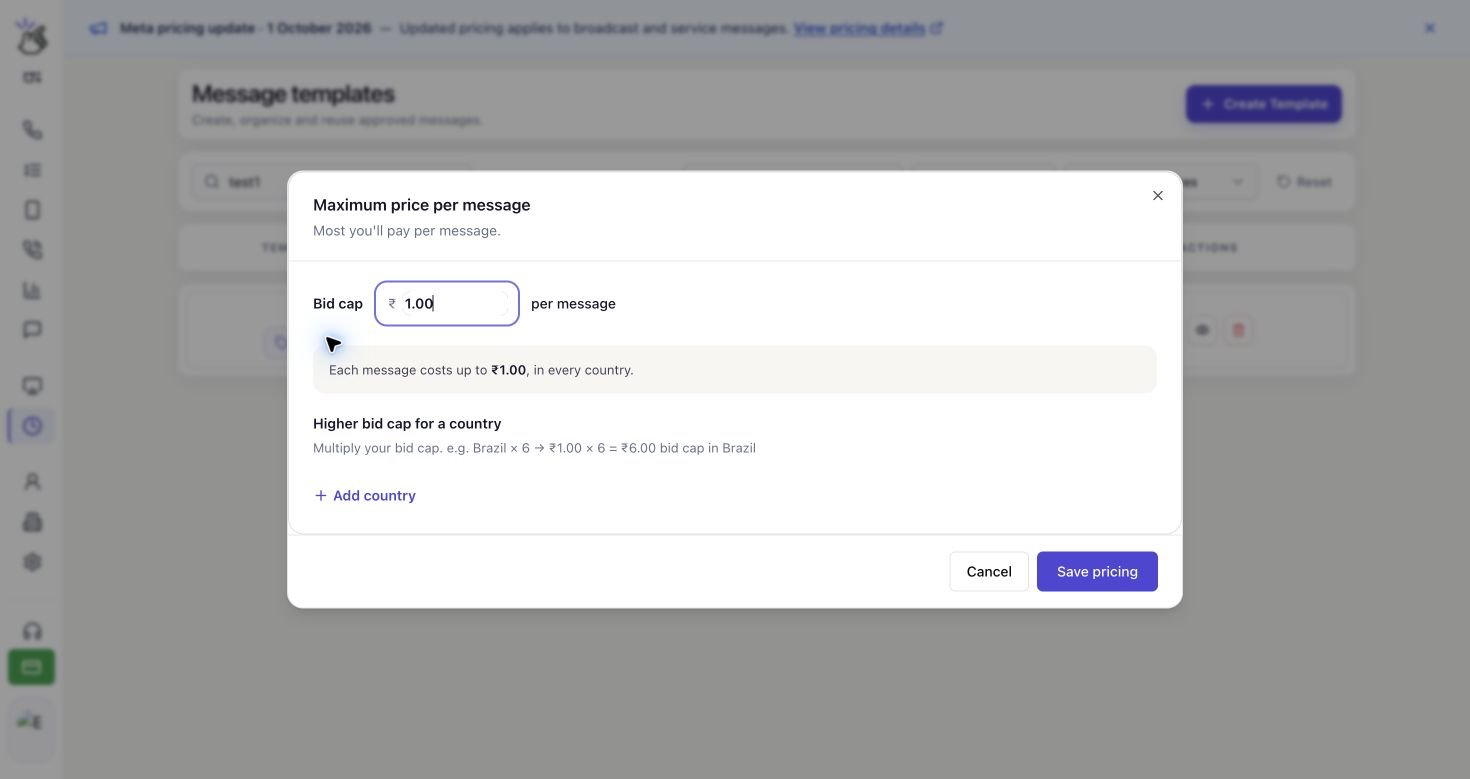
  • INR: Enter the amount in Indian rupees. For example, 1.00 sets a cap of INR 1.00 per delivered message.
  • USD: Enter the amount in US dollars. For example, 1.00 sets a cap of USD 1.00 per delivered message.
The summary below the field updates as you type.Maximum price per message dialog with a Bid cap of one Indian rupee per message
The 1.00 placeholder is not a saved price. Enter your own amount before saving. You do not need to convert the amount to a price per 1,000 messages.
3

Adjust the cap by country if needed

To keep the same cap everywhere, skip this adjustment. To set a different cap for a destination, click Add country under Higher bid cap for a country.Select the country, then enter a multiplier in the field beside ×. The amount after = is that country’s resulting cap.Brazil country adjustment with a multiplier of 1.5 and a resulting cap of 1.50 Indian rupeesWith a ₹1.00 base cap, 1.5 sets a ₹1.50 cap for Brazil. A multiplier of 1 keeps the base cap; a value below 1, such as 0.8, lowers it.Multipliers must be greater than 0 and no more than 10. You can add up to 50 countries. Click the × remove button at the end of a country row to remove its adjustment and use the base cap there again.
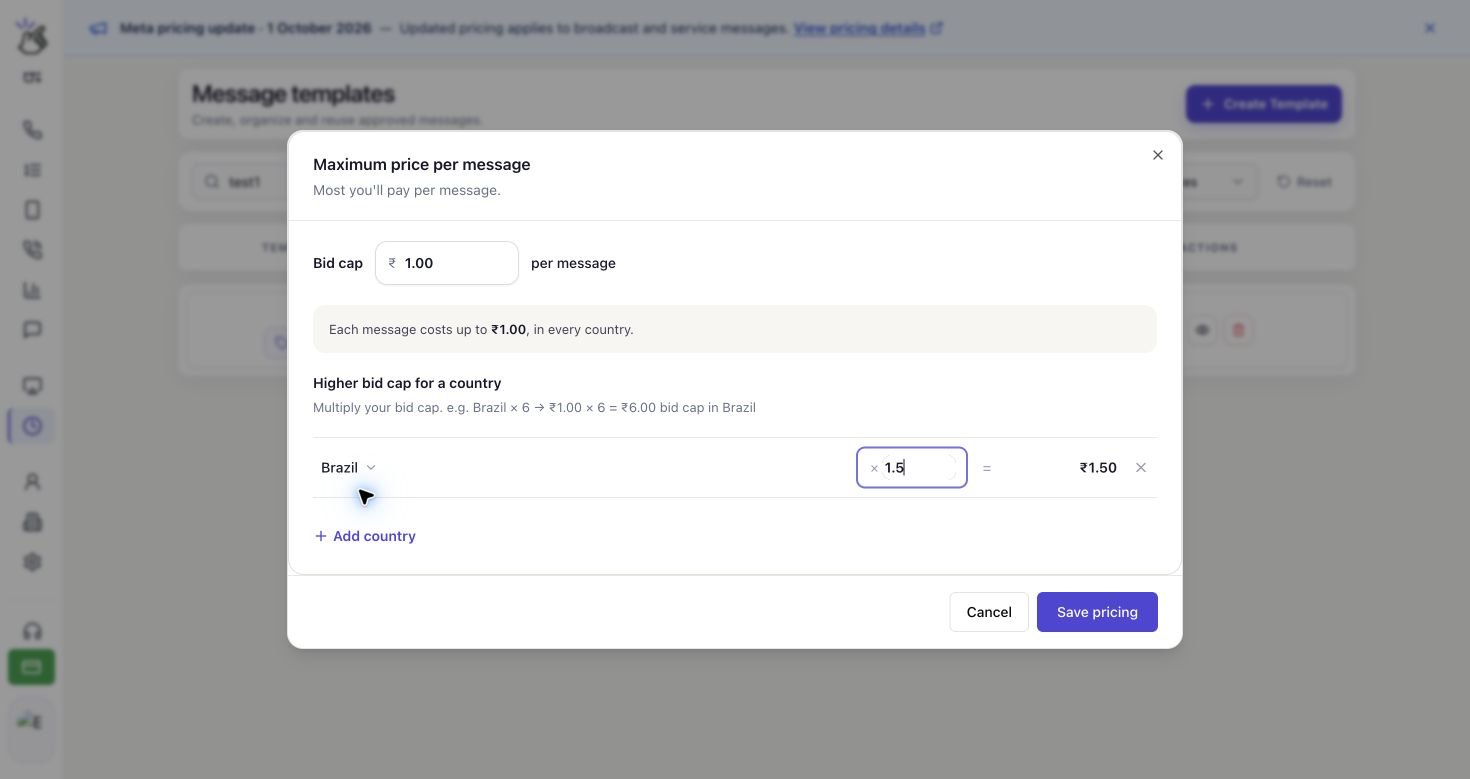
A multiplier above 1 increases the maximum you allow for each delivery to that country. Review the calculated amount before saving.
4

Review and save your pricing

Check the Bid cap and each country amount, then click Save pricing. Wait for the confirmation: Pricing saved. Refresh before sending a campaign.Template pricing ready for review, with Cancel and Save pricing buttonsClick Cancel if you want to close the dialog without saving your edits. Saving pricing updates the template; it does not send a broadcast.
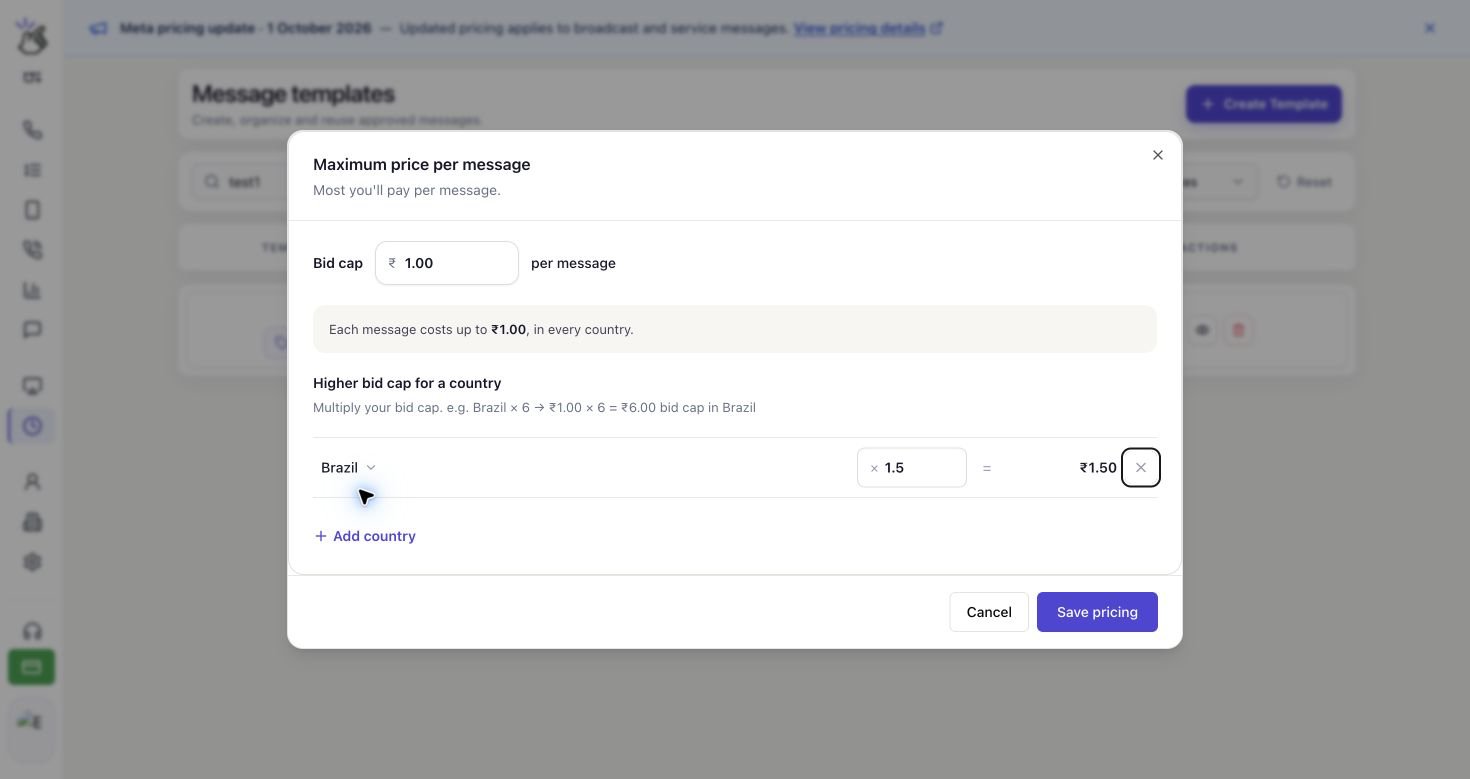
This setting belongs to the template and can affect broadcasts that use it. Avoid changing its pricing while broadcasts using that template are being sent.

Before You Send a Broadcast

Follow Create a New Broadcast to choose your sending number, approved template, and recipients. For a template with maximum pricing, review Marketing delivery pricing and use Refresh pricing to load the current settings. With recipients selected, Maximum Meta delivery cost shows the maximum delivery exposure for that audience. The country breakdown shows recipient counts, the maximum price per delivery, and each country’s maximum exposure.
A maximum exposure or estimate is not your final charge. For max-priced messages, wallet charges are settled when Meta reports the delivery cost. If a cost has not arrived yet, it is pending, not a free delivery. Do not add Estimated wallet deduction to Maximum Meta delivery cost; they are separate views, not two charges to total together.

Common Questions

Why can’t I set a maximum price?

Check that you selected the correct WhatsApp number and a Marketing template. The pricing editor is available only when your account, provider, and currency support maximum pricing. If the dialog says Maximum pricing changes are unavailable for this account, provider, or currency., you cannot change the cap for that selection. If you see Pricing is unavailable., click Retry to reload the pricing information.

Why won’t my amount save?

Use a positive decimal number, without a currency symbol in the input. If the price has more decimal places than your account supports, enter a less precise amount and try again. Country multipliers must be greater than 0 and at most 10.

What if pricing changed after I prepared a broadcast?

Eazybe checks the template’s pricing again before sending. If it has changed, affected messages are not sent using the old settings. Review the refreshed price and create a new broadcast if Eazybe asks you to recreate the campaign.

What if the save succeeded but synchronization failed?

If you see Saved at Meta. Local pricing synchronization failed; refresh before sending., the price was saved at Meta. Refresh your template pricing and verify the amounts before preparing a broadcast.

Does a higher cap guarantee more deliveries?

No. A higher cap allows a higher price per delivery, but it does not guarantee that every recipient will receive the message.