

1
Open Phone Numbers
Open Phone Numbers under CALLS. Choose Buy a number to search or Your numbers to manage purchased numbers.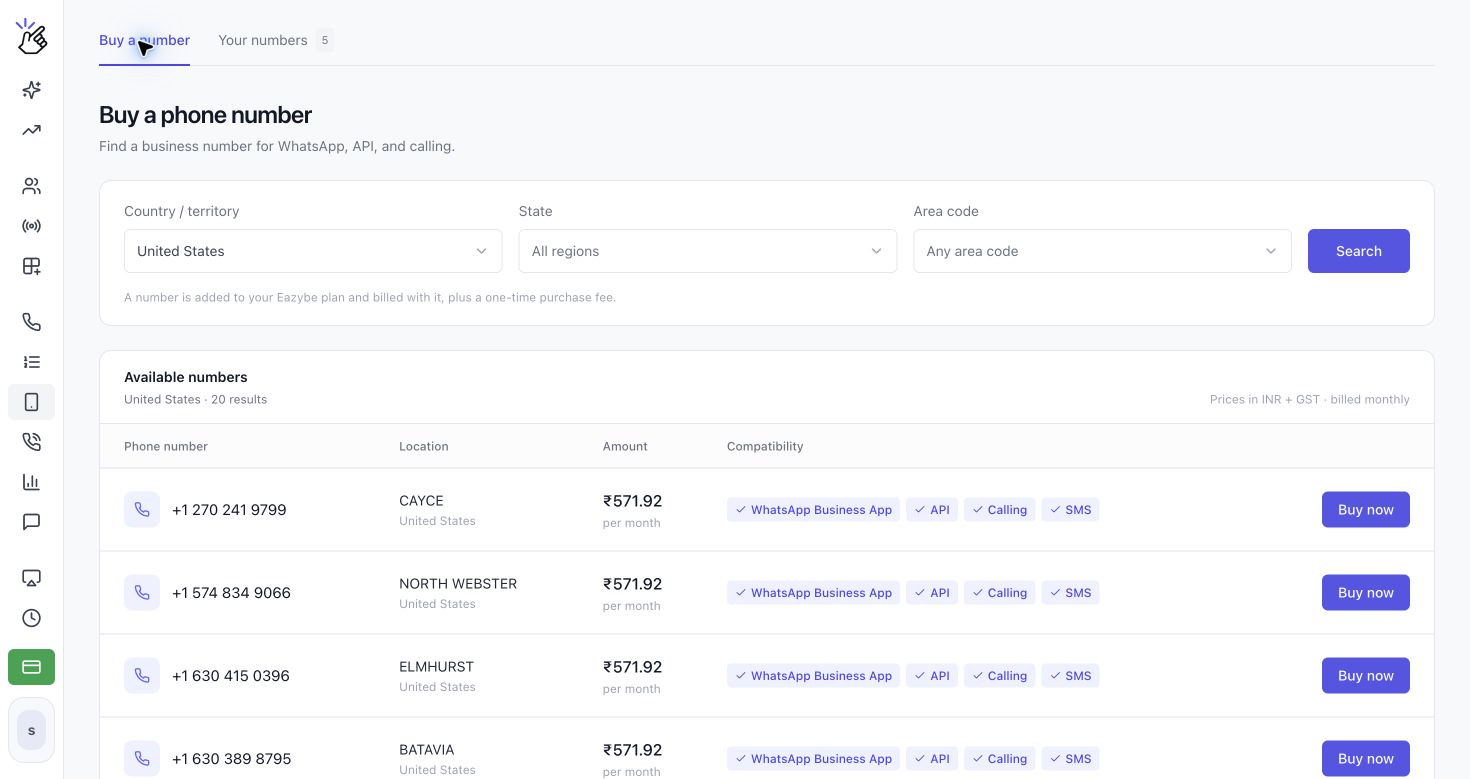
2
Choose a country and location
Under Country / territory, choose United States, Canada, or Puerto Rico. Then choose State and Area code when available. Click Search.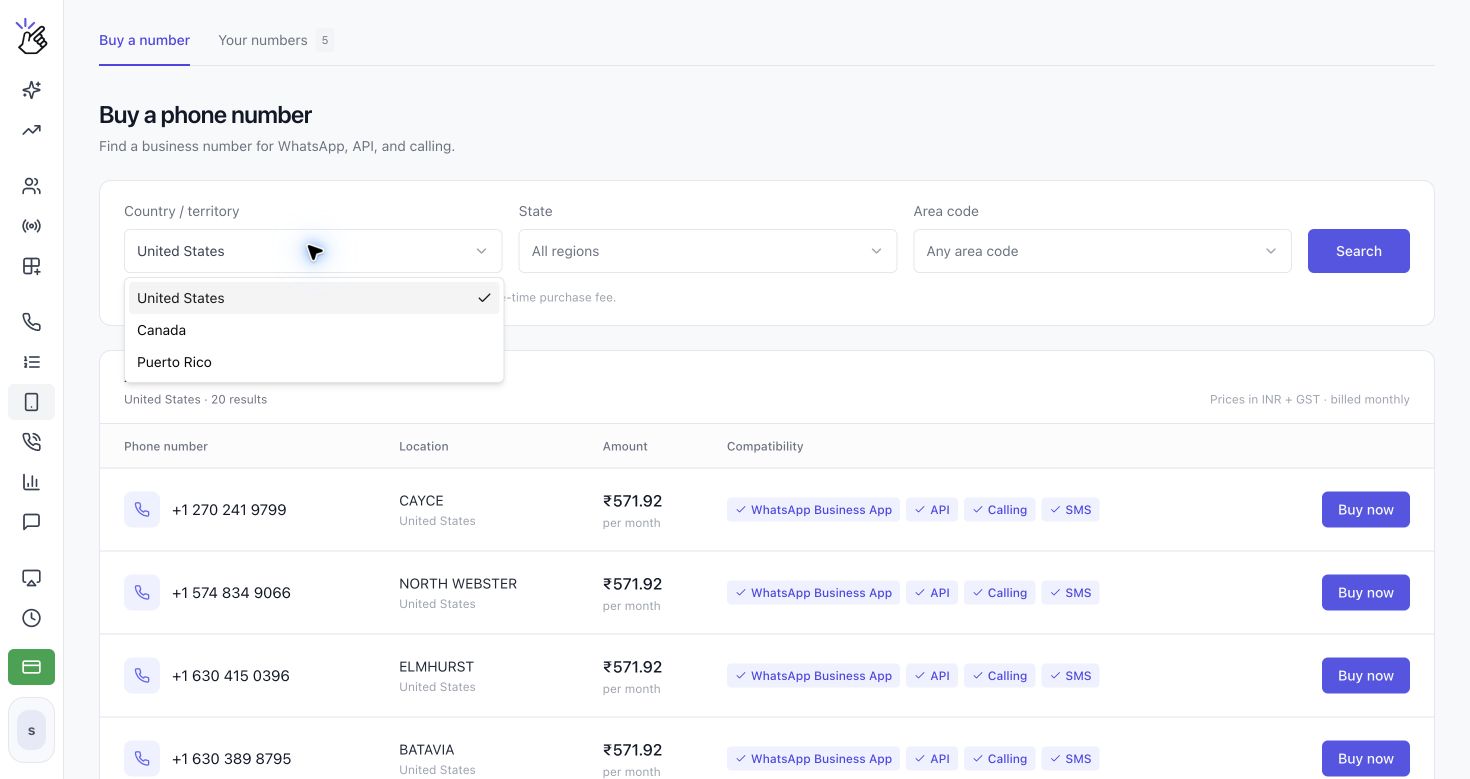
3
Compare available numbers
The results show Phone number, Location, Amount, and Compatibility. Compatibility can include WhatsApp Business App, API, Calling, and SMS. Click Buy now beside the number you want.
4
Review and name the number
On Review your purchase, check the number, location, compatibility, and Pay today total. Under Number details, enter a name in Give your number a name. This name appears in Phone Numbers and Channels.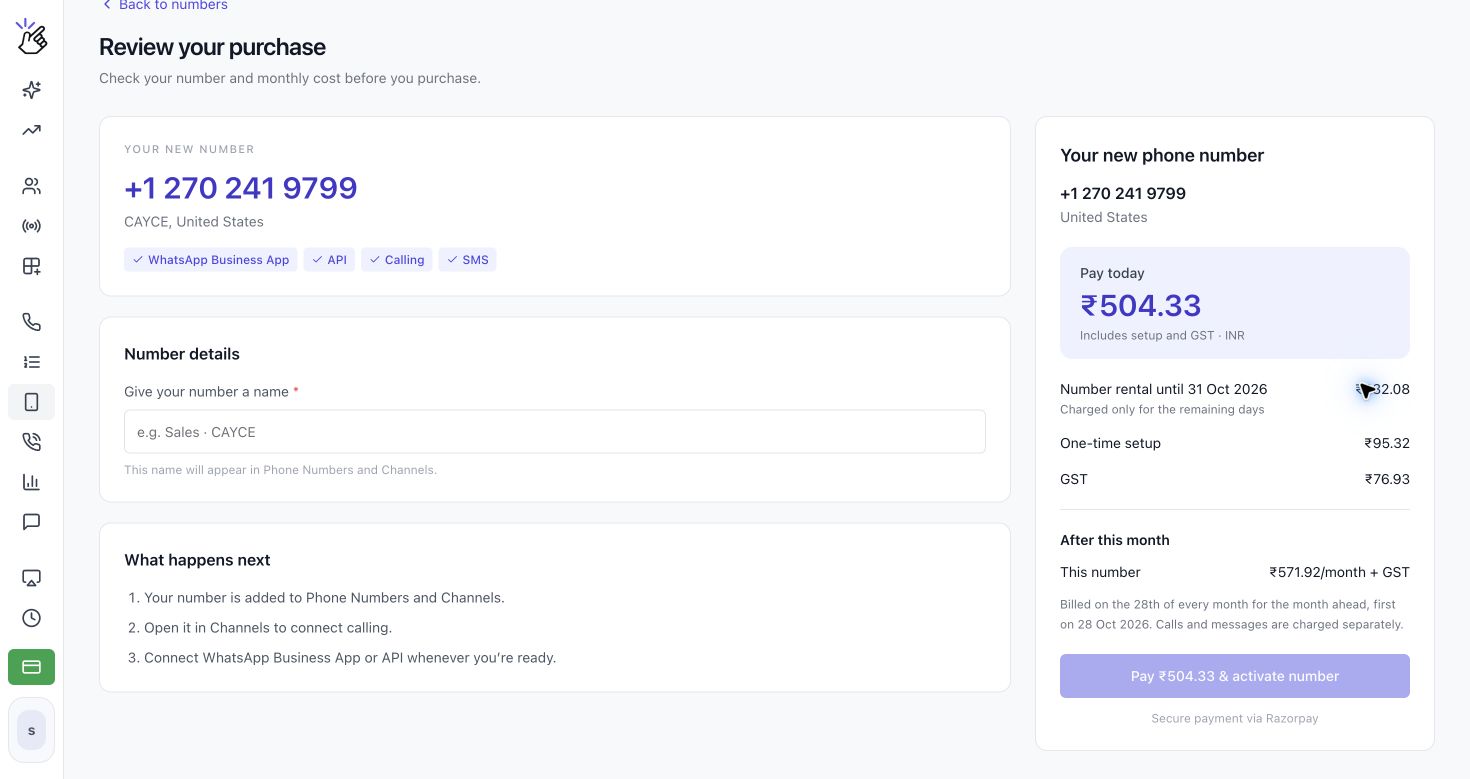
5
Complete the purchase
Review the rental period, one-time setup, tax, and recurring amount. The page explains what happens next: the number is added to Phone Numbers and Channels, you can open it in Channels to connect calling, and you can connect WhatsApp later. Click Pay & activate number to continue to payment.
6
Review Your numbers
Open Your numbers to see each number’s name, country, monthly amount, purchase date, and renewal date. Use View in Channels to open its channel settings. More actions includes Verification code and, for managers, Cancel subscription.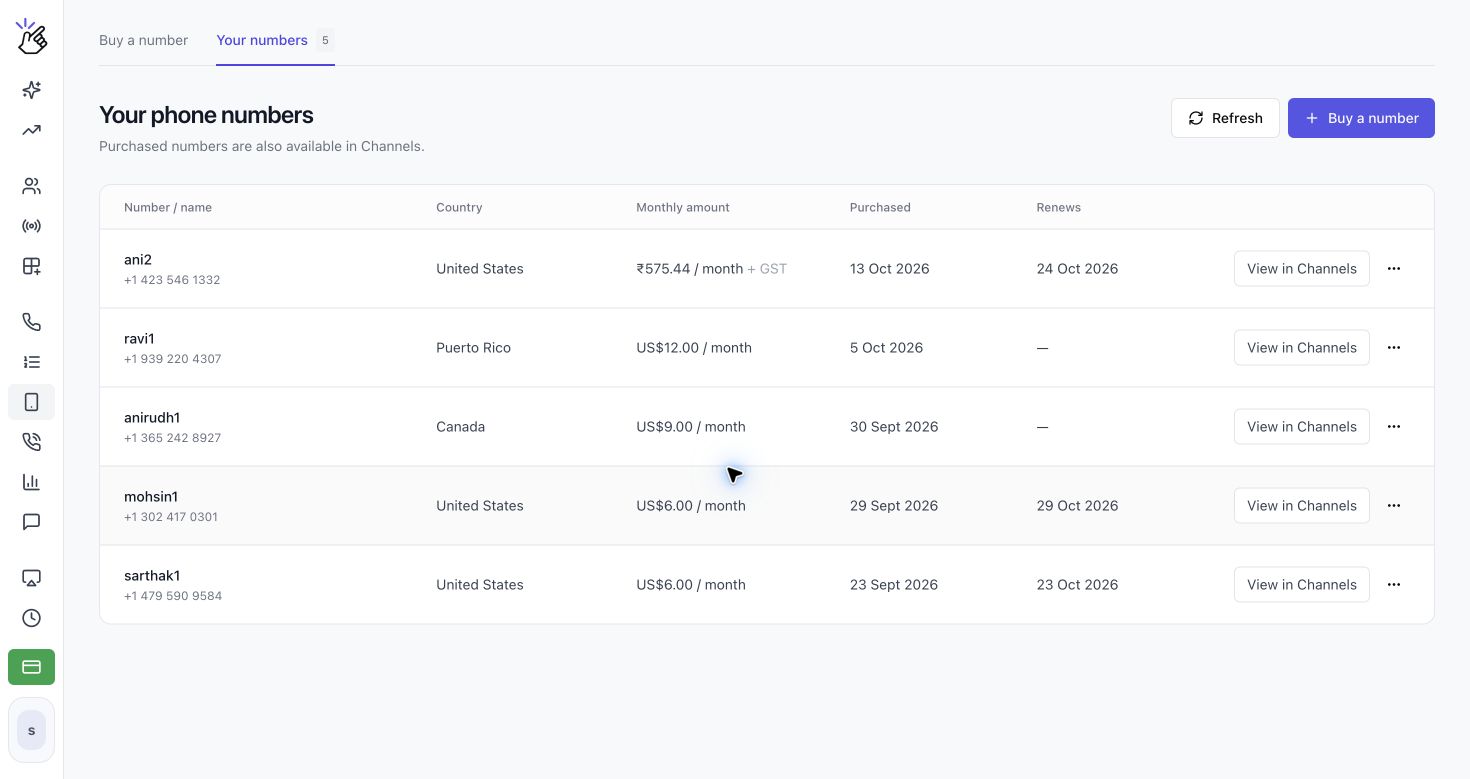
A cancelled number remains available until the paid period ends, then it is released and cannot be recovered. Cancel before the 28th to avoid the next monthly charge.
Connect WhatsApp with your Voice Number
A purchased number can be used with the WhatsApp Business App or the WhatsApp API when the number’s compatibility shows that option. WhatsApp sends the verification code by SMS, and you can read that code in Eazybe.Connect the WhatsApp Business App
- Install and open the WhatsApp Business app on your phone.
- Start the account setup and enter the Voice Number shown in Eazybe, including its country code.
- Request the verification code by SMS.
- Open SMS in Eazybe and find the verification message sent to your Voice Number.
- Return to WhatsApp Business and enter the code to finish verifying the number.
Connect WhatsApp API
- Open Channels in Eazybe and select Add channel.
- Choose WhatsApp to continue to Meta, then sign in and follow the setup prompts.
- Enter the Voice Number shown in Eazybe and request a verification code by SMS.
- Open SMS in Eazybe and find the verification message.
- Return to Meta, enter the code, and complete the connection.