

Screenshots below are edited demo versions of the Eazybe interface. Names, numbers, labels, and conversation content are fictional.
Who Can Delete Chats?
At launch, only the Org Owner has deletion access by default. The Org Owner can grant access to other Admins from Settings → Members & Access. Managers and Employees are Not eligible. Permission to delete chats does not give an Admin permission to grant deletion access to someone else. Only the Org Owner can change this setting, and the Org Owner always retains access.Give Admins Deletion Access
1
Open Members & Access
Sign in as the Org Owner, open Settings, and select Members & Access.Under By role, expand Team Inbox if it is collapsed. Find Delete Chats.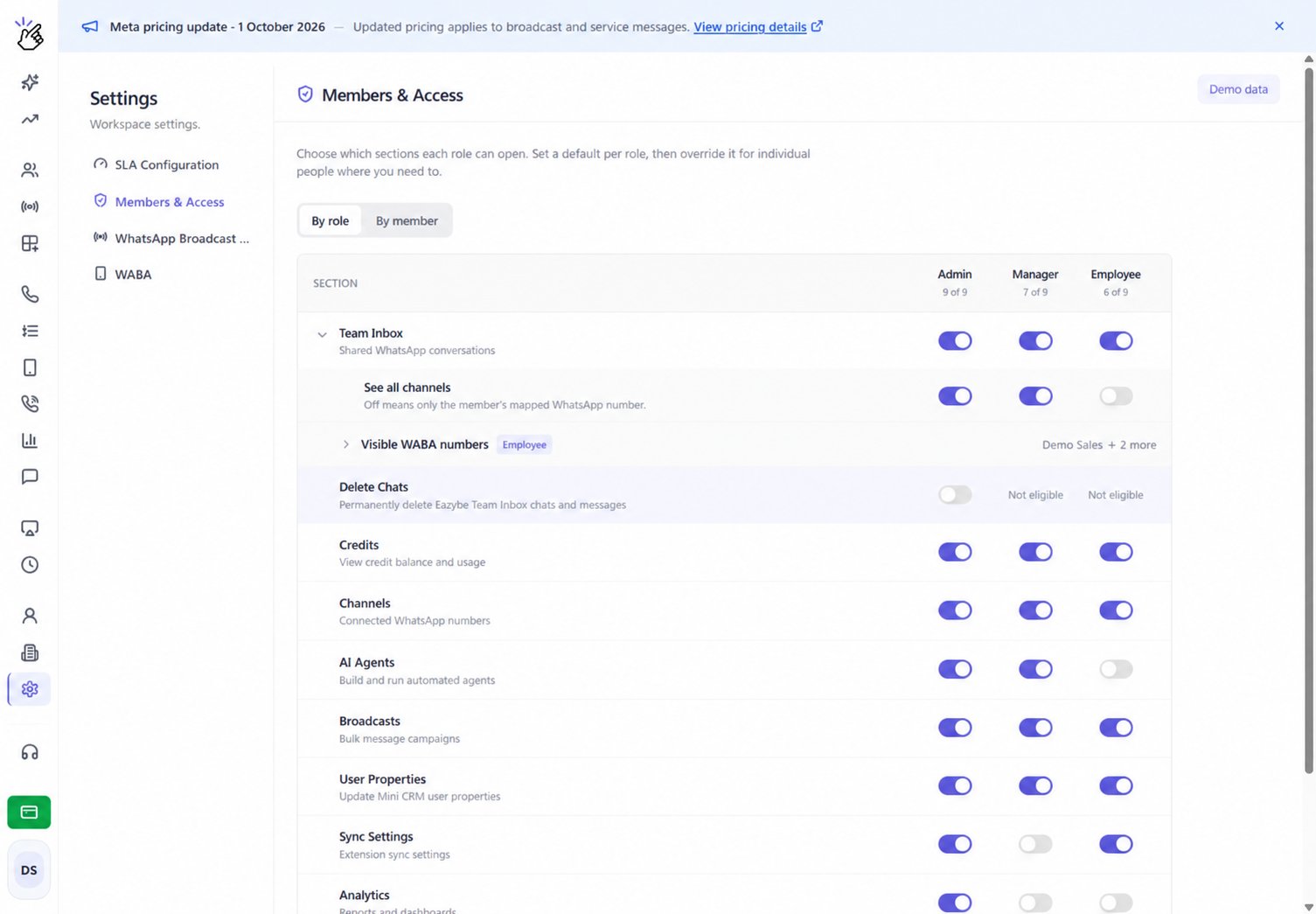
This screenshot uses fictional channel and account details. It shows the permission turned off and unavailable to edit from an account that is not the Org Owner.
2
Choose who receives access
To give access to a particular Admin, select By member, choose that Admin, and turn on Delete Chats in their access panel. Repeat for each Admin who needs access.To set the default for Admins, use By role and change the Admin switch in the Delete Chats row.
3
Check the saved permission
Changes save when you change the switch. Wait for the success notification before leaving the page. If saving fails, the last saved permission remains in effect.A Member override takes precedence over the role default. Where an override is present, Reset to role default removes it so the Admin follows the current role setting. To remove access, turn off that Admin’s Delete Chats permission or change the applicable role default.
Delete One Message
1
Open the message actions
Open the conversation in Team Inbox. Hover over the message, or move keyboard focus to its actions control, and open the message menu.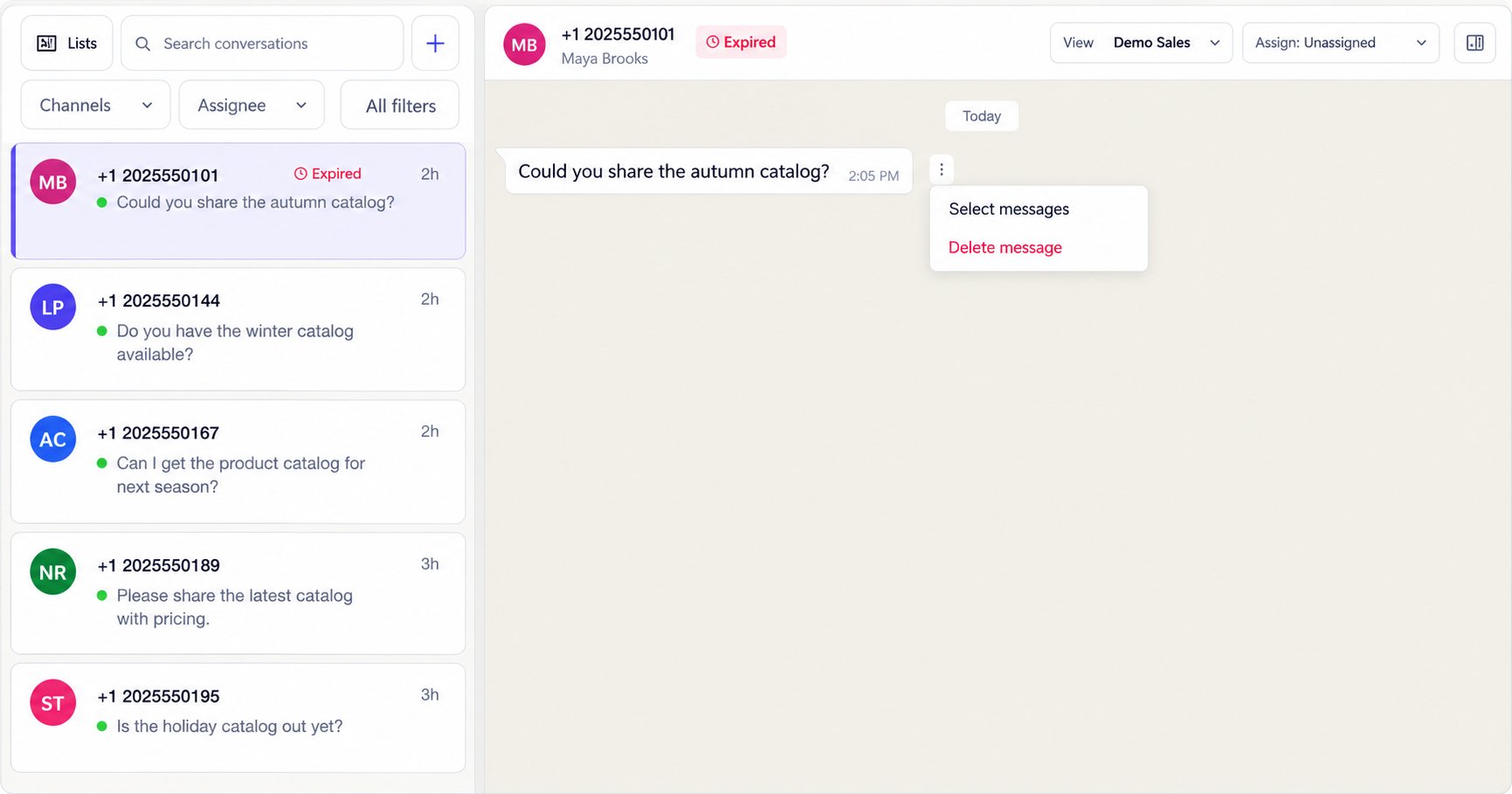
2
Choose Delete message
Click Delete message. Review the message count and conversation in the confirmation, then follow Confirm Deletion.Only the chosen message is removed. The rest of the conversation remains.
Select and Delete Multiple Messages
1
Start selecting messages
Open a message’s menu and click Select messages. The message you started from is selected automatically.
2
Review your selection
Select or deselect messages using their checkboxes. The selection bar shows how many messages you have selected.Select all (N) selects eligible messages currently loaded in the conversation. Deselect all clears the selection.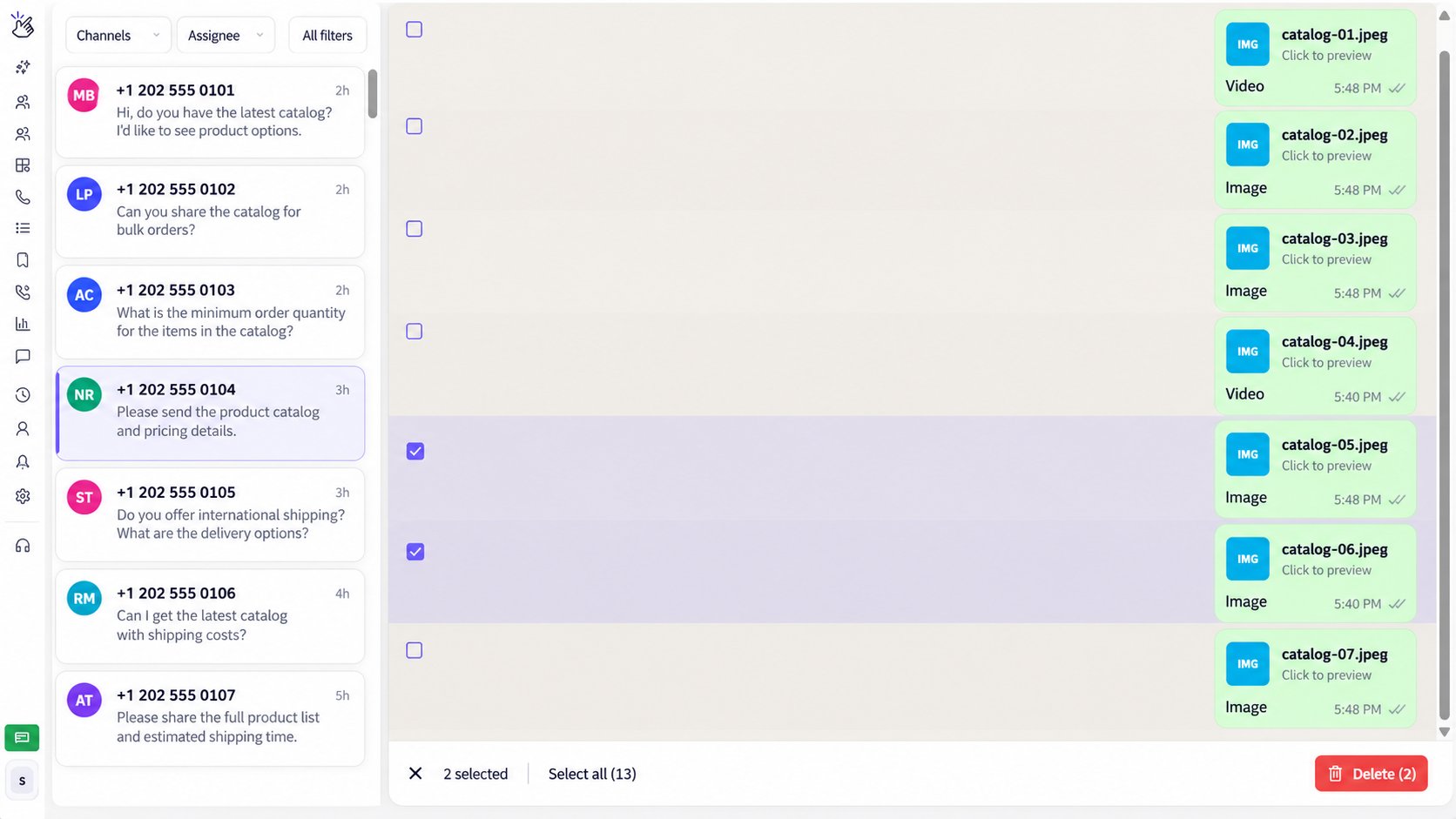
Select all applies to the messages currently loaded, not necessarily the conversation’s entire history. Call entries, system entries, and messages that have not yet been sent cannot be selected for deletion.
3
Delete the selected messages
Click Delete (N) in the selection bar, where N is your selected-message count, and follow Confirm Deletion. The button is disabled when nothing is selected.Cancelling the confirmation keeps your selection. Close selection mode with the X control or press Escape when no confirmation is open. Switching conversations also clears the selection.
Delete an Entire Chat
1
Open the chat menu
In the Team Inbox conversation list, hover over the individual or group chat, or focus its actions control. Open the three-dot menu beside the chat and click Delete chat.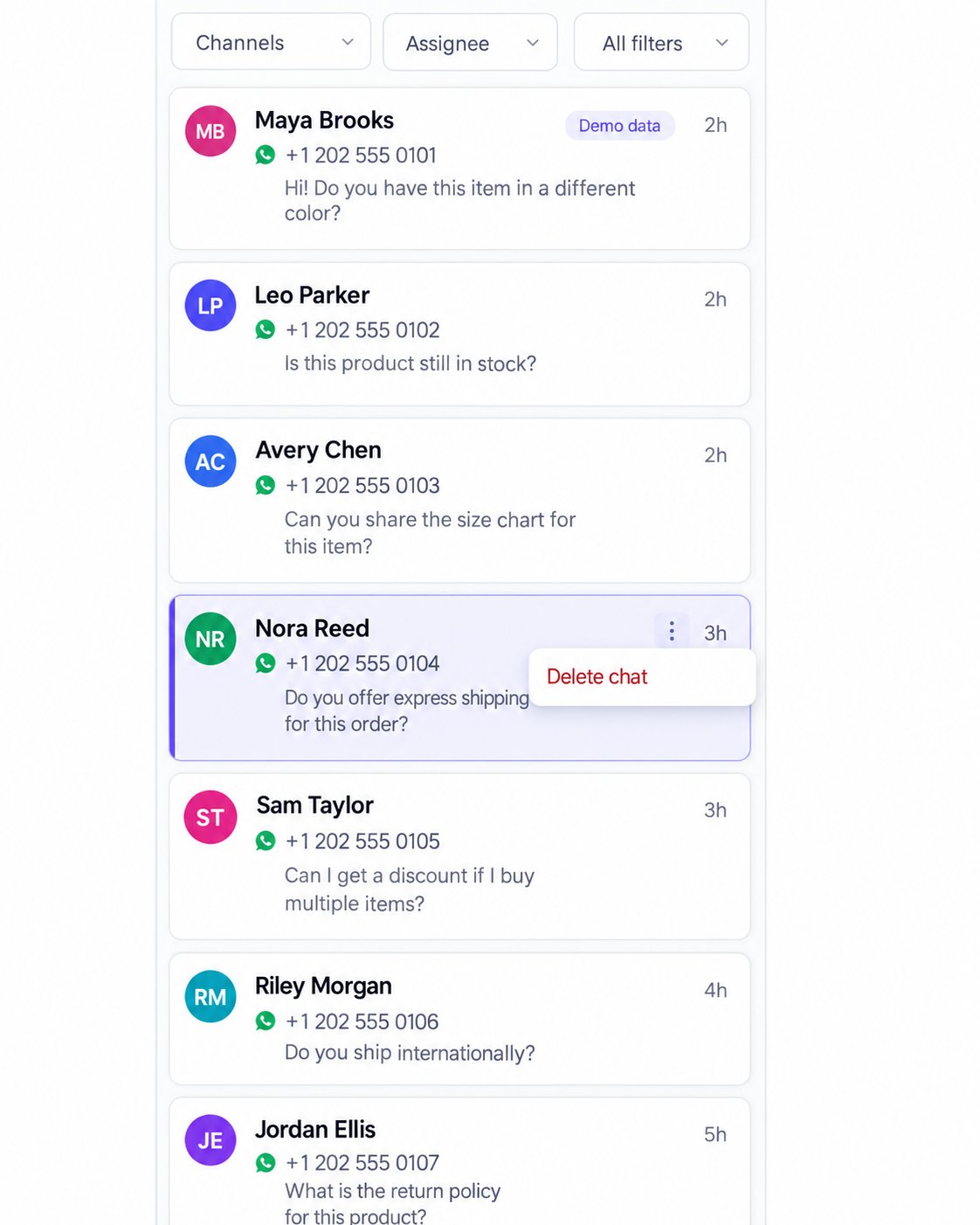
2
Review the conversation and confirm
Check the conversation named in the confirmation and follow Confirm Deletion.After successful deletion, the chat is removed from the conversation list. If it was open, the conversation pane returns to the state where no chat is selected.
Delete All Chats in a Label
1
Open the label's actions
Find the label in the Team Inbox sidebar and open its three-dot menu. Click Delete all chats in this label.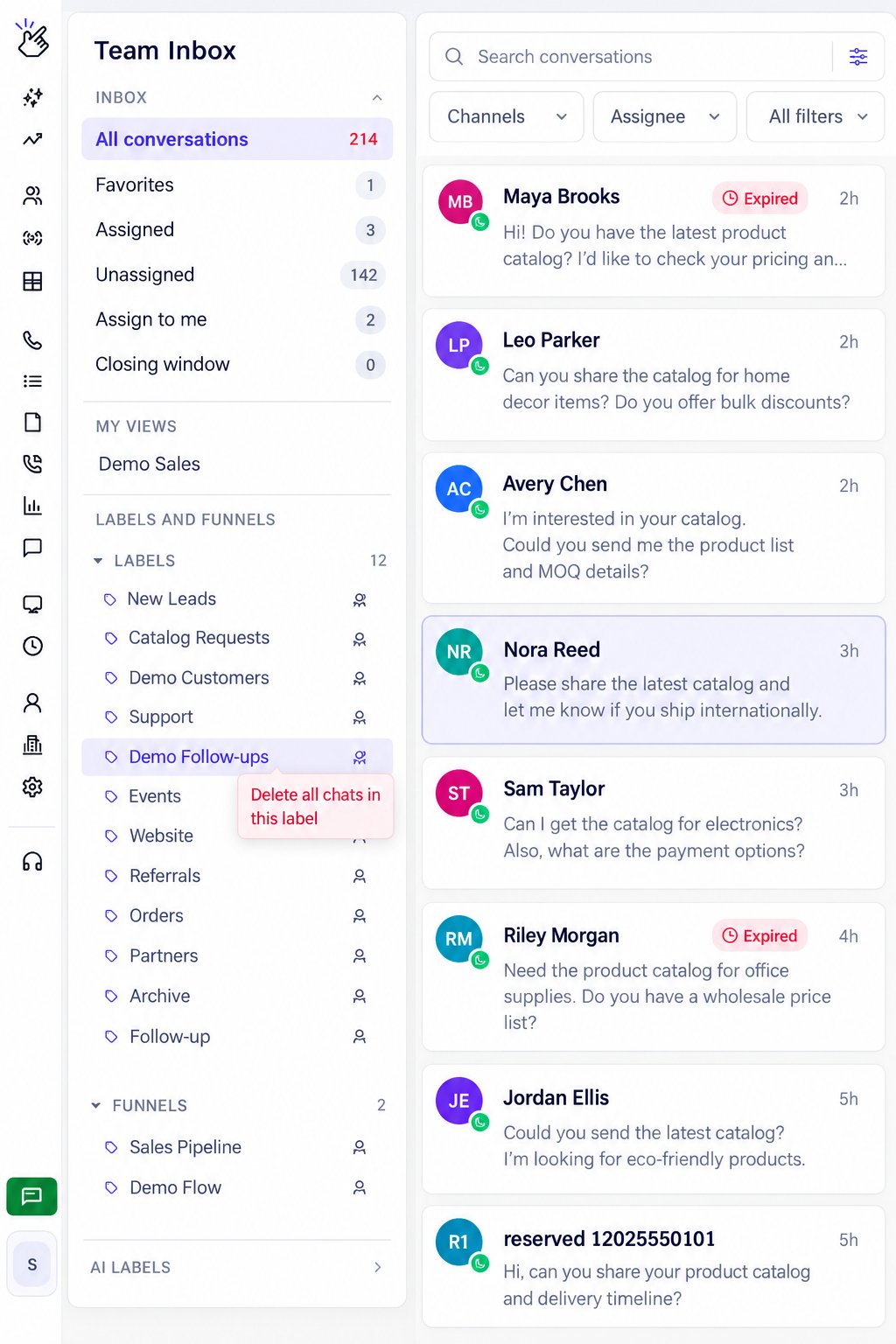
2
Check the chats and inboxes affected
Eazybe finds the matching chats and shows their count and the number of inboxes affected. Review any skipped items, then follow Confirm Deletion.If there are no matching chats, Eazybe shows No chats to delete for that label. While deletion is running, keep the window open.
Funnels and stages also have their own actions: Delete all chats in this funnel and Delete all chats in this stage. Review the named funnel or stage and affected inboxes before confirming.
Delete Chats Using an Excel File
1
Open Delete Chats in Team Inbox settings
Open Integrations, open the Team Inbox settings, and select Delete Chats. The upload section is headed Delete chats using an XLSX file.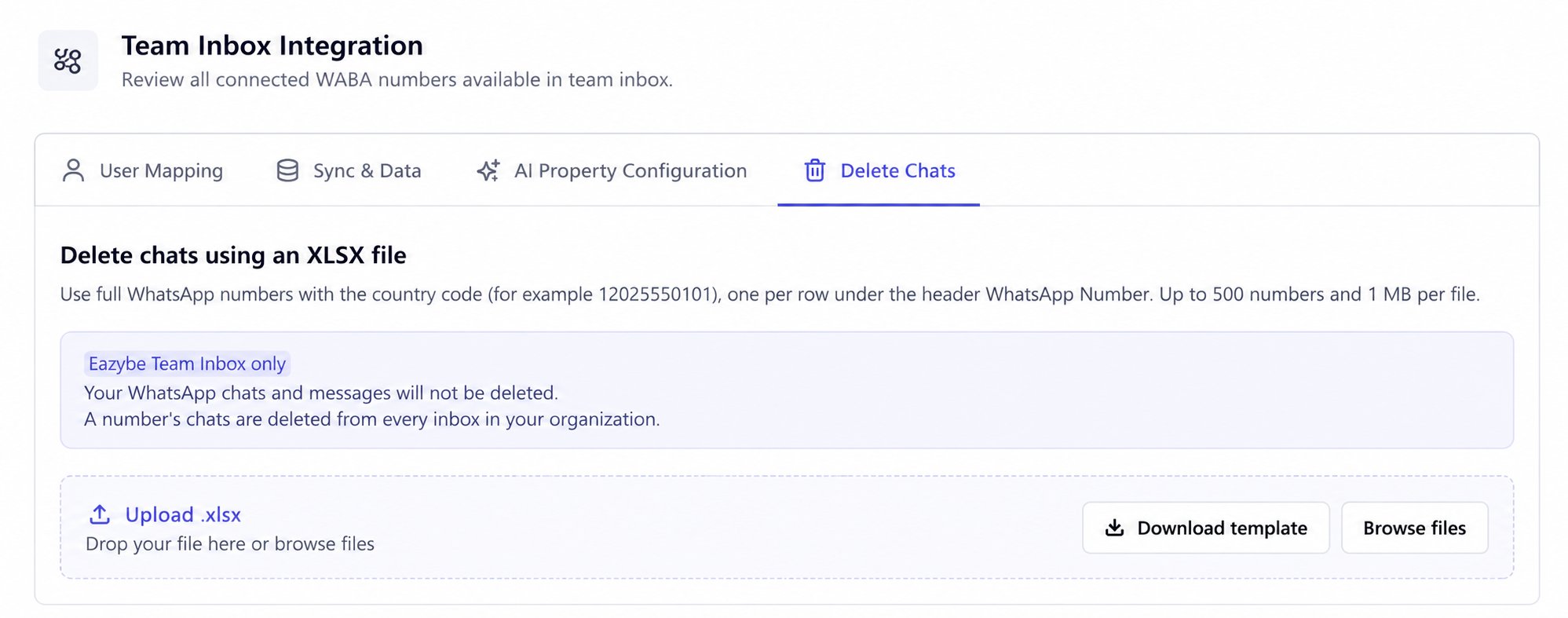
2
Prepare your file
Click Download template. Replace its example numbers with the WhatsApp numbers whose chats you want to delete.
- Use an .xlsx file, no larger than 1 MB.
- Use the first worksheet. Cell A1 must contain WhatsApp Number.
- Enter one full WhatsApp number per row in column A, including the country code.
- Keep the number column formatted as Text so Excel does not alter the digits.
- Include no more than 500 number rows per file. Use separate files for larger lists.
Numbers must contain 8–15 digits after formatting characters are removed. Group chats cannot be targeted by this file; use Delete chat in Team Inbox for a group.
3
Upload and check the preview
Click Browse files or drop the file into Upload .xlsx. Wait for the checks to finish.The preview shows rows, matched chats, duplicate rows, invalid rows, and numbers not found. Numbers are masked, and each row has a matching result or a reason it cannot be used.Duplicate numbers are processed once. Numbers without a chat in your organization are skipped. Fix invalid rows and upload the corrected file before continuing. Deletion remains unavailable while checking, when there are blocking errors, or when no chats match.
4
Review and confirm deletion
Click Review deletion (N chats). Check the chat count and affected inboxes, then follow Confirm Deletion.Watch the progress and result on the upload screen. If some chats fail, review the reasons and use Retry failed chats to retry only those chats. You will be asked to confirm again.
Confirm Deletion
Every deletion method opens a Delete Chats dialog. The highlighted box states how many messages or chats will be permanently deleted, followed by the conversation or inbox scope.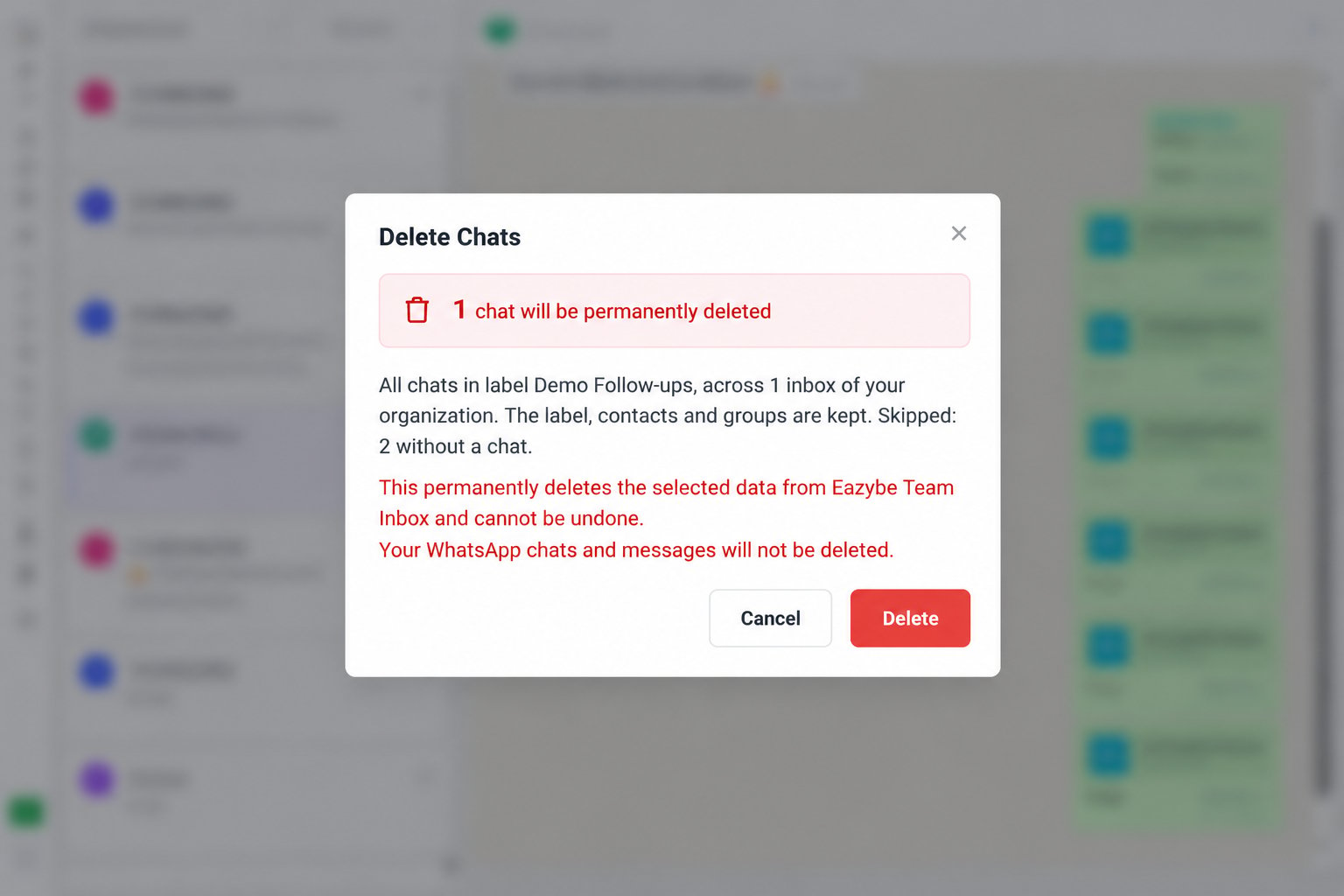
- Check the count, item type, and scope.
- Read the permanent-deletion warning. Your WhatsApp chats and messages will not be deleted.
- Wait for the three-second countdown on Delete to finish.
- Click Delete to submit the deletion, or Cancel to leave the data unchanged.
If Deletion Does Not Complete
- Some messages fail: Read the error and deleted/failed counts. Failed messages remain selected so you can review and retry them.
- Some chats fail in a label or file operation: Review the failed-chat reasons and click Retry failed chats. Successfully deleted chats are not included in that retry.
- A whole chat fails to delete: Read the error. The chat remains visible so you can review it before trying again.
- Deletion controls are missing: Ask the Org Owner to check your Delete Chats access. Having access to Team Inbox or Members & Access does not automatically grant deletion permission.