

1
Choose the message
Enter an internal Broadcast name, select the WhatsApp Business number in Send from, and choose an approved Template message. The Message preview updates when you select a template.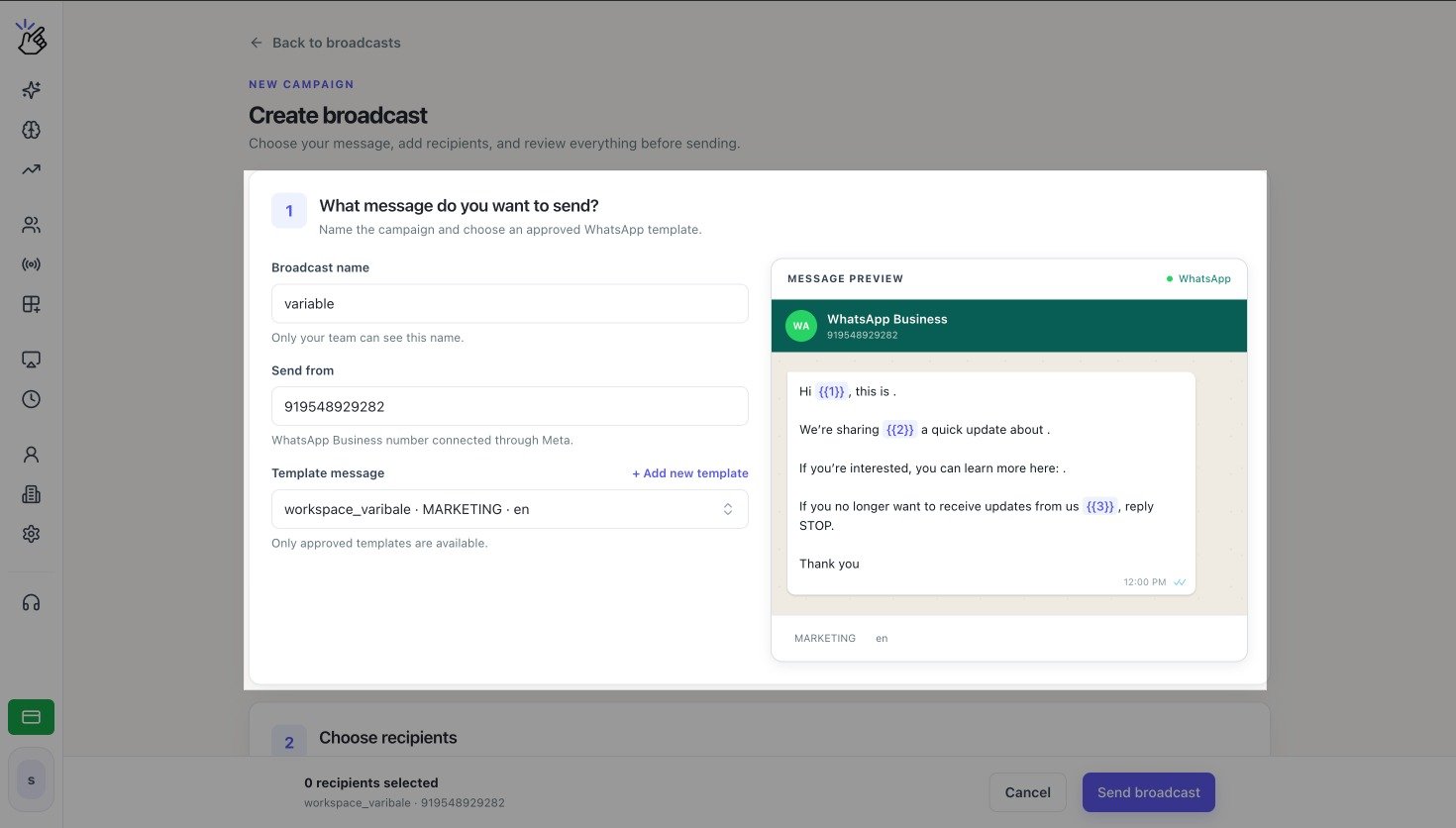
Recipients do not see the broadcast name. Only your team uses it to identify the campaign in Eazybe.
2
Choose the recipients
In Choose recipients, select Upload a list or HubSpot contact list. Add the contacts, then select the rows that should receive the campaign.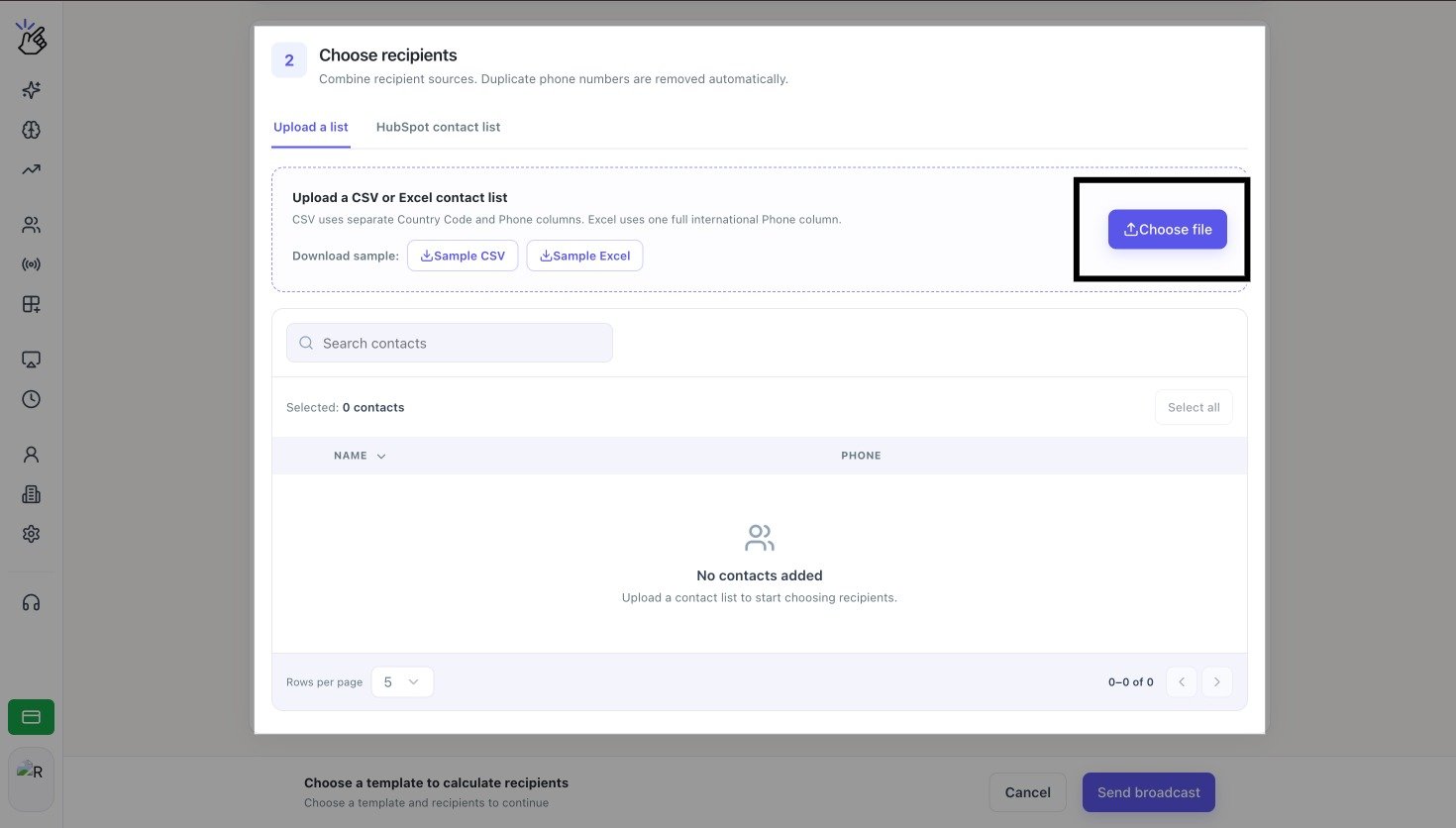
HubSpot contact list appears only when HubSpot is connected to the current workspace.
3
Prepare the variable values
If the template contains numbered variables such as 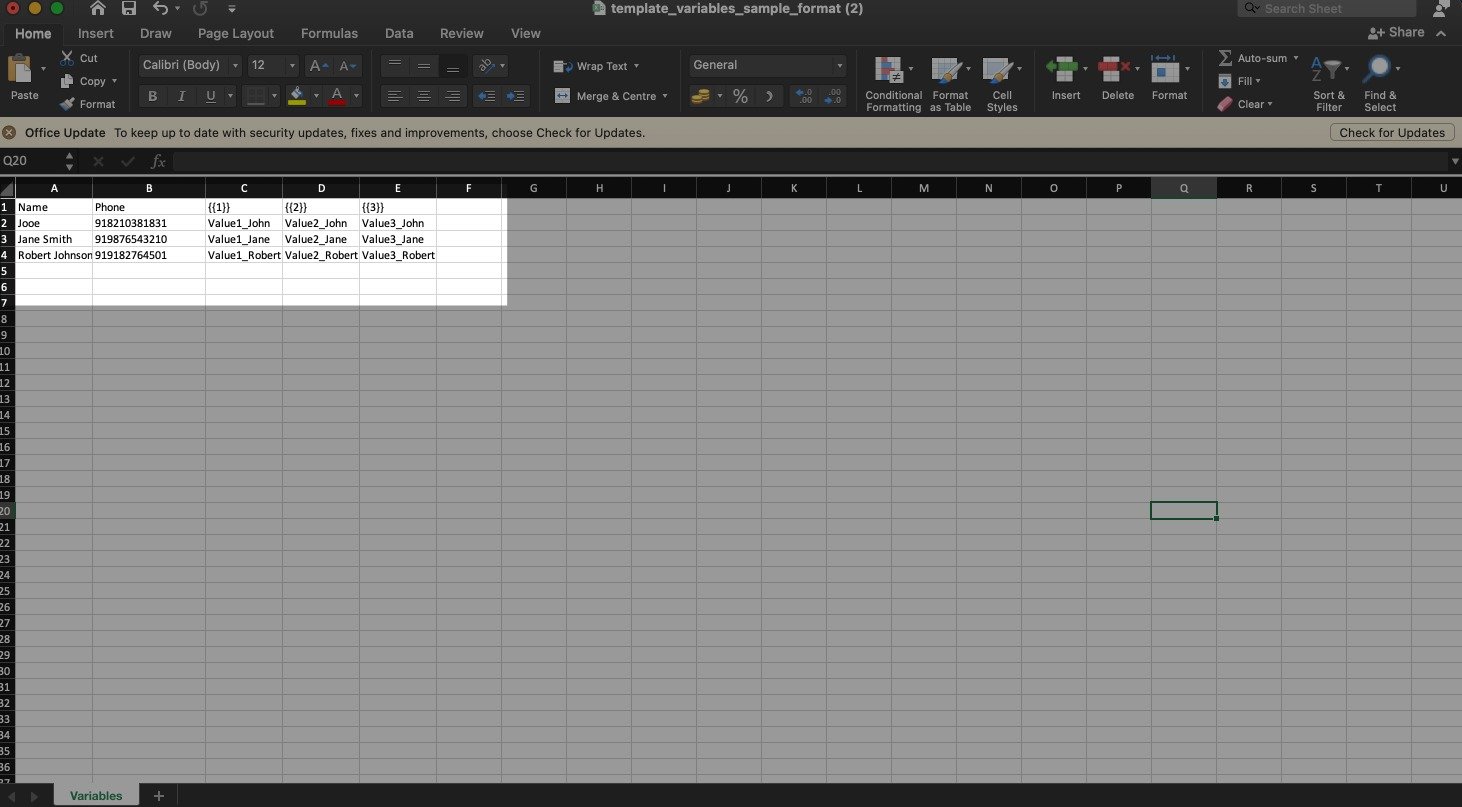
{{1}}, add one matching column for every variable and a value for every contact. A HubSpot property template uses its saved HubSpot mappings.4
Review and send the broadcast
Wait for the footer to show the selected recipient count and Estimated cost. Confirm the sending number and template, then select Send broadcast.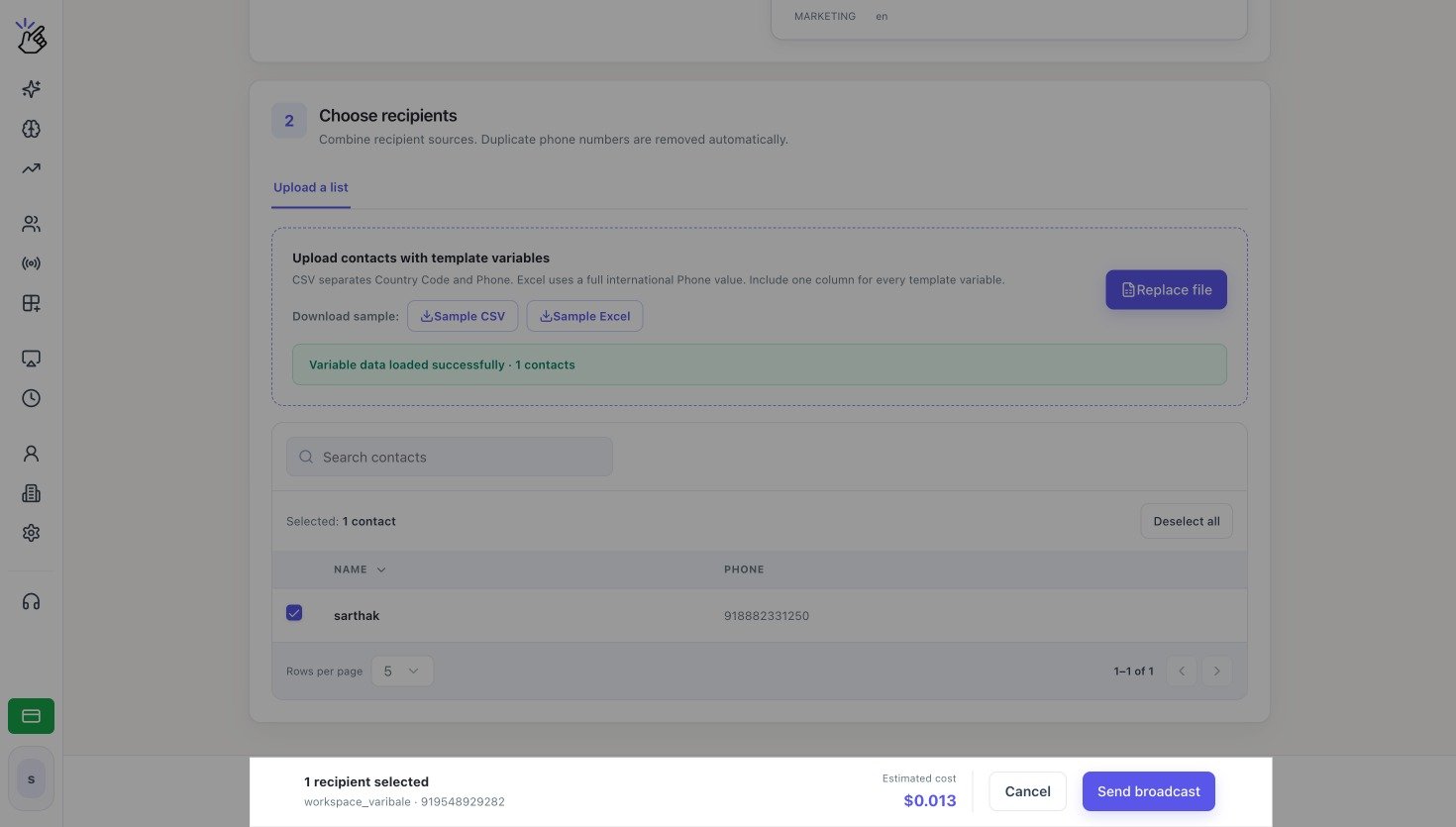
5
Monitor delivery
Return to Broadcasts and review the Total, Sent, Delivered, Read, and Failed totals. Select View Analytics for recipient-level status and failure details.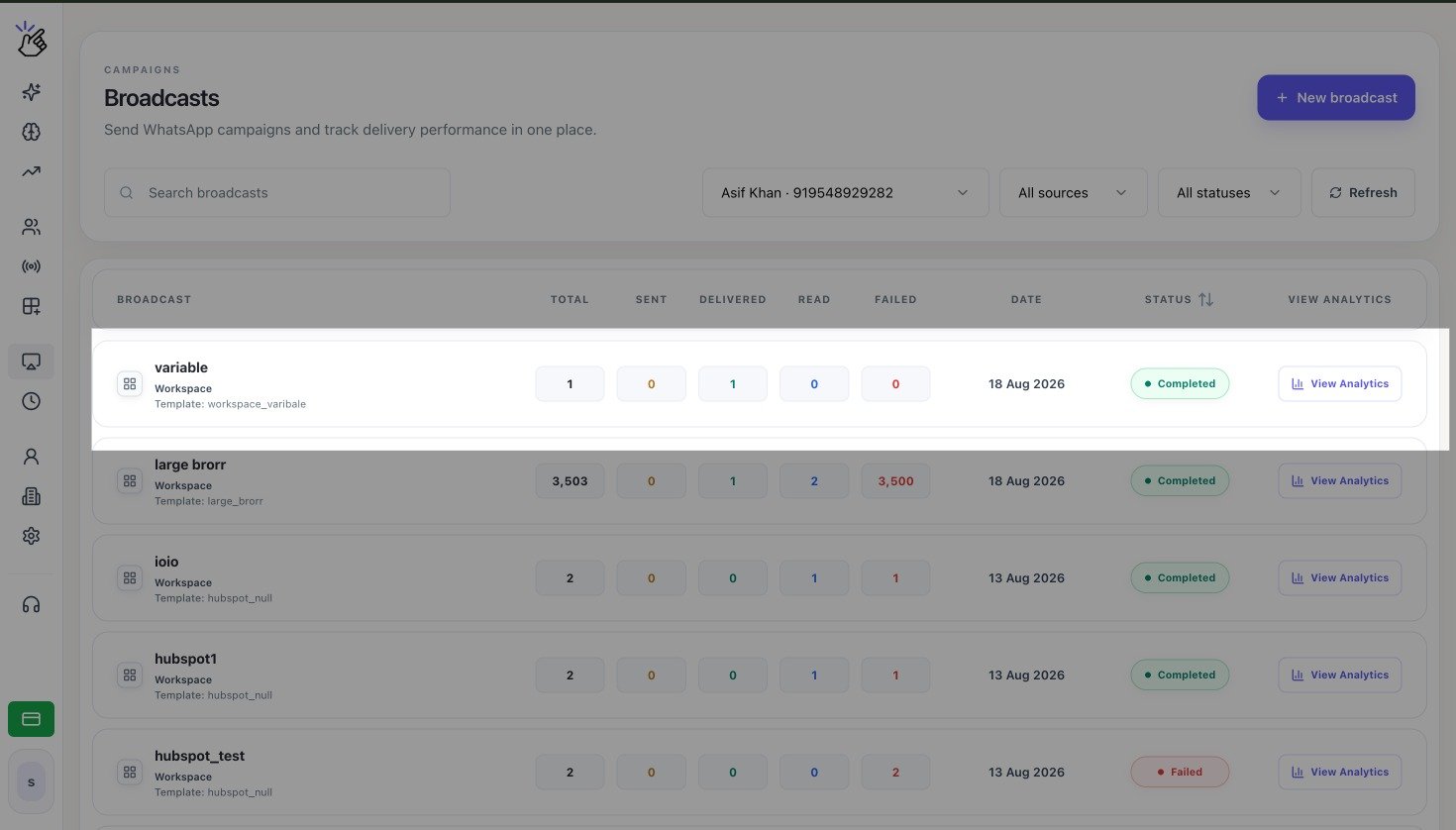
Delivery totals can change while WhatsApp processes the campaign. Select Refresh to load the latest results.
Recipient Sources
Only one recipient source can be used for a broadcast at a time.