

Overview
Quick Broadcasts
Send messages to multiple contacts without leaving WhatsApp Web
Built-in Analytics
Track delivery, read rates, and campaign status in real-time
Broadcasts sent through the extension use your approved WhatsApp templates and respect Meta’s messaging policies.
How to Send a Broadcast
1
Open Broadcast in the Extension
Access WhatsApp Web with the Eazybe extension active. Click the Broadcast icon in the extension menu.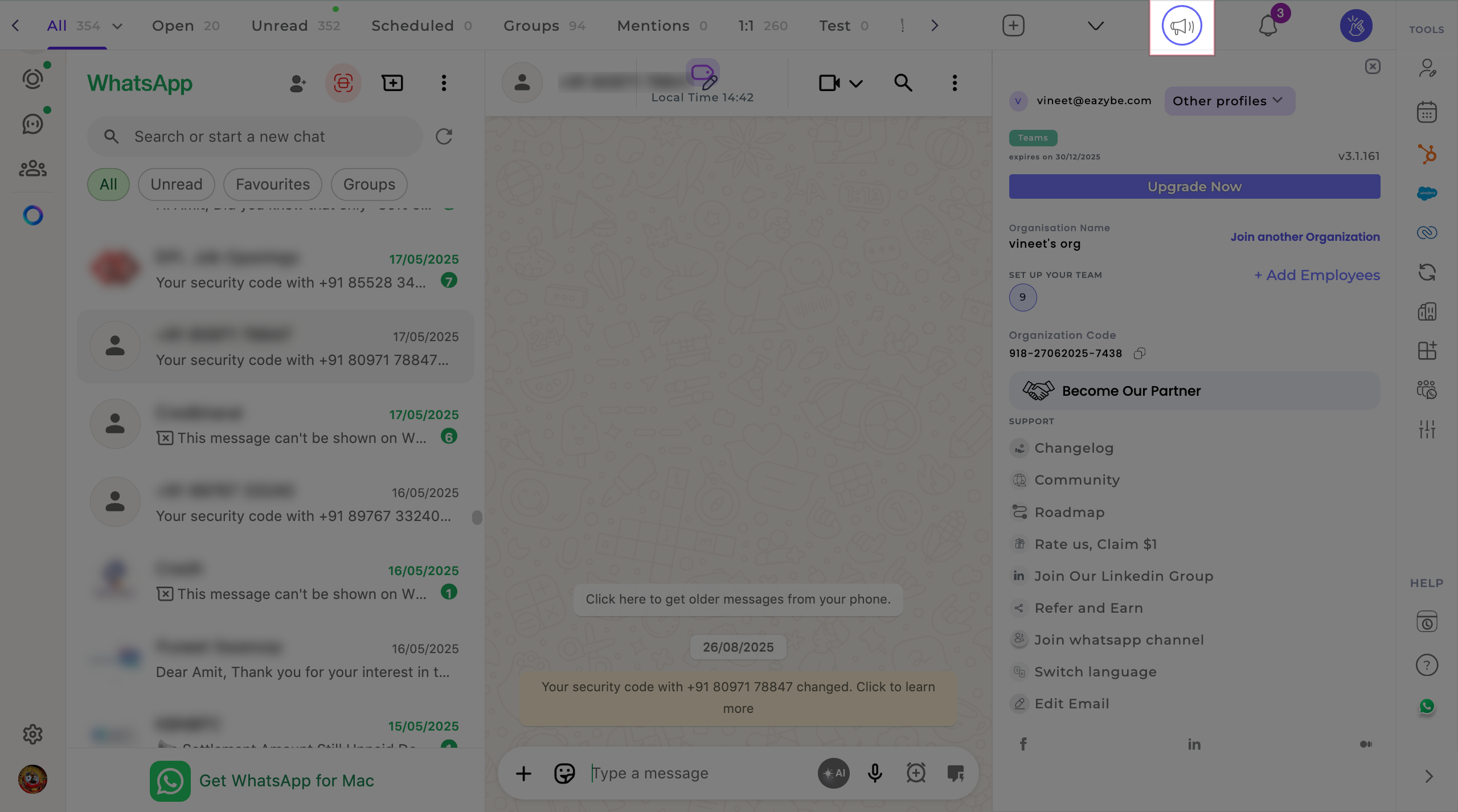
2
Enter Broadcast Details
Configure your broadcast with the following details: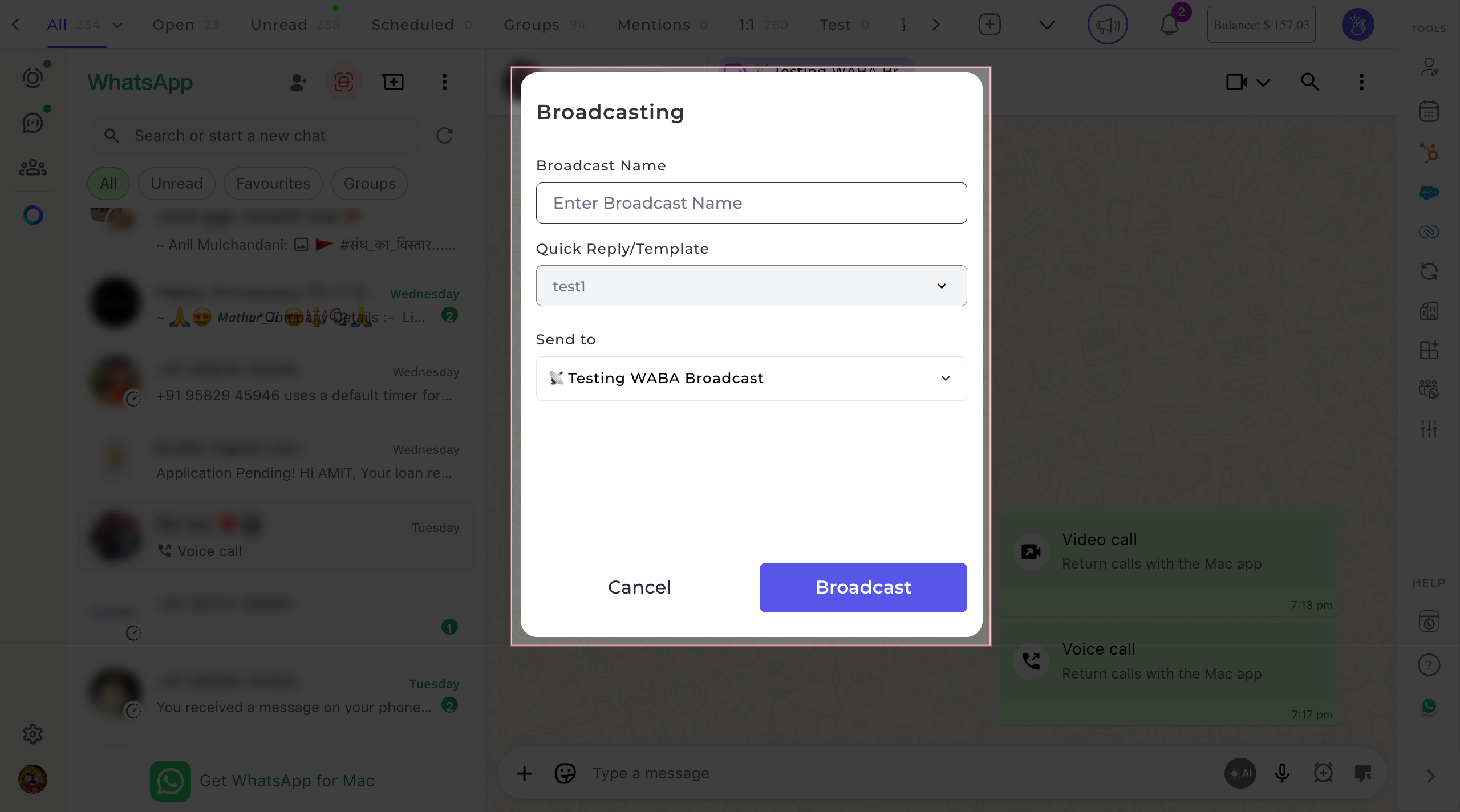
3
Send Your Broadcast
Review all details for accuracy, then click the Broadcast button.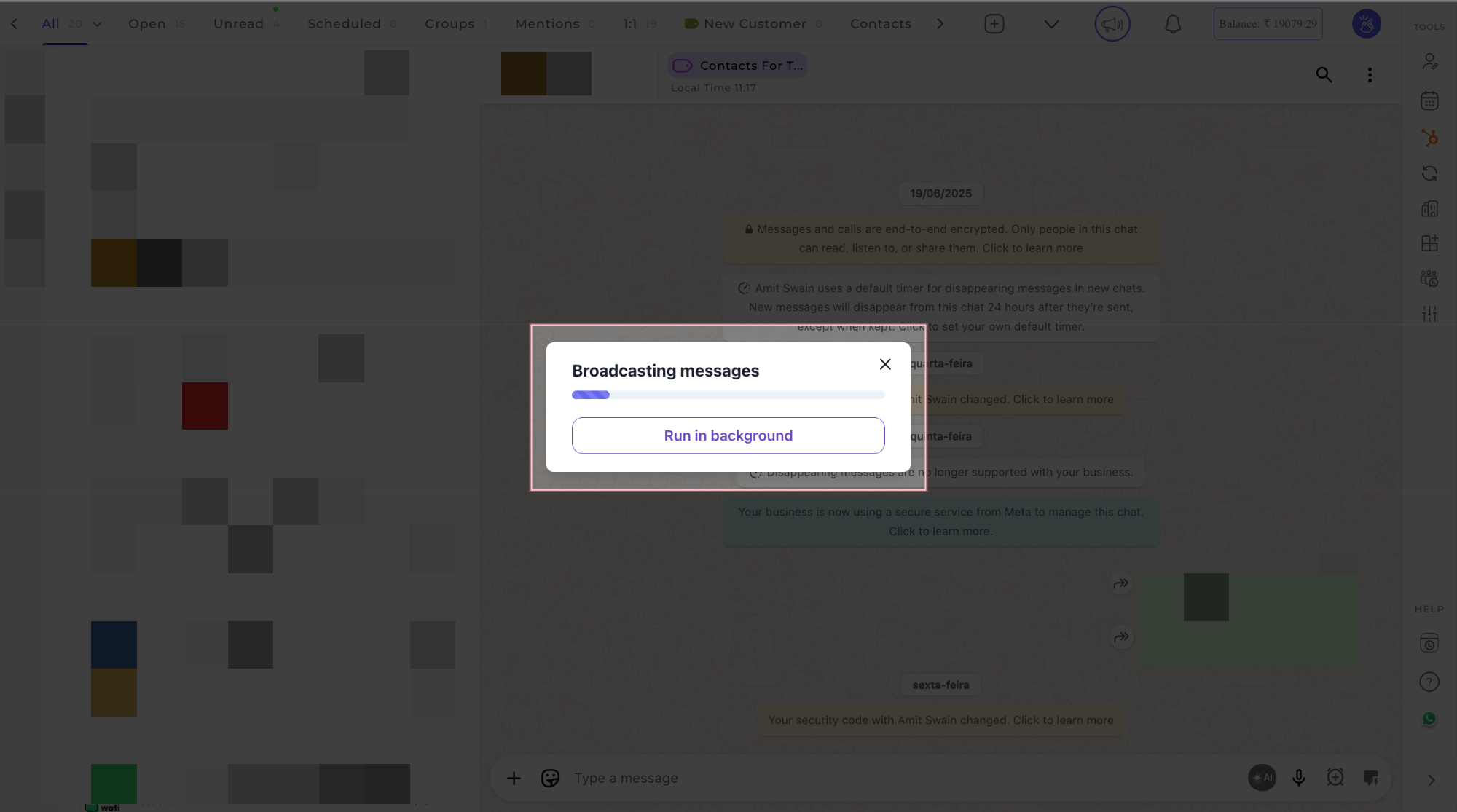
Viewing Broadcast Analytics
After sending broadcasts, you can track their performance directly from the extension.1
Access Analytics
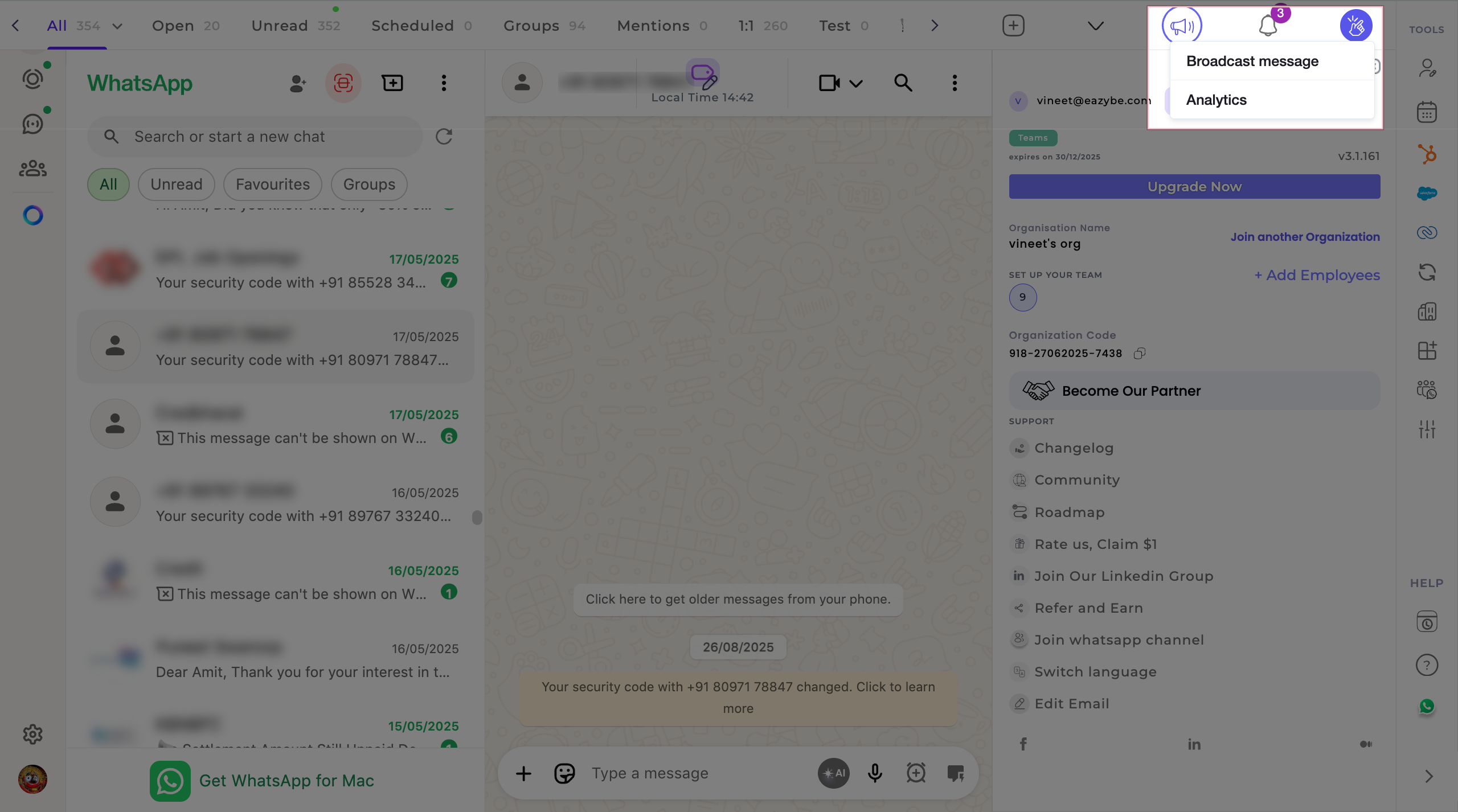
Click the Broadcast icon in the extension menu.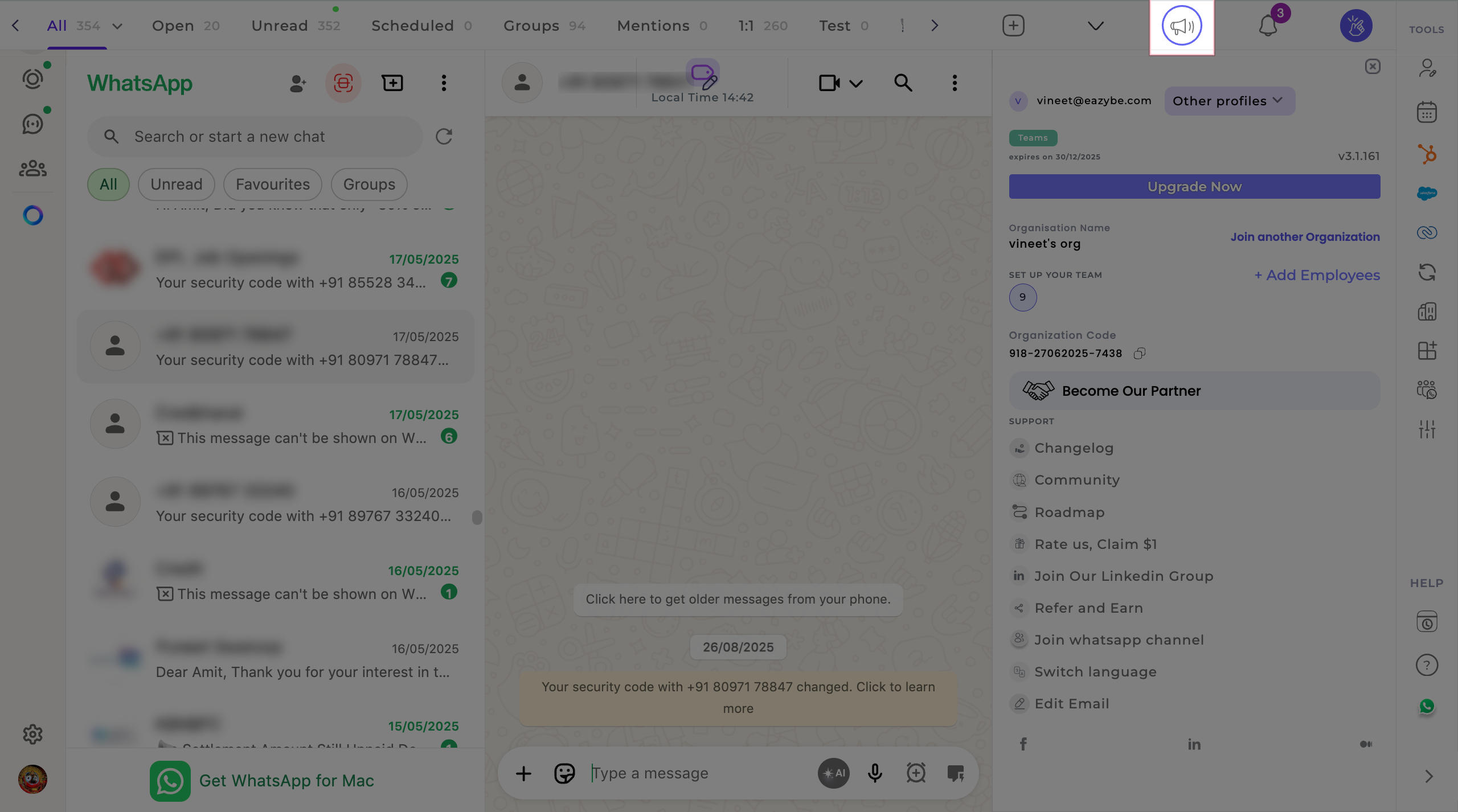
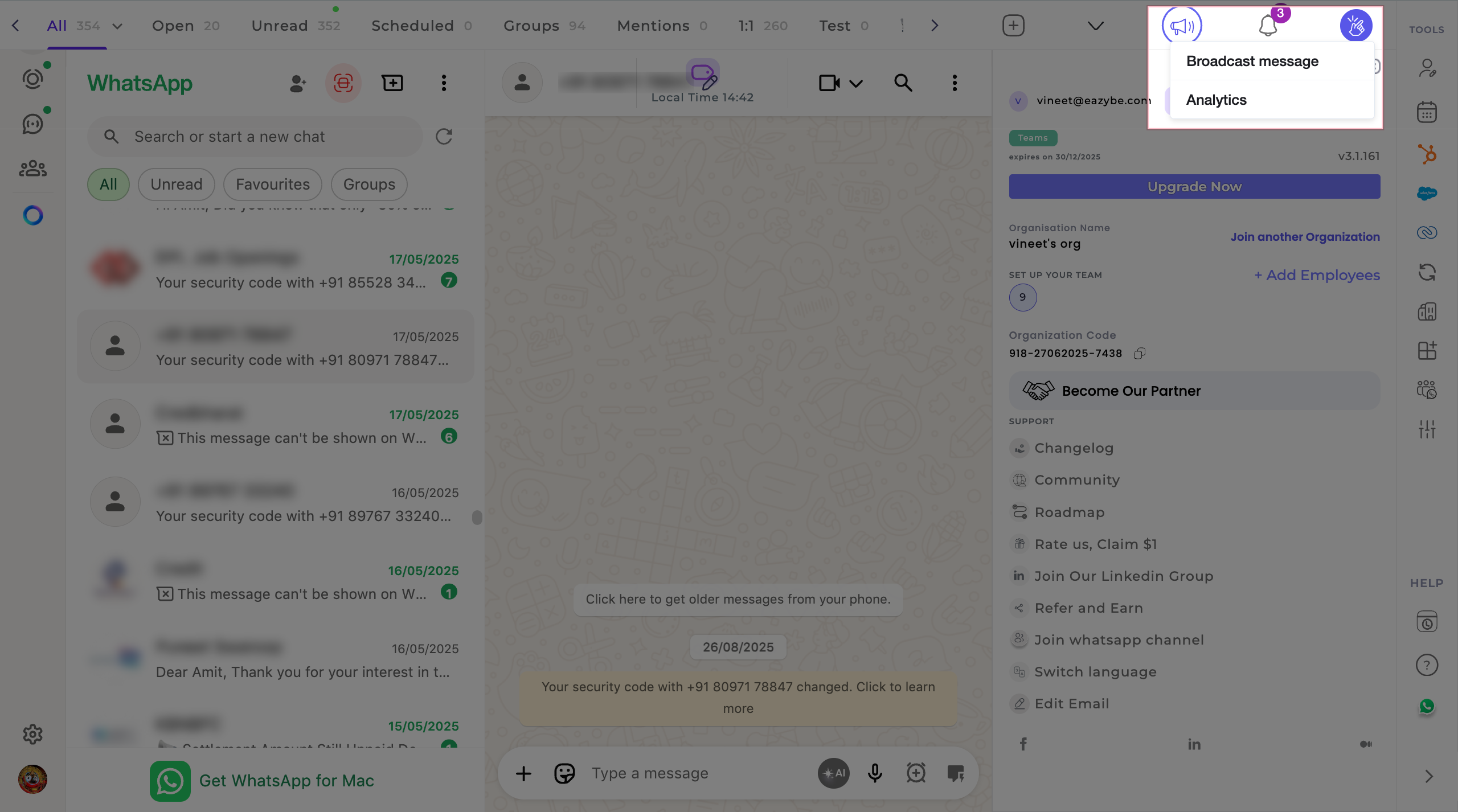
2
Review Campaign Metrics
View the analytics dashboard showing comprehensive campaign data.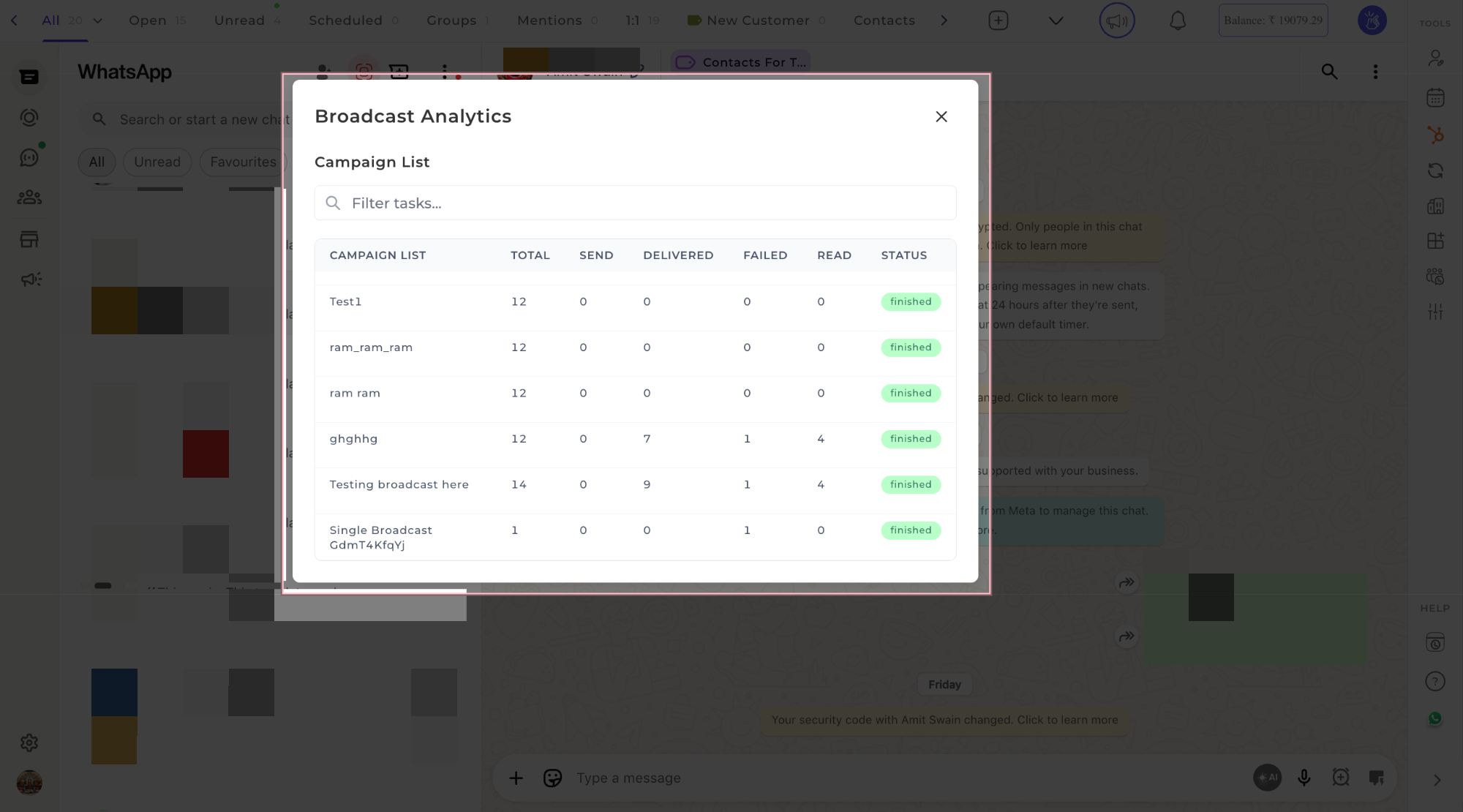
Analytics Metrics Explained
Messages Sent
Messages Sent
Total number of messages queued and sent from your broadcast campaign.
Delivered
Delivered
Messages successfully delivered to recipients’ WhatsApp accounts.
Failed
Failed
Messages that could not be delivered due to invalid numbers, blocked contacts, or other issues.
Read
Read
Messages that have been opened and read by recipients.
Campaign Status
Campaign Status
Current state of your campaign: Finished, In Progress, or Failed.
Best Practices
- Use descriptive names — Make broadcast names unique for easy campaign tracking
- Pre-approve templates — Ensure all templates are approved by WhatsApp before sending
- Segment audiences — Leverage labels to target specific customer groups for better engagement
- Monitor analytics — Regularly check delivery and read rates to optimize future campaigns