

Overview
This guide walks you through creating message templates that use HubSpot contact properties as dynamic variables. These templates enable personalized WhatsApp messages through the WhatsApp Business API integration, automatically pulling data from your HubSpot CRM.Creating a Template with HubSpot Variables
1
Navigate to Create Template
Go to the Create Template tab and select a contact from the dropdown menu.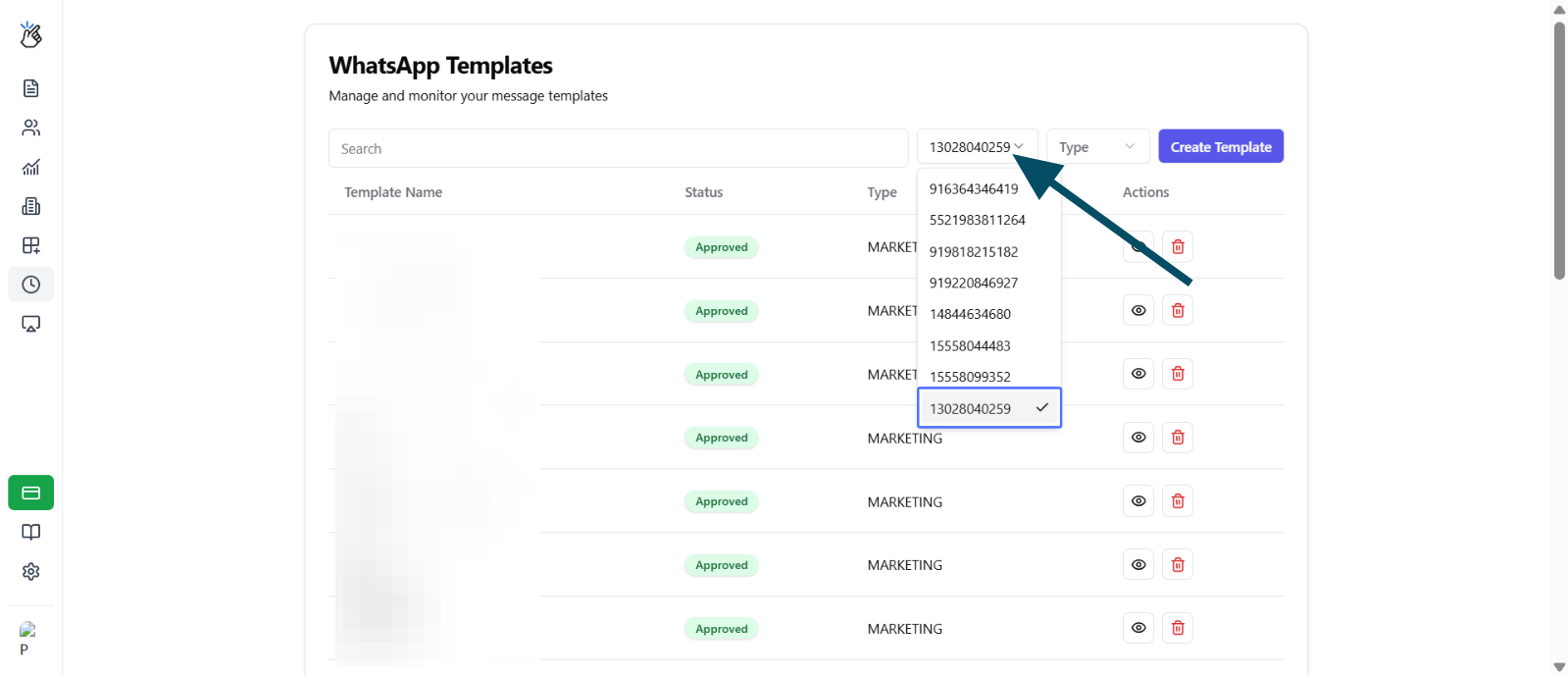
2
Start Template Creation
Click the Create Template button to begin.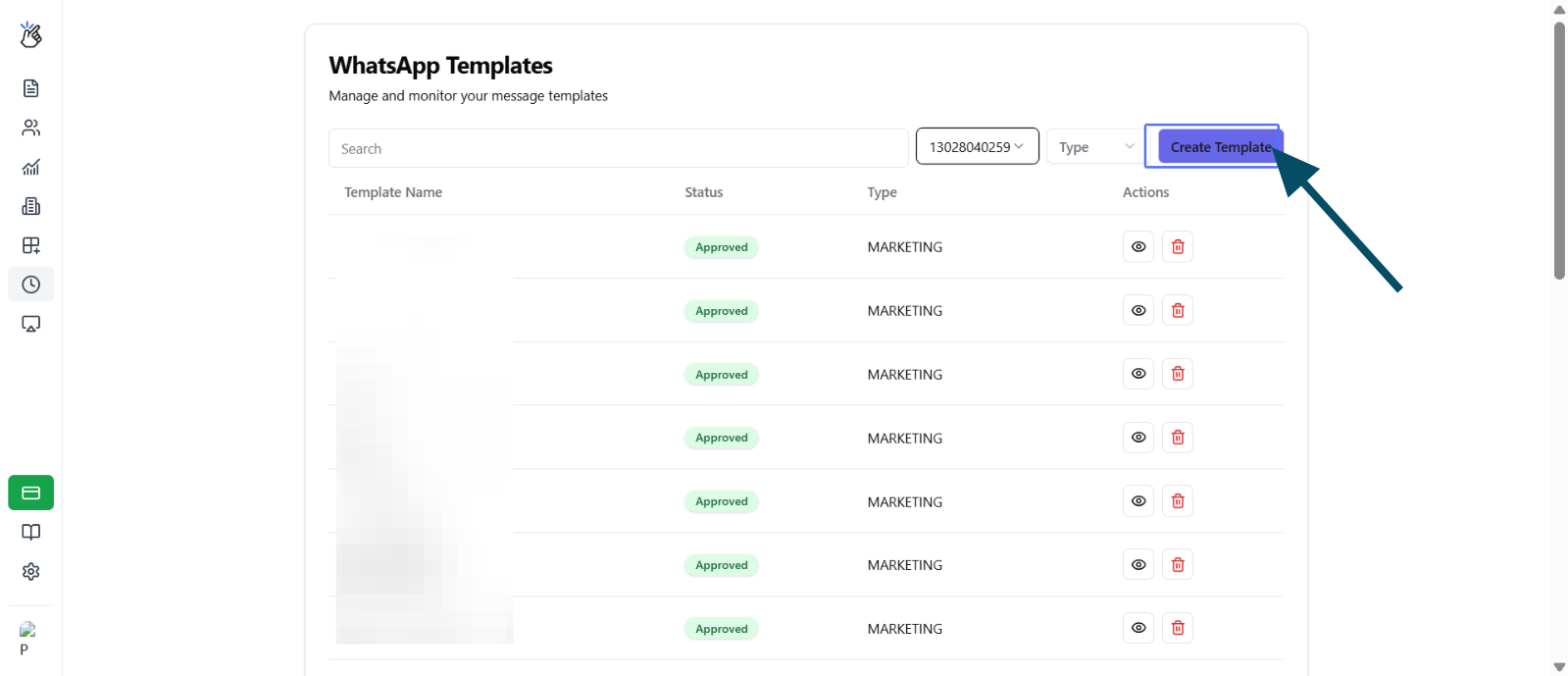
3
Enter Template Name
Enter a unique template name. Avoid special characters in the name.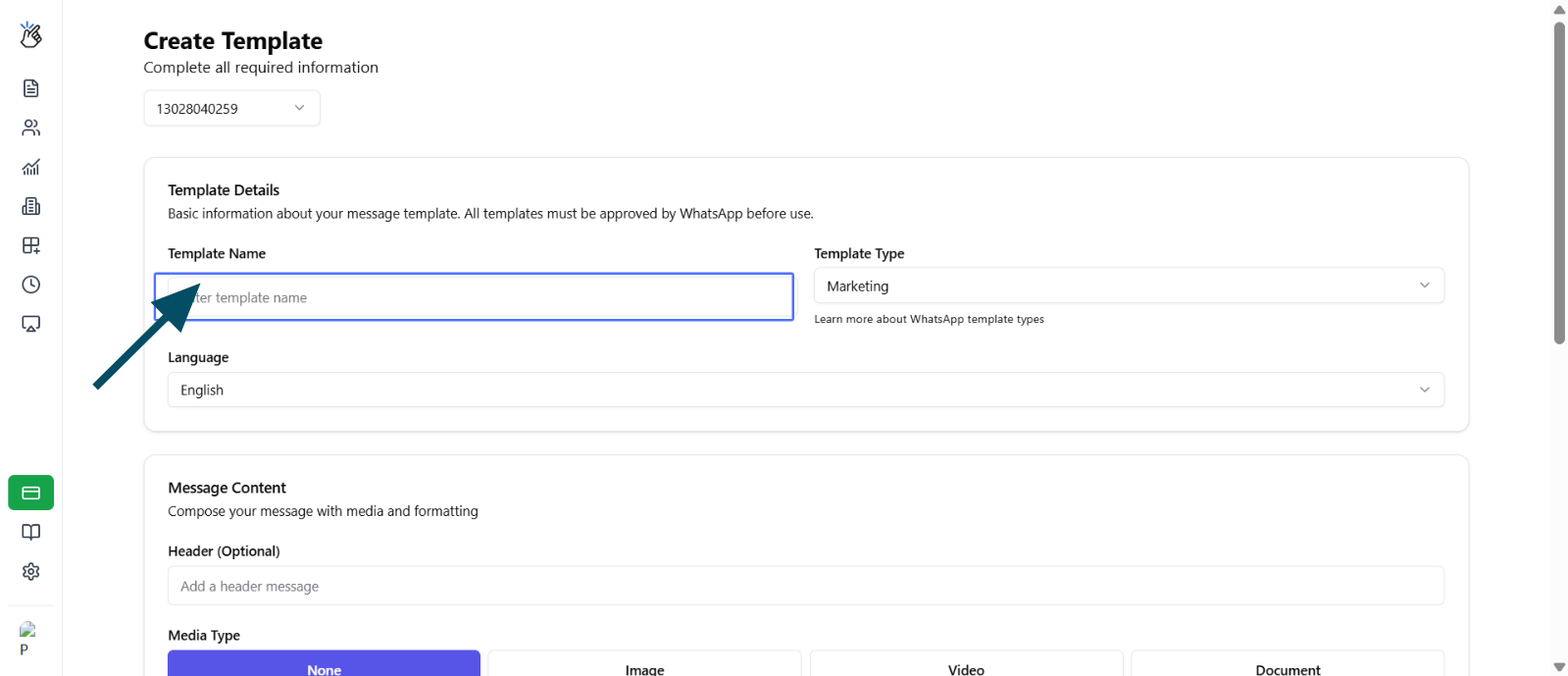
4
Select Template Type
Choose the appropriate template type from the available options (Marketing, Utility, etc.).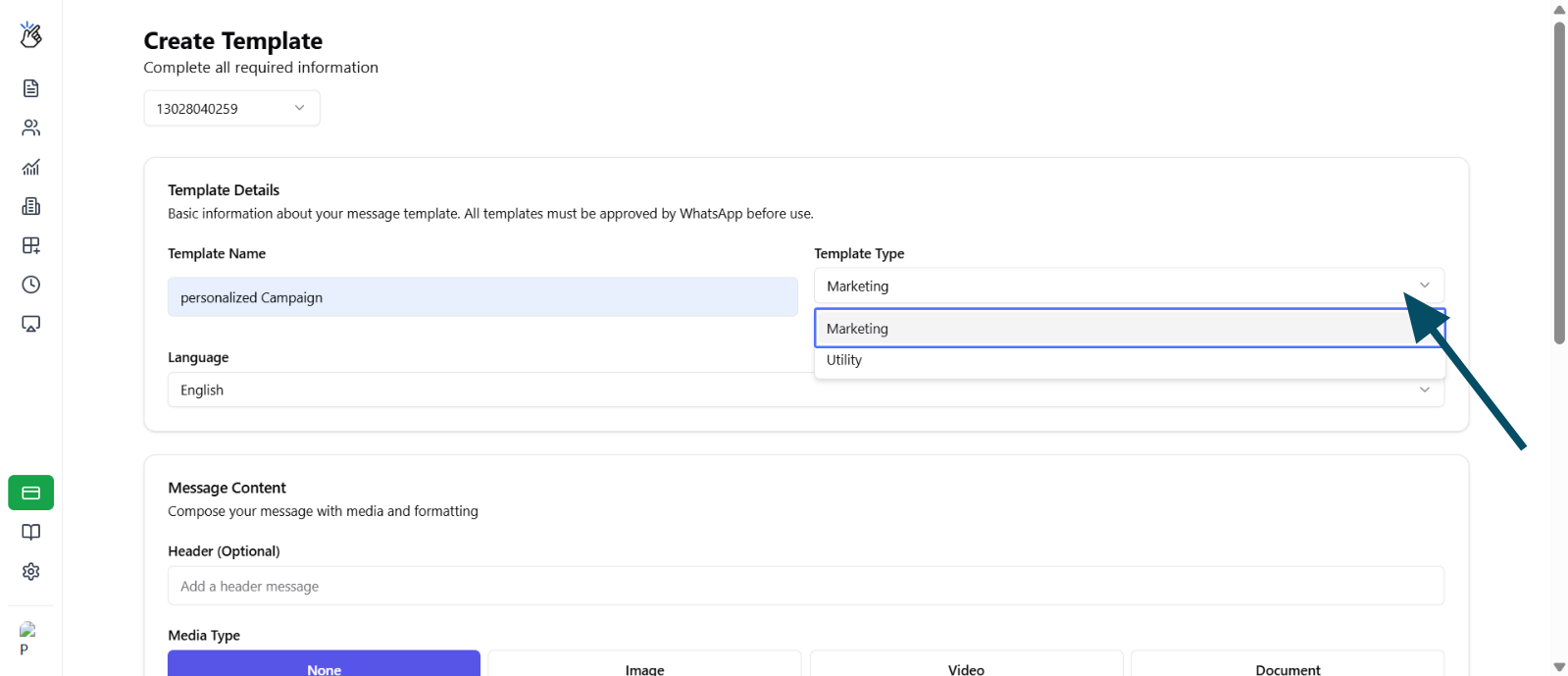
5
Choose Language
Select your preferred template language from the dropdown.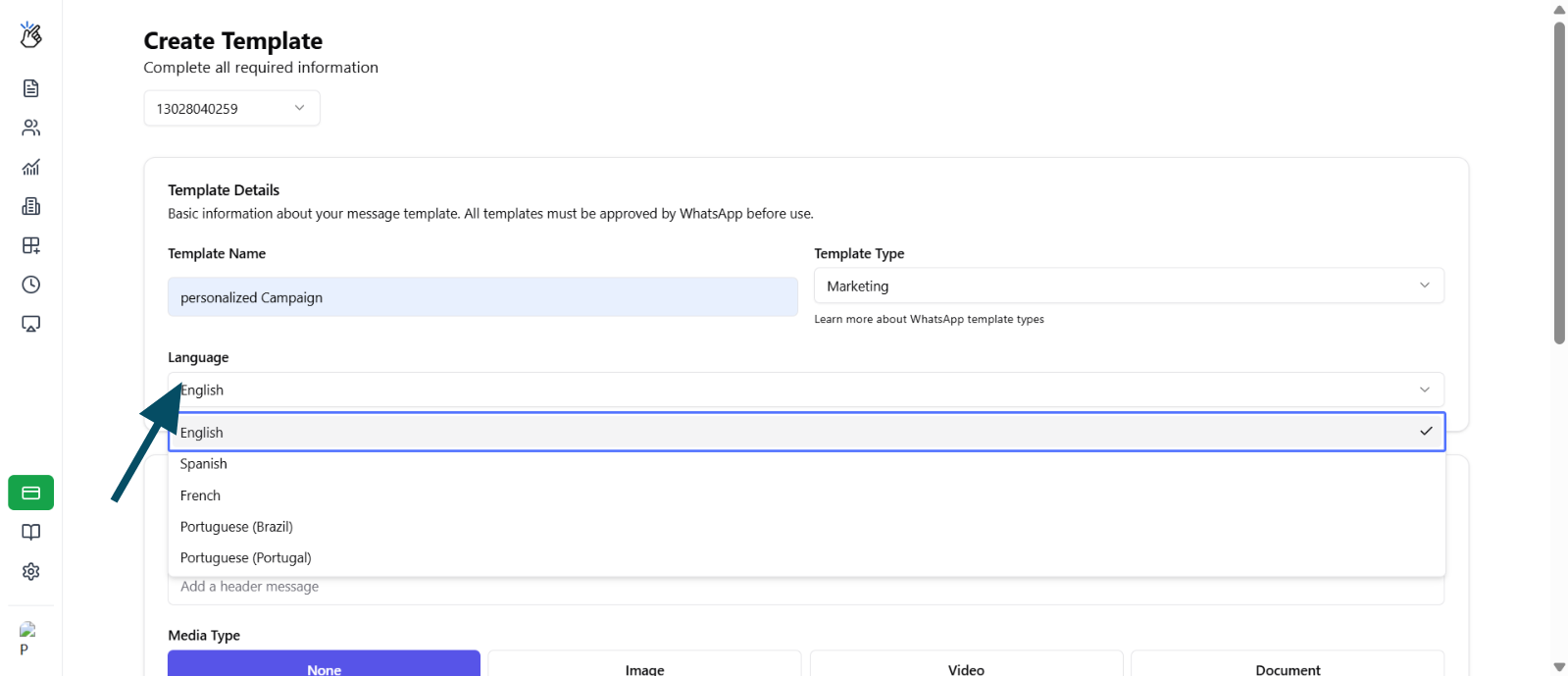
6
Write Message Content
Fill in your message content in the Message Body field.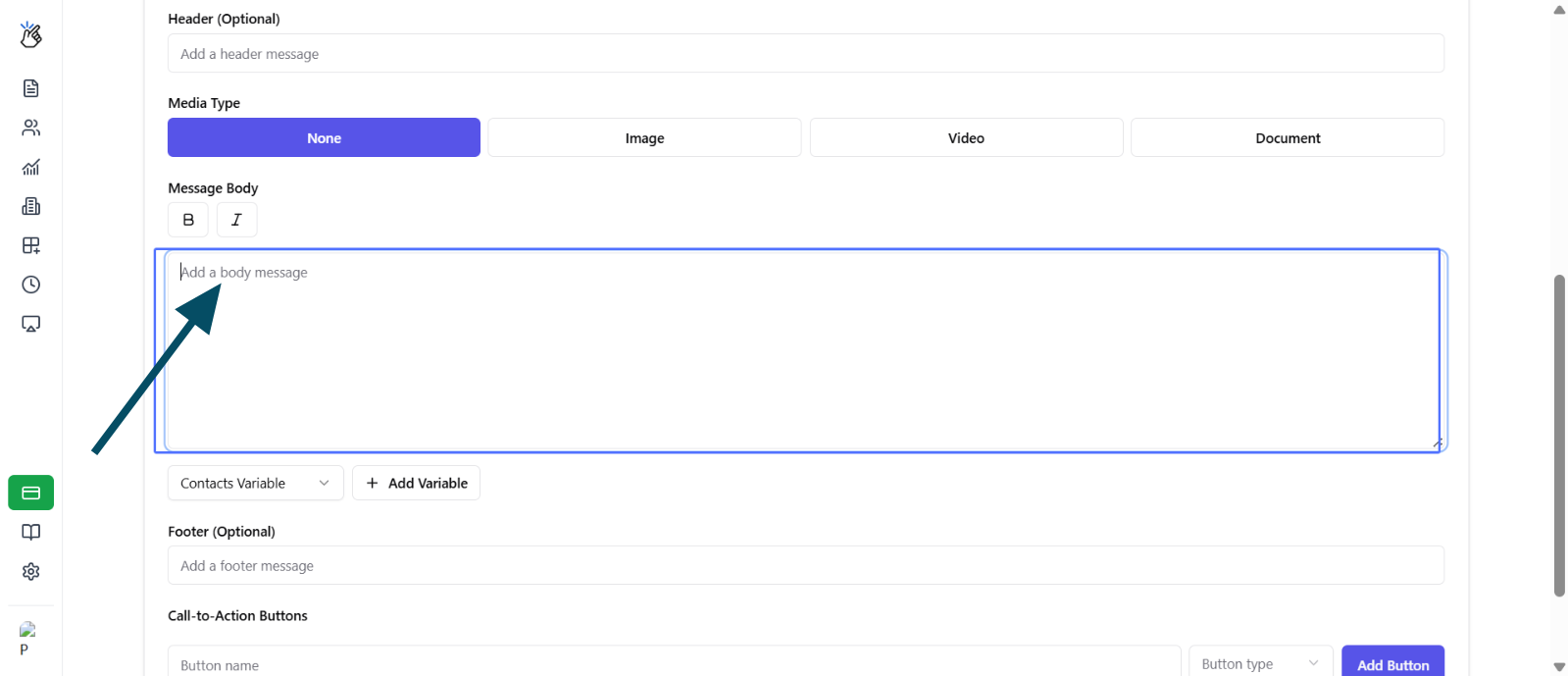
7
Position Cursor for Variable
Place your cursor at the exact position where you want to insert a HubSpot property value.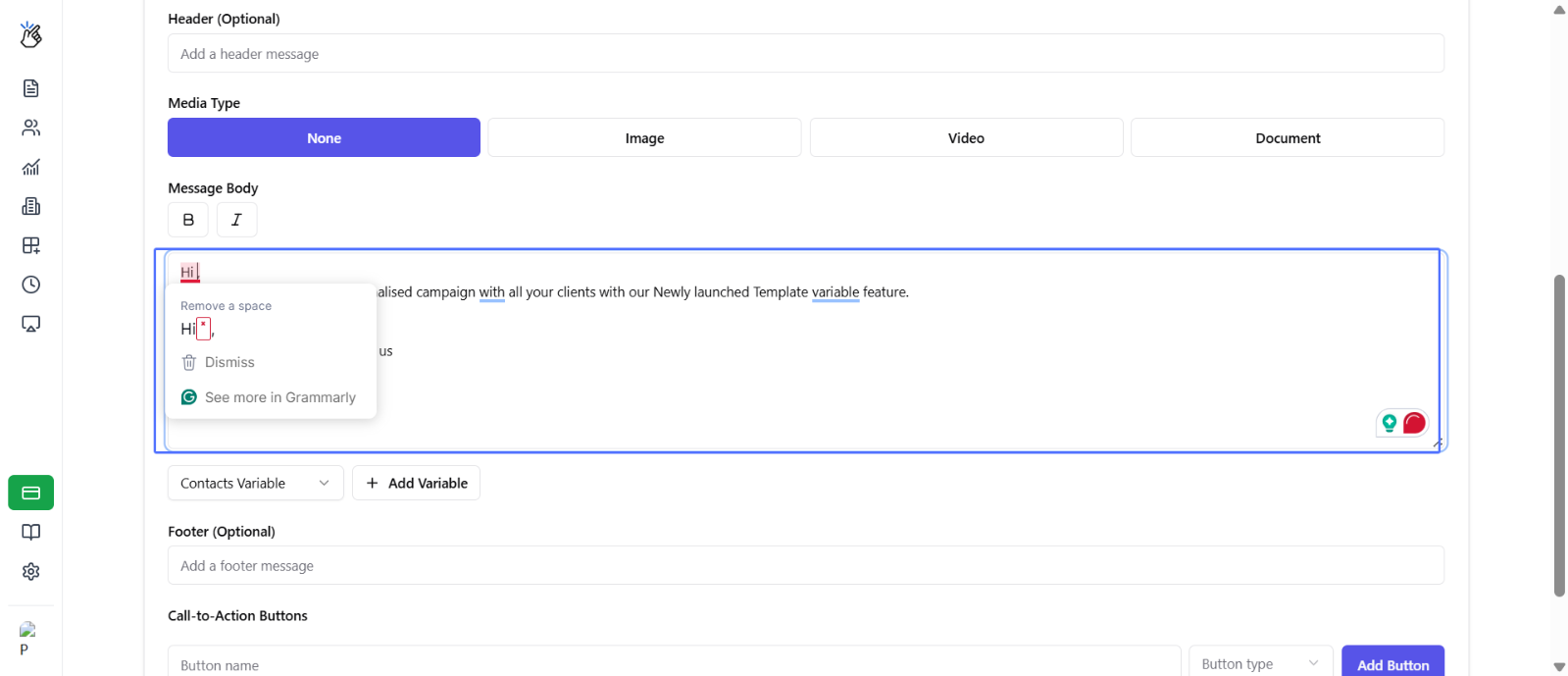
8
Select HubSpot Variable Option
From the available dropdown menu, select HubSpot Variable.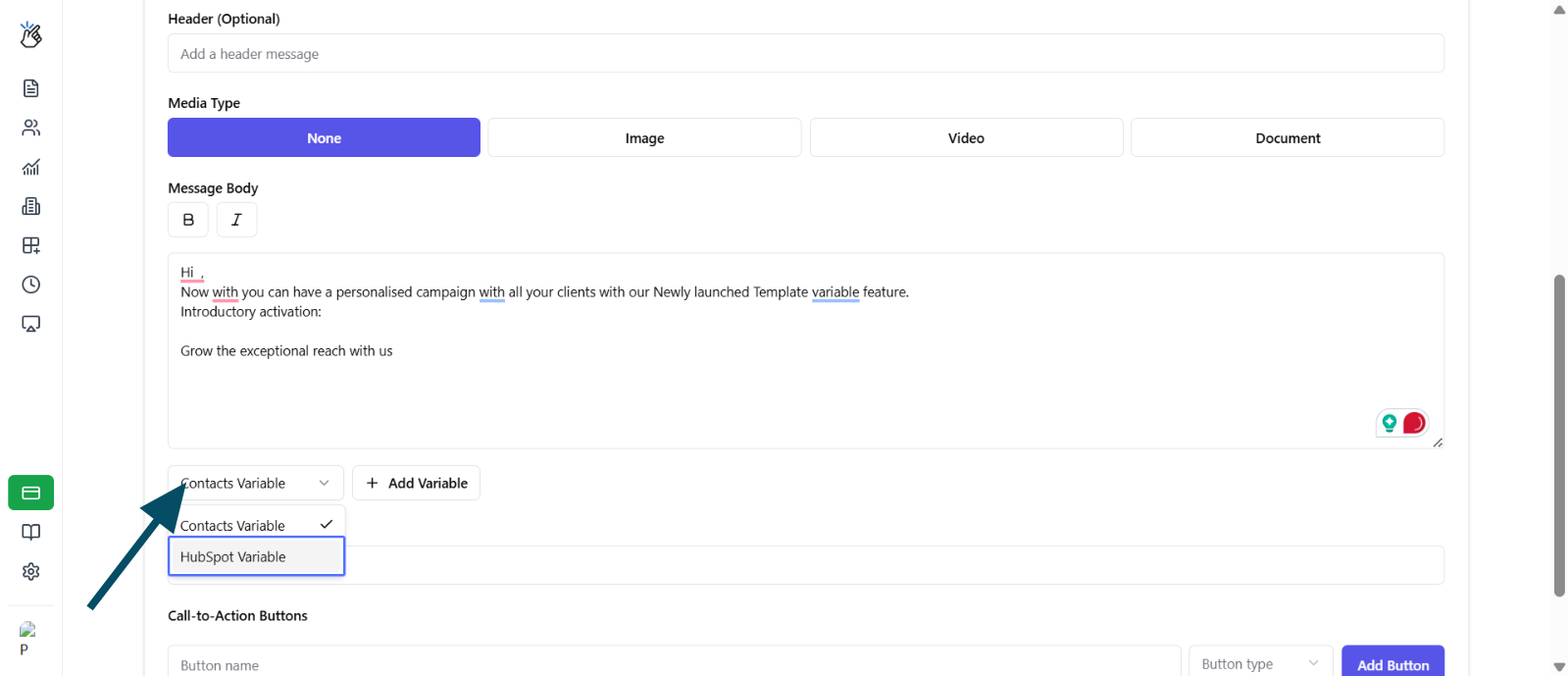
9
Browse HubSpot Properties
Click Add Variable to open the HubSpot properties browser.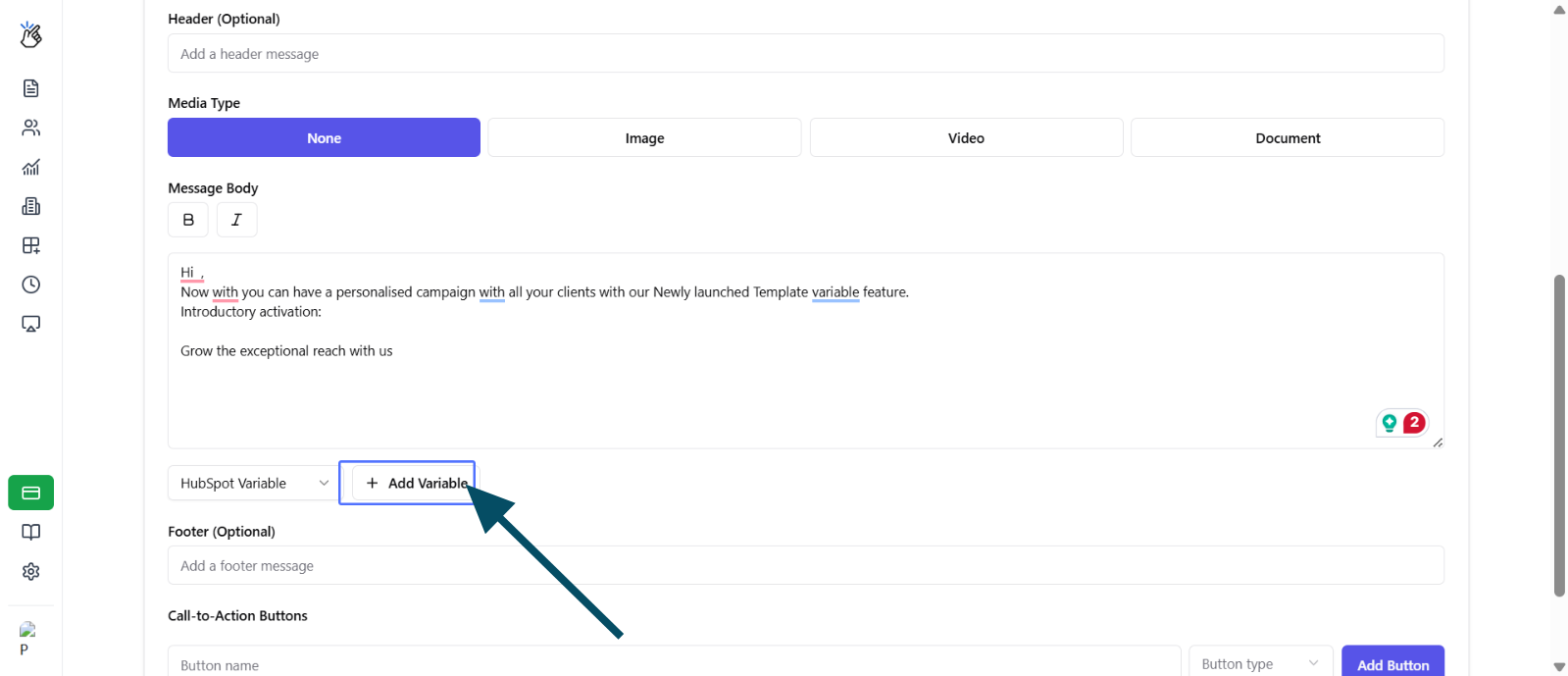
10
Search for Property
Use the search function to find the desired HubSpot property from the list.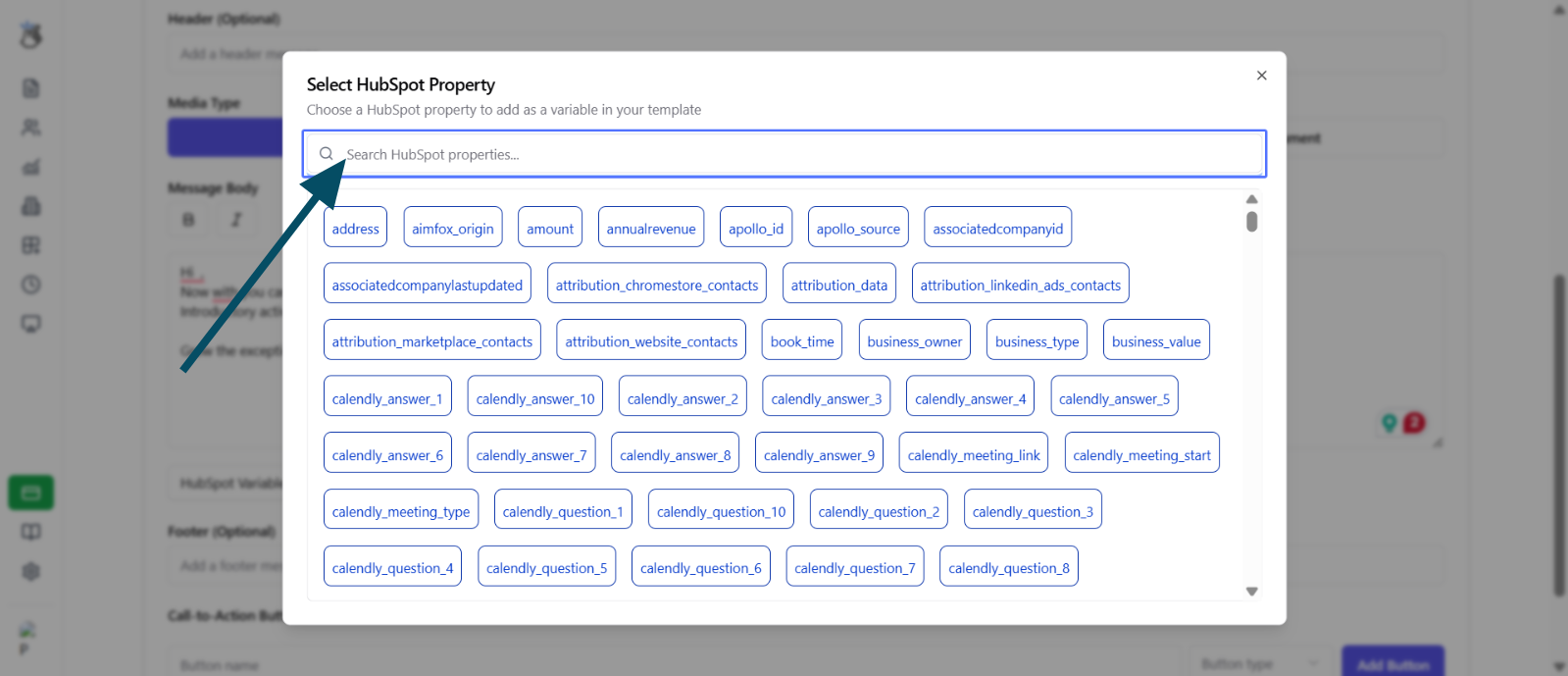
11
Insert Variable
Click on your chosen HubSpot property to insert it as a variable in your message.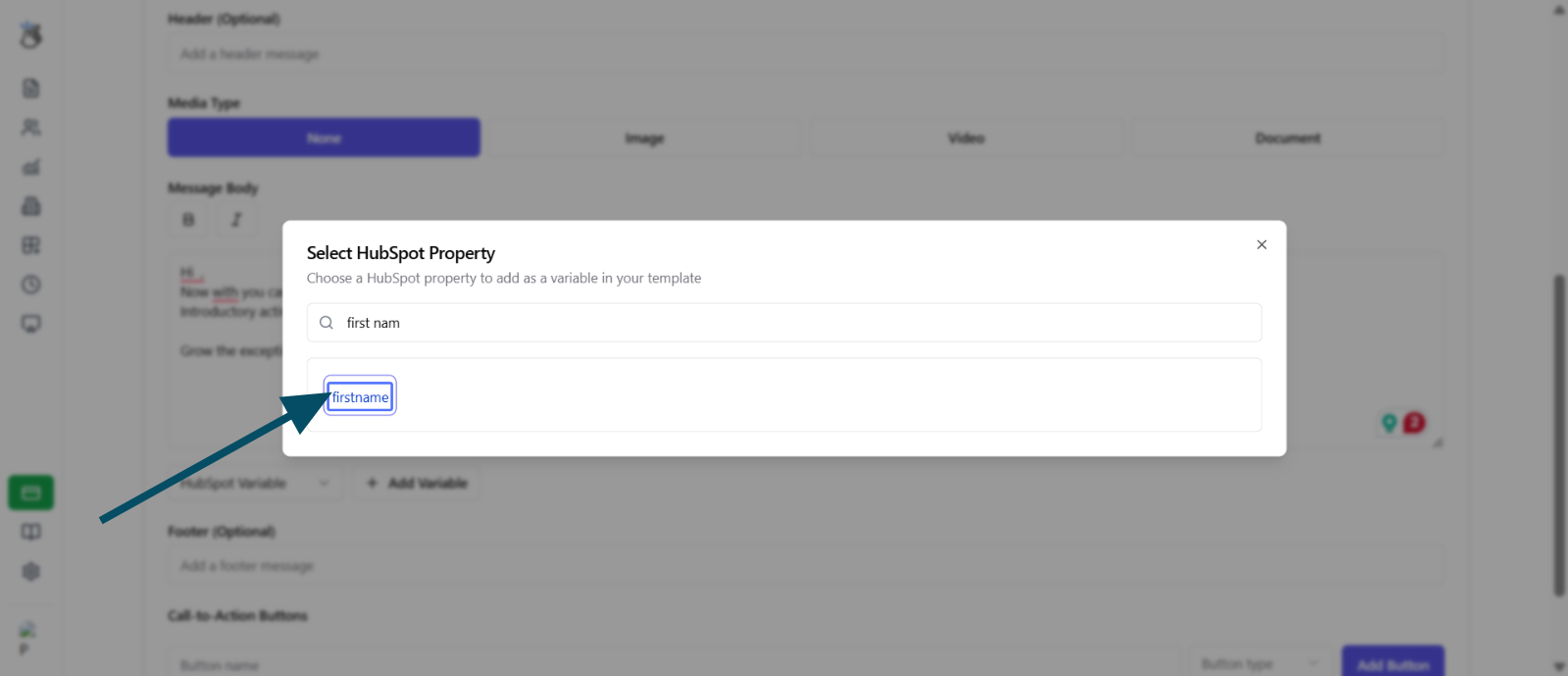
12
Add More Variables (Optional)
Repeat the previous steps to add additional HubSpot variables as needed.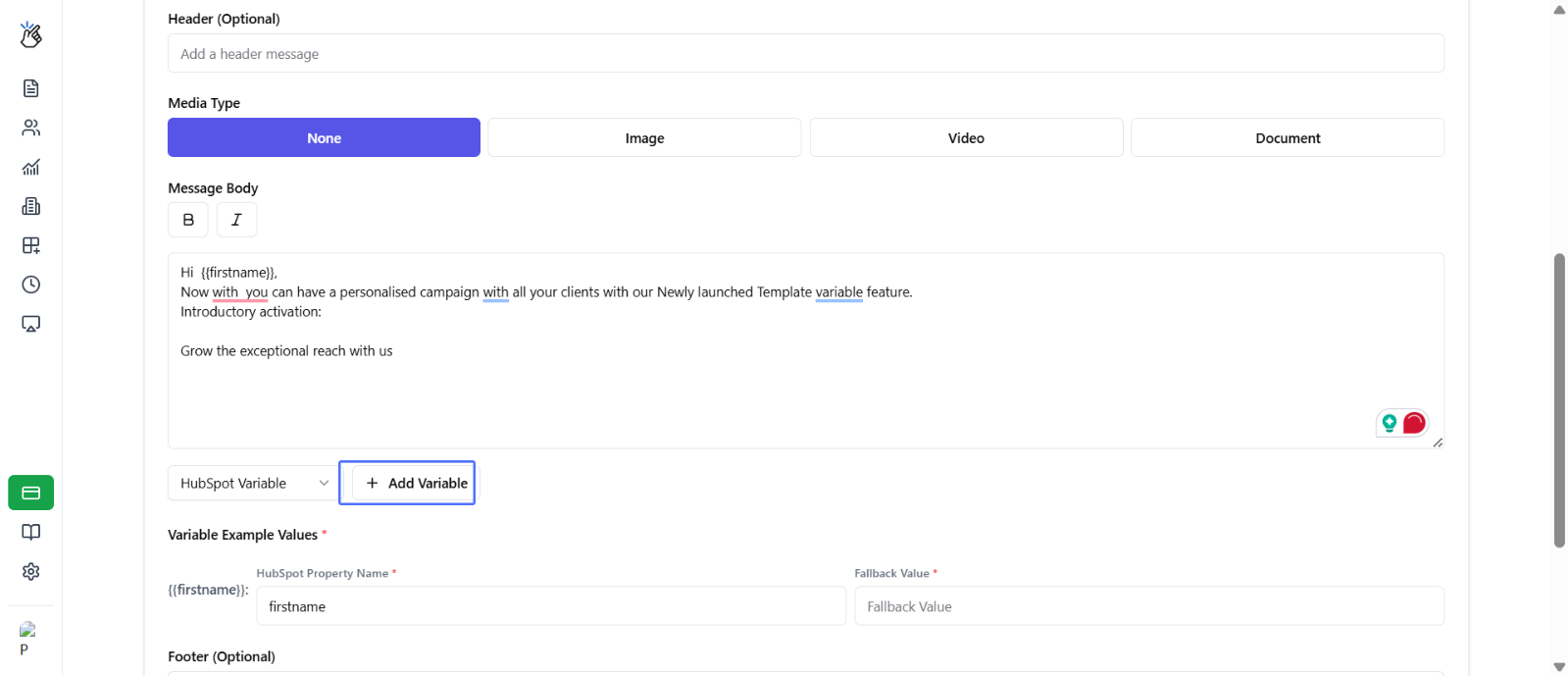
13
Set Fallback Values
Enter fallback values for each variable. These default values are used when the HubSpot property data is not available for a contact.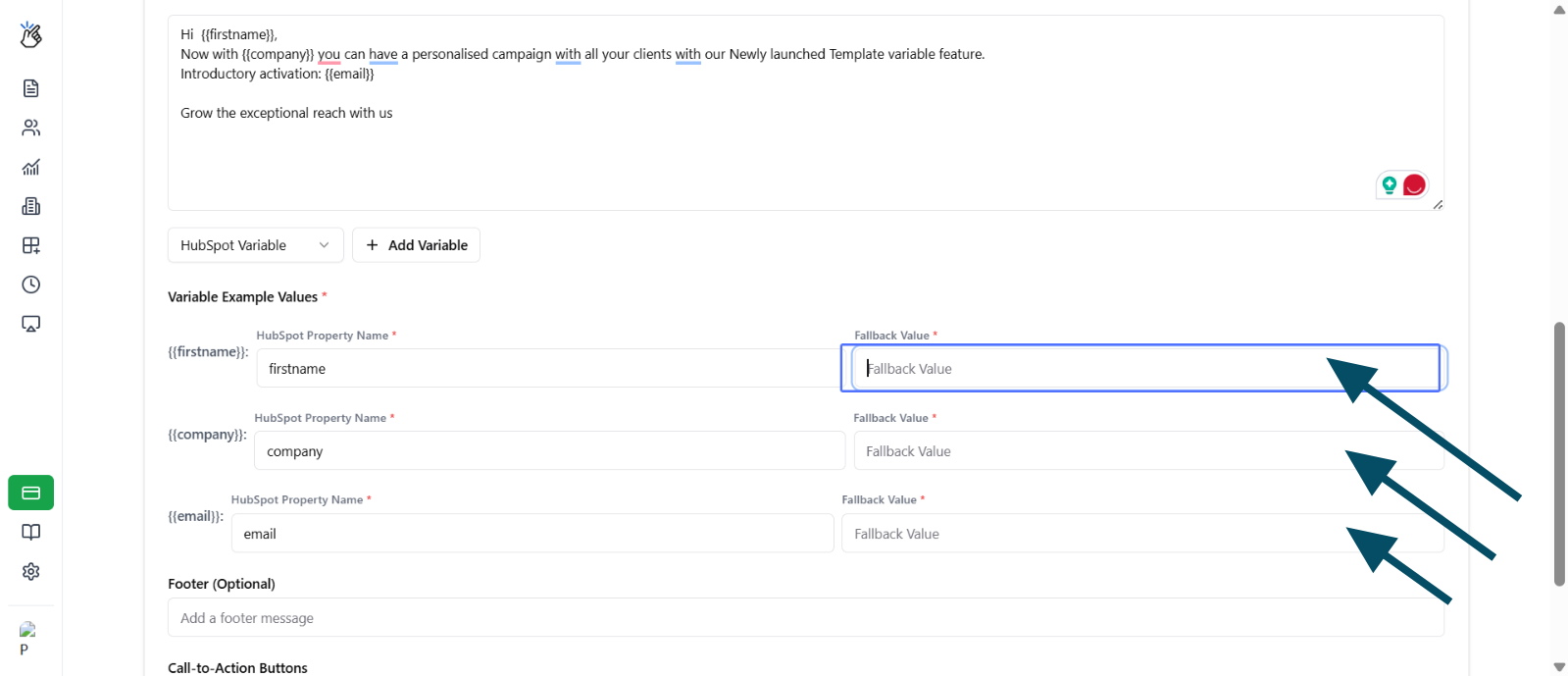
14
Submit for Approval
Click Submit for Approval to send your template to META for review.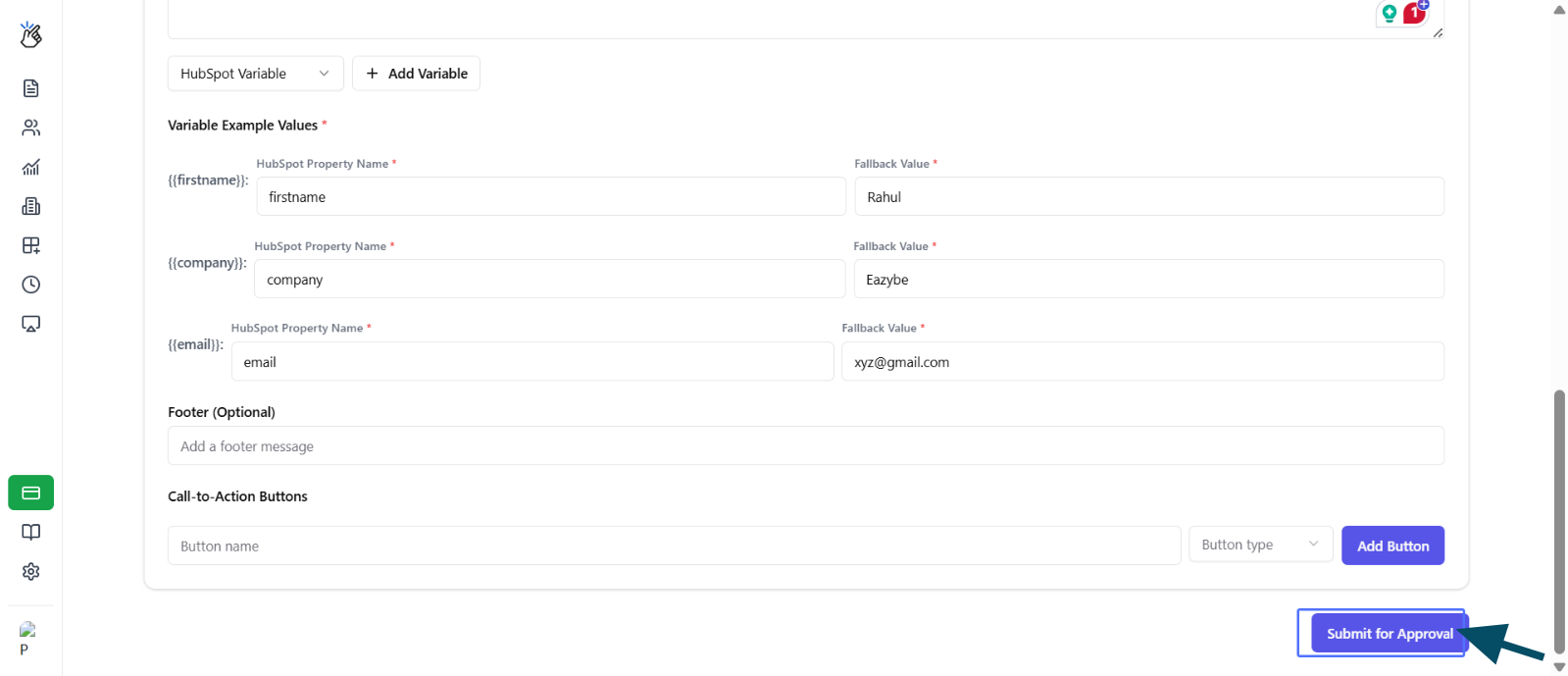
Key Constraints
Understanding Fallback ValuesThe fallback value is the default text that gets displayed in place of the HubSpot property value when that property is not available or empty for a specific contact. Always set meaningful fallback values to ensure your messages remain coherent.