

Before You Begin
Check these prerequisites for each owner whose number should send messages:Which Owner Sends the Message?
For example, if a deal belongs to Priya and its contact belongs to Alex, a deal-based workflow uses Priya’s eligible WABA number. The customer remains the recipient; this option does not send a notification to Priya.
Owner-based sending is supported for contact and deal workflows. Company and lead workflows keep the selected WABA user. Existing workflows also keep their selected sender unless you enable the checkbox.
Set Up the Workflow Action
If you have not created a workflow yet, follow Send Ready-to-Use Template through HubSpot Workflow to create the workflow and set its enrollment conditions. That guide illustrates a contact workflow; use a deal-based workflow when you want the deal owner to determine the sender. Return here when you reach the Eazybe action settings.1
Open the Eazybe template action
Open Send Ready-to-Use Whatsapp Template in your workflow. Confirm that Target record is the enrolled record you intend to use. In this deal-based example, it is Enrolled deal.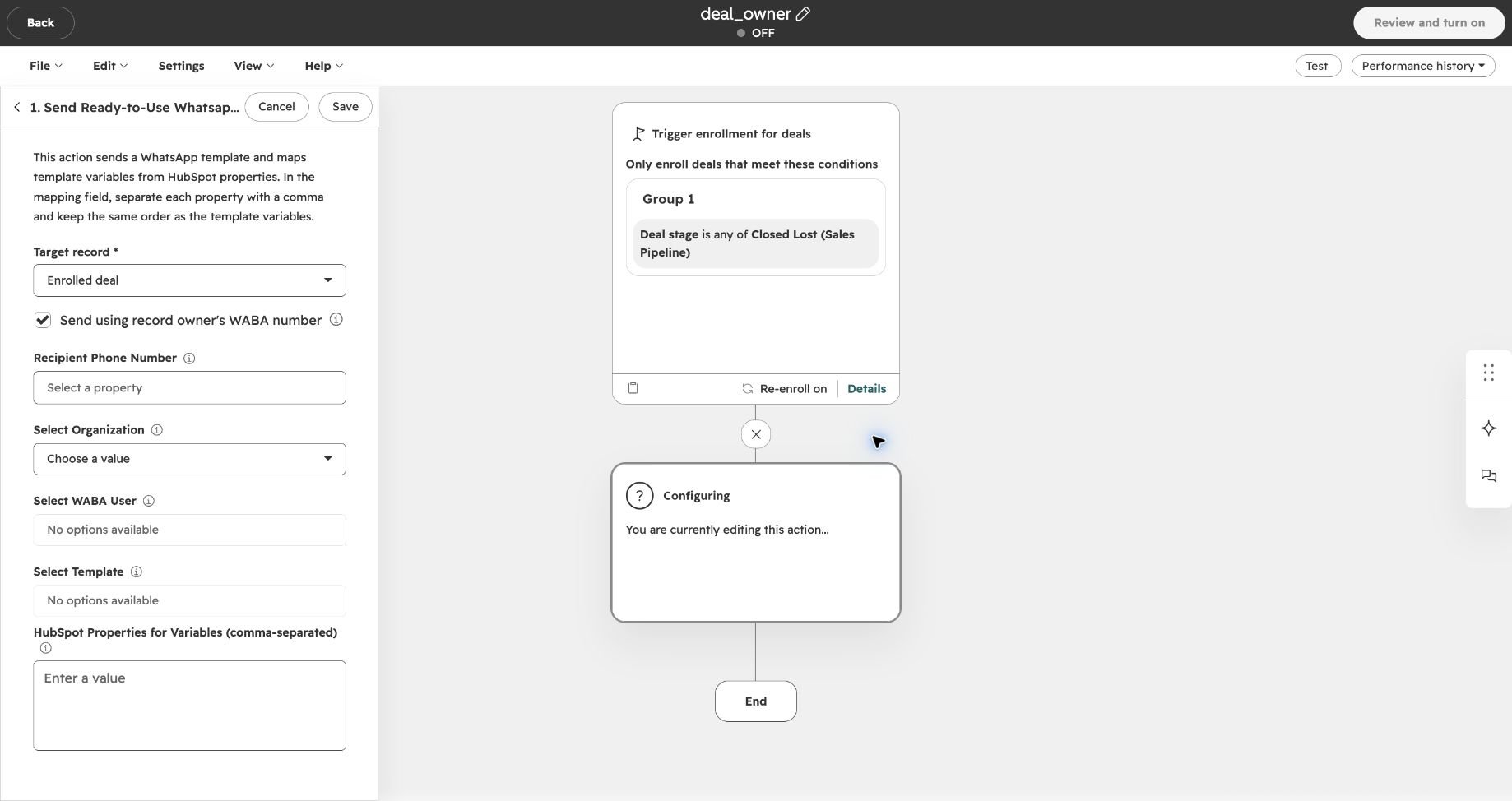
2
Enable sending from the record owner
Select Send using record owner’s WABA number. Eazybe checks the enrolled record’s owner when this action runs and tries to use that owner’s mapped, connected WABA number.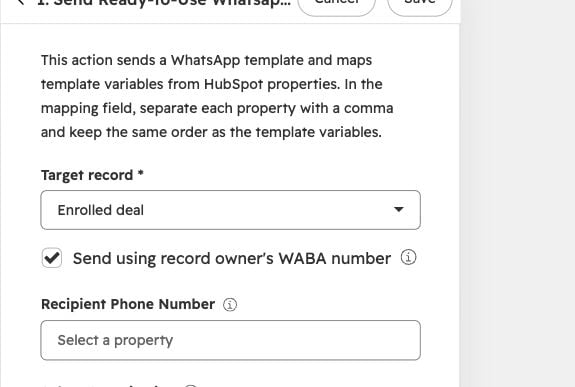
Clearing this checkbox makes the action use the WABA user you select manually.
3
Select the organization, default sender, and template
Choose Select Organization, then Select WABA User, then Select Template. Keep these fields configured even when owner-based sending is enabled: they provide the fallback sender and identify the template to match on the owner’s account.If the template has variables, fill HubSpot Properties for Variables (comma-separated) in the same order as the template variables. The workflow’s variable configuration is retained when Eazybe switches to the owner’s matching template.
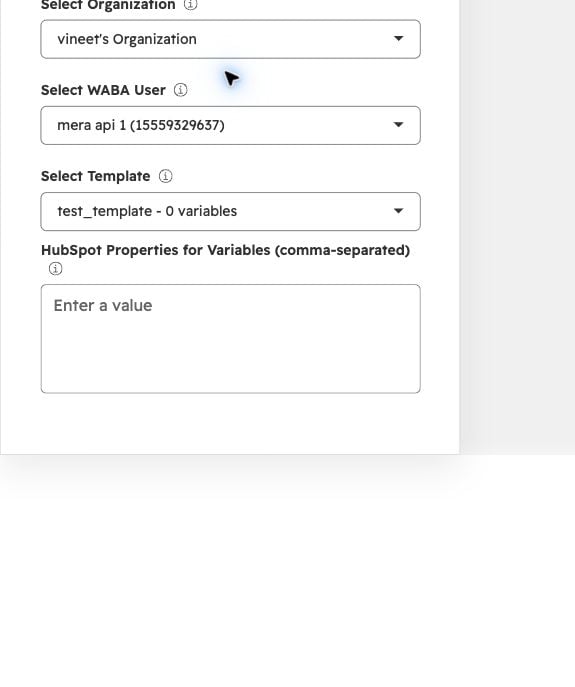
The screenshot uses an example template with 0 variables, so its variable field is empty. Select your own organization, number, and approved template. If the WABA user or template list is empty, first check the preceding selection and the WABA connection.
4
Choose who receives the message
For a deal workflow:
- Click Recipient Phone Number.
- Under All data tokens, choose Contact: Most recently updated.
-
Select Phone Number. Make sure it contains the customer’s WhatsApp number.
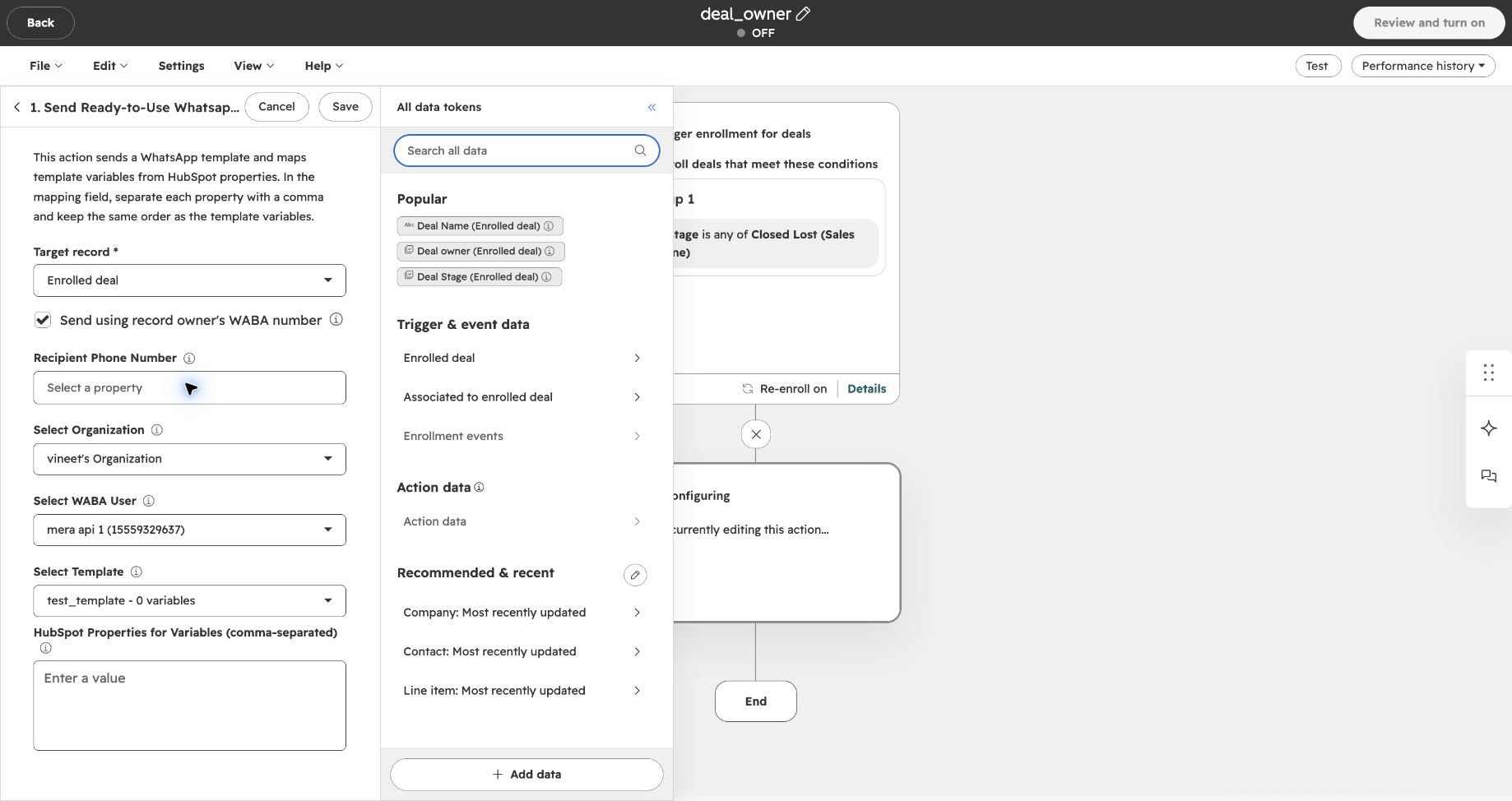
This sends to one associated contact per deal—the contact whose record was updated most recently. It does not send to all contacts associated with the deal.
5
Review and save the action
Check the owner checkbox, recipient, organization, fallback WABA user, template, and variable values. Click Save to save the action.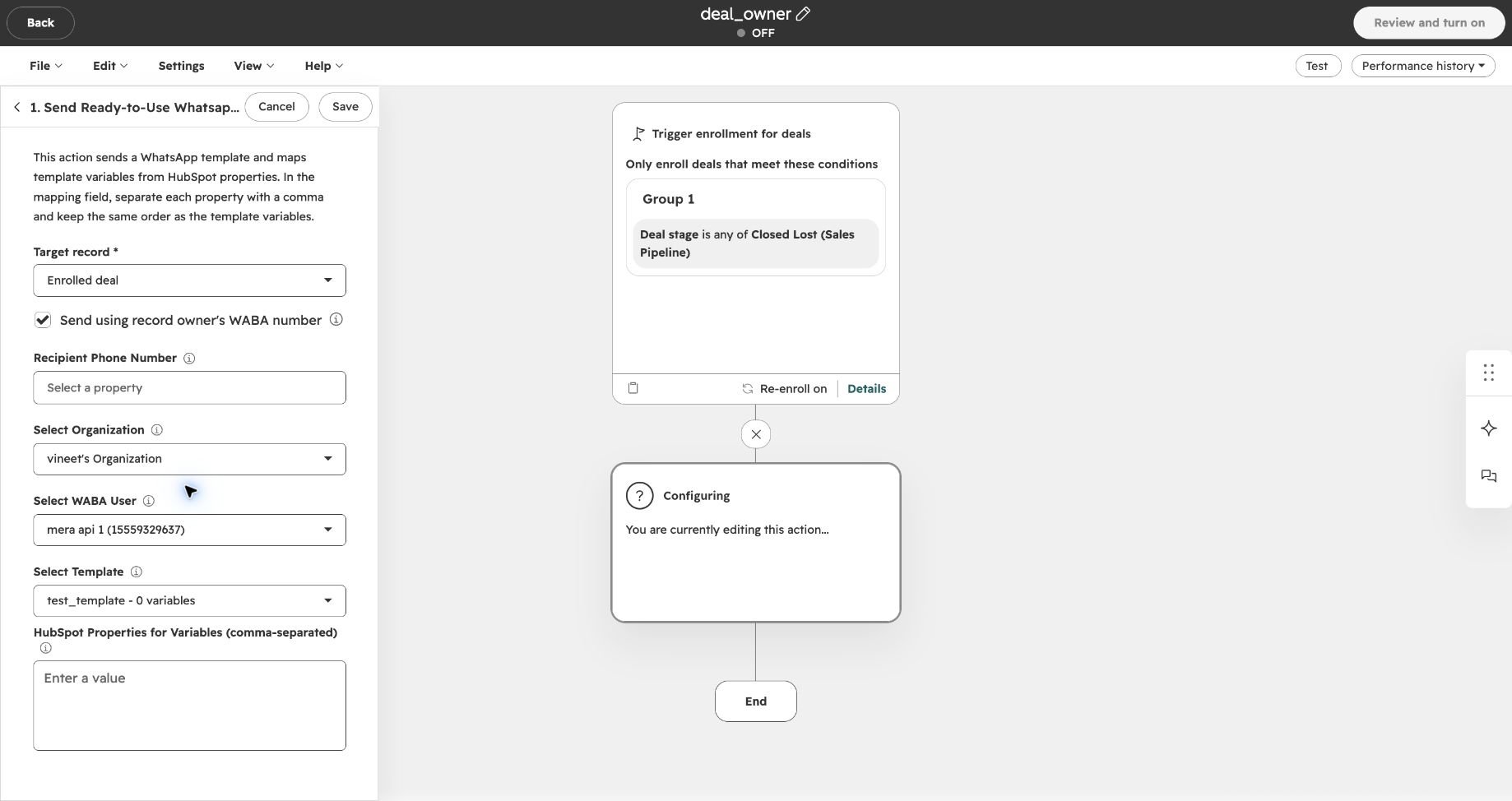
This screenshot shows an unfinished example with a blank recipient field and the workflow OFF. Complete your own recipient settings before saving. Saving an action is separate from turning on the workflow.
What Happens When the Action Runs?
Eazybe reads the enrolled record’s owner, checks the owner’s HubSpot mapping and WABA connection in the selected organization, and looks for a compatible approved template on the owner’s account. If these checks pass, the message uses the owner’s number and matching template. If any owner lookup, mapping, connection, or template check cannot be completed, Eazybe keeps the selected default sender and template. That sender must still pass the normal connection and template checks; fallback does not guarantee delivery.The checkbox changes the sender, not your enrollment rules, recipient selection, or template-variable mapping. If the owner is already the selected WABA user, the sender stays the same.