

Hello {{1}}, your appointment is on {{2}}. needs two values for each contact.
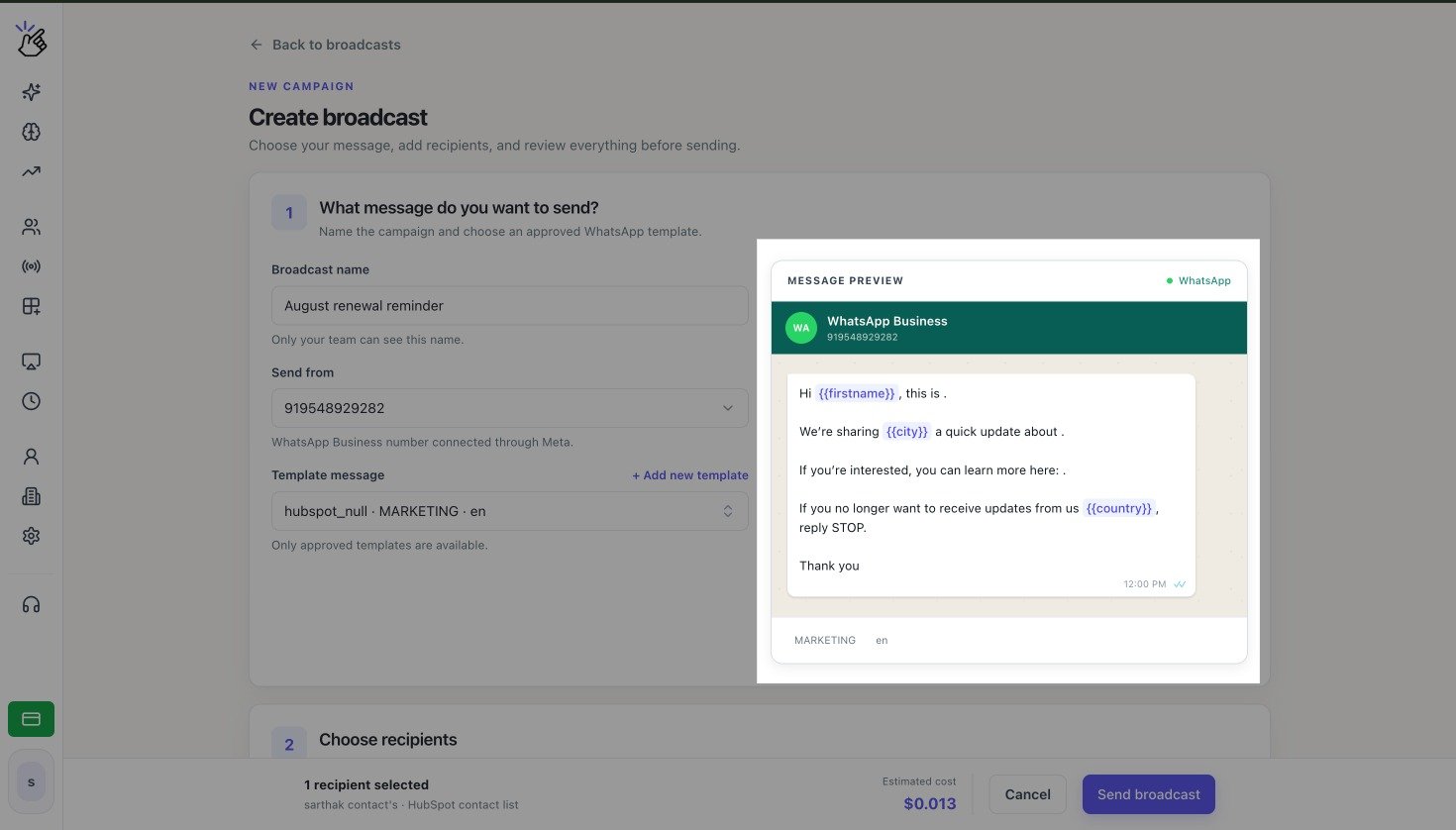
Message preview with HubSpot property variables
Use Variables in an Uploaded File
1
Check the template variables
Select the Template message and review the Message preview. Numbered variables appear as
{{1}}, {{2}}, and so on.2
Add one column for each variable
In the CSV or Excel file, add a column whose header matches each numbered variable exactly. Fill every variable cell for every recipient.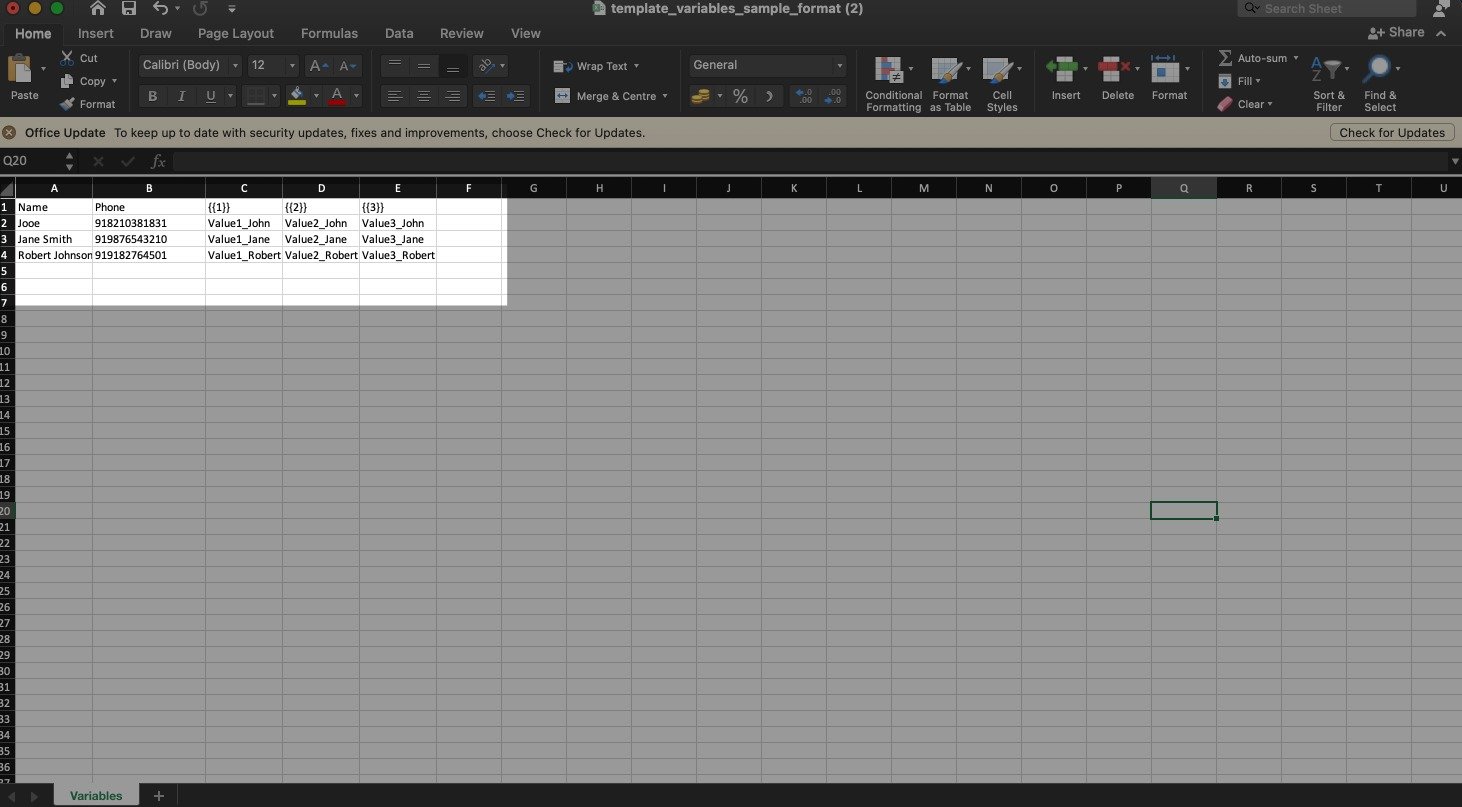
Select Sample CSV or Sample Excel in Upload a list when you need a file with the expected structure.
3
Upload and validate the values
Select Choose file and upload the prepared file. Eazybe displays Variable data loaded successfully when it can read the variable data.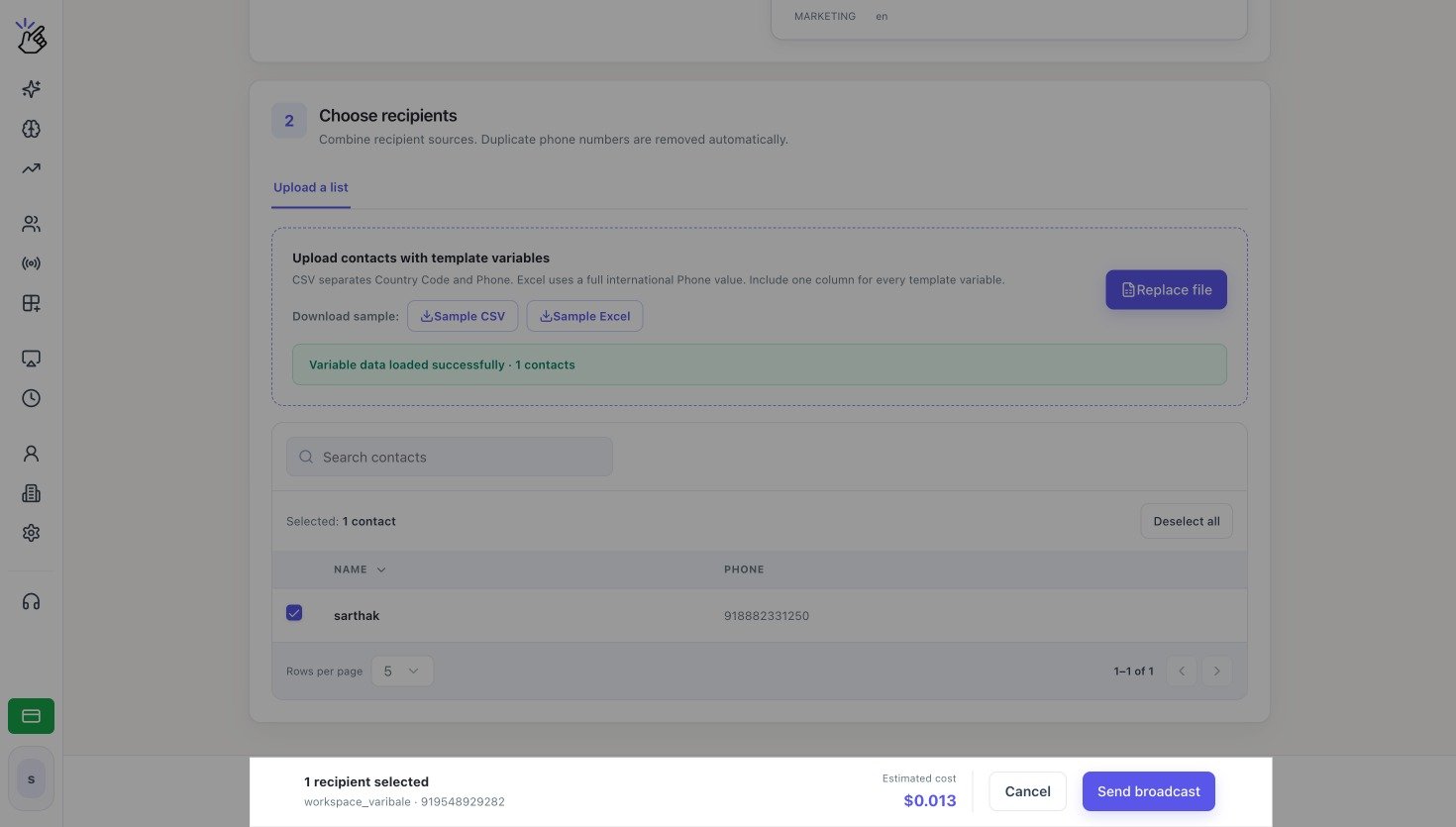
Use Variables with a HubSpot Segment
Select a template with numbered variables and choose a HubSpot segment. The Map template variables to HubSpot panel lets you set the property and fallback for each variable, including when you use a Workspace variable template.
For every numbered variable, open Choose a HubSpot property, search for the field, and select it. Enter a Fallback value (required). The fallback is used when the mapped property is empty.
For a deal segment, the message uses mapped deal properties and is delivered to the contacts associated with those deals. After switching segment types, review the mappings and fallbacks for the newly selected segment.
The panel also appears for HubSpot property templates and Zoho variable templates that contain numbered variables. Review any suggested mapping before sending. Every variable needs a property and a fallback; these selections apply only to the current broadcast and do not change saved template mappings.
See Broadcast to a HubSpot Contact or Deal Segment for segment selection and eligible-contact counts.
Workspace Variable Template Example
Select workspace_variable_new and a deal segment to map its three variables to Deal properties. The screenshot shows the fields before mapping; select a property and enter a fallback for every variable. A contact segment shows Contact properties instead.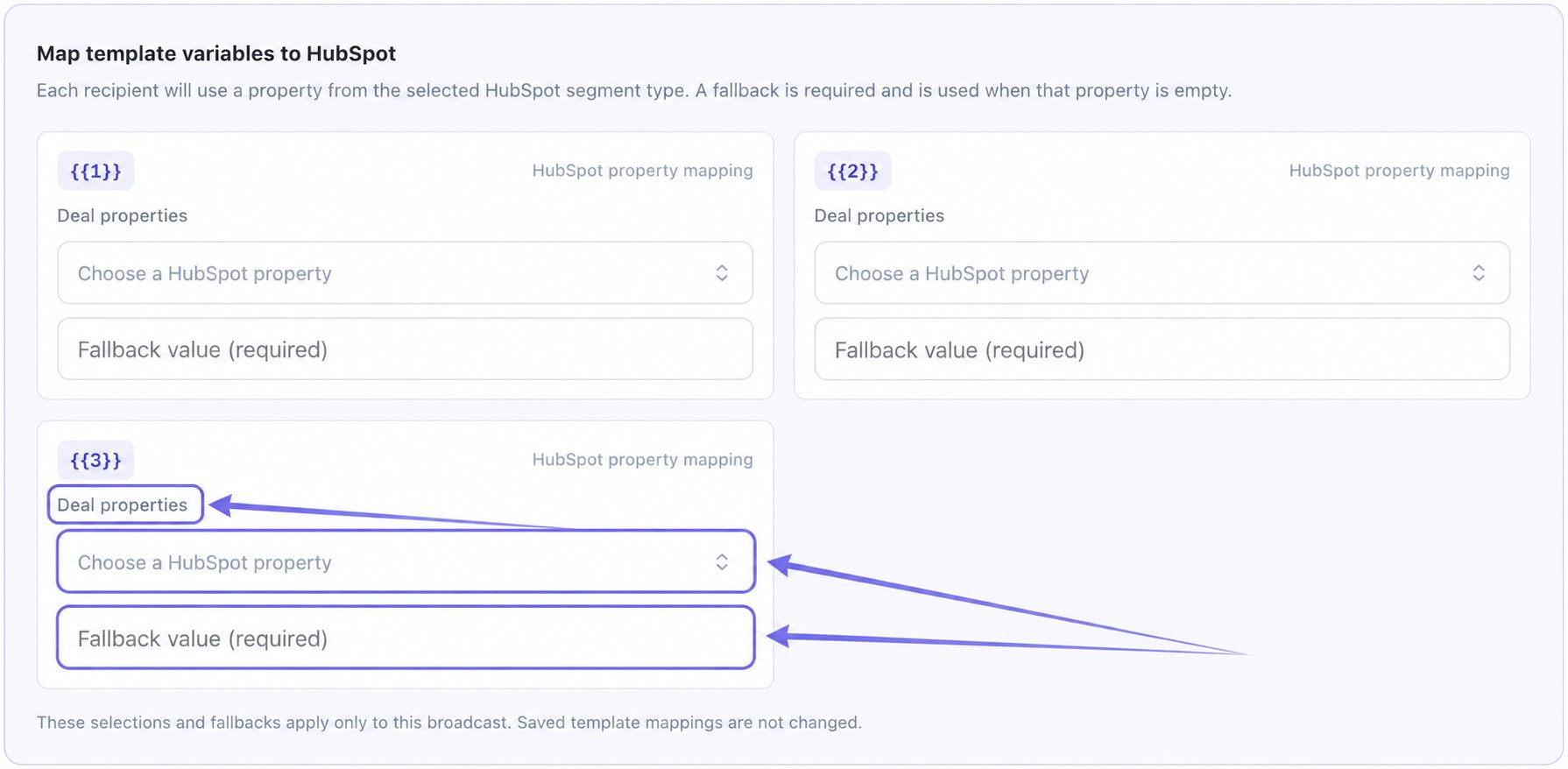
workspace_variable_new: deal-property selections and required fallbacks
HubSpot Variable Template Example
Select hubspot_fallback and a contact segment. Review the suggested City and Country/Region mappings. This example has call_fallback and country_fallback as fallback values; replace them with wording that fits your message when needed.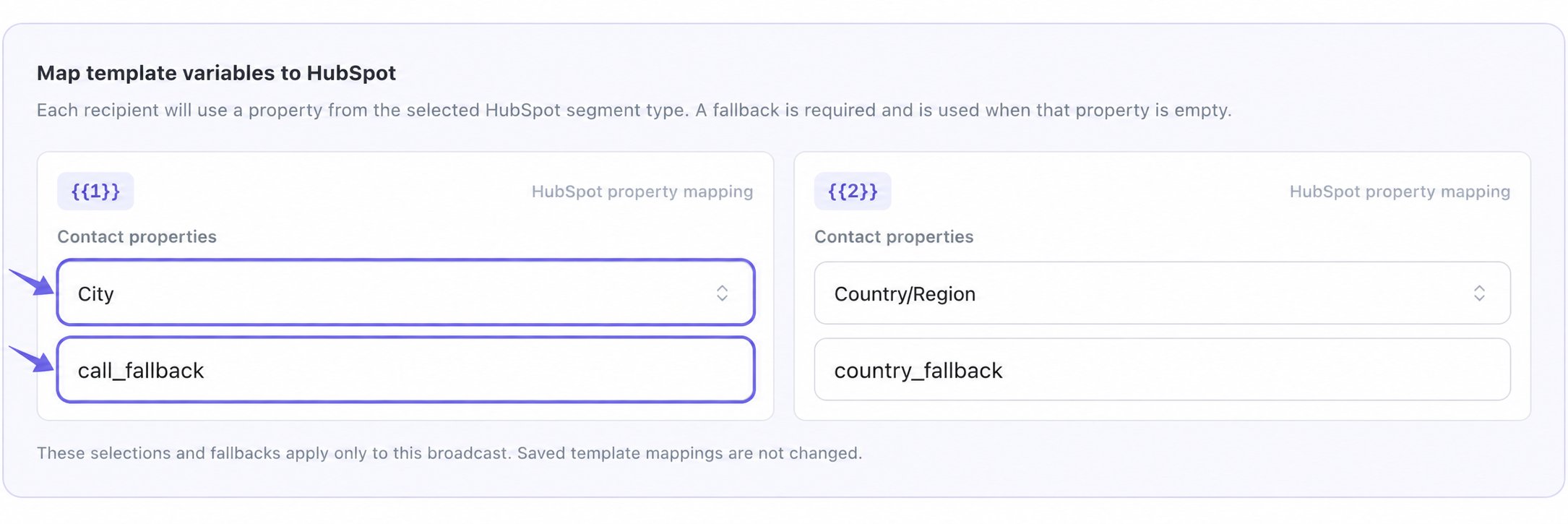
hubspot_fallback: suggested contact-property mappings and fallback values