

Only workspace admins can change disconnect alerts or reconnect a number. Managers and employees can open the page, but the recipient list is blurred and marked Admin only.
Set up disconnect alerts
1
Open WABA settings
Go to Settings and select WABA in the left menu. Under Notifications, you will see the Disconnect alerts card.The Connected numbers section below it shows the connection status of your workspace’s WhatsApp Business numbers.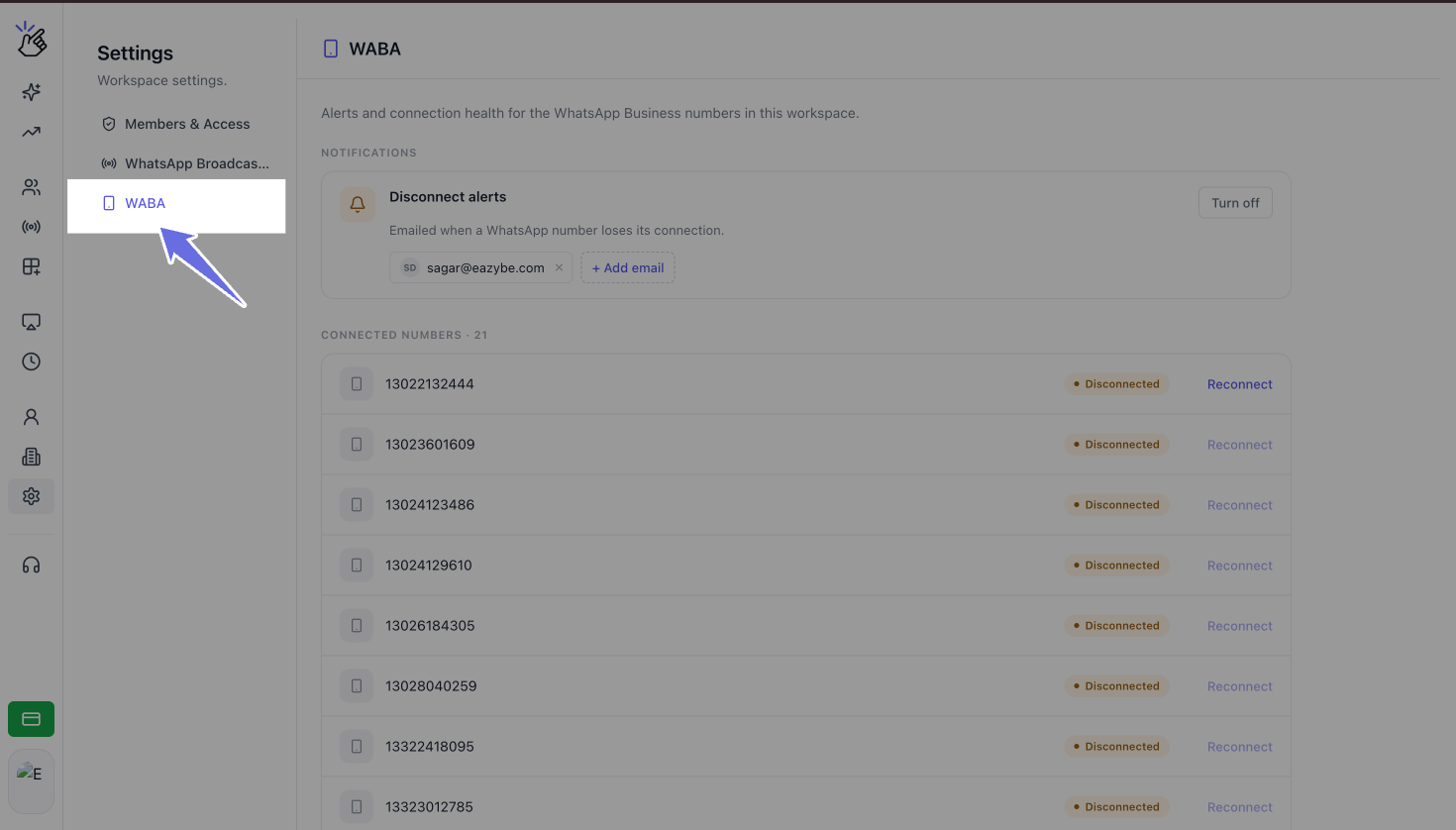
2
Check that disconnect alerts are on
Disconnect alerts are enabled by default for every workspace. The Disconnect alerts card shows Turn off when alerts are on.If alerts were previously turned off, select Turn on at the top right of the card to enable them again. The screenshot below shows this off state. While alerts are off, the card reads Alerts are off. Turn them on to choose who gets notified.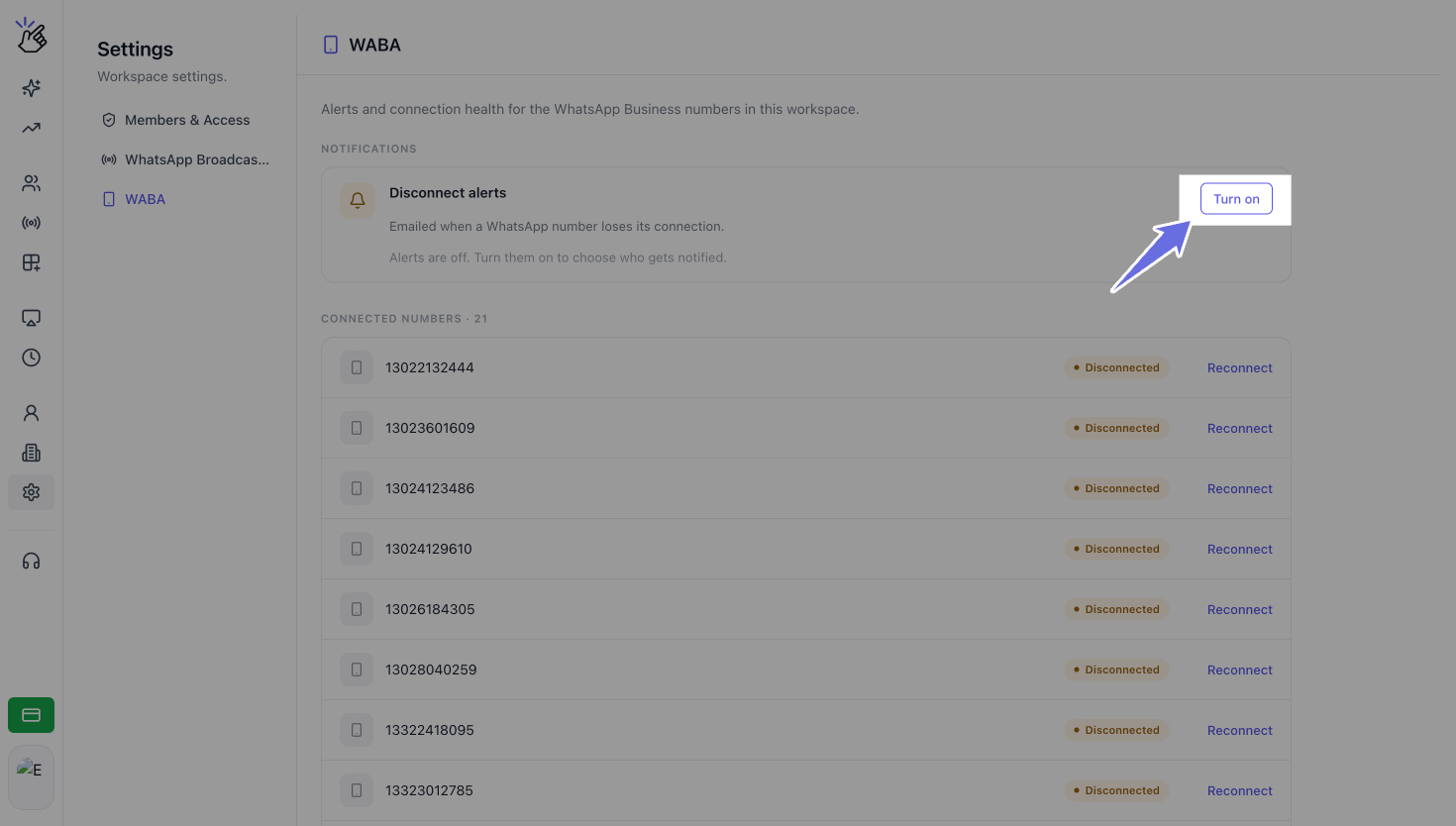
Your organization owner’s email address is automatically added as the default recipient.
3
Add an email recipient
Select + Add email to add another recipient. Choose a recipient in either of these ways: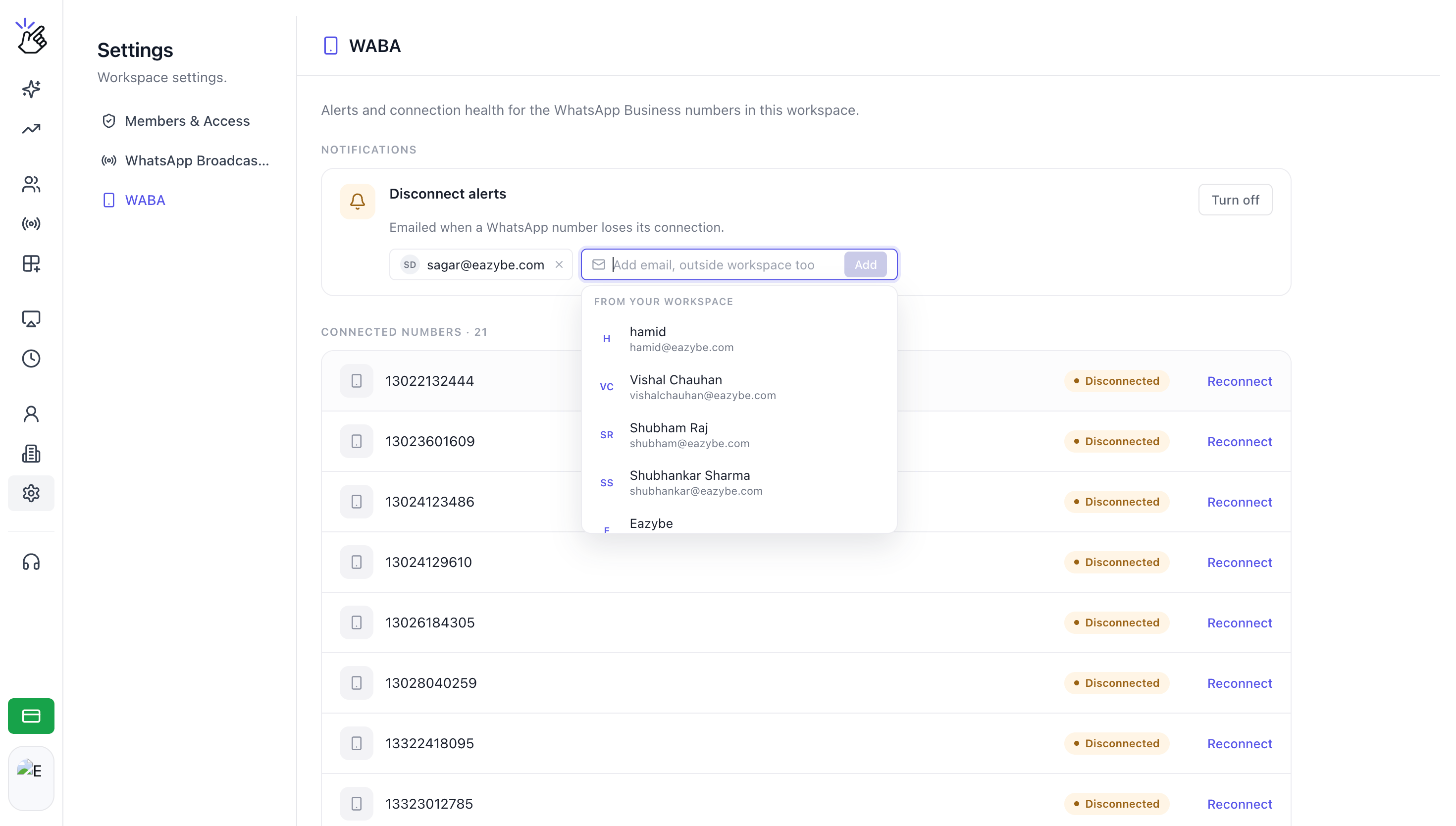
- Select a teammate under From your workspace. Scroll through the list or type to filter by name or email address.
- Type an email address and press Enter or select Add.
Recipients do not need to be workspace members. You can add a shared inbox such as
alerts@yourcompany.com.You can save up to 10 recipients. When you reach the limit, + Add email is replaced by 10 of 10 recipients added. Remove a recipient to make room for another.
4
Review your recipients
The first two recipients appear as chips on the card. If you have added more than two, select +N more to open the full list.In the full list, search by name or email address and use the × button to remove a recipient.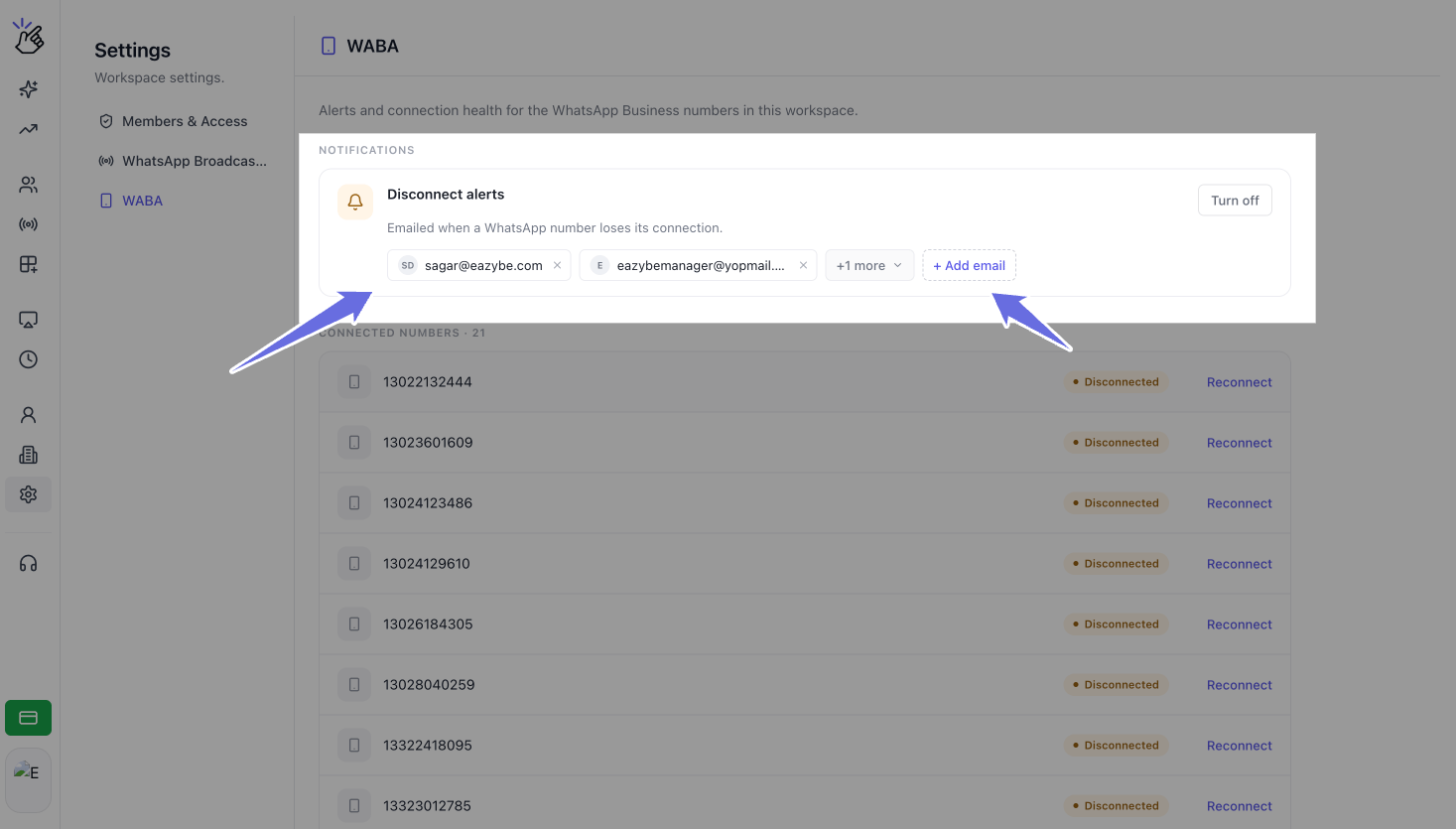
Changes save immediately. There is no separate Save button.
Understand the alert email
When a number loses its connection to Meta, every recipient on your list receives the same alert email. Your recipient list applies to the whole workspace, rather than to individual numbers.Reconnect a disconnected number
1
Find the disconnected number
In Settings → WABA, scroll to Connected numbers. Each number has a Connected or Disconnected badge. Disconnected numbers appear first.
2
Select Reconnect
Select Reconnect next to the number showing Disconnected. This opens the same Meta sign-up window used by Connect to API on the Channels page.
You must be a workspace admin to reconnect a number.
3
Complete the Meta connection flow
Follow the Meta sign-up flow using the same WhatsApp Business account you use when connecting through the Channels page.Once Meta confirms the connection, the list refreshes and the number’s badge returns to Connected.
Manage recipients and turn alerts off
To remove a recipient from the full list, select +N more, find the recipient, and select ×. When you remove someone from a list of 10, + Add email becomes available again.While alerts are on, you must keep at least one recipient. If you try to remove the last one, you will see Keep at least one recipient while disconnect alerts are on. Turn the alerts off instead.
Who can use disconnect alerts
Troubleshooting
WABA is missing from Settings
Reload the page. Every role can open WABA settings, but the menu appears after your workspace permissions finish loading.You see an invalid email message
If you see Enter a valid email address., check the address for a missing@ or domain, correct it, and try again.
You see a duplicate recipient message
If you see <name> is already on the list., that email address is already saved. Check the recipient chips or select +N more to view the full list.Your recipient change does not save
If you see Could not save disconnect alert recipients. Please try again., the change did not reach Eazybe. The list returns to its previous state. Check your internet connection and retry the change.Nobody received an alert
Check the following:- The card shows Turn off, which means alerts are currently on.
- At least one recipient is saved.
- Recipients have checked their spam folders.