

How to Create a Quick Reply
1
Click the Quick Reply Button
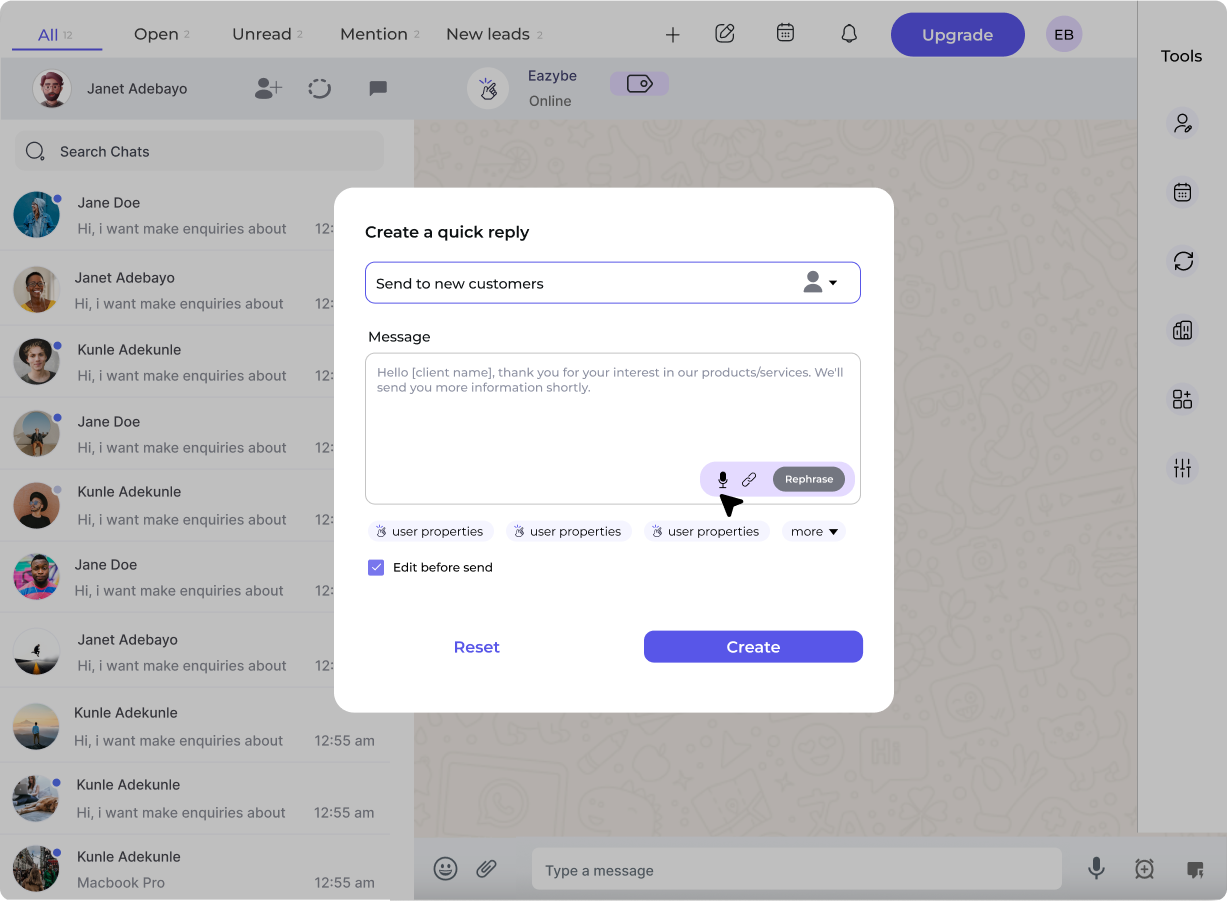
Click the Quick Reply button in the Eazybe interface to open the creation dialog.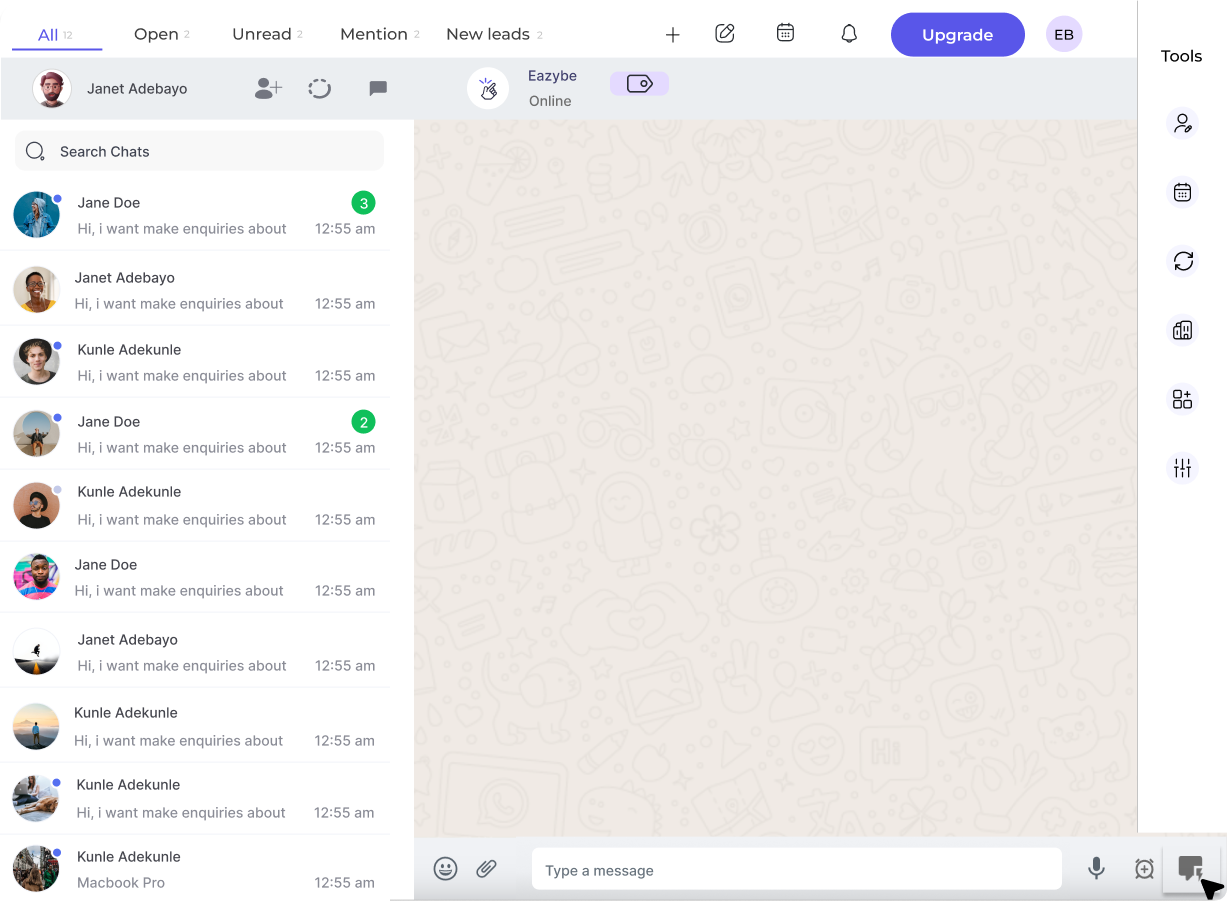
2
Name Your Quick Reply
Assign a descriptive name to your Quick Reply and type your desired message content.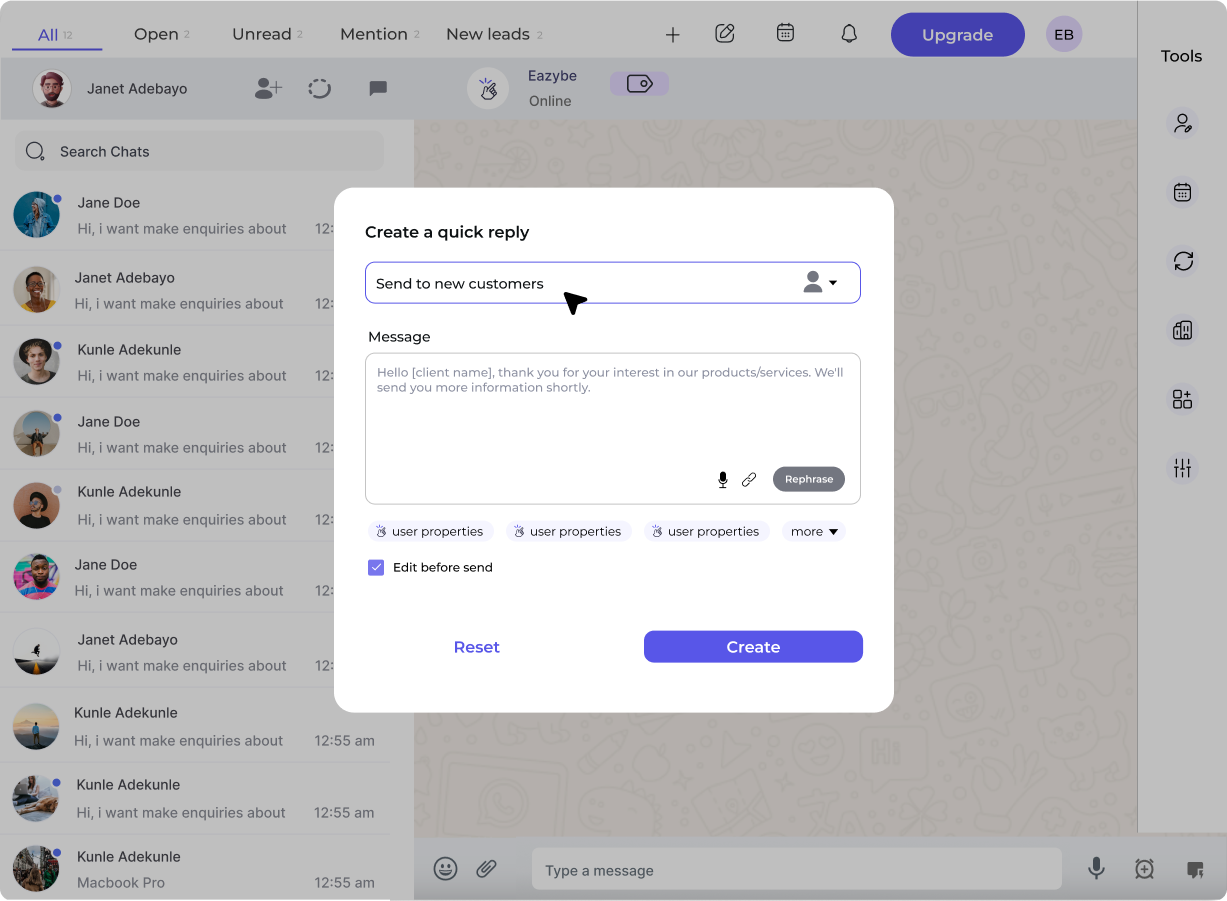
3
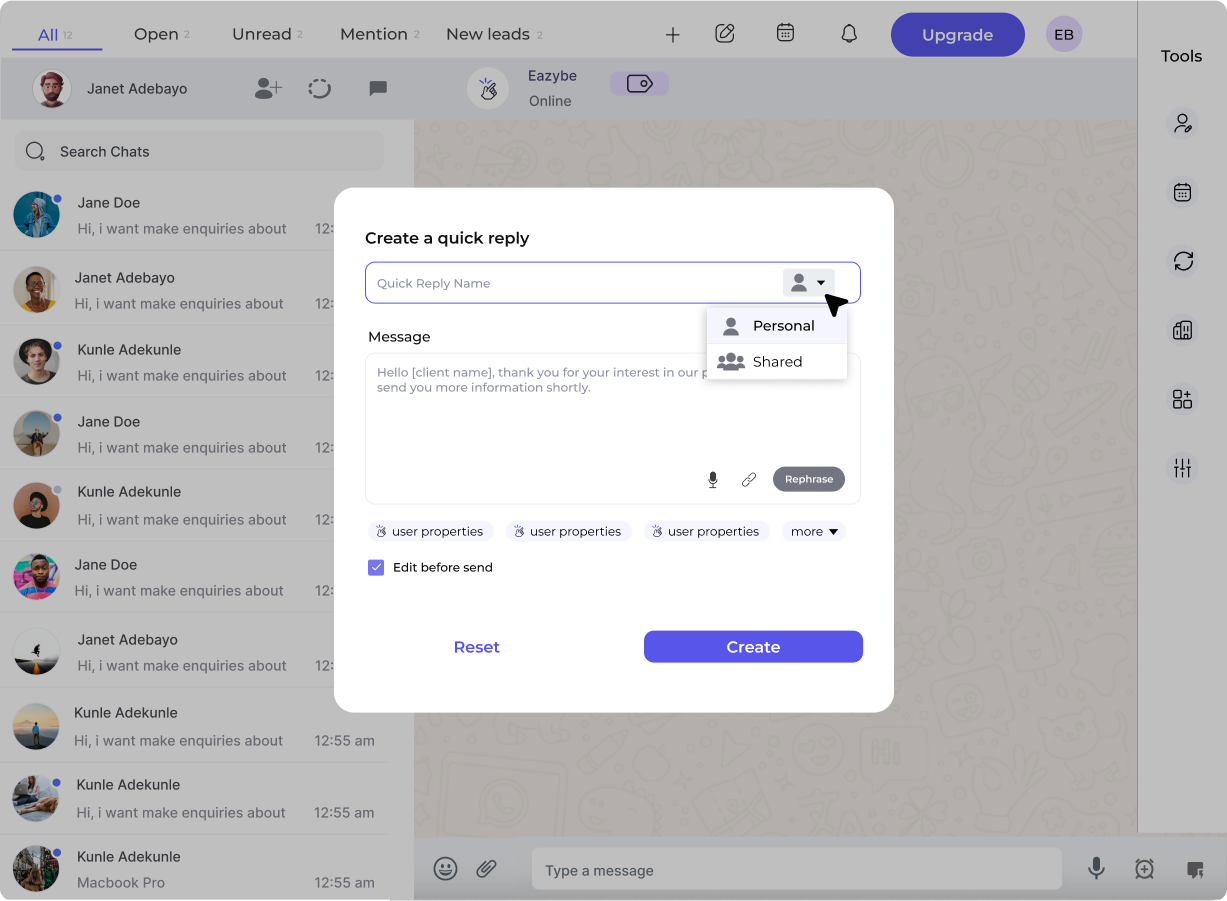
Choose Visibility
Select the visibility setting for your Quick Reply:
- Personal - Only you can see and use this reply
-
Shared - Available to your entire organization
4
Configure Options
Optionally enable Edit the reply before sending if you want to customize the message each time you use it.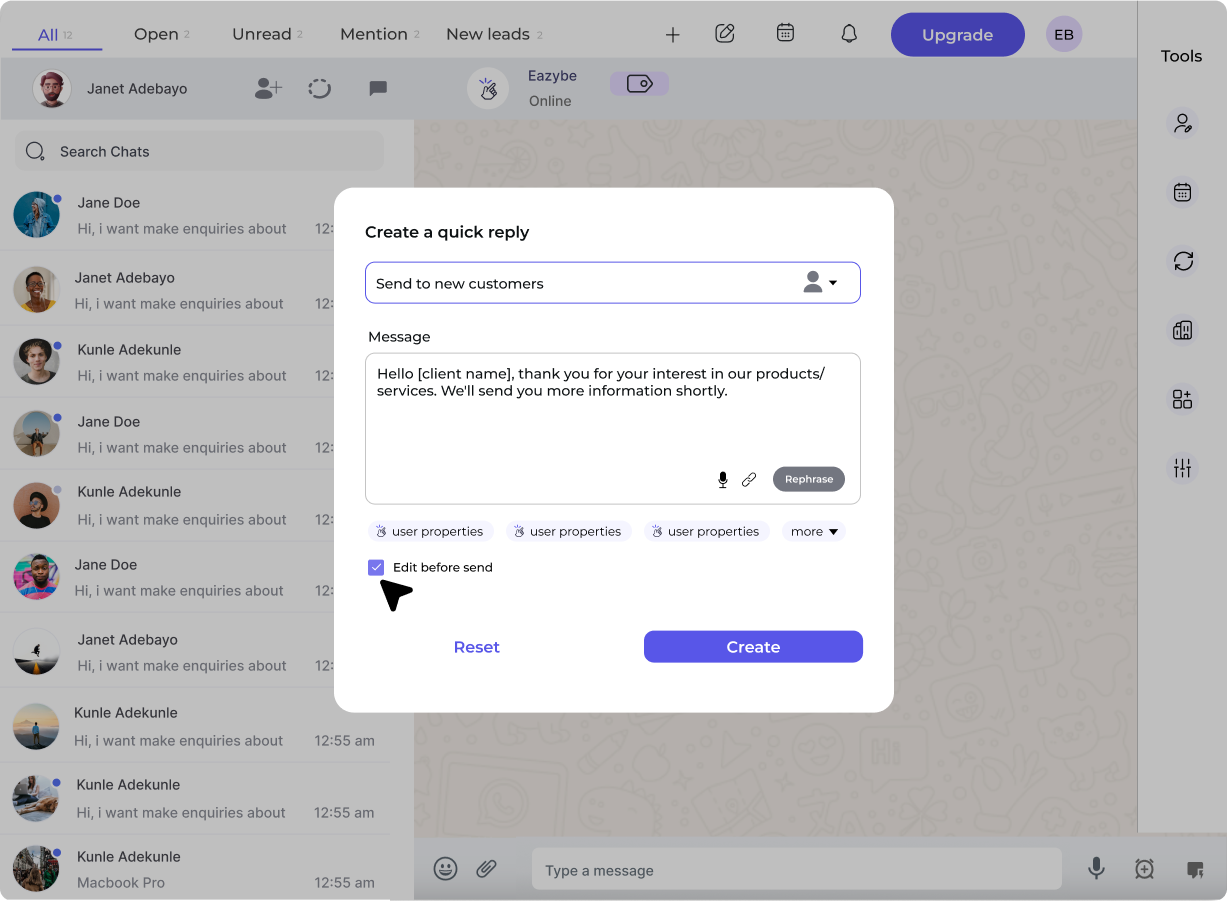
5
Add Enhancements (Optional)
You can enhance your Quick Reply with:
- AI rephrasing for tone adjustment
- Audio recording for voice messages
-
File attachments
6
Create Your Quick Reply
Click Create to finalize and save your Quick Reply.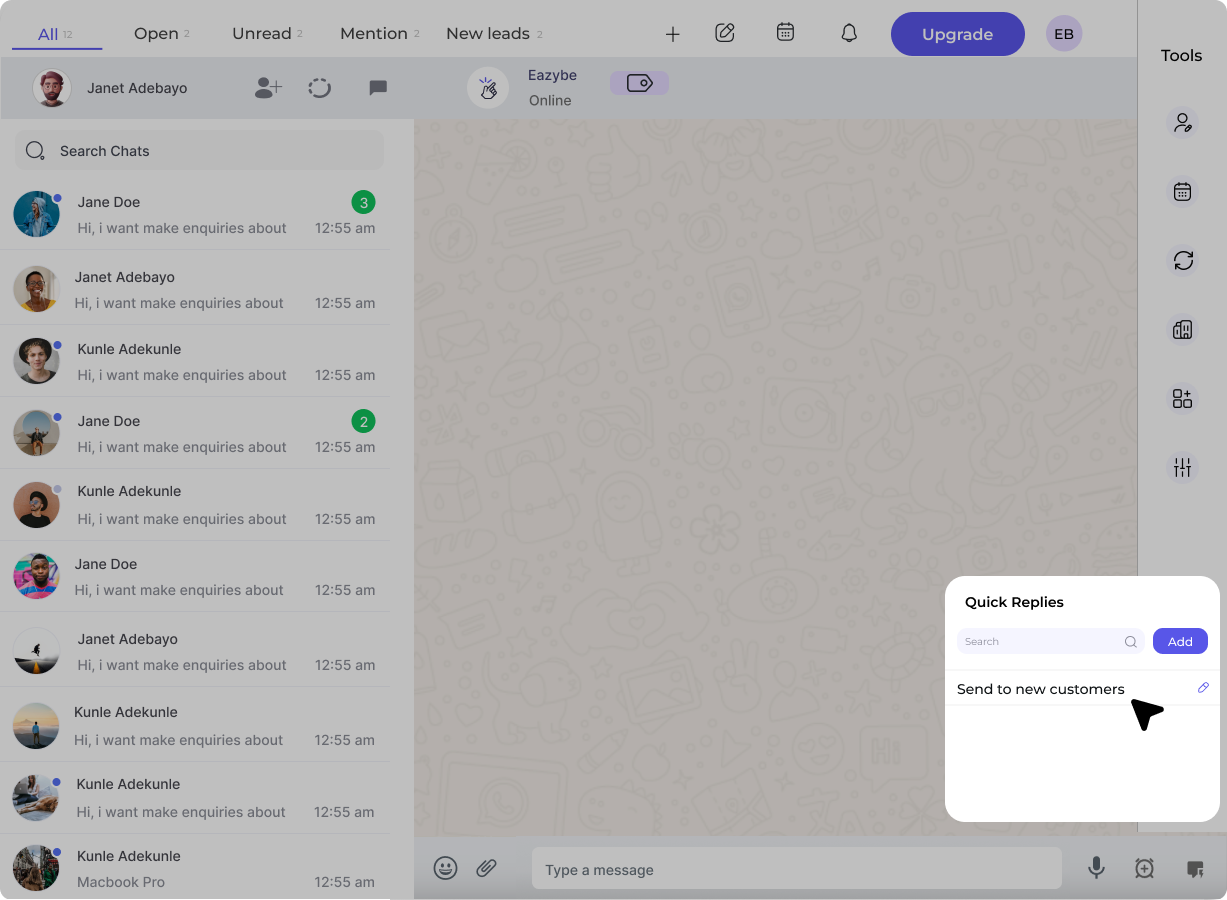
Frequently Asked Questions
What visibility options are available?
What visibility options are available?
You can choose from:
- Personal - Only visible to you
- Shared - Available to your entire organization
- Shared with team - Available to specific team members
Can I add attachments to Quick Replies?
Can I add attachments to Quick Replies?
Yes, you can attach files to your Quick Replies. The file size limit for attachments is 20MB, and voice notes are also supported. You can include one file maximum per Quick Reply.
What file types are supported?
What file types are supported?
Various file types are supported for attachments. The maximum file size is 20MB per attachment.
Is there a limit on how many Quick Replies I can create?
Is there a limit on how many Quick Replies I can create?
No, you can create unlimited Quick Replies to cover all your common messaging needs.
Can I edit or delete Quick Replies after creating them?
Can I edit or delete Quick Replies after creating them?
Yes, you have full edit and delete capability for all your Quick Replies. You can modify them anytime as your needs change.