

HubSpot segment appears when HubSpot is connected to your Eazybe workspace.
Before You Begin
- Connect HubSpot to Eazybe with permission to read segments (
crm.lists.read) and the relevant CRM records. - Prepare a contact or deal segment in HubSpot. For a deal segment, associate the intended contacts with its deals.
- Give recipient contacts an international phone number in HubSpot’s Mobile phone number or Phone number property.
- Choose a connected WhatsApp Business number and an approved template on Create broadcast. See Create a New Broadcast.
Contacts and Deals identify the records in the segment; Active segment and Static segment describe how its membership is maintained.
Use a Contact Segment
1
Open HubSpot segments and choose Contacts
Open Broadcasts, select New broadcast, and complete your message details. In Choose recipients, select HubSpot segment, then Contacts.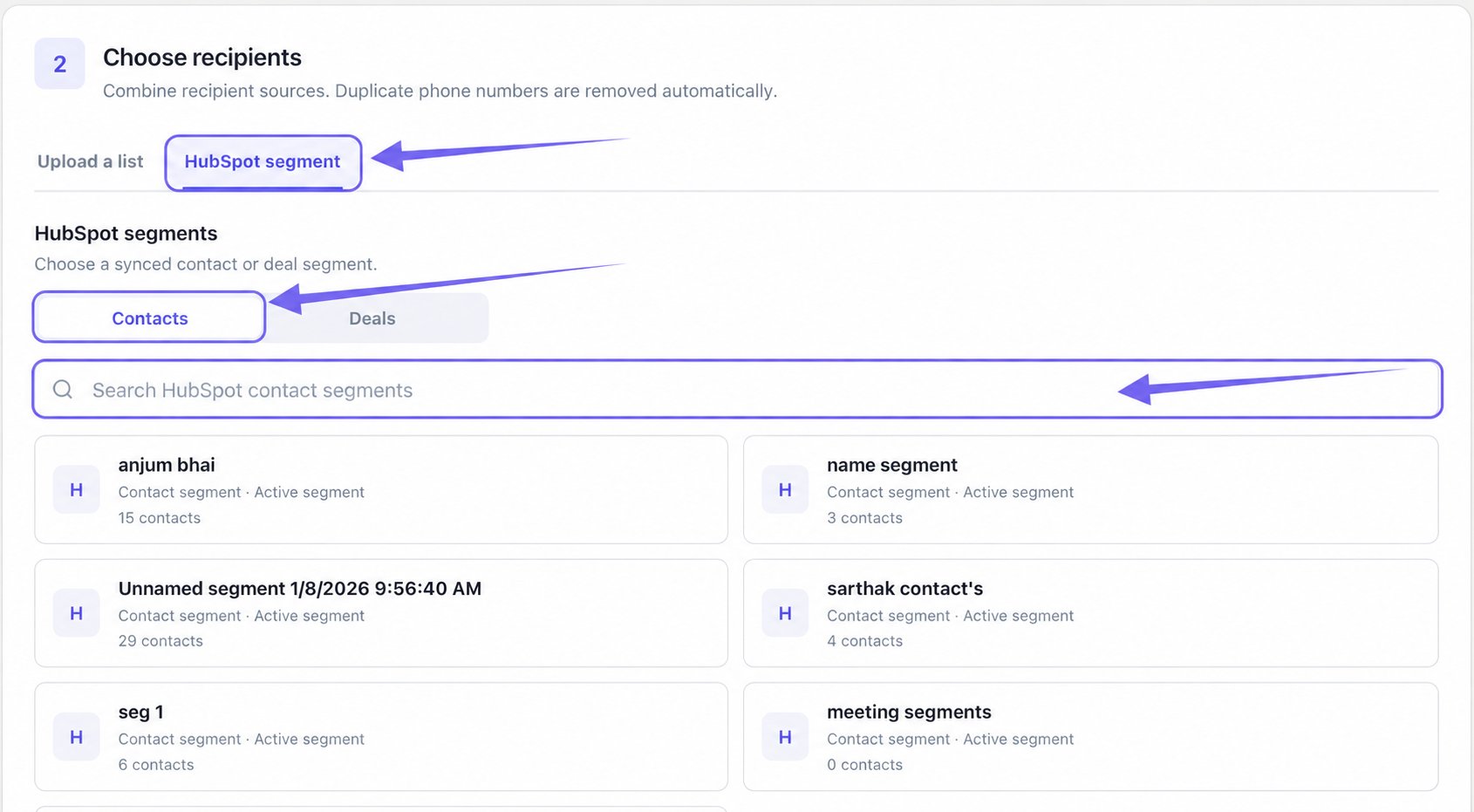
2
Select a contact segment and check its eligible contacts
Select the segment card. The card is highlighted, and a summary appears above HubSpot segments. Wait for Resolving eligible contacts… to finish, then check the eligible-contact count.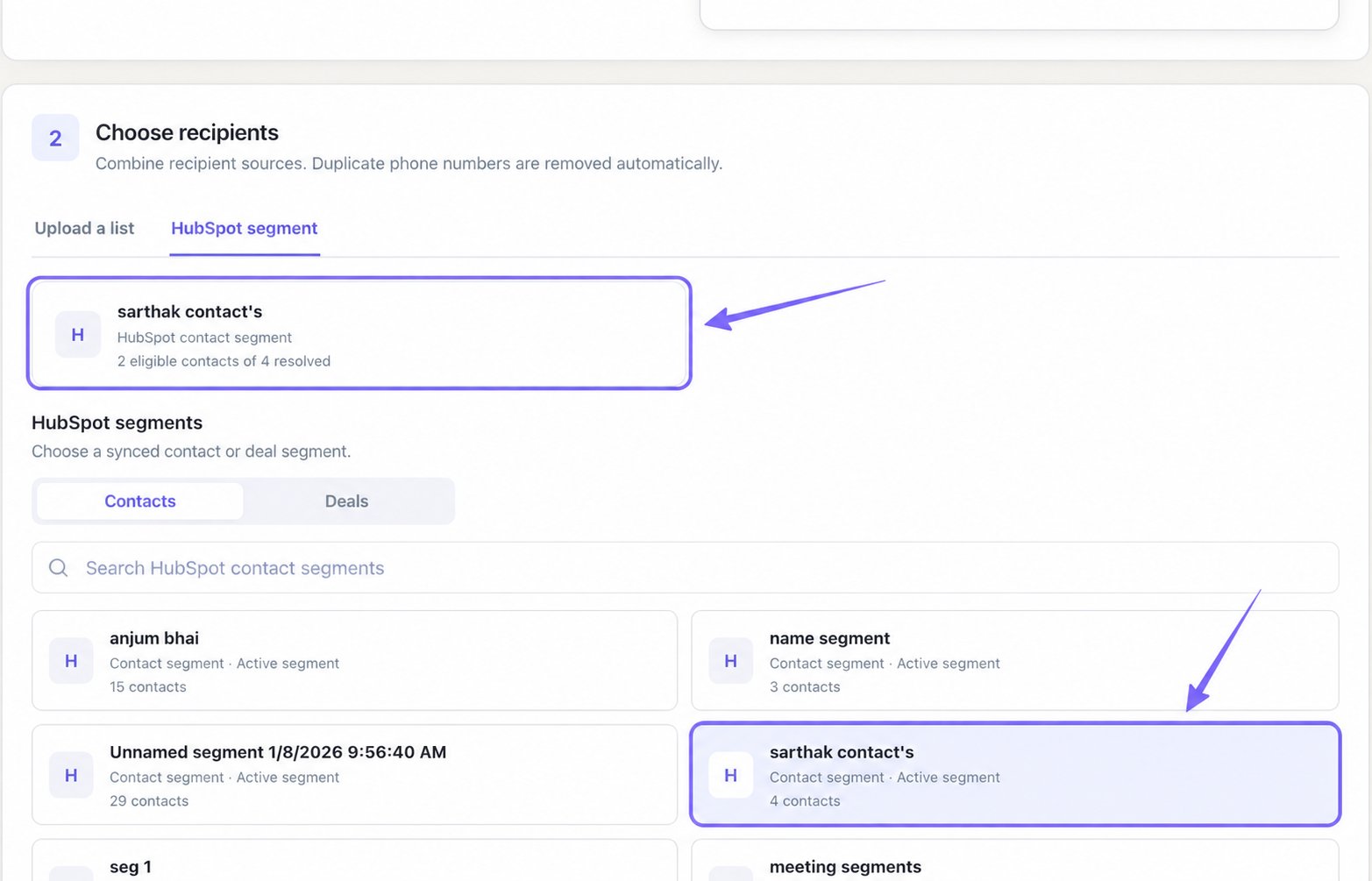
Eazybe checks
mobilephone first, then phone. Contacts without a usable phone number are excluded, and duplicate phone numbers are removed. An eligible number does not guarantee successful WhatsApp delivery.Use a Deal Segment
1
Choose Deals and find your segment
In Choose recipients, select HubSpot segment, then Deals. Use Search HubSpot deal segments to find the segment you want.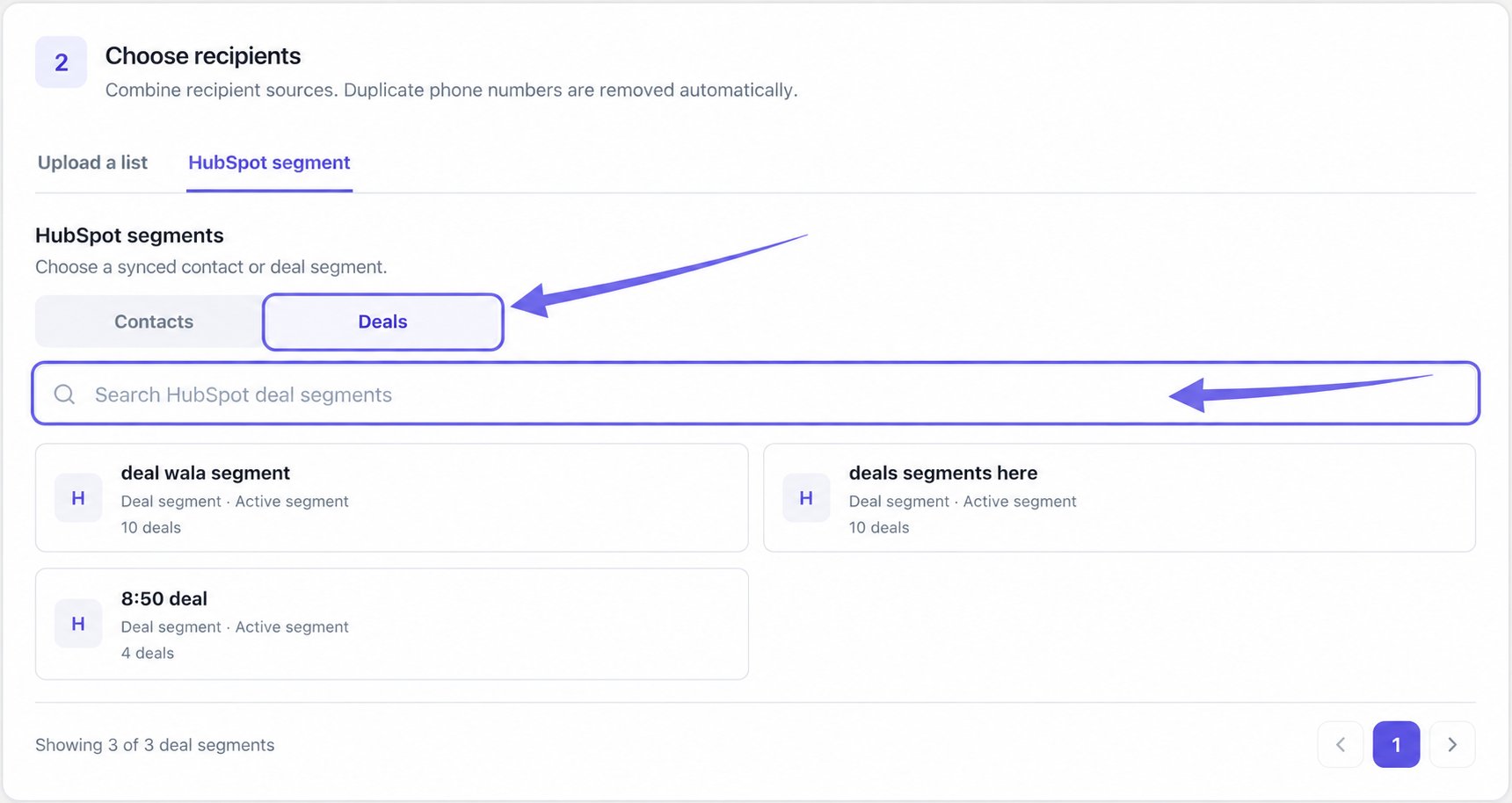
Switching between Contacts and Deals clears the current segment selection and search. Select the segment you want after switching.
2
Select a deal segment and review its associated contacts
Select the deal-segment card and wait for the summary to finish resolving contacts. The summary states: Recipients are unique contacts associated with deals in this segment.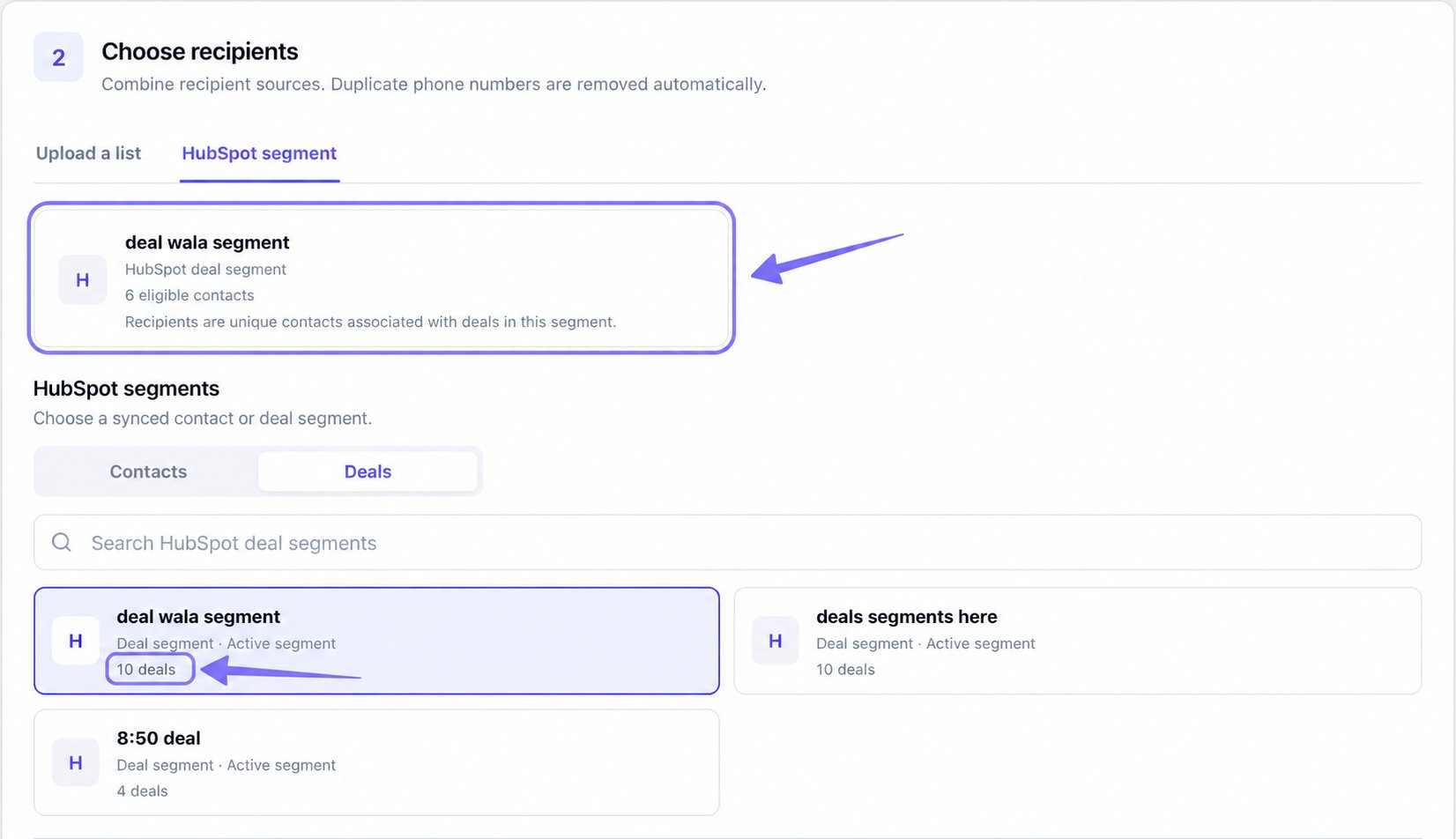
A contact associated with multiple deals is not counted as a separate recipient for every deal. Duplicate phone numbers are removed. Check the eligible-contact summary before reviewing the cost.
Understand Segment Membership
To prepare a contact segment first, see Create a HubSpot Segment.
Personalize and Review Your Broadcast
Select your approved Template message and check the Message preview. If the footer says Choose a template to calculate recipients, choose a template before reviewing the final audience and cost.Map Workspace Template Variables
When you select a Workspace variable template and a HubSpot segment, use Map template variables to HubSpot to personalize each numbered variable. The selected segment determines which properties are available:
For each variable, open Choose a HubSpot property, use Search HubSpot properties… to find the field, and select it. Enter a Fallback value (required) for every variable. Eazybe uses that fallback when the selected property is empty.
For example, use a contact’s first name when working with a contact segment, or a deal’s name when working with a deal segment. With a deal segment, the message uses the mapped deal values and is sent to the associated contacts.
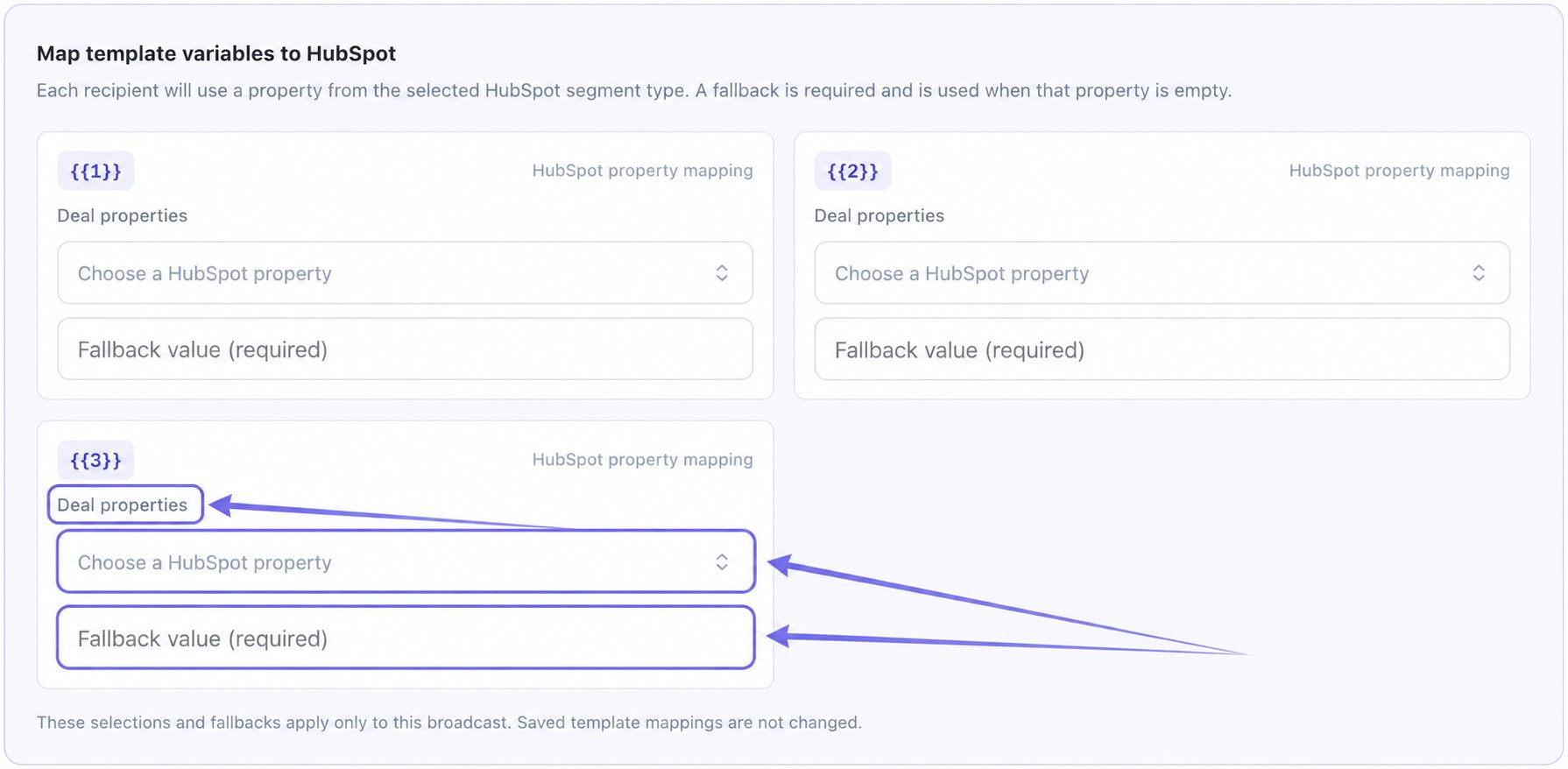
workspace_variable_new with a deal segment: choose a deal property and enter a fallback for all three variables.
The property type follows your segment selection. After switching between Contacts and Deals, select the segment and review every variable’s mapping and fallback before sending. These selections apply only to this broadcast; saved template mappings are not changed.
Review HubSpot Template Variables
Select your HubSpot variable template in Template message, then choose a HubSpot segment. Review the suggested values in Map template variables to HubSpot and adjust the property or fallback where needed.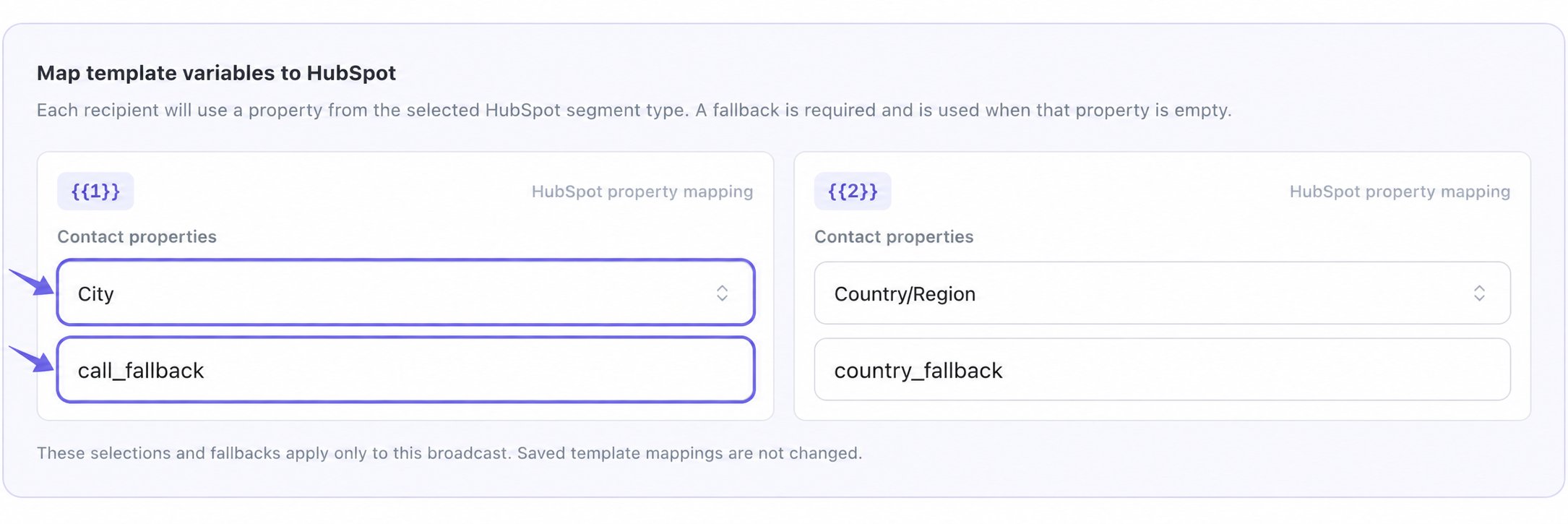
hubspot_fallback with a contact segment: review the suggested City and Country/Region mappings and their fallbacks.