When you connect your WhatsApp Business app to WABA and choose to share chat history, up to 6 months of your 1:1 chats will sync to the Team Inbox. You can continue using your WhatsApp Business app alongside the Business Platform.
Attachments older than 14 days will not be shown in the Team Inbox, even when their messages are included in the six-month history. Group chat history is not included.
Screenshots use fictional names, phone numbers and a made-up QR code. Scan the QR code in your own connection window when setting up your account.
1

Start the connection in Eazybe

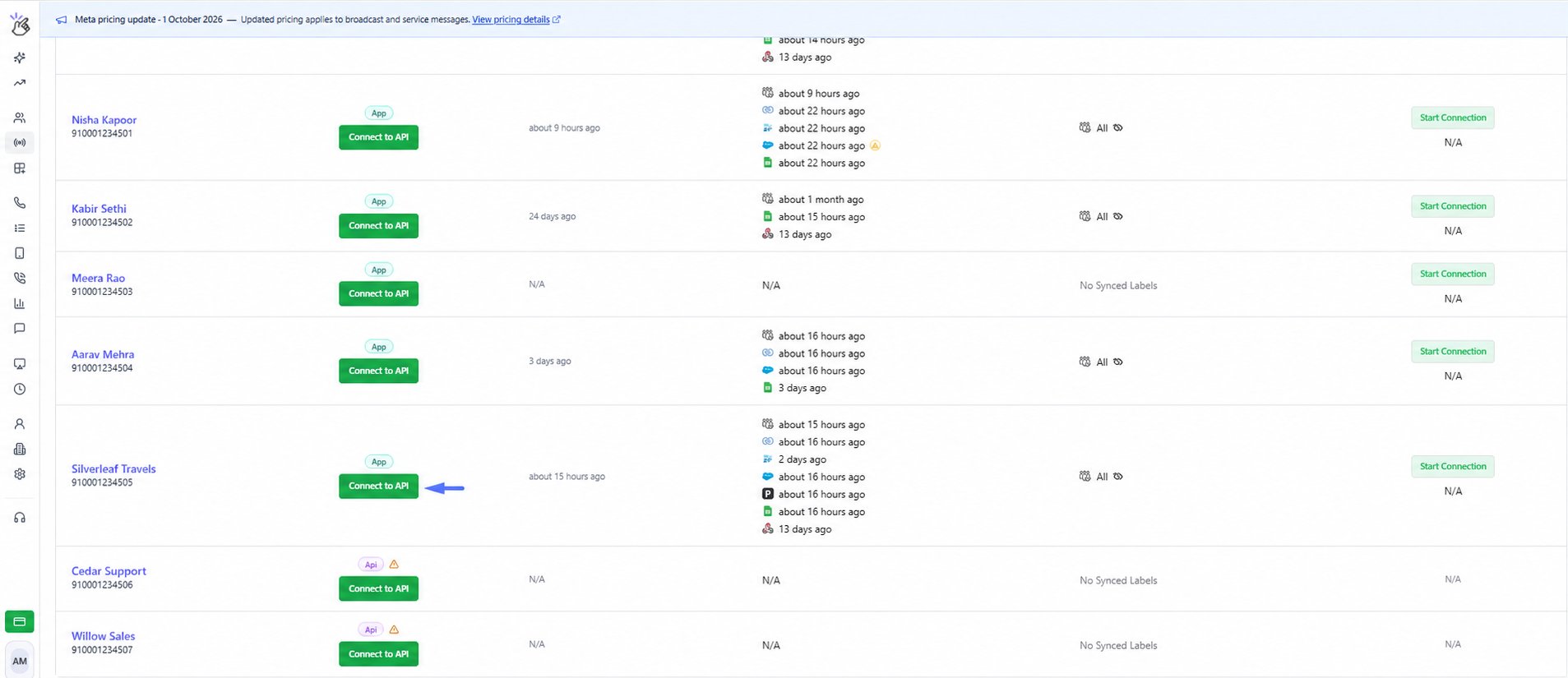
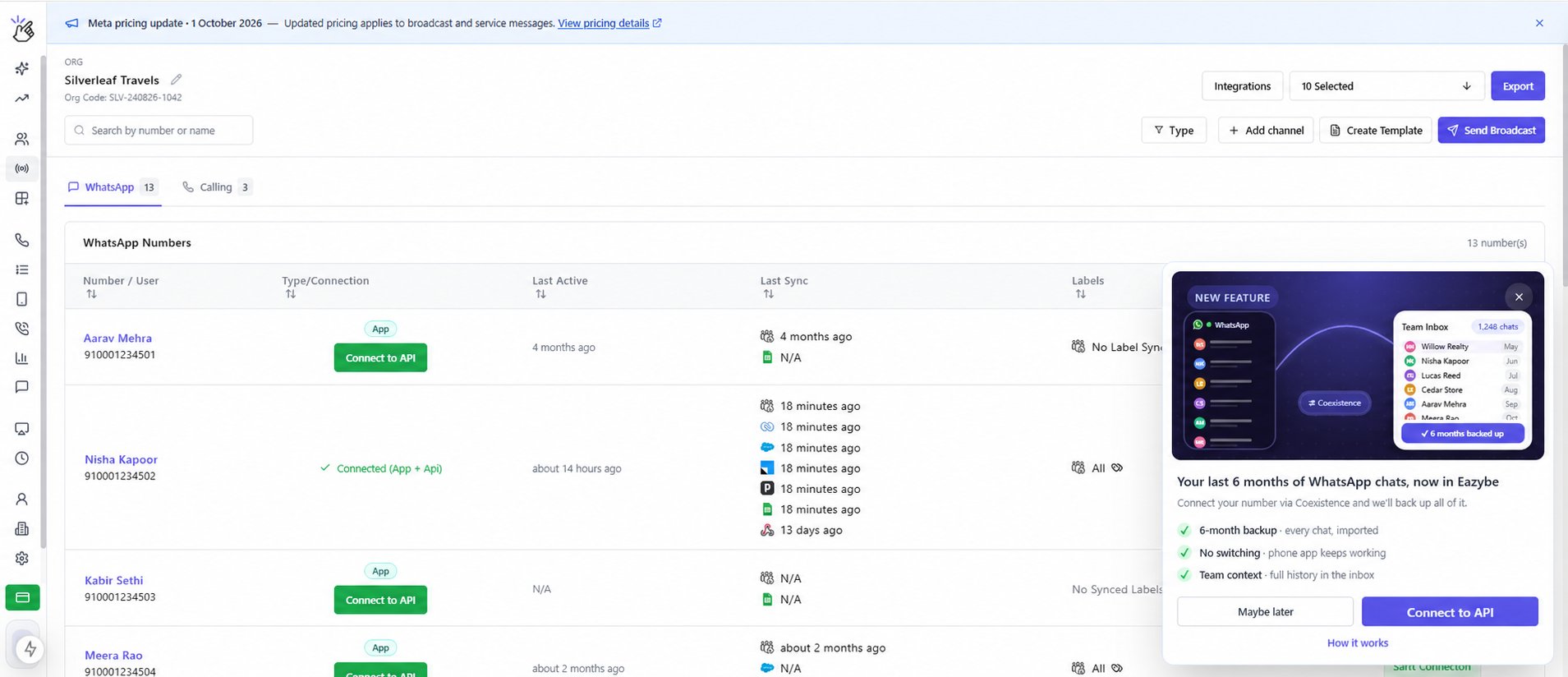
Log in to app.eazybe.com. On your first login, look for the six-month chat backup announcement and click Connect to API.Six-month chat backup announcementYou can also open Channels, find the WhatsApp number you want to connect, and click Connect to API beside it.Connect to API beside your WhatsApp number
2

Continue with Meta setup

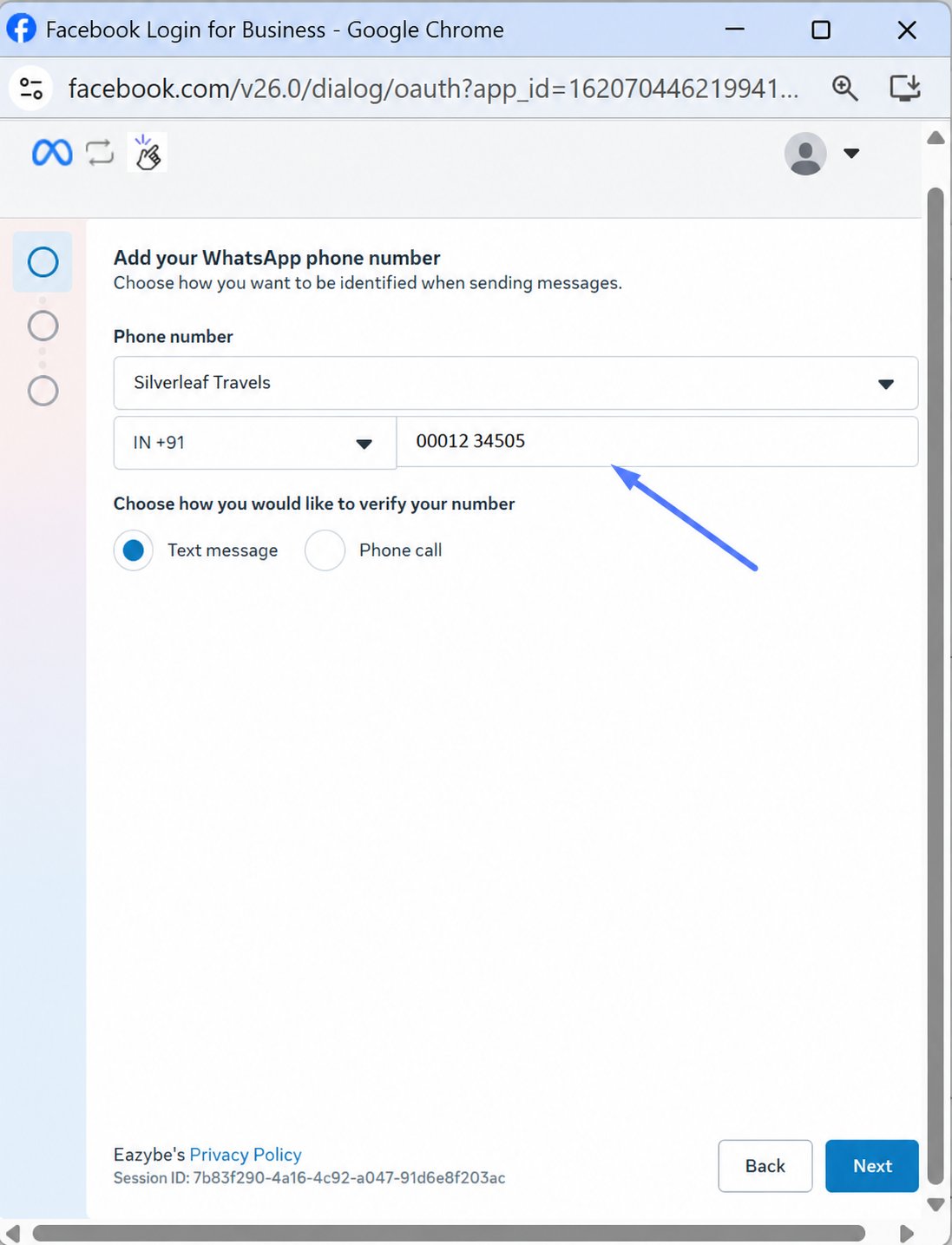
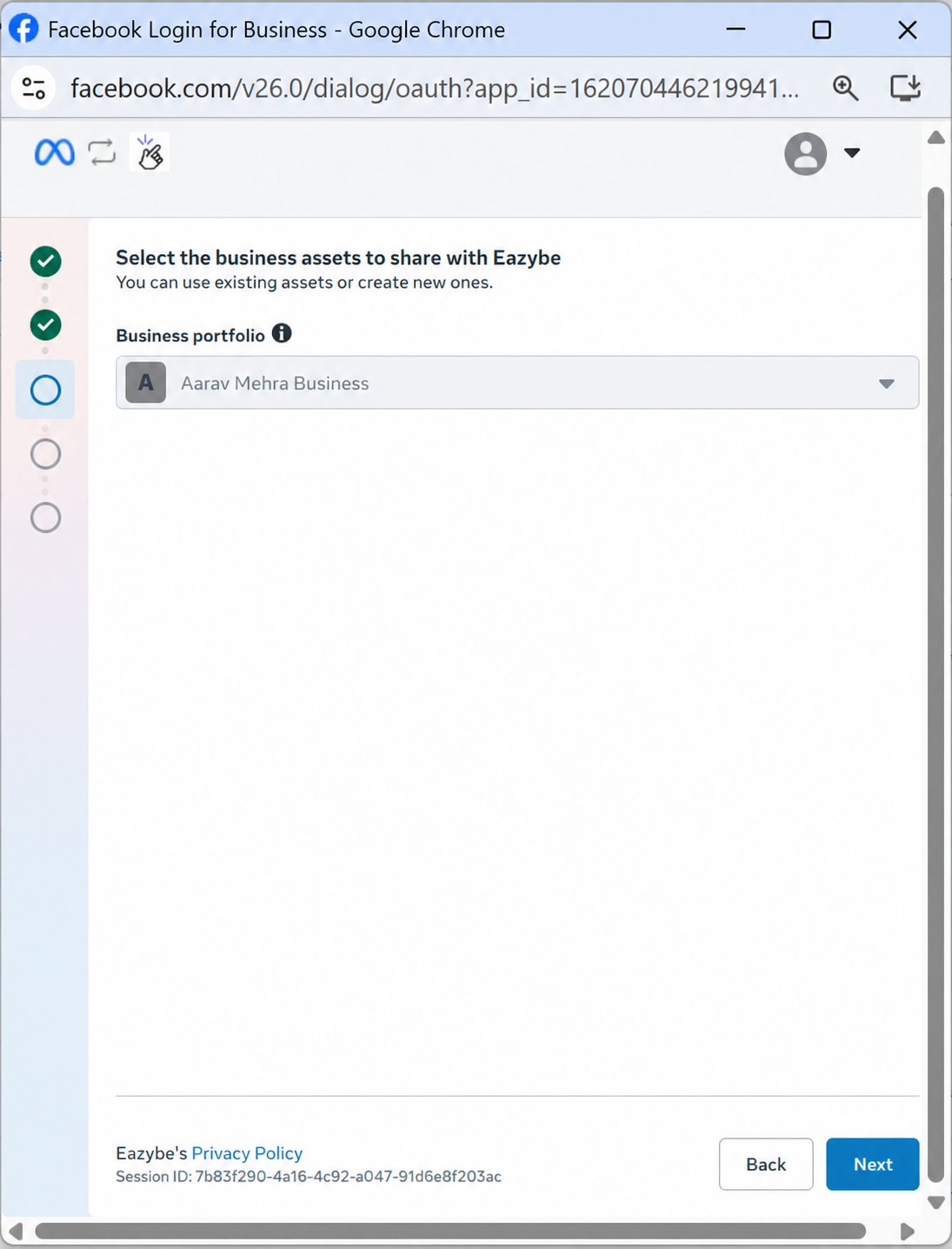
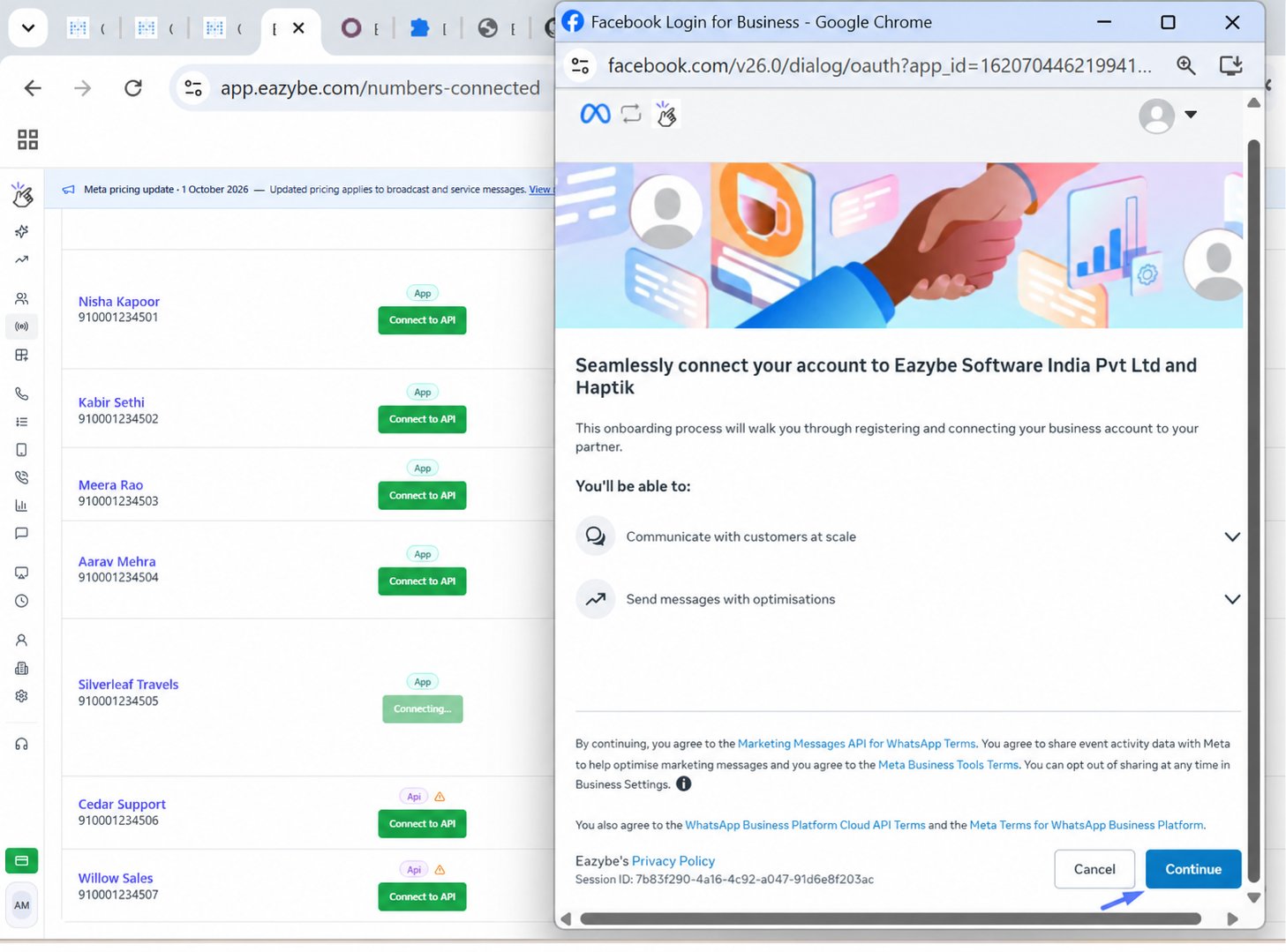
The Facebook Login for Business window opens. Review the connection information and click Continue.Continue with Facebook Login for BusinessOn Add your WhatsApp phone number, select the appropriate business account and enter or check the WhatsApp Business number you want to connect. Choose the verification method shown, then click Next. Complete any verification prompts that appear.Select your business account and WhatsApp numberOn Select the business assets to share with Eazybe, select or confirm your Business portfolio, then click Next.Select your business portfolio
3

Open Business Platform on your phone

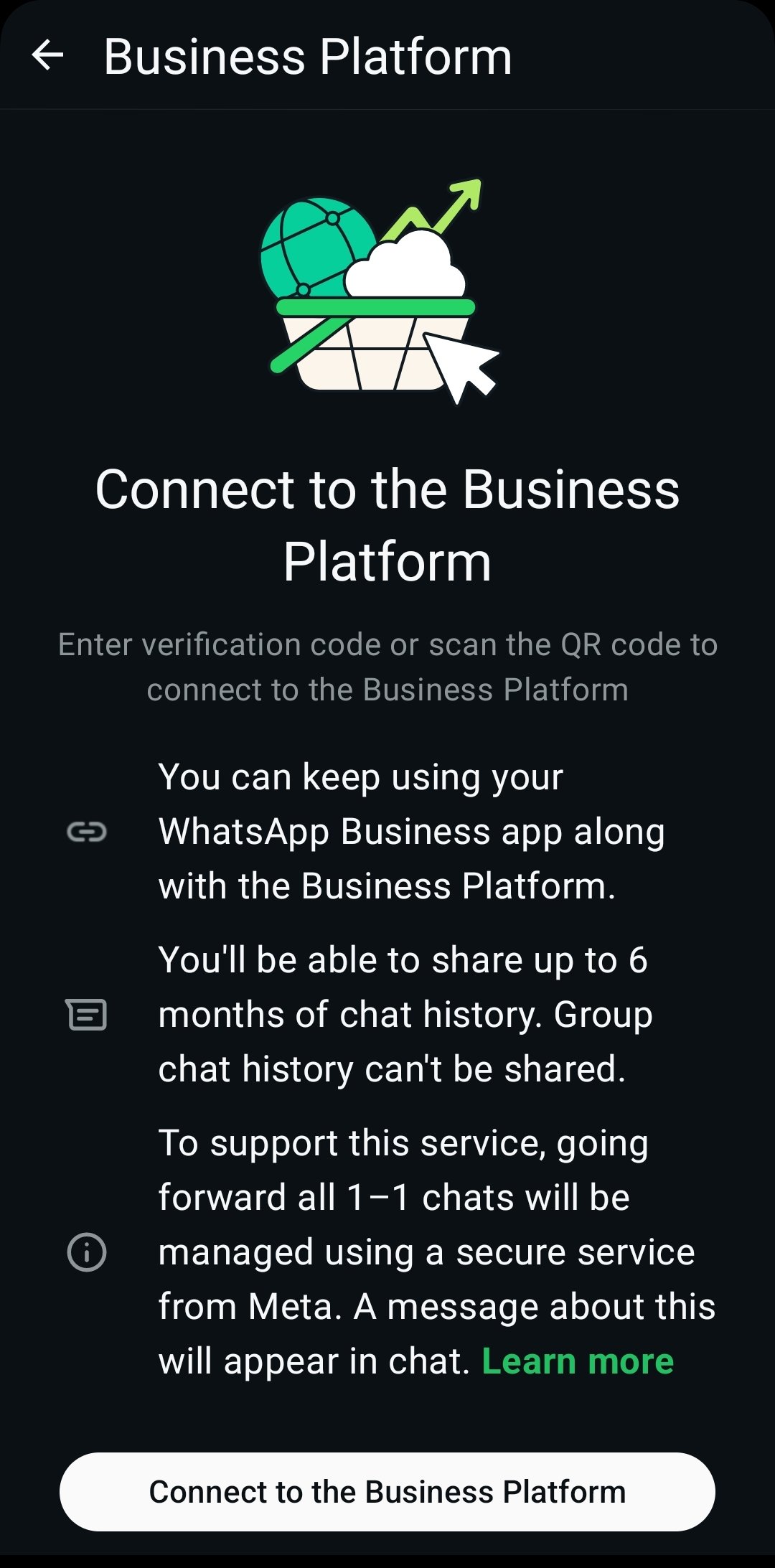
When the Import contacts and chat history screen displays a QR code on your computer, leave that screen open.Open WhatsApp Business on the phone using the number you are connecting. Go to Settings → Account → Business Platform, then tap Connect to the Business Platform.Connect to the Business Platform on WhatsApp Business
4

Choose to share your chat history

On Share chat history, you will see two options:
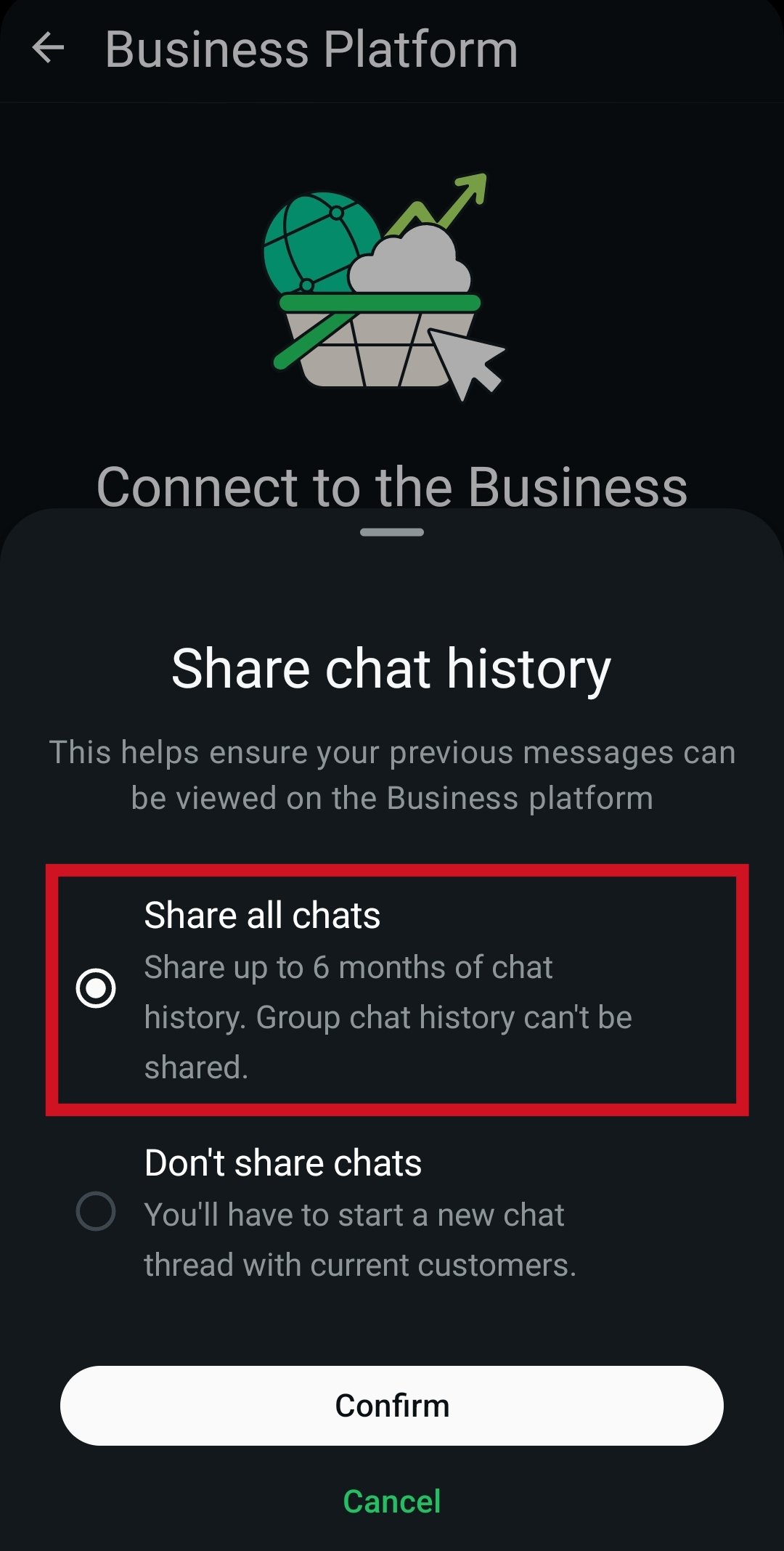
  • Share all chats: Shares up to 6 months of 1:1 chat history. Group chat history cannot be shared.
  • Don’t share chats: Connects without sharing your previous chat history.
Select Share all chats, then tap Confirm to include your six-month chat backup.Select Share all chats and tap Confirm
5

Scan the QR code

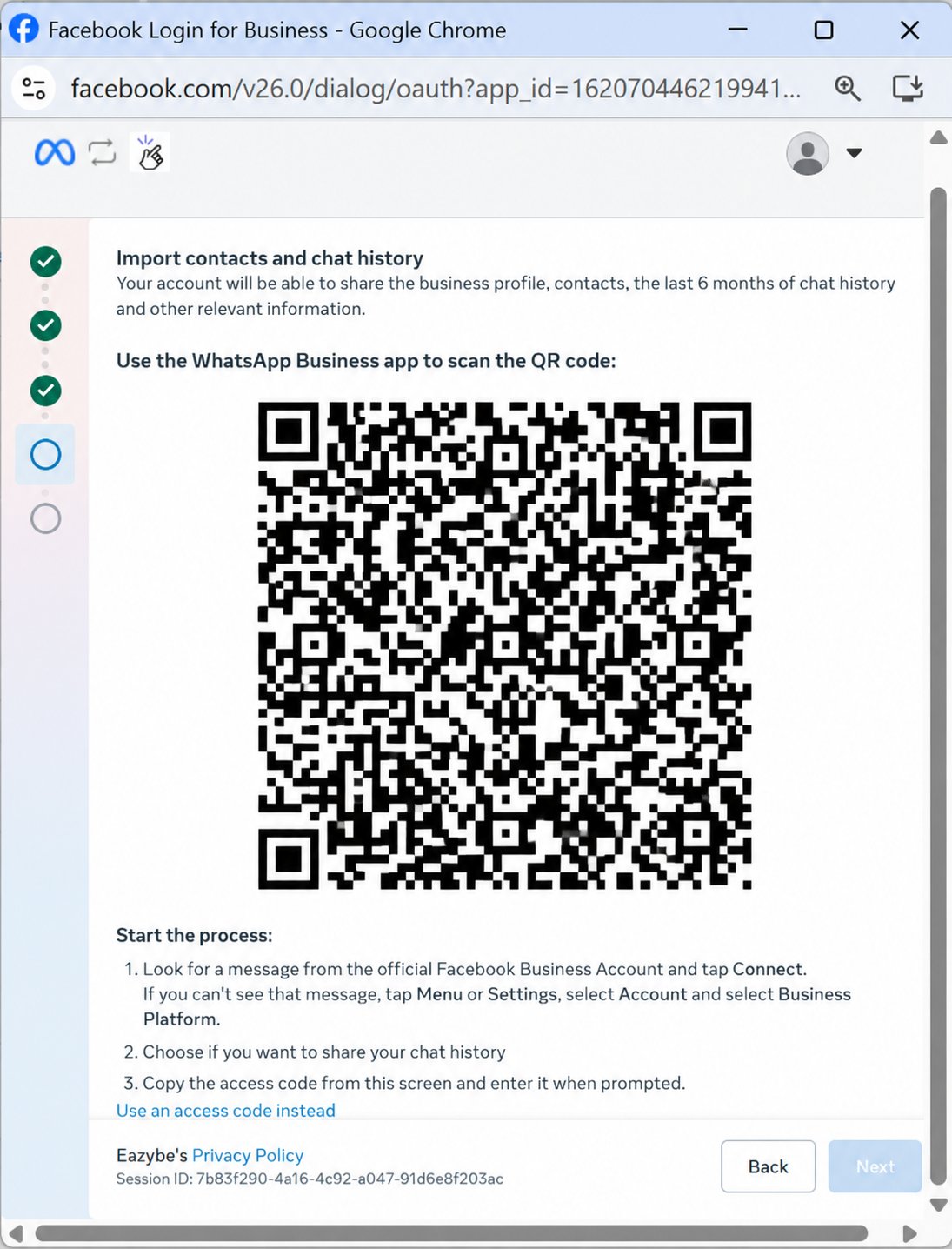
Use the scanner in WhatsApp Business to scan the QR code displayed in your own Eazybe connection window on the computer.Chat history import screen with an illustrative QR code
6

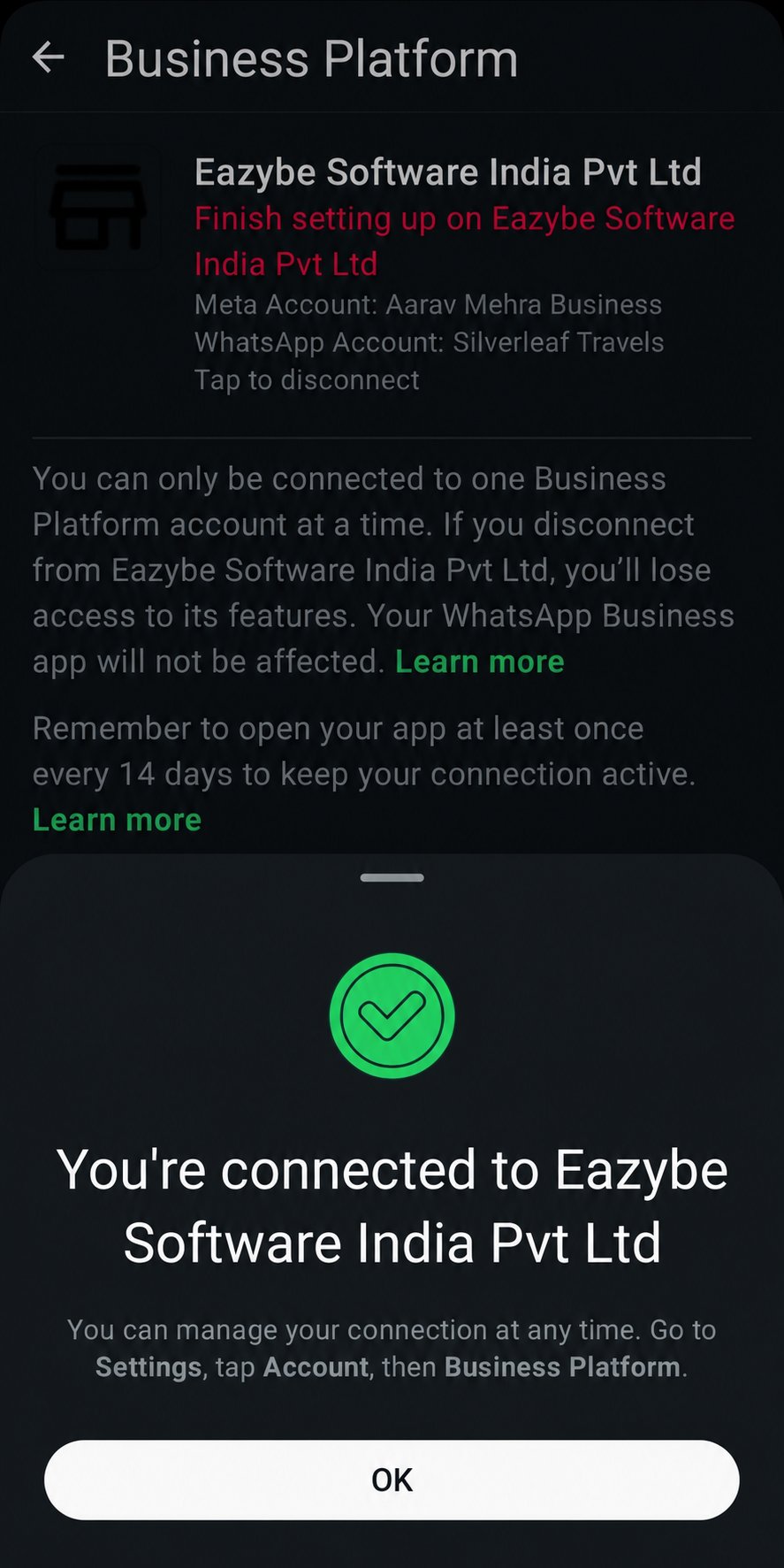
Confirm the connection

When WhatsApp Business displays the connection confirmation for Eazybe Software India Pvt Ltd, tap OK. Return to the setup window on your computer and complete any remaining prompts.Connection confirmation with OK button
View Your Chats in the Team Inbox

After completing step 6, your chat history will sync to the Team Inbox in approximately 15–30 minutes, depending on how many chats you have. Once syncing is complete, open the Team Inbox in Eazybe to view your backed-up 1:1 conversations from the past 6 months. Attachments older than 14 days will not be shown, and group chat history is not included.

Frequently Asked Questions

How much chat history can I bring into Eazybe?

You can share up to 6 months of 1:1 chat history when connecting your WhatsApp Business app to WABA.

Where will my backed-up chats appear?

Your imported chats will appear in the Eazybe Team Inbox.

How long does the initial sync take?

After you complete the connection in step 6, syncing takes approximately 15–30 minutes, depending on how many chats you have.

Why can’t I see an older attachment?

Attachments older than 14 days are not shown in the Team Inbox, even if the associated message is within the six-month backup period.

Are group chats included?

No. This backup includes 1:1 conversations only.

Which option should I select to import my previous chats?

Select Share all chats and tap Confirm. Selecting Don’t share chats does not import your previous chat history.