Before You Call
- Your organization needs an active voice number and a subscription that includes calling.
- Your voice number must be available to you. If a number is missing, ask your admin to check its status and your access.
- Your browser phone must be connected in the window you are using. Allow microphone access for Eazybe when prompted, and check that your headset is connected.
- Your organization needs enough wallet balance to start a call.
Make a Call
1
Open the Dialer
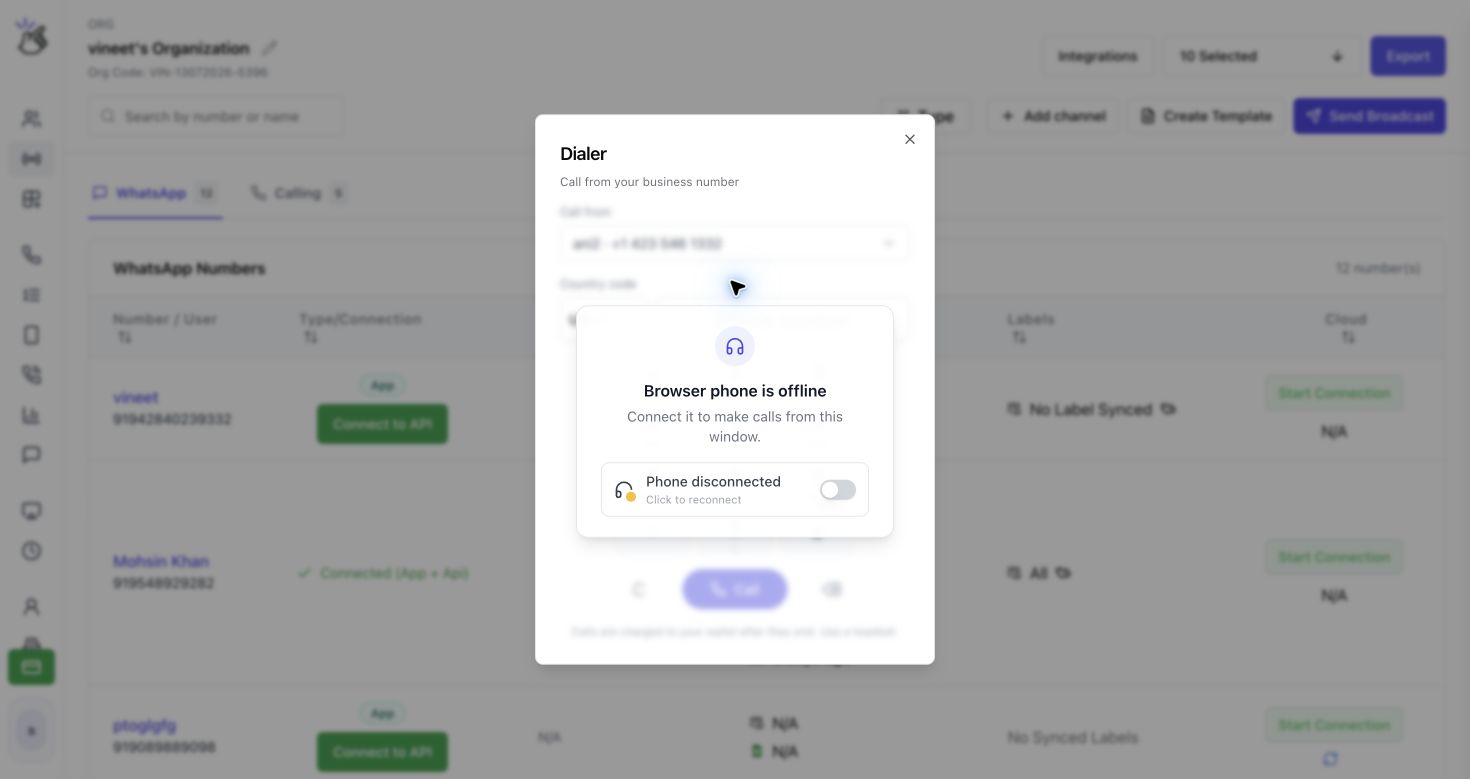
In the Eazybe sidebar, open Dialer under CALLS. The Dialer window opens with the description Call from your business number.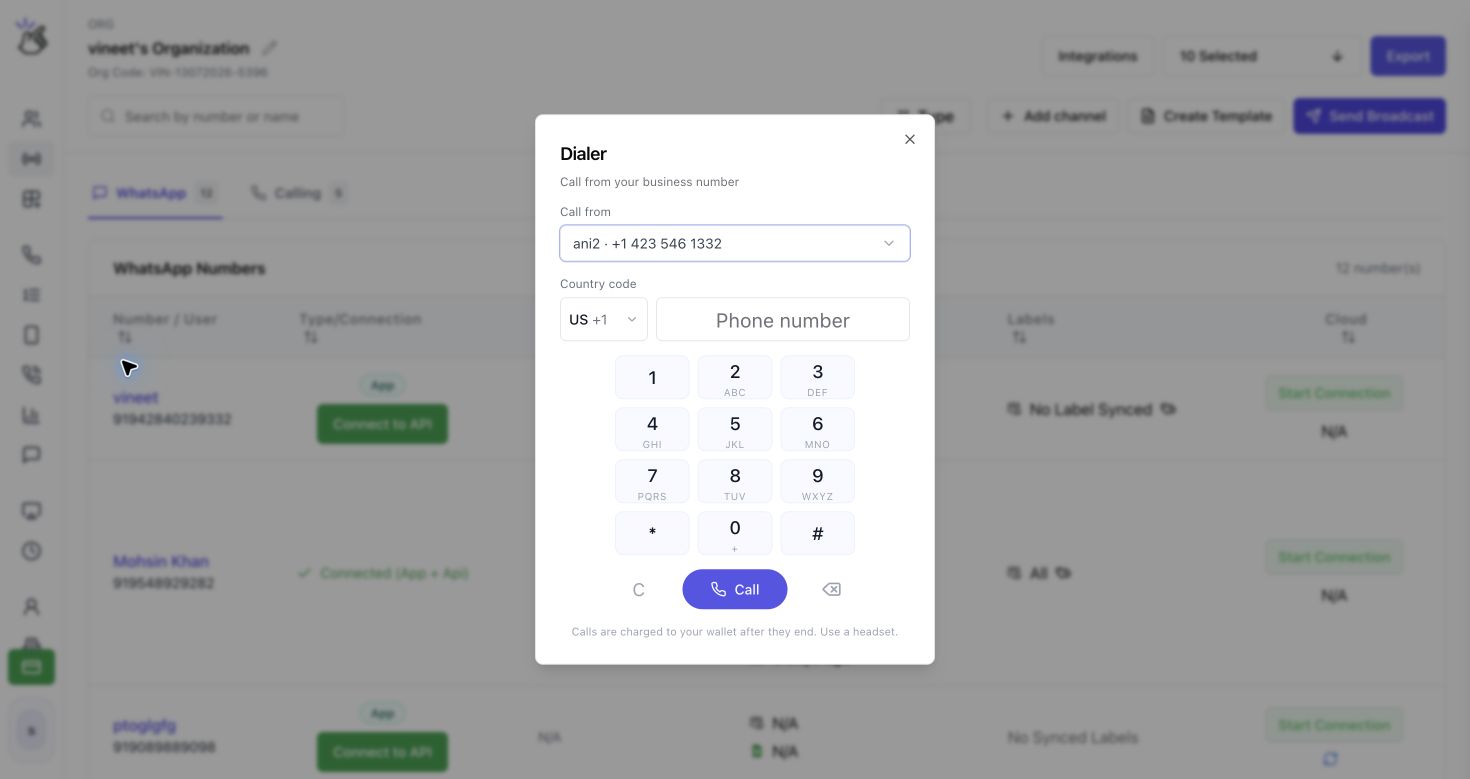
If you see Browser phone is offline, connect your browser phone before continuing. See the troubleshooting section below.
2
Choose Your Voice Number
Open Call from and select the voice number you want to use for the outgoing call. If a number has a name, the list shows its name beside the number. Check the selection before every call, especially if you have several numbers.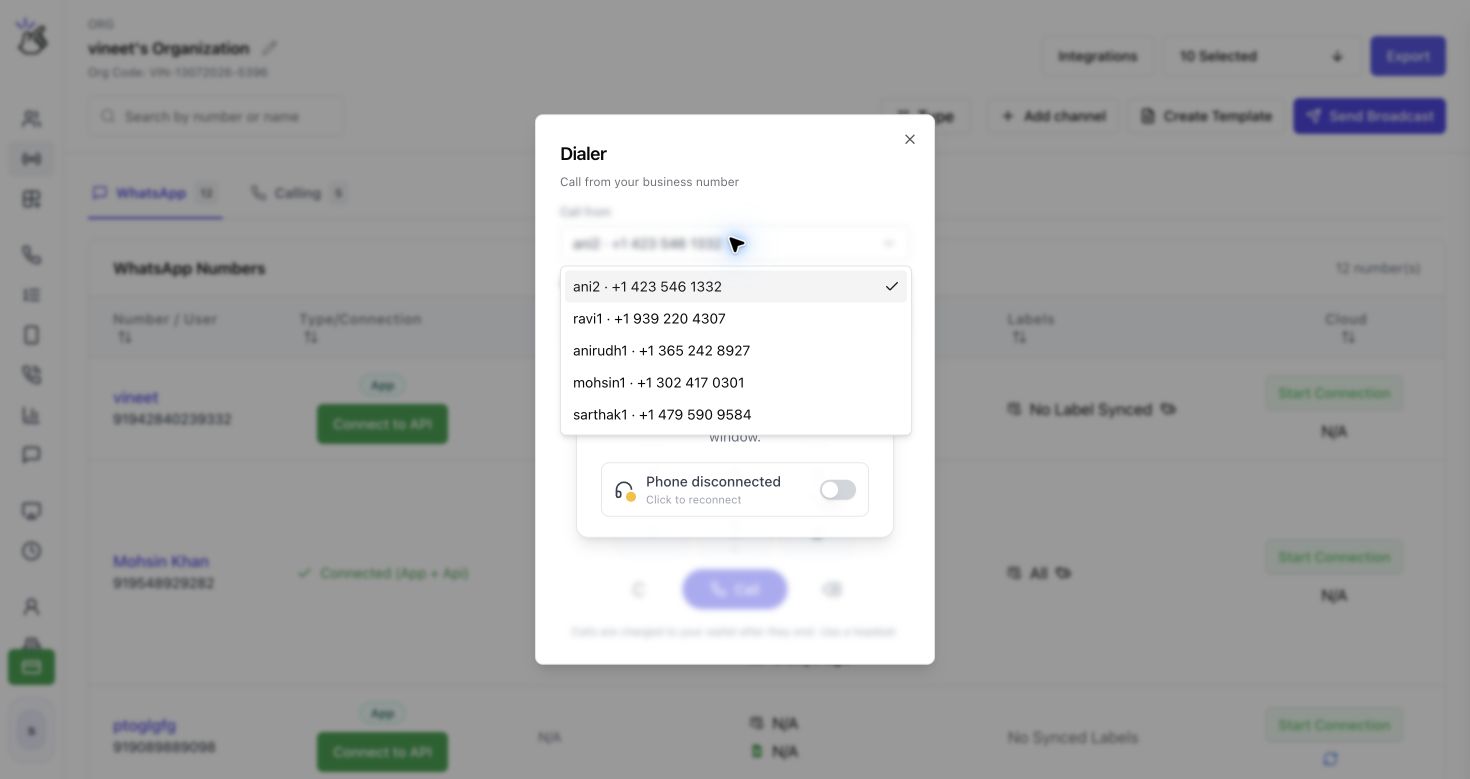
Call from is your business number. Phone number is the person you want to call. Your list may differ from the example because it depends on your organization’s numbers and your access.
3
Enter the Customer's Number
Choose the recipient’s Country code, then enter the remaining digits in Phone number. You can type the number or use the on-screen keypad.For example, for the illustrative number +1 202 555 0123, choose US +1 and enter 2025550123. Do not enter the country code a second time.
- Use C to clear the number.
- Use the delete icon to remove the last digit.
- Confirm both the country code and the recipient’s number before continuing.
4
Start the Call
Click Call. Eazybe first connects your browser phone, then rings the recipient. When the recipient answers, the Dialer shows Connected and the elapsed call time.
You can have one call at a time. End your current call before starting another. The Dialer stays open during a call so you can reach End call.
During the Call
Before a call, the keypad enters the recipient’s number. During a call, it sends tones to the connected phone system.
After the Call
The Dialer returns to the number-entry view when the call ends. If the call was not answered or could not connect, a short outcome message may appear. Open Call History under CALLS to review your calls.Troubleshooting
The Browser Phone Is Offline
If Browser phone is offline appears, use the connection control in the message to connect your browser phone in this window. Wait for the connection to finish before calling.