

What the Rating Means
- Meta’s phone-number quality rating reflects recent customer feedback, including blocks and reports, over the past seven days.
- High (green): Maintain your current focus on relevant messages.
- Medium (yellow): Review your audience, message content, and frequency.
- Low (red): Investigate negative feedback promptly and review Meta’s alerts.
How to Check Your Rating
- Open Meta Business Suite and select your business portfolio.
- Go to Settings > Accounts > WhatsApp accounts and select your account.
- Click WhatsApp Manager. If you cannot access the account, ask your business administrator to review your permissions.
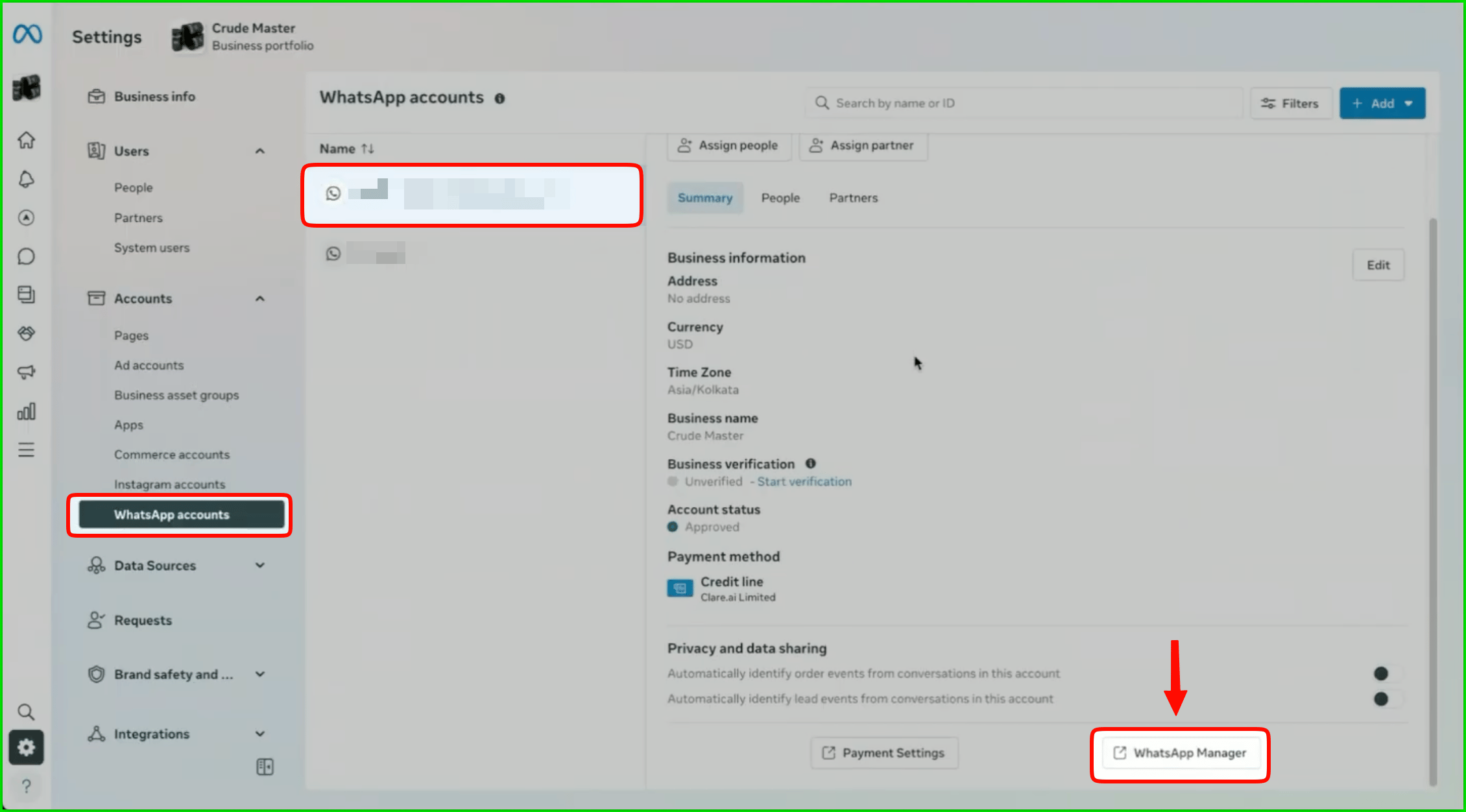
- Open Phone numbers and locate the number you use for Eazybe broadcasts.
- Read its Quality rating alongside Status.

These screenshots show Meta’s interface. Account names and menu layouts may differ from yours.
What to Do If Quality Drops
- Review recent campaigns: In Eazybe, inspect broadcast analytics for failures and opt-outs. Note which audience and template were used before the drop; this helps investigation but does not prove a cause.
- Recheck audience permission: Remove opted-out customers and avoid messaging people who do not expect your updates.
- Improve relevance: Narrow your audience and tailor the message to their interests.
- Reduce excessive frequency: Coordinate campaigns and give unengaged customers a break.
- Review Meta’s alerts: Address any account or template issues and monitor the rating after changing your approach.
Keep These Checks Separate
- Phone-number quality: Feedback associated with your sending number.
- Template status: Whether the individual template is approved and available to use. Check Template Guidelines.
- Connection status: A connected number can still have delivery problems. Review errors separately.
- Messaging limits: Check the current allowance in WhatsApp Manager. Messaging limits apply at the business portfolio level.
Also Check Your Template’s Quality
- Template quality is separate from phone-number quality. Meta assesses each template using usage, customer feedback, and engagement, including read rates.
- In WhatsApp Manager, open Manage templates to check the template you plan to send.
- Approved templates can show Quality pending, High quality, Medium quality, or Low quality. New templates start with a pending rating, which updates as Meta gathers data.
- Medium or Low quality can put a template at risk of being paused or disabled. Review feedback and improve the message before expanding its use.
- Quality can affect template pacing and pausing. If a template loses its Approved status, it cannot be sent until that status is restored.