Before You Start
- Connect your HubSpot account to Eazybe and sign in to Eazybe.
- Make sure an active Eazybe voice number is available to you, your plan includes calling, and your wallet has enough balance.
- Use a headset and allow microphone access when your browser asks.
To use the Call with Eazybe button in the HubSpot contact list, keep the Eazybe extension open in the same Chrome profile as HubSpot.
These screenshots use an example account. Some show Eazybe (dev) as the calling provider; choose the Eazybe provider set up for your account. Your contact names and available voice numbers will differ.
Call From a Contact Record
1
Open the Contact and Click Call
Open a contact in HubSpot. Under the contact’s name, click Call (the phone icon). Its tooltip says Make a phone call.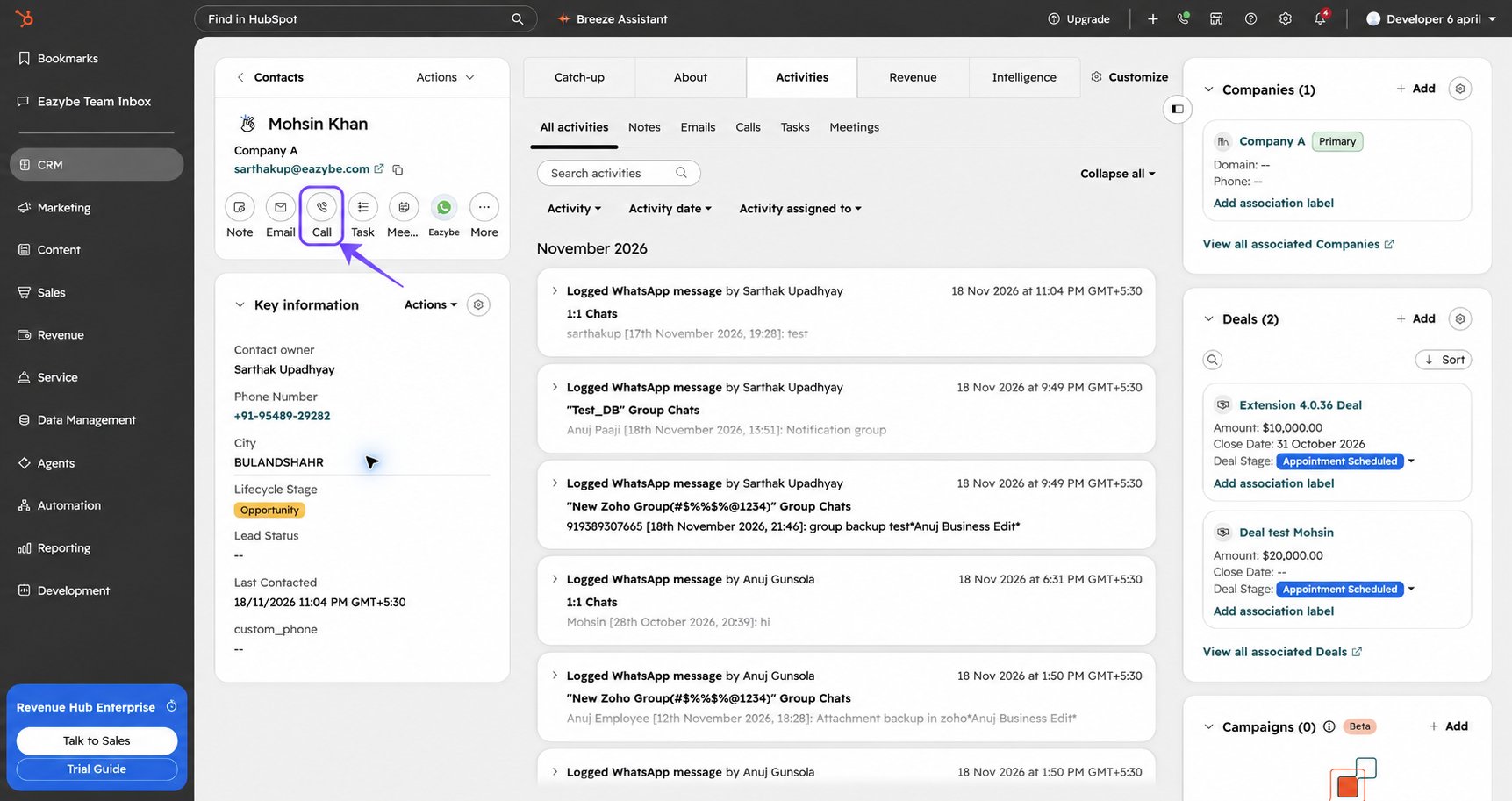
2
Select the Contact's Phone Number
Click Call followed by the number you want to use. The Eazybe dialer opens, or HubSpot asks you to choose a calling provider.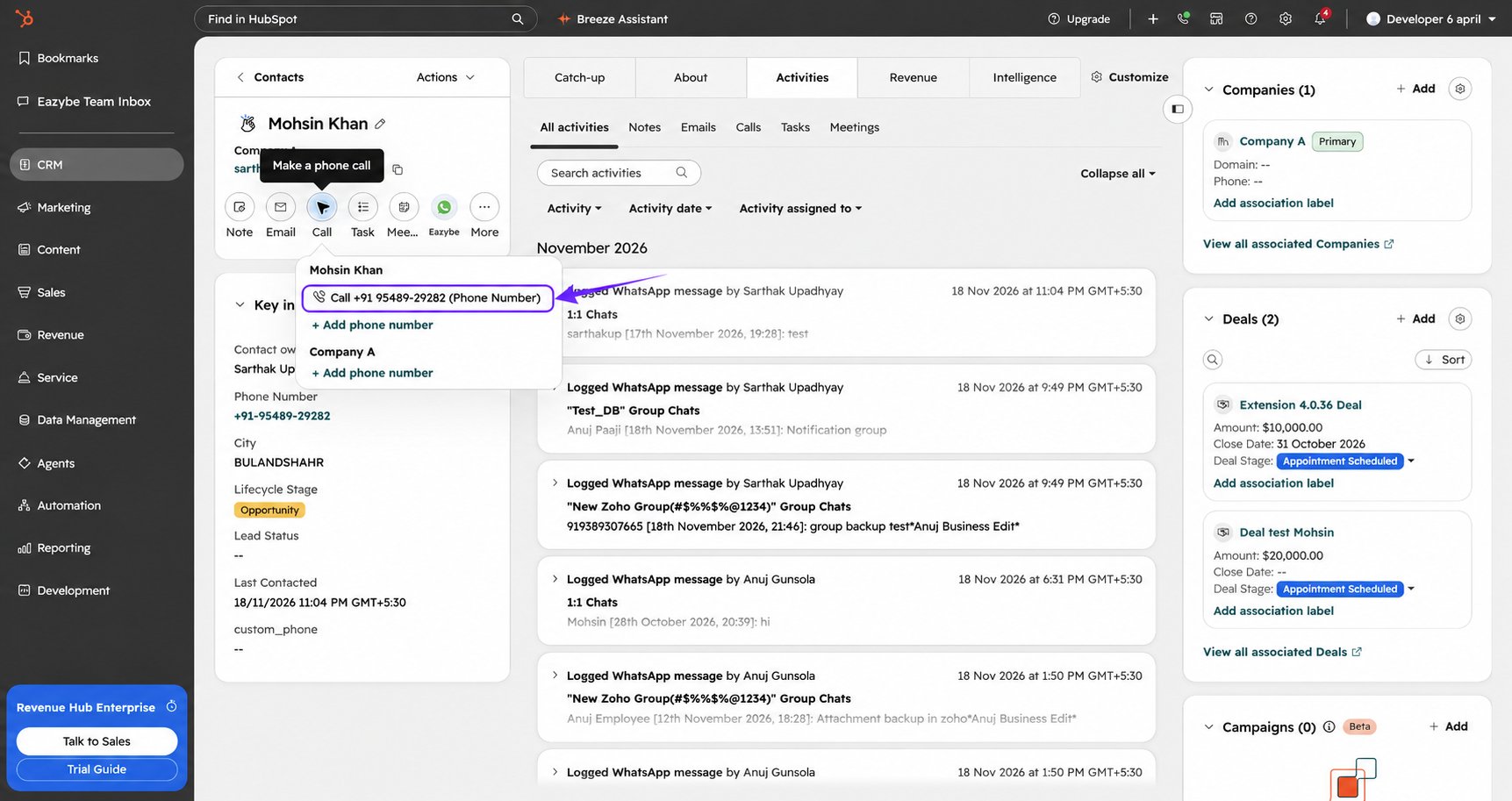
If no number is saved, use + Add phone number under the contact’s name before continuing.
3
Choose Eazybe as Your Calling Provider
If you see Choose a calling provider, select your Eazybe provider. You can skip this step when the Eazybe dialer opens directly.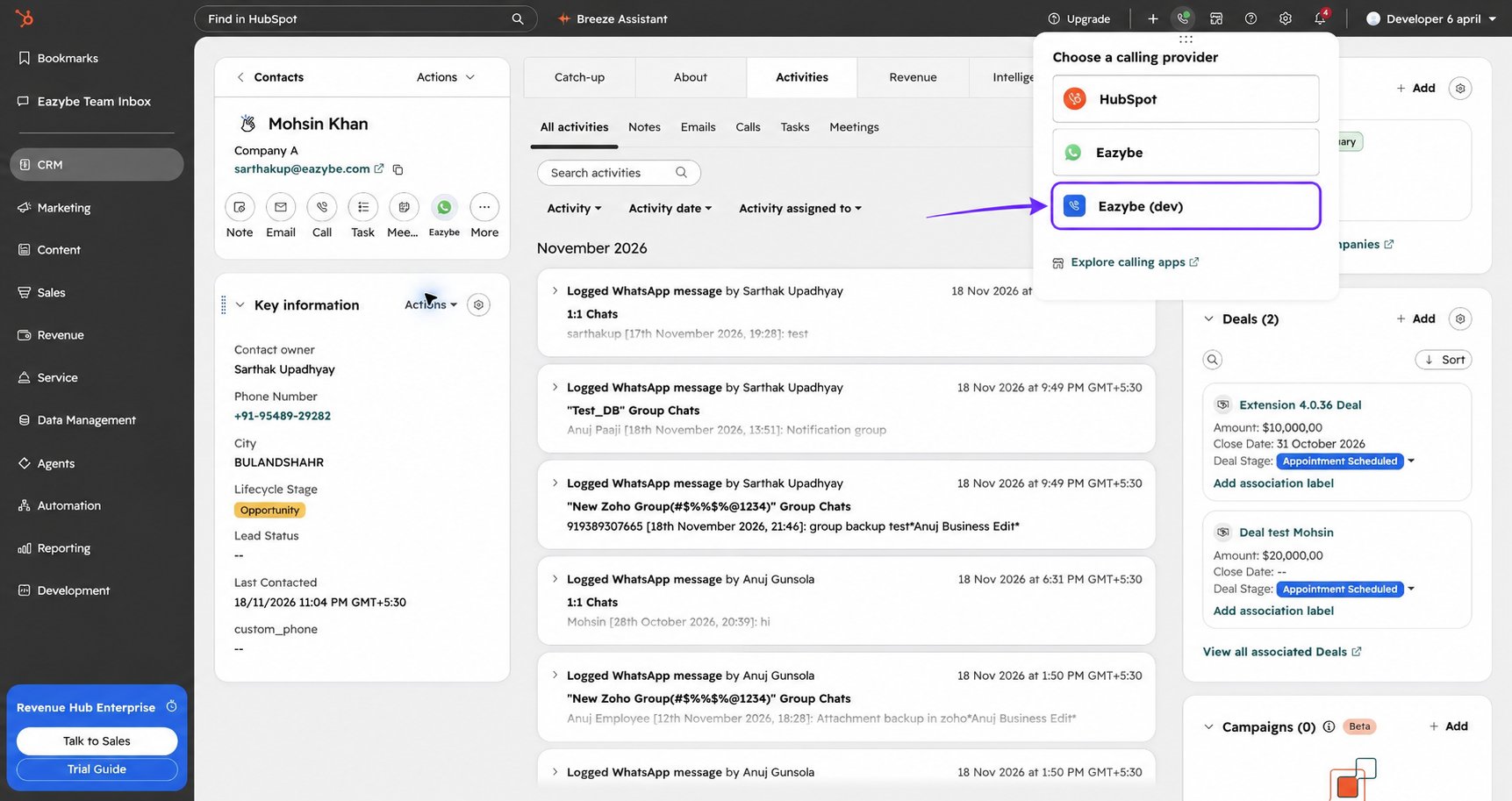
4
Choose Your Outgoing Voice Number
Open the number dropdown at the top of the dialer and choose the Eazybe voice number you want to call from. Wait until the status shows Ready.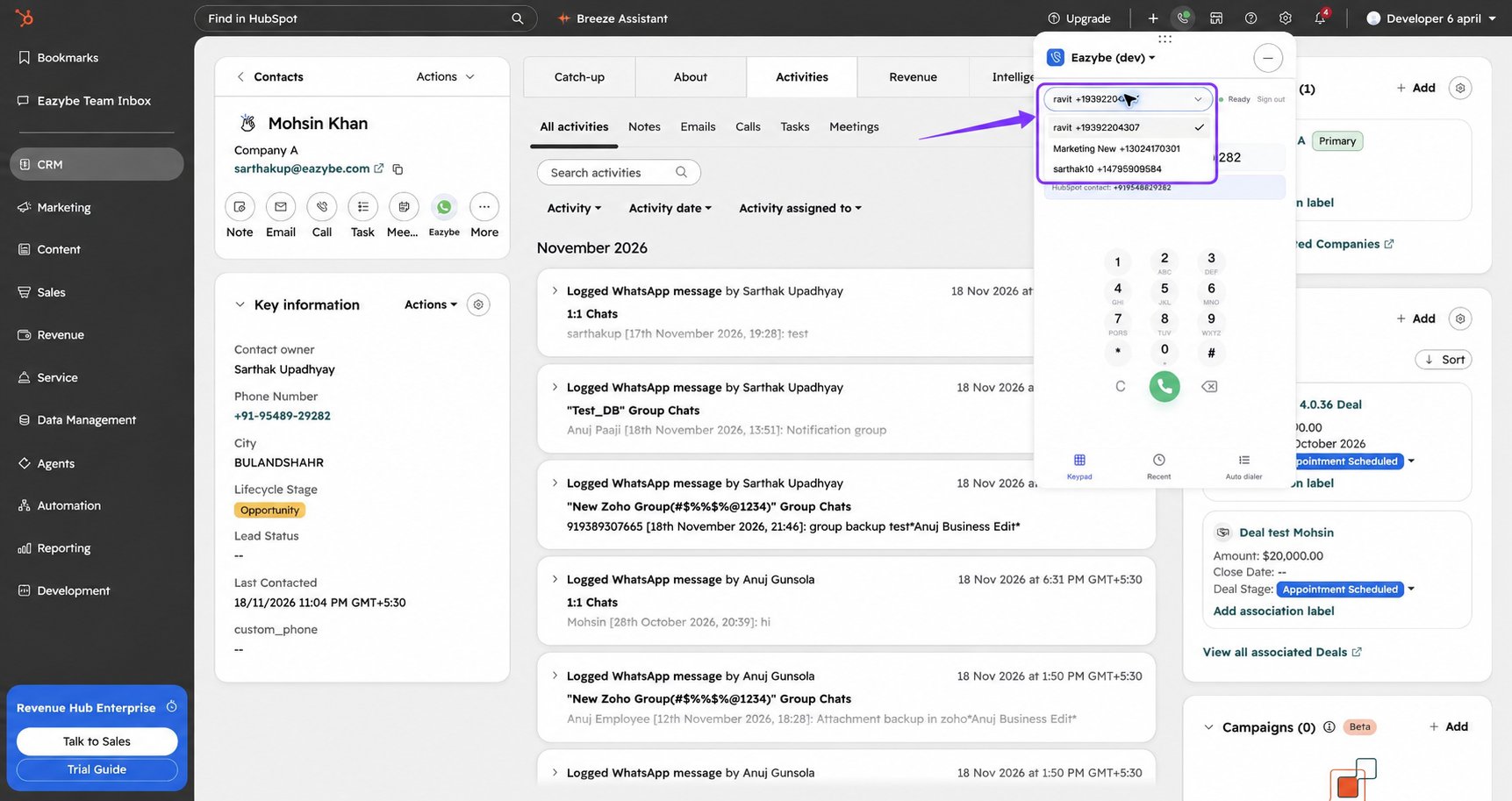
The number at the top is your outgoing business number. The number below Country code is the person you will call.
5
Check the Recipient's Number
Check Country code and the phone number beside it. If the phone field is empty and Use phone number appears, click it to fill the number shown beside HubSpot contact.You can also type a different number. Select its country code and enter the remaining digits without repeating the country code.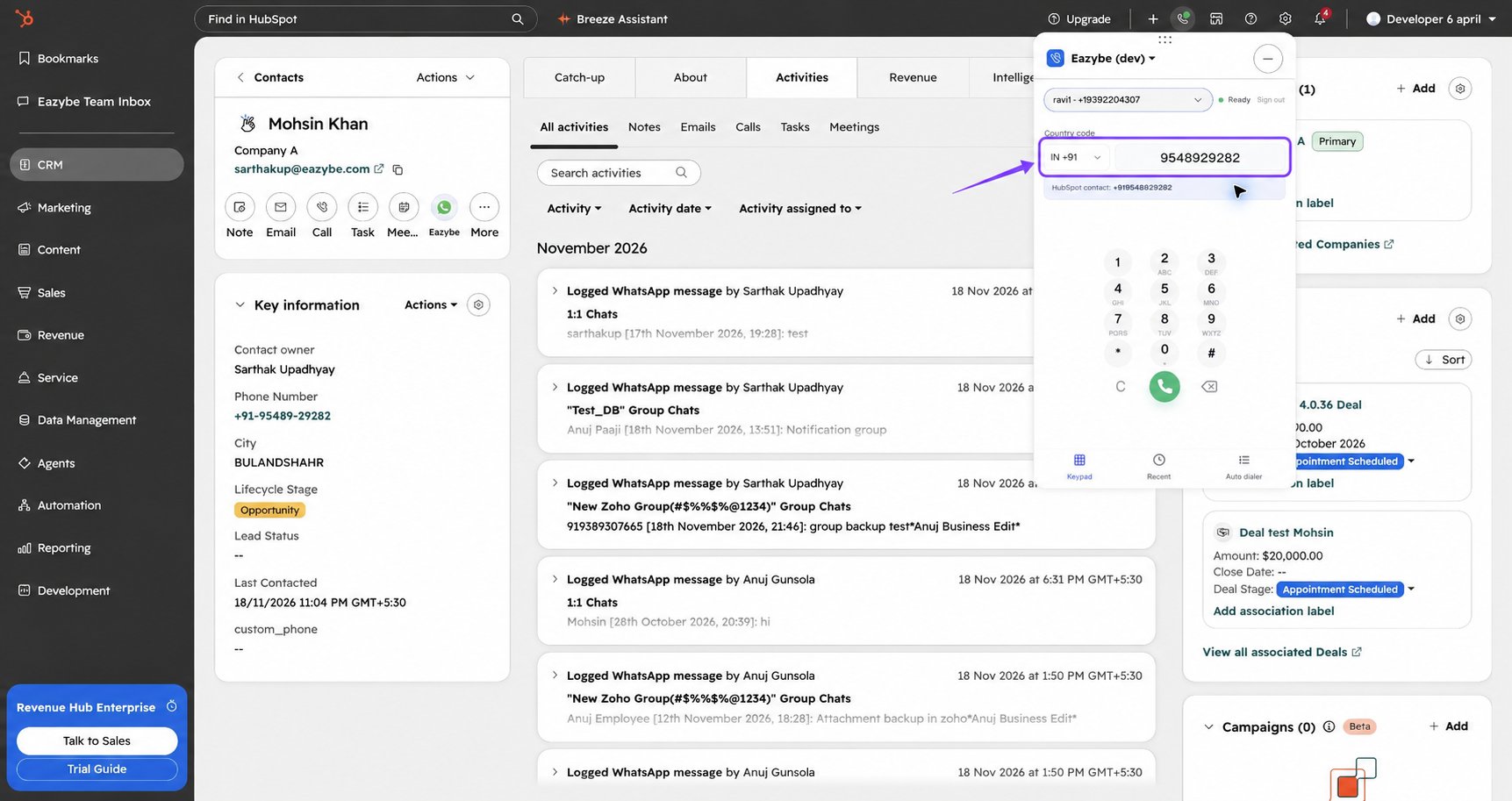
6
Start the Call
Click the green phone button. The dialer shows the number being called and Calling… while the call starts. When the person answers, it shows Connected and the call timer.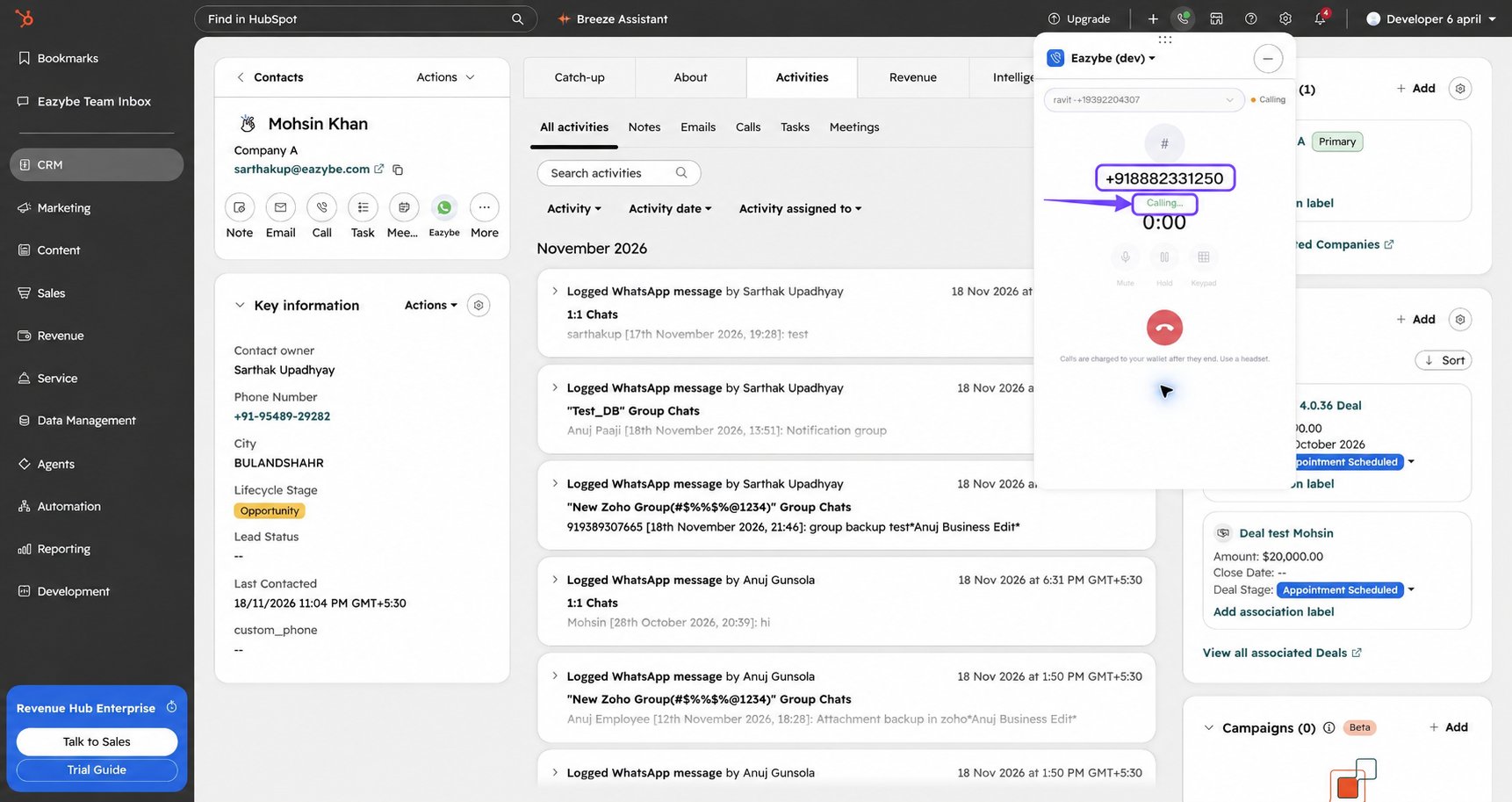
Call From the Contact List
Keep the Eazybe extension open while you use this shortcut.1
Find the Contact's Call Button
Open CRM → Contacts. In the contact’s row, find the blue phone icon beside their phone number. This button is labelled Call with Eazybe.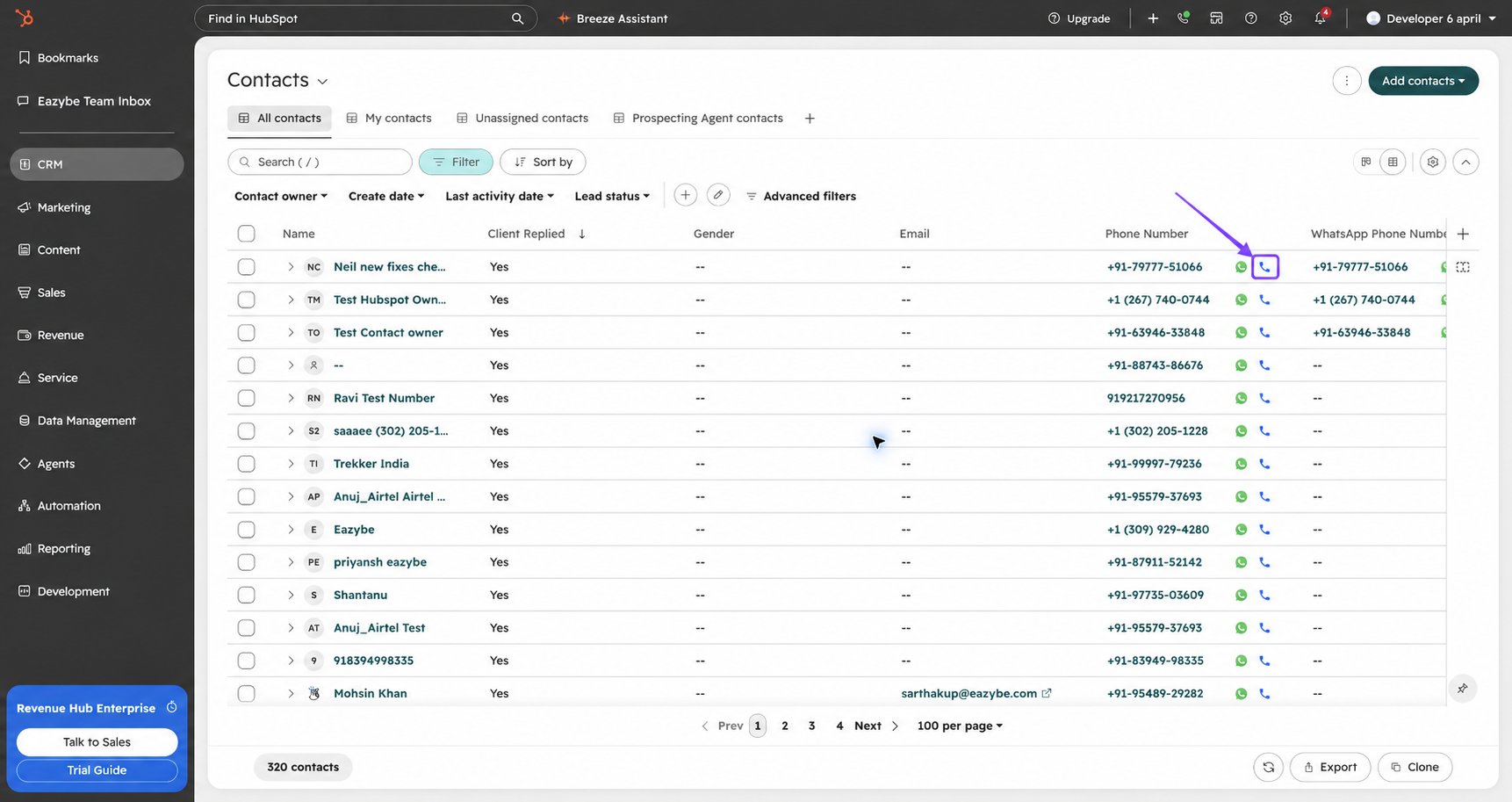
2
Open the Dialer and Check the Number
Click Call with Eazybe. In the dialer, check your outgoing voice number, the recipient’s country code, and their phone number. Then click the green phone button to start the call.
If the list’s Call button is missing or does not respond, check that the Eazybe extension is open in this Chrome profile. You can also open the contact record and use Call there.
During a Call
Once the call connects, use the controls in the dialer: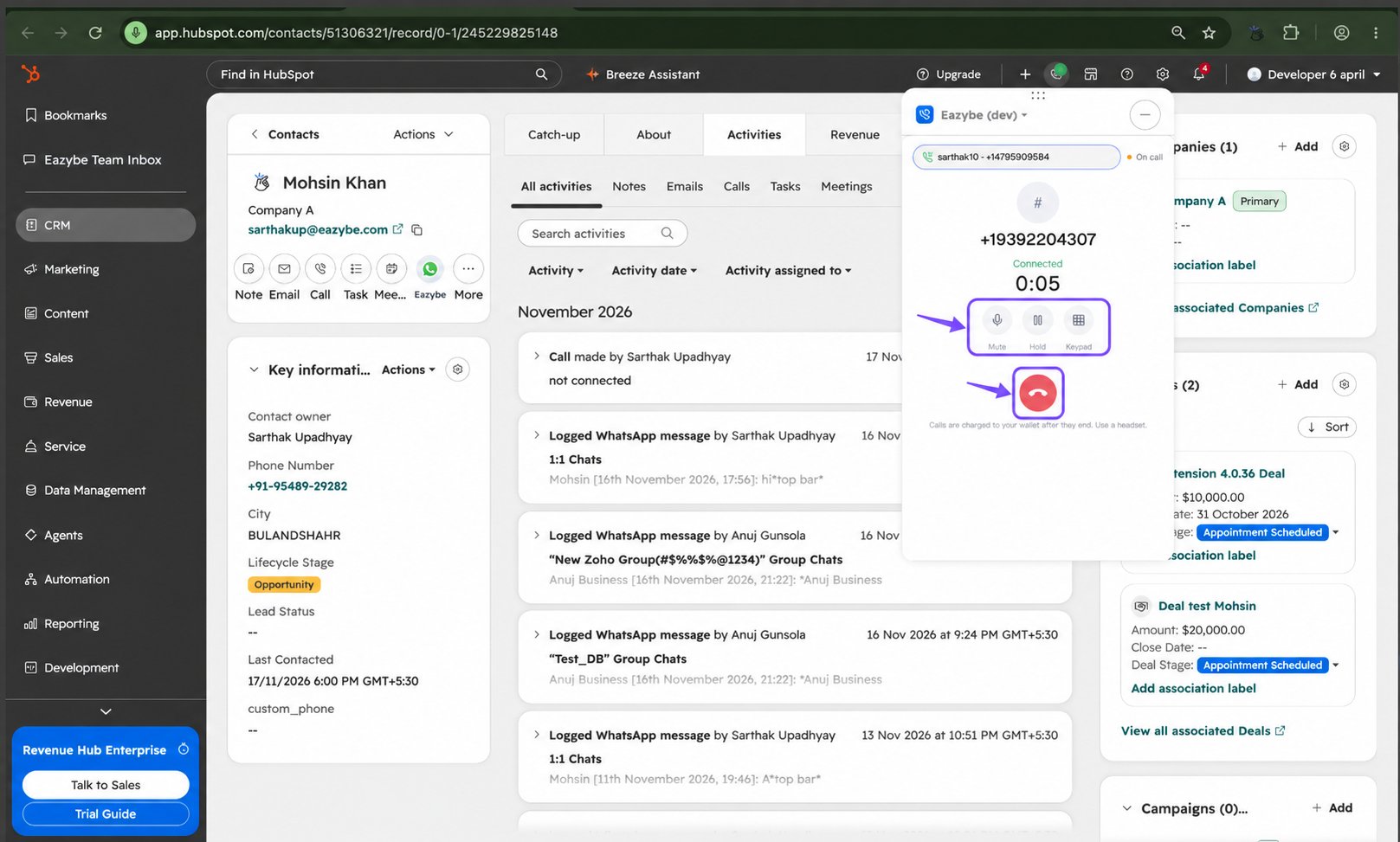
Answer an Incoming Call
When an incoming call appears, the dialer shows Incoming call… and the caller’s number. Click the green phone button to answer or the red phone button to decline.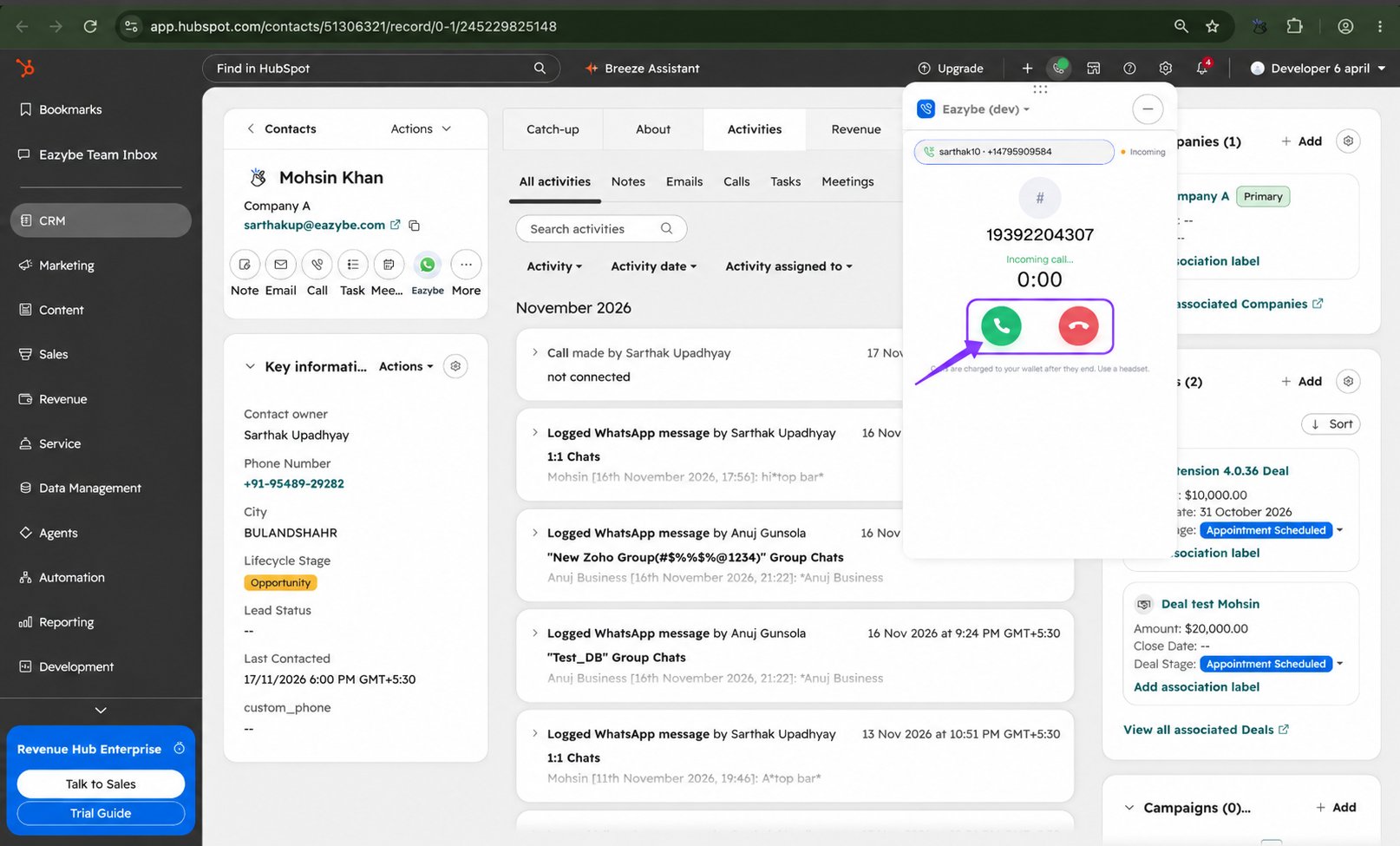
Finish the Call
1
Add an Outcome and Notes
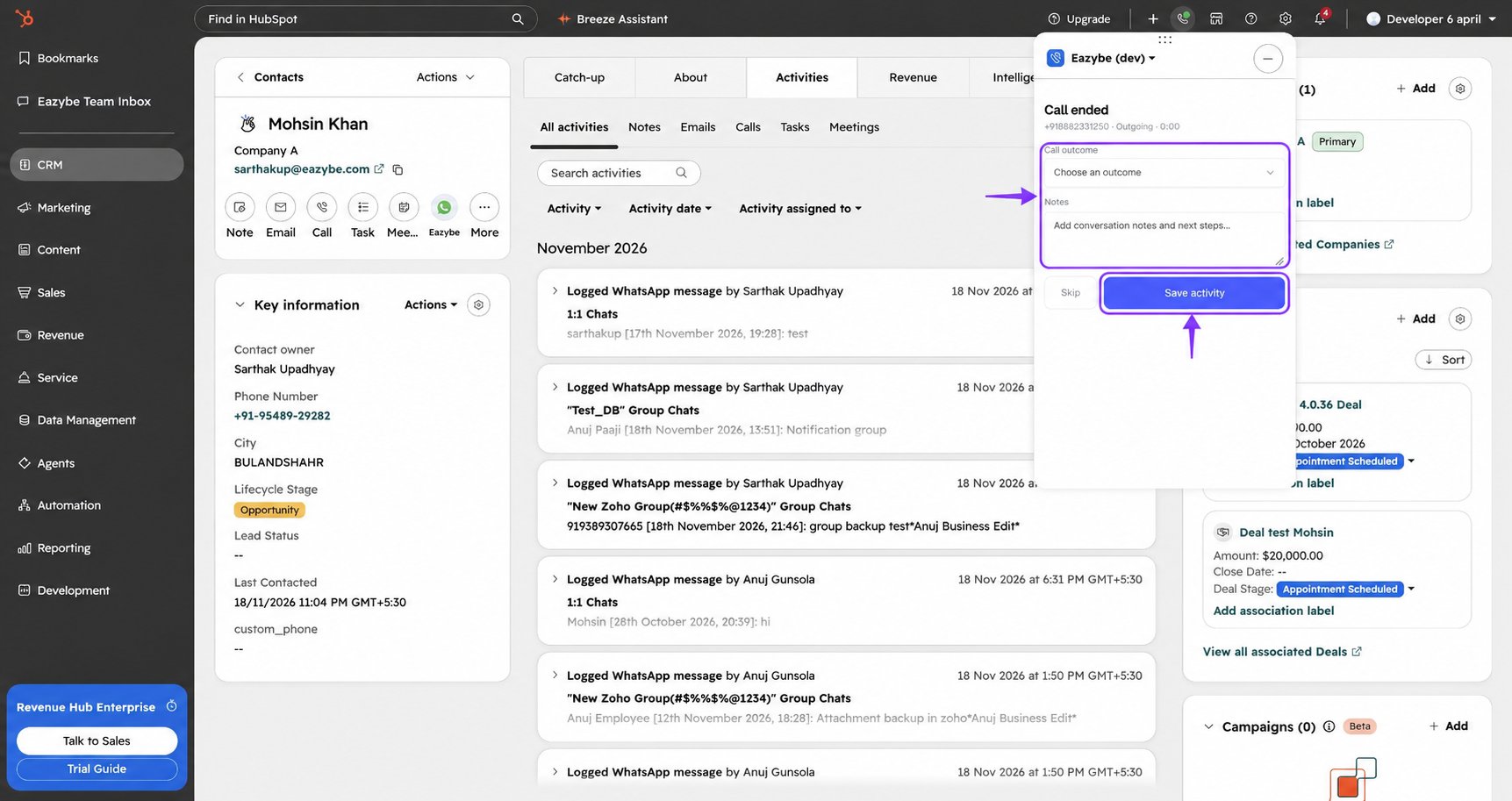
After the call ends, the Call ended screen shows the number, direction, and duration. Choose a Call outcome, add any Notes, and click Save activity. Use Skip if you do not want to add these details.