

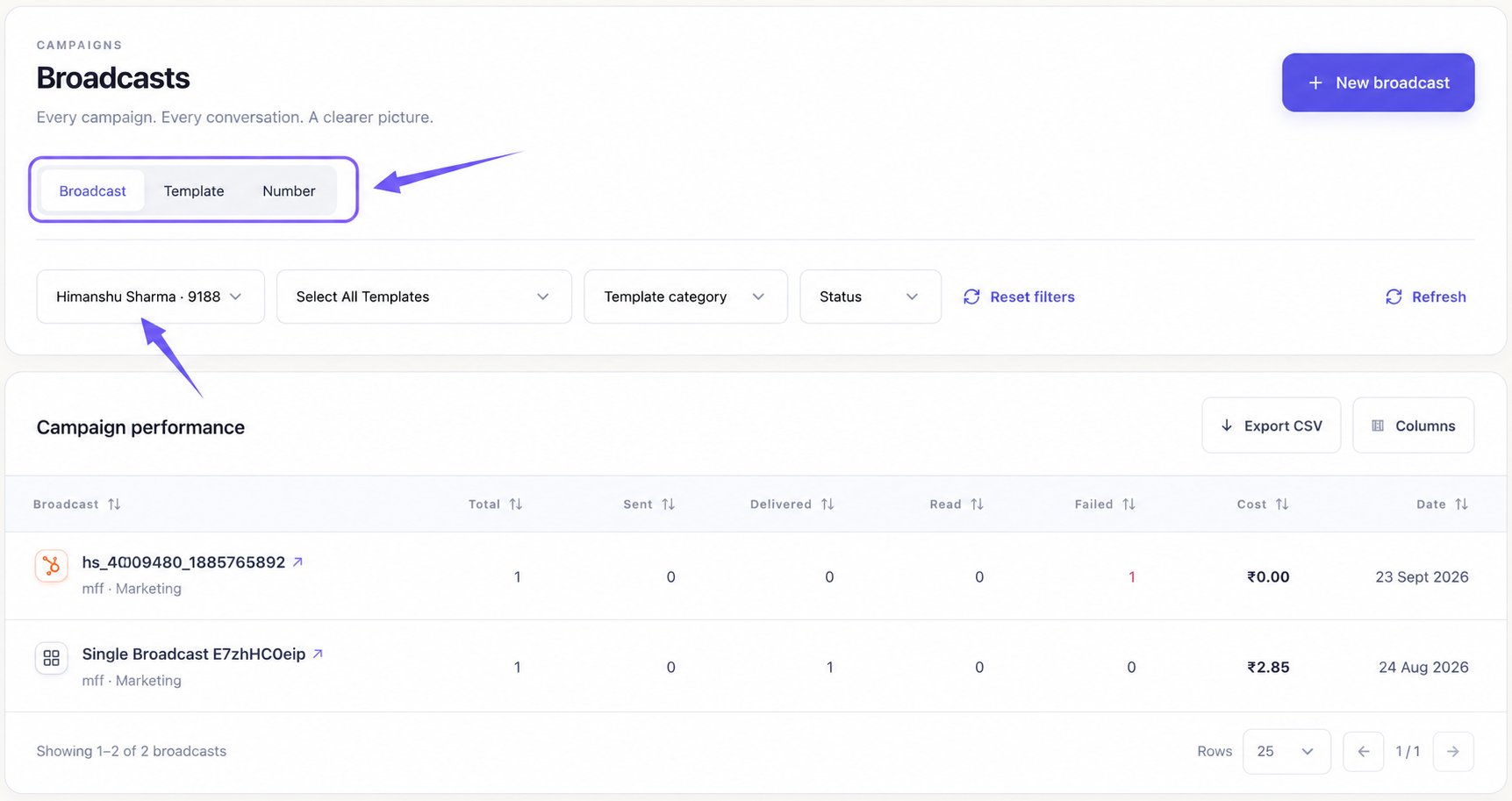
Before You Start
Open Broadcasts in your workspace. You need a WhatsApp Business number available in the workspace to review its campaigns. If you see Connect to WABA, connect a WhatsApp Business number first. Filters, grouping, sorting, and exports help you review existing activity. They do not send a new message or change a contact’s preferences. To start a campaign, select New broadcast and follow Create a Broadcast.Choose Your View
Understand the Columns
Date and Status are available in Broadcast view. Broadcasts is available in Template and Number views. Use Columns to show a field that is hidden.
A campaign’s status and its recipients’ delivery statuses answer different questions. For example, a Completed campaign can still have failed recipients. Use Failed inside that campaign for the reasons. Summary totals can include the same contact across different campaigns; they are not a count of unique people across your workspace.
Date-range controls appear only in Number view. Although Status also remains visible in Template view, use Broadcast view to filter individual campaigns by status.
Build Your Report
- Filter Broadcasts and Templates: choose a sender, select templates or a category, and narrow campaigns by status.
- Compare Numbers by Date: choose sender numbers and use a preset or custom date range.
- Customize and Export Reports: choose columns, sort rows, and download a CSV.
Refresh or Start Over
Column choices stay as you set them when you reset filters. Switching between Broadcast, Template, and Number clears the selected sort order. Your number/date choices and sender/template choices are separate; a number date range does not filter the campaign or template view.