

You need a Teams Plan subscription to access Cloud features.
Method 1: Connect through EazyBe Workspace
1
Log into EazyBe Workspace
Go to the EazyBe Workspace and log in to your account.
2
Navigate to your Organization
Go to your organization’s page and select the account you want to connect.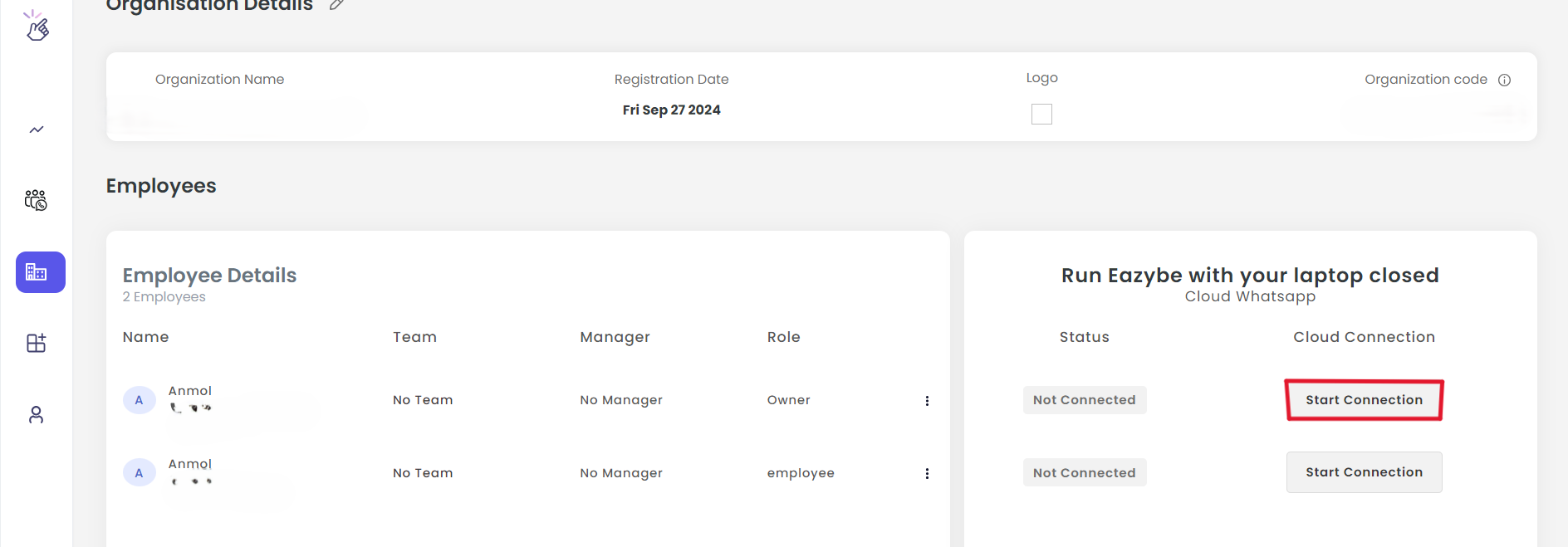
3
Start the Connection
Click the Start Connection button. The status will change to “Preparing”.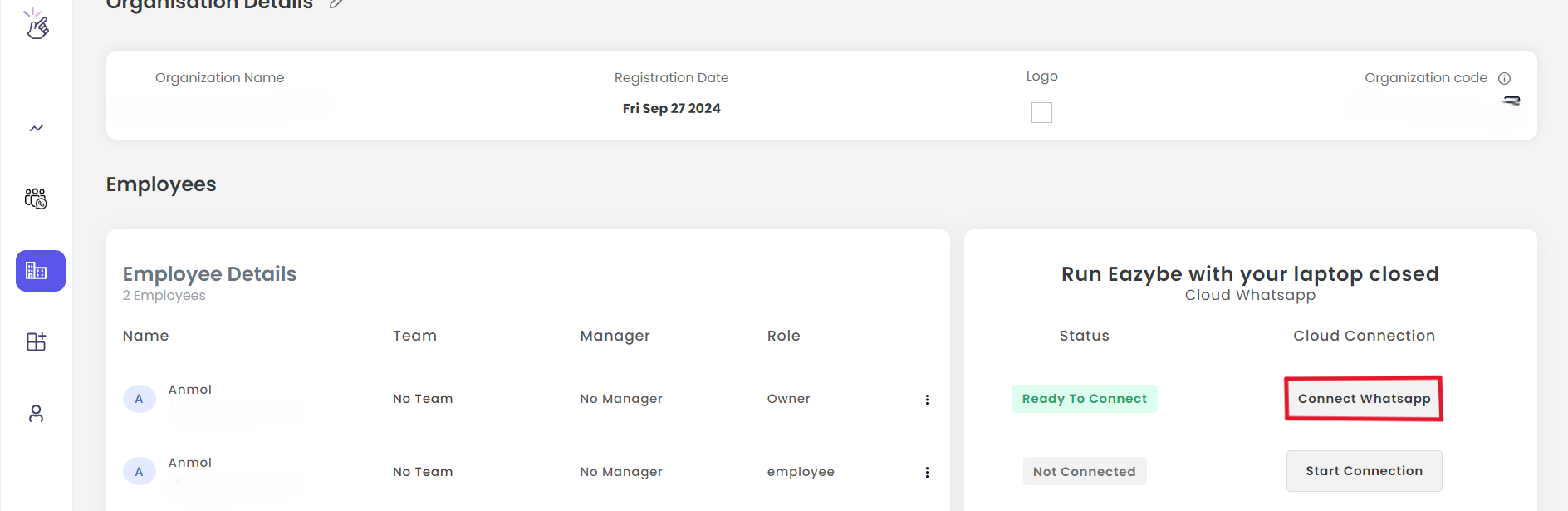
4
Wait for Ready Status
Wait for the status to update to Ready To Connect. The button will now display “Connect WhatsApp”.
5
Scan QR Code
Click the button to open the QR code window. Scan the QR code using your WhatsApp mobile app.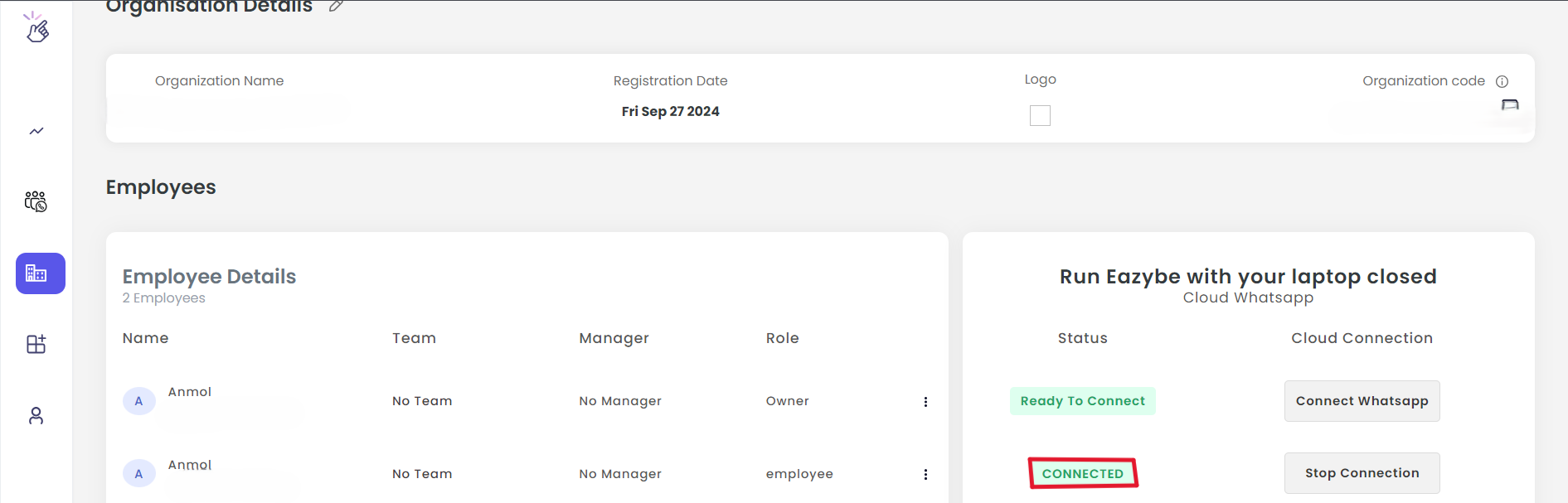
6
Confirm Connection
Once connected, the status will change to Connected.
Once connected, the cloud icon in the extension will turn green.
Method 2: Connect through EazyBe Extension
1
Open WhatsApp Web
Log into WhatsApp Web with the EazyBe extension active.
2
Locate Cloud Scanner Icon
Find the cloud scanner icon on the left side of the screen.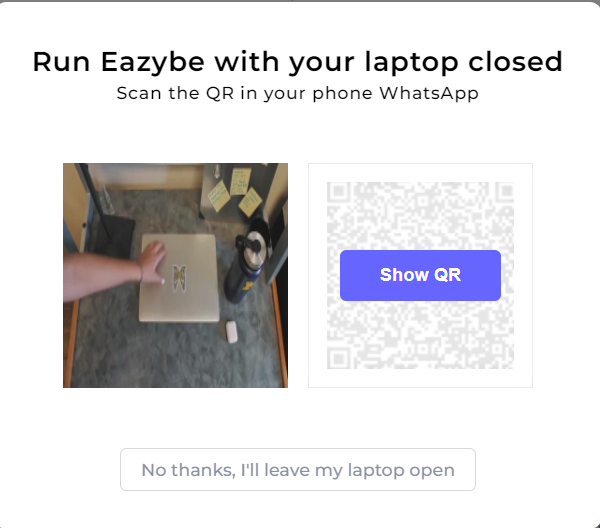
3
Open Cloud Popup
Click the cloud icon to open the popup window.
4
Generate QR Code
Click the Show QR button to generate a QR code.
5
Scan with WhatsApp
Scan the QR code using your WhatsApp mobile application.
6
Verify Connection
The cloud icon will turn green when successfully connected.
If you have any questions or need further assistance, feel free to reach out to us at hey@eazybe.com. We’re happy to help!