

Method 1: Disconnect through EazyBe Workspace
1
Locate the Stop Connection Button
In your EazyBe Workspace, find the account you want to disconnect and click the Stop Connection button.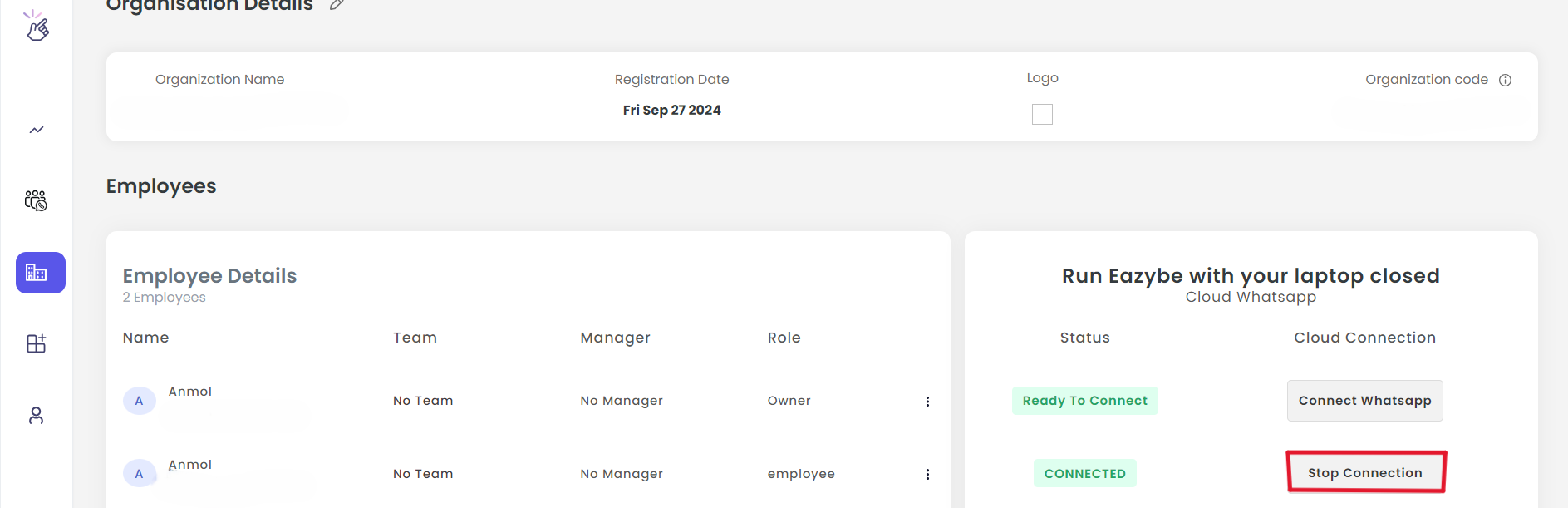
2
Confirm Disconnection
The status will change to Stopped and the button will convert to “Restart WhatsApp”.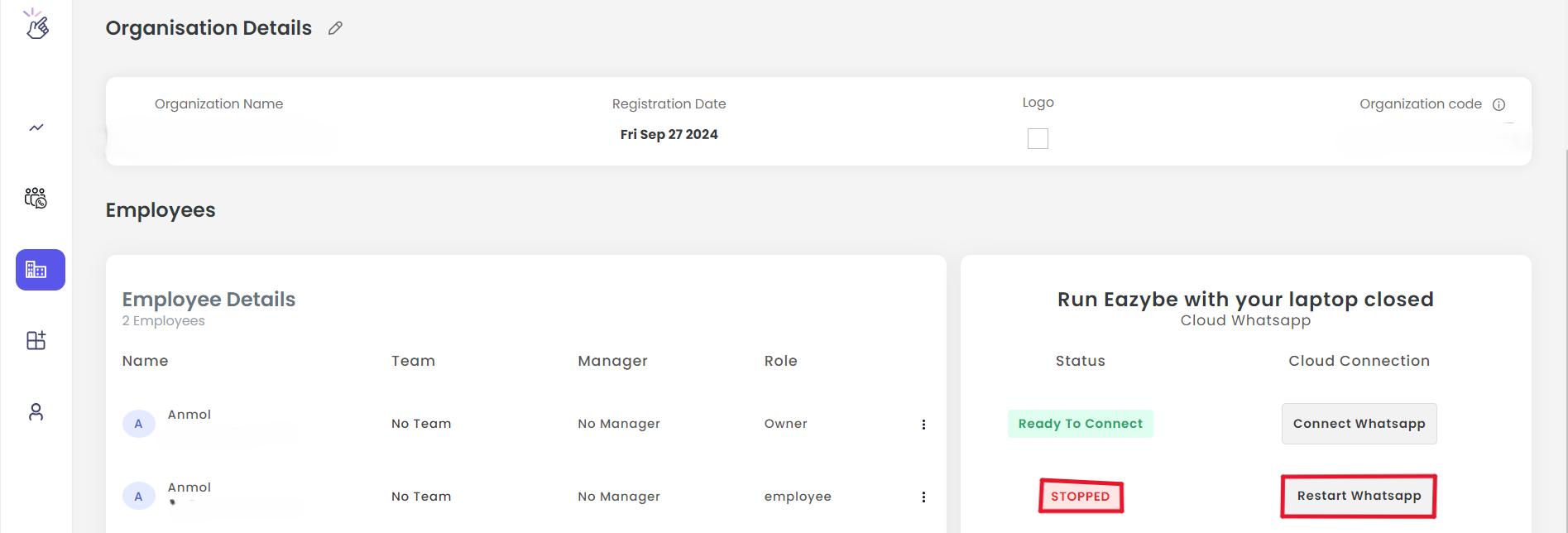
3
Verify in Extension
The cloud icon in the extension will turn red, confirming the disconnection.
Method 2: Disconnect through EazyBe Extension
1
Open Cloud Menu
Click the cloud icon in the EazyBe WhatsApp extension.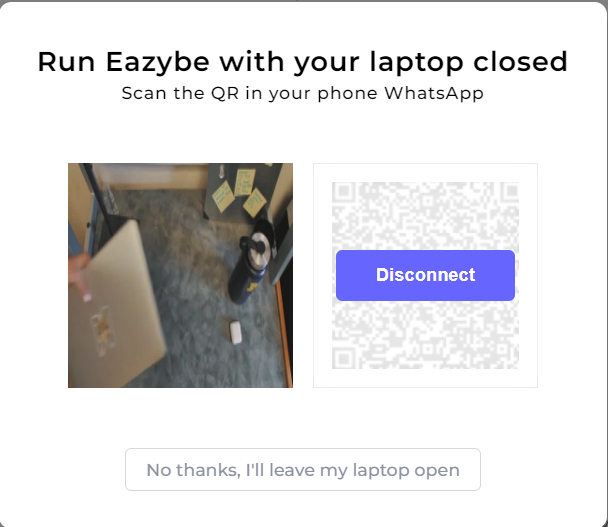
2
Select Disconnect
In the popup menu, click the Disconnect option.
3
Verify Disconnection
The cloud icon color will change, and the workspace status will update to Stopped with the button showing “Restart WhatsApp”.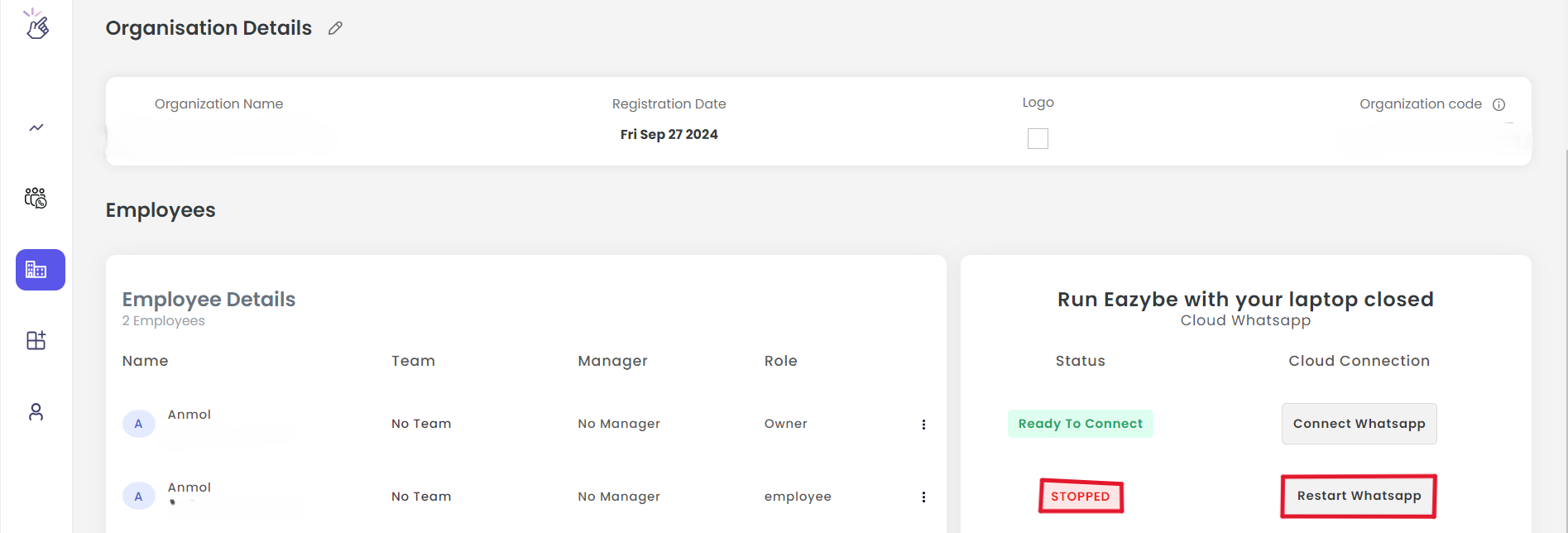
If you have any questions or need further assistance, feel free to reach out to us at hey@eazybe.com. We’re happy to help!